

'%3e%3cpath%20d='M8%200C12.4183%200%2016%203.58172%2016%208C16%2012.4183%2012.4183%2016%208%2016C3.58172%2016%200%2012.4183%200%208C0%203.58172%203.58172%200%208%200ZM11.6162%204.38379C11.2257%203.99337%2010.5927%203.99338%2010.2021%204.38379L8%206.58594L5.79785%204.38379C5.40732%203.99334%204.77429%203.99329%204.38379%204.38379C3.99331%204.77429%203.99335%205.40733%204.38379%205.79785L6.58594%208L4.38379%2010.2021C3.99348%2010.5927%203.99341%2011.2257%204.38379%2011.6162C4.77426%2012.0066%205.40734%2012.0065%205.79785%2011.6162L8%209.41406L10.2021%2011.6162C10.5927%2012.0066%2011.2257%2012.0067%2011.6162%2011.6162C12.0067%2011.2257%2012.0066%2010.5927%2011.6162%2010.2021L9.41406%208L11.6162%205.79785C12.0066%205.40735%2012.0066%204.77429%2011.6162%204.38379Z'%20fill='%23080E17'%20fill-opacity='0.46'/%3e%3c/g%3e%3cdefs%3e%3cclipPath%20id='clip0_3761_713'%3e%3crect%20width='16'%20height='16'%20fill='white'/%3e%3c/clipPath%3e%3c/defs%3e%3c/svg%3e)




'%3e%3cpath%20fill-rule='evenodd'%20clip-rule='evenodd'%20d='M21.4999%2010.9993C21.4999%205.20009%2016.7986%200.498901%2010.9993%200.498901C5.19994%200.498901%200.498657%205.20009%200.498657%2010.9993C0.498657%2016.2404%204.33858%2020.5844%209.35855%2021.3722V14.0346H6.69238V10.9993H9.35855V8.68594C9.35855%206.05427%2010.9262%204.60062%2013.3248%204.60062C14.4736%204.60062%2015.6753%204.80571%2015.6753%204.80571V7.38979H14.3512C13.0468%207.38979%2012.64%208.19921%2012.64%209.0296V10.9993H15.5523L15.0867%2014.0346H12.64V21.3722C17.66%2020.5844%2021.4999%2016.2404%2021.4999%2010.9993Z'%20fill='%231568EA'/%3e%3c/g%3e%3c/svg%3e)


'%3e%3cpath%20d='M2.42045%2022.1876H6.31818V12.7217L0.75%208.54553V20.5171C0.75%2021.4414%201.49892%2022.1876%202.42045%2022.1876Z'%20fill='%234285F4'/%3e%3cpath%20d='M19.682%2022.1876H23.5797C24.5041%2022.1876%2025.2502%2021.4387%2025.2502%2020.5171V8.54553L19.682%2012.7217'%20fill='%2334A853'/%3e%3cpath%20d='M19.682%205.48293V12.7216L25.2502%208.54543V6.31816C25.2502%204.25236%2022.8921%203.07469%2021.2411%204.31361'%20fill='%23FBBC04'/%3e%3cpath%20d='M6.31824%2012.7217V5.48303L13.0001%2010.4944L19.6819%205.48303V12.7217L13.0001%2017.733'%20fill='%23EA4335'/%3e%3cpath%20d='M0.75%206.31816V8.54543L6.31818%2012.7216V5.48293L4.75909%204.31361C3.10534%203.07469%200.75%204.25236%200.75%206.31816Z'%20fill='%23C5221F'/%3e%3c/g%3e%3cdefs%3e%3cclipPath%20id='clip0_2954_7305'%3e%3crect%20width='24.5'%20height='18.375'%20fill='white'%20transform='translate(0.75%203.8125)'/%3e%3c/clipPath%3e%3c/defs%3e%3c/svg%3e)


If Excel keeps rewriting what you type, turning "teh" into "the" or replacing "café" with "cafe", you can stop it in a few clicks. Here is how to disable autocorrect in WPS Spreadsheet and Microsoft Excel, or turn it off for specific words only.
How to Disable Autocorrect in Excel (WPS Office & Microsoft Excel)
How to Disable Autocorrect in WPS Spreadsheet
WPS Spreadsheet manages AutoCorrect from the global settings, and one checkbox turns off all text replacement:
Open the Options dialog. Click the Menu button (the WPS logo) and select Options.
Go to Proofing. In the left panel, choose Proofing (or Spell Check in some versions).
Open AutoCorrect Options. Click the AutoCorrect Options... button to open the AutoCorrect dialog.
Turn off replacement. Clear the Replace text as you type checkbox, then click OK in both dialogs.
The dialog below shows the option that controls instant text replacement:
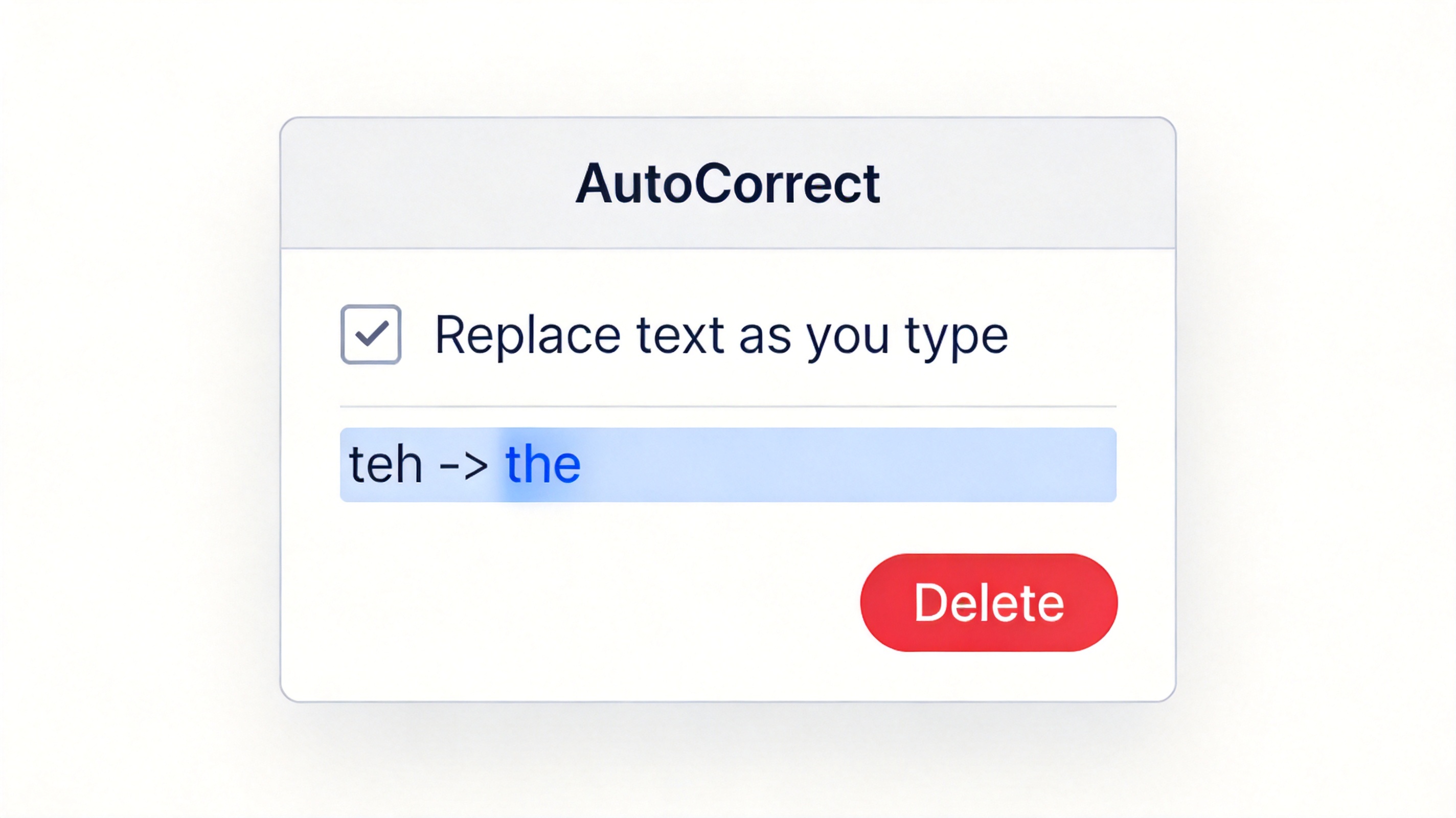
WPS Spreadsheet AutoCorrect options dialog
How to Turn Off Autocorrect for Specific Words in Excel
If you only want to stop a few annoying entries, do not disable the whole feature. Open the AutoCorrect dialog, find the entry in the list, and delete or replace it:
Open AutoCorrect Options using the same Proofing path described above (in Microsoft Excel: File > Options > Proofing > AutoCorrect Options...).
Select the entry you want to stop, for example "teh" or "(c)".
Click Delete to remove it, or type a different replacement and click Replace to change what happens.
Click OK twice to save and close.
Deleting an entry only affects future typing; text that was already corrected stays unchanged.
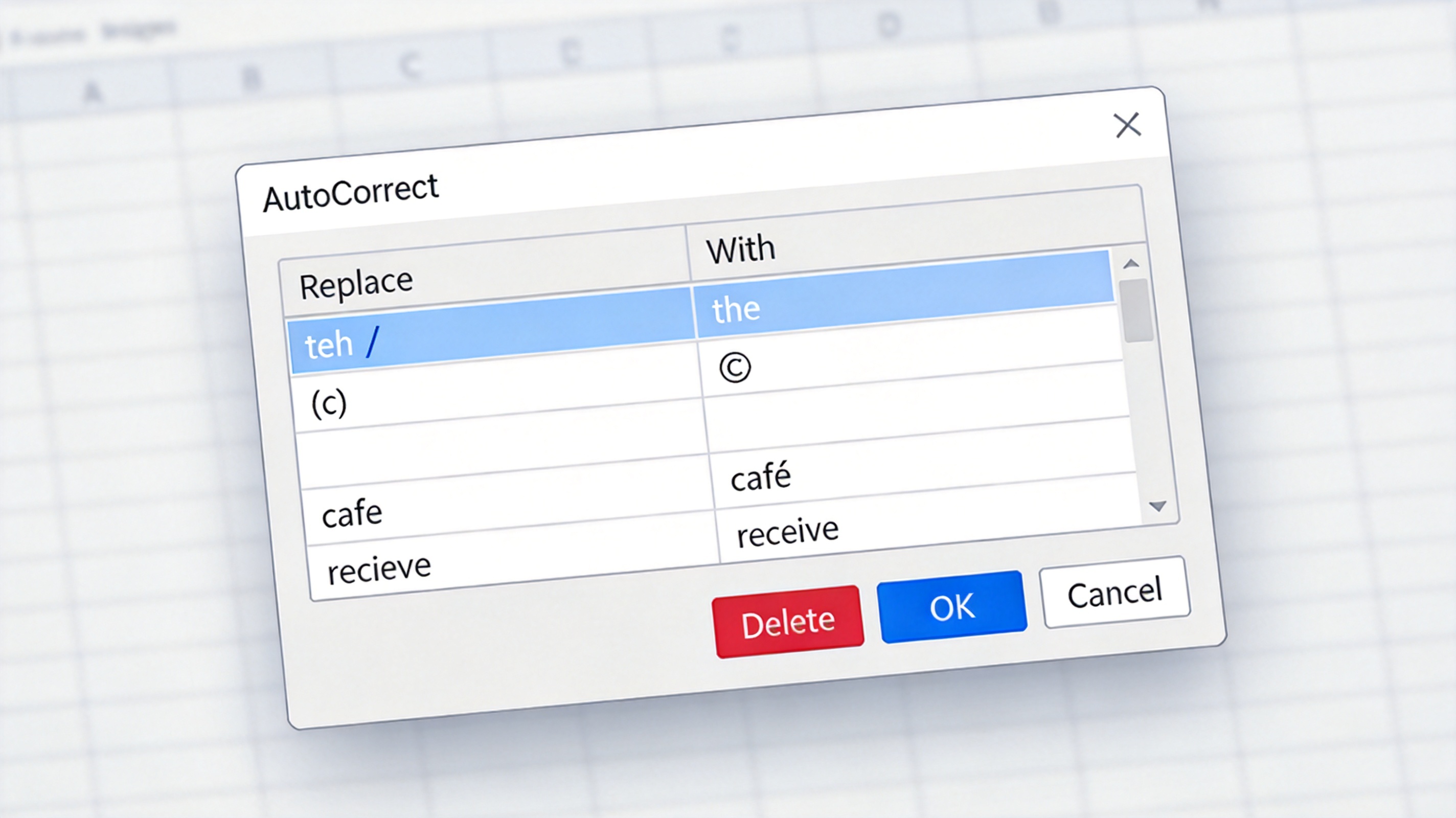
Excel AutoCorrect replace list entries
How to Undo an Autocorrect Change While Typing
When a correction slips through, you can reverse it without touching the settings:
Keep typing right after the correction, then press Ctrl + Z (or Cmd + Z on Mac) once. The change is undone and the original text returns.
Alternatively, hover over the small blue underline that appears under the corrected word, click it, and choose Change back to ... or Stop automatically correcting ....
The "Stop automatically correcting" option is the quickest way to disable a single entry from inside the cell.
Why Does Autocorrect Keep Changing My Words in Excel?
Several causes make AutoCorrect feel uncontrollable, and each has a different fix:
The entry was added by you or a previous file. Open the AutoCorrect list and delete the entry that matches your word.
Both "Replace text as you type" and a macro are active. Macros can rewrite cell content independently; check View > Macros if the change happens even after AutoCorrect is off.
AutoCorrect list is shared with other Office apps. Entries added in Word also apply in Excel because the list is stored per language. Removing the entry in Excel removes it everywhere.
Capitalization rules are on. Options such as "Capitalize first letter of sentences" change words too; clear them in the same dialog if you want zero interference.
The Best Free Alternative: WPS Office
If your current spreadsheet editor makes settings hard to reach, WPS Office gives you the same AutoCorrect controls plus a cleaner workflow. WPS Spreadsheet opens and saves .xlsx files with full compatibility, and its Proofing settings keep AutoCorrect, spell check, and smart punctuation in one place. The office suite is free to use for Word, Excel, and PPT, and includes a built-in PDF toolkit for exporting and signing spreadsheets.
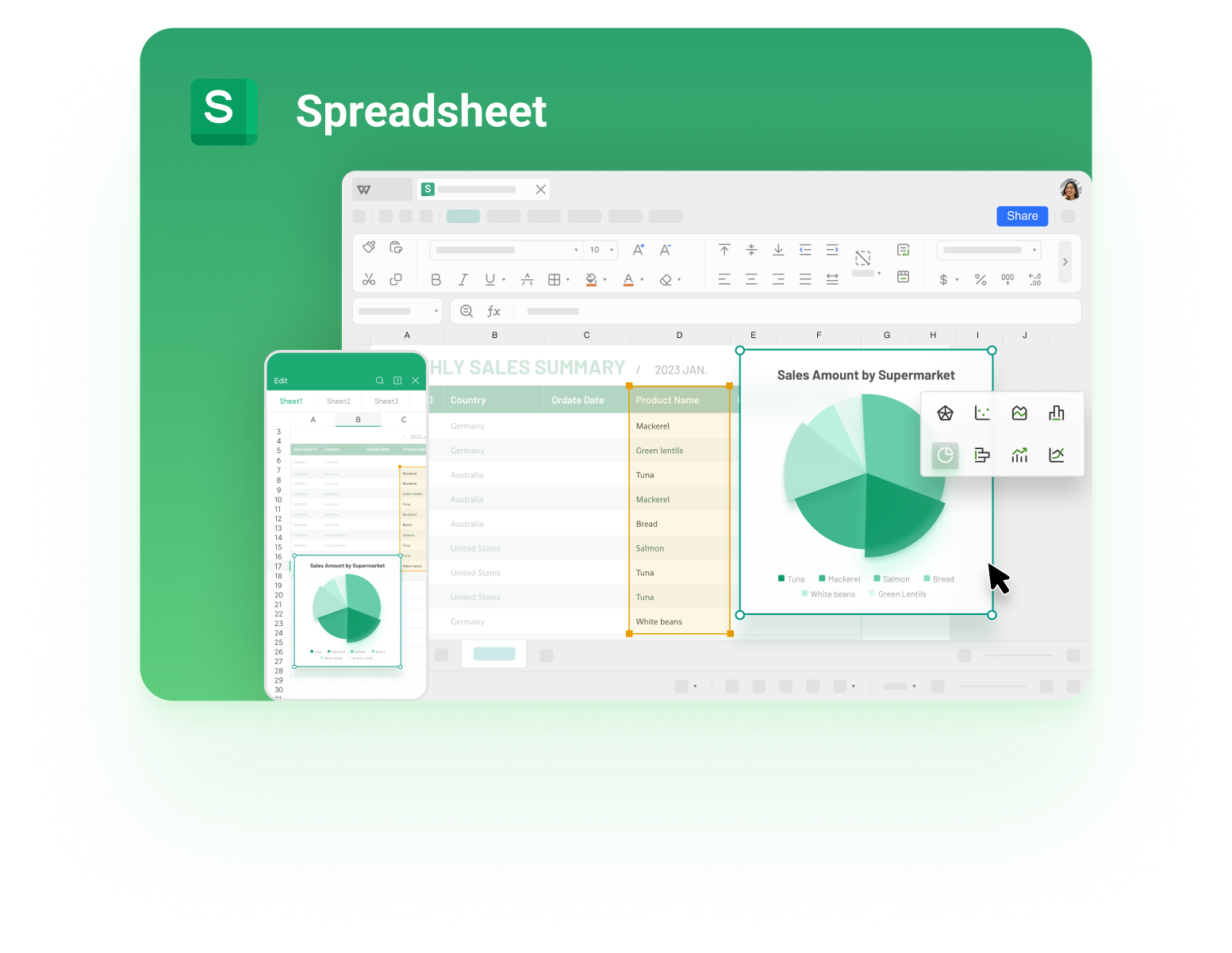
WPS Spreadsheet main interface with charts
FAQs
How do I disable autocorrect in Excel completely?
Go to File > Options > Proofing > AutoCorrect Options and clear the "Replace text as you type" checkbox. In WPS Spreadsheet, open Menu > Options > Proofing > AutoCorrect Options and clear the same checkbox.
Will turning off autocorrect affect my existing data?
No. AutoCorrect only changes text as you type it. Cells, formulas, and already-corrected entries stay exactly as they are after you disable the feature.
Why does autocorrect not work even after I enable it?
Check that the entry exists in the replace list, that the language matches your keyboard, and that no macro or add-in is rewriting cell content. Restart the app if the list was recently edited.
Can I turn off autocorrect for only one word in Excel?
Yes. Open AutoCorrect Options, select the entry for that word in the list, and click Delete. The feature keeps working for every other entry.
Does WPS Spreadsheet support the same autocorrect settings as Excel?
Yes. WPS Spreadsheet includes the same replace list, capitalization rules, and math autocorrect tabs, so files and settings behave similarly across both editors.



'%3e%3cpath%20d='M19.9911%204.11386V6.471H18.5894C18.0775%206.471%2017.7322%206.57814%2017.5536%206.79243C17.3751%207.00671%2017.2858%207.32814%2017.2858%207.75671V9.44421H19.9019L19.5536%2012.0871H17.2858V18.8639H14.5536V12.0871H12.2769V9.44421H14.5536V7.49779C14.5536%206.39064%2014.8632%205.53201%2015.4822%204.92189C16.1013%204.31177%2016.9257%204.00671%2017.9554%204.00671C18.8304%204.00671%2019.509%204.04243%2019.9911%204.11386Z'%20fill='%23333333'/%3e%3c/g%3e%3cdefs%3e%3cclipPath%20id='clip0_2938_8199'%3e%3crect%20width='16'%20height='16'%20fill='white'%20transform='translate(8%204.00671)'/%3e%3c/clipPath%3e%3c/defs%3e%3c/svg%3e)
'%3e%3cpath%20d='M17.5237%2010.7813L23.4811%204H22.0699L16.8949%209.88693L12.7648%204H8L14.2469%2012.9029L8%2020.0133H9.4112L14.8725%2013.7952L19.2352%2020.0133H24M9.92053%205.04213H12.0885L22.0688%2019.0224H19.9003'%20fill='%23333333'/%3e%3c/g%3e%3cdefs%3e%3cclipPath%20id='clip0_2938_8200'%3e%3crect%20width='16'%20height='16.0134'%20fill='white'%20transform='translate(8%204)'/%3e%3c/clipPath%3e%3c/defs%3e%3c/svg%3e)


