

'%3e%3cpath%20d='M8%200C12.4183%200%2016%203.58172%2016%208C16%2012.4183%2012.4183%2016%208%2016C3.58172%2016%200%2012.4183%200%208C0%203.58172%203.58172%200%208%200ZM11.6162%204.38379C11.2257%203.99337%2010.5927%203.99338%2010.2021%204.38379L8%206.58594L5.79785%204.38379C5.40732%203.99334%204.77429%203.99329%204.38379%204.38379C3.99331%204.77429%203.99335%205.40733%204.38379%205.79785L6.58594%208L4.38379%2010.2021C3.99348%2010.5927%203.99341%2011.2257%204.38379%2011.6162C4.77426%2012.0066%205.40734%2012.0065%205.79785%2011.6162L8%209.41406L10.2021%2011.6162C10.5927%2012.0066%2011.2257%2012.0067%2011.6162%2011.6162C12.0067%2011.2257%2012.0066%2010.5927%2011.6162%2010.2021L9.41406%208L11.6162%205.79785C12.0066%205.40735%2012.0066%204.77429%2011.6162%204.38379Z'%20fill='%23080E17'%20fill-opacity='0.46'/%3e%3c/g%3e%3cdefs%3e%3cclipPath%20id='clip0_3761_713'%3e%3crect%20width='16'%20height='16'%20fill='white'/%3e%3c/clipPath%3e%3c/defs%3e%3c/svg%3e)




'%3e%3cpath%20fill-rule='evenodd'%20clip-rule='evenodd'%20d='M21.4999%2010.9993C21.4999%205.20009%2016.7986%200.498901%2010.9993%200.498901C5.19994%200.498901%200.498657%205.20009%200.498657%2010.9993C0.498657%2016.2404%204.33858%2020.5844%209.35855%2021.3722V14.0346H6.69238V10.9993H9.35855V8.68594C9.35855%206.05427%2010.9262%204.60062%2013.3248%204.60062C14.4736%204.60062%2015.6753%204.80571%2015.6753%204.80571V7.38979H14.3512C13.0468%207.38979%2012.64%208.19921%2012.64%209.0296V10.9993H15.5523L15.0867%2014.0346H12.64V21.3722C17.66%2020.5844%2021.4999%2016.2404%2021.4999%2010.9993Z'%20fill='%231568EA'/%3e%3c/g%3e%3c/svg%3e)


'%3e%3cpath%20d='M2.42045%2022.1876H6.31818V12.7217L0.75%208.54553V20.5171C0.75%2021.4414%201.49892%2022.1876%202.42045%2022.1876Z'%20fill='%234285F4'/%3e%3cpath%20d='M19.682%2022.1876H23.5797C24.5041%2022.1876%2025.2502%2021.4387%2025.2502%2020.5171V8.54553L19.682%2012.7217'%20fill='%2334A853'/%3e%3cpath%20d='M19.682%205.48293V12.7216L25.2502%208.54543V6.31816C25.2502%204.25236%2022.8921%203.07469%2021.2411%204.31361'%20fill='%23FBBC04'/%3e%3cpath%20d='M6.31824%2012.7217V5.48303L13.0001%2010.4944L19.6819%205.48303V12.7217L13.0001%2017.733'%20fill='%23EA4335'/%3e%3cpath%20d='M0.75%206.31816V8.54543L6.31818%2012.7216V5.48293L4.75909%204.31361C3.10534%203.07469%200.75%204.25236%200.75%206.31816Z'%20fill='%23C5221F'/%3e%3c/g%3e%3cdefs%3e%3cclipPath%20id='clip0_2954_7305'%3e%3crect%20width='24.5'%20height='18.375'%20fill='white'%20transform='translate(0.75%203.8125)'/%3e%3c/clipPath%3e%3c/defs%3e%3c/svg%3e)


Need to turn 19.99 into 19, or strip decimals from a column of prices without rounding up? The INT function in Excel does exactly that: it rounds a number down to the nearest integer in a single argument. It is one of the simplest math functions to learn, yet it solves everyday tasks such as counting whole items, splitting bills, and extracting the decimal part of a value.
This guide explains what the INT function does, its syntax, step-by-step usage with real examples, how it differs from TRUNC and ROUND, and how to use the same function in WPS Spreadsheet for free.
How to Use the INT Function in Excel to Round Down Numbers
What Is the INT Function in Excel?
The INT function is a built-in math function that rounds a number down to the nearest integer. "Down" matters here: for positive numbers the result moves toward zero, but for negative numbers it moves away from zero. That is why INT(8.9) returns 8, while INT(-8.9) returns -9, not -8.
People use the INT function when they need whole units only: how many full boxes fit in a shipment, how many complete hours a task took, or how many people a budget can cover. It is also a common trick to isolate the decimal part of a number, which you will see in the examples below. If your goal is ordinary four-and-five rounding instead of strict rounding down, the ROUND function is the better fit.
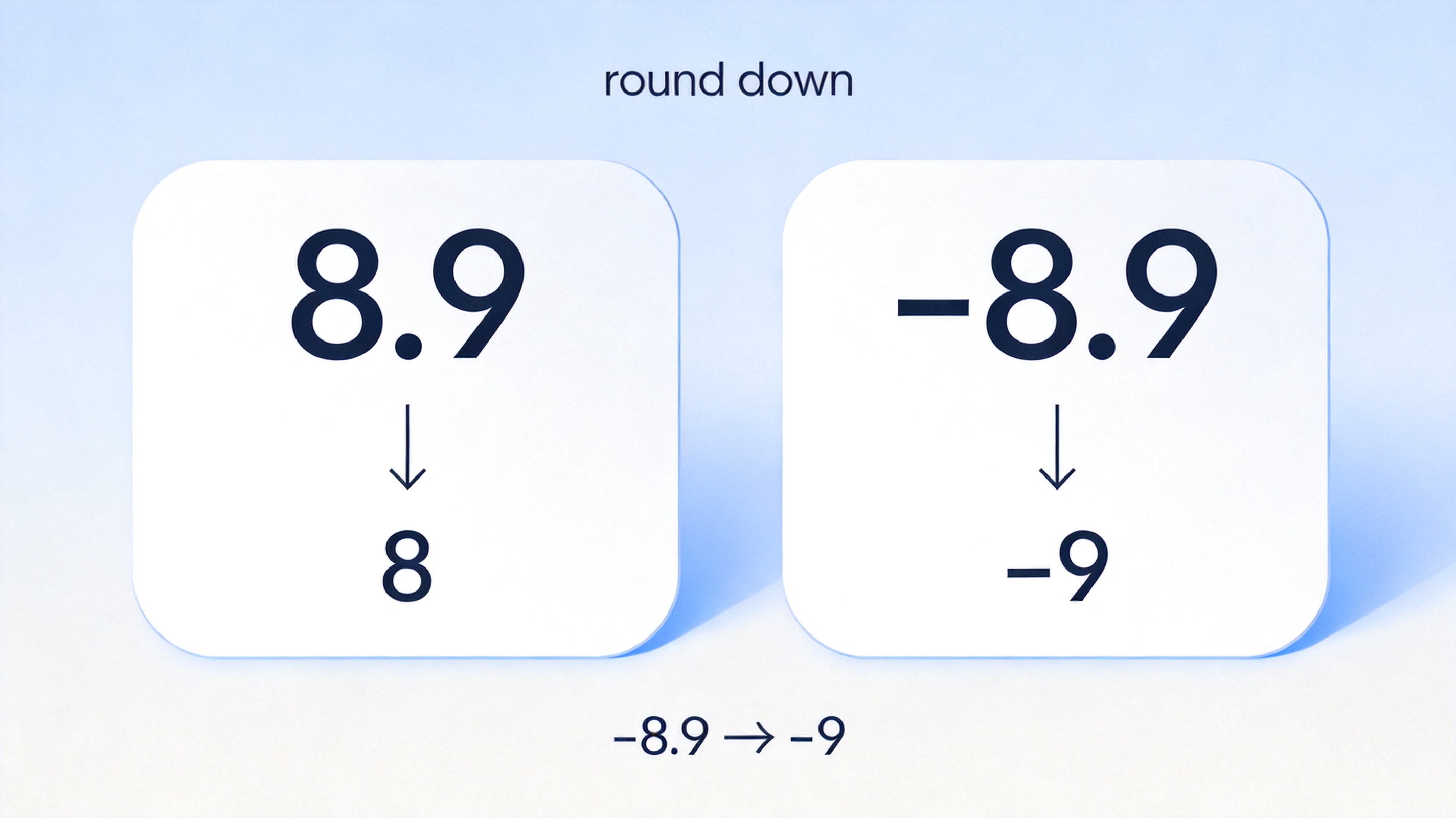
INT function rounds numbers down


INT Function Syntax and Arguments
The INT function syntax could hardly be shorter. It takes exactly one argument:
=INT(number)
number (required): the real number you want to round down. It can be a typed value such as =INT(8.9), a cell reference such as =INT(B1), or another formula whose result you want to convert to an integer.
Because there is only one argument, there is nothing like the num_digits parameter of ROUND to configure. If the number is already an integer, INT returns it unchanged. If the value is text that Excel cannot interpret as a number, the function returns the #VALUE! error instead of a result.
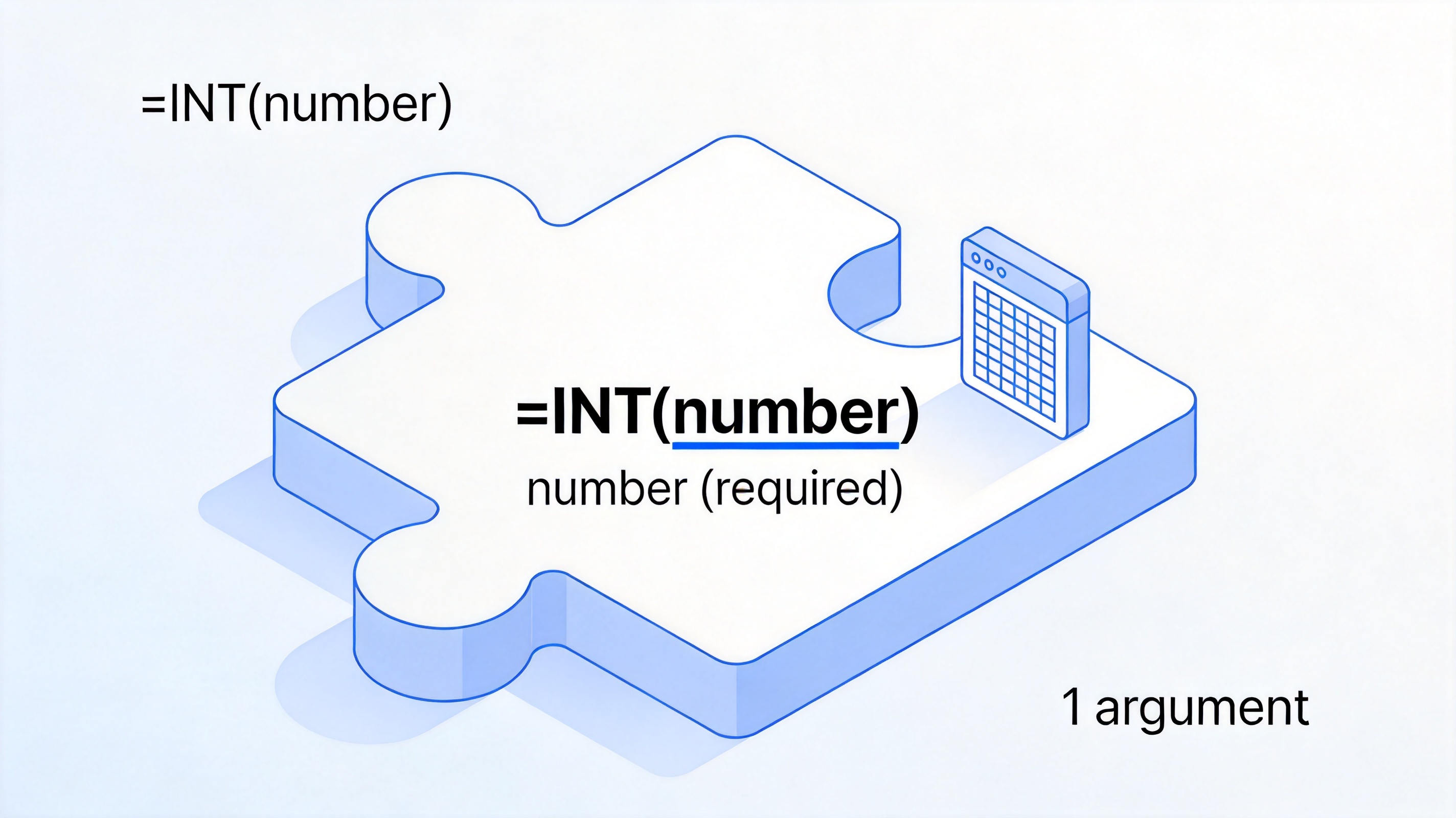
INT function syntax in Excel
How to Use the INT Function in Excel Step by Step
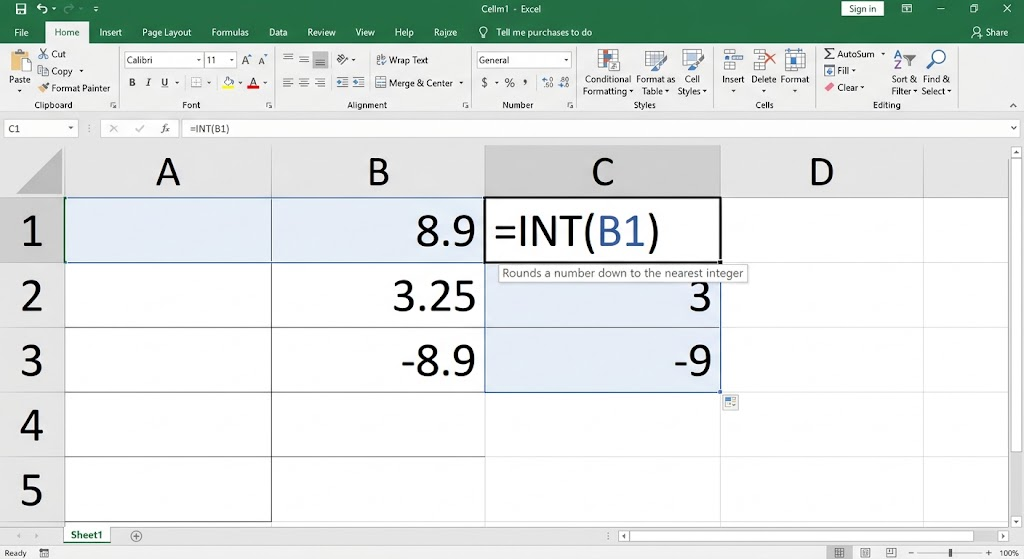
Let's round a small column of values down to whole numbers. Suppose B1 holds 8.9, B2 holds 3.25, and B3 holds -8.9:
Select the target cell where you want the result, for example C1.
Type =INT(B1) and check that the tooltip shows "Rounds a number down to the nearest integer".
Press Enter to confirm the formula. C1 now displays 8, the nearest integer below 8.9.
Drag the fill handle from C1 down to C3 to apply the same INT formula to B2 and B3. You will get 3 and -9.
That is the whole workflow. The same pattern works when the argument is a calculation, for example =INT(A2/3) to find how many full groups of three fit into the value in A2, or =INT(SUM(B1:B10)) to round a total down after adding it up.
INT Function Examples for Positive and Negative Numbers
The fastest way to avoid surprises with the INT function is to memorize how it treats each side of zero. The table below collects the most useful cases:
Three patterns stand out:
Positive numbers: INT simply removes the decimals. INT(8.9) and INT(3.25) become 8 and 3.
Negative numbers: INT rounds further away from zero. INT(-8.9) is -9 and INT(-3.25) is -4, because -9 is the integer below -8.9.
Extracting decimals: the formula =A2-INT(A2) subtracts the whole part from the original value and leaves 0.5 for the number 19.5. It only produces a positive decimal for positive inputs, so keep that in mind with mixed data.
A practical use case is age or tenure buckets: =INT(YEARFRAC(B2,TODAY(),1)) gives a person's completed years without an inflated fraction. Another is capacity planning, where =INT(total/units) counts only complete sets.Free Download
INT Function vs TRUNC and Other Rounding Functions in Excel
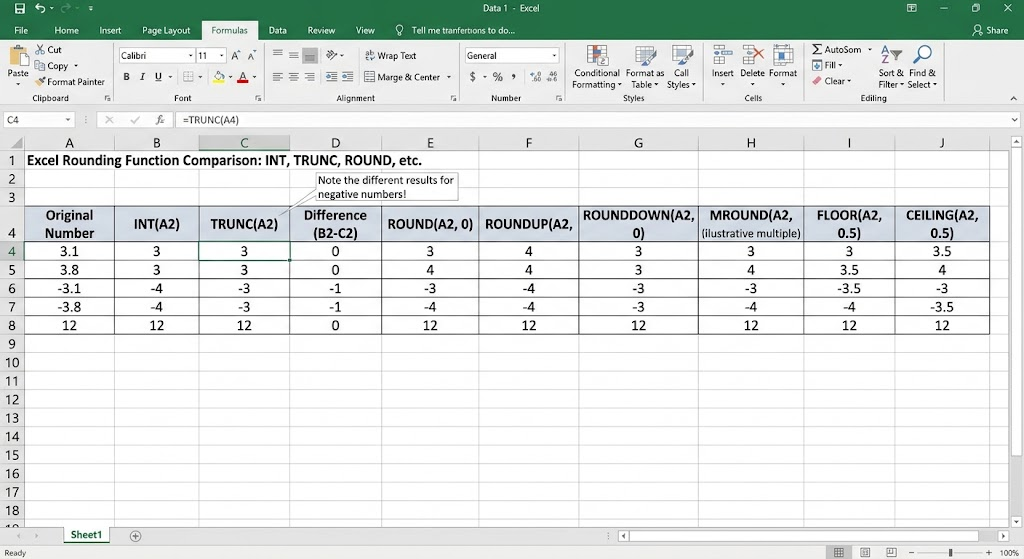
INT is not the only way to remove decimals, and picking the wrong function is the most common source of wrong results with negative values. The key comparison is with TRUNC: TRUNC cuts the decimal part off, moving toward zero, while INT always rounds down. For -3.1, TRUNC returns -3 but INT returns -4. If you only want the integer portion of a possibly negative number, TRUNC is the safer choice.
For everything else, match the function to the rounding rule you need:
ROUND(number, num_digits): standard rounding, up or down, to a chosen digit.
ROUNDDOWN / ROUNDUP: always toward or away from zero at a chosen digit.
MROUND(number, multiple): rounds to the nearest specified multiple, such as the nearest 5.
FLOOR / CEILING: round down or up to a specified multiple, useful for pricing tiers and packaging.
As a rule of thumb: use INT for strict rounding down with one argument, TRUNC to strip decimals regardless of sign, and ROUND when ordinary rounding is what the data requires. For a deeper look at standard rounding, see this guide on the round function in Excel.
The Best Free Alternative: WPS Office for the INT Function
You do not need a Microsoft 365 subscription to use the INT function. WPS Spreadsheet, part of the free WPS Office suite, supports INT with exactly the same syntax, the same results, and the same #VALUE! behavior on non-numeric input. Formulas written with INT in Excel open and recalculate correctly in WPS, and files saved from WPS remain fully compatible with Excel, Google Sheets, and LibreOfficeCalc.
Beyond compatibility, WPS Spreadsheet adds practical advantages for everyday formula work: it is free to download and use with no function-count limits, it opens .xlsx and .xls files natively, and it includes built-in PDF conversion, thousands of ready-made templates, and a familiar Microsoft-like ribbon that makes switching effortless. The same suite also covers Word documents, presentations, and PDF editing, so one installation replaces several tools.
Here is the complete procedure for using the INT function in WPS Spreadsheet, from a blank sheet to filled results:
Download and install WPS Office from the official website, then launch WPS Spreadsheet and open or create a workbook.
Enter your data in a column, for example B1=8.9, B2=3.25, and B3=-8.9.
Select cell C1 and either type =INT(B1) directly, or use the guided route: go to the Formulas tab, click Insert Function, choose the Math & Trig category, pick INT, and click OK.
Fill in the argument in the dialog: set Number to B3 or any cell reference, and the dialog shows a preview of the rounded result before you confirm.
Click OK and press Enter to see the integer appear in C1.
Use the fill handle to drag the formula down the column so every value gets rounded down automatically; results update instantly whenever the source numbers change.
The typed and dialog methods give identical outcomes, so choose whichever matches your habit. If you build many rounding formulas per week, the Insert Function dialog is a handy way to discover related math functions without memorizing syntax.

WPS Spreadsheet
FAQs
What does the INT function do in Excel?
It rounds a number down to the nearest integer. INT(8.9) returns 8, and INT(-8.9) returns -9 because -9 is below -8.9. The function always rounds down, never to the nearest integer in both directions.
Why does INT(-8.5) return -9 instead of -8?
Because "round down" means toward negative infinity. For negative inputs the result moves away from zero, so the largest integer not greater than -8.5 is -9. Use TRUNC if you want -8.
What is the difference between INT and TRUNC?
TRUNC removes the decimal part and moves toward zero, while INT rounds down. They agree on positive numbers (both turn 3.7 into 3) but differ on negatives: TRUNC(-3.1) is -3, INT(-3.1) is -4.
Why does my INT formula return #VALUE!?
The argument is text that Excel cannot read as a number, such as "8.9 " with a trailing space, a currency-formatted text cell, or an empty reference combined with text. Clean the source data with VALUE() or fix the cell formatting, and INT will work.
Can I use the INT function in WPS Spreadsheet for free?
Yes. WPS Spreadsheet supports INT with the same syntax and results as Excel, and the free version of WPS Office has no limit on formulas. Files move between Excel and WPS without breaking the INT calculations.


'%3e%3cpath%20d='M19.9911%204.11386V6.471H18.5894C18.0775%206.471%2017.7322%206.57814%2017.5536%206.79243C17.3751%207.00671%2017.2858%207.32814%2017.2858%207.75671V9.44421H19.9019L19.5536%2012.0871H17.2858V18.8639H14.5536V12.0871H12.2769V9.44421H14.5536V7.49779C14.5536%206.39064%2014.8632%205.53201%2015.4822%204.92189C16.1013%204.31177%2016.9257%204.00671%2017.9554%204.00671C18.8304%204.00671%2019.509%204.04243%2019.9911%204.11386Z'%20fill='%23333333'/%3e%3c/g%3e%3cdefs%3e%3cclipPath%20id='clip0_2938_8199'%3e%3crect%20width='16'%20height='16'%20fill='white'%20transform='translate(8%204.00671)'/%3e%3c/clipPath%3e%3c/defs%3e%3c/svg%3e)
'%3e%3cpath%20d='M17.5237%2010.7813L23.4811%204H22.0699L16.8949%209.88693L12.7648%204H8L14.2469%2012.9029L8%2020.0133H9.4112L14.8725%2013.7952L19.2352%2020.0133H24M9.92053%205.04213H12.0885L22.0688%2019.0224H19.9003'%20fill='%23333333'/%3e%3c/g%3e%3cdefs%3e%3cclipPath%20id='clip0_2938_8200'%3e%3crect%20width='16'%20height='16.0134'%20fill='white'%20transform='translate(8%204)'/%3e%3c/clipPath%3e%3c/defs%3e%3c/svg%3e)


