

'%3e%3cpath%20d='M8%200C12.4183%200%2016%203.58172%2016%208C16%2012.4183%2012.4183%2016%208%2016C3.58172%2016%200%2012.4183%200%208C0%203.58172%203.58172%200%208%200ZM11.6162%204.38379C11.2257%203.99337%2010.5927%203.99338%2010.2021%204.38379L8%206.58594L5.79785%204.38379C5.40732%203.99334%204.77429%203.99329%204.38379%204.38379C3.99331%204.77429%203.99335%205.40733%204.38379%205.79785L6.58594%208L4.38379%2010.2021C3.99348%2010.5927%203.99341%2011.2257%204.38379%2011.6162C4.77426%2012.0066%205.40734%2012.0065%205.79785%2011.6162L8%209.41406L10.2021%2011.6162C10.5927%2012.0066%2011.2257%2012.0067%2011.6162%2011.6162C12.0067%2011.2257%2012.0066%2010.5927%2011.6162%2010.2021L9.41406%208L11.6162%205.79785C12.0066%205.40735%2012.0066%204.77429%2011.6162%204.38379Z'%20fill='%23080E17'%20fill-opacity='0.46'/%3e%3c/g%3e%3cdefs%3e%3cclipPath%20id='clip0_3761_713'%3e%3crect%20width='16'%20height='16'%20fill='white'/%3e%3c/clipPath%3e%3c/defs%3e%3c/svg%3e)




'%3e%3cpath%20fill-rule='evenodd'%20clip-rule='evenodd'%20d='M21.4999%2010.9993C21.4999%205.20009%2016.7986%200.498901%2010.9993%200.498901C5.19994%200.498901%200.498657%205.20009%200.498657%2010.9993C0.498657%2016.2404%204.33858%2020.5844%209.35855%2021.3722V14.0346H6.69238V10.9993H9.35855V8.68594C9.35855%206.05427%2010.9262%204.60062%2013.3248%204.60062C14.4736%204.60062%2015.6753%204.80571%2015.6753%204.80571V7.38979H14.3512C13.0468%207.38979%2012.64%208.19921%2012.64%209.0296V10.9993H15.5523L15.0867%2014.0346H12.64V21.3722C17.66%2020.5844%2021.4999%2016.2404%2021.4999%2010.9993Z'%20fill='%231568EA'/%3e%3c/g%3e%3c/svg%3e)


'%3e%3cpath%20d='M2.42045%2022.1876H6.31818V12.7217L0.75%208.54553V20.5171C0.75%2021.4414%201.49892%2022.1876%202.42045%2022.1876Z'%20fill='%234285F4'/%3e%3cpath%20d='M19.682%2022.1876H23.5797C24.5041%2022.1876%2025.2502%2021.4387%2025.2502%2020.5171V8.54553L19.682%2012.7217'%20fill='%2334A853'/%3e%3cpath%20d='M19.682%205.48293V12.7216L25.2502%208.54543V6.31816C25.2502%204.25236%2022.8921%203.07469%2021.2411%204.31361'%20fill='%23FBBC04'/%3e%3cpath%20d='M6.31824%2012.7217V5.48303L13.0001%2010.4944L19.6819%205.48303V12.7217L13.0001%2017.733'%20fill='%23EA4335'/%3e%3cpath%20d='M0.75%206.31816V8.54543L6.31818%2012.7216V5.48293L4.75909%204.31361C3.10534%203.07469%200.75%204.25236%200.75%206.31816Z'%20fill='%23C5221F'/%3e%3c/g%3e%3cdefs%3e%3cclipPath%20id='clip0_2954_7305'%3e%3crect%20width='24.5'%20height='18.375'%20fill='white'%20transform='translate(0.75%203.8125)'/%3e%3c/clipPath%3e%3c/defs%3e%3c/svg%3e)


How to Format Elements of a Chart: Objects, Fill, Borders, and Number Formats
Most chart formatting goes wrong for the same reason: the wrong object was selected. You open a format pane, drag a control, and nothing visible changes — or worse, something changes that you did not intend. Formatting a chart element is really a two-part job: choose the object first, then apply one of four property groups to it.
This guide walks through that order: selecting chart area, plot area, series, legend, or gridlines; setting fill, border, and line styles; setting font and number formats for labels and axes; and resetting or reusing a formatting pass so a chart does not drift over time. Adding new elements such as a title or legend is a different task and is linked rather than repeated here.
How to Format Elements of a Chart: Objects, Fill, Borders, and Number Formats
Format Elements of a Chart: What You Change and Where
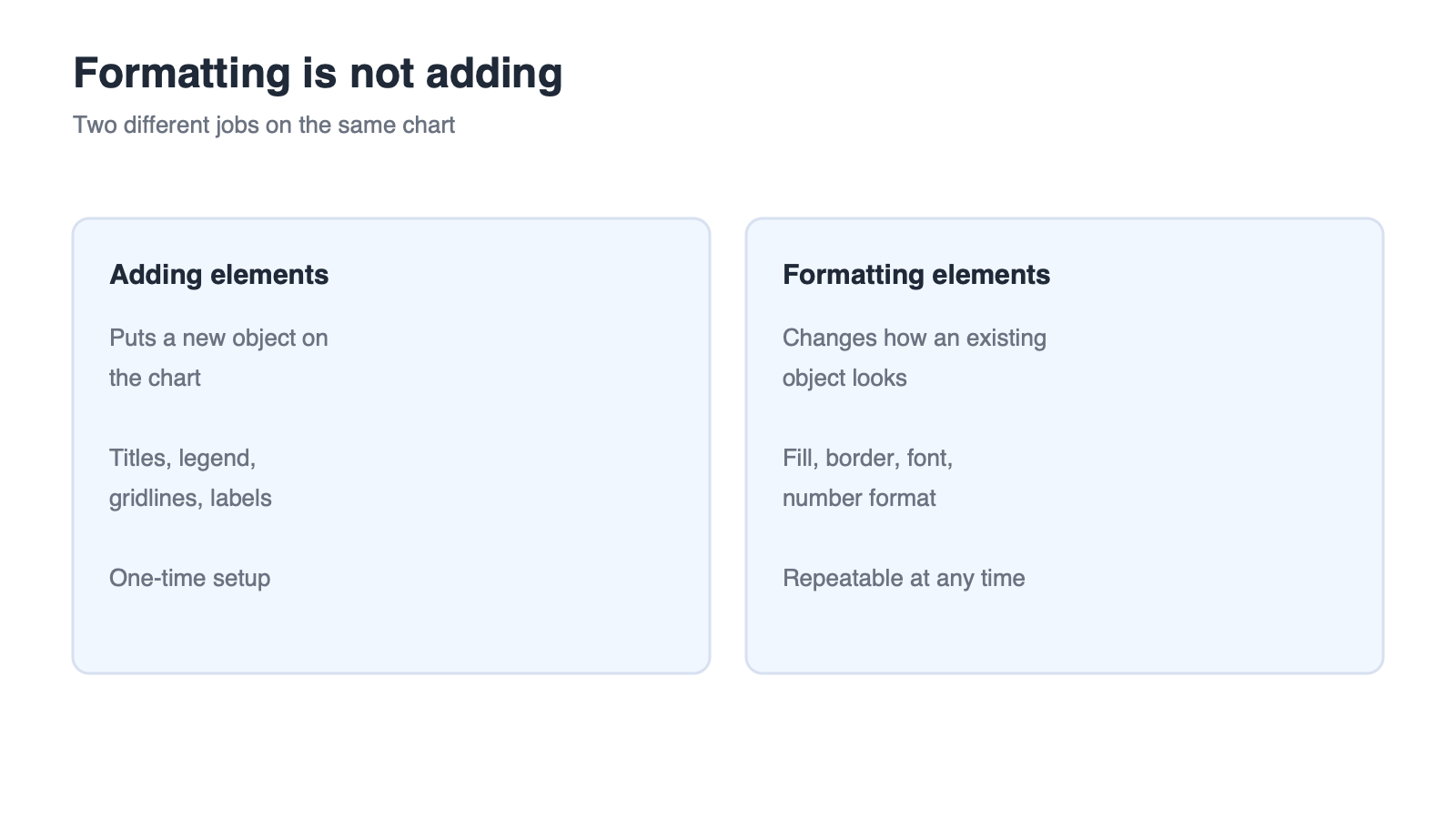
Formatting changes how an object looks. Adding puts a new object on the chart. Keeping those two apart saves a lot of confusion: if the axis title is missing, you need an add action; if the axis title is the wrong size, you need a format action.
Adding Is Not Formatting
Axis titles, chart titles, legends, gridlines, and data labels are elements you add to a chart that does not have them yet. The step-by-step for that workflow, including the element categories, is covered in how to add chart elements in Excel on Mac. This article assumes every object you need already exists.
The Four Property Groups You Will Use
Fill — solid colour, gradient, or none, applied to the area or object behind.
Border and line — colour, width, and dash style for frames, series lines, and markers.
Font — family, size, weight, and colour for any text object.
Number format — decimal places, thousands separators, percentages, and currency symbols for displayed values.
Where to Find Each Control
Right-clicking a chart object and choosing the format option opens the format pane for that object. The same pane is also reachable from the chart tools that appear when a chart is selected. The pane header tells you which object you are editing, and that header is the fastest way to confirm you are in the right place.

Chart elements button on selected chart


Select the Right Chart Object Before You Format
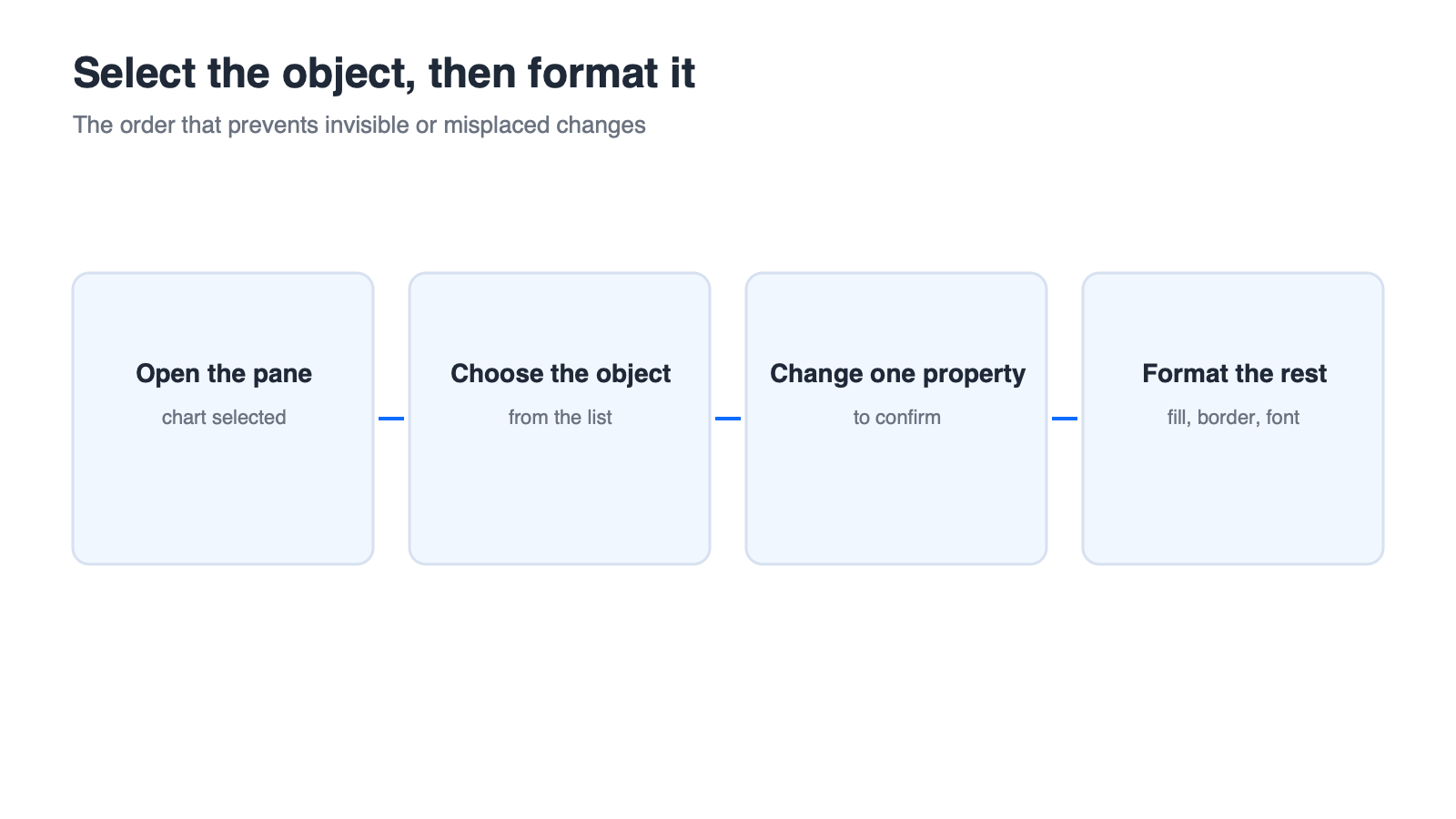
Objects overlap, and clicking the visible shape does not always select what you expect. A click near the edge of a data point can select the whole series; a click outside the plot can select the chart area. Use the selection list instead of hunting with the mouse.
Use the Selection List in the Format Pane
Click the chart once so the chart tools become available.
Open the format pane.
Open the drop-down list at the top of the pane, which lists every object in the chart.
Pick the target object by name rather than by clicking the chart.
Click Once vs Click Twice
With a series already selected, clicking a single point selects that point so you can format it alone. This is the standard way to highlight one value, for example the bar that carries your headline number.
Confirm What Is Selected
Change one obvious property first, such as the fill colour, and look at the chart. If the change landed on the object you intended, continue. If it landed somewhere else, reset that property and select again before making more edits.
One Anti-Pattern
Dragging a selection handle while an object is selected can change the data range the chart reads from rather than its appearance. If the series shape changes unexpectedly, check the source range before assuming the formatting failed.
Select a chart object before formatting
Set Fill, Border, and Line Styles Without Touching Your Data
Fill, border, and line settings change appearance only. Every step below ends with a check that the numbers behind the chart are untouched.
Fill: Solid, Gradient, or None
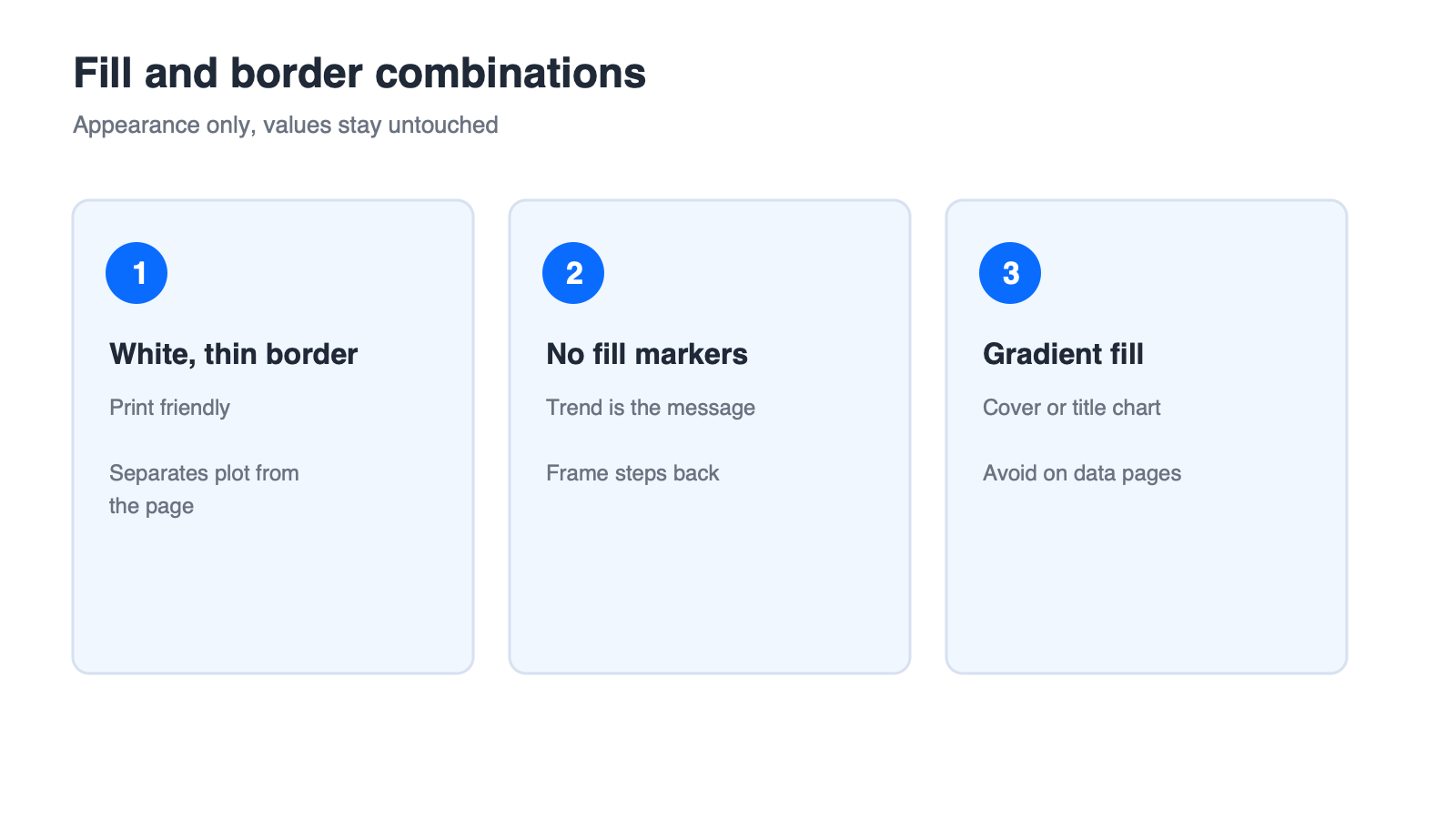
Select the object, open fill settings, and choose one of the three states. Solid colour is the safest choice for printed reports, gradient suits a single cover chart, and no fill is useful when you want the plot area to blend into the slide or page background.
Border: Width, Colour, and Dash
Borders work best when they separate one area from another rather than competing with the data. A thin grey border on the plot area keeps the chart readable without drawing attention to the frame.
Series Lines and Markers
Line charts expose line and marker settings for each series separately. Formatting the series rather than the individual points keeps the style consistent as data is added.
Confirm the Data Is Unchanged
Click into the source cells after formatting and confirm the underlying values are the same. If a number changed, you edited the data rather than the object.
Two combinations cover most reporting needs: a white background with a thin border for anything that will be printed, and markers with no line for a series where the trend matters more than the connecting strokes. The same fill, border, and line property groups exist in the WPS Spreadsheet format pane as well; check the current official documentation for the exact label names in your version.
Fill and border combinations for charts
Set Font and Number Formats for Labels and Axes
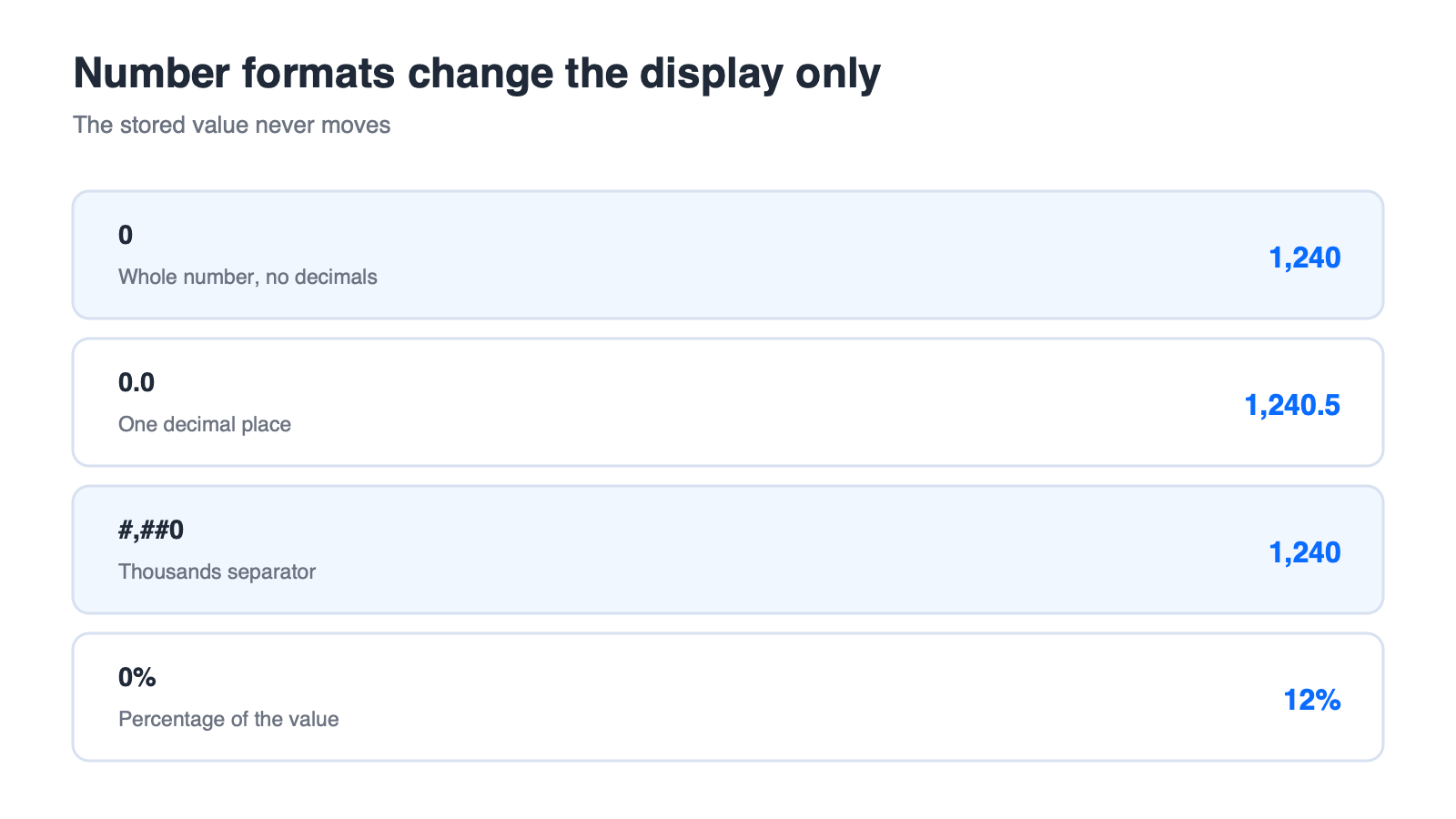
Font and number formatting are separate settings, and confusing them is what makes a change look like a data change. Font affects the text; number format affects how a value is displayed while the stored value stays exactly the same.
Font Family, Size, and Weight
Select the axis, data labels, or legend and set the font family, size, weight, and colour. Keep the smallest text in the chart at a size readers can still parse at print scale.
Number Format Codes That Do Not Change Values
| Code | Displayed result |
|---|---|
| 0 | Whole number |
| 0.0 | One decimal place |
| #,##0 | Thousands separator |
| 0% | Percentage |
| "$"#,##0 | Currency symbol with separators |
When Labels Need Their Own Formatting
If one data label needs to stand out, select that single label and format it on its own. Removing or renaming data labels is a different task — see remove data labels from an Excel chart for that workflow, and change the axis label text itself in the companion guide on editing category labels rather than here.
Finish by reading the value in the data range and comparing it with the displayed label. Once you have confirmed the display changed while the value did not, the number format is doing exactly what it should.
Number format codes and displayed results
WPS Spreadsheet: Where the Same Formatting Lives
The formatting model is portable. When you open the same workbook in WPS Spreadsheet, the chart keeps its styling, and the same object-plus-property workflow applies to new changes.
Object Tabs in WPS Spreadsheet
Selecting a chart brings up chart tools in the ribbon. From there you can reach the data source and the formatting entries for the selected object, which mirrors the two places you work in from the chart itself.
The Format Pane Workflow
Select the chart, then select the object you want to change.
Open the format entry for that object.
Apply fill, border and line, font, or number settings.
Compare the result with the source data before you continue.
What Requires Verification
Treat specific tab and button labels as items to confirm against the official documentation for your version, along with whether every advanced object — secondary axes, for example — exposes the same set of properties. The workflows described here are the stable part; the label names are not guaranteed to match another product word for word. You can open the workbook in the free desktop suite from WPS Office to check the same chart on a different machine.
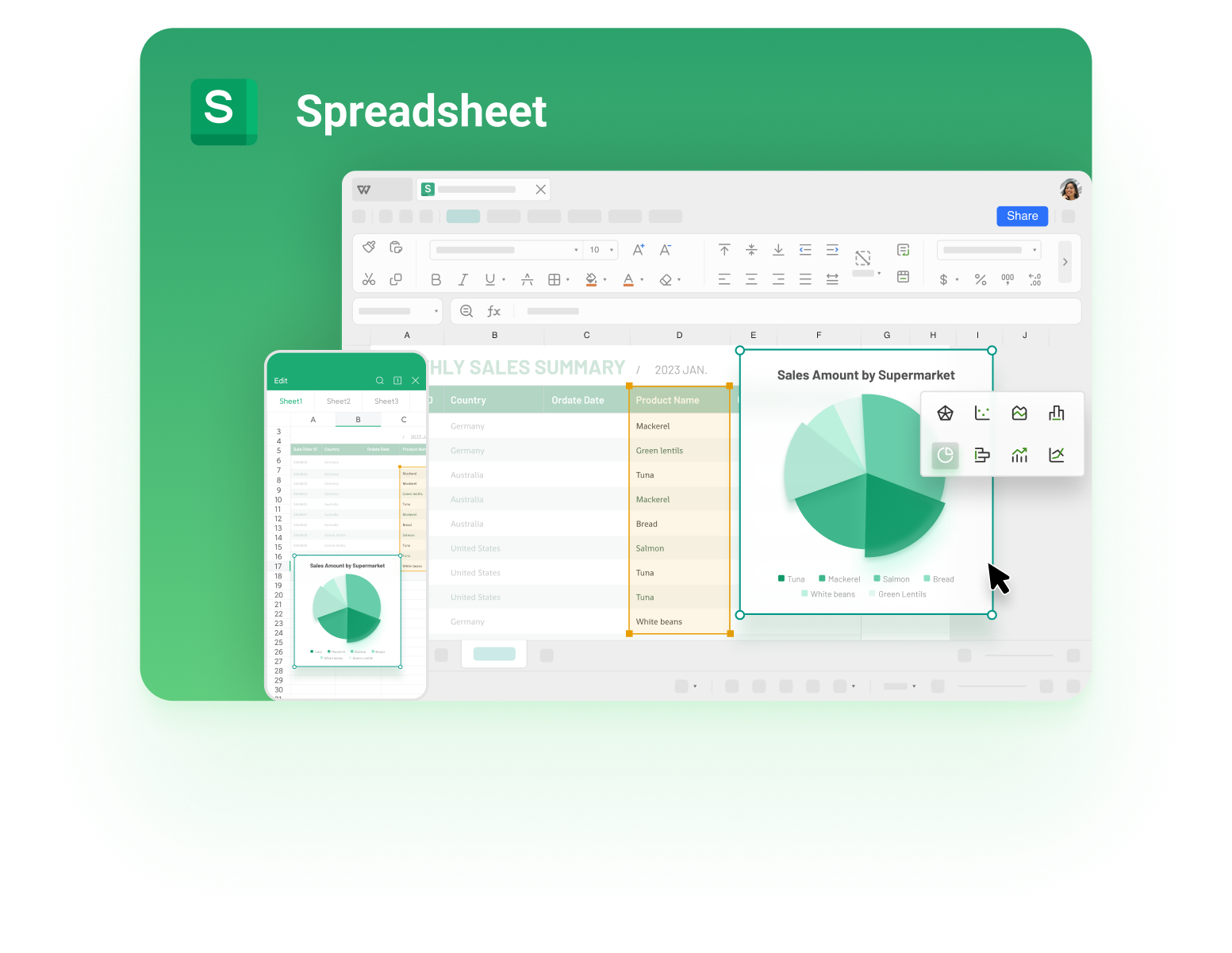
WPS Spreadsheet interface with a workbook



'%3e%3cpath%20d='M19.9911%204.11386V6.471H18.5894C18.0775%206.471%2017.7322%206.57814%2017.5536%206.79243C17.3751%207.00671%2017.2858%207.32814%2017.2858%207.75671V9.44421H19.9019L19.5536%2012.0871H17.2858V18.8639H14.5536V12.0871H12.2769V9.44421H14.5536V7.49779C14.5536%206.39064%2014.8632%205.53201%2015.4822%204.92189C16.1013%204.31177%2016.9257%204.00671%2017.9554%204.00671C18.8304%204.00671%2019.509%204.04243%2019.9911%204.11386Z'%20fill='%23333333'/%3e%3c/g%3e%3cdefs%3e%3cclipPath%20id='clip0_2938_8199'%3e%3crect%20width='16'%20height='16'%20fill='white'%20transform='translate(8%204.00671)'/%3e%3c/clipPath%3e%3c/defs%3e%3c/svg%3e)
'%3e%3cpath%20d='M17.5237%2010.7813L23.4811%204H22.0699L16.8949%209.88693L12.7648%204H8L14.2469%2012.9029L8%2020.0133H9.4112L14.8725%2013.7952L19.2352%2020.0133H24M9.92053%205.04213H12.0885L22.0688%2019.0224H19.9003'%20fill='%23333333'/%3e%3c/g%3e%3cdefs%3e%3cclipPath%20id='clip0_2938_8200'%3e%3crect%20width='16'%20height='16.0134'%20fill='white'%20transform='translate(8%204)'/%3e%3c/clipPath%3e%3c/defs%3e%3c/svg%3e)


