

'%3e%3cpath%20d='M8%200C12.4183%200%2016%203.58172%2016%208C16%2012.4183%2012.4183%2016%208%2016C3.58172%2016%200%2012.4183%200%208C0%203.58172%203.58172%200%208%200ZM11.6162%204.38379C11.2257%203.99337%2010.5927%203.99338%2010.2021%204.38379L8%206.58594L5.79785%204.38379C5.40732%203.99334%204.77429%203.99329%204.38379%204.38379C3.99331%204.77429%203.99335%205.40733%204.38379%205.79785L6.58594%208L4.38379%2010.2021C3.99348%2010.5927%203.99341%2011.2257%204.38379%2011.6162C4.77426%2012.0066%205.40734%2012.0065%205.79785%2011.6162L8%209.41406L10.2021%2011.6162C10.5927%2012.0066%2011.2257%2012.0067%2011.6162%2011.6162C12.0067%2011.2257%2012.0066%2010.5927%2011.6162%2010.2021L9.41406%208L11.6162%205.79785C12.0066%205.40735%2012.0066%204.77429%2011.6162%204.38379Z'%20fill='%23080E17'%20fill-opacity='0.46'/%3e%3c/g%3e%3cdefs%3e%3cclipPath%20id='clip0_3761_713'%3e%3crect%20width='16'%20height='16'%20fill='white'/%3e%3c/clipPath%3e%3c/defs%3e%3c/svg%3e)




'%3e%3cpath%20fill-rule='evenodd'%20clip-rule='evenodd'%20d='M21.4999%2010.9993C21.4999%205.20009%2016.7986%200.498901%2010.9993%200.498901C5.19994%200.498901%200.498657%205.20009%200.498657%2010.9993C0.498657%2016.2404%204.33858%2020.5844%209.35855%2021.3722V14.0346H6.69238V10.9993H9.35855V8.68594C9.35855%206.05427%2010.9262%204.60062%2013.3248%204.60062C14.4736%204.60062%2015.6753%204.80571%2015.6753%204.80571V7.38979H14.3512C13.0468%207.38979%2012.64%208.19921%2012.64%209.0296V10.9993H15.5523L15.0867%2014.0346H12.64V21.3722C17.66%2020.5844%2021.4999%2016.2404%2021.4999%2010.9993Z'%20fill='%231568EA'/%3e%3c/g%3e%3c/svg%3e)


'%3e%3cpath%20d='M2.42045%2022.1876H6.31818V12.7217L0.75%208.54553V20.5171C0.75%2021.4414%201.49892%2022.1876%202.42045%2022.1876Z'%20fill='%234285F4'/%3e%3cpath%20d='M19.682%2022.1876H23.5797C24.5041%2022.1876%2025.2502%2021.4387%2025.2502%2020.5171V8.54553L19.682%2012.7217'%20fill='%2334A853'/%3e%3cpath%20d='M19.682%205.48293V12.7216L25.2502%208.54543V6.31816C25.2502%204.25236%2022.8921%203.07469%2021.2411%204.31361'%20fill='%23FBBC04'/%3e%3cpath%20d='M6.31824%2012.7217V5.48303L13.0001%2010.4944L19.6819%205.48303V12.7217L13.0001%2017.733'%20fill='%23EA4335'/%3e%3cpath%20d='M0.75%206.31816V8.54543L6.31818%2012.7216V5.48293L4.75909%204.31361C3.10534%203.07469%200.75%204.25236%200.75%206.31816Z'%20fill='%23C5221F'/%3e%3c/g%3e%3cdefs%3e%3cclipPath%20id='clip0_2954_7305'%3e%3crect%20width='24.5'%20height='18.375'%20fill='white'%20transform='translate(0.75%203.8125)'/%3e%3c/clipPath%3e%3c/defs%3e%3c/svg%3e)


An answer key is the fastest way to grade a test, and a spreadsheet is the fastest way to build one. Instead of retyping answers for every version of an exam, you type the correct answers once, then let lookup formulas pull them into any test layout. This guide shows how to create an answer key for tests in Excel or WPS Spreadsheet, including shuffled test versions and automatic grading.
The same steps work in Microsoft Excel and WPS Spreadsheet because both support INDEX, MATCH, and IF with identical syntax. You will build a basic answer key, expand it for multiple test versions, and finish with a self-scoring sheet.
How to Create an Answer Key for Tests in Excel or WPS Spreadsheet
What Is an Answer Key and Why Build One in a Spreadsheet
An answer key is a list of every question number paired with its correct answer. Teachers use it to grade consistently, students use it to check practice work, and trainers use it to score onboarding quizzes. A good answer key can also record the point value of each item and a short explanation for open questions.
A spreadsheet beats a paper key because the answers become data. Once your answer key lives in cells, you can reuse it for every class, share it without retyping, and let formulas match questions to answers automatically. That also removes the most common grading mistake: marking an answer wrong because the questions were shuffled in another test version.
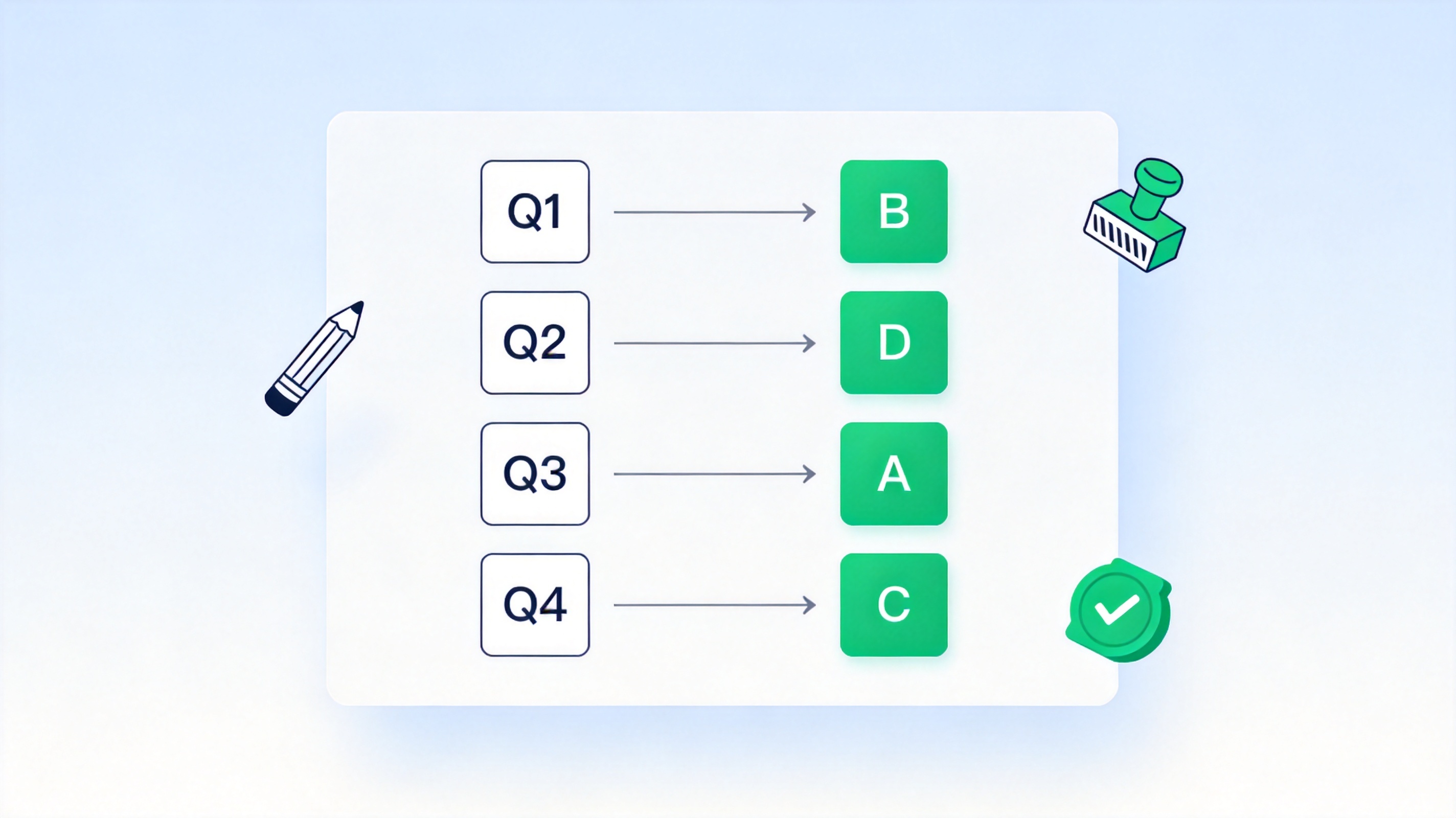
Answer key maps questions to answers


How to Build a Basic Answer Key in WPS Spreadsheet
Start with the master version of your test. The goal is one row per question, with the correct answer in its own column so formulas can read it later:
Open a new workbook in WPS Spreadsheet and create two column headers: Question in A1 and Answer in B1.
List the question numbers in column A, one per row (1, 2, 3, and so on down the sheet).
Type the correct answers in column B next to each question number. Use a consistent format, such as capital letters A, B, C, D for multiple choice.
Keep the key on its own sheet if the workbook also holds student responses. A sheet named Key keeps the answers separate from the test itself.
Save the file as .xlsx so it opens in both WPS Office and Microsoft Excel without conversion.
The screenshot below shows a finished basic answer key: question numbers in column A and correct answers in column B, ready to be referenced by formulas.
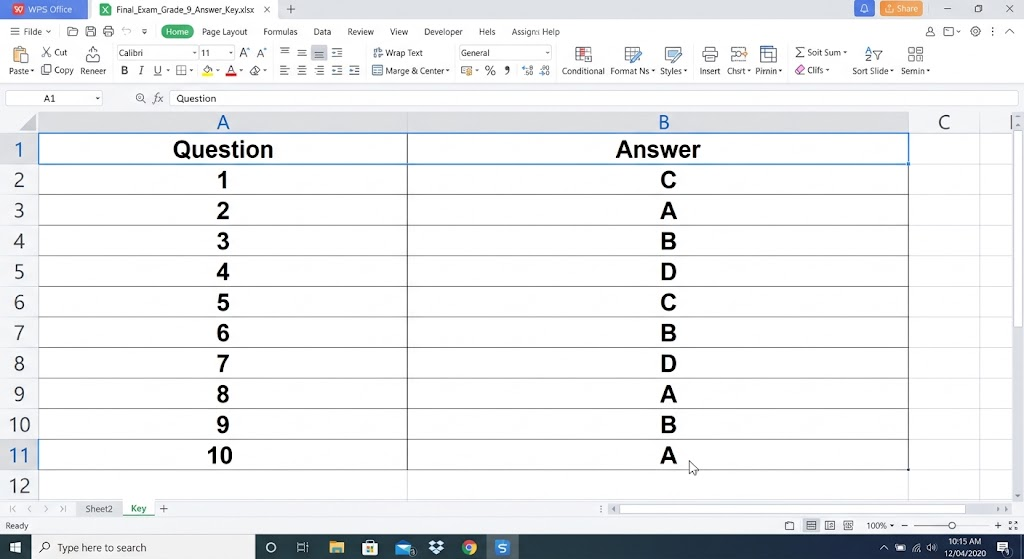
Answer key table in WPS Spreadsheet
How to Create an Answer Key for Shuffled Test Versions with INDEX and MATCH
When you print several versions of the same test, the questions are the same but the order differs. Retyping the key for each version invites errors. Instead, build one question key that records where each master question appears in every version, then let a lookup formula write the answer key for you:
Keep the master answer key in columns A and B: question numbers 1–19 in A, correct answers in B.
Add a question key block to the right, one column per test version. In the column for Test B, each row holds the master question number that appears at that position in Test B. For example, if question 1 of Test B is question 13 of the master test, that cell reads 13.
Enter the lookup formula in the first answer cell of the version column:
=INDEX($B$5:$B$23,MATCH(C5,$A$5:$A$23,0))
This reads: find the master question number stored in C5 inside the question column, then return the answer stored next to it in column B. The dollar signs lock the master ranges so they stay fixed while the formula is copied.
Copy the formula across and down with the fill handle until every version column is filled. Each column becomes the complete answer key for that test version.
Spot-check a few rows against the printed tests. If a wrong answer appears, the question key numbers, not the formula, are usually at fault.
Because the question numbers only point to where a question lives, MATCH finds the question in the master list first and INDEX then returns its answer. This two-step lookup is exactly why the INDEX and MATCH combination works so well here; you can see more examples in our guide to the Excel INDEX MATCH function.
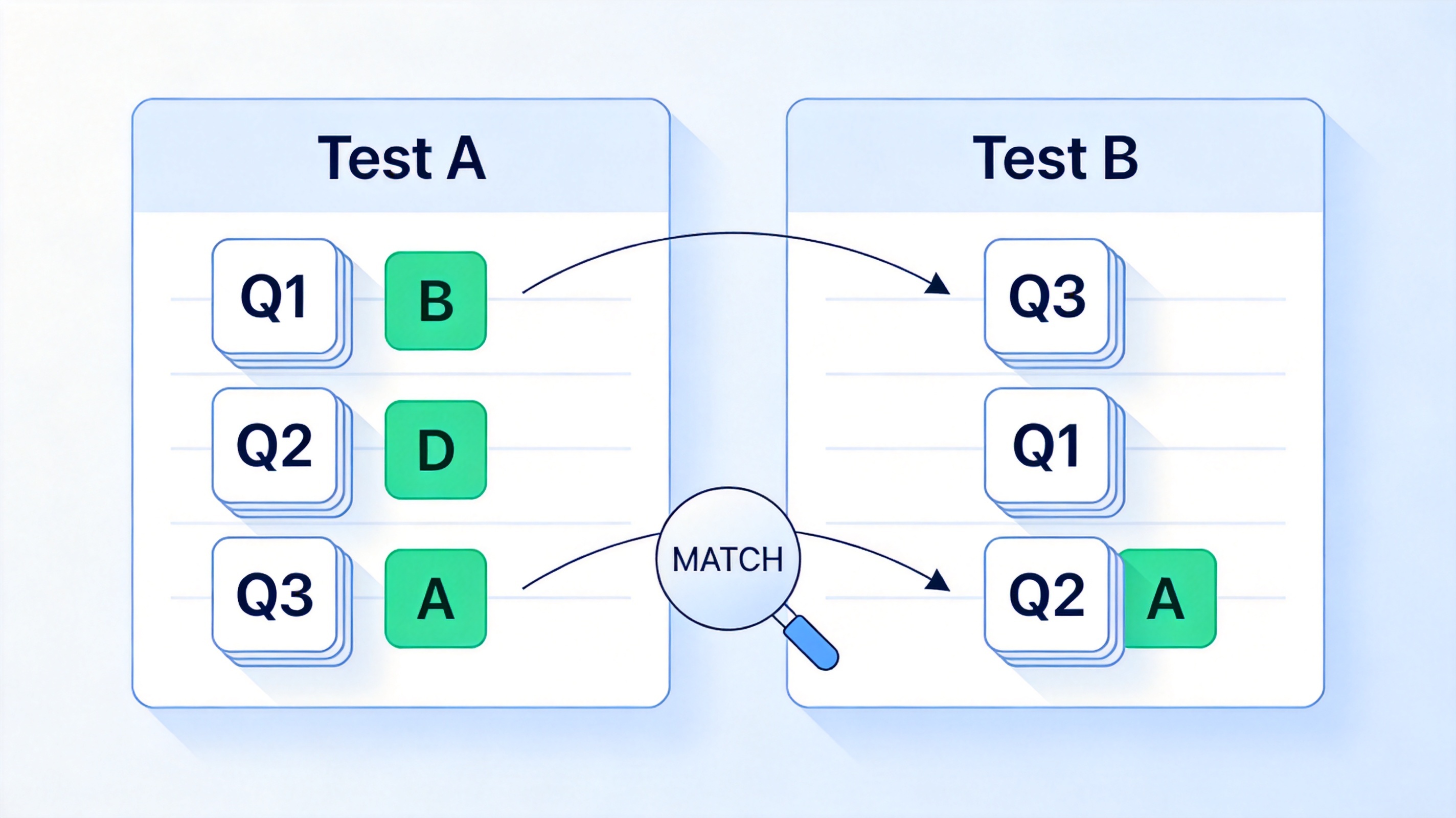
INDEX MATCH matches shuffled test questions
How to Auto-Grade with an Answer Key
Once the answer key exists, the sheet can grade for you. Put each student's answers in a column next to the key, then compare them row by row:
Copy the key answers into a column beside the student responses, or reference the Key sheet directly.
Compare each answer with a formula such as =IF(C2=$B$2,1,0), which returns 1 for a match and 0 for a miss.
Total the results with =SUM(D2:D21), or count correct responses with =COUNTIF(D2:D21,1).
Convert to a percentage by dividing the score by the question count, for example =SUM(D2:D21)/19.
Because the comparison references the answer key, updating one answer in the key updates every student's score. For lookup-based grading across sheets, the same logic shown in our VLOOKUP between two spreadsheets guide also applies. Modern XLOOKUP works too, and you can read when to prefer it in our XLOOKUP vs VLOOKUP comparison.
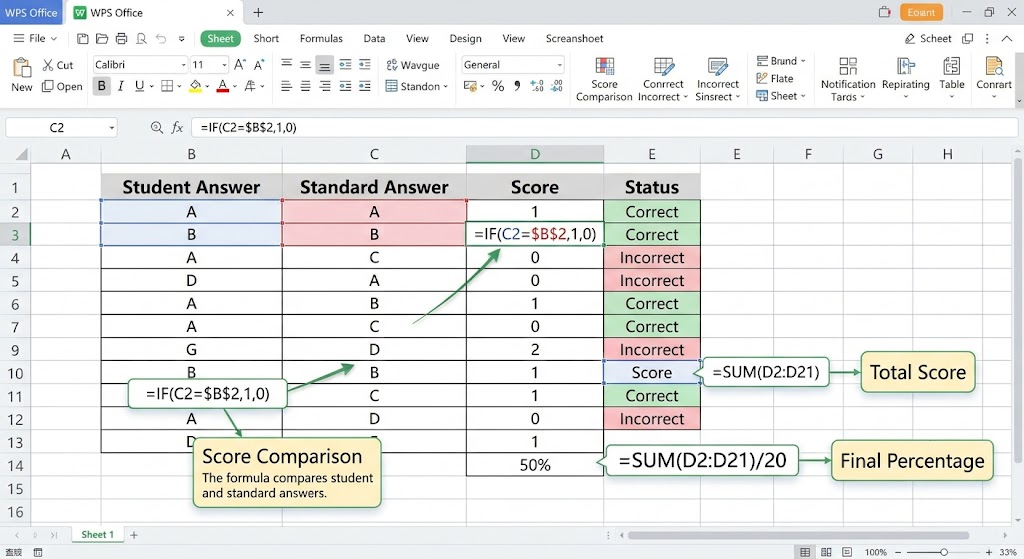
Auto grading answers against answer key
The Best Free Alternative: WPS Office for Answer Keys
WPS Spreadsheet handles every step above for free: multiple answer key sheets, INDEX MATCH lookups, and auto-grading formulas, with full .xlsx compatibility. WPS Office also bundles Writer and Presentation, so the same test file can hold the questions, the answer key, and the printable exam in one workbook. If you grade tests regularly, it is a practical free alternative to Microsoft Office.
WPS Office home screen overview
FAQs
What should an answer key include?
At minimum, each question number with its correct answer. For longer tests, add the point value per question and a short explanation for open-ended items so anyone grading with the key reaches the same result.
Can I build an answer key in Excel and open it in WPS Spreadsheet?
Yes. WPS Spreadsheet opens .xlsx files directly and supports INDEX, MATCH, IF, COUNTIF, and SUM with the same syntax, so a key built in Excel works without changes.
How do I make an answer key for multiple test versions?
Keep one master answer key, add a question key that records where each master question appears in every version, and use INDEX with MATCH to generate each version's answer column automatically.
Why does my lookup formula return #N/A?
The question number was not found in the lookup range, or the values do not match exactly. Check for extra spaces, number-vs-text formatting, and confirm the ranges are locked with dollar signs before copying the formula.
Is a formula-based answer key better than grading by hand?
For a handful of questions, manual grading is fine. For 100 or more questions, or several shuffled versions, formulas are faster and do not make copying mistakes, and updating one answer updates every score.


'%3e%3cpath%20d='M19.9911%204.11386V6.471H18.5894C18.0775%206.471%2017.7322%206.57814%2017.5536%206.79243C17.3751%207.00671%2017.2858%207.32814%2017.2858%207.75671V9.44421H19.9019L19.5536%2012.0871H17.2858V18.8639H14.5536V12.0871H12.2769V9.44421H14.5536V7.49779C14.5536%206.39064%2014.8632%205.53201%2015.4822%204.92189C16.1013%204.31177%2016.9257%204.00671%2017.9554%204.00671C18.8304%204.00671%2019.509%204.04243%2019.9911%204.11386Z'%20fill='%23333333'/%3e%3c/g%3e%3cdefs%3e%3cclipPath%20id='clip0_2938_8199'%3e%3crect%20width='16'%20height='16'%20fill='white'%20transform='translate(8%204.00671)'/%3e%3c/clipPath%3e%3c/defs%3e%3c/svg%3e)
'%3e%3cpath%20d='M17.5237%2010.7813L23.4811%204H22.0699L16.8949%209.88693L12.7648%204H8L14.2469%2012.9029L8%2020.0133H9.4112L14.8725%2013.7952L19.2352%2020.0133H24M9.92053%205.04213H12.0885L22.0688%2019.0224H19.9003'%20fill='%23333333'/%3e%3c/g%3e%3cdefs%3e%3cclipPath%20id='clip0_2938_8200'%3e%3crect%20width='16'%20height='16.0134'%20fill='white'%20transform='translate(8%204)'/%3e%3c/clipPath%3e%3c/defs%3e%3c/svg%3e)


