

'%3e%3cpath%20d='M8%200C12.4183%200%2016%203.58172%2016%208C16%2012.4183%2012.4183%2016%208%2016C3.58172%2016%200%2012.4183%200%208C0%203.58172%203.58172%200%208%200ZM11.6162%204.38379C11.2257%203.99337%2010.5927%203.99338%2010.2021%204.38379L8%206.58594L5.79785%204.38379C5.40732%203.99334%204.77429%203.99329%204.38379%204.38379C3.99331%204.77429%203.99335%205.40733%204.38379%205.79785L6.58594%208L4.38379%2010.2021C3.99348%2010.5927%203.99341%2011.2257%204.38379%2011.6162C4.77426%2012.0066%205.40734%2012.0065%205.79785%2011.6162L8%209.41406L10.2021%2011.6162C10.5927%2012.0066%2011.2257%2012.0067%2011.6162%2011.6162C12.0067%2011.2257%2012.0066%2010.5927%2011.6162%2010.2021L9.41406%208L11.6162%205.79785C12.0066%205.40735%2012.0066%204.77429%2011.6162%204.38379Z'%20fill='%23080E17'%20fill-opacity='0.46'/%3e%3c/g%3e%3cdefs%3e%3cclipPath%20id='clip0_3761_713'%3e%3crect%20width='16'%20height='16'%20fill='white'/%3e%3c/clipPath%3e%3c/defs%3e%3c/svg%3e)




'%3e%3cpath%20fill-rule='evenodd'%20clip-rule='evenodd'%20d='M21.4999%2010.9993C21.4999%205.20009%2016.7986%200.498901%2010.9993%200.498901C5.19994%200.498901%200.498657%205.20009%200.498657%2010.9993C0.498657%2016.2404%204.33858%2020.5844%209.35855%2021.3722V14.0346H6.69238V10.9993H9.35855V8.68594C9.35855%206.05427%2010.9262%204.60062%2013.3248%204.60062C14.4736%204.60062%2015.6753%204.80571%2015.6753%204.80571V7.38979H14.3512C13.0468%207.38979%2012.64%208.19921%2012.64%209.0296V10.9993H15.5523L15.0867%2014.0346H12.64V21.3722C17.66%2020.5844%2021.4999%2016.2404%2021.4999%2010.9993Z'%20fill='%231568EA'/%3e%3c/g%3e%3c/svg%3e)


'%3e%3cpath%20d='M2.42045%2022.1876H6.31818V12.7217L0.75%208.54553V20.5171C0.75%2021.4414%201.49892%2022.1876%202.42045%2022.1876Z'%20fill='%234285F4'/%3e%3cpath%20d='M19.682%2022.1876H23.5797C24.5041%2022.1876%2025.2502%2021.4387%2025.2502%2020.5171V8.54553L19.682%2012.7217'%20fill='%2334A853'/%3e%3cpath%20d='M19.682%205.48293V12.7216L25.2502%208.54543V6.31816C25.2502%204.25236%2022.8921%203.07469%2021.2411%204.31361'%20fill='%23FBBC04'/%3e%3cpath%20d='M6.31824%2012.7217V5.48303L13.0001%2010.4944L19.6819%205.48303V12.7217L13.0001%2017.733'%20fill='%23EA4335'/%3e%3cpath%20d='M0.75%206.31816V8.54543L6.31818%2012.7216V5.48293L4.75909%204.31361C3.10534%203.07469%200.75%204.25236%200.75%206.31816Z'%20fill='%23C5221F'/%3e%3c/g%3e%3cdefs%3e%3cclipPath%20id='clip0_2954_7305'%3e%3crect%20width='24.5'%20height='18.375'%20fill='white'%20transform='translate(0.75%203.8125)'/%3e%3c/clipPath%3e%3c/defs%3e%3c/svg%3e)


Adobe has long been the gold standard for handling PDFs, and naturally, many users turn to its tools when they need to convert JPG images into PDF files. As the creator of the PDF format itself, Adobe inspires trust particularly among users who want accuracy, compatibility, and brand reliability. But the challenges become clear quickly such as high subscription costs for full features, slow batch processing and limited integration with everyday office apps. In this guide, I’ll show you how to convert Adobe JPG to PDF, and introduce a much easier and faster solution.


Overview of Adobe JPG to PDF Converter
Adobe JPG to PDF converter is part of its broader Acrobat ecosystem. Whether accessed through its online platform or desktop software, it is designed to help you convert images into high-quality, printer-ready PDF files. It works well for users who need accurate formatting, reliable file handling, and compatibility across devices. Adobe lets you drag and drop a JPG or multiple JPG files into its online tool and instantly convert them into a standardized PDF. You don’t need deep technical knowledge, and the interface is simpler compared to many third-party converters.

Features:
Supported Formats: JPG, PNG, TIFF, GIF, and BMP can all be converted into PDF.
Output Quality: Maintains original image clarity and detail for professional results.
User-Friendly Interface: Simple drag-and-drop functionality for quick file selection.
Platform Availability: Accessible both online and via Adobe Acrobat desktop.
PDF Editing Integration: Allows cropping, merging, and adding pages within the Adobe ecosystem.
OCR Capability: Recognizes text in scanned images, available in the paid version.
For full functionality, including OCR, compression controls, batch automation, and advanced features, you would need a paid subscription to Adobe Acrobat Standard or Pro, which starts around $12.99 to $19.99 per month. While Adobe is undoubtedly powerful, conversion is just one part of its broader ecosystem, and for many users, paying a monthly fee solely to convert JPGs into PDFs or to use Adobe JPG to PDF on phone may feel unnecessary.
How to Convert JPG to PDF on Adobe
Having explored Adobe’s features and pricing, I found the online tool to be quite straightforward, but there are a few nuances that make the difference between a quick PDF and one that needs extra adjustments. For instance, Adobe automatically detects image orientation, but if your JPGs have different aspect ratios, you might need to manually set the page size to prevent white spaces. Similarly, while batch uploads are possible, the online version processes them sequentially, so timing can be longer than expected. Here’s how to convert PDF to JPG on Adobe.
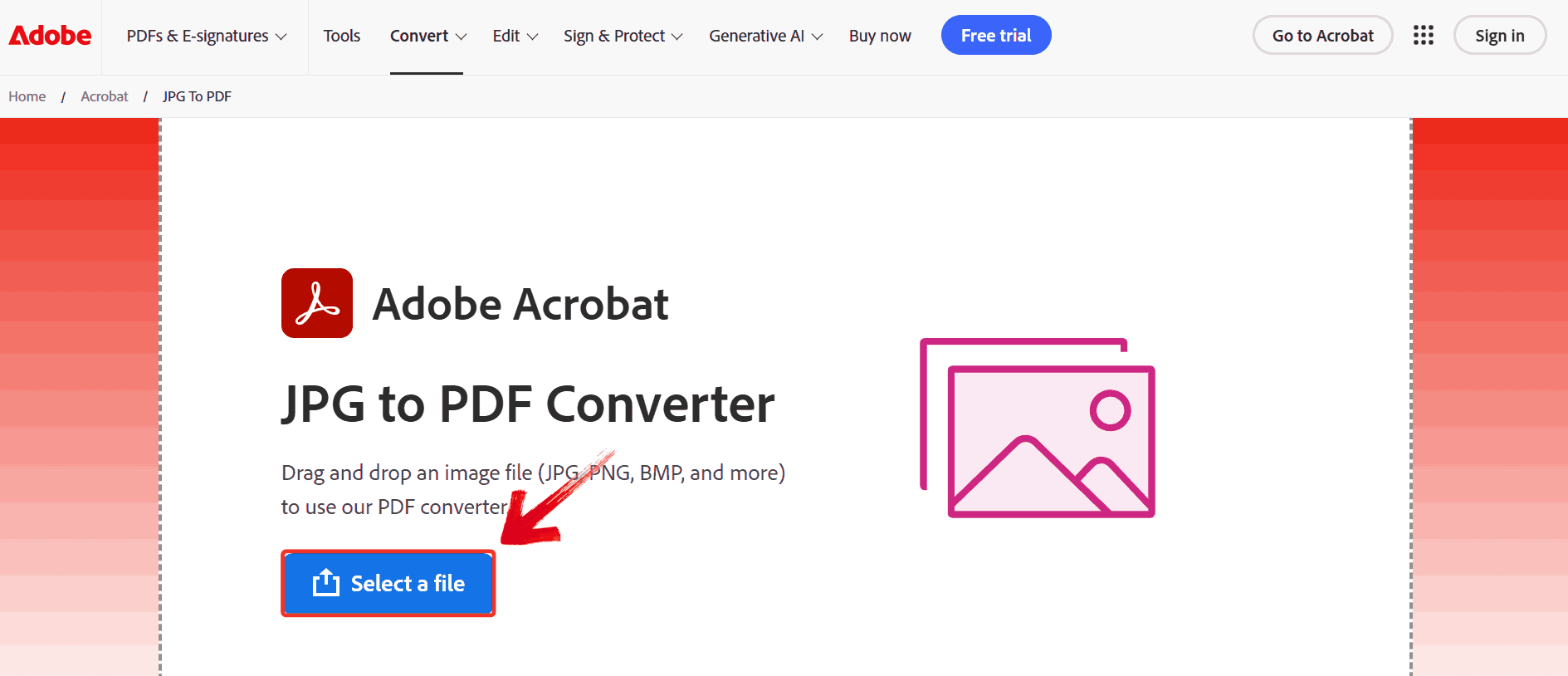
Step 1: Go to Adobe’s official JPG to PDF page and click “Select a file” to choose the JPG file you want to convert.
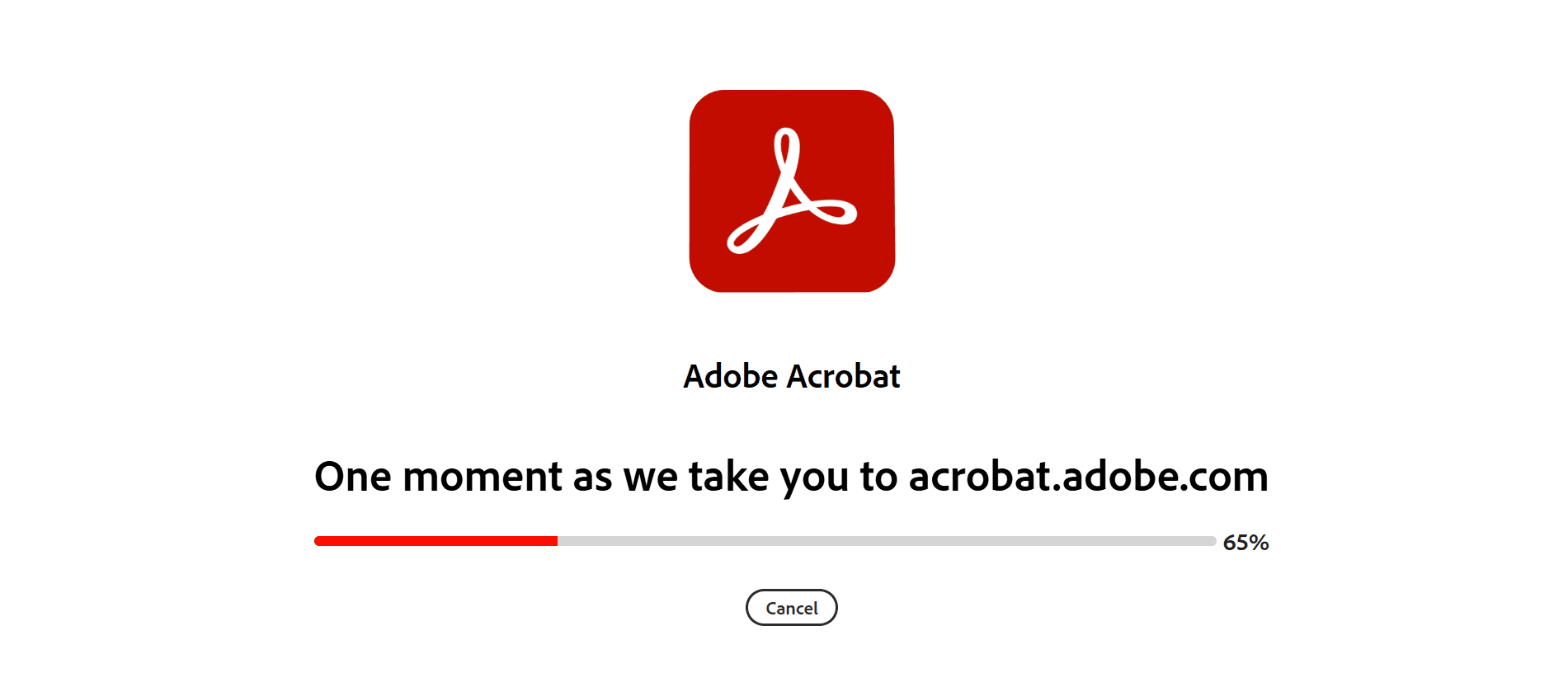
Step 2: After your files are uploaded, Adobe automatically begins converting them into a PDF. You’ll see a loading screen while the process completes.
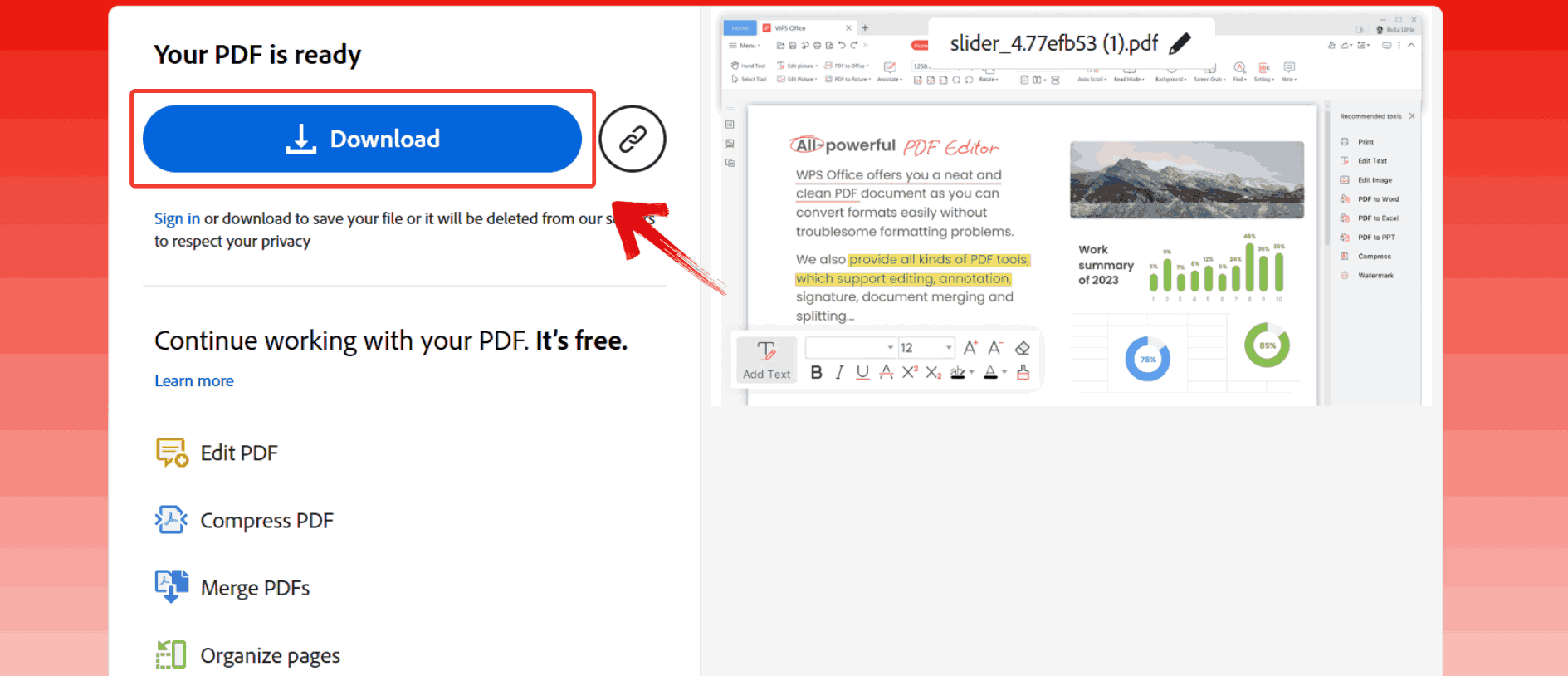
Step 3: Once conversion is finished, click the blue “Download” button to save your PDF to your device. If you want, you can also use Adobe’s additional features at this stage, like editing the PDF, compressing it for smaller size, or rearranging pages.
Pros and Cons of Converting JPG to PDF on Adobe
There are patterns in how Adobe performs under different circumstances. For single-image conversions or files where maintaining quality is critical, the tool handles everything with minimal fuss. However, when there are batch uploads or additional formatting, certain limitations become clear like slower processing times for free users and fewer customization options online. Adobe is excellent for reliability and professional output, but it isn’t always the fastest or most flexible solution, depending on what suits you and the file volume.
Using Adobe for quick conversions, the quality is excellent, but paying monthly just to create PDFs from JPGs doesn’t feel practical for most users.
WPS Online Converter: Best Alternative to Adobe JPG to PDF Converter
WPS Office offers exactly what most people need compared with the heavier ecosystem of Adobe Acrobat. It lets you upload JPG, PNG, GIF, and BMP files and instantly turn them into high‑quality PDF documents, often in seconds. Because it works directly in your browser, you don’t need to install bulky software or enter payment details which makes the whole process much less intimidating if you only occasionally convert images. For daily tasks like merging scanned notes, converting photos for sharing, or packaging multiple images into a single PDF, this free and flexible tool really delivers.
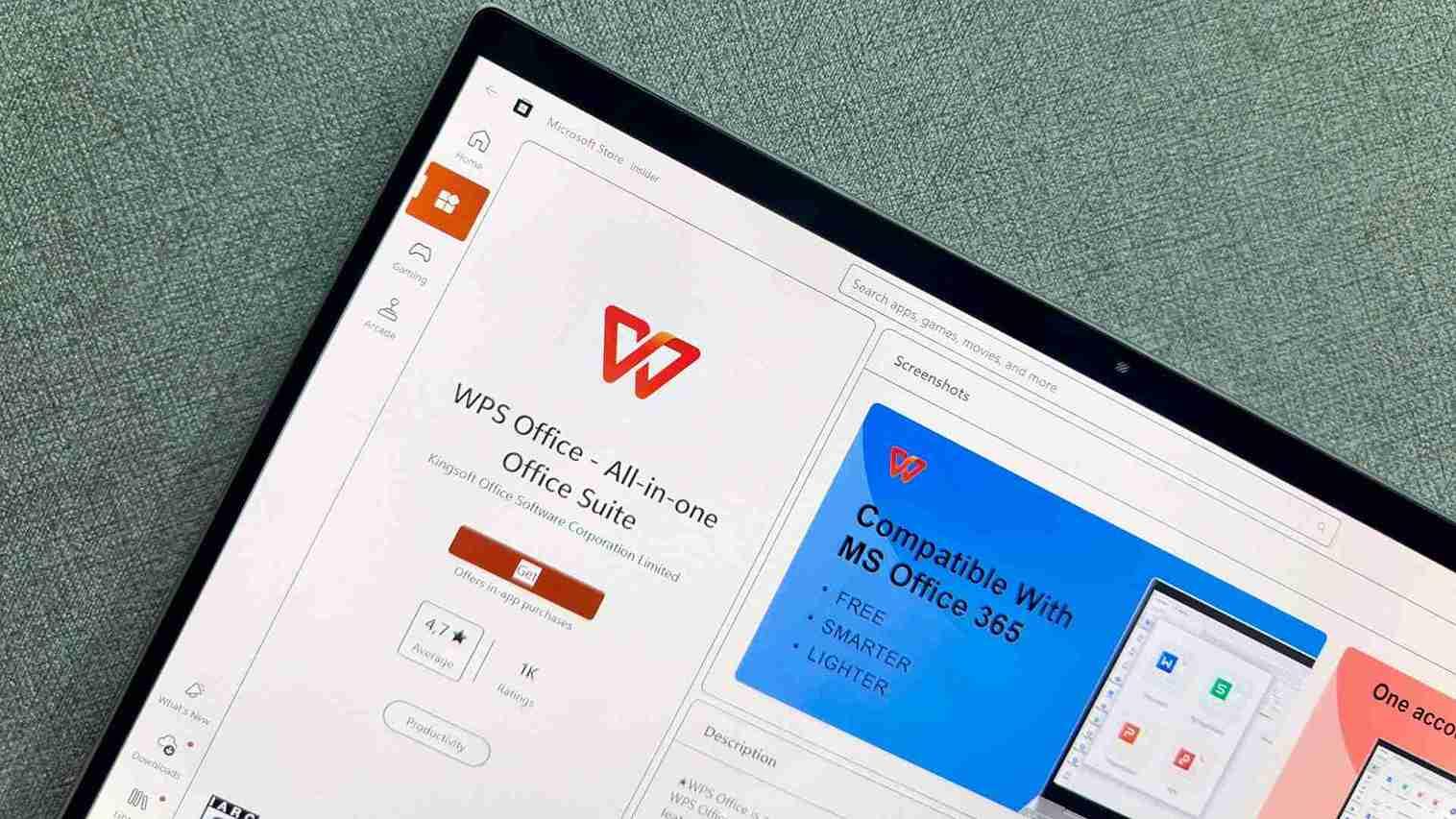
With WPS, you have control over image order, page orientation, and output quality, all without dealing with subscription barriers. Here’s how to start converting.
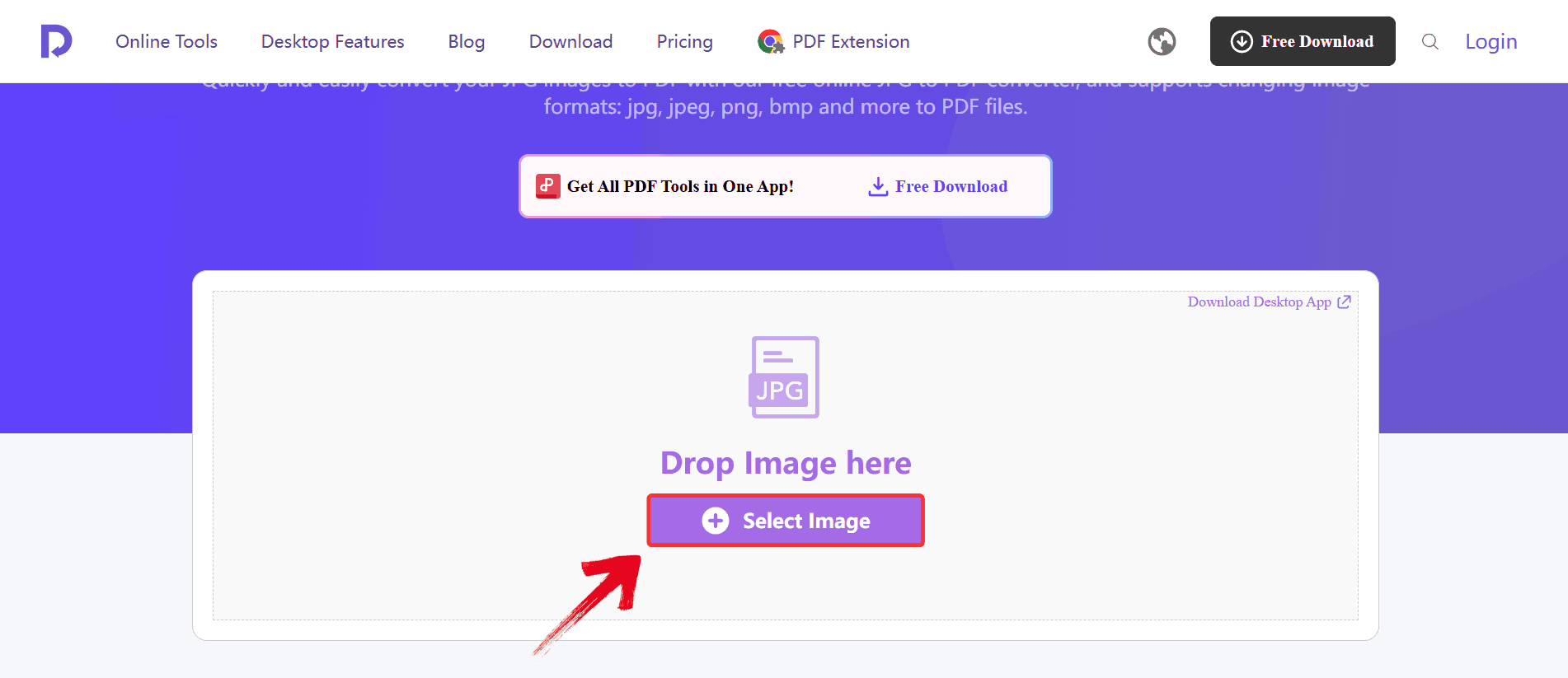
Step 1: Go to the WPS JPG to PDF online converter and click “Select JPG Files” to import the images you want to convert.
Step 2: Once your image is done being imported, you can make some adjustments to make sure your PDF looks exactly the way you want.
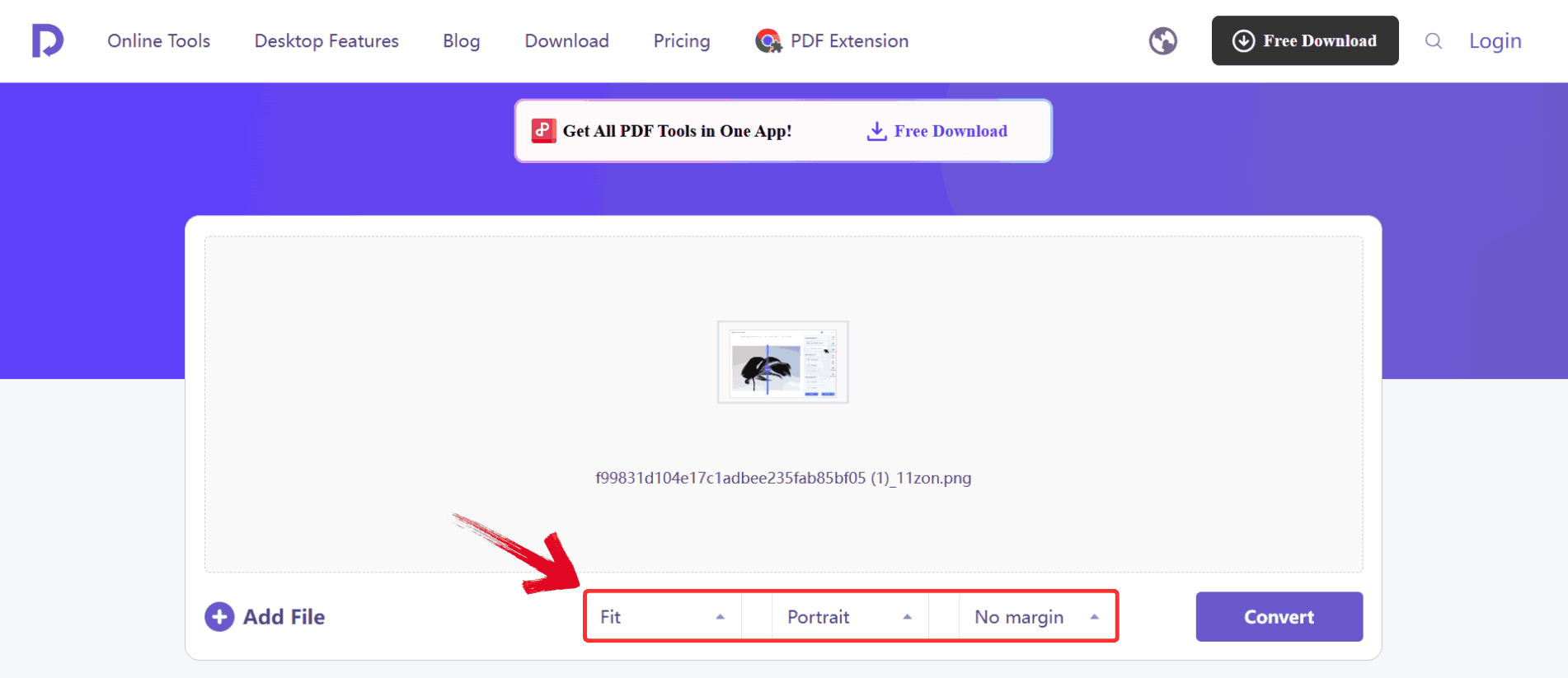
Step 3: After you’ve uploaded your files and made any adjustments, click the “Convert” button. WPS will process your images and generate a PDF.
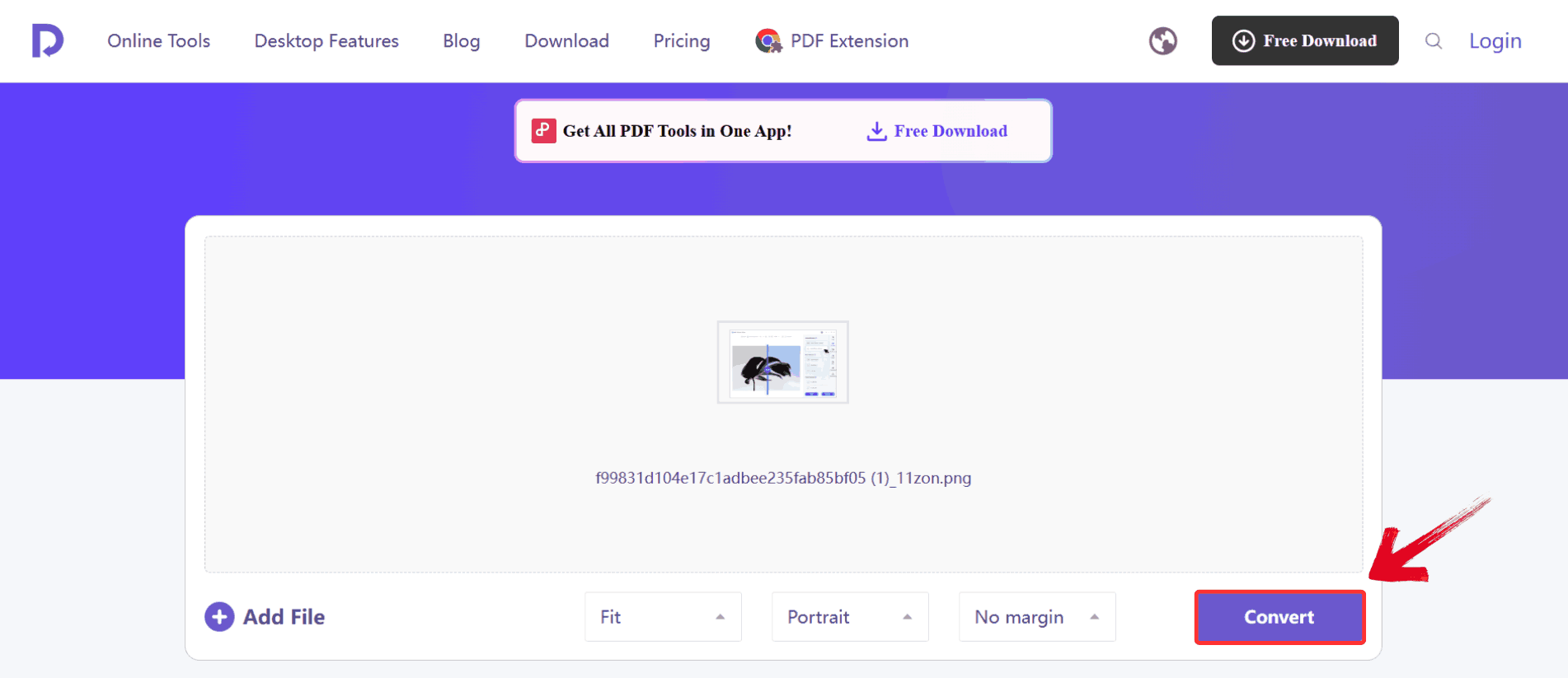
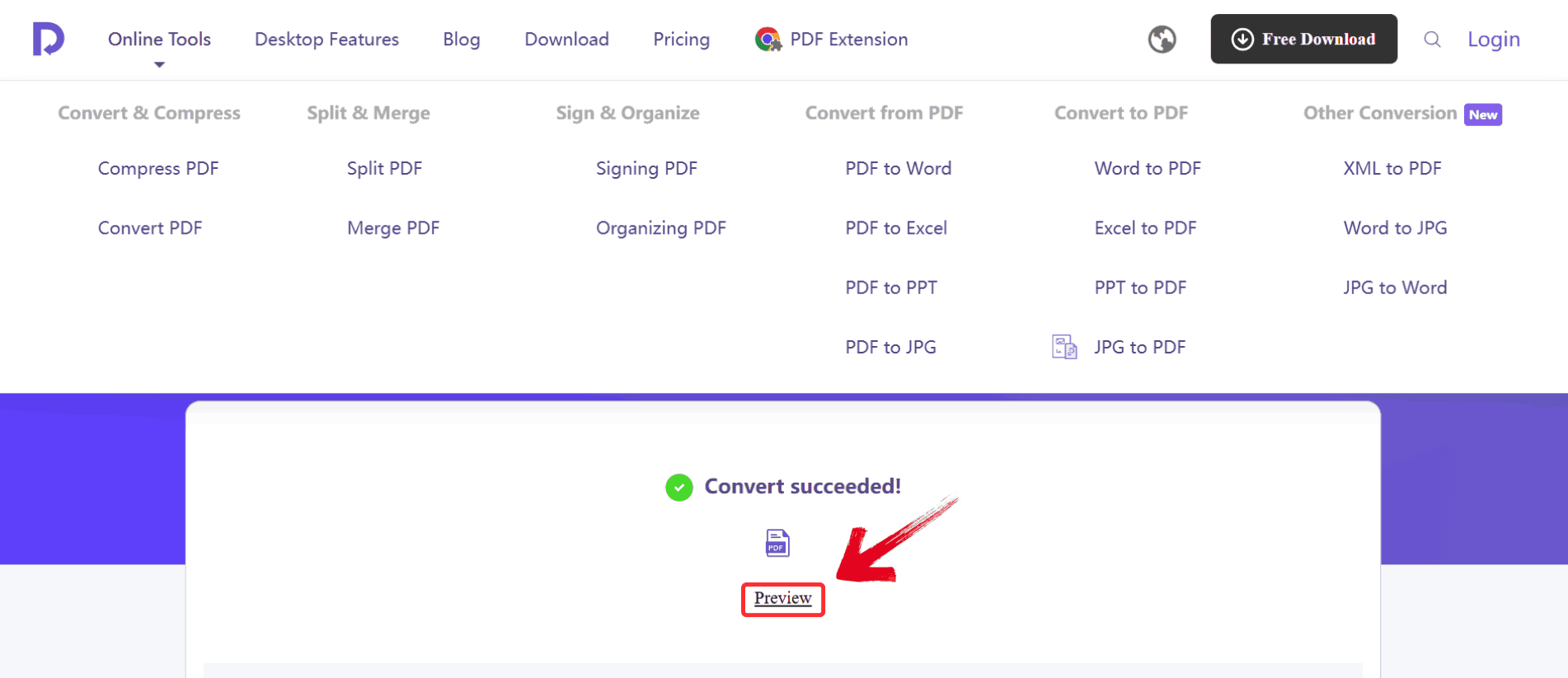
Step 4: Once the conversion is complete, click on “Preview” to view your newly created PDF.
WPS Online Converter vs. Adobe Converter
Even minor variations in layout, upload options, or output settings can affect both the speed and precision of converting JPG files into refined PDFs. To give you a clearer picture, I compared Adobe’s JPG to PDF converter with WPS Online Converter on practical factors such as ease of use, image fidelity, batch handling, and overall processing time. The table below captures the results of this hands-on comparison, highlighting how each tool performs in real-world scenarios.
| Feature | WPS Online Converter | Adobe JPG to PDF Converter |
|---|---|---|
| Ease of Use | Extremely beginner-friendly | Clean but requires sign-in for extras |
| Conversion Speed | Fast, even for large files | Slower on free version |
| Format Preservation | Excellent quality | Industry-standard quality |
| File Limitations | No daily limits | Some limits for free users |
| Compatibility | Works on all devices instantly | Mobile & desktop, but heavy software |
| Cost | Completely free | Many features require paid plan |
| Batch Conversion | Free and fast | Mostly paid |
WPS feels refreshing because it removes friction. Adobe is powerful, but unless you’re paying for Pro features, the online version is slower and more restrictive.
FAQs
1. Does the Adobe converter guarantee the best possible quality for the output PDF?
Yes. Adobe preserves image fidelity exceptionally well. If you require full control over resolution or compression, you’ll need Acrobat Pro.
2. Is it safe to upload sensitive JPG files to Adobe’s online converter?
Adobe uses strong security protocols, but for highly confidential files, offline desktop conversion is safest.
3. Does Adobe’s JPG to PDF conversion automatically make scanned text searchable?
No. You must run OCR afterward, which requires Acrobat Pro.
4. Can Adobe convert multiple JPG files into one single PDF?
Yes through Acrobat desktop and some online features. However, batch merging is often limited unless you have a paid plan.
5. Does Adobe JPG to PDF work on mobile devices?
Yes, through the Adobe Acrobat Reader app. However, free users have limited editing capabilities.

'%3e%3cpath%20d='M19.9911%204.11386V6.471H18.5894C18.0775%206.471%2017.7322%206.57814%2017.5536%206.79243C17.3751%207.00671%2017.2858%207.32814%2017.2858%207.75671V9.44421H19.9019L19.5536%2012.0871H17.2858V18.8639H14.5536V12.0871H12.2769V9.44421H14.5536V7.49779C14.5536%206.39064%2014.8632%205.53201%2015.4822%204.92189C16.1013%204.31177%2016.9257%204.00671%2017.9554%204.00671C18.8304%204.00671%2019.509%204.04243%2019.9911%204.11386Z'%20fill='%23333333'/%3e%3c/g%3e%3cdefs%3e%3cclipPath%20id='clip0_2938_8199'%3e%3crect%20width='16'%20height='16'%20fill='white'%20transform='translate(8%204.00671)'/%3e%3c/clipPath%3e%3c/defs%3e%3c/svg%3e)
'%3e%3cpath%20d='M17.5237%2010.7813L23.4811%204H22.0699L16.8949%209.88693L12.7648%204H8L14.2469%2012.9029L8%2020.0133H9.4112L14.8725%2013.7952L19.2352%2020.0133H24M9.92053%205.04213H12.0885L22.0688%2019.0224H19.9003'%20fill='%23333333'/%3e%3c/g%3e%3cdefs%3e%3cclipPath%20id='clip0_2938_8200'%3e%3crect%20width='16'%20height='16.0134'%20fill='white'%20transform='translate(8%204)'/%3e%3c/clipPath%3e%3c/defs%3e%3c/svg%3e)


