

'%3e%3cpath%20d='M8%200C12.4183%200%2016%203.58172%2016%208C16%2012.4183%2012.4183%2016%208%2016C3.58172%2016%200%2012.4183%200%208C0%203.58172%203.58172%200%208%200ZM11.6162%204.38379C11.2257%203.99337%2010.5927%203.99338%2010.2021%204.38379L8%206.58594L5.79785%204.38379C5.40732%203.99334%204.77429%203.99329%204.38379%204.38379C3.99331%204.77429%203.99335%205.40733%204.38379%205.79785L6.58594%208L4.38379%2010.2021C3.99348%2010.5927%203.99341%2011.2257%204.38379%2011.6162C4.77426%2012.0066%205.40734%2012.0065%205.79785%2011.6162L8%209.41406L10.2021%2011.6162C10.5927%2012.0066%2011.2257%2012.0067%2011.6162%2011.6162C12.0067%2011.2257%2012.0066%2010.5927%2011.6162%2010.2021L9.41406%208L11.6162%205.79785C12.0066%205.40735%2012.0066%204.77429%2011.6162%204.38379Z'%20fill='%23080E17'%20fill-opacity='0.46'/%3e%3c/g%3e%3cdefs%3e%3cclipPath%20id='clip0_3761_713'%3e%3crect%20width='16'%20height='16'%20fill='white'/%3e%3c/clipPath%3e%3c/defs%3e%3c/svg%3e)



'%3e%3cpath%20fill-rule='evenodd'%20clip-rule='evenodd'%20d='M21.4999%2010.9993C21.4999%205.20009%2016.7986%200.498901%2010.9993%200.498901C5.19994%200.498901%200.498657%205.20009%200.498657%2010.9993C0.498657%2016.2404%204.33858%2020.5844%209.35855%2021.3722V14.0346H6.69238V10.9993H9.35855V8.68594C9.35855%206.05427%2010.9262%204.60062%2013.3248%204.60062C14.4736%204.60062%2015.6753%204.80571%2015.6753%204.80571V7.38979H14.3512C13.0468%207.38979%2012.64%208.19921%2012.64%209.0296V10.9993H15.5523L15.0867%2014.0346H12.64V21.3722C17.66%2020.5844%2021.4999%2016.2404%2021.4999%2010.9993Z'%20fill='%231568EA'/%3e%3c/g%3e%3c/svg%3e)


'%3e%3cpath%20d='M2.42045%2022.1876H6.31818V12.7217L0.75%208.54553V20.5171C0.75%2021.4414%201.49892%2022.1876%202.42045%2022.1876Z'%20fill='%234285F4'/%3e%3cpath%20d='M19.682%2022.1876H23.5797C24.5041%2022.1876%2025.2502%2021.4387%2025.2502%2020.5171V8.54553L19.682%2012.7217'%20fill='%2334A853'/%3e%3cpath%20d='M19.682%205.48293V12.7216L25.2502%208.54543V6.31816C25.2502%204.25236%2022.8921%203.07469%2021.2411%204.31361'%20fill='%23FBBC04'/%3e%3cpath%20d='M6.31824%2012.7217V5.48303L13.0001%2010.4944L19.6819%205.48303V12.7217L13.0001%2017.733'%20fill='%23EA4335'/%3e%3cpath%20d='M0.75%206.31816V8.54543L6.31818%2012.7216V5.48293L4.75909%204.31361C3.10534%203.07469%200.75%204.25236%200.75%206.31816Z'%20fill='%23C5221F'/%3e%3c/g%3e%3cdefs%3e%3cclipPath%20id='clip0_2954_7305'%3e%3crect%20width='24.5'%20height='18.375'%20fill='white'%20transform='translate(0.75%203.8125)'/%3e%3c/clipPath%3e%3c/defs%3e%3c/svg%3e)


Love South Park and dreaming of turning yourself into a snarky, paper-cutout kid? Fans can’t get enough of making custom characters for memes, social media, or fun gifts like mugs. But most free South Park character creators give you blurry, low-res images that flop when shared or printed. Are there easy, free tools that actually work? And how do you make those creations pop? This guide rounds up the top five free creators, classic and AI-driven, plus a simple trick to sharpen them up.


Part 1. 2 Classic South Park Character Creators
These old-school tools are all about hands-on building, letting you piece together characters like you’re crafting a South Park episode yourself. They’re free, super accessible, but often churn out low-res images that need a boost. Let’s dive into the best classic picks.
1. SP-Studio
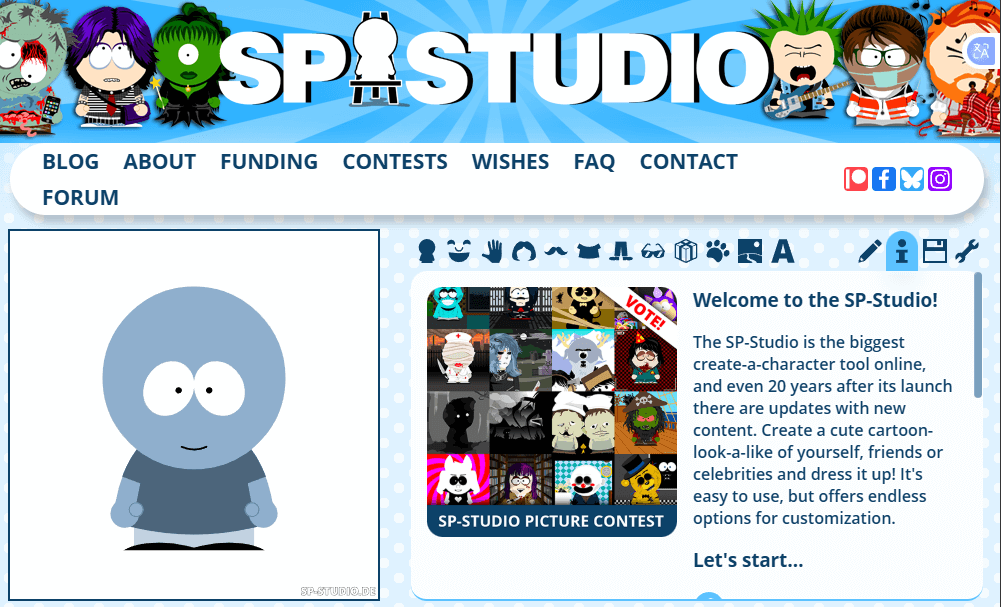
SP-Studio is a fan-made classic for South Park lovers, packed with tons of assets to build anything from a Kyle clone to a wild original character. It’s like a digital toy box for endless customization, but it comes with a few quirks to navigate.
Features:
How to Use SP-Studio:
Step 1: Head to the SP-Studio website and hit “Create” to get a blank canvas.
Step 2: Start with a face shape, then add eyes, mouth, and hair from the sidebar.
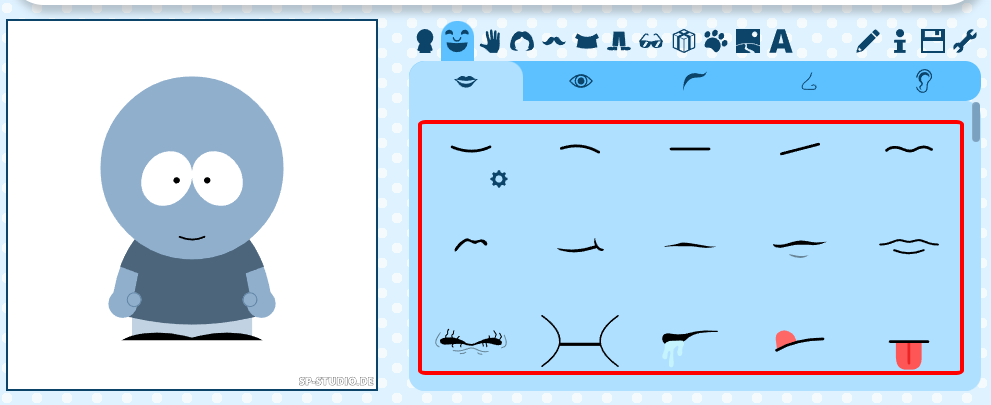
Step 3: Pick out clothes and tweak their colors with sliders.
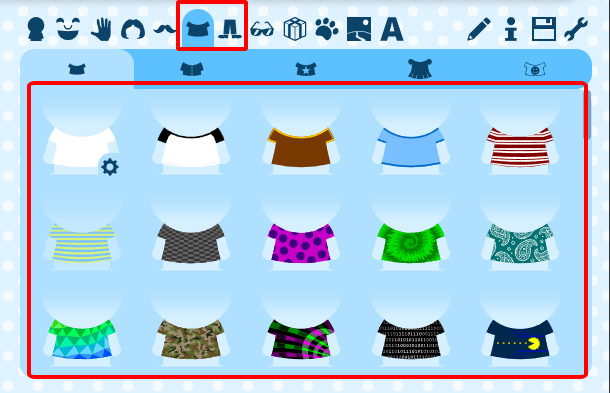
Step 4: Toss on accessories like hats or weird props, adjusting layers if something’s off.
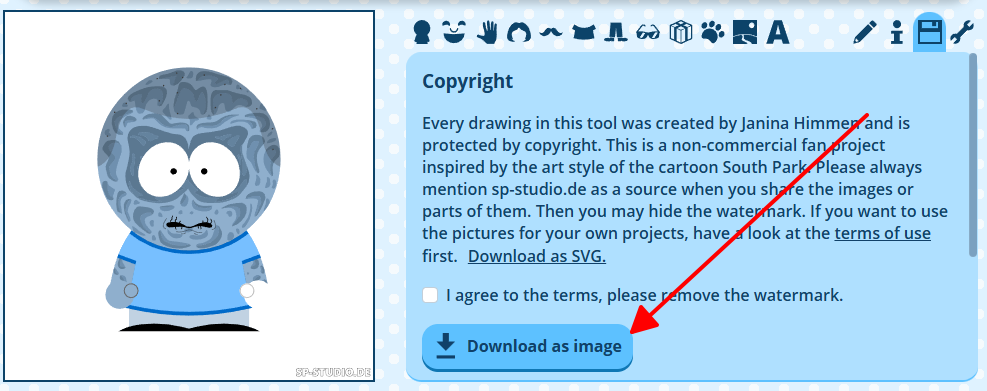
Step 5: Download your low-res PNG, it’s share-ready, but you’ll want to upscale it for bigger stuff.
Pros:
Cons:
SP-Studio’s a total blast, like playing dress-up with South Park’s wildest props. I spent way too long making a version of my dog with a chef hat and a skateboard, but the blurry PNG was a letdown when I tried slapping it on a sticker. It’s awesome for creative types who don’t mind a bit of elbow grease and a follow-up tool to sharpen things up.
2. South Park Avatar
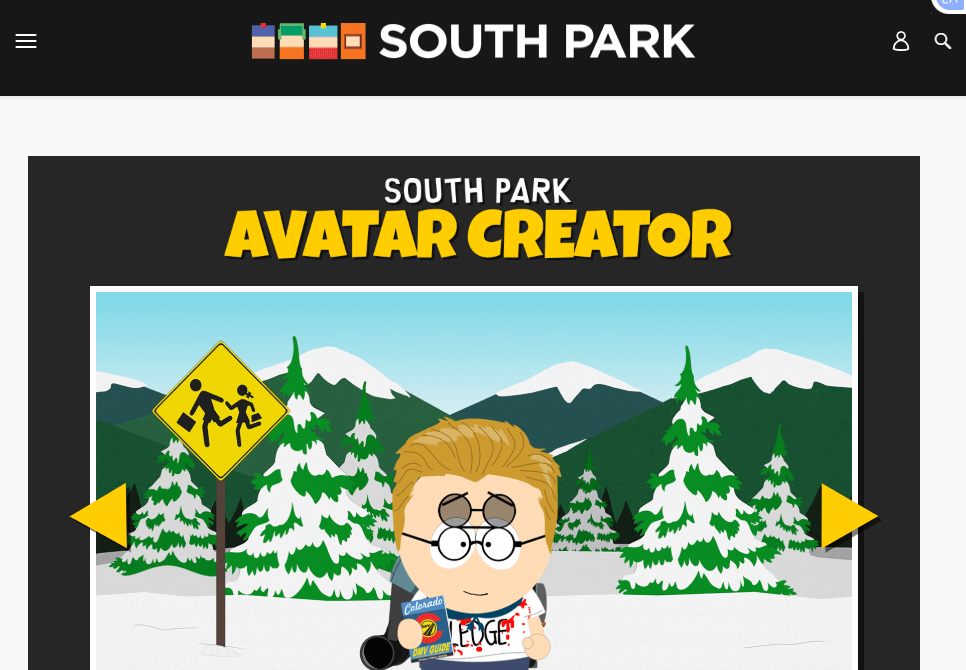
South Park Avatar is the real deal from Comedy Central, letting you whip up characters that could stroll right into the show. Its easy, guided setup uses legit assets for that perfect South Park look. Ideal for purists who want no-fuss authenticity, but it’s got a few limitations.
Features:
How to Use South Park Avatar:
Step 1: Pop over to the South Park Studios website and find the Avatar section.
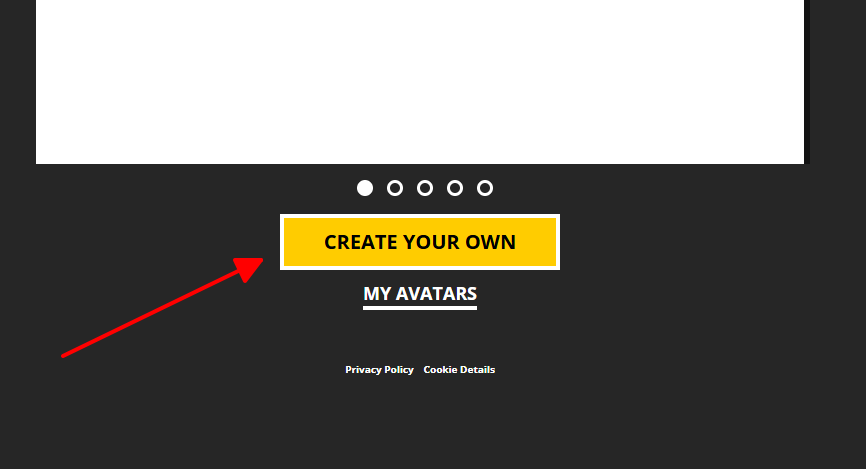
Step 2: Follow the prompts to pick a face, hair, and expressions.
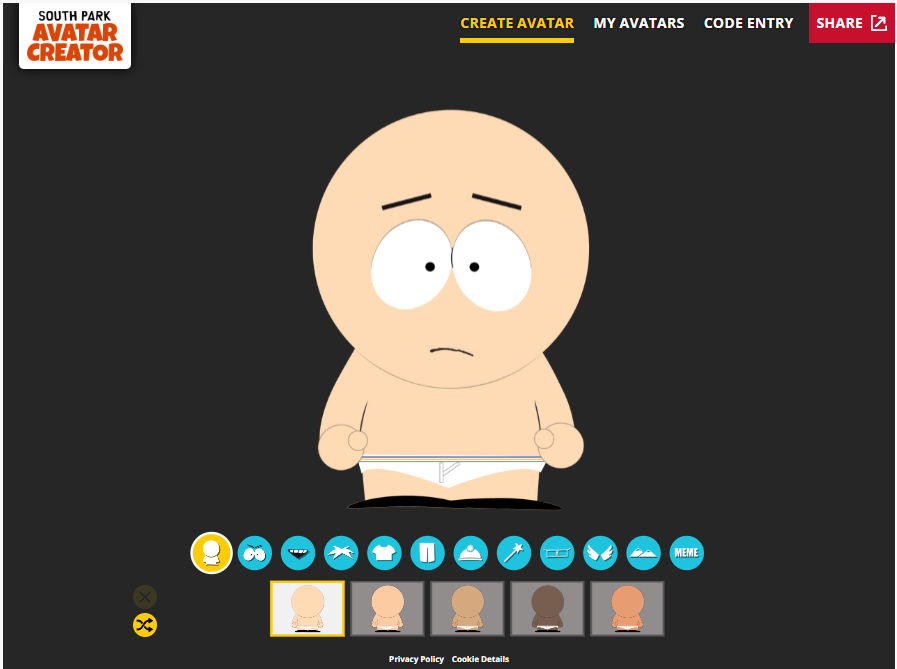
Step 3: Choose clothes and accessories from the official lineup.
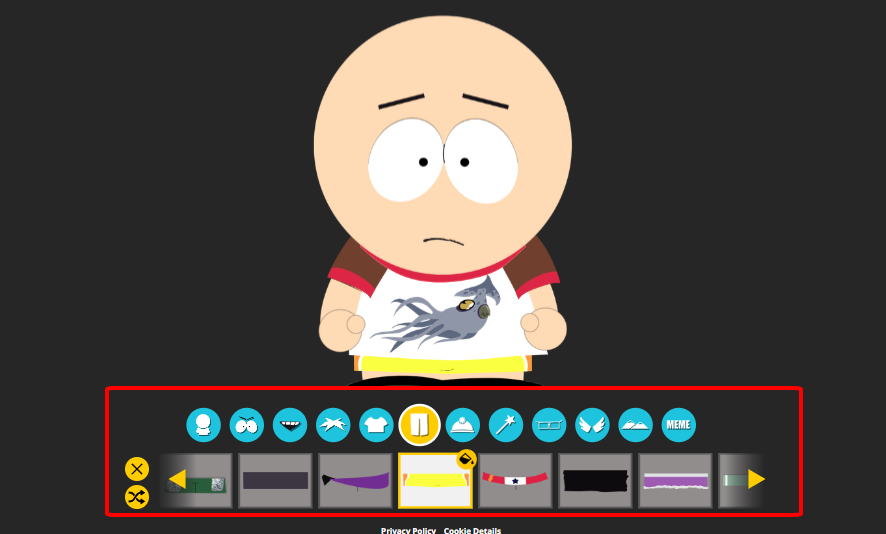
Step 4: Preview your character and tweak anything that looks off.
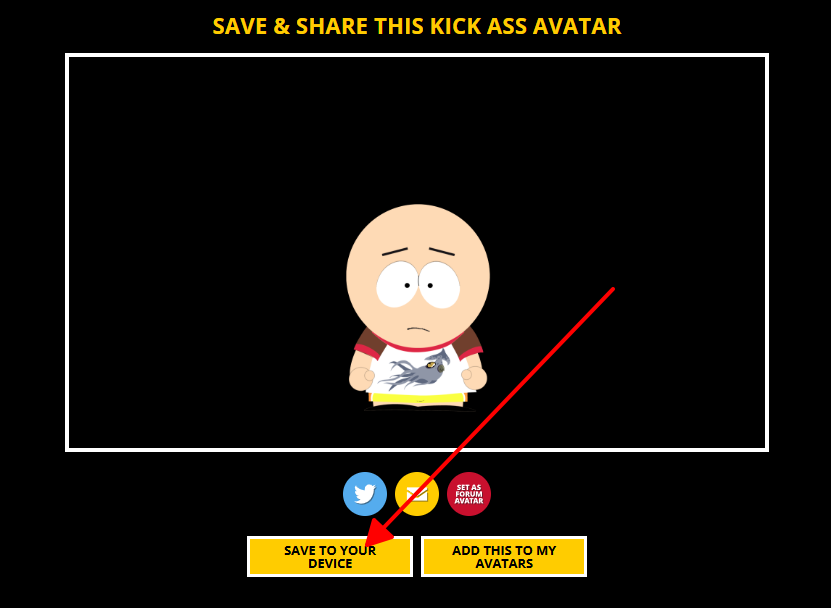
Step 5: Download the PNG or grab a shareable code.
Pros:
Cons:
South Park Avatar is like the fast food of character creators, quick, reliable, and exactly what you expect. I whipped up a Stan clone for a group chat prank in minutes, but the limited options left me wanting a crazier hat or two. It’s perfect if you want that official look without the hassle.
Part 2. 3 AI South Park Character Creators
AI tools are like magic wands for South Park fans, upload a selfie or type a quirky prompt, and boom, you’re a character in seconds. They’re fast, mostly free, and great for instant gratification, but the style can sometimes miss the mark. Here’s the lowdown on the top free AI creators.
1. Fotor

Fotor’s a versatile photo editor with a slick South Park character AI that turns selfies into cartoons in a snap. It’s got editing tools to tweak your creation, making it great for fast, fun results, though it’s not flawless.
Features:
How to Use Fotor:
Step 1: Head to Fotor’s South Park feature and upload your photo.
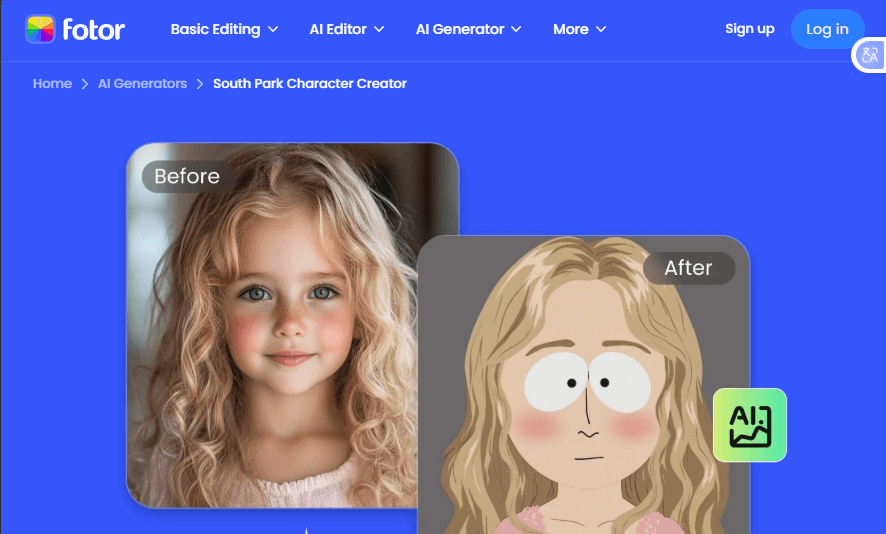
Step 2: Hit the South Park filter, AI does the rest in a flash.
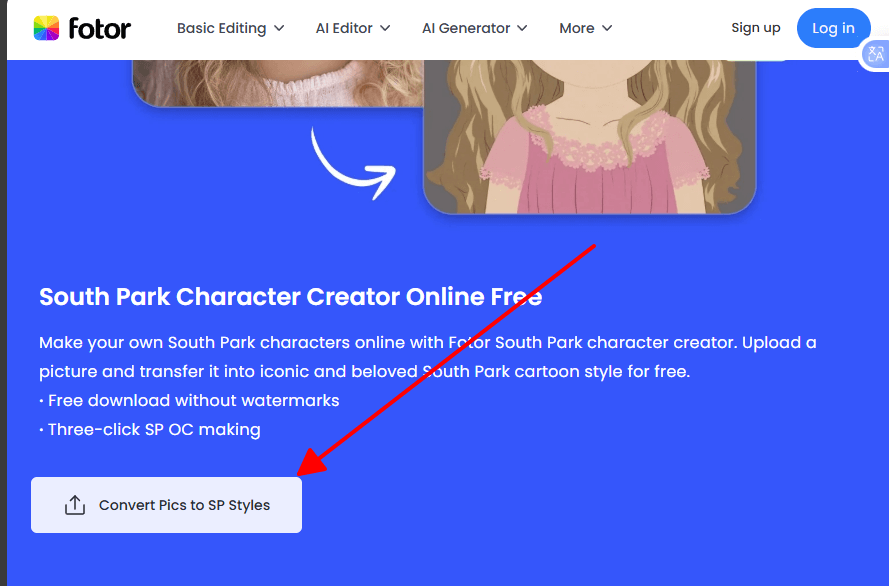
Step 3: Use replacer tools to swap outfits or backgrounds if you want.
Step 4: Download a watermark-free PNG.
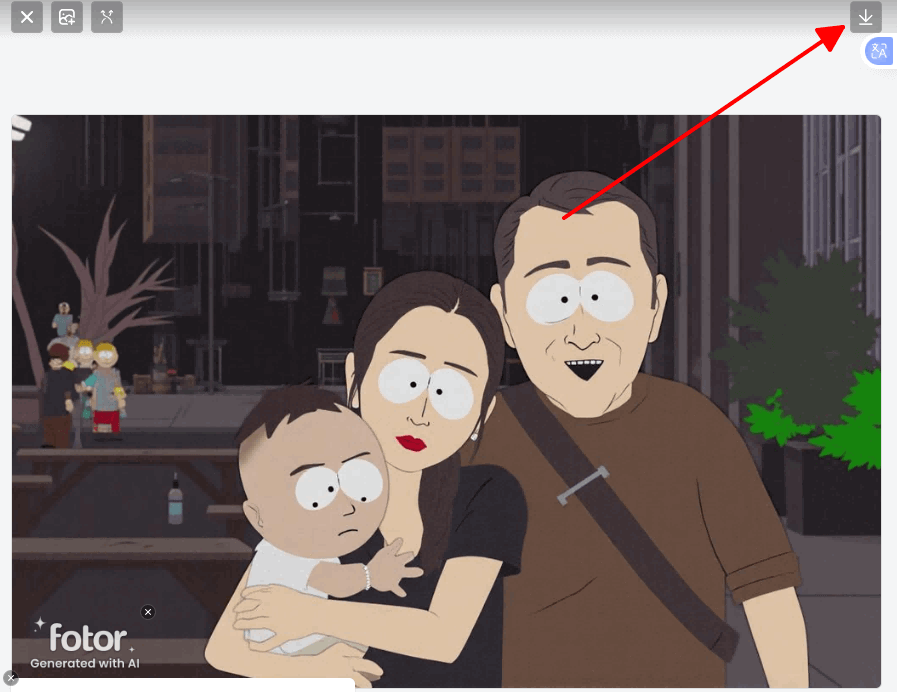
Step 5: Optional: Add animations or style tweaks for fun.
Pros:
Cons:
Fotor’s like that friend who’s always got your back, fast and fun. I turned a selfie into a smirking South Park teen during a coffee break, but one attempt came out too polished, like my character got a makeover. It’s great for quick wins, especially if you’re not picky.
2. InsMind

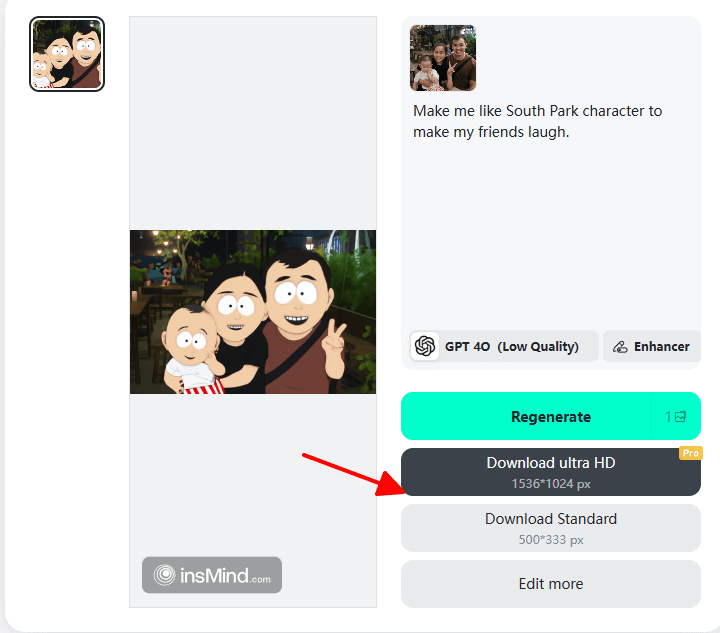
InsMind’s a focused AI tool that nails South Park’s bold, simple style, turning photos or prompts into spot-on avatars fast. Perfect for easy, authentic characters, like your pet as Cartman, though it’s short on extra editing features.
Features:
How to Use InsMind:
Step 1: Visit InsMind’s South Park creator and upload a photo.
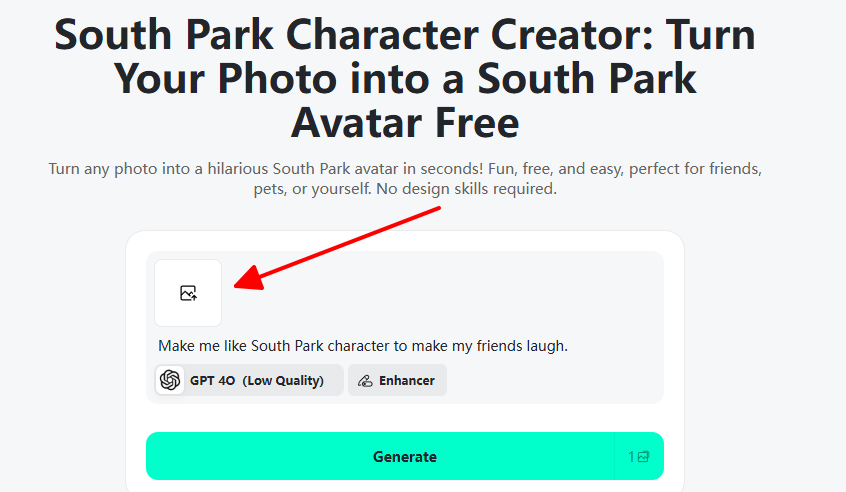
Step 2: Throw in a prompt like “me as a punk rock South Park kid.”
Step 3: Generate, AI spits it out crazy fast.
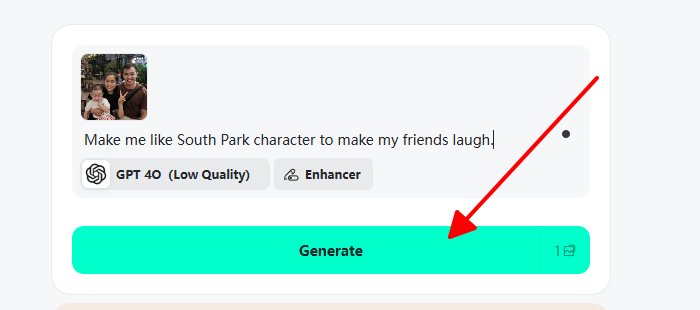
Step 4: Tweak anything that’s off, like swapping a hat.
Step 5: Download and share your masterpiece.
Pros:
Cons:
InsMind’s like a laser-guided missile for South Park style, my attempt at turning my cat into a Kenny clone was spot-on and had my friends cackling. It’s more authentic than Fotor but needs a sidekick tool for heavy edits. Perfect if you want quick, true-to-show results.
3. Starryai

Starryai spices up South Park character creation with artsy, prompt-driven avatars, from classic to trippy styles. Its community vibe and free daily credits make it a fun sandbox for creative fans, but it’s less instant than other tools.
Features:
How to Use Starryai:
Step 1: Sign up at Starryai’s site, it’s quick and free.

Step 2: Type a prompt like “Cartman as a superhero in a snowy South Park.”
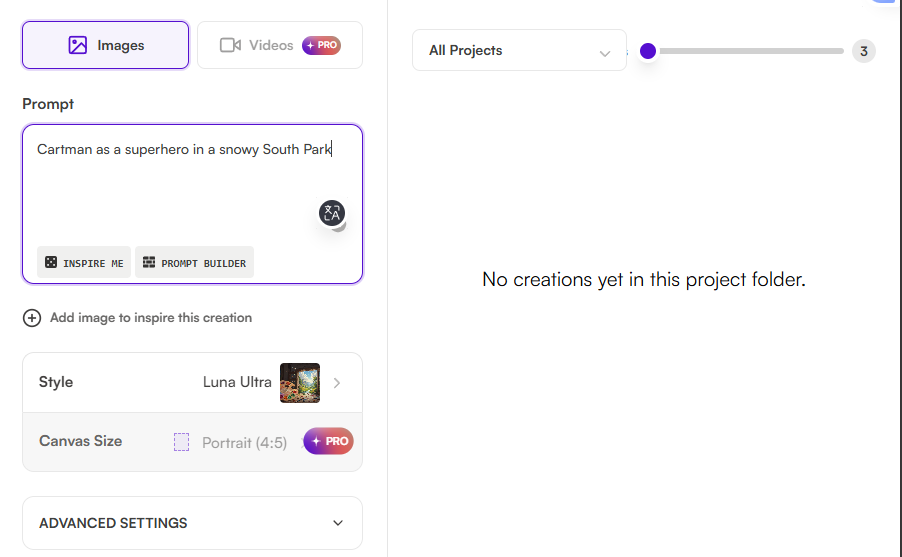
Step 3: Pick a style and size (portrait or square).
Step 4: Generate, adding a reference photo if you want it personal.
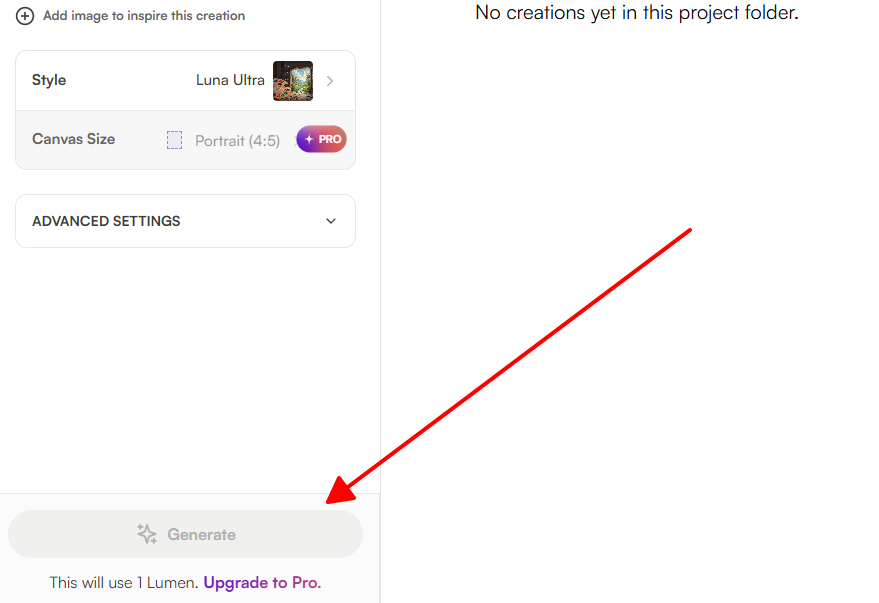
Step 5: Remix or download, with up to 20 free generations daily.
Pros:
Cons:
Starryai’s a wild ride, I got a mind-blowing “alien invasion South Park” avatar that looked like a mini-masterpiece. It’s less instant than InsMind and needs more prompt finesse than Fotor, but for creative types, it’s a goldmine.
Quick Comparison Table
| Feature/Creator | Fotor | InsMind | Starryai |
| Core Method | Photo upload + AI filter | Photo/prompt AI transform | Text-to-image AI |
| Customization Depth | Medium (replacer tools) | High (outfits/expressions) | High (models/styles) |
| Free Limits | Unlimited downloads, no watermarks | Free credits for new users | 5-20 free generations/day |
| Speed | 3-click fast | Seconds per gen | 30s+ with iterations |
| Style Accuracy | Good, but can smooth | Excellent, specialized | Great, but artistic twists |
| Best For | Quick selfies | Authentic parodies | Creative experiments |
Part 3. Why Create a South Park Character

South Park hit the scene in 1997, cooked up by Trey Parker and Matt Stone as a no-holds-barred animated satire that’s been roasting everything from politics to pop culture ever since. Set in a snowy Colorado town, it follows a gang of kids navigating wild scenarios with crude, construction-paper-style animation that’s won Emmys and a cult following. From talking poops to celebrity takedowns, its in-your-face humor and simple look make it a meme machine.
2. Main Characters of South Park
The show’s heart is its core crew:
3. Why Create a South Park Character
That bold, flat, paper-cutout style is instantly recognizable, making it perfect for turning yourself, your friends, or even your goldfish into a South Park star. Whether it’s for a killer Discord avatar, a viral X post, or a custom gift like a T-shirt, these characters are pure fun. The catch? Free tools often leave you with blurry images that don’t hold up, so enhancing them is key to standing out.
Part 4. Enhance Your South Park Character by WPS Photo
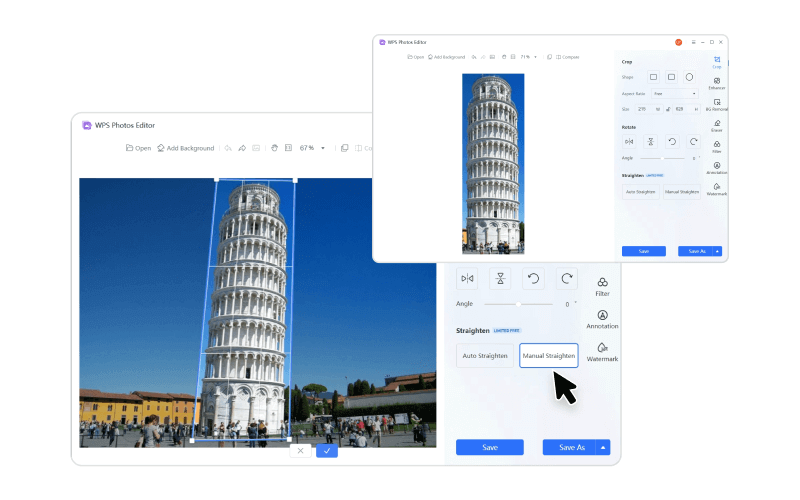
WPS Photo, tucked into the WPS Office suite (500M+ users, 4.8 Trustpilot score since ’98), is your secret weapon for turning fuzzy South Park avatars into crisp, pro-level creations. It’s free, lightweight at just 200MB, and works like a charm on Windows, Mac, or mobile with no ads and seamless file syncing.
Unique Advantages:
Functions/Features: One-click enhancer for sharper colors and details, upscaler for 2x/4x resolution boosts, background remover for clean cutouts, and a magic eraser for quick fixes, all built for South Park’s flat style.
How to Enhance with WPS Photo:
Step 1: Open WPS Photo and import your low-res South Park PNG.
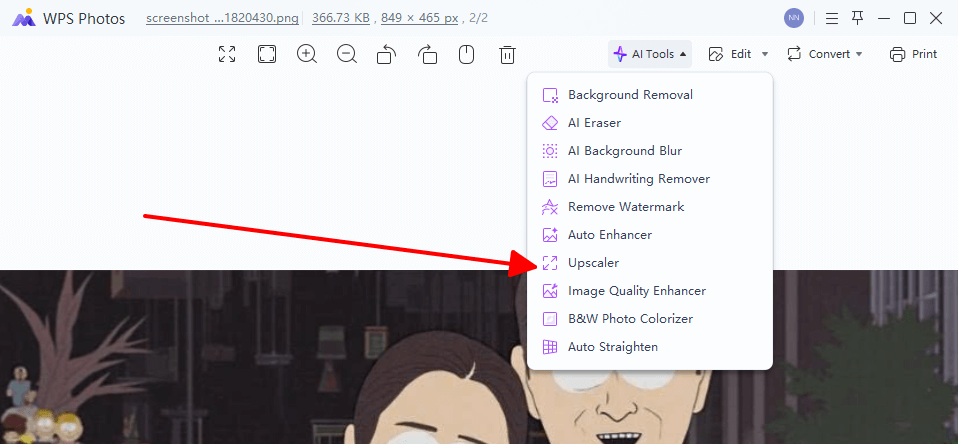
Step 2: Hit “AI Upscaler” on the toolbar and pick 4x for print-ready quality.
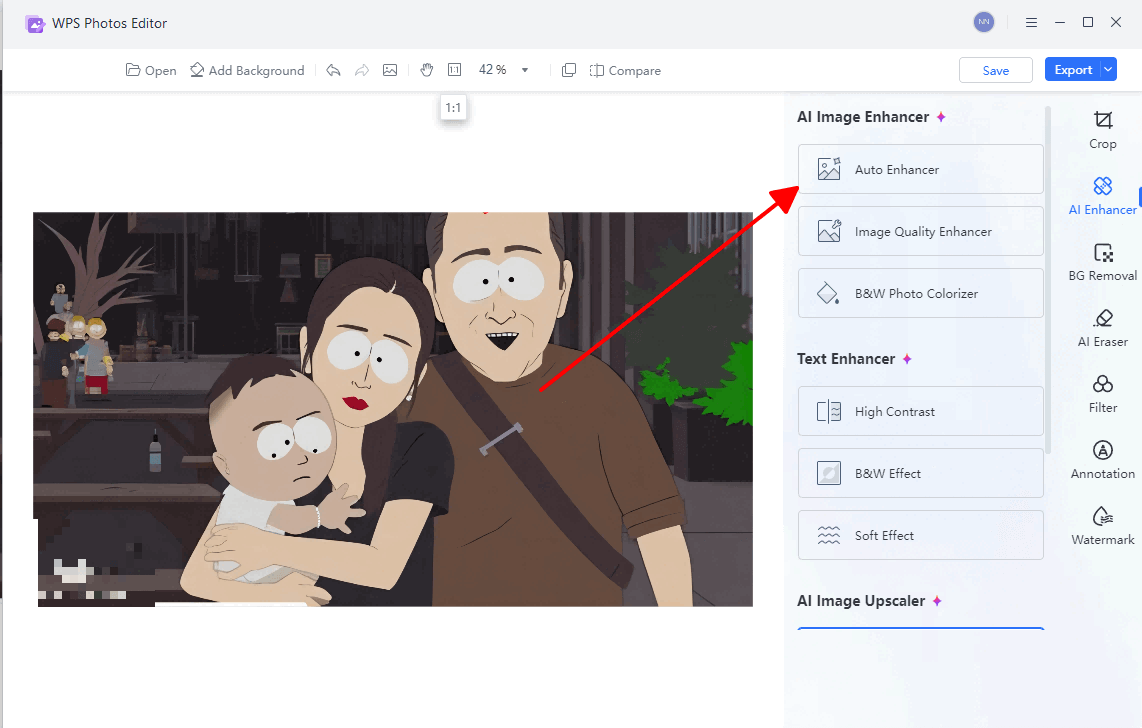
Step 3: Click “Enhance”, AI sharpens details and kills blur.
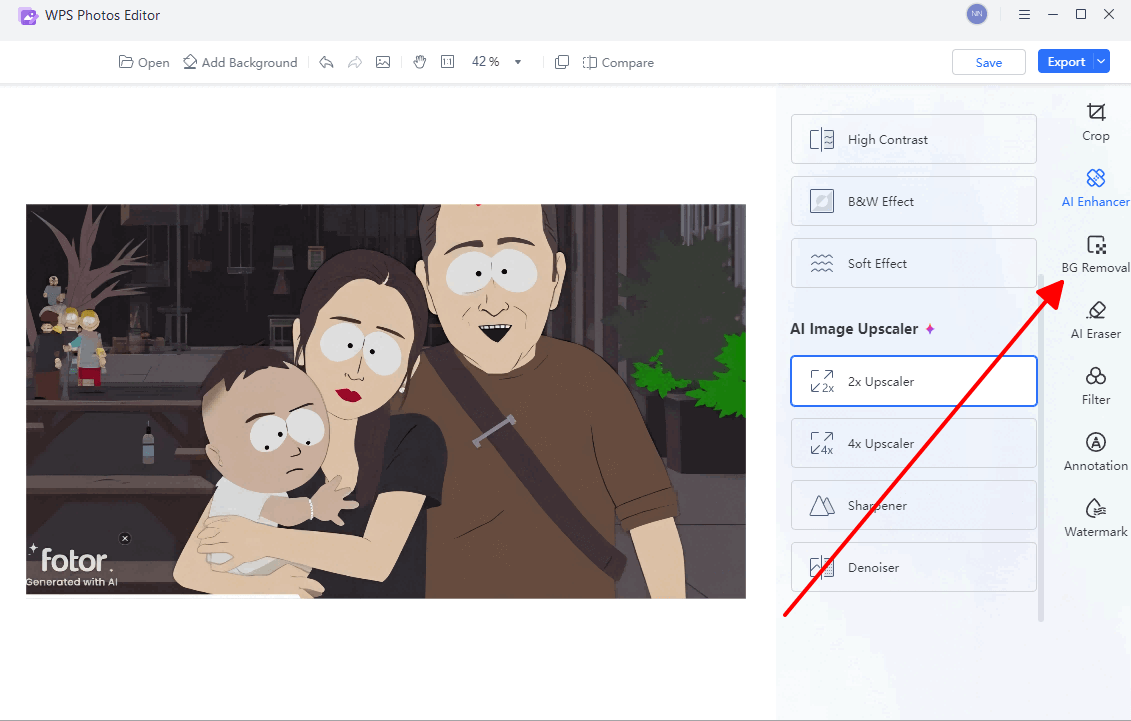
Step 4: Use “Background Remover” if you want a clean cutout, then preview side-by-side.
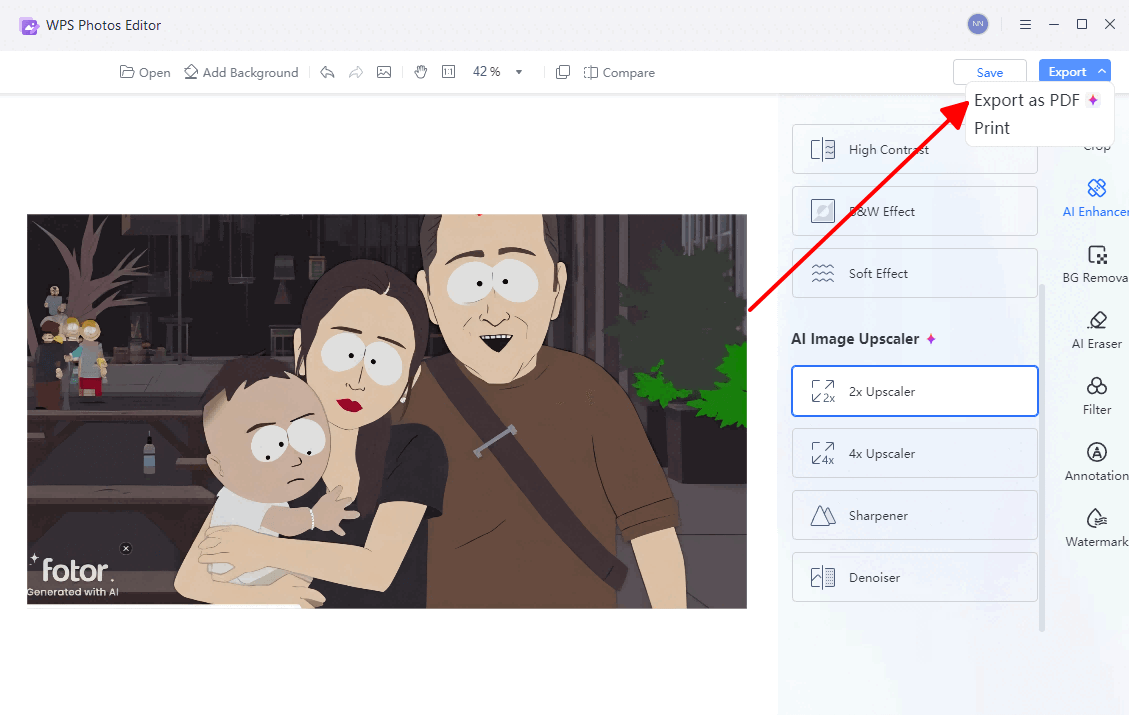
Step 5: Export as a PNG, crisp, transparent, and ready to shine.
WPS Photo’s AI is like a fairy godmother for your blurry avatars, making them pop for prints or posts. It’s way easier than wrestling with pricey editors and free to boot.
FAQs
1. Is WPS Photo Free to Use?
Yup, core features like AI enhancement and upscaling are totally free on Windows, Mac, and mobile.
2. What file format should I save the final enhanced character in?
Go with PNG, it keeps the resolution high and transparency intact for sharing or printing.
3. Can WPS Photo handle cartoon styles like South Park?
Totally, its AI sharpens flat cartoons without messing with their vibe.
4. How does WPS compare to other editors for upscaling?
It’s free, fast, and dead simple, with AI that outshines clunky manual tools for South Park fixes.
5. Does WPS Photo work on mobile for quick edits?
You bet, syncs across devices so you can tweak your avatar anywhere.

'%3e%3cpath%20d='M19.9911%204.11386V6.471H18.5894C18.0775%206.471%2017.7322%206.57814%2017.5536%206.79243C17.3751%207.00671%2017.2858%207.32814%2017.2858%207.75671V9.44421H19.9019L19.5536%2012.0871H17.2858V18.8639H14.5536V12.0871H12.2769V9.44421H14.5536V7.49779C14.5536%206.39064%2014.8632%205.53201%2015.4822%204.92189C16.1013%204.31177%2016.9257%204.00671%2017.9554%204.00671C18.8304%204.00671%2019.509%204.04243%2019.9911%204.11386Z'%20fill='%23333333'/%3e%3c/g%3e%3cdefs%3e%3cclipPath%20id='clip0_2938_8199'%3e%3crect%20width='16'%20height='16'%20fill='white'%20transform='translate(8%204.00671)'/%3e%3c/clipPath%3e%3c/defs%3e%3c/svg%3e)
'%3e%3cpath%20d='M17.5237%2010.7813L23.4811%204H22.0699L16.8949%209.88693L12.7648%204H8L14.2469%2012.9029L8%2020.0133H9.4112L14.8725%2013.7952L19.2352%2020.0133H24M9.92053%205.04213H12.0885L22.0688%2019.0224H19.9003'%20fill='%23333333'/%3e%3c/g%3e%3cdefs%3e%3cclipPath%20id='clip0_2938_8200'%3e%3crect%20width='16'%20height='16.0134'%20fill='white'%20transform='translate(8%204)'/%3e%3c/clipPath%3e%3c/defs%3e%3c/svg%3e)


