

'%3e%3cpath%20d='M8%200C12.4183%200%2016%203.58172%2016%208C16%2012.4183%2012.4183%2016%208%2016C3.58172%2016%200%2012.4183%200%208C0%203.58172%203.58172%200%208%200ZM11.6162%204.38379C11.2257%203.99337%2010.5927%203.99338%2010.2021%204.38379L8%206.58594L5.79785%204.38379C5.40732%203.99334%204.77429%203.99329%204.38379%204.38379C3.99331%204.77429%203.99335%205.40733%204.38379%205.79785L6.58594%208L4.38379%2010.2021C3.99348%2010.5927%203.99341%2011.2257%204.38379%2011.6162C4.77426%2012.0066%205.40734%2012.0065%205.79785%2011.6162L8%209.41406L10.2021%2011.6162C10.5927%2012.0066%2011.2257%2012.0067%2011.6162%2011.6162C12.0067%2011.2257%2012.0066%2010.5927%2011.6162%2010.2021L9.41406%208L11.6162%205.79785C12.0066%205.40735%2012.0066%204.77429%2011.6162%204.38379Z'%20fill='%23080E17'%20fill-opacity='0.46'/%3e%3c/g%3e%3cdefs%3e%3cclipPath%20id='clip0_3761_713'%3e%3crect%20width='16'%20height='16'%20fill='white'/%3e%3c/clipPath%3e%3c/defs%3e%3c/svg%3e)




'%3e%3cpath%20fill-rule='evenodd'%20clip-rule='evenodd'%20d='M21.4999%2010.9993C21.4999%205.20009%2016.7986%200.498901%2010.9993%200.498901C5.19994%200.498901%200.498657%205.20009%200.498657%2010.9993C0.498657%2016.2404%204.33858%2020.5844%209.35855%2021.3722V14.0346H6.69238V10.9993H9.35855V8.68594C9.35855%206.05427%2010.9262%204.60062%2013.3248%204.60062C14.4736%204.60062%2015.6753%204.80571%2015.6753%204.80571V7.38979H14.3512C13.0468%207.38979%2012.64%208.19921%2012.64%209.0296V10.9993H15.5523L15.0867%2014.0346H12.64V21.3722C17.66%2020.5844%2021.4999%2016.2404%2021.4999%2010.9993Z'%20fill='%231568EA'/%3e%3c/g%3e%3c/svg%3e)


'%3e%3cpath%20d='M2.42045%2022.1876H6.31818V12.7217L0.75%208.54553V20.5171C0.75%2021.4414%201.49892%2022.1876%202.42045%2022.1876Z'%20fill='%234285F4'/%3e%3cpath%20d='M19.682%2022.1876H23.5797C24.5041%2022.1876%2025.2502%2021.4387%2025.2502%2020.5171V8.54553L19.682%2012.7217'%20fill='%2334A853'/%3e%3cpath%20d='M19.682%205.48293V12.7216L25.2502%208.54543V6.31816C25.2502%204.25236%2022.8921%203.07469%2021.2411%204.31361'%20fill='%23FBBC04'/%3e%3cpath%20d='M6.31824%2012.7217V5.48303L13.0001%2010.4944L19.6819%205.48303V12.7217L13.0001%2017.733'%20fill='%23EA4335'/%3e%3cpath%20d='M0.75%206.31816V8.54543L6.31818%2012.7216V5.48293L4.75909%204.31361C3.10534%203.07469%200.75%204.25236%200.75%206.31816Z'%20fill='%23C5221F'/%3e%3c/g%3e%3cdefs%3e%3cclipPath%20id='clip0_2954_7305'%3e%3crect%20width='24.5'%20height='18.375'%20fill='white'%20transform='translate(0.75%203.8125)'/%3e%3c/clipPath%3e%3c/defs%3e%3c/svg%3e)


A bulk barcode generator does one job: take a column of codes and turn each row into a scannable barcode without typing them one at a time. The reliable route is a spreadsheet for the data, a generator or barcode font for the symbols, and a label template for printing.
The shortest working path:
Data: one row per product, one column per field, SKU stored as text so leading zeros survive.
Symbols: a barcode font for Code 39, or a generator that outputs images for Code 128 and EAN-13.
Output: merge the column into a label sheet and print at 100% scale, never “fit to page”.
Bulk Barcode Generator: Create Hundreds of Barcodes From a Spreadsheet
Three Ways to Generate Barcodes in Bulk
Most failures come from picking the route before checking the format. Each route has a page limit or a download limit that shows up halfway through a catalog.
| Route | How it works | Watch out for |
|---|---|---|
| Online bulk generator | Upload a CSV, download a PDF or ZIP of images | Free tiers cap rows, and your SKU list leaves your machine |
| Barcode font in a spreadsheet | Type the code, apply the font, print the sheet | Only works cleanly for Code 39; start and stop characters are required |
| Label software with a data merge | Connect the sheet to a label template | Per-seat licence, and a template that resizes the barcode |
For a few hundred internal codes, the font route is fastest and stays offline. For retail codes that need a valid check digit, use a generator — a font cannot calculate check digits for you.
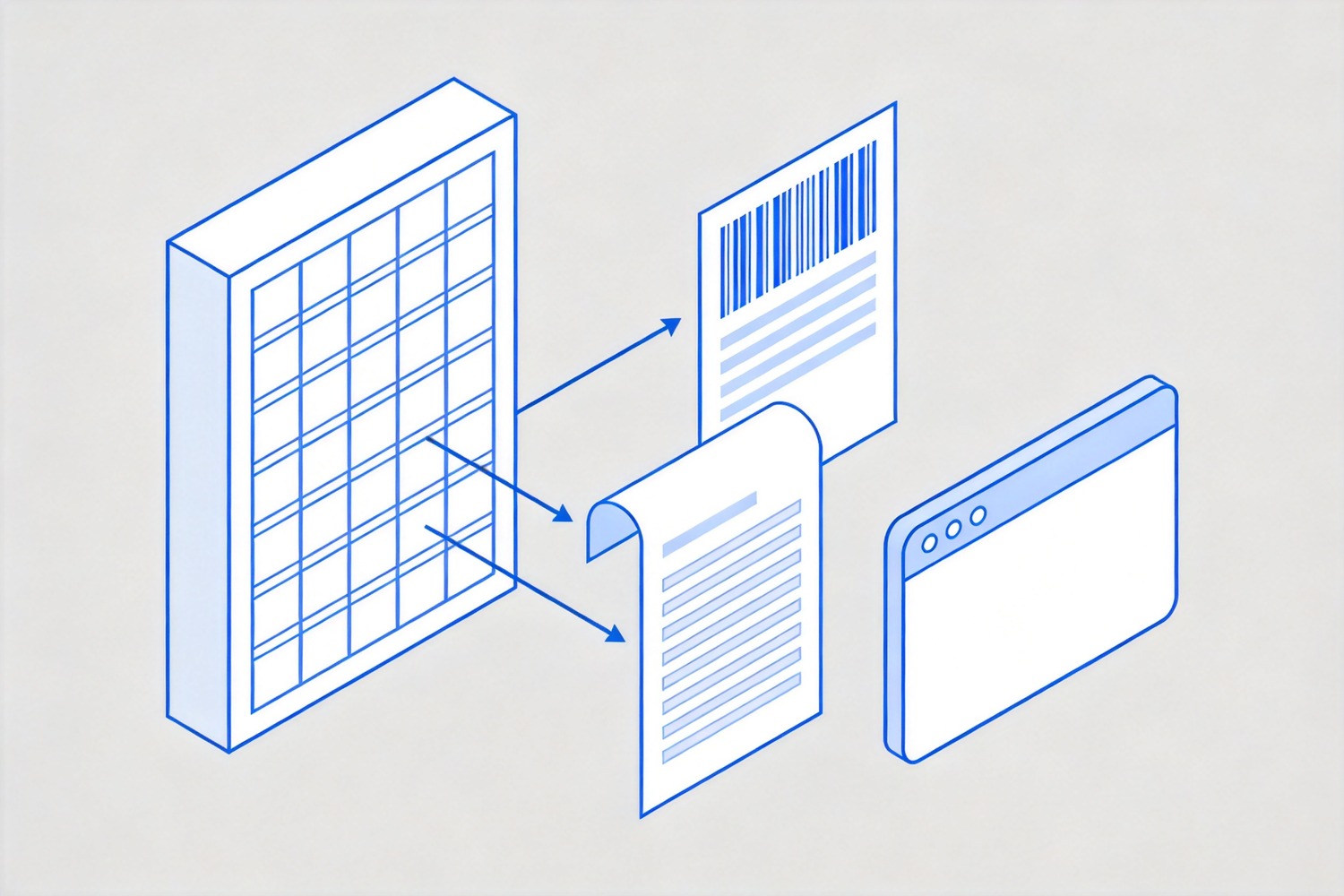
Three bulk barcode generation routes
Choose the Barcode Type Before You Generate
The type decides the character set, the length, and who is allowed to issue the number. Pick it wrong and the printer’s scanner rejects the label.
| Type | Characters | Use it for | Who issues it |
|---|---|---|---|
| Code 39 | Digits and capital letters, variable length | Assets, shelves, internal tracking | You, no registration |
| Code 128 | Full ASCII, compact, includes a check digit | Shipping labels, serial numbers | You, no registration |
| EAN-13 | 12 digits plus a check digit | Retail products sold in stores | A GS1 company prefix |
| QR or 2D code | Text and URLs | Packaging links, manuals, promotions | You, or GS1 for retail 2D |
Retail is the hard constraint: a shop’s point-of-sale system will only accept a barcode built on a GS1 company prefix, and resellers usually refuse homemade EANs. For anything internal — equipment, bins, files — Code 39 or Code 128 with your own numbering is enough.
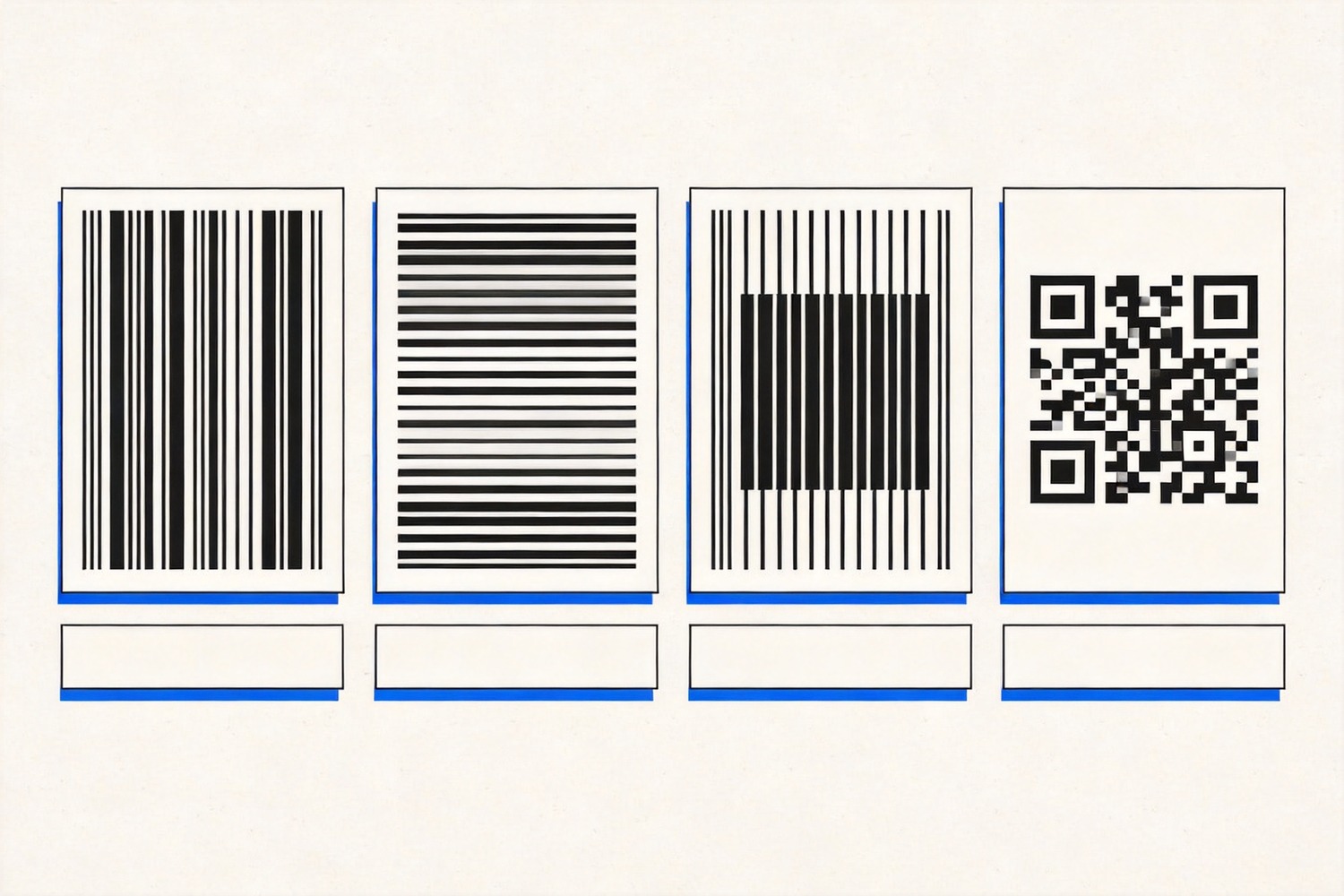
Barcode types compared for bulk printing
How to Build the Barcode Batch in a Spreadsheet
The spreadsheet is the part that decides whether the batch prints cleanly. Five minutes of cleanup saves a reprint of 400 labels.
Store codes as text. Format the SKU column as Text before you paste, or “00123” becomes 123 and every label is wrong.
Keep one code per row and remove duplicates with a formula or a pivot count. Duplicate codes scan fine and destroy your inventory data.
For a font-based batch, add a helper column with the start and stop characters: ="*"&B2&"*" for Code 39, then apply the barcode font to that column only.
For image-based barcodes, generate one image per row and insert it into a fixed-size cell so the symbols stay identical in width.
Freeze the header row and sort by SKU before printing, so the sheet order matches the packing list.
A layout that survives printing looks like this: four data columns, one narrow helper column for the code string, and one column for the barcode itself. Keep the barcode column the same width for every row, because a symbol squeezed into a narrow cell is the most common reason a label fails to scan.
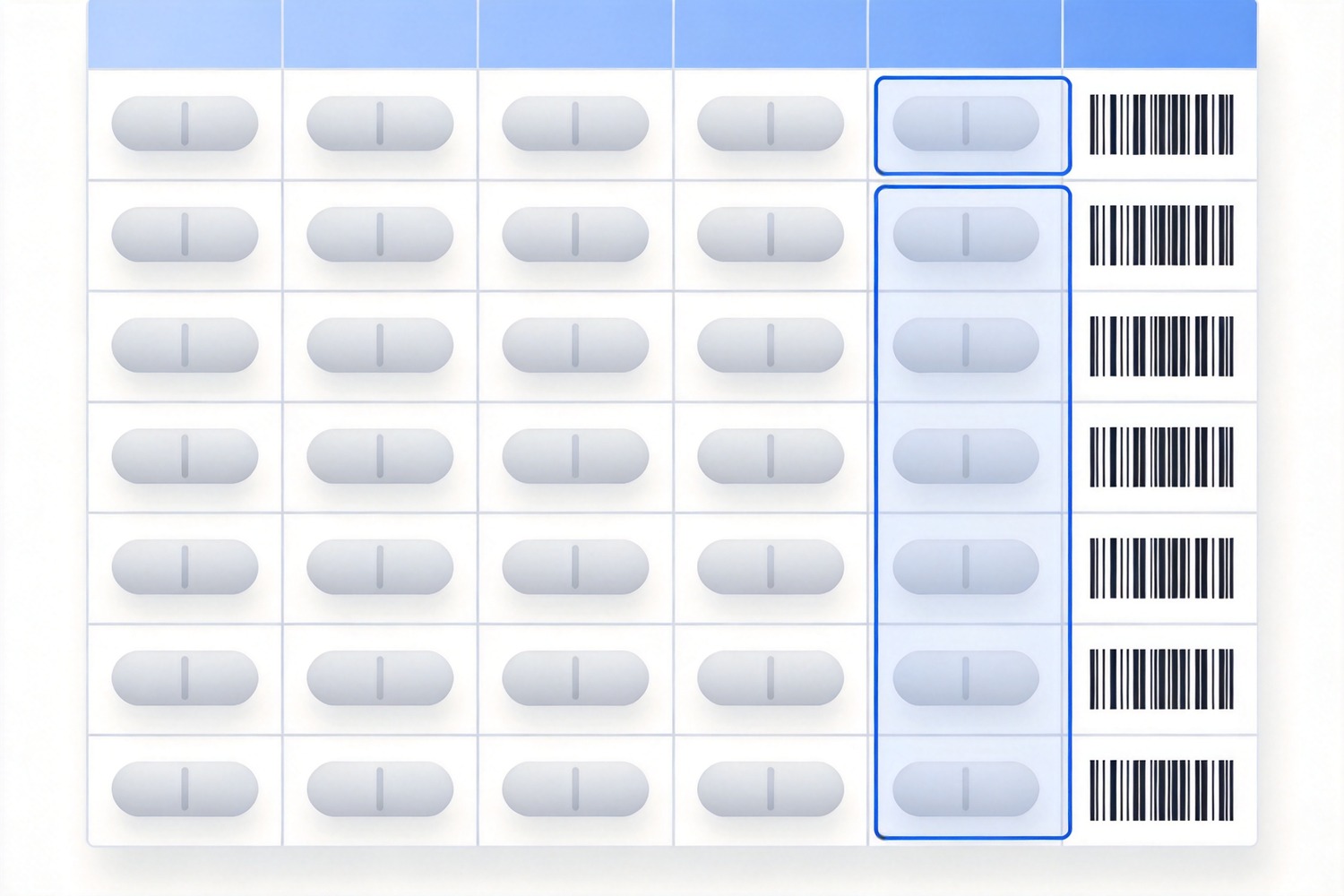
Barcode batch layout in spreadsheet
Print and Validate the Batch Before It Ships
A printed barcode is a physical object: ink spread, paper curl, and a resized print dialog can all break it. Test on paper, not on screen.
Print at 100%. Turn off “fit to page” and “shrink to fit”; both rescale the bars and change the ratio between wide and narrow elements.
Keep the quiet zone. Leave clear white space on both sides of every symbol — text or a border pressed against the bars stops the scan.
Print one sheet first and scan three labels with two different devices: a handheld scanner and a phone camera app.
Check the human-readable line against the barcode data, since a mismatch means the wrong column was applied.
Store the batch as a PDF plus the source sheet, so a reprint in six months produces identical labels.
One more trend matters if you print packaging, not shelf labels: GS1 is moving retail toward 2D codes that carry a web link alongside the product number, so a batch generated today may need a QR-style companion later. Building the data column now — clean, unique, text-formatted — is what makes that migration a reprint rather than a rebuild.
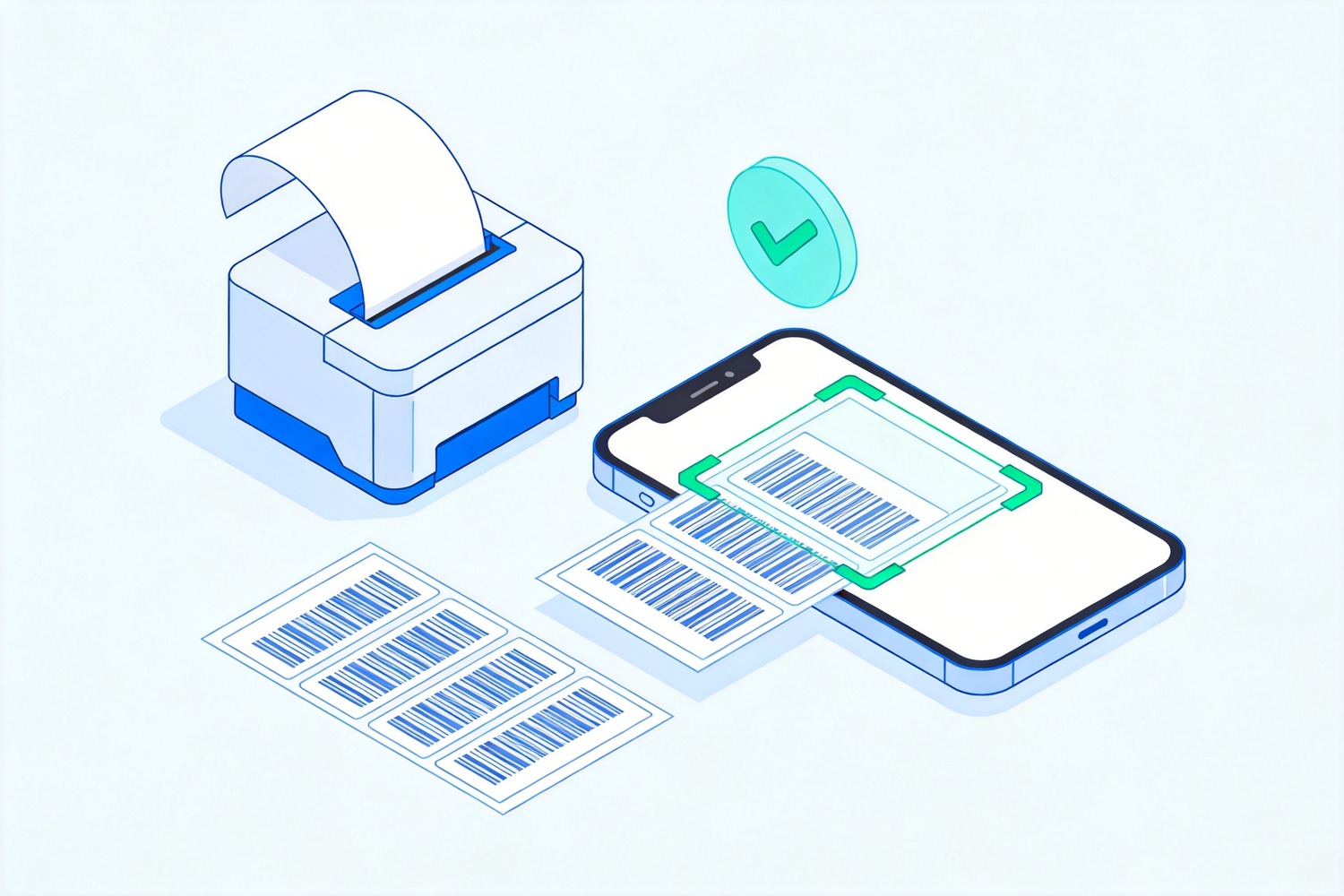
Printing and scanning a barcode batch


The Best Free Spreadsheet Alternative: WPS Office
A barcode batch is a spreadsheet job before it is a printing job: clean the column, build the string, freeze the header, export the PDF. That is the work WPS Spreadsheet is built for.
Text formatting that holds: set the SKU column to Text and leading zeros survive the paste.
Duplicate and formula checks: count duplicates and build the code string with the same formulas you would use in Excel, then export to PDF at 100% scale.
Free on every device: the file opens on Windows, macOS, Android, and iOS, so the person printing labels is not tied to one desk.
If you are starting from zero, the Excel barcode guide covers fonts, formulas, and generators step by step before you scale to a full catalog.
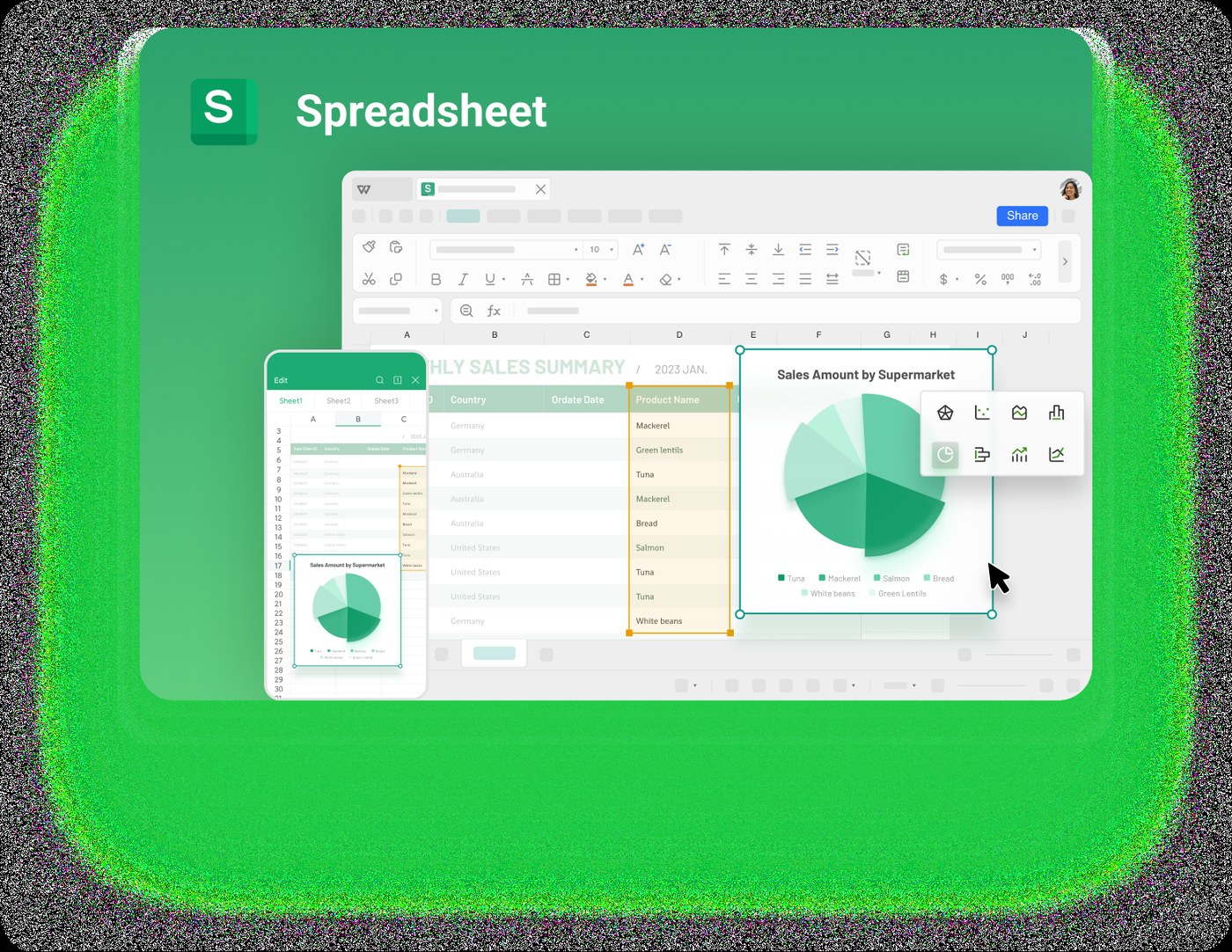
WPS Spreadsheet handles data and charts
FAQs
How many barcodes can I generate at once?
A spreadsheet can hold tens of thousands of rows, but free online generators usually cap a batch at a few hundred. For large catalogs, generate images locally or use a label tool with a data merge.
Can I create barcodes in Excel or WPS for free?
Yes, for Code 39 with a barcode font: wrap the value in asterisks, apply the font, and print. Code 128 and EAN-13 need a generator because they include a check digit the font cannot compute.
Why does my barcode not scan after printing?
Usually scaling or contrast: the print dialog shrank the page, the symbol lost its quiet zone, or the printer spread the ink. Reprint one label at 100% and test again.
Do I need a GS1 prefix for retail barcodes?
Yes, for products sold through retail checkout. GS1 issues the company prefix that makes the EAN or UPC unique, and marketplaces usually require it before listing.
Can a barcode be reused on a different product?
No. A retail barcode identifies one product variant permanently; reusing it mixes sales data and gets listings rejected. Internal asset codes can be recycled only after the asset is retired.



'%3e%3cpath%20d='M19.9911%204.11386V6.471H18.5894C18.0775%206.471%2017.7322%206.57814%2017.5536%206.79243C17.3751%207.00671%2017.2858%207.32814%2017.2858%207.75671V9.44421H19.9019L19.5536%2012.0871H17.2858V18.8639H14.5536V12.0871H12.2769V9.44421H14.5536V7.49779C14.5536%206.39064%2014.8632%205.53201%2015.4822%204.92189C16.1013%204.31177%2016.9257%204.00671%2017.9554%204.00671C18.8304%204.00671%2019.509%204.04243%2019.9911%204.11386Z'%20fill='%23333333'/%3e%3c/g%3e%3cdefs%3e%3cclipPath%20id='clip0_2938_8199'%3e%3crect%20width='16'%20height='16'%20fill='white'%20transform='translate(8%204.00671)'/%3e%3c/clipPath%3e%3c/defs%3e%3c/svg%3e)
'%3e%3cpath%20d='M17.5237%2010.7813L23.4811%204H22.0699L16.8949%209.88693L12.7648%204H8L14.2469%2012.9029L8%2020.0133H9.4112L14.8725%2013.7952L19.2352%2020.0133H24M9.92053%205.04213H12.0885L22.0688%2019.0224H19.9003'%20fill='%23333333'/%3e%3c/g%3e%3cdefs%3e%3cclipPath%20id='clip0_2938_8200'%3e%3crect%20width='16'%20height='16.0134'%20fill='white'%20transform='translate(8%204)'/%3e%3c/clipPath%3e%3c/defs%3e%3c/svg%3e)


