

'%3e%3cpath%20d='M8%200C12.4183%200%2016%203.58172%2016%208C16%2012.4183%2012.4183%2016%208%2016C3.58172%2016%200%2012.4183%200%208C0%203.58172%203.58172%200%208%200ZM11.6162%204.38379C11.2257%203.99337%2010.5927%203.99338%2010.2021%204.38379L8%206.58594L5.79785%204.38379C5.40732%203.99334%204.77429%203.99329%204.38379%204.38379C3.99331%204.77429%203.99335%205.40733%204.38379%205.79785L6.58594%208L4.38379%2010.2021C3.99348%2010.5927%203.99341%2011.2257%204.38379%2011.6162C4.77426%2012.0066%205.40734%2012.0065%205.79785%2011.6162L8%209.41406L10.2021%2011.6162C10.5927%2012.0066%2011.2257%2012.0067%2011.6162%2011.6162C12.0067%2011.2257%2012.0066%2010.5927%2011.6162%2010.2021L9.41406%208L11.6162%205.79785C12.0066%205.40735%2012.0066%204.77429%2011.6162%204.38379Z'%20fill='%23080E17'%20fill-opacity='0.46'/%3e%3c/g%3e%3cdefs%3e%3cclipPath%20id='clip0_3761_713'%3e%3crect%20width='16'%20height='16'%20fill='white'/%3e%3c/clipPath%3e%3c/defs%3e%3c/svg%3e)




'%3e%3cpath%20fill-rule='evenodd'%20clip-rule='evenodd'%20d='M21.4999%2010.9993C21.4999%205.20009%2016.7986%200.498901%2010.9993%200.498901C5.19994%200.498901%200.498657%205.20009%200.498657%2010.9993C0.498657%2016.2404%204.33858%2020.5844%209.35855%2021.3722V14.0346H6.69238V10.9993H9.35855V8.68594C9.35855%206.05427%2010.9262%204.60062%2013.3248%204.60062C14.4736%204.60062%2015.6753%204.80571%2015.6753%204.80571V7.38979H14.3512C13.0468%207.38979%2012.64%208.19921%2012.64%209.0296V10.9993H15.5523L15.0867%2014.0346H12.64V21.3722C17.66%2020.5844%2021.4999%2016.2404%2021.4999%2010.9993Z'%20fill='%231568EA'/%3e%3c/g%3e%3c/svg%3e)


'%3e%3cpath%20d='M2.42045%2022.1876H6.31818V12.7217L0.75%208.54553V20.5171C0.75%2021.4414%201.49892%2022.1876%202.42045%2022.1876Z'%20fill='%234285F4'/%3e%3cpath%20d='M19.682%2022.1876H23.5797C24.5041%2022.1876%2025.2502%2021.4387%2025.2502%2020.5171V8.54553L19.682%2012.7217'%20fill='%2334A853'/%3e%3cpath%20d='M19.682%205.48293V12.7216L25.2502%208.54543V6.31816C25.2502%204.25236%2022.8921%203.07469%2021.2411%204.31361'%20fill='%23FBBC04'/%3e%3cpath%20d='M6.31824%2012.7217V5.48303L13.0001%2010.4944L19.6819%205.48303V12.7217L13.0001%2017.733'%20fill='%23EA4335'/%3e%3cpath%20d='M0.75%206.31816V8.54543L6.31818%2012.7216V5.48293L4.75909%204.31361C3.10534%203.07469%200.75%204.25236%200.75%206.31816Z'%20fill='%23C5221F'/%3e%3c/g%3e%3cdefs%3e%3cclipPath%20id='clip0_2954_7305'%3e%3crect%20width='24.5'%20height='18.375'%20fill='white'%20transform='translate(0.75%203.8125)'/%3e%3c/clipPath%3e%3c/defs%3e%3c/svg%3e)


To turn any progress number into a percent to goal, divide the actual value by the goal and multiply by 100: =(Actual ÷ Goal) × 100. In Excel that is one cell — =B2/C2 formatted as a percentage — and this guide builds it into a reusable calculator with data bars, overflow handling, and a template you can keep.
Percent to Goal Calculator in Excel: Formula + Free Template
The percent to goal formula in Excel
Sales teams, savings plans, and fitness trackers all ask the same question: how close am I to the target? The percent to goal formula answers it with one division. If cell B2 holds the actual value and C2 holds the goal, the formula =B2/C2 returns a decimal such as 0.82 — format the cell as a percentage and it reads 82%.
The goal cell must be the denominator, not the other way around. Actual ÷ Goal answers "how much of the target is done," while Goal ÷ Actual answers a different question entirely. If your result looks larger than expected, check which cell you divided first.
Percent to goal is not the same as percent change. Percent change compares a value to its own past — this month versus last month — while percent to goal compares a value to a target set in advance. Mixing them up is the most common comment in dashboard reviews: a team celebrates "up 12% from last month" while still sitting at 68% of goal. Keep both metrics if you need them, but label the columns so nobody has to guess which one they are reading.
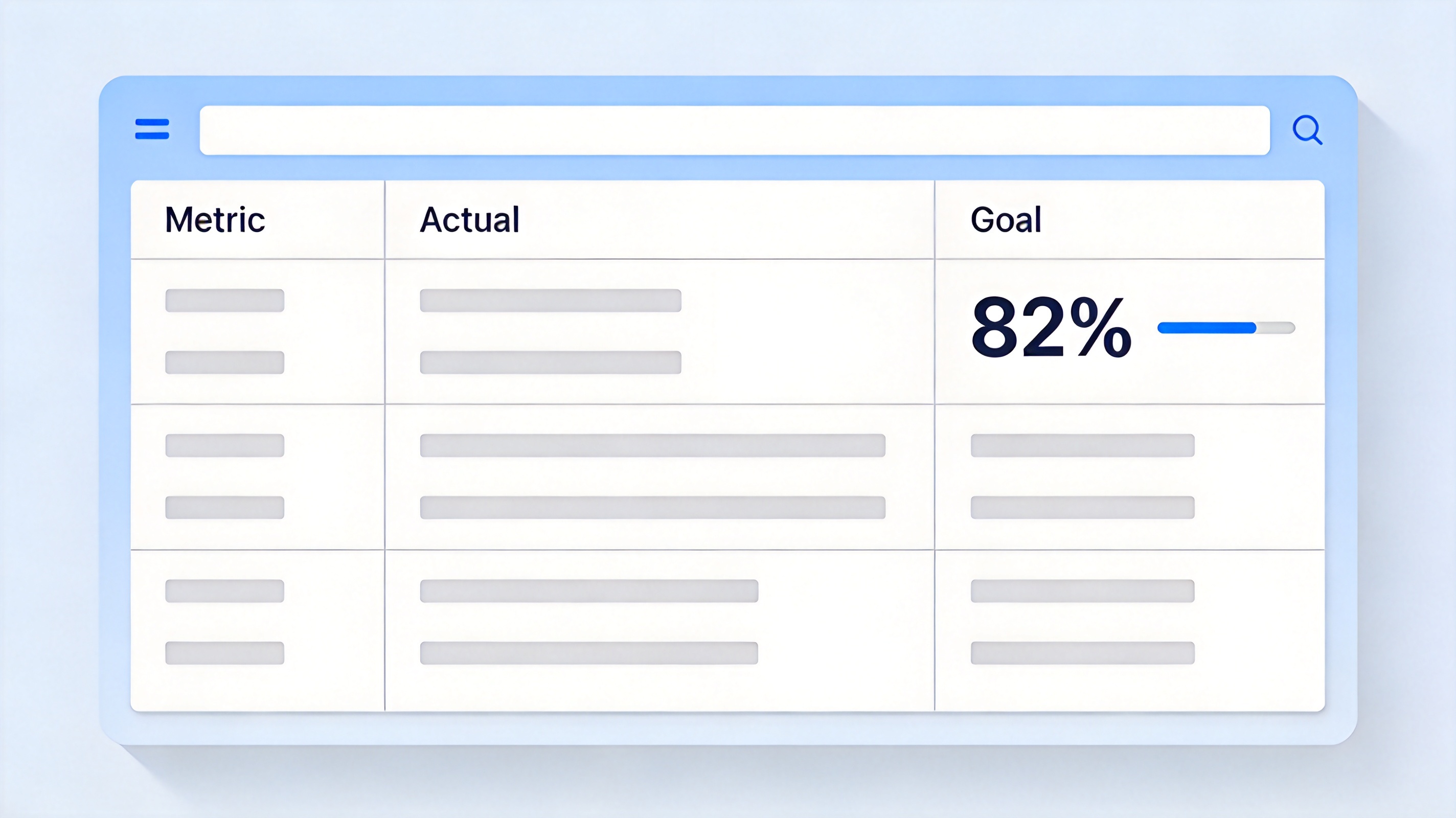
Percent to goal calculator layout in a spreadsheet


How to build a percent to goal calculator step by step
Set up three columns. In A1, B1, and C1, type Metric, Actual, and Goal. Add one row per goal you track — revenue, sign-ups, miles run.
Enter your data. For example, A2 = "March sales", B2 = 41000, C2 = 50000.
Write the formula. In D2, enter =B2/C2 and press Enter.
Format as a percentage. Select column D, open Home > Number Format, and choose Percent. One decimal place is enough for most dashboards.
Fill down. Drag the fill handle to copy the formula, or learn to apply a formula to an entire column without dragging when the list is long.
Add a status column. In E2, use =IF(D2>=1,"Done",IF(D2>=0.75,"On track","Behind")) to label each row automatically.
The whole build takes about two minutes and works identically in Excel, WPS Spreadsheet, and Google Sheets because it uses only core arithmetic and IF logic.
Show progress with percent formatting and data bars
A column of percentages is readable; a column with data bars is scannable at arm's length. Data bars stretch inside each cell in proportion to the value, so an 82% bar visibly stops short of the cell edge.
Select the percent column, then open Home > Conditional Formatting > Data Bars.
Pick a solid or gradient bar — solid prints better.
For overachievers, add a color scale through Conditional Formatting > Color Scales so rows above 100% turn green.
Keep the number format and the data bar on the same cells: the bar gives the shape of progress, and the percentage gives the exact figure.
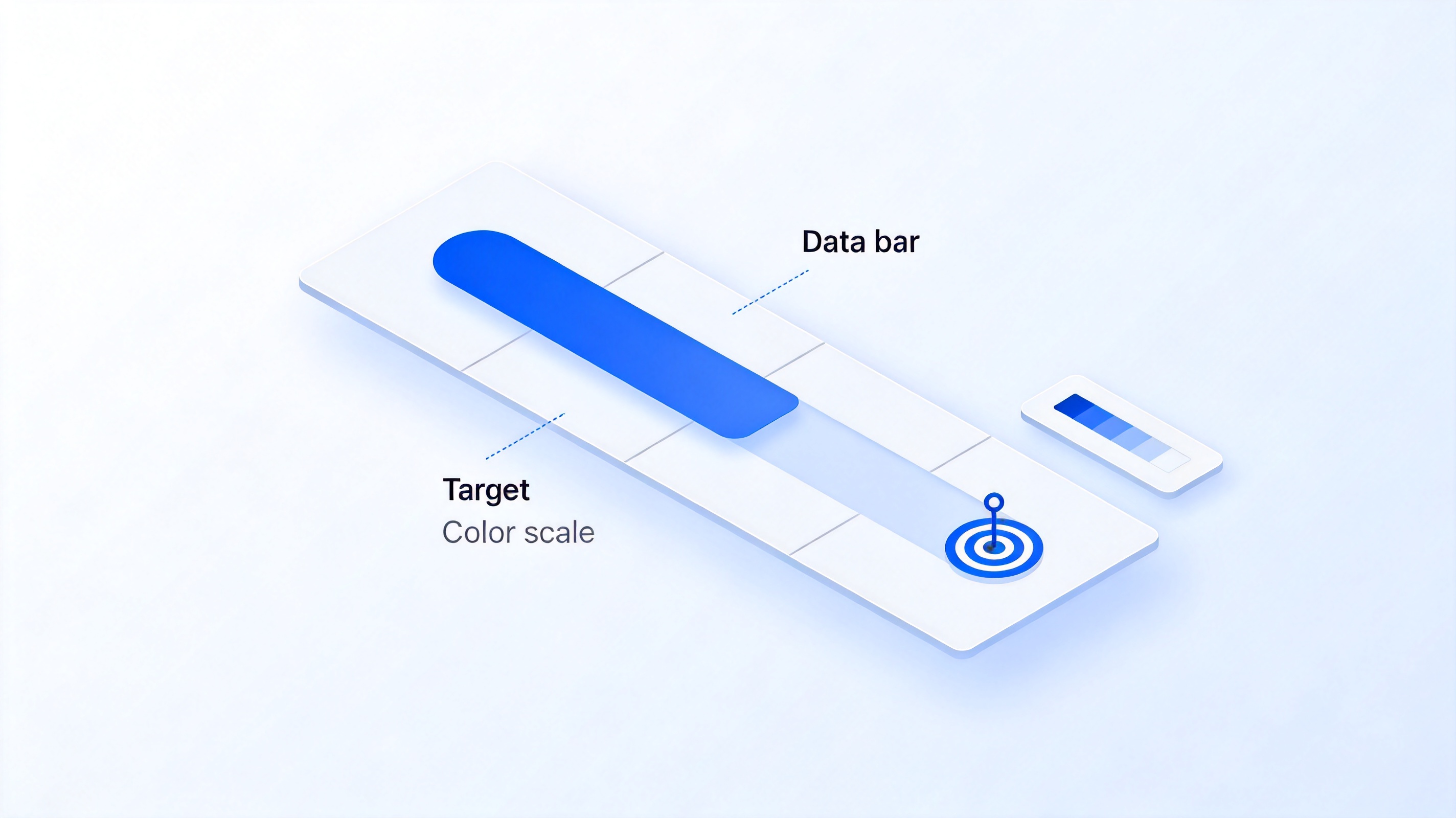
Data bars and color scales for goal progress
Percent to goal examples you can copy
Three worked examples cover most real situations. A sales rep at 41,000 against a 50,000 quota: =41000/50000 formats to 82% — on track. A savings goal of 2,000 reached 500: =500/2000 gives 25%, and the status formula labels it "Behind" until the pace picks up. A team that closed 132 of a planned 120 sign-ups: =132/120 shows 110%, so the MIN cap keeps the dashboard bar from overflowing while the raw cell records the overachievement.
Notice the pattern in all three: the goal is always the denominator, the raw result stays untouched in one column, and any display shaping — capping, rounding, bars — happens in a separate cell. That separation keeps the calculator honest when you audit it a quarter later.
How to handle negative goals and results above 100%
Two edge cases break naive calculators. First, results above 100%: the formula keeps working — 105% simply means you exceeded the goal — but if it distorts a chart, cap the display with =MIN(B2/C2,1) while keeping the raw value in another column.
Second, negative targets, common in expense-reduction goals where the goal itself is a negative number. Use =B2/C2 only when both values share a sign; for cost-cutting goals, track the absolute reduction instead: =(StartValue−B2)/StartValue. A quick template-driven setup like a BMI calculator in Excel shows the same pattern: normalize the inputs, then one formula serves every row.
The Best Free Alternative: WPS Spreadsheet
Every formula in this guide runs free in WPS Spreadsheet, with the same ribbon layout as Excel and full .xlsx compatibility — no subscription, no ads blocking the cells you are editing.
WPS Spreadsheet also ships thousands of free templates, including sales trackers and goal dashboards you can paste the percent-to-goal formula into. If you move between Excel at work and Google Sheets at school, WPS opens and saves every format without conversion friction.
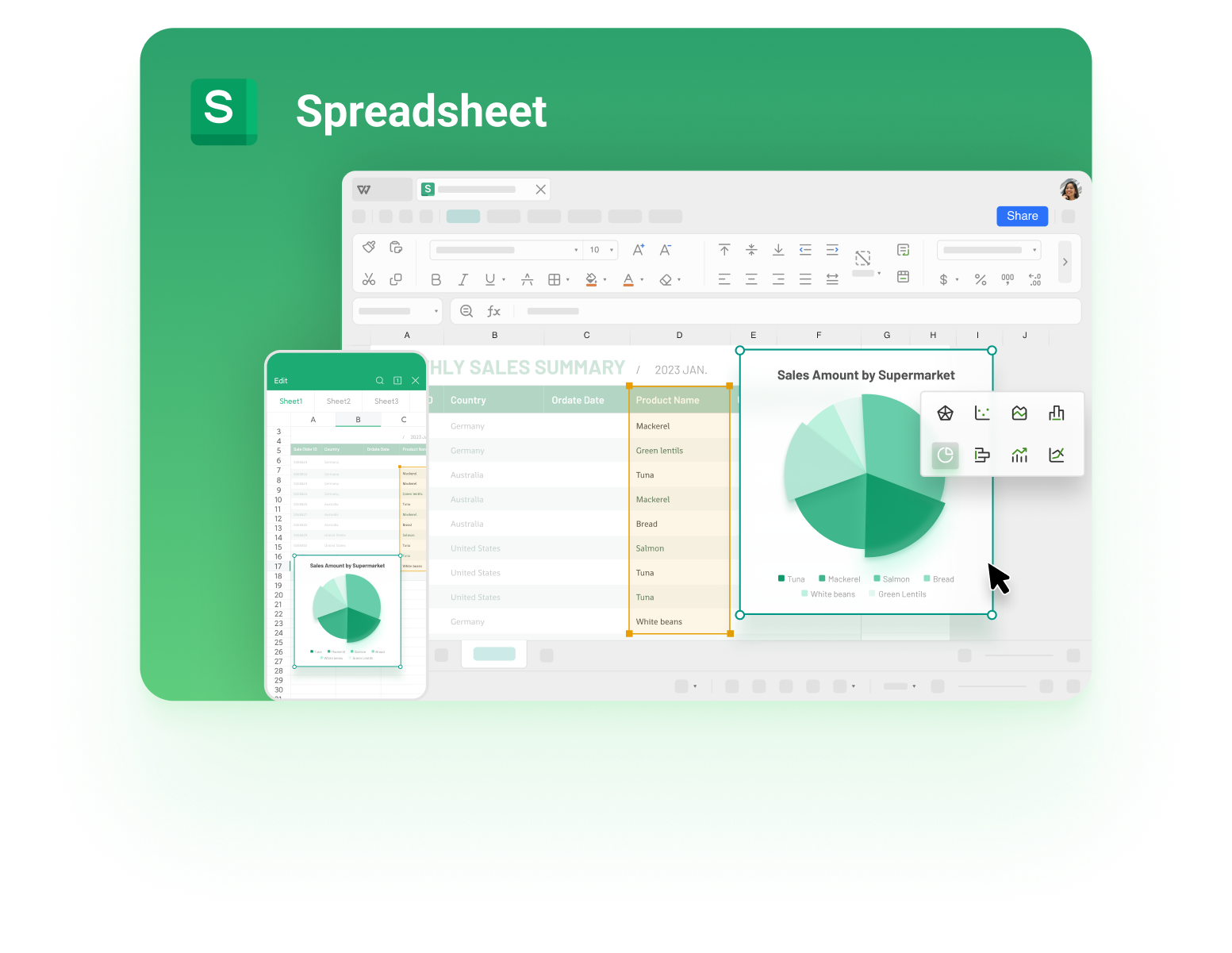
Build goal trackers in WPS Spreadsheet for free
FAQs
What is the percent to goal formula?
Percent to goal = (Actual ÷ Goal) × 100. In Excel, divide the actual cell by the goal cell and format the result as a percentage. Above 100% means the goal is exceeded.
How do I calculate percent to goal with multiple goals?
Calculate each row's percentage first, then average the percentages for a simple view, or weight them: =SUMPRODUCT(percentRange,weightRange)/SUM(weightRange) when some goals matter more than others.
Why does my percent to goal show a divide error?
#DIV/0! means the goal cell is blank or zero. Wrap the formula as =IF(C2=0,"",B2/C2) so empty rows stay clean.
Can Google Sheets do the same calculation?
Yes — the formula is identical. Paste =B2/C2, then use Format > Number > Percent. Data bars exist in Sheets through conditional formatting with color scales.
Is there a free percent to goal template?
Yes. WPS Spreadsheet includes free goal-tracker templates; add the =B2/C2 formula and percent formatting from this guide and the calculator is ready to reuse.


'%3e%3cpath%20d='M19.9911%204.11386V6.471H18.5894C18.0775%206.471%2017.7322%206.57814%2017.5536%206.79243C17.3751%207.00671%2017.2858%207.32814%2017.2858%207.75671V9.44421H19.9019L19.5536%2012.0871H17.2858V18.8639H14.5536V12.0871H12.2769V9.44421H14.5536V7.49779C14.5536%206.39064%2014.8632%205.53201%2015.4822%204.92189C16.1013%204.31177%2016.9257%204.00671%2017.9554%204.00671C18.8304%204.00671%2019.509%204.04243%2019.9911%204.11386Z'%20fill='%23333333'/%3e%3c/g%3e%3cdefs%3e%3cclipPath%20id='clip0_2938_8199'%3e%3crect%20width='16'%20height='16'%20fill='white'%20transform='translate(8%204.00671)'/%3e%3c/clipPath%3e%3c/defs%3e%3c/svg%3e)
'%3e%3cpath%20d='M17.5237%2010.7813L23.4811%204H22.0699L16.8949%209.88693L12.7648%204H8L14.2469%2012.9029L8%2020.0133H9.4112L14.8725%2013.7952L19.2352%2020.0133H24M9.92053%205.04213H12.0885L22.0688%2019.0224H19.9003'%20fill='%23333333'/%3e%3c/g%3e%3cdefs%3e%3cclipPath%20id='clip0_2938_8200'%3e%3crect%20width='16'%20height='16.0134'%20fill='white'%20transform='translate(8%204)'/%3e%3c/clipPath%3e%3c/defs%3e%3c/svg%3e)


