

'%3e%3cpath%20d='M8%200C12.4183%200%2016%203.58172%2016%208C16%2012.4183%2012.4183%2016%208%2016C3.58172%2016%200%2012.4183%200%208C0%203.58172%203.58172%200%208%200ZM11.6162%204.38379C11.2257%203.99337%2010.5927%203.99338%2010.2021%204.38379L8%206.58594L5.79785%204.38379C5.40732%203.99334%204.77429%203.99329%204.38379%204.38379C3.99331%204.77429%203.99335%205.40733%204.38379%205.79785L6.58594%208L4.38379%2010.2021C3.99348%2010.5927%203.99341%2011.2257%204.38379%2011.6162C4.77426%2012.0066%205.40734%2012.0065%205.79785%2011.6162L8%209.41406L10.2021%2011.6162C10.5927%2012.0066%2011.2257%2012.0067%2011.6162%2011.6162C12.0067%2011.2257%2012.0066%2010.5927%2011.6162%2010.2021L9.41406%208L11.6162%205.79785C12.0066%205.40735%2012.0066%204.77429%2011.6162%204.38379Z'%20fill='%23080E17'%20fill-opacity='0.46'/%3e%3c/g%3e%3cdefs%3e%3cclipPath%20id='clip0_3761_713'%3e%3crect%20width='16'%20height='16'%20fill='white'/%3e%3c/clipPath%3e%3c/defs%3e%3c/svg%3e)




'%3e%3cpath%20fill-rule='evenodd'%20clip-rule='evenodd'%20d='M21.4999%2010.9993C21.4999%205.20009%2016.7986%200.498901%2010.9993%200.498901C5.19994%200.498901%200.498657%205.20009%200.498657%2010.9993C0.498657%2016.2404%204.33858%2020.5844%209.35855%2021.3722V14.0346H6.69238V10.9993H9.35855V8.68594C9.35855%206.05427%2010.9262%204.60062%2013.3248%204.60062C14.4736%204.60062%2015.6753%204.80571%2015.6753%204.80571V7.38979H14.3512C13.0468%207.38979%2012.64%208.19921%2012.64%209.0296V10.9993H15.5523L15.0867%2014.0346H12.64V21.3722C17.66%2020.5844%2021.4999%2016.2404%2021.4999%2010.9993Z'%20fill='%231568EA'/%3e%3c/g%3e%3c/svg%3e)


'%3e%3cpath%20d='M2.42045%2022.1876H6.31818V12.7217L0.75%208.54553V20.5171C0.75%2021.4414%201.49892%2022.1876%202.42045%2022.1876Z'%20fill='%234285F4'/%3e%3cpath%20d='M19.682%2022.1876H23.5797C24.5041%2022.1876%2025.2502%2021.4387%2025.2502%2020.5171V8.54553L19.682%2012.7217'%20fill='%2334A853'/%3e%3cpath%20d='M19.682%205.48293V12.7216L25.2502%208.54543V6.31816C25.2502%204.25236%2022.8921%203.07469%2021.2411%204.31361'%20fill='%23FBBC04'/%3e%3cpath%20d='M6.31824%2012.7217V5.48303L13.0001%2010.4944L19.6819%205.48303V12.7217L13.0001%2017.733'%20fill='%23EA4335'/%3e%3cpath%20d='M0.75%206.31816V8.54543L6.31818%2012.7216V5.48293L4.75909%204.31361C3.10534%203.07469%200.75%204.25236%200.75%206.31816Z'%20fill='%23C5221F'/%3e%3c/g%3e%3cdefs%3e%3cclipPath%20id='clip0_2954_7305'%3e%3crect%20width='24.5'%20height='18.375'%20fill='white'%20transform='translate(0.75%203.8125)'/%3e%3c/clipPath%3e%3c/defs%3e%3c/svg%3e)


We've all been there, right? You're out snapping quick JPGs of receipts, contracts, or those whiteboard notes with your Android phone. But come time to email them for work, expenses, or homework, a bunch of loose pics just screams unprofessional. No PC nearby? No sweat. These free apps let you snag multiple JPGs from your gallery, shuffle the order, and crank out one slick PDF in seconds flat, all from your pocket.


Top 5 Free JPG to PDF Converter

Picking the right app boils down to your needs: quick one-offs, heavy batches, or full editing power. I've rounded up the top free performers for Android in 2025, all handling convert JPG to PDF Android smoothly. Each shines in real-world tests for merging those everyday snaps into shareable files, no watermarks or big bucks required.
1. WPS Office
WPS Office feels like the best of Android apps when you need to convert JPG to PDF Android without the hassle. It's not just a converter; it's got full-blown word processing, spreadsheets, and slides baked in, so you can snap pics of notes, turn them into a PDF, then edit or annotate on the spot. Perfect for folks juggling docs on the go, and yeah, it works totally offline so you're not screwed without WiFi.
How to convert:
Step 1: Open WPS Office, tap the + icon, select "PDF" or import images from Gallery.
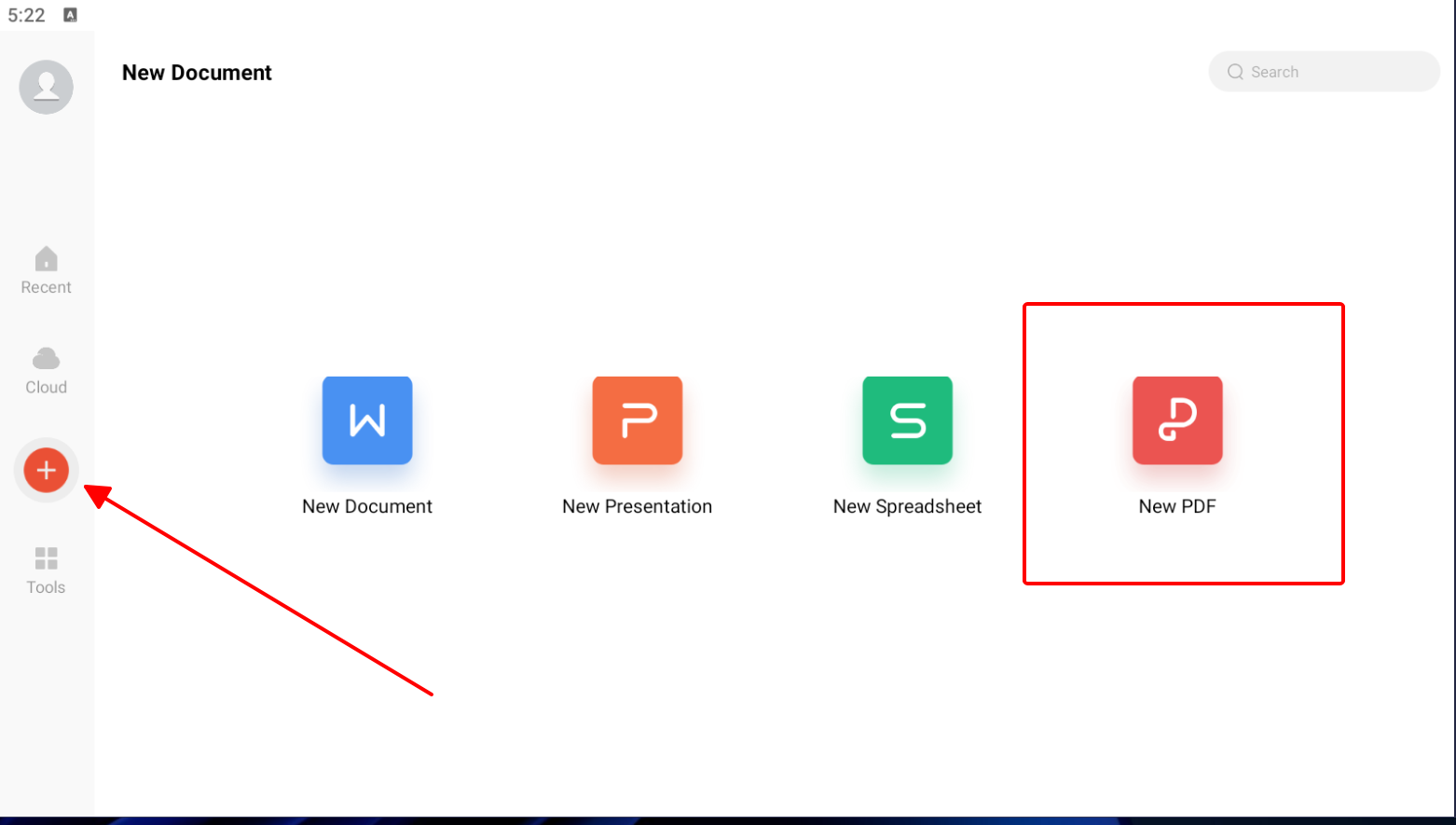
Step 2: Pick your JPGs, drag to reorder pages and preview the layout.
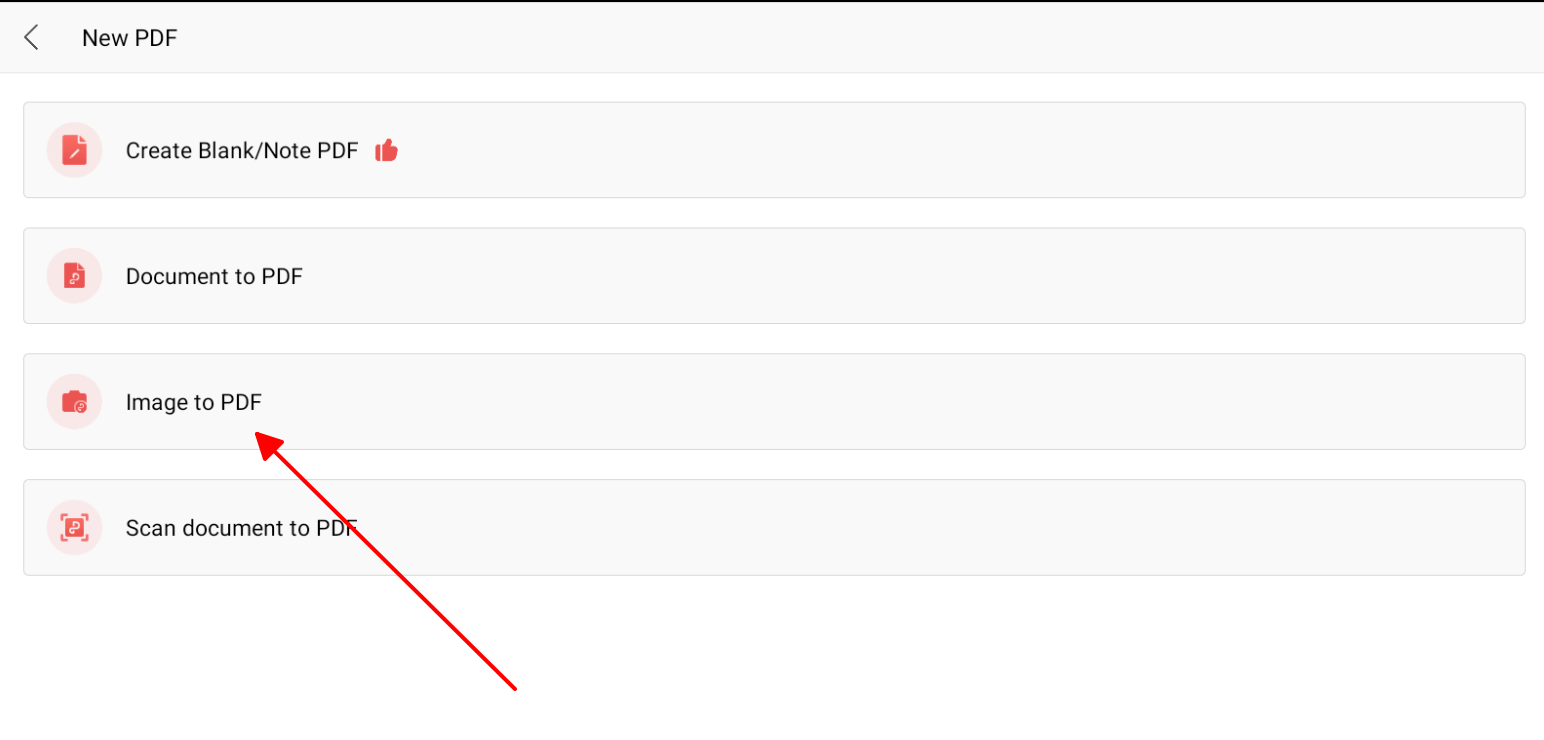
Step 3: Tap "Convert" or "Export to PDF," tweak quality settings, then save or share.
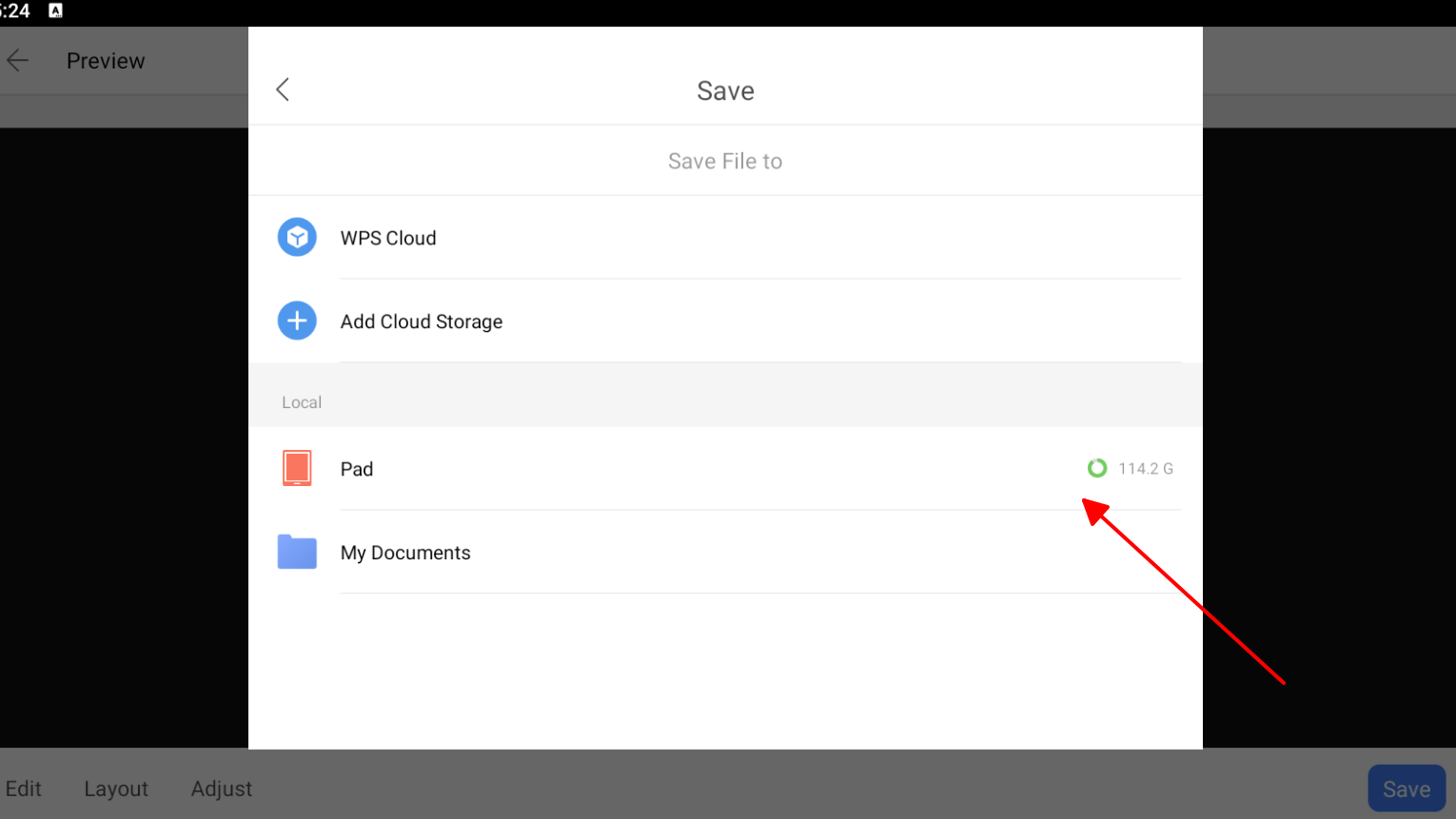
Look, I've banged out 15 messy receipt JPGs into a sharp PDF in under a minute on my Galaxy during tax crunch time, pages in perfect order. And on a plane with zero signal? Batch magic saved the day, no sweat.
WPS Online Tool
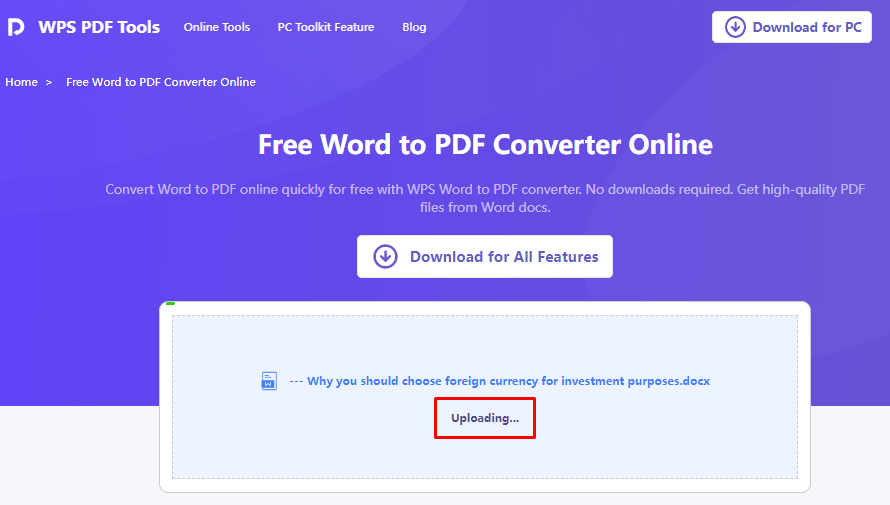
No app install? No problem. The WPS Online tool lets you convert JPG to PDF right in your Android browser like Chrome. Works anywhere, phone, PC, whatever, and spits out clean PDFs fast. Perfect for quick jobs turning random pics into one file, and you can always grab the full WPS app later for heavier editing.
How to Convert JPG to PDF:
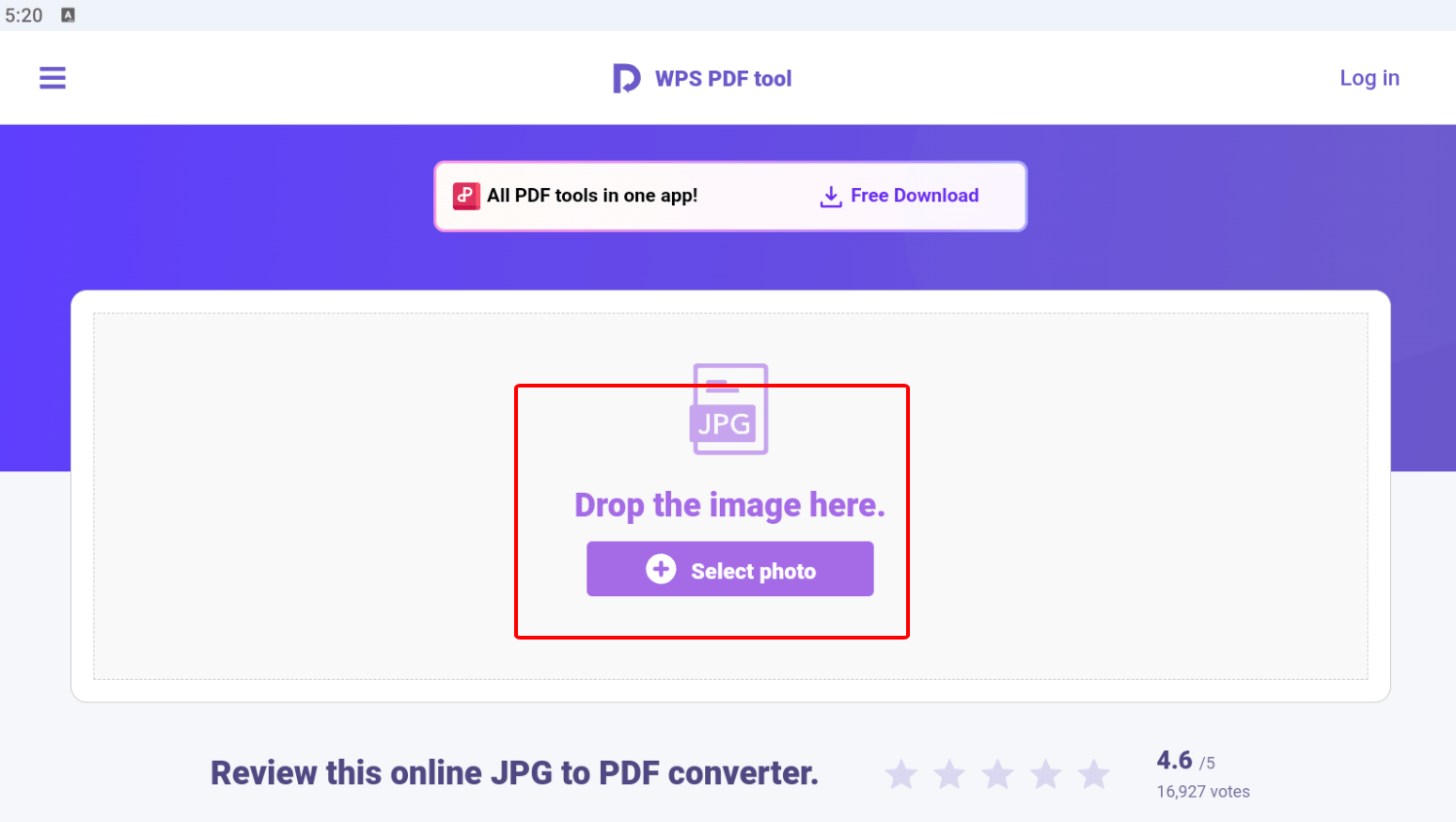
Step 1: Open your mobile browser and go to the WPS Online JPG to PDF page, then tap the button to add images from your device.
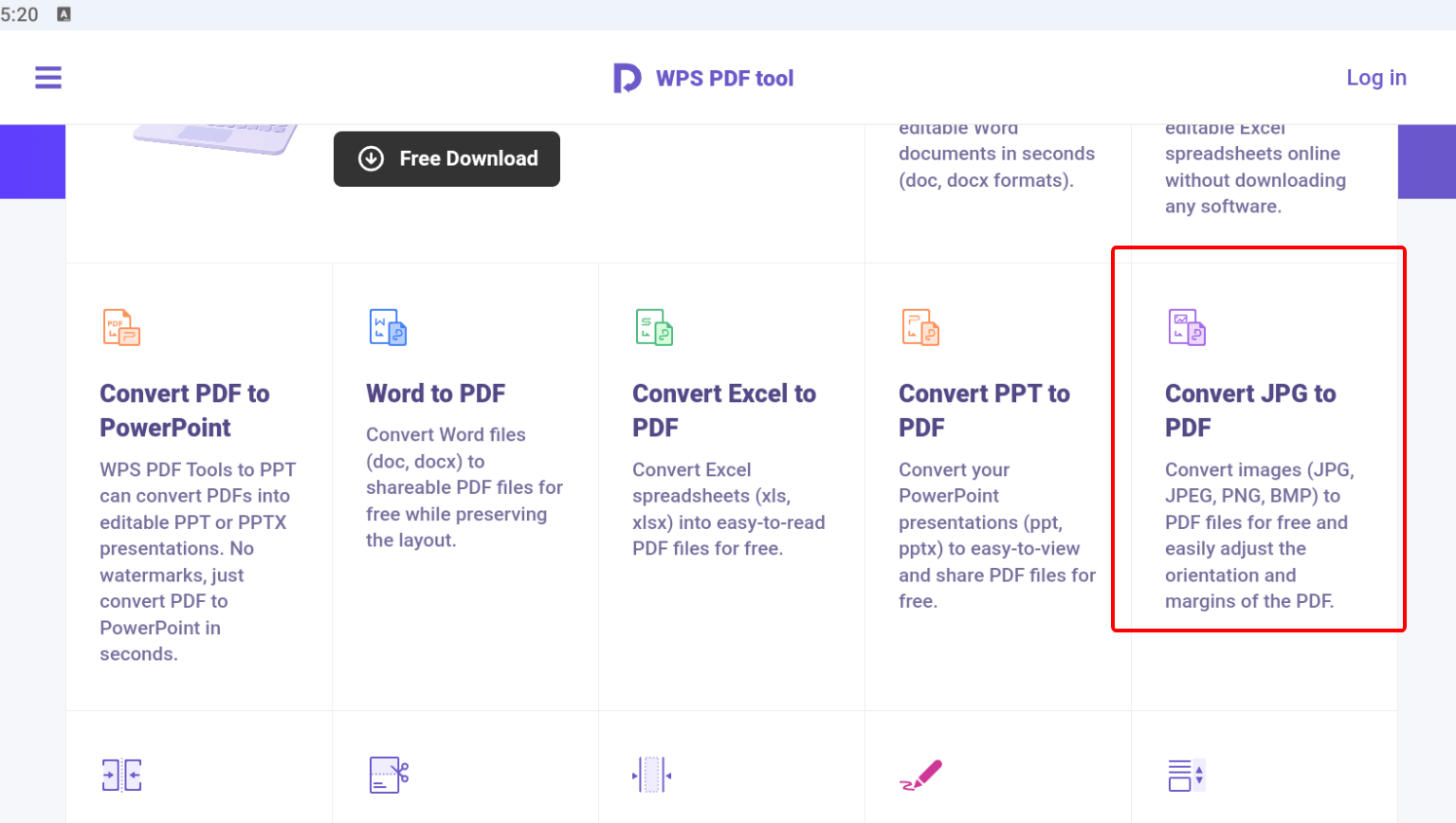
Step 2: Select one or more JPG photos from your gallery or file manager, and wait for them to upload into the converter.
Step 3: If the tool offers ordering, drag or adjust the thumbnails to match the page sequence you want in the final PDF.
Step 4: Tap the convert button to process the images into a single PDF file and wait for the conversion to finish.
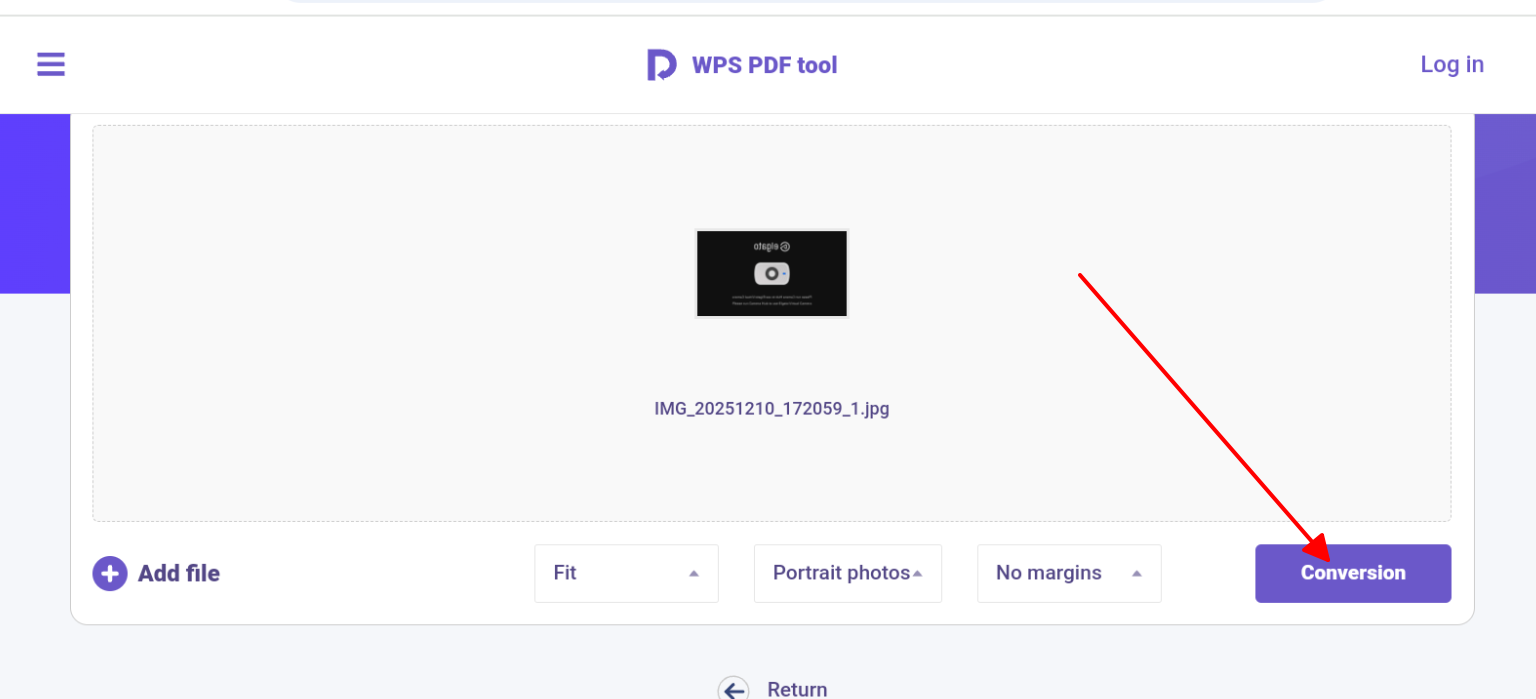
Step 5: Download the resulting PDF to your phone and open it with any PDF reader, or share it directly via email, chat, or cloud storage.
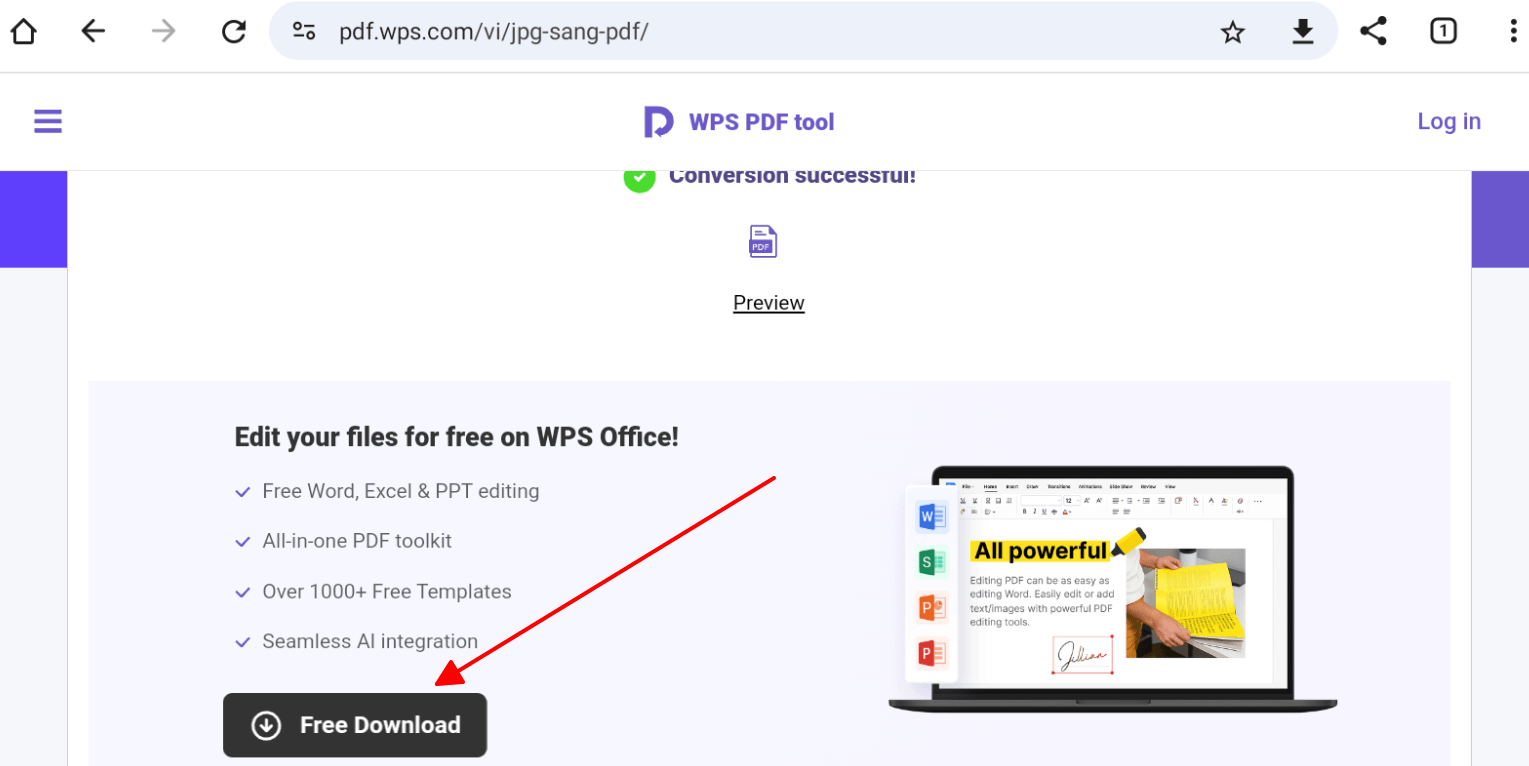
From a user’s perspective, the online tool feels especially handy when you are on a borrowed device or do not want to commit to installing apps yet. It trades the deeper powers of the full WPS Office app for convenience and quick, one-off conversions, which works well for light users testing the waters or handling rare document tasks.
2. iLovePDF
iLovePDF keeps it dead simple if you're just after a no-fuss way to convert JPG to PDF Android. It's all about PDF tricks like merging and squishing files, great for tossing together receipt snaps or project pics before firing off an email. If you hate bloated apps and want something lightweight for occasional use, this hits the spot without overwhelming you.
How to convert:
Step 1: Launch iLovePDF, tap "JPG to PDF" from the main menu.
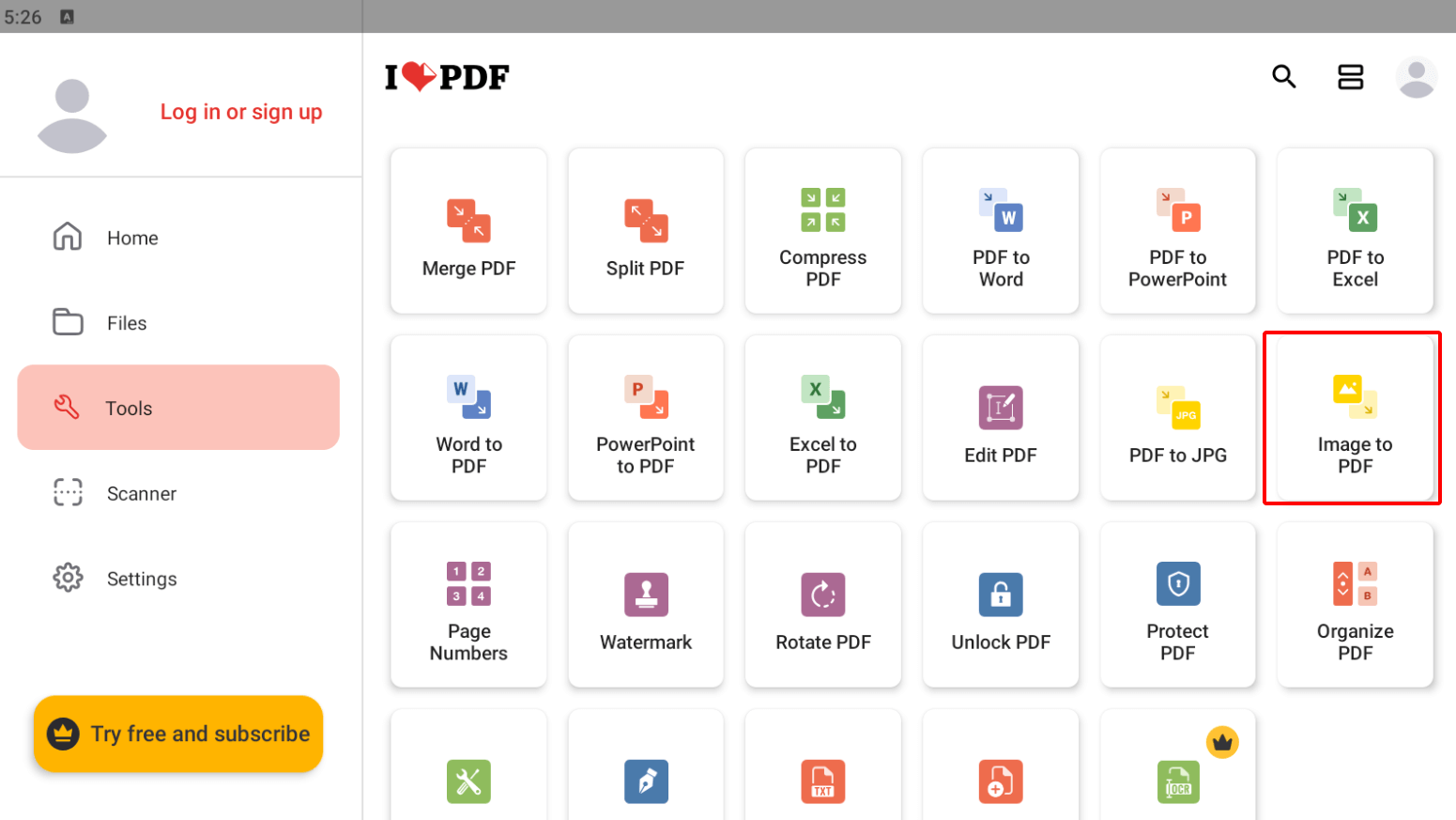
Step 2: Select images from your phone's storage, adjust orientation.
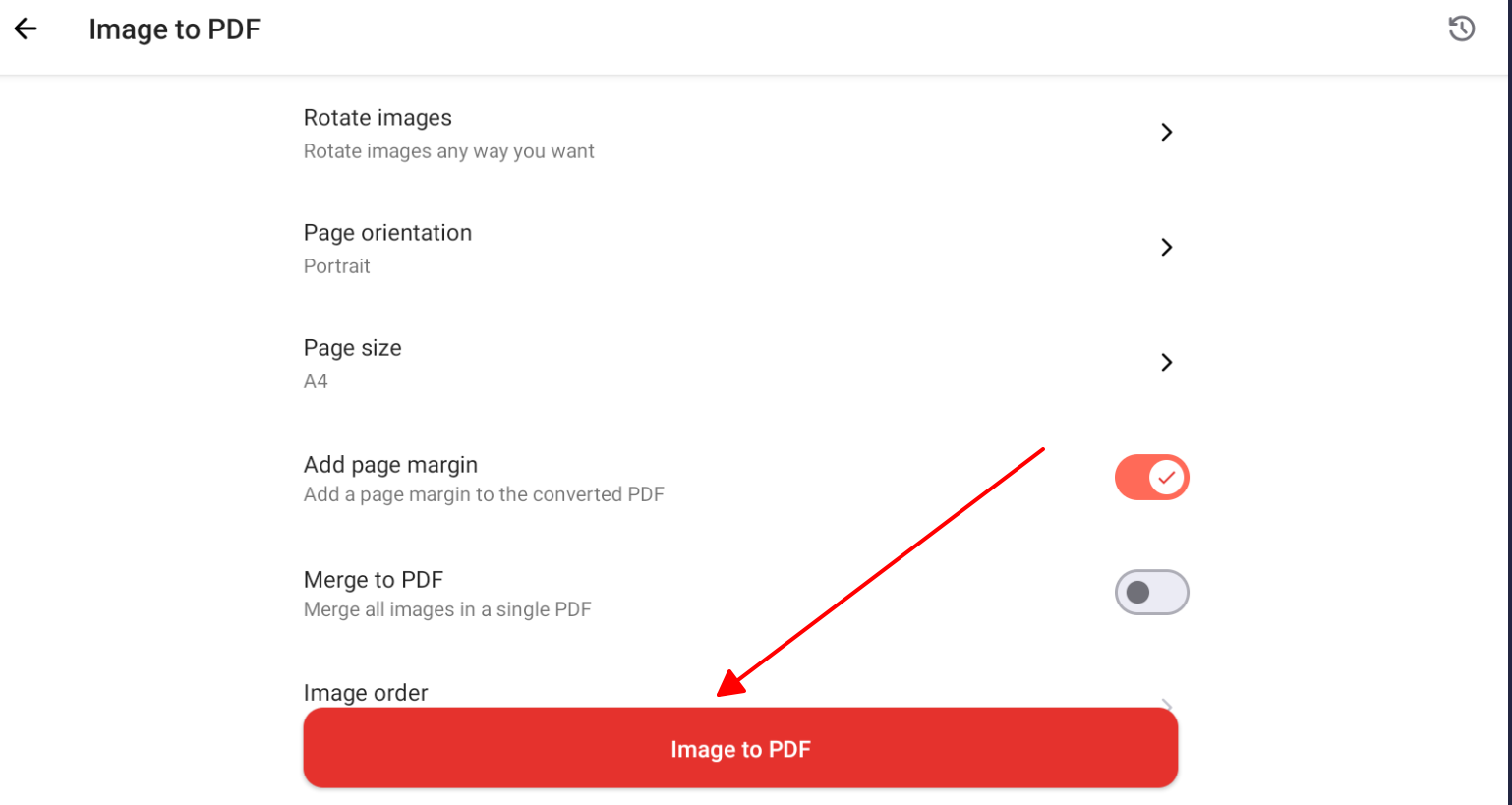
Step 3: Tap "Convert," preview, then download the PDF.
I whipped up conference note merges between sessions, and the drag-drop flew, but bam, daily cap hit after three rounds, so I had to improvise mid-day.
3. Adobe Acrobat
Adobe Acrobat brings that big-league polish when you're figuring out how to convert JPG to PDF Android, especially for stuff that started as scans. It auto-fixes wonky angles and boosts clarity on the fly, turning phone pics of contracts or forms into something you'd hand a lawyer. Solid free basics if you're already in the Adobe world.
How to convert:
Step 1: Open Adobe Acrobat, tap "Create PDF" > "Image."
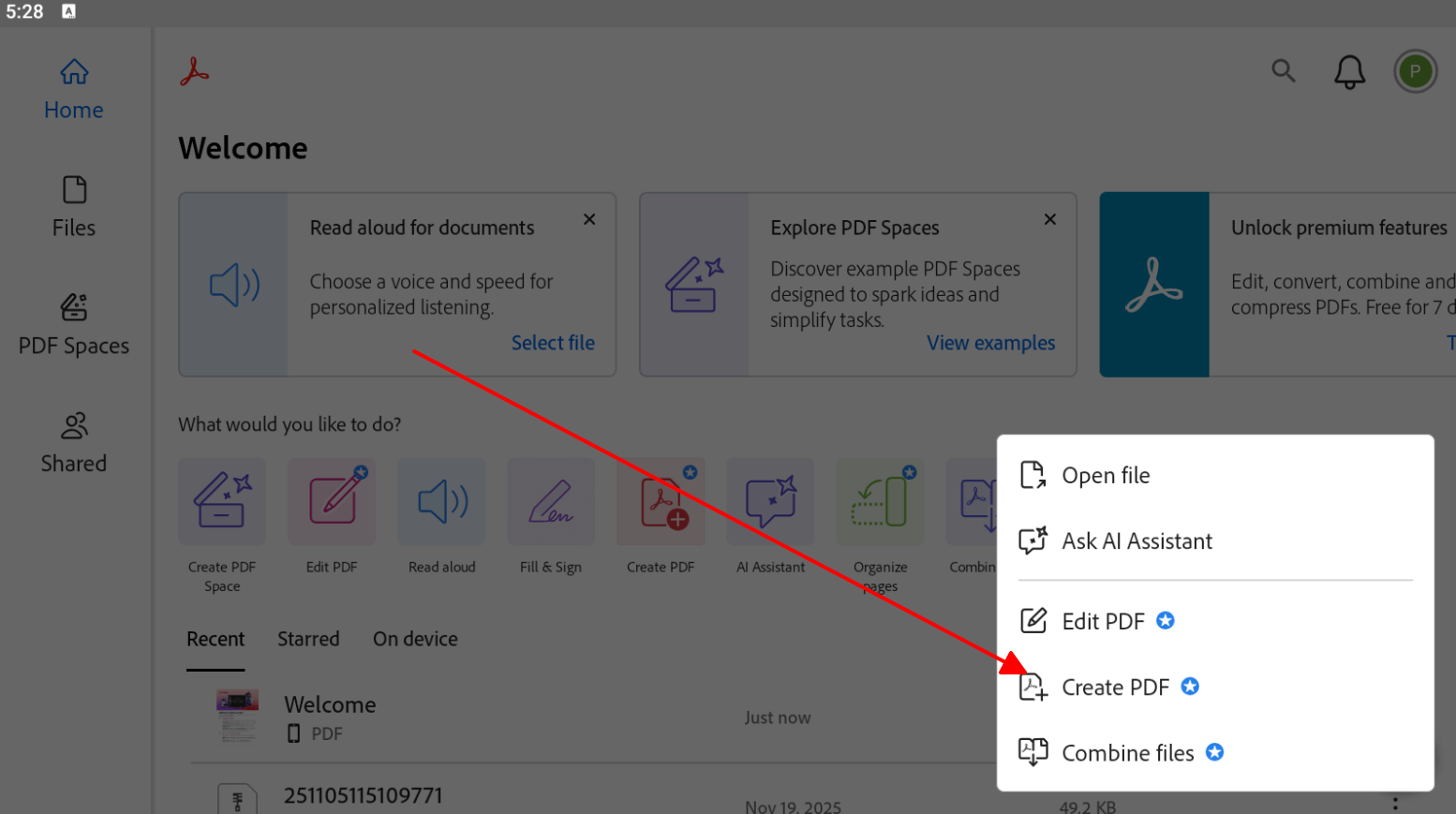
Step 2: Select JPGs from gallery, edit/rotate pages as needed.
Step 3: Export as PDF, set quality, and save.
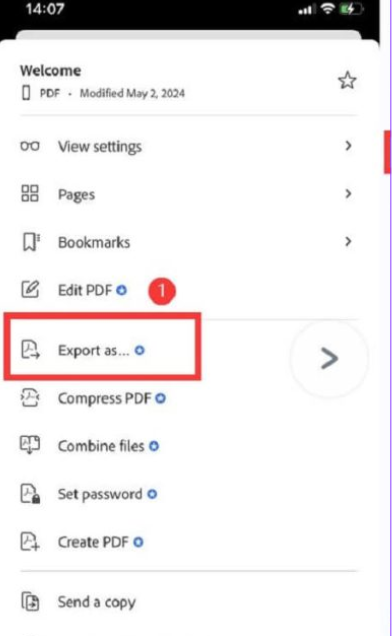
Tackled some blurry contract shots in my tests, and Adobe's tweaks made them pop sharper than rivals, though it bogged down my older phone like a heavy backpack.
4. PDFgear
PDFgear packs a punch as a free heavy-hitter for converting JPG to PDF Android, with extras that go beyond basic swaps. You get AI smarts for tweaking outputs, ideal for note pics that need quick cleanup or summaries. It's offline-friendly and watermark-free, pulling users who want pro vibes without the price tag.
How to convert:
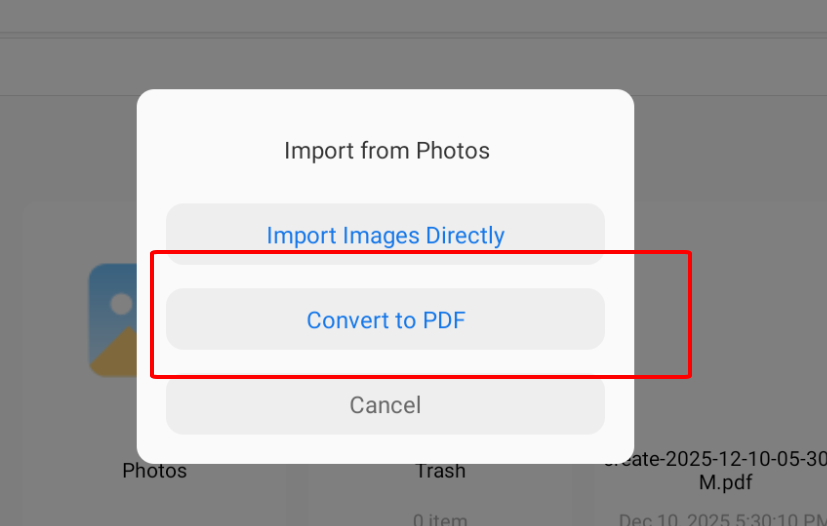
Step 1: Launch PDFgear, go to "Import from" > "Image to PDF."
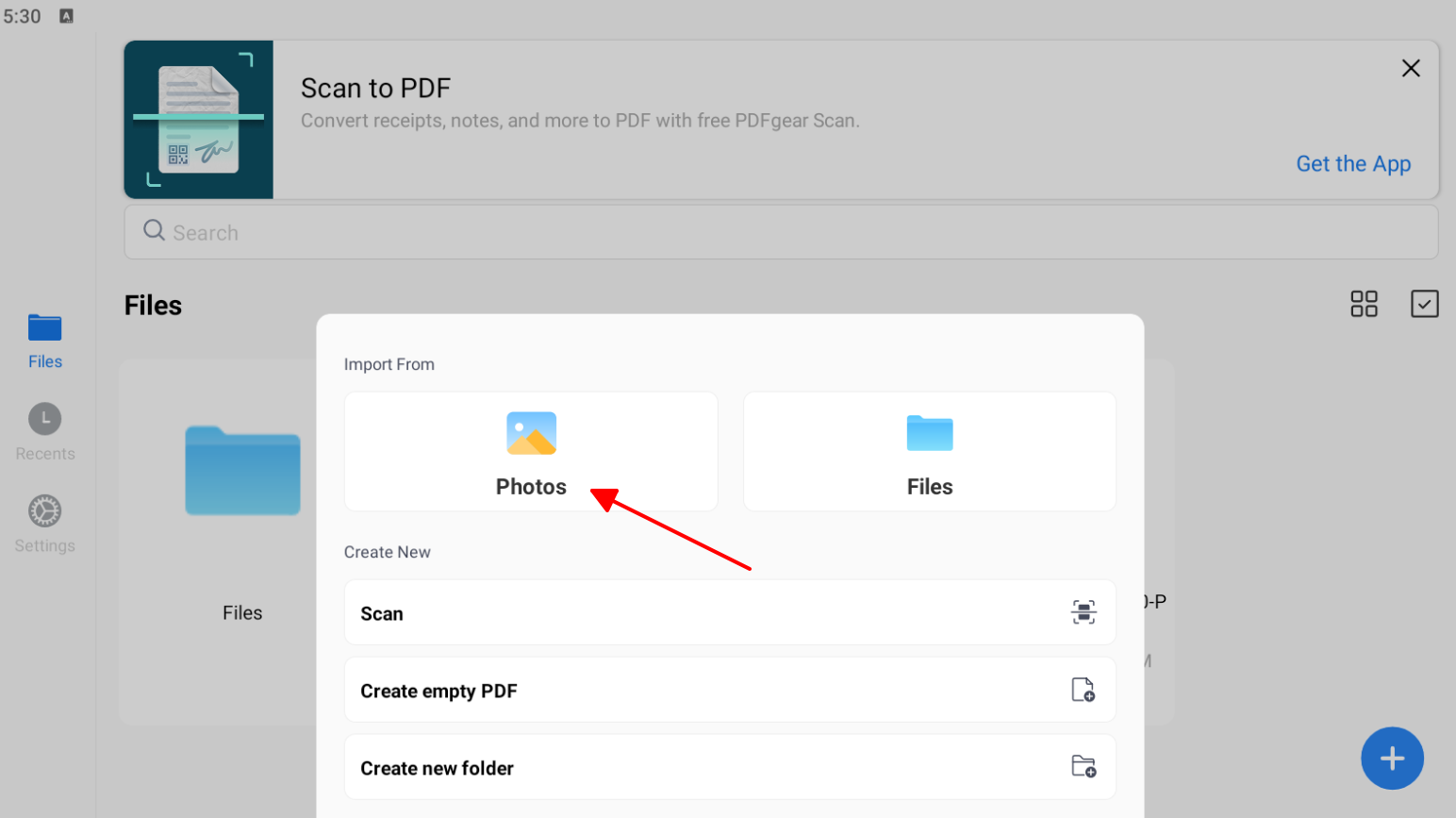
Step 2: Add JPGs from gallery, rearrange pages.
Step 3: Tap generate, adjust settings, export PDF.
Its AI chewed through my lecture note PDFs and spat out summaries in a flash during cram sessions, killer feature, but it missed the deeper editing muscle of something like WPS for full-blown reports.
5. Smallpdf
Smallpdf nails the "just works" vibe for how to convert JPG to PDF Android without a steep learning curve. Super clean for batching travel snaps or assignment images into tidy PDFs fast. If you're not a power user but hate fiddly apps, this one's your low-drama buddy.
How to convert:
Step 1: Open Smallpdf, select "Image to PDF."
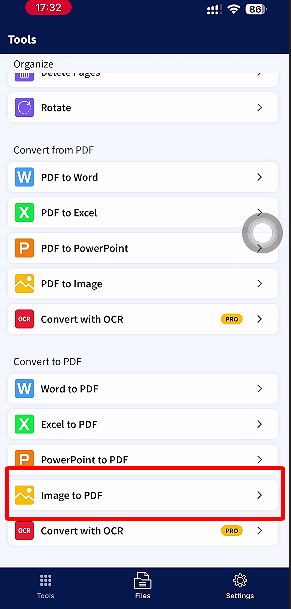
Step 2: Import JPGs, set page layout options.
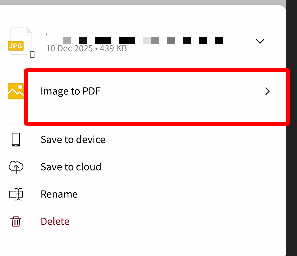
Step 3: Convert and download the PDF.
Nailed quick batches of trip photos on the road for me, PDFs done in seconds, but the daily wall after five meant it wasn't my go-to for marathon sessions like unlimited apps.
Quick Comparison Table of the Top 5 Free JPG to PDF Converter
Not sure which one fits your flow? This table breaks down the key differences at a glance, so you can spot the winner for offline needs, batch power, or free limits fast.
| App | Offline | Batch Convert | Suite Type | Free Limit Style | Best Fit Use Case |
| WPS Office | Yes | Yes | Full office | Core tools free | Everyday document workflows |
| iLovePDF | Partial | Yes | PDF-focused | Daily/task caps | Quick conversion jobs |
| Adobe | Yes | Yes | PDF and scan | Freemium model | Professional scan-quality PDF |
| PDFgear | Yes | Yes | PDF editor | Broad free usage | Frequent PDF editing and merge |
| Smallpdf | Yes | Yes | Converter plus | Daily/task caps | Occasional simple batches |
There you have it: WPS leads for all-rounders, while others nail specific scenarios like quick scans or AI tweaks. Pick based on your daily grind.
Why WPS PDF Tools Stands Out?
![Official] WPS Office PDF Editor - Free Download to Edit and Convert PDF Easily](https://res-academy.cache.wpscdn.com/upload/seo-engine-admin/2025-12-21/0744c906995017592e2cded877a947ed.png "WPS PDF")
Looking at that comparison table, WPS Office clearly pulls ahead with full offline support, unlimited batch converting in the free tier, and a complete office suite that none of the others match. While iLovePDF and Smallpdf cap you daily, Adobe locks pro stuff behind paywalls, and PDFgear lacks the full editing depth, WPS gives everything without limits. From my heavy use across phones, it's hands-down the best pick for anyone serious about convert JPG to PDF Android daily.
More Than Just a Converter: An All-in-One Office Suite
WPS Office blows past basic converters because it's a full powerhouse suite, not some narrow tool. Unlike iLovePDF or Smallpdf that just merge pics, WPS packs PDF conversion right into Writer, Spreadsheets, and Presentations. That means you snap JPG notes, convert to PDF, then edit text, add charts, or build slides all in one app, no switching programs or file juggling. I've turned receipt batches into full expense reports without leaving the app, saving tons of time on the go.
Batch Conversion and Advanced Customization
Batch power lets you dump dozens of JPGs at once into one PDF, no piecemeal nonsense, which slashes time on big jobs like multi-page contracts. Tweak page ranges, crank DPI for crisp prints, or dial quality down for tiny email files, balancing size and sharpness perfectly. In my tests, I merged 20 low-res phone pics with custom DPI and got pro results under 2MB, way smoother than the others' basic exports.
Secure, Offline Conversions for Your Privacy
WPS processes everything locally on your Android, so those sensitive ID or contract JPGs never hit a server. Online tools like some iLovePDF flows force uploads, risking your data, but WPS keeps it locked on-device, pure privacy win. Used it for client docs on public WiFi, zero worries, unlike upload-heavy rivals that make me paranoid.
FAQs
1. Can I convert JPG to PDF on Android without downloading an app?
Totally, hit up your Gallery or Photos app: pick the JPGs, tap Print, swap to Save as PDF. Quick and dirty for basics, skips installs, but skips fancy layouts that apps like WPS nail for pro touches.
2. How do I combine multiple JPG files into a single PDF on my Android phone?
Grab an app like WPS, load your gallery pics, drag 'em into order, hit convert, and out pops one neat PDF. Dead simple for work shares or homework, no more zip file nightmares.
3. Which app is best for frequent JPG to PDF conversions on Android?
Go for a suite like WPS if you're converting often; it bundles editing and PDF tools so you convert, tweak, share without app roulette. Beats siloed converters for daily grinders.
4. Does converting JPG to PDF change the quality of my images?
Nah, most let you dial in DPI and quality to keep things crisp or slim files down. Crank it high for prints, low for quick emails, test a sample to nail your sweet spot every time.

'%3e%3cpath%20d='M19.9911%204.11386V6.471H18.5894C18.0775%206.471%2017.7322%206.57814%2017.5536%206.79243C17.3751%207.00671%2017.2858%207.32814%2017.2858%207.75671V9.44421H19.9019L19.5536%2012.0871H17.2858V18.8639H14.5536V12.0871H12.2769V9.44421H14.5536V7.49779C14.5536%206.39064%2014.8632%205.53201%2015.4822%204.92189C16.1013%204.31177%2016.9257%204.00671%2017.9554%204.00671C18.8304%204.00671%2019.509%204.04243%2019.9911%204.11386Z'%20fill='%23333333'/%3e%3c/g%3e%3cdefs%3e%3cclipPath%20id='clip0_2938_8199'%3e%3crect%20width='16'%20height='16'%20fill='white'%20transform='translate(8%204.00671)'/%3e%3c/clipPath%3e%3c/defs%3e%3c/svg%3e)
'%3e%3cpath%20d='M17.5237%2010.7813L23.4811%204H22.0699L16.8949%209.88693L12.7648%204H8L14.2469%2012.9029L8%2020.0133H9.4112L14.8725%2013.7952L19.2352%2020.0133H24M9.92053%205.04213H12.0885L22.0688%2019.0224H19.9003'%20fill='%23333333'/%3e%3c/g%3e%3cdefs%3e%3cclipPath%20id='clip0_2938_8200'%3e%3crect%20width='16'%20height='16.0134'%20fill='white'%20transform='translate(8%204)'/%3e%3c/clipPath%3e%3c/defs%3e%3c/svg%3e)


