

'%3e%3cpath%20d='M8%200C12.4183%200%2016%203.58172%2016%208C16%2012.4183%2012.4183%2016%208%2016C3.58172%2016%200%2012.4183%200%208C0%203.58172%203.58172%200%208%200ZM11.6162%204.38379C11.2257%203.99337%2010.5927%203.99338%2010.2021%204.38379L8%206.58594L5.79785%204.38379C5.40732%203.99334%204.77429%203.99329%204.38379%204.38379C3.99331%204.77429%203.99335%205.40733%204.38379%205.79785L6.58594%208L4.38379%2010.2021C3.99348%2010.5927%203.99341%2011.2257%204.38379%2011.6162C4.77426%2012.0066%205.40734%2012.0065%205.79785%2011.6162L8%209.41406L10.2021%2011.6162C10.5927%2012.0066%2011.2257%2012.0067%2011.6162%2011.6162C12.0067%2011.2257%2012.0066%2010.5927%2011.6162%2010.2021L9.41406%208L11.6162%205.79785C12.0066%205.40735%2012.0066%204.77429%2011.6162%204.38379Z'%20fill='%23080E17'%20fill-opacity='0.46'/%3e%3c/g%3e%3cdefs%3e%3cclipPath%20id='clip0_3761_713'%3e%3crect%20width='16'%20height='16'%20fill='white'/%3e%3c/clipPath%3e%3c/defs%3e%3c/svg%3e)




'%3e%3cpath%20fill-rule='evenodd'%20clip-rule='evenodd'%20d='M21.4999%2010.9993C21.4999%205.20009%2016.7986%200.498901%2010.9993%200.498901C5.19994%200.498901%200.498657%205.20009%200.498657%2010.9993C0.498657%2016.2404%204.33858%2020.5844%209.35855%2021.3722V14.0346H6.69238V10.9993H9.35855V8.68594C9.35855%206.05427%2010.9262%204.60062%2013.3248%204.60062C14.4736%204.60062%2015.6753%204.80571%2015.6753%204.80571V7.38979H14.3512C13.0468%207.38979%2012.64%208.19921%2012.64%209.0296V10.9993H15.5523L15.0867%2014.0346H12.64V21.3722C17.66%2020.5844%2021.4999%2016.2404%2021.4999%2010.9993Z'%20fill='%231568EA'/%3e%3c/g%3e%3c/svg%3e)


'%3e%3cpath%20d='M2.42045%2022.1876H6.31818V12.7217L0.75%208.54553V20.5171C0.75%2021.4414%201.49892%2022.1876%202.42045%2022.1876Z'%20fill='%234285F4'/%3e%3cpath%20d='M19.682%2022.1876H23.5797C24.5041%2022.1876%2025.2502%2021.4387%2025.2502%2020.5171V8.54553L19.682%2012.7217'%20fill='%2334A853'/%3e%3cpath%20d='M19.682%205.48293V12.7216L25.2502%208.54543V6.31816C25.2502%204.25236%2022.8921%203.07469%2021.2411%204.31361'%20fill='%23FBBC04'/%3e%3cpath%20d='M6.31824%2012.7217V5.48303L13.0001%2010.4944L19.6819%205.48303V12.7217L13.0001%2017.733'%20fill='%23EA4335'/%3e%3cpath%20d='M0.75%206.31816V8.54543L6.31818%2012.7216V5.48293L4.75909%204.31361C3.10534%203.07469%200.75%204.25236%200.75%206.31816Z'%20fill='%23C5221F'/%3e%3c/g%3e%3cdefs%3e%3cclipPath%20id='clip0_2954_7305'%3e%3crect%20width='24.5'%20height='18.375'%20fill='white'%20transform='translate(0.75%203.8125)'/%3e%3c/clipPath%3e%3c/defs%3e%3c/svg%3e)


Quick answer: When Excel cannot open the file, treat it as a diagnosis problem first. The alert often means the workbook is damaged, the extension doesn’t match the real format, an older Excel build can’t read it, or Windows blocked/locked the path. Copy the file to a backup folder, then try File → Open → Open and Repair. For email/download files, click Enable Editing or Properties → Unblock. If the workbook still fails, hunt AutoRecover / Recover Unsaved Workbooks before you assume the data is gone.
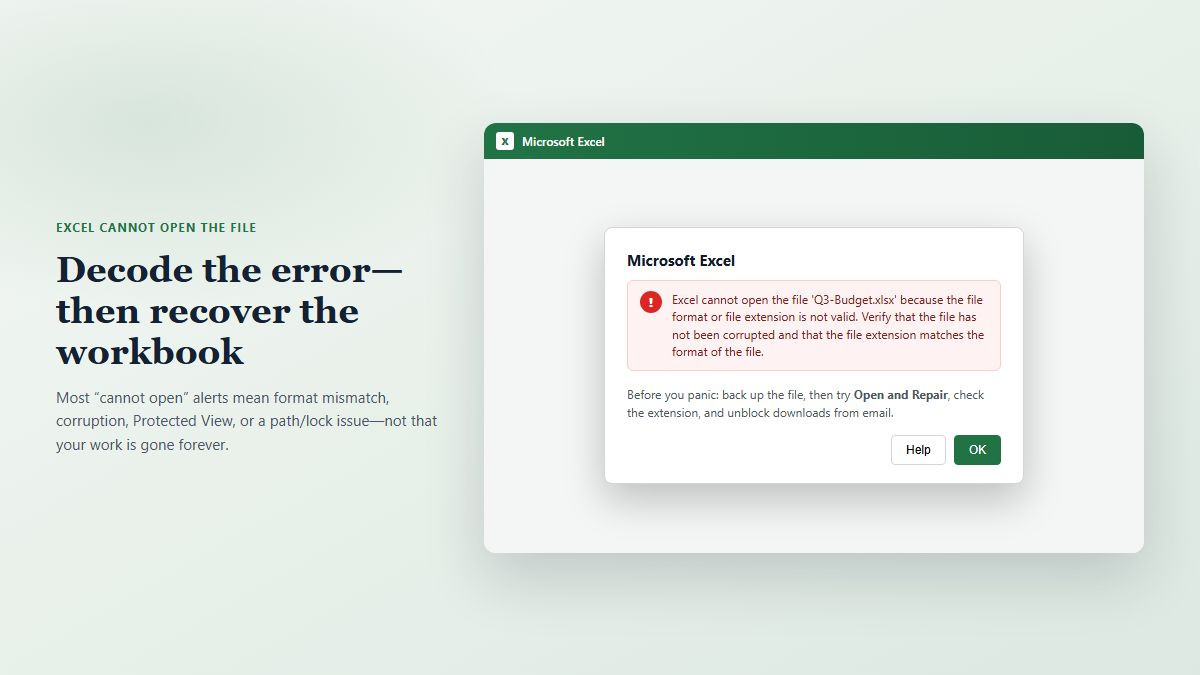
This is a classic troubleshooting search: people already have the file on disk, but Excel refuses to open it—especially with the message that the file format or file extension is not valid. Below is a US-English, SERP-first guide that maps the four things users actually want: what the error means, how to save the data, and the “few clicks” fixes for Protected View, locks, and file associations.
What “Excel cannot open the file” usually means
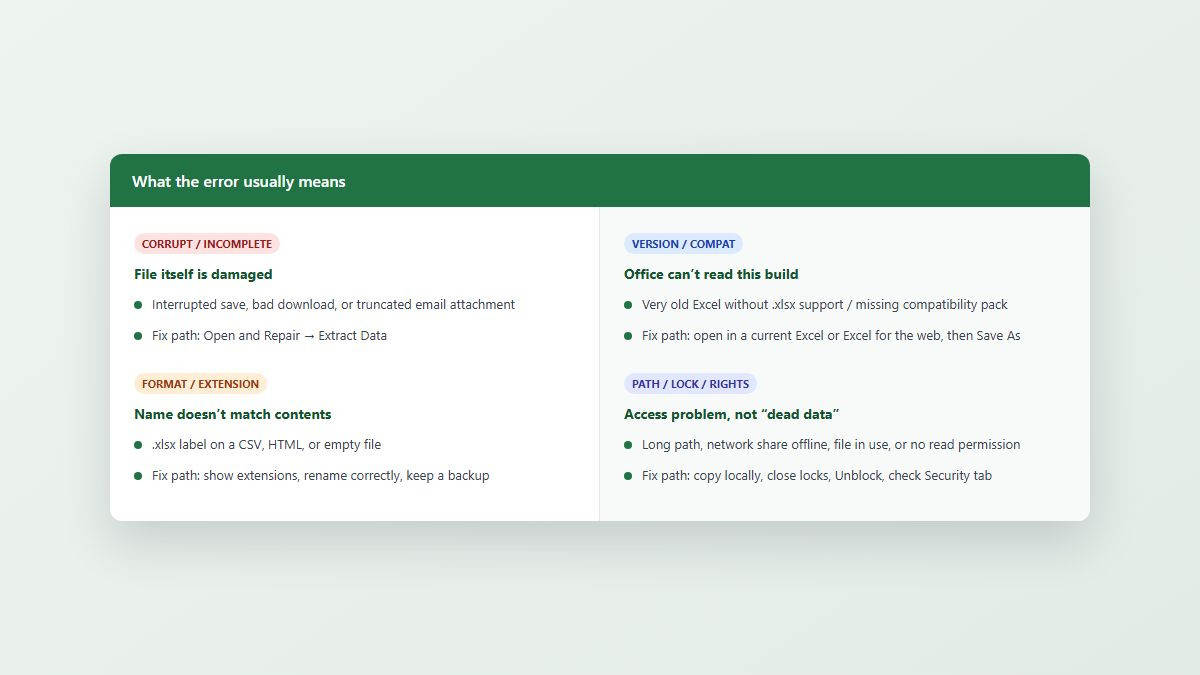
Excel’s wording is blunt, but the root cause is usually one of these buckets:
Corrupted or incomplete file — crash during save, bad USB eject, truncated download, or a mail server that mangled the attachment.
Extension doesn’t match contents — labeled
.xlsxbut actually CSV/HTML/text, an empty placeholder, or a macro workbook that should be.xlsm.Version / compatibility — very old Excel without modern Open XML support, or a file created with features your build can’t read cleanly.
Path, permissions, or lock — oversized path, offline network share, OneDrive not finished syncing, no NTFS rights, or another process still holding the file.
Rule of thumb: if a coworker can open the same attachment, suspect your Protected View / Unblock / association settings. If nobody can open it, suspect corruption or a false extension.
Fix 1: Open and Repair (and Extract Data)
This is Microsoft’s primary recovery path when the workbook is damaged but still partially readable.
Make a backup copy of the file first (don’t repair the only copy).
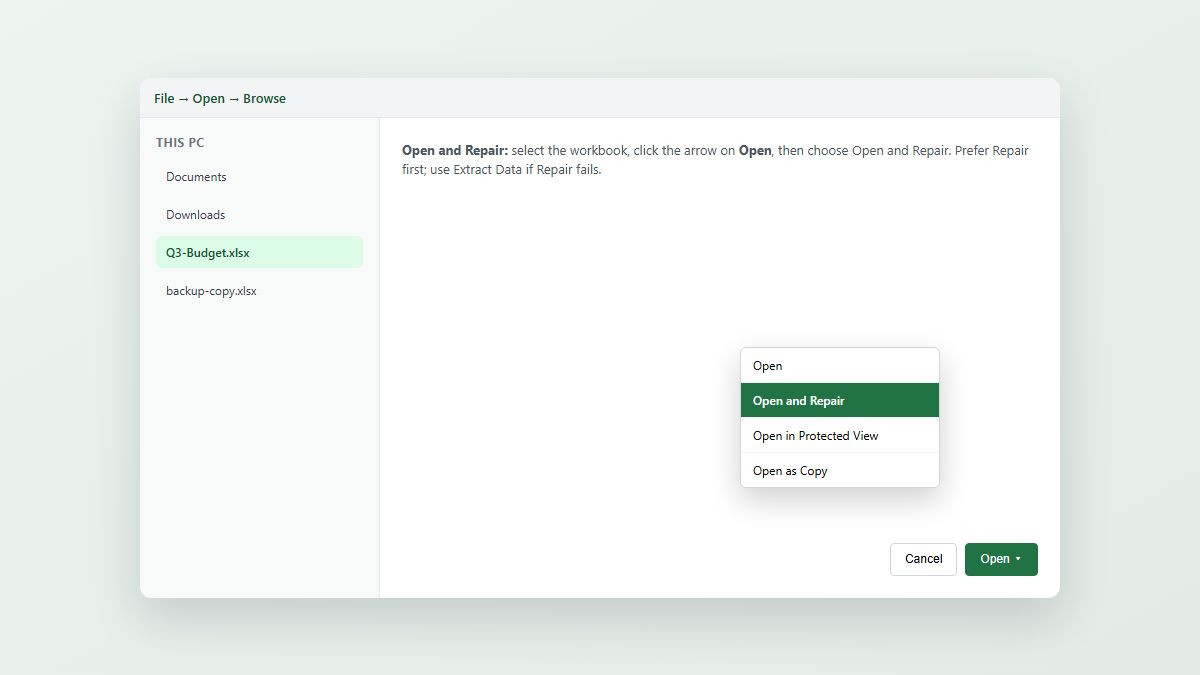
Open Excel → File → Open → Browse (don’t rely only on Recent).
Select the workbook once—don’t double-click yet.
Click the arrow on the Open button → choose Open and Repair.
Try Repair first. If that fails, choose Extract Data to pull values/formulas.
Immediately Save As a new
.xlsxso you stop trading the broken original.
Tip: set calculation to Manual (File → Options → Formulas) before opening huge damaged files—Excel may load farther when it isn’t forced to recalculate everything at once.
Fix 2: Check the extension and open the real format
In File Explorer, turn on View → Show → File name extensions.
Confirm whether the name ends in
.xlsx,.xls,.xlsm,.xlsb, or.csv.If you know it was exported as CSV/text, rename accurately (keep a backup) or use Data → From Text/CSV.
If it should be macro-enabled, try
.xlsmonly when you have a strong reason—random renaming won’t rebuild a dead ZIP package.Still stuck? Try Excel for the web or another spreadsheet app, then Save As a clean workbook.
Fix 3: Protected View, Unblock, locks, and file associations (fast clicks)
These are the “it opens for IT but not for me” fixes.
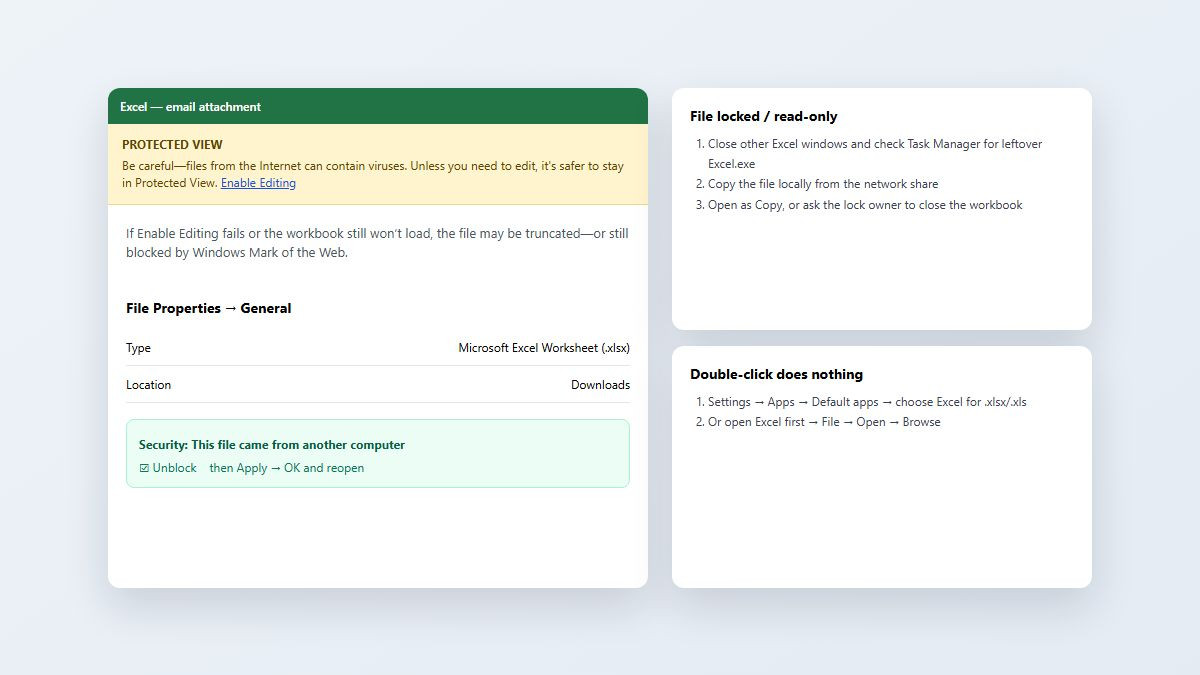
Protected View: if you see the yellow banner on internet/email files, click Enable Editing. If Excel crashes on that click, the file is likely truncated—go back to Open and Repair.
Unblock Mark of the Web: close Excel → right-click the file → Properties → General → check Unblock → Apply → OK → reopen.
File locked / read-only: close other Excel windows, end leftover
Excel.exein Task Manager, copy the file from the network share to Desktop, then open the local copy (or Open as Copy).Double-click does nothing / wrong app: Windows Settings → Apps → Default apps → assign Microsoft Excel to
.xlsx/.xls. Or open Excel first and use File → Open.Permissions / long path: confirm you can read the folder; shorten deep nested names; copy locally from flaky VPN shares.
You usually do not need to turn off all Protected View globally. Unblocking one trusted file (or Enable Editing once) is safer than disabling the feature for every download.
Can you get the data back? AutoRecover and unsaved copies
The deepest fear behind this keyword is losing hours of work. Work the recovery ladder in order:
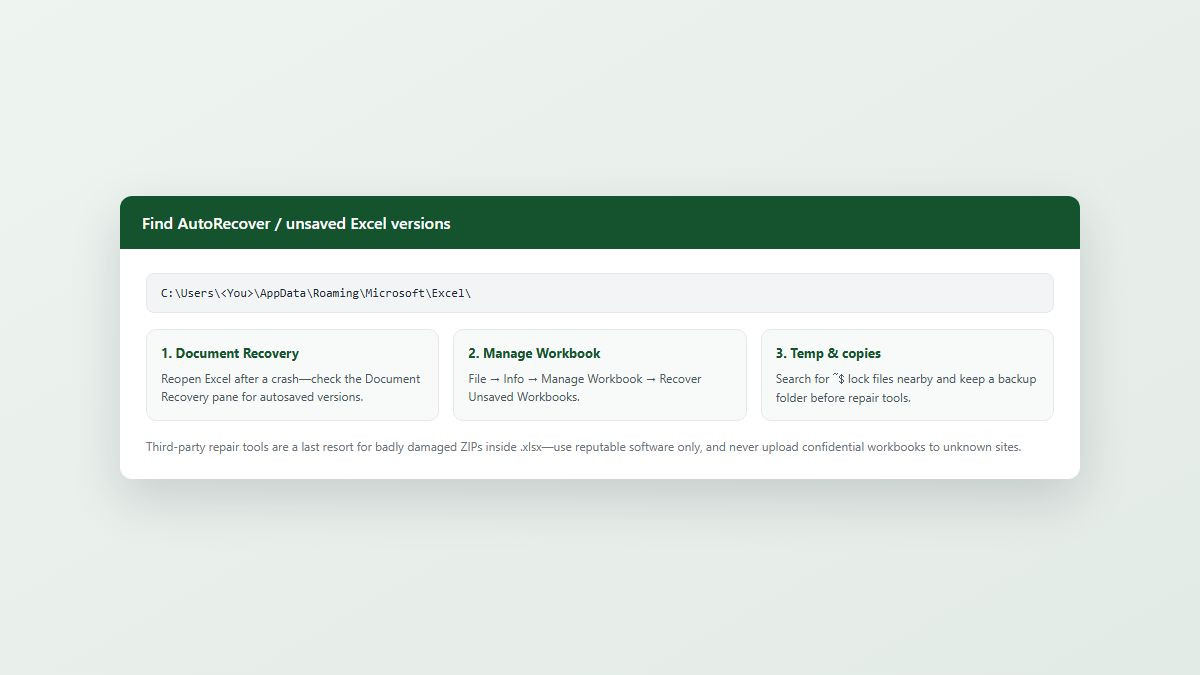
Reopen Excel and check the Document Recovery pane after a crash.
Go to File → Info → Manage Workbook → Recover Unsaved Workbooks.
Browse the AutoRecover area under your Windows profile, commonly similar to
C:\Users\(exact folders vary by version).\AppData\Roaming\Microsoft\Excel\ Search the original folder for temporary/lock siblings and yesterday’s email attachment if this was a download.
Third-party repair tools: last resort only for severely damaged
.xlsxZIP structures—use reputable software, keep offline copies of confidential finance/HR sheets, and avoid random upload sites.
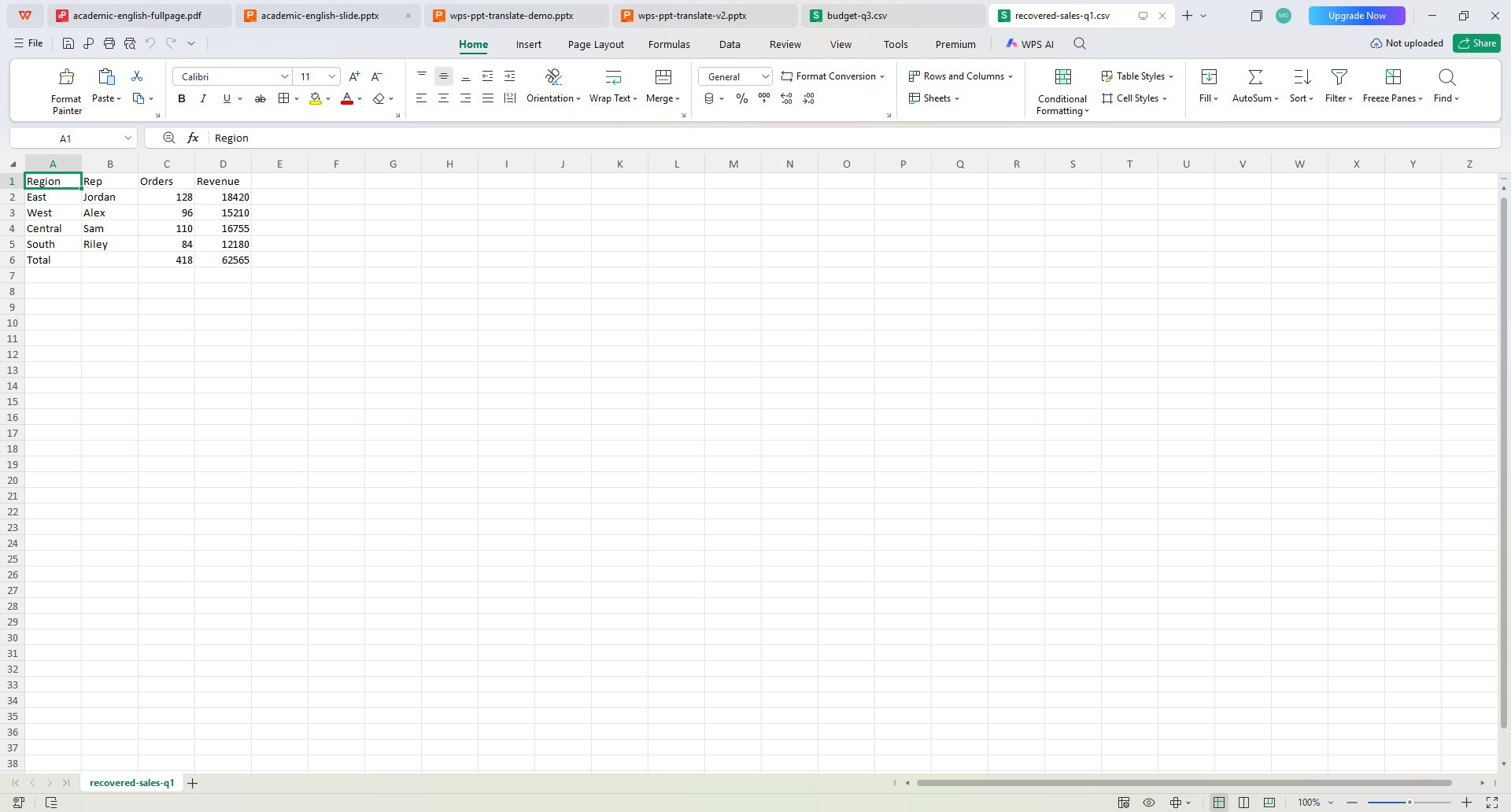
Another option: open the stubborn workbook in WPS Spreadsheets
When Excel keeps rejecting the same file—especially after a messy download or a half-synced network copy—a second spreadsheet engine can be the fastest way to see whether the data is still readable. Open a backup copy in WPS Office Spreadsheets, verify key totals, then Save As a clean .xlsx for everyone else.
That doesn’t replace Open and Repair for true corruption, but it helps mixed Windows/Mac teams move again without waiting on one Office build, and the free tier covers everyday spreadsheet editing when you don’t need a full Microsoft 365 subscription just to rescue a file.
FAQ
What does “Excel cannot open the file because the file format or file extension is not valid” mean?
Usually the workbook is damaged, incomplete, or named with the wrong extension. It can also appear when permissions/Protected View block a clean open. Start with a backup, then Open and Repair.
How do I use Open and Repair in Excel?
File → Open → Browse → select the file → click the arrow beside Open → Open and Repair. Choose Repair first; use Extract Data if Repair fails.
How do I open an Excel file stuck in Protected View?
Click Enable Editing on the yellow banner. If the file came from email/internet, also try Properties → Unblock before reopening.
Excel says the file is locked by another user—what now?
Close other Excel sessions, check Task Manager for Excel.exe, copy the file locally from the share, and open the local copy or Open as Copy.
Where are Excel AutoRecover or unsaved workbooks?
Try Document Recovery after a crash, then File → Info → Manage Workbook → Recover Unsaved Workbooks, and look under your user AppData Microsoft Excel folders.
Should I use a third-party Excel repair tool?
Only after Open and Repair and AutoRecover fail. Prefer trusted tools, keep an offline backup, and don’t upload confidential workbooks to unknown websites.
Summary
When Excel cannot open the file, decode the failure (corruption, bad extension, compatibility, or path/lock), back up the workbook, and run Open and Repair. Unblock email downloads, clear Protected View carefully, release file locks, and fix .xlsx associations when double-click fails. Hunt AutoRecover / unsaved copies before you give up on the data. If Excel still refuses a readable backup, try opening it in WPS Spreadsheets and Save As a clean workbook for the team.



'%3e%3cpath%20d='M19.9911%204.11386V6.471H18.5894C18.0775%206.471%2017.7322%206.57814%2017.5536%206.79243C17.3751%207.00671%2017.2858%207.32814%2017.2858%207.75671V9.44421H19.9019L19.5536%2012.0871H17.2858V18.8639H14.5536V12.0871H12.2769V9.44421H14.5536V7.49779C14.5536%206.39064%2014.8632%205.53201%2015.4822%204.92189C16.1013%204.31177%2016.9257%204.00671%2017.9554%204.00671C18.8304%204.00671%2019.509%204.04243%2019.9911%204.11386Z'%20fill='%23333333'/%3e%3c/g%3e%3cdefs%3e%3cclipPath%20id='clip0_2938_8199'%3e%3crect%20width='16'%20height='16'%20fill='white'%20transform='translate(8%204.00671)'/%3e%3c/clipPath%3e%3c/defs%3e%3c/svg%3e)
'%3e%3cpath%20d='M17.5237%2010.7813L23.4811%204H22.0699L16.8949%209.88693L12.7648%204H8L14.2469%2012.9029L8%2020.0133H9.4112L14.8725%2013.7952L19.2352%2020.0133H24M9.92053%205.04213H12.0885L22.0688%2019.0224H19.9003'%20fill='%23333333'/%3e%3c/g%3e%3cdefs%3e%3cclipPath%20id='clip0_2938_8200'%3e%3crect%20width='16'%20height='16.0134'%20fill='white'%20transform='translate(8%204)'/%3e%3c/clipPath%3e%3c/defs%3e%3c/svg%3e)


