In today’s competitive business landscape, the first impression often
starts with your quote. A well crafted quote builds trust, sets
expectations, and communicates professionalism. Yet, many small business
owners and freelancers struggle to design quotes that look clean, clear,
and credible, often juggling between messy spreadsheets or expensive
tools. So, how can you quickly create a professional, easy-to-edit quote
template without spending a dime? In this guide, we’ll share 10free quote templates you can download and customize instantly,
plus simple steps to edit and print them beautifully.
Use Word, Excel, and PPT for FREE
Part 1. What is a
Quote Template?
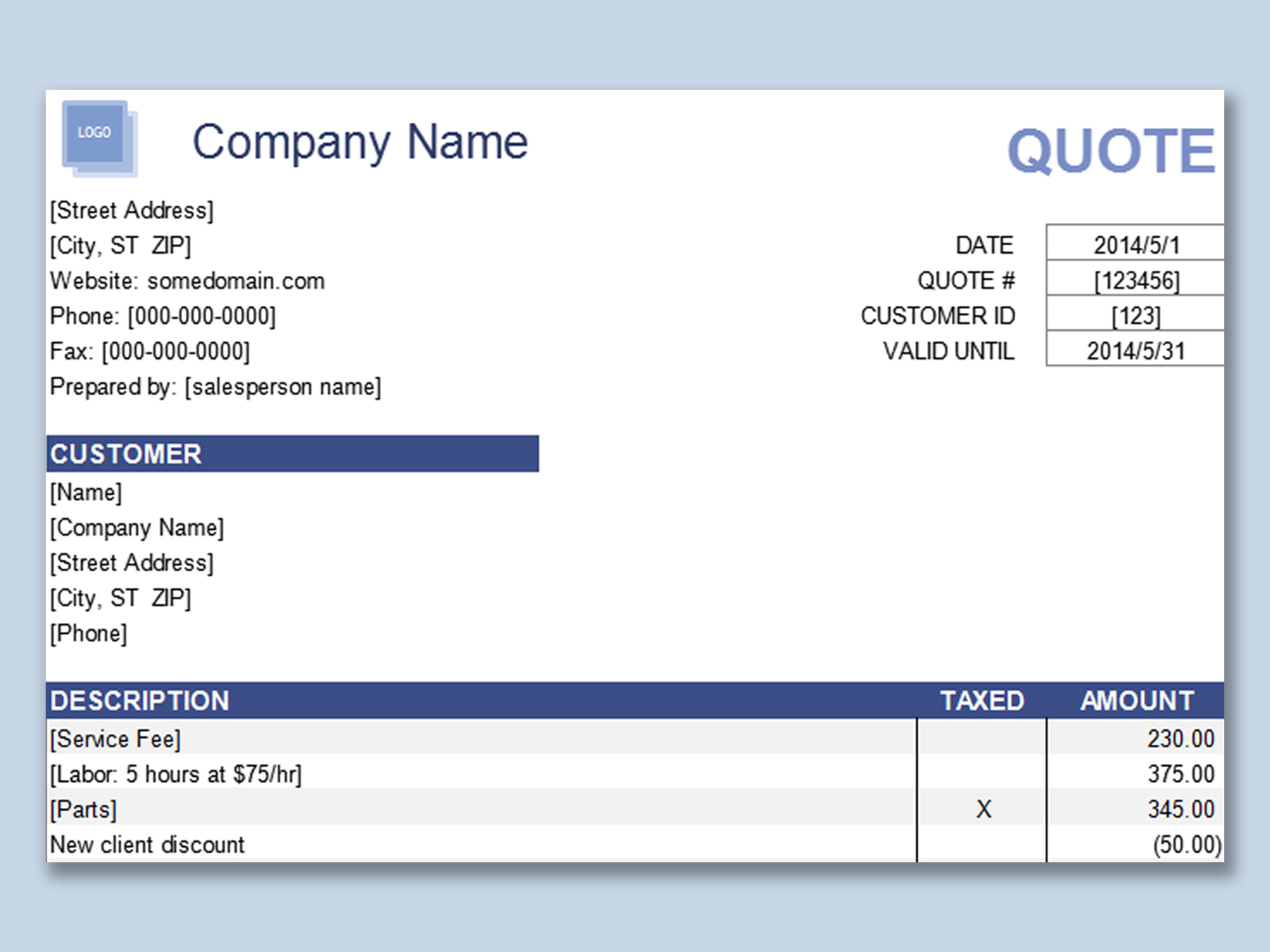
A quote template is a pre-designed document that
allows businesses to outline pricing, service details, and terms clearly
when offering a product or service. It serves as an official offer to
clients before a contract is made.
Quote Template
Value of a Quote
Builds clients' trust with clear pricing.
Saves time by using a consistent format.
Prevents misunderstandings about costs and terms.
What to Include in a Quote?
A professional quote template should include:
Business Details: Name, logo, address, and contact info.
Client Information: Name and company of the client.
Quote Number & Date: Helps with record tracking.
Quote Expiry Date: Defines offer validity.
Service/Item Description: List of tasks or items.
Unit Prices & Total Costs: Transparent cost breakdown.
Payment Terms & Conditions: Due date, method, and policy.
Signature Section: For formal approval.
Part 2. 10
Quote Templates [Free Download]
Below are 10 professional and free quote templates you can download
and edit. Choose the format that best fits your business, Excel, Word,
PDF, or even image-based templates for quick customization.
Tips:
Always download the template format that best suits your workflow, Excel for automatic calculations, Word for flexible editing, and PDF for clean presentation.
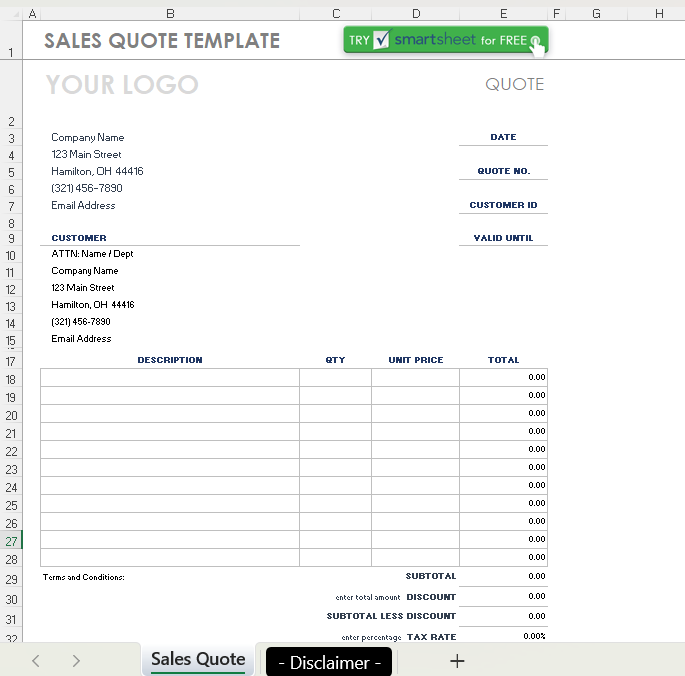
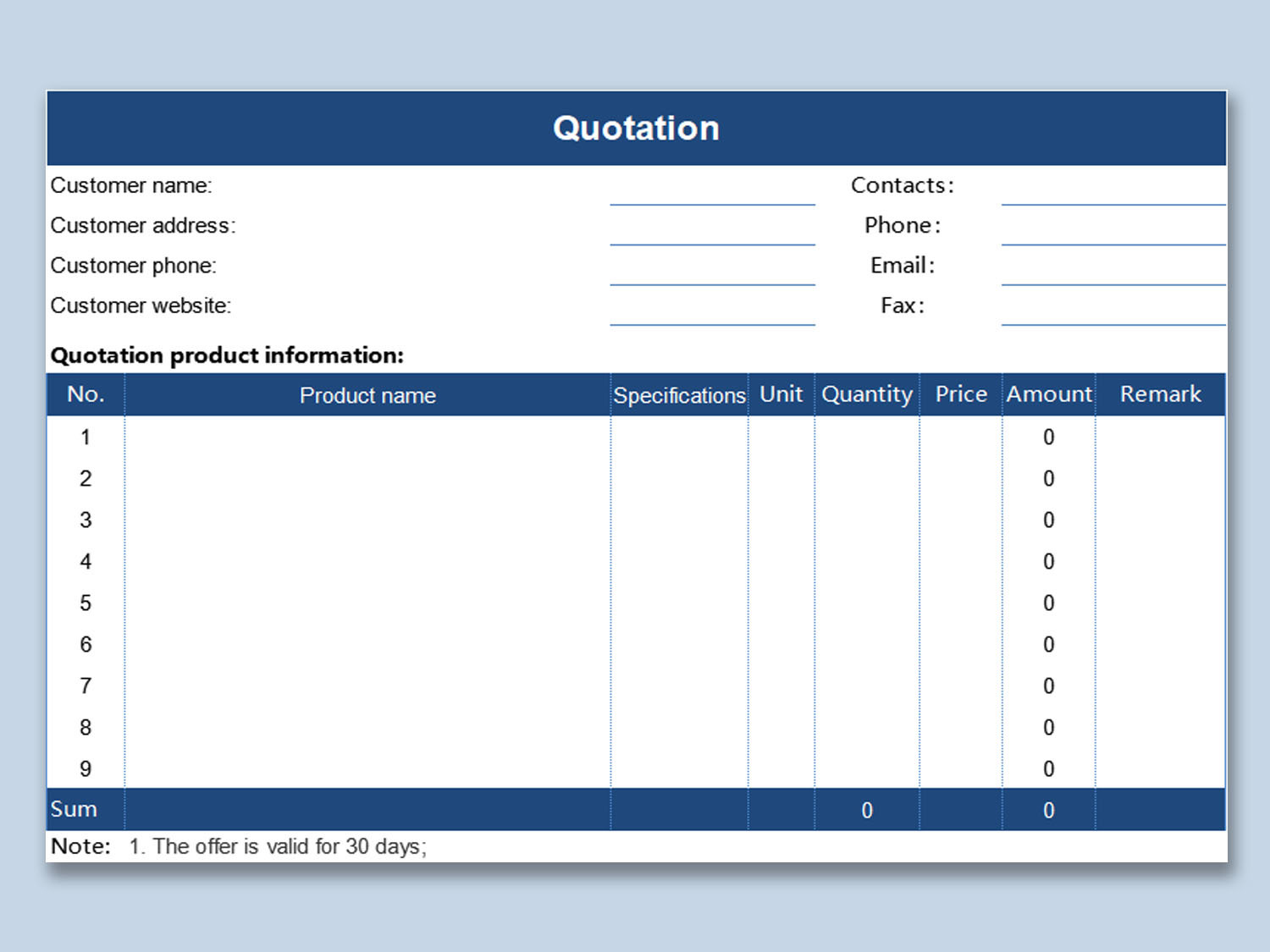
A simple layout designed for product sales, perfect for retail and
wholesale businesses. Easily itemize products, apply discounts, and
calculate totals automatically for quick turnaround.
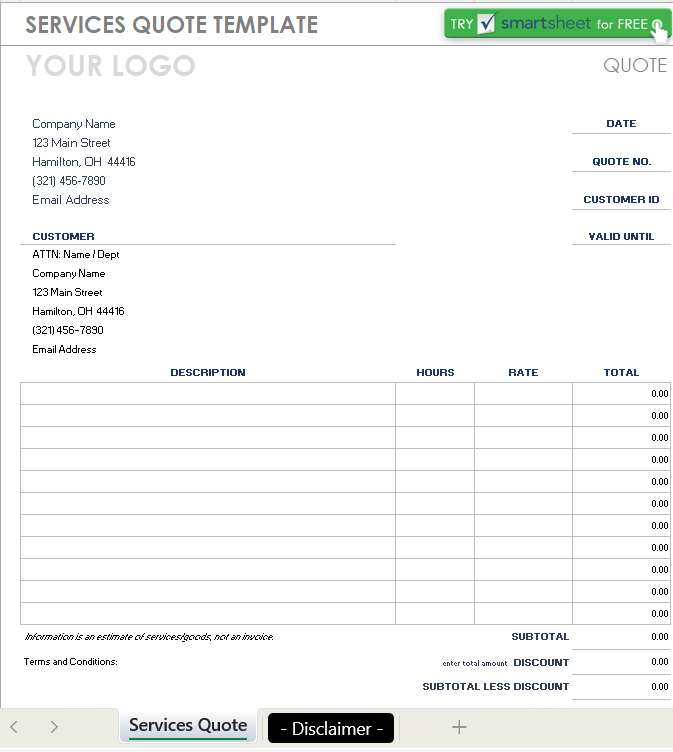
Ideal for freelancers and service-based businesses offering hourly or
project based work. Customize it with hourly rates, service
descriptions, and client details for a polished, professional look.
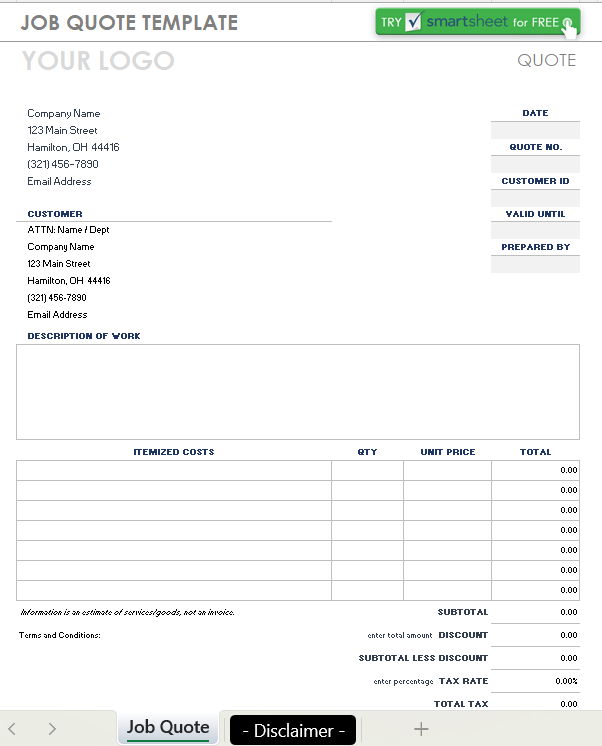
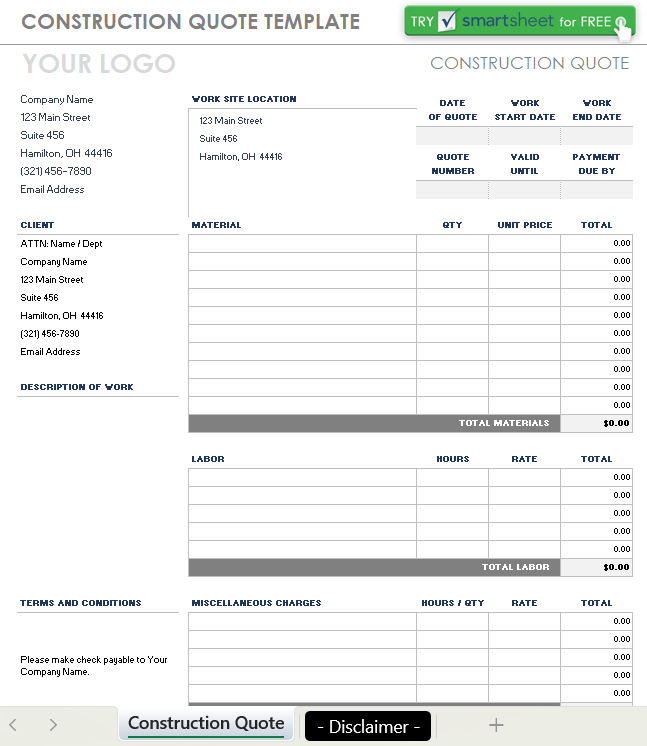
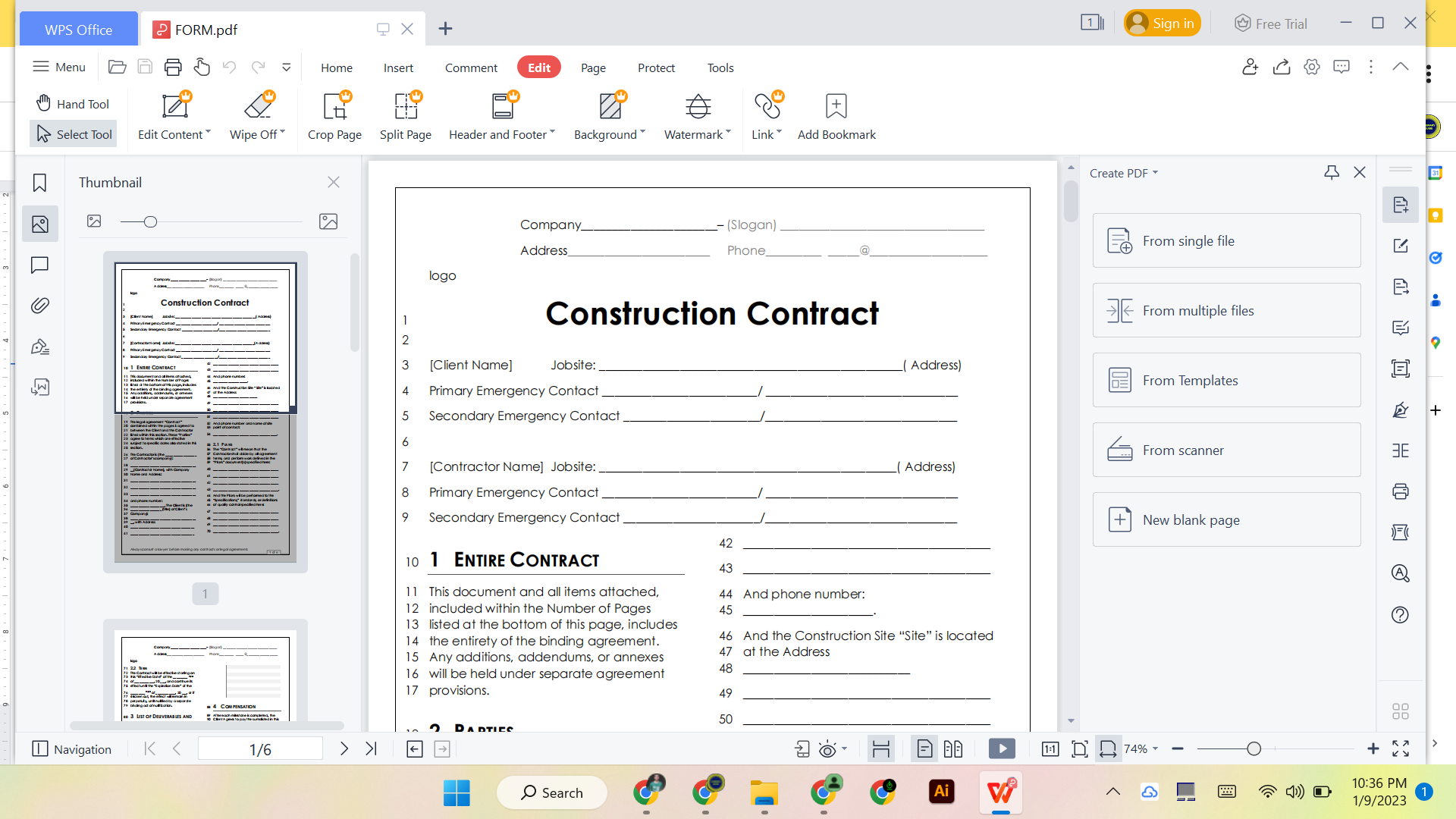
Suitable for contractors managing multiple client jobs. Use it to
track costs, materials, and labor per project, helping you maintain
consistency and accuracy.
Includes material, labor, and equipment cost sections for clarity.
Perfect for builders and project managers who need to present detailed
cost breakdowns to clients.
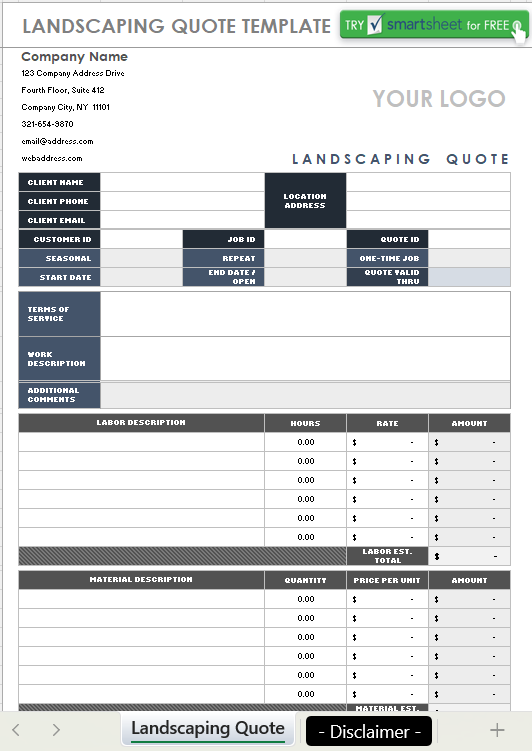
Perfect for landscaping businesses that offer maintenance, design, or
installation services. Clearly outline materials, service descriptions,
and seasonal pricing to impress clients and win bids.
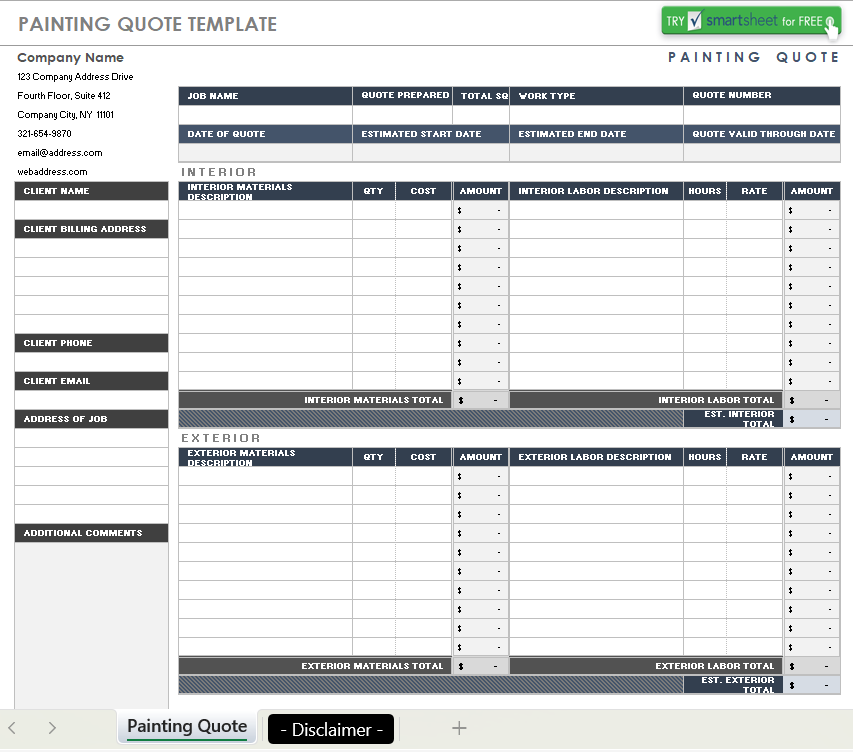
Designed for painters or decorators to detail labor hours and
materials. Quickly calculate total paint costs, labor time, and service
fees while maintaining a professional layout.
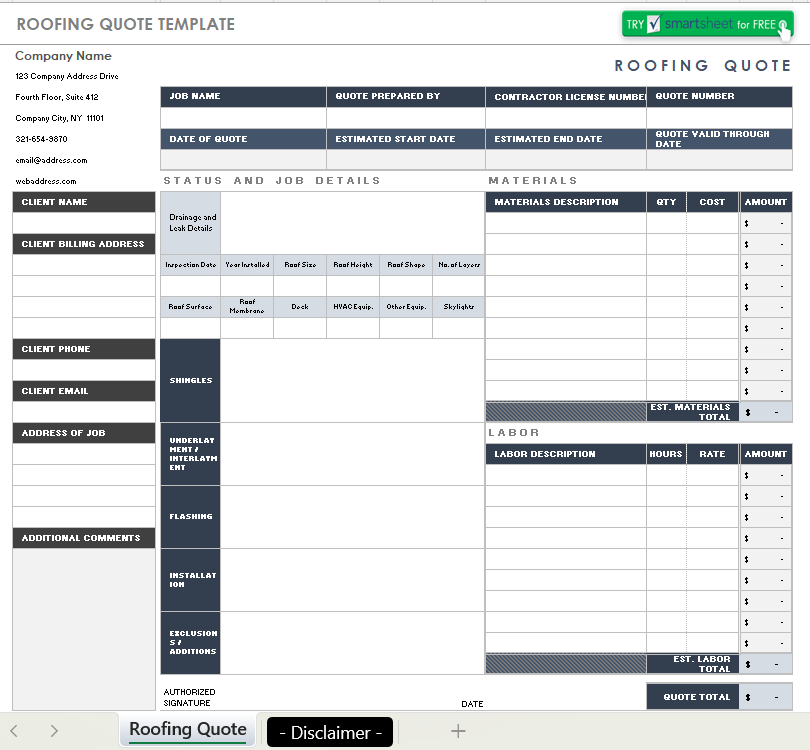
Great for roofing contractors estimating repairs or new
installations.Include line items for materials, square footage, and
safety notes for clear communication with clients.
Includes space for labor rates, material costs, and safety terms.
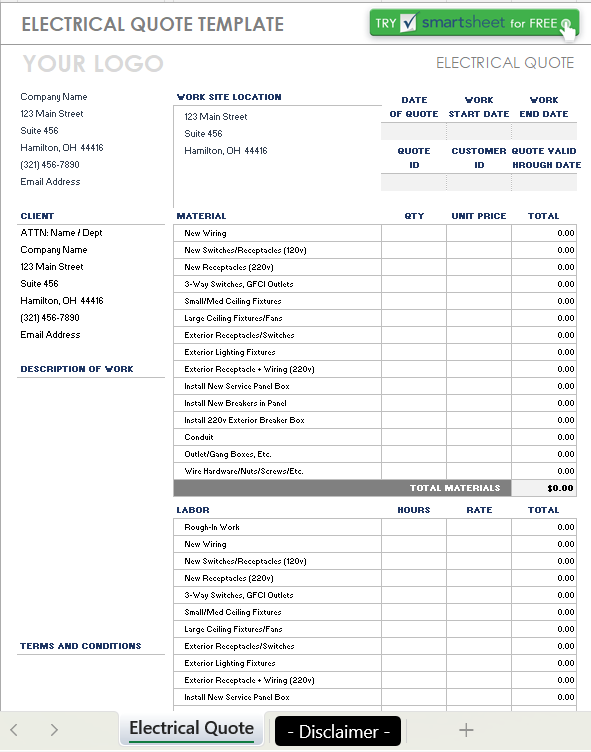
Ideal for electricians needing a detailed and compliant quote that
covers parts, service, and regulations.
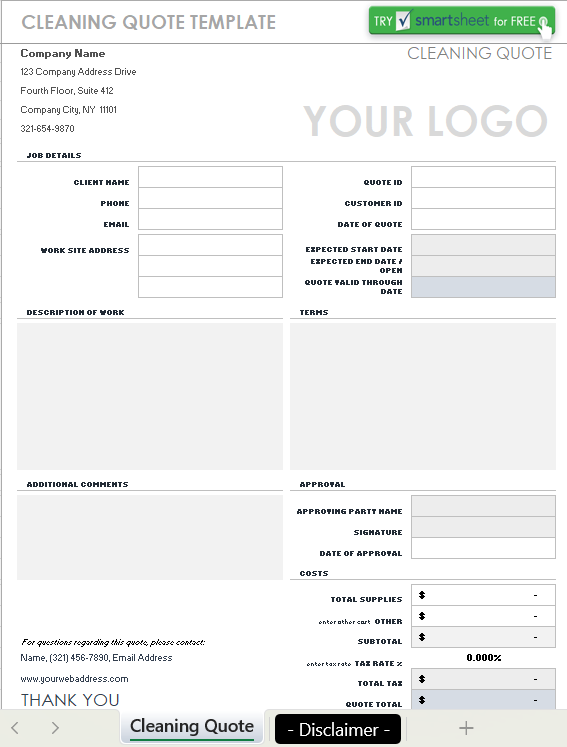
Perfect for janitorial or residential cleaning services. Add hourly
rates, area coverage, and recurring service options to streamline client
agreements.
Cleaning Quote Template
10. Customize
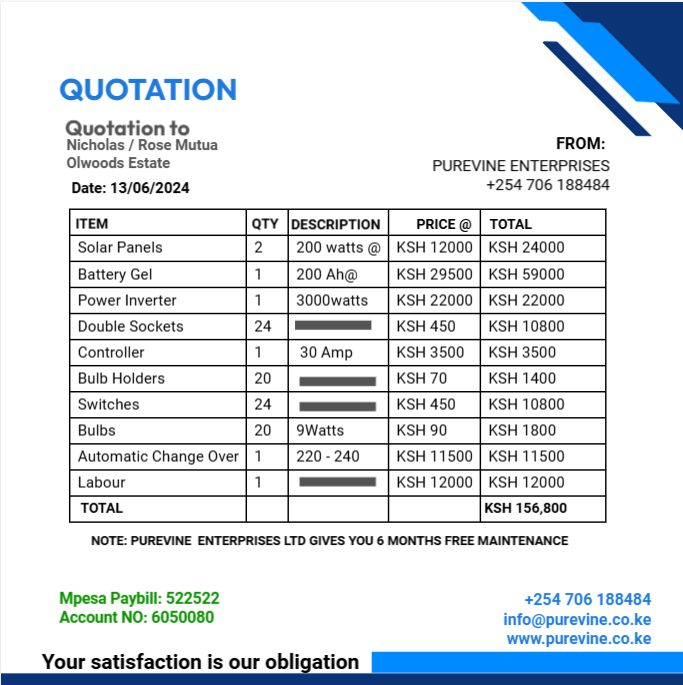
this Instagram Post Quote Template [IMAGE]
For creative professionals wanting a stylish, shareable quote image
for branding or social posts. Great for designers or small businesses
who want to showcase professional quote visuals on social media.
Customize this Instagram Post Quote Template
Part
3. How to Edit and Print Quote Templates in Photo &
PDF?
Once you’ve downloaded your favorite quote template, the next step is
to edit, customize, and beautify it to match your brand’s identity.
Whether you’re working with an image-based template or a PDF file, you
can easily refine every detail using WPS Photo or WPS PDF. These tools
provide smart, user-friendly features that help you make your quote look
polished and professional, without requiring design experience or
expensive software.
By enhancing your templates visually and ensuring all information is
accurate, you can create professional-looking quotes that not only
communicate your pricing clearly but also reflect your business
credibility. Below, we’ll walk you through how to edit templates step by
step using WPS tools.
How
to Edit the Quotation in WPS Photo (JPG/PNG formats)?
If you’ve downloaded your quote template in an image format such as
JPG or PNG, you can use WPS Photo to fine-tune it with ease. This is
especially useful for visually rich templates, such as social media
quote posts or graphic-style quotation layouts.
Steps:
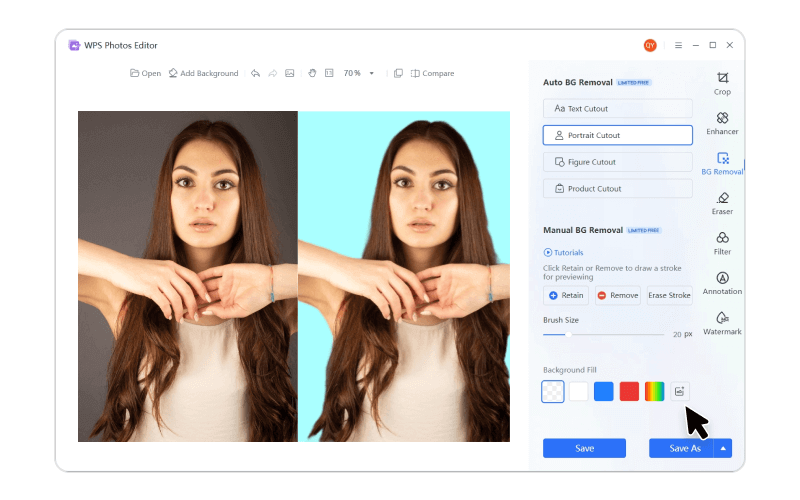
Open WPS Photo. Launch the program and upload
your downloaded quote image.
Open WPS Photo
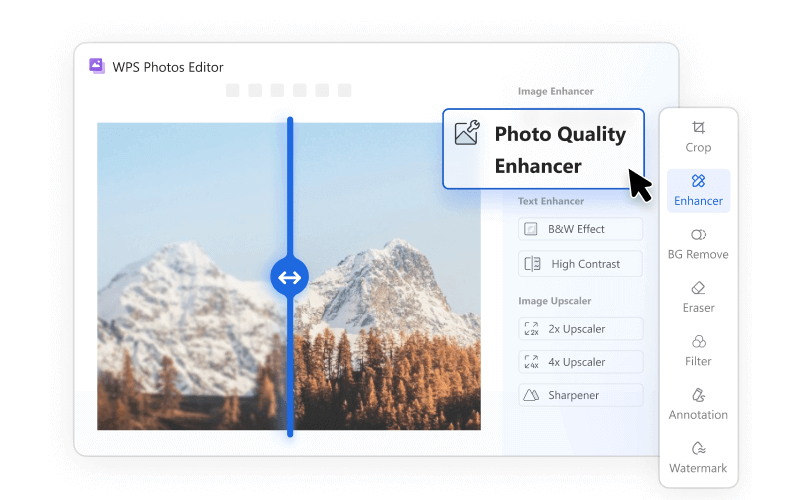
Use the AI Image Enhancer to improve image
clarity and remove any blurriness.
Use AI Image Enhancer
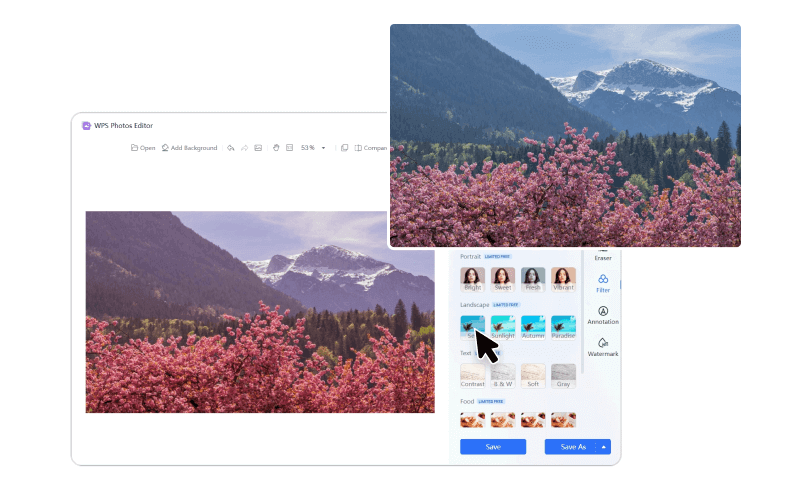
Adjust Colors and Brightness to match your brand
colors or improve readability.
Colors and Brightness
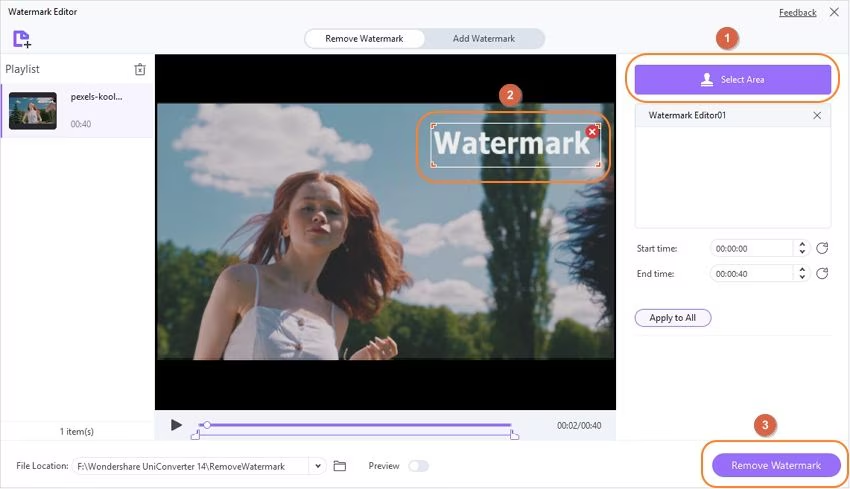
Remove Unwanted Watermarks or visual
distractions using AI Watermark Removal for a clean, professional
finish.
Remove Watermarks
Save and Export your enhanced version to share
via email or print directly for presentation.
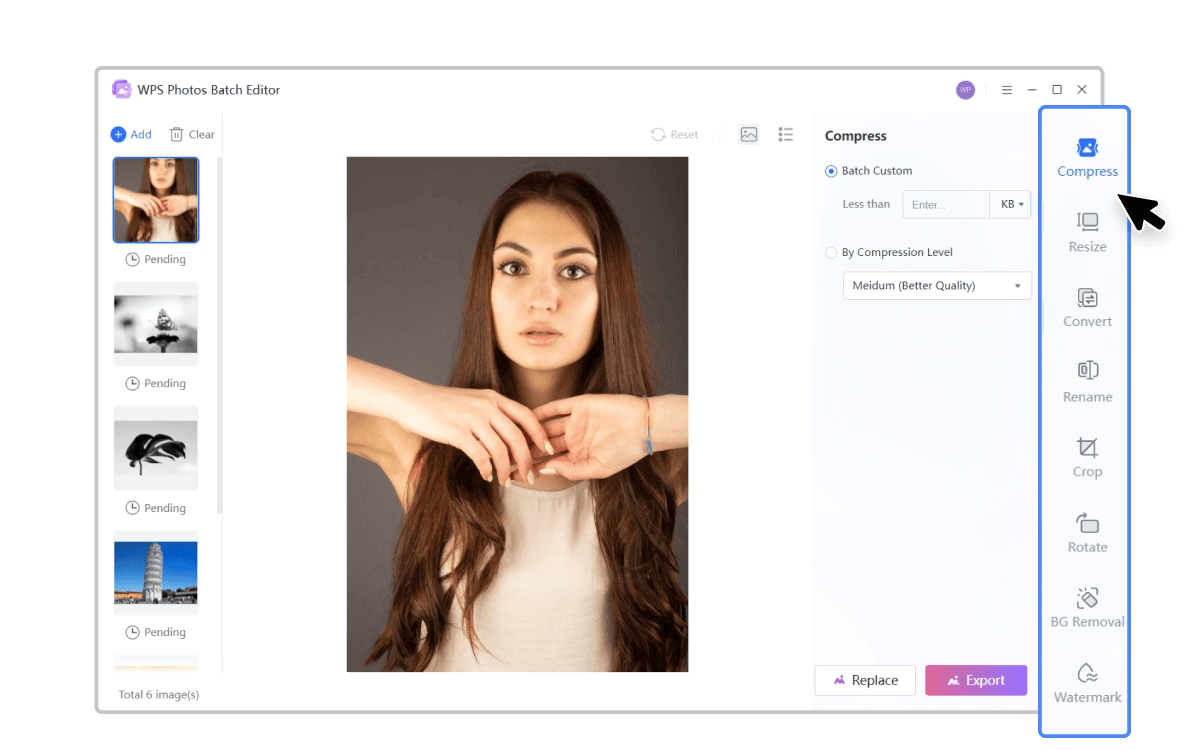
With tools like AI Upscaler and Image Enhancer,
WPS Photo allows you to upgrade image quality instantly, making even
low-resolution templates look sharp and professional.
AI Upscaler and Image Enhancer
How to
Edit the Quotation in WPS PDF (PDF formats)?
If your chosen template is in PDF format, WPS PDF provides everything
you need to edit text, insert your logo, and customize the document
layout, all within a few clicks. This is the best option if you want to
keep your quote’s formatting consistent and print-ready.
Steps:
Open Your Quote in WPS PDF. Simply drag and drop
your PDF file into the program.
Open Quote in WPS PDF
Use “Edit Text” and “Replace Image” Tools to personalize company
details, update service descriptions, or add your signature.
Edit Text in WPS Office
Insert Your Logo or Header to align the document with your
brand’s visual identity.
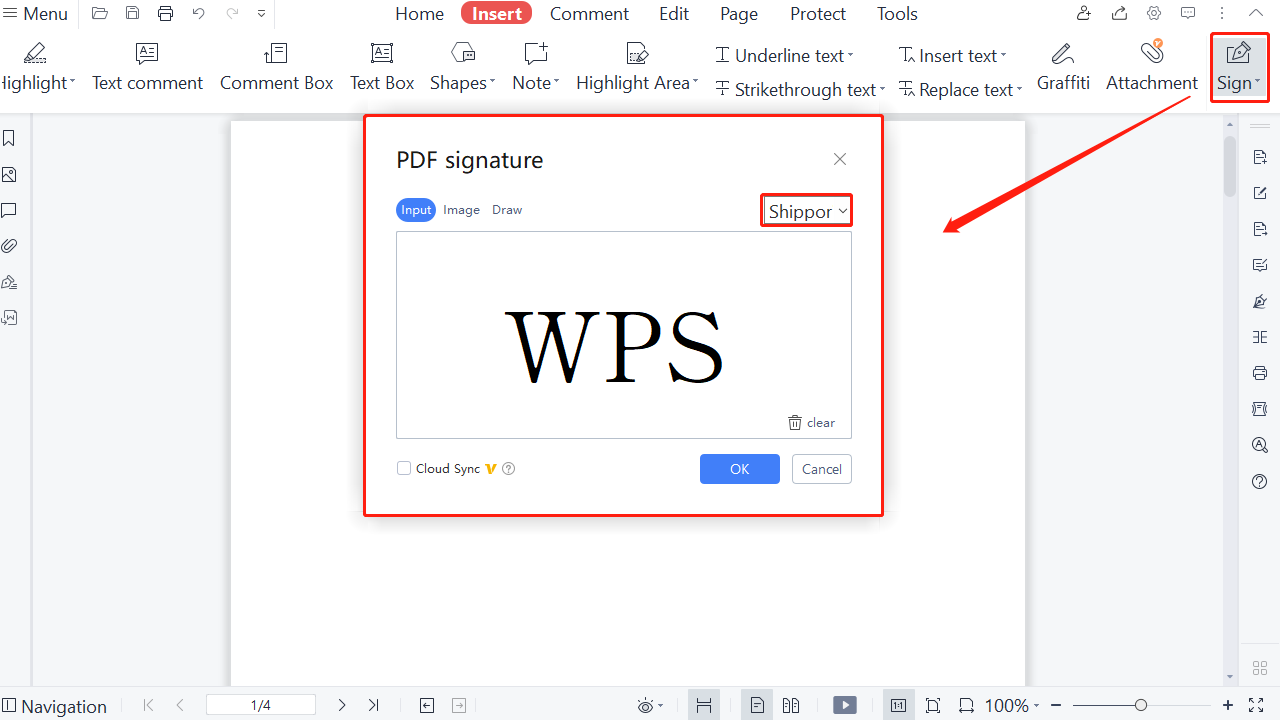
Add a Digital Signature to make your quote legally valid and
professional.
Digital Signature in WPS PDF
Export or print the finalized quote as a clean, client-ready
PDF.
WPS PDF also
offers smart tools like annotation, text highlighting, and PDF
conversions so you can make changes quickly and deliver a beautifully
formatted quote that maintains professional consistency.
Part
4. Free Office Suite: Customizing Quotations with WPS
Office?
When it comes to editing and managing your free quote templates, WPS
Office stands out as one of the best all-in-one office suites available
today. It’s a free, powerful, and fully compatible alternative to
Microsoft Office—perfect for professionals, freelancers, and small
business owners who want to edit templates directly in Word, Excel, and
PDF formats without the hassle of switching between different
software.
WPS Office
With WPS Office, you can easily open and modify any quote template,
adjust pricing, update terms, insert your company logo, and export it as
a polished PDF ready to send to clients. The intuitive interface,
lightweight performance, and cross-platform support (Windows, macOS,
iOS, Android, and web) make it incredibly convenient for users who value
flexibility and speed.
Key Features:
AI-Powered Tools for smarter writing, formatting, and content editing.
Free Word, Excel & PPT Software, create, edit, and manage documents effortlessly.
Rich Template Store offering thousands of ready-made business templates, including quotes, invoices, and proposals.
Full PDF Toolkit for editing, annotating, converting, merging, and e-signing documents.
Online Collaboration & Document Sharing for real-time teamwork and faster feedback.
Secure and Stable Platform ensuring your business data remains protected.
Whether you’re customizing a quote for a new client, updating your
pricing sheet, or designing a branded proposal, WPS Office makes the
process simple and professional. Its blend of AI-assisted editing,
powerful tools, and rich template library saves time while ensuring your
documents always look polished and client-ready.
100% secure
FAQs
1. How do I send a completed quote to a client? Save your file as a PDF to preserve formatting and email it
directly to your client.
2. What’s the difference between a quote, estimate, and
invoice? A quote is a fixed offer, an estimate is an
approximate cost, and an invoice is a request for payment after
services are delivered.
3. Can I create my own quote template from scratch? Yes! You can use WPS Word or Excel to build your own layout,
add your logo, and save it as a reusable template.
4. Are these quote templates legally binding? Quotes become legally binding once the client accepts them in
writing, so always include clear terms and expiration dates.
Summary
A professional quote not only showcases your pricing but also reflects your brand’s credibility and attention to detail. With these 10 free quote templates, you can easily create clear, polished, and professional offers that leave a lasting impression on clients, helping you build trust and win more projects effortlessly.
To make editing and customization even easier, use WPS Office, a powerful, free office suite that lets you edit Word, Excel, and PDF templates seamlessly. Whether you need to adjust prices, add your logo, or export to PDF, WPS Office provides all the tools you need in one intuitive platform. It’s the simplest way to design, manage, and send client-ready quotes, quickly and professionally.
With 4 years of hands-on experience, I specialize in finding smart tools that boost productivity and make work-life smoother. If it streamlines the office, I’ve probably tested it—follow for practical tech tips and trusted recommendations.


'%3e%3cpath%20d='M8%200C12.4183%200%2016%203.58172%2016%208C16%2012.4183%2012.4183%2016%208%2016C3.58172%2016%200%2012.4183%200%208C0%203.58172%203.58172%200%208%200ZM11.6162%204.38379C11.2257%203.99337%2010.5927%203.99338%2010.2021%204.38379L8%206.58594L5.79785%204.38379C5.40732%203.99334%204.77429%203.99329%204.38379%204.38379C3.99331%204.77429%203.99335%205.40733%204.38379%205.79785L6.58594%208L4.38379%2010.2021C3.99348%2010.5927%203.99341%2011.2257%204.38379%2011.6162C4.77426%2012.0066%205.40734%2012.0065%205.79785%2011.6162L8%209.41406L10.2021%2011.6162C10.5927%2012.0066%2011.2257%2012.0067%2011.6162%2011.6162C12.0067%2011.2257%2012.0066%2010.5927%2011.6162%2010.2021L9.41406%208L11.6162%205.79785C12.0066%205.40735%2012.0066%204.77429%2011.6162%204.38379Z'%20fill='%23080E17'%20fill-opacity='0.46'/%3e%3c/g%3e%3cdefs%3e%3cclipPath%20id='clip0_3761_713'%3e%3crect%20width='16'%20height='16'%20fill='white'/%3e%3c/clipPath%3e%3c/defs%3e%3c/svg%3e)




'%3e%3cpath%20fill-rule='evenodd'%20clip-rule='evenodd'%20d='M21.4999%2010.9993C21.4999%205.20009%2016.7986%200.498901%2010.9993%200.498901C5.19994%200.498901%200.498657%205.20009%200.498657%2010.9993C0.498657%2016.2404%204.33858%2020.5844%209.35855%2021.3722V14.0346H6.69238V10.9993H9.35855V8.68594C9.35855%206.05427%2010.9262%204.60062%2013.3248%204.60062C14.4736%204.60062%2015.6753%204.80571%2015.6753%204.80571V7.38979H14.3512C13.0468%207.38979%2012.64%208.19921%2012.64%209.0296V10.9993H15.5523L15.0867%2014.0346H12.64V21.3722C17.66%2020.5844%2021.4999%2016.2404%2021.4999%2010.9993Z'%20fill='%231568EA'/%3e%3c/g%3e%3c/svg%3e)


'%3e%3cpath%20d='M2.42045%2022.1876H6.31818V12.7217L0.75%208.54553V20.5171C0.75%2021.4414%201.49892%2022.1876%202.42045%2022.1876Z'%20fill='%234285F4'/%3e%3cpath%20d='M19.682%2022.1876H23.5797C24.5041%2022.1876%2025.2502%2021.4387%2025.2502%2020.5171V8.54553L19.682%2012.7217'%20fill='%2334A853'/%3e%3cpath%20d='M19.682%205.48293V12.7216L25.2502%208.54543V6.31816C25.2502%204.25236%2022.8921%203.07469%2021.2411%204.31361'%20fill='%23FBBC04'/%3e%3cpath%20d='M6.31824%2012.7217V5.48303L13.0001%2010.4944L19.6819%205.48303V12.7217L13.0001%2017.733'%20fill='%23EA4335'/%3e%3cpath%20d='M0.75%206.31816V8.54543L6.31818%2012.7216V5.48293L4.75909%204.31361C3.10534%203.07469%200.75%204.25236%200.75%206.31816Z'%20fill='%23C5221F'/%3e%3c/g%3e%3cdefs%3e%3cclipPath%20id='clip0_2954_7305'%3e%3crect%20width='24.5'%20height='18.375'%20fill='white'%20transform='translate(0.75%203.8125)'/%3e%3c/clipPath%3e%3c/defs%3e%3c/svg%3e)



'%3e%3cpath%20d='M19.9911%204.11386V6.471H18.5894C18.0775%206.471%2017.7322%206.57814%2017.5536%206.79243C17.3751%207.00671%2017.2858%207.32814%2017.2858%207.75671V9.44421H19.9019L19.5536%2012.0871H17.2858V18.8639H14.5536V12.0871H12.2769V9.44421H14.5536V7.49779C14.5536%206.39064%2014.8632%205.53201%2015.4822%204.92189C16.1013%204.31177%2016.9257%204.00671%2017.9554%204.00671C18.8304%204.00671%2019.509%204.04243%2019.9911%204.11386Z'%20fill='%23333333'/%3e%3c/g%3e%3cdefs%3e%3cclipPath%20id='clip0_2938_8199'%3e%3crect%20width='16'%20height='16'%20fill='white'%20transform='translate(8%204.00671)'/%3e%3c/clipPath%3e%3c/defs%3e%3c/svg%3e)
'%3e%3cpath%20d='M17.5237%2010.7813L23.4811%204H22.0699L16.8949%209.88693L12.7648%204H8L14.2469%2012.9029L8%2020.0133H9.4112L14.8725%2013.7952L19.2352%2020.0133H24M9.92053%205.04213H12.0885L22.0688%2019.0224H19.9003'%20fill='%23333333'/%3e%3c/g%3e%3cdefs%3e%3cclipPath%20id='clip0_2938_8200'%3e%3crect%20width='16'%20height='16.0134'%20fill='white'%20transform='translate(8%204)'/%3e%3c/clipPath%3e%3c/defs%3e%3c/svg%3e)


