

'%3e%3cpath%20d='M8%200C12.4183%200%2016%203.58172%2016%208C16%2012.4183%2012.4183%2016%208%2016C3.58172%2016%200%2012.4183%200%208C0%203.58172%203.58172%200%208%200ZM11.6162%204.38379C11.2257%203.99337%2010.5927%203.99338%2010.2021%204.38379L8%206.58594L5.79785%204.38379C5.40732%203.99334%204.77429%203.99329%204.38379%204.38379C3.99331%204.77429%203.99335%205.40733%204.38379%205.79785L6.58594%208L4.38379%2010.2021C3.99348%2010.5927%203.99341%2011.2257%204.38379%2011.6162C4.77426%2012.0066%205.40734%2012.0065%205.79785%2011.6162L8%209.41406L10.2021%2011.6162C10.5927%2012.0066%2011.2257%2012.0067%2011.6162%2011.6162C12.0067%2011.2257%2012.0066%2010.5927%2011.6162%2010.2021L9.41406%208L11.6162%205.79785C12.0066%205.40735%2012.0066%204.77429%2011.6162%204.38379Z'%20fill='%23080E17'%20fill-opacity='0.46'/%3e%3c/g%3e%3cdefs%3e%3cclipPath%20id='clip0_3761_713'%3e%3crect%20width='16'%20height='16'%20fill='white'/%3e%3c/clipPath%3e%3c/defs%3e%3c/svg%3e)




'%3e%3cpath%20fill-rule='evenodd'%20clip-rule='evenodd'%20d='M21.4999%2010.9993C21.4999%205.20009%2016.7986%200.498901%2010.9993%200.498901C5.19994%200.498901%200.498657%205.20009%200.498657%2010.9993C0.498657%2016.2404%204.33858%2020.5844%209.35855%2021.3722V14.0346H6.69238V10.9993H9.35855V8.68594C9.35855%206.05427%2010.9262%204.60062%2013.3248%204.60062C14.4736%204.60062%2015.6753%204.80571%2015.6753%204.80571V7.38979H14.3512C13.0468%207.38979%2012.64%208.19921%2012.64%209.0296V10.9993H15.5523L15.0867%2014.0346H12.64V21.3722C17.66%2020.5844%2021.4999%2016.2404%2021.4999%2010.9993Z'%20fill='%231568EA'/%3e%3c/g%3e%3c/svg%3e)


'%3e%3cpath%20d='M2.42045%2022.1876H6.31818V12.7217L0.75%208.54553V20.5171C0.75%2021.4414%201.49892%2022.1876%202.42045%2022.1876Z'%20fill='%234285F4'/%3e%3cpath%20d='M19.682%2022.1876H23.5797C24.5041%2022.1876%2025.2502%2021.4387%2025.2502%2020.5171V8.54553L19.682%2012.7217'%20fill='%2334A853'/%3e%3cpath%20d='M19.682%205.48293V12.7216L25.2502%208.54543V6.31816C25.2502%204.25236%2022.8921%203.07469%2021.2411%204.31361'%20fill='%23FBBC04'/%3e%3cpath%20d='M6.31824%2012.7217V5.48303L13.0001%2010.4944L19.6819%205.48303V12.7217L13.0001%2017.733'%20fill='%23EA4335'/%3e%3cpath%20d='M0.75%206.31816V8.54543L6.31818%2012.7216V5.48293L4.75909%204.31361C3.10534%203.07469%200.75%204.25236%200.75%206.31816Z'%20fill='%23C5221F'/%3e%3c/g%3e%3cdefs%3e%3cclipPath%20id='clip0_2954_7305'%3e%3crect%20width='24.5'%20height='18.375'%20fill='white'%20transform='translate(0.75%203.8125)'/%3e%3c/clipPath%3e%3c/defs%3e%3c/svg%3e)


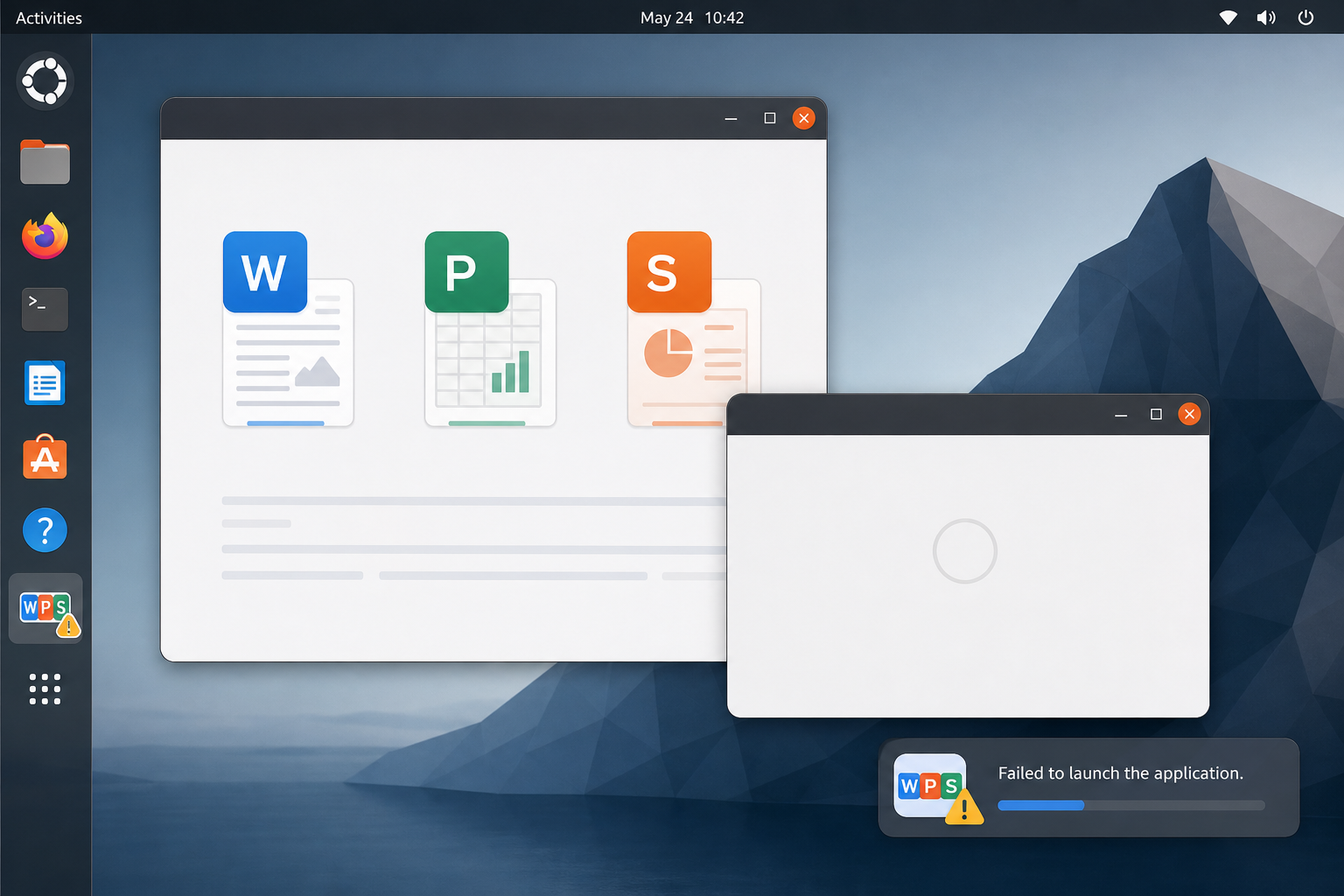
To fix WPS Office not opening on Ubuntu, start by launching it from a terminal so you can see the real error, then triage the failure type before reinstalling. “Not opening” is not one bug: the dock icon may flash and vanish, Writer may open for a few seconds and close, the suite may start only with sudo, or documents on a USB/second disk may fail while home-folder files work.
Shortest path: confirm the package is installed → launch from terminal → match the symptom to a branch below → apply the matching non-destructive fix → only then reinstall from the official Deb or repair Snap. Success means a normal user session opens Writer without root, and a sample document stays open.
If the dock icon flashes then disappears → capture terminal output first.
If it opens briefly then closes → check Wayland/Qt warnings and package integrity.
If it only runs as root → fix permissions/libraries, do not keep using sudo.
If only external disks fail → treat it as Snap confinement or permissions, not a “won’t start” bug.
For the main Ubuntu terminal install path, start with How to Install WPS Office via Terminal.
Confirm What Is Installed and How You Launch It
dpkg -l wps-office 2>/dev/null
snap list 2>/dev/null | grep -i wps
command -v wps
command -v wps-office
ls /usr/share/applications/*wps* 2>/dev/null
An ii Deb row, a Snap list entry, or both tell you which repair path is valid. Launcher names such as wps, et, and wpp are build-dependent—confirm with command -v or the desktop files you actually have. Do not diagnose on a headless SSH session; WPS Office is desktop GUI software.
Also note how you installed it. A Deb from the official Linux page, a Snap from Ubuntu Software, and an old community wget Deb are different repair stories. If both Deb and Snap traces exist, remove or ignore the unused channel after you identify which launcher the dock actually calls—duplicate installs produce “I fixed it but the icon still fails” confusion.
Capture the Real Error From a Terminal
Ask Ubuntu reports often say “no error window,” yet the terminal prints a segfault, a missing library, a Qt/Wayland warning, or nothing useful until you launch the exact binary. From a graphical session:
wps
# If that command is missing, try a menu-discovered name, or:
snap run wps-office
Leave the terminal open. Copy the full output. That string decides whether you chase a style/theme crash, a missing .so after an Ubuntu upgrade, a Snap permission issue, or a broken package state.
Branch A: Icon Appears Then Vanishes (Silent Quit / Segfault)
Threads titled “WPS doesn’t start” and “Writer not loading” describe a dock icon that lasts a few seconds, then vanishes, sometimes with Segmentation fault (core dumped) in /usr/bin/wps. Community workarounds that helped some users include launching with a GTK Qt style hint:
wps -style gtk+
# or, depending on the report:
wps -style gtk
If that keeps Writer open, you can temporarily edit the matching .desktop Exec line the same way—only after you confirm the desktop file path on your system:
grep -R "Exec=" /usr/share/applications/*wps* 2>/dev/null
Change only a confirmed Exec line for testing. Prefer a user copy under ~/.local/share/applications/ when possible so a package update does not silently fight your edit. If the style flag does nothing, move on—do not stack unrelated Wine or Flatpak tips.
On Plasma/Kubuntu desktops, the same silent-quit pattern sometimes tracks Qt theme conflicts. Installing and adjusting Qt4 configuration tools was a historical workaround on older Ubuntu releases; on current releases, prefer proving the -style flag in a terminal first, then decide whether a desktop-file edit is worth keeping. If the segfault disappears only with the flag, keep that minimal change and stop layering more theme experiments.
Branch B: Opens for a Few Seconds, Then Closes
Some users see a brief window, then an exit with terminal messages such as Qt not supporting Wayland, locale fallbacks, or accessibility registration warnings. Those messages are clues, not always the single root cause. Non-destructive checks:
sudo dpkg --configure -a
sudo apt --fix-broken install
dpkg -l wps-office
Expected result: the package is fully configured (ii). If you are on a Wayland session and the terminal explicitly complains about Wayland/Qt, test once on an Xorg session from the login screen if your Ubuntu flavor offers it. Treat that as a diagnostic branch, not a universal requirement to abandon Wayland forever.
Branch C: Starts Only With sudo (Permission / Library Traps)
Ubuntu 22.04-era reports show WPS refusing to start for a normal user after upgrades, while sudo wps works. That is unsafe as a daily habit. Two community clusters appear:
Missing OpenSSL 1.1 libraries after moving to a release that no longer ships them by default—terminal may mention
libcrypto.so.1.1.Permission problems on bundled libraries under the WPS install tree (paths vary by build; often under an
office6directory).
If the terminal names libcrypto.so.1.1 or libssl.so.1.1, this is a version-era dependency gap for that WPS build on that Ubuntu release—not a reason to invent a PPA. Prefer downloading a current official Deb from wps.com/office/linux and installing the local file with APT. Only install a specifically named compatibility library when the error prints that name and you understand it is a stopgap for that old build.
ldd /opt/kingsoft/wps-office/office6/wps 2>/dev/null | grep -i "not found"
# Path is build-dependent; locate binaries first:
dpkg -L wps-office | grep -E "office6|bin" | head
If ldd reports missing libraries, fix those names deliberately. If files exist but only root can read them, correct ownership/permissions carefully—do not chmod 777 your home directory.
Another “only as root” pattern is a corrupted user config. After backups, some users remove a Kingsoft config folder under ~/.config/ so the app regenerates settings. That deletes local WPS settings for that user, not your Documents files—still back up first.
ls -ld ~/.config/Kingsoft ~/.config/*wps* 2>/dev/null
Branch D: “Not Opening” Is Really a File-Access Failure
If Writer starts for home-folder documents but fails on USB drives or a second HDD with permission messages, you are not facing a blank launch bug. For Snap installs:
snap connections wps-office
sudo snap connect wps-office:removable-media
Use the exact snap name from snap list. If connect is impossible or still fails, remove the Snap and install the official Deb instead—common advice when confinement blocks dual-boot or secondary disks.
Repair Package State Before a Full Reinstall
sudo dpkg --configure -a
sudo apt --fix-broken install
dpkg -l wps-office
If the Deb is half-installed, finish configuration before deleting anything. A package stuck in iF or similar half-configured states can look exactly like “WPS won’t open” because the desktop entries exist while binaries are incomplete. Read APT’s proposed actions carefully—if it offers to remove wps-office to “fix” dependencies, abort unless you intend to uninstall, then download a current official Deb instead of accepting a destructive cleanup.
For Snap:
sudo snap refresh wps-office
snap run wps-office
Reinstall Last (Official Channel)
Only after triage, reinstall. For Deb:
cd ~/Downloads
# Download current Deb Package from the official WPS Linux page first
sudo apt install ./wps-office_VERSION_amd64.deb
Use the exact filename you downloaded. Do not paste multi-year-old community wget URLs as the default. For Snap:
sudo snap remove wps-office
sudo snap install wps-office
Avoid running Deb and Snap side by side while testing launches—duplicate launchers hide which binary still fails.
Slow to Open Is Not the Same as Not Opening
Some Deb users report multi-second delays that feel like a hang, especially while WPS substitutes missing fonts or reaches the network. Snap users sometimes see faster perceived startup because of different confinement and network defaults. If Writer eventually opens, treat performance tuning separately from crash triage: close extra documents, test offline once, and only then consider channel differences. Do not reinstall in a loop for a slow-but-successful launch.
Verify Success
Launch Writer as your normal user (no sudo).
Open a sample
.docxfrom Documents and leave it open for a minute.If you need USB/second-disk files, re-test those paths.
Confirm Spreadsheets and Presentation also start if you use them.
Keep Working Smoothly in WPS Office
Once Ubuntu can launch the suite again, stay on the official WPS Office build for Writer, Spreadsheet, Presentation, and PDF in one place. That keeps DOCX, XLSX, PPTX, and PDF workflows consistent—without switching apps every time a file fails to open.


FAQ
Why is there no error dialog?
Many launch failures exit before a GUI error appears. Always start from a terminal once.
Is sudo a valid fix?
No. It is only a diagnostic clue that permissions or libraries differ for the normal user.
Does a font warning mean WPS is not opening?
No. Formula-symbol font dialogs are a different issue; the suite can still be running.
Should I add a PPA to fix startup?
No. Prefer the official Deb/Rpm page or Snap tooling you already use.
What if the terminal prints nothing and still exits?
Recheck package status, try the other channel’s launcher if both exist, and inspect dmesg or journalctl --user-unit only after the simple package checks fail.
Does “unknown media /ALL” during install cause not opening?
Some installs print odd media messages yet still unpack. Always verify with a terminal launch afterward instead of assuming the message alone explains a later silent quit.

'%3e%3cpath%20d='M19.9911%204.11386V6.471H18.5894C18.0775%206.471%2017.7322%206.57814%2017.5536%206.79243C17.3751%207.00671%2017.2858%207.32814%2017.2858%207.75671V9.44421H19.9019L19.5536%2012.0871H17.2858V18.8639H14.5536V12.0871H12.2769V9.44421H14.5536V7.49779C14.5536%206.39064%2014.8632%205.53201%2015.4822%204.92189C16.1013%204.31177%2016.9257%204.00671%2017.9554%204.00671C18.8304%204.00671%2019.509%204.04243%2019.9911%204.11386Z'%20fill='%23333333'/%3e%3c/g%3e%3cdefs%3e%3cclipPath%20id='clip0_2938_8199'%3e%3crect%20width='16'%20height='16'%20fill='white'%20transform='translate(8%204.00671)'/%3e%3c/clipPath%3e%3c/defs%3e%3c/svg%3e)
'%3e%3cpath%20d='M17.5237%2010.7813L23.4811%204H22.0699L16.8949%209.88693L12.7648%204H8L14.2469%2012.9029L8%2020.0133H9.4112L14.8725%2013.7952L19.2352%2020.0133H24M9.92053%205.04213H12.0885L22.0688%2019.0224H19.9003'%20fill='%23333333'/%3e%3c/g%3e%3cdefs%3e%3cclipPath%20id='clip0_2938_8200'%3e%3crect%20width='16'%20height='16.0134'%20fill='white'%20transform='translate(8%204)'/%3e%3c/clipPath%3e%3c/defs%3e%3c/svg%3e)


