

'%3e%3cpath%20d='M8%200C12.4183%200%2016%203.58172%2016%208C16%2012.4183%2012.4183%2016%208%2016C3.58172%2016%200%2012.4183%200%208C0%203.58172%203.58172%200%208%200ZM11.6162%204.38379C11.2257%203.99337%2010.5927%203.99338%2010.2021%204.38379L8%206.58594L5.79785%204.38379C5.40732%203.99334%204.77429%203.99329%204.38379%204.38379C3.99331%204.77429%203.99335%205.40733%204.38379%205.79785L6.58594%208L4.38379%2010.2021C3.99348%2010.5927%203.99341%2011.2257%204.38379%2011.6162C4.77426%2012.0066%205.40734%2012.0065%205.79785%2011.6162L8%209.41406L10.2021%2011.6162C10.5927%2012.0066%2011.2257%2012.0067%2011.6162%2011.6162C12.0067%2011.2257%2012.0066%2010.5927%2011.6162%2010.2021L9.41406%208L11.6162%205.79785C12.0066%205.40735%2012.0066%204.77429%2011.6162%204.38379Z'%20fill='%23080E17'%20fill-opacity='0.46'/%3e%3c/g%3e%3cdefs%3e%3cclipPath%20id='clip0_3761_713'%3e%3crect%20width='16'%20height='16'%20fill='white'/%3e%3c/clipPath%3e%3c/defs%3e%3c/svg%3e)




'%3e%3cpath%20fill-rule='evenodd'%20clip-rule='evenodd'%20d='M21.4999%2010.9993C21.4999%205.20009%2016.7986%200.498901%2010.9993%200.498901C5.19994%200.498901%200.498657%205.20009%200.498657%2010.9993C0.498657%2016.2404%204.33858%2020.5844%209.35855%2021.3722V14.0346H6.69238V10.9993H9.35855V8.68594C9.35855%206.05427%2010.9262%204.60062%2013.3248%204.60062C14.4736%204.60062%2015.6753%204.80571%2015.6753%204.80571V7.38979H14.3512C13.0468%207.38979%2012.64%208.19921%2012.64%209.0296V10.9993H15.5523L15.0867%2014.0346H12.64V21.3722C17.66%2020.5844%2021.4999%2016.2404%2021.4999%2010.9993Z'%20fill='%231568EA'/%3e%3c/g%3e%3c/svg%3e)


'%3e%3cpath%20d='M2.42045%2022.1876H6.31818V12.7217L0.75%208.54553V20.5171C0.75%2021.4414%201.49892%2022.1876%202.42045%2022.1876Z'%20fill='%234285F4'/%3e%3cpath%20d='M19.682%2022.1876H23.5797C24.5041%2022.1876%2025.2502%2021.4387%2025.2502%2020.5171V8.54553L19.682%2012.7217'%20fill='%2334A853'/%3e%3cpath%20d='M19.682%205.48293V12.7216L25.2502%208.54543V6.31816C25.2502%204.25236%2022.8921%203.07469%2021.2411%204.31361'%20fill='%23FBBC04'/%3e%3cpath%20d='M6.31824%2012.7217V5.48303L13.0001%2010.4944L19.6819%205.48303V12.7217L13.0001%2017.733'%20fill='%23EA4335'/%3e%3cpath%20d='M0.75%206.31816V8.54543L6.31818%2012.7216V5.48293L4.75909%204.31361C3.10534%203.07469%200.75%204.25236%200.75%206.31816Z'%20fill='%23C5221F'/%3e%3c/g%3e%3cdefs%3e%3cclipPath%20id='clip0_2954_7305'%3e%3crect%20width='24.5'%20height='18.375'%20fill='white'%20transform='translate(0.75%203.8125)'/%3e%3c/clipPath%3e%3c/defs%3e%3c/svg%3e)


To install WPS Office via terminal on Ubuntu or another Debian-based system, download the official Deb package from the WPS Linux page, then install that local .deb file with APT. WPS Office is not installed by looking up a repository package name such as wps-office in Ubuntu’s default archives. A repository-style command like sudo apt install wps-office will fail unless that package already exists in a configured source.
Shortest path:
Confirm your CPU architecture.
Download the Deb package from the official WPS Linux page.
Install the exact local filename with APT.
Resolve any unmet dependencies APT reports.
Launch WPS Office and verify it opens.
Success means the package finishes configuring, the WPS apps appear in your desktop menu, and the installed launchers start Writer or another component. If you hit an architecture mismatch, unmet dependencies, a missing command, a silent launch failure, or a font warning, use the troubleshooting section below.
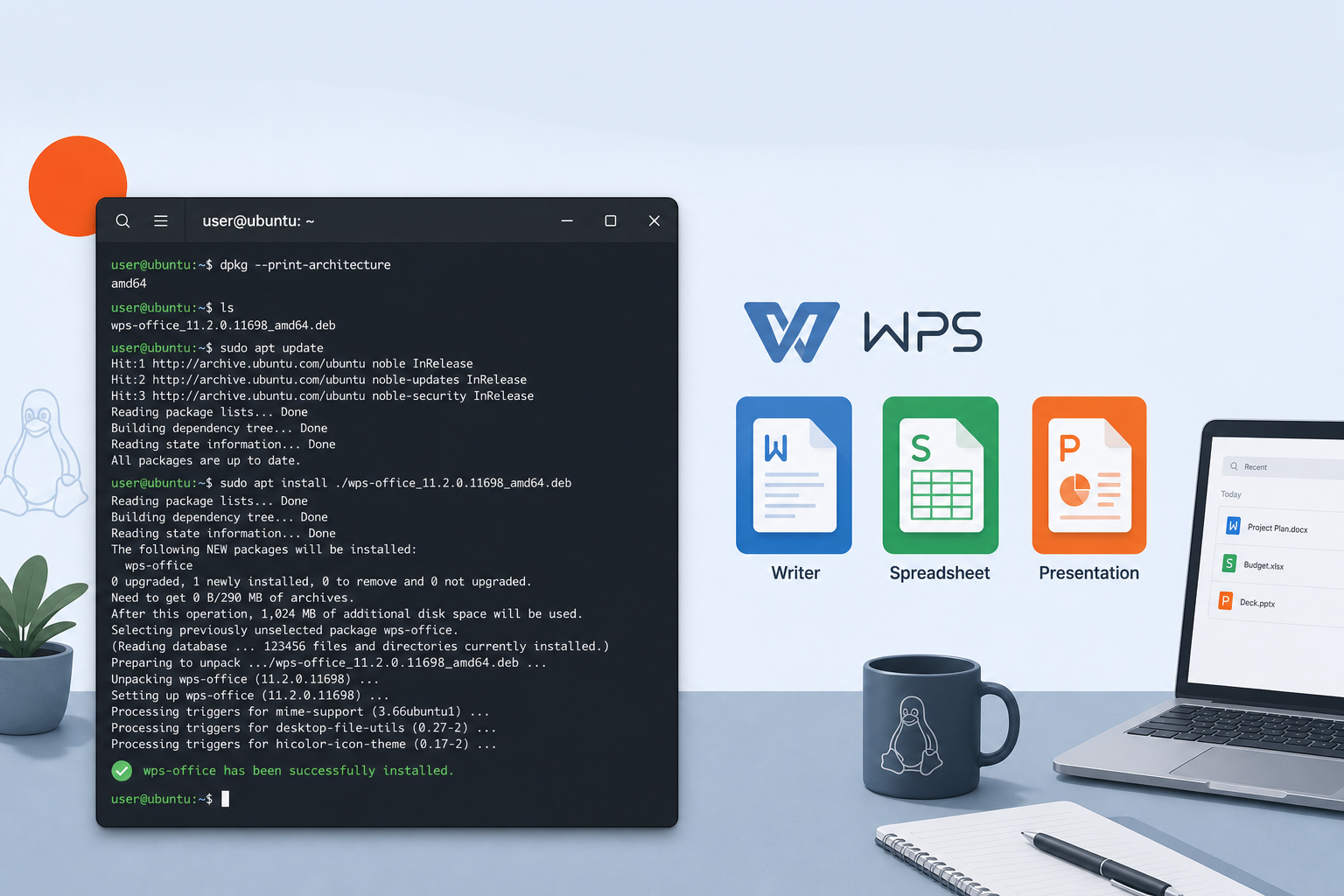
Confirm Architecture Before You Download
Package architecture must match your system. Do not assume every Ubuntu machine can use the same Deb build.
Check your system:
uname -m
dpkg --print-architecture
Typical 64-bit Ubuntu PCs report x86_64 from uname -m and amd64 from dpkg --print-architecture.
Then download only a Deb package that the official WPS source currently offers for your machine. On the official Linux page, WPS publishes Deb Package and Rpm Package options for Linux distributions such as Ubuntu and Linux Mint. Before installing, inspect the file you actually received:
dpkg-deb -I ~/Downloads/wps-office_12.1.0.xxxxx_amd64.deb | grep -E 'Package|Version|Architecture'
Replace wps-office_12.1.0.xxxxx_amd64.deb with the exact filename in your Downloads folder.
Expected result: Package: wps-office and an Architecture value that matches your system. If the official download does not provide a matching architecture for your device, stop. Do not force an incompatible Deb package onto ARM or another unsupported architecture.
Download the Official Deb Package
Use the vendor download page: WPS Office for Linux.
Choose Deb Package for Ubuntu, Linux Mint, Debian, and similar systems. Prefer this page over old community wget links, mirrors, or unofficial “WPS APT repository / PPA” instructions. Those community URLs often point to expired versioned files, and this guide does not treat third-party PPAs, Snap listings, or Flatpak listings as official WPS install channels unless WPS itself documents them.
After the download finishes, list the file and note the exact name:
ls -lh ~/Downloads/wps-office*.deb
Expected result: one Deb file whose name includes wps-office plus a version string. Use that exact name in the next commands. Avoid broad wildcards such as *.deb when more than one Deb file may exist in the folder.
Install the Local Deb Package from the Terminal
Move into the download directory and install the local file path, not a repository package name:
cd ~/Downloads
sudo apt update
sudo apt install ./wps-office_12.1.0.xxxxx_amd64.deb
Again, replace the filename with your exact Deb name.
Important distinction:
Repository lookup form:
sudo apt install package-nameLocal file form:
sudo apt install ./package-file.deb
The leading ./ tells APT you are installing a file on disk.
Expected result: APT plans to install wps-office, may also install dependencies available from Ubuntu repositories, and completes without leaving the package half-configured.
If you already used the lower-level installer:
sudo dpkg -i ./wps-office_12.1.0.xxxxx_amd64.deb
dpkg installs the package file itself but does not resolve missing dependencies. If it reports dependency problems, continue with the next section instead of forcing the package.
Resolve Dependency Errors from the Exact Output
If installation stops with unmet dependencies, start with APT’s non-destructive repair:
sudo apt --fix-broken install
sudo dpkg --configure -a
Expected result: APT installs the missing packages it can resolve, or prints the exact dependency names it cannot satisfy.
Then check package status:
dpkg -l wps-office
A configured install typically shows status ii for wps-office.
Do not install random libraries or fonts “just in case.” Read the error text first. If APT names a specific missing package and that package exists in your enabled Ubuntu repositories, install that named package, then retry the exact WPS Deb file. Add version notes only when the error itself requires a particular version. Avoid outdated community workarounds as your default path.
Launch WPS Office and Verify the Install
WPS Office is desktop GUI software. Launch it from a normal graphical session, not as a headless server workflow.
After installation, verify which launchers your build actually provides:
dpkg -L wps-office | grep -E '/usr/bin/|applications'
command -v wps
command -v et
command -v wpp
Executable names and install paths can vary by package build. Treat names such as wps, et, and wpp as build-dependent until dpkg -L or command -v confirms them on your system.
If those commands exist, start them from the terminal:
wps
Expected result: Writer opens in your desktop session. You can also search the application menu for “WPS” and open a sample .docx, .xlsx, or .pptx file to confirm editing works.
Update or Remove Without Changing the Main Method
To update later, download the newer official Deb from the same WPS Linux page and install the exact new filename with:
sudo apt install ./wps-office_NEWERVERSION_amd64.deb
To remove the suite:
sudo apt remove wps-office
Optional cleanup of unused dependencies:
sudo apt autoremove
Expected result: the package is removed and previously confirmed launchers are no longer found.
Fix the Most Common Terminal Install Problems
Package architecture does not match
Symptoms: architecture errors, or broken dependency state after installing the wrong Deb.
Check:
uname -m
dpkg --print-architecture
dpkg-deb -I ~/Downloads/wps-office_12.1.0.xxxxx_amd64.deb | grep Architecture
If they differ, remove the mismatched package:
sudo apt remove wps-office
Then download a matching official Deb. If none exists for your architecture, do not force another build.
Unmet dependencies
Symptoms: dpkg leaves wps-office unconfigured, or APT lists packages that “are not going to be installed.”
Repair in this order:
sudo apt --fix-broken install
sudo apt update
sudo apt install ./wps-office_12.1.0.xxxxx_amd64.deb
Install only the dependency names shown in the error when they are available from your repositories. If APT offers to remove wps-office to clear the conflict, that usually means the dependency cannot be satisfied yet; fix the named dependency or get a newer official Deb before choosing removal.
Command not found after install
Symptoms: the shell reports that a launcher command cannot be found.
Inspect the installed package first:
dpkg -l wps-office
dpkg -L wps-office | grep /usr/bin/
If the package is missing or half-installed, reinstall the exact official Deb with APT. If binaries exist under a path returned by dpkg -L, use that confirmed path or open a new terminal session and retry the verified command name.
WPS installs but does not open
Symptoms: menu entries appear, but the apps exit immediately or show no window.
Start from the terminal so error text is visible, using a launcher confirmed by dpkg -L. Then run:
sudo dpkg --configure -a
sudo apt --fix-broken install
Reinstall the current official Deb if the package is damaged. Keep this troubleshooting on a graphical desktop session.
Missing fonts or incomplete interface
Symptoms: a warning about missing fonts, broken symbols, or incomplete UI text.
Do not uninstall WPS first. Read the exact font or library name in the warning, then install only that component when it is available through Ubuntu packages and acceptable under your licensing needs. After installing the named font package, refresh the font cache if the package instructions require it, then relaunch the confirmed WPS command.
Related WPS on Linux guides: install WPS Office via command line; update WPS Office from the terminal; uninstall WPS Office on Ubuntu; install WPS Office using APT; install WPS Office using Snap; fix WPS Office not opening; fix WPS PDF Reader not working; fix missing fonts in WPS; make WPS Office default in Ubuntu.


FAQ
Can I install WPS Office with only sudo apt install wps-office?
Not on a default Ubuntu system. That form looks up a repository package name. For the official Deb download, use the local file form: sudo apt install ./exact-file-name.deb.
Should I add a WPS PPA or third-party repository?
No. This guide uses the Deb package from the official WPS Linux download page. Do not add unverified PPAs or custom repositories for this install.
Does this guide cover Windows or WSL?
No. It covers Ubuntu/Debian-style systems installing a Deb package in a normal Linux desktop environment.
How do I confirm the install succeeded?
dpkg -l wps-office shows the package as installed, dpkg -L wps-office lists the files for your build, and a confirmed launcher opens the WPS interface on your desktop.

'%3e%3cpath%20d='M19.9911%204.11386V6.471H18.5894C18.0775%206.471%2017.7322%206.57814%2017.5536%206.79243C17.3751%207.00671%2017.2858%207.32814%2017.2858%207.75671V9.44421H19.9019L19.5536%2012.0871H17.2858V18.8639H14.5536V12.0871H12.2769V9.44421H14.5536V7.49779C14.5536%206.39064%2014.8632%205.53201%2015.4822%204.92189C16.1013%204.31177%2016.9257%204.00671%2017.9554%204.00671C18.8304%204.00671%2019.509%204.04243%2019.9911%204.11386Z'%20fill='%23333333'/%3e%3c/g%3e%3cdefs%3e%3cclipPath%20id='clip0_2938_8199'%3e%3crect%20width='16'%20height='16'%20fill='white'%20transform='translate(8%204.00671)'/%3e%3c/clipPath%3e%3c/defs%3e%3c/svg%3e)
'%3e%3cpath%20d='M17.5237%2010.7813L23.4811%204H22.0699L16.8949%209.88693L12.7648%204H8L14.2469%2012.9029L8%2020.0133H9.4112L14.8725%2013.7952L19.2352%2020.0133H24M9.92053%205.04213H12.0885L22.0688%2019.0224H19.9003'%20fill='%23333333'/%3e%3c/g%3e%3cdefs%3e%3cclipPath%20id='clip0_2938_8200'%3e%3crect%20width='16'%20height='16.0134'%20fill='white'%20transform='translate(8%204)'/%3e%3c/clipPath%3e%3c/defs%3e%3c/svg%3e)


