

'%3e%3cpath%20d='M8%200C12.4183%200%2016%203.58172%2016%208C16%2012.4183%2012.4183%2016%208%2016C3.58172%2016%200%2012.4183%200%208C0%203.58172%203.58172%200%208%200ZM11.6162%204.38379C11.2257%203.99337%2010.5927%203.99338%2010.2021%204.38379L8%206.58594L5.79785%204.38379C5.40732%203.99334%204.77429%203.99329%204.38379%204.38379C3.99331%204.77429%203.99335%205.40733%204.38379%205.79785L6.58594%208L4.38379%2010.2021C3.99348%2010.5927%203.99341%2011.2257%204.38379%2011.6162C4.77426%2012.0066%205.40734%2012.0065%205.79785%2011.6162L8%209.41406L10.2021%2011.6162C10.5927%2012.0066%2011.2257%2012.0067%2011.6162%2011.6162C12.0067%2011.2257%2012.0066%2010.5927%2011.6162%2010.2021L9.41406%208L11.6162%205.79785C12.0066%205.40735%2012.0066%204.77429%2011.6162%204.38379Z'%20fill='%23080E17'%20fill-opacity='0.46'/%3e%3c/g%3e%3cdefs%3e%3cclipPath%20id='clip0_3761_713'%3e%3crect%20width='16'%20height='16'%20fill='white'/%3e%3c/clipPath%3e%3c/defs%3e%3c/svg%3e)




'%3e%3cpath%20fill-rule='evenodd'%20clip-rule='evenodd'%20d='M21.4999%2010.9993C21.4999%205.20009%2016.7986%200.498901%2010.9993%200.498901C5.19994%200.498901%200.498657%205.20009%200.498657%2010.9993C0.498657%2016.2404%204.33858%2020.5844%209.35855%2021.3722V14.0346H6.69238V10.9993H9.35855V8.68594C9.35855%206.05427%2010.9262%204.60062%2013.3248%204.60062C14.4736%204.60062%2015.6753%204.80571%2015.6753%204.80571V7.38979H14.3512C13.0468%207.38979%2012.64%208.19921%2012.64%209.0296V10.9993H15.5523L15.0867%2014.0346H12.64V21.3722C17.66%2020.5844%2021.4999%2016.2404%2021.4999%2010.9993Z'%20fill='%231568EA'/%3e%3c/g%3e%3c/svg%3e)


'%3e%3cpath%20d='M2.42045%2022.1876H6.31818V12.7217L0.75%208.54553V20.5171C0.75%2021.4414%201.49892%2022.1876%202.42045%2022.1876Z'%20fill='%234285F4'/%3e%3cpath%20d='M19.682%2022.1876H23.5797C24.5041%2022.1876%2025.2502%2021.4387%2025.2502%2020.5171V8.54553L19.682%2012.7217'%20fill='%2334A853'/%3e%3cpath%20d='M19.682%205.48293V12.7216L25.2502%208.54543V6.31816C25.2502%204.25236%2022.8921%203.07469%2021.2411%204.31361'%20fill='%23FBBC04'/%3e%3cpath%20d='M6.31824%2012.7217V5.48303L13.0001%2010.4944L19.6819%205.48303V12.7217L13.0001%2017.733'%20fill='%23EA4335'/%3e%3cpath%20d='M0.75%206.31816V8.54543L6.31818%2012.7216V5.48293L4.75909%204.31361C3.10534%203.07469%200.75%204.25236%200.75%206.31816Z'%20fill='%23C5221F'/%3e%3c/g%3e%3cdefs%3e%3cclipPath%20id='clip0_2954_7305'%3e%3crect%20width='24.5'%20height='18.375'%20fill='white'%20transform='translate(0.75%203.8125)'/%3e%3c/clipPath%3e%3c/defs%3e%3c/svg%3e)


To install WPS Office via the command line on Ubuntu, download the official Deb package from the WPS Linux page, then install that local file with APT. Ask Ubuntu threads such as “How to install wps office via terminal?” exist because graphical installers freeze, hang without useful logs, or leave dependency errors that Software Center never shows clearly. The durable vendor package for Debian-family systems is the Deb download—not a fictional WPS APT repository and not an expired mirror copied from an old community answer.
Shortest reliable path: confirm your CPU architecture, download the Deb from wps.com/office/linux, run sudo apt install ./exact-file.deb, repair unmet dependencies only as APT reports them, then launch Writer from a graphical desktop session. Success means dpkg -l wps-office shows status ii and a confirmed launcher opens a sample document.
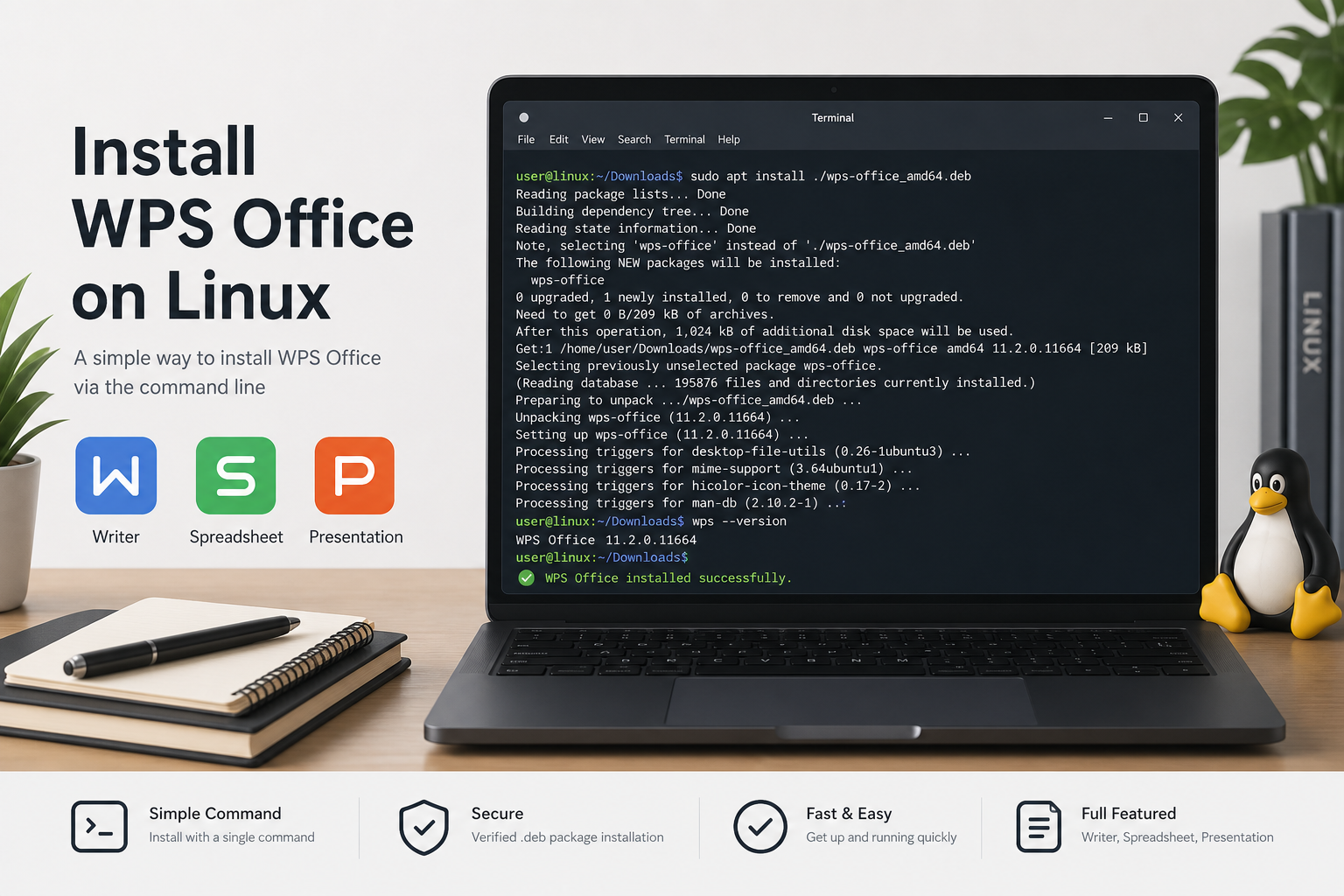
For the main Ubuntu terminal install path, start with How to Install WPS Office via Terminal.
What Ask Ubuntu Users Were Trying to Solve
The original terminal-install questions usually share three goals. First, avoid a GUI download flow that freezes mid-install. Second, keep a path that can be repeated later when a newer build appears. Third, understand whether “third-party Deb files from separate locations” are safe. Those goals are still correct. What changed is the safe source of the Deb: versioned wget URLs that once pointed at community or cache hosts routinely break after each WPS release, so modern guidance must treat the official Linux download page as the entry point and treat copied old URLs as historical examples only.
A second cluster of command-line threads starts after someone follows an old dpkg -i recipe and hits a missing library—classically libpng12-0 on older WPS builds. Then apt-get install -f offers to remove wps-office instead of finishing the install. That sequence is documented in “How to install WPS Office via Command Line” and related dependency posts. It is APT protecting a half-configured package, not proof that WPS cannot be installed with the terminal.
Confirm Architecture Before You Touch Any Deb
Open a terminal and check the machine first. Architecture mistakes are not theoretical: Kubuntu and Ubuntu reports of “cannot satisfy dependencies” and later “package needs to be reinstalled, but I can’t find an archive for it” often begin with the wrong Deb.
uname -m
dpkg --print-architecture
On a typical modern Ubuntu PC you should see x86_64 and amd64. After you download the Deb, inspect metadata—do not trust the filename alone:
dpkg-deb -I ~/Downloads/wps-office_12.1.0.xxxxx_amd64.deb | grep -E 'Package|Version|Architecture|Depends'
Replace the placeholder with your exact filename. Expected result: Package: wps-office and an Architecture that matches dpkg --print-architecture. If the official download page does not offer a matching build for your device (for example some ARM machines), stop. Forcing the wrong Deb creates the broken reinstall loops people report when cleanup commands can no longer find an archive for wps-office:i386 or a similar mismatched package.
Download From the Official Linux Page—Not Stale Direct Links
Go to the vendor Linux page and choose Deb Package. That page is the durable entry point when versioned CDN URLs change. High-scoring older answers literally warned that wget links break at every version change and pointed readers back to a download page—the same caution still applies, only the canonical page for current packages is the official WPS Linux URL above.
ls -lh ~/Downloads/wps-office*.deb
Copy the exact name. Prefer that exact filename in later commands. Broad wildcards such as *.deb are unsafe when Downloads contains more than one Deb file. If you insist on a terminal download, only paste a URL you personally copied from the current official page—do not reuse multi-year-old community wget examples as your default install method.
Install With APT Using a Local File Path
This distinction prevents the most common misunderstanding when people search for “install via command line” or “via terminal”:
Repository lookup:
sudo apt install wps-office— looks for a package name in configured repositoriesLocal file:
sudo apt install ./wps-office_12.1.0.xxxxx_amd64.deb— installs the Deb you downloaded
For the official Deb workflow, use the local form:
cd ~/Downloads
sudo apt update
sudo apt install ./wps-office_12.1.0.xxxxx_amd64.deb
Expected result: APT schedules wps-office for installation, may pull dependencies from Ubuntu repositories, and finishes without leaving the package unconfigured. The leading ./ is required so APT treats the argument as a file path instead of a repository package name.
If you already used the low-level installer:
sudo dpkg -i ./wps-office_12.1.0.xxxxx_amd64.deb
dpkg unpacks the package but does not resolve missing dependencies. When it prints “dependency problems prevent configuration,” do not force the package with reckless flags. Move to repair.
When apt --fix-broken Tries to Remove WPS Office
Users following older command-line guides often hit this exact movie: dpkg -i fails on a missing library, then sudo apt-get install -f proposes removing wps-office to “correct” the system. If you answer yes, you are back to zero and the Deb appears to have “failed mysteriously.” Instead:
sudo apt --fix-broken install
Read the named dependency in the error. On modern official Debs, many dependencies resolve from Ubuntu’s own repositories during the APT local install. On very old WPS packages, the named library may be obsolete on newer Ubuntu releases—historically libpng12-0. Treat that as a version-era limitation of that old Deb, not a universal requirement for every Ubuntu release today. Prefer downloading a current official Deb from the WPS Linux page and installing that local file again.
sudo dpkg --configure -a
dpkg -l wps-office
A healthy install shows status ii. Only install a specifically named missing package when APT prints that name and your repositories still provide it. Do not invent a WPS PPA so that apt upgrade will “magically” track future releases.
Fonts Warnings Are Not the Same as a Failed Install
Separate Ask Ubuntu reports describe formula-symbol font warnings after Flatpak or other channels. Those dialogs are annoying, but they are not the same failure as an unconfigured Deb. If a formula-symbol warning appears after a successful Deb install, read the exact font name in the dialog. Do not uninstall the suite to chase fonts, and do not assume a generic “install all fonts” package fixes every warning. Confirm first that Writer actually opens and that ordinary documents load.
Launch and Verify on a Graphical Desktop
WPS Office is GUI software. Launch it from a normal desktop session, not a headless server console.
dpkg -L wps-office | grep -E '/usr/bin/|applications'
command -v wps
command -v et
command -v wpp
Executable names and install paths can vary by build. Treat wps, et, and wpp as build-dependent until dpkg -L or command -v confirms them. If a confirmed command exists:
wps
Expected result: Writer opens. Also open the app menu, search for WPS, and open a sample .docx file. Save a trivial edit. That is the real acceptance test—package status alone is not enough if a launcher is missing or points to a half-removed package.
Command-Line Failure Triage (Non-Destructive First)
Architecture mismatch or leftover i386 package
Compare architectures, then remove the mismatched package before installing the correct Deb:
sudo apt remove wps-office
sudo dpkg --remove --force-remove-reinstreq wps-office:i386
Only use force-remove variants when dpkg reports a broken reinstall loop and normal remove fails. Then install the matching official amd64 Deb.
Unmet dependencies
sudo apt --fix-broken install
sudo apt install ./wps-office_12.1.0.xxxxx_amd64.deb
Command not found after install
dpkg -l wps-office
dpkg -L wps-office | grep /usr/bin/
Reinstall the exact Deb if the package is missing or half-installed. If binaries exist, open a new terminal and retry the confirmed name. Desktop menu caches sometimes need a logout.
Installs but will not open
Start from the terminal so stderr is visible, then:
sudo dpkg --configure -a
sudo apt --fix-broken install
If the process exits immediately with no dialog, capture the terminal output before trying unrelated “fix” tips from unrelated Wine or Flatpak threads.
How This Differs From Snap Command-Line Install
Some terminal answers recommend sudo snap install wps-office plus sudo snap connect wps-office:removable-media. That is a valid Ubuntu Snap Store path, but it is not the same as installing the official Deb with APT. Snap auto-refresh behavior and confinement rules differ. If your keyword intent is command-line Deb install, stay on the Deb workflow; if you intentionally want Snap, use Snap commands end-to-end and do not mix both packages without a reason.
FAQ
Is command-line install different from “via terminal”?
No meaningful difference on Ubuntu—both mean installing the official Deb with shell commands rather than only a GUI click-through.
Can I run sudo apt install wps-office with no file path?
Not from Ubuntu’s default repositories. That form is a repository lookup. Use sudo apt install ./exact-file.deb after downloading the official Deb.
Should I add a WPS PPA so apt upgrade works forever?
No. Do not invent or trust unverified PPAs for this install. Update later by installing a newer official Deb the same way.
Do I still need a separate fonts Deb from old answers?
Older guides bundled a fonts package and separate community font downloads. Current installs should follow what your downloaded Deb and error dialogs actually require—do not install random font packages prophylactically.
Does this cover Windows or WSL?
No. This workflow is for Ubuntu/Debian-style Linux desktops installing a Deb package on a graphical session.



'%3e%3cpath%20d='M19.9911%204.11386V6.471H18.5894C18.0775%206.471%2017.7322%206.57814%2017.5536%206.79243C17.3751%207.00671%2017.2858%207.32814%2017.2858%207.75671V9.44421H19.9019L19.5536%2012.0871H17.2858V18.8639H14.5536V12.0871H12.2769V9.44421H14.5536V7.49779C14.5536%206.39064%2014.8632%205.53201%2015.4822%204.92189C16.1013%204.31177%2016.9257%204.00671%2017.9554%204.00671C18.8304%204.00671%2019.509%204.04243%2019.9911%204.11386Z'%20fill='%23333333'/%3e%3c/g%3e%3cdefs%3e%3cclipPath%20id='clip0_2938_8199'%3e%3crect%20width='16'%20height='16'%20fill='white'%20transform='translate(8%204.00671)'/%3e%3c/clipPath%3e%3c/defs%3e%3c/svg%3e)
'%3e%3cpath%20d='M17.5237%2010.7813L23.4811%204H22.0699L16.8949%209.88693L12.7648%204H8L14.2469%2012.9029L8%2020.0133H9.4112L14.8725%2013.7952L19.2352%2020.0133H24M9.92053%205.04213H12.0885L22.0688%2019.0224H19.9003'%20fill='%23333333'/%3e%3c/g%3e%3cdefs%3e%3cclipPath%20id='clip0_2938_8200'%3e%3crect%20width='16'%20height='16.0134'%20fill='white'%20transform='translate(8%204)'/%3e%3c/clipPath%3e%3c/defs%3e%3c/svg%3e)


