

'%3e%3cpath%20d='M8%200C12.4183%200%2016%203.58172%2016%208C16%2012.4183%2012.4183%2016%208%2016C3.58172%2016%200%2012.4183%200%208C0%203.58172%203.58172%200%208%200ZM11.6162%204.38379C11.2257%203.99337%2010.5927%203.99338%2010.2021%204.38379L8%206.58594L5.79785%204.38379C5.40732%203.99334%204.77429%203.99329%204.38379%204.38379C3.99331%204.77429%203.99335%205.40733%204.38379%205.79785L6.58594%208L4.38379%2010.2021C3.99348%2010.5927%203.99341%2011.2257%204.38379%2011.6162C4.77426%2012.0066%205.40734%2012.0065%205.79785%2011.6162L8%209.41406L10.2021%2011.6162C10.5927%2012.0066%2011.2257%2012.0067%2011.6162%2011.6162C12.0067%2011.2257%2012.0066%2010.5927%2011.6162%2010.2021L9.41406%208L11.6162%205.79785C12.0066%205.40735%2012.0066%204.77429%2011.6162%204.38379Z'%20fill='%23080E17'%20fill-opacity='0.46'/%3e%3c/g%3e%3cdefs%3e%3cclipPath%20id='clip0_3761_713'%3e%3crect%20width='16'%20height='16'%20fill='white'/%3e%3c/clipPath%3e%3c/defs%3e%3c/svg%3e)




'%3e%3cpath%20fill-rule='evenodd'%20clip-rule='evenodd'%20d='M21.4999%2010.9993C21.4999%205.20009%2016.7986%200.498901%2010.9993%200.498901C5.19994%200.498901%200.498657%205.20009%200.498657%2010.9993C0.498657%2016.2404%204.33858%2020.5844%209.35855%2021.3722V14.0346H6.69238V10.9993H9.35855V8.68594C9.35855%206.05427%2010.9262%204.60062%2013.3248%204.60062C14.4736%204.60062%2015.6753%204.80571%2015.6753%204.80571V7.38979H14.3512C13.0468%207.38979%2012.64%208.19921%2012.64%209.0296V10.9993H15.5523L15.0867%2014.0346H12.64V21.3722C17.66%2020.5844%2021.4999%2016.2404%2021.4999%2010.9993Z'%20fill='%231568EA'/%3e%3c/g%3e%3c/svg%3e)


'%3e%3cpath%20d='M2.42045%2022.1876H6.31818V12.7217L0.75%208.54553V20.5171C0.75%2021.4414%201.49892%2022.1876%202.42045%2022.1876Z'%20fill='%234285F4'/%3e%3cpath%20d='M19.682%2022.1876H23.5797C24.5041%2022.1876%2025.2502%2021.4387%2025.2502%2020.5171V8.54553L19.682%2012.7217'%20fill='%2334A853'/%3e%3cpath%20d='M19.682%205.48293V12.7216L25.2502%208.54543V6.31816C25.2502%204.25236%2022.8921%203.07469%2021.2411%204.31361'%20fill='%23FBBC04'/%3e%3cpath%20d='M6.31824%2012.7217V5.48303L13.0001%2010.4944L19.6819%205.48303V12.7217L13.0001%2017.733'%20fill='%23EA4335'/%3e%3cpath%20d='M0.75%206.31816V8.54543L6.31818%2012.7216V5.48293L4.75909%204.31361C3.10534%203.07469%200.75%204.25236%200.75%206.31816Z'%20fill='%23C5221F'/%3e%3c/g%3e%3cdefs%3e%3cclipPath%20id='clip0_2954_7305'%3e%3crect%20width='24.5'%20height='18.375'%20fill='white'%20transform='translate(0.75%203.8125)'/%3e%3c/clipPath%3e%3c/defs%3e%3c/svg%3e)


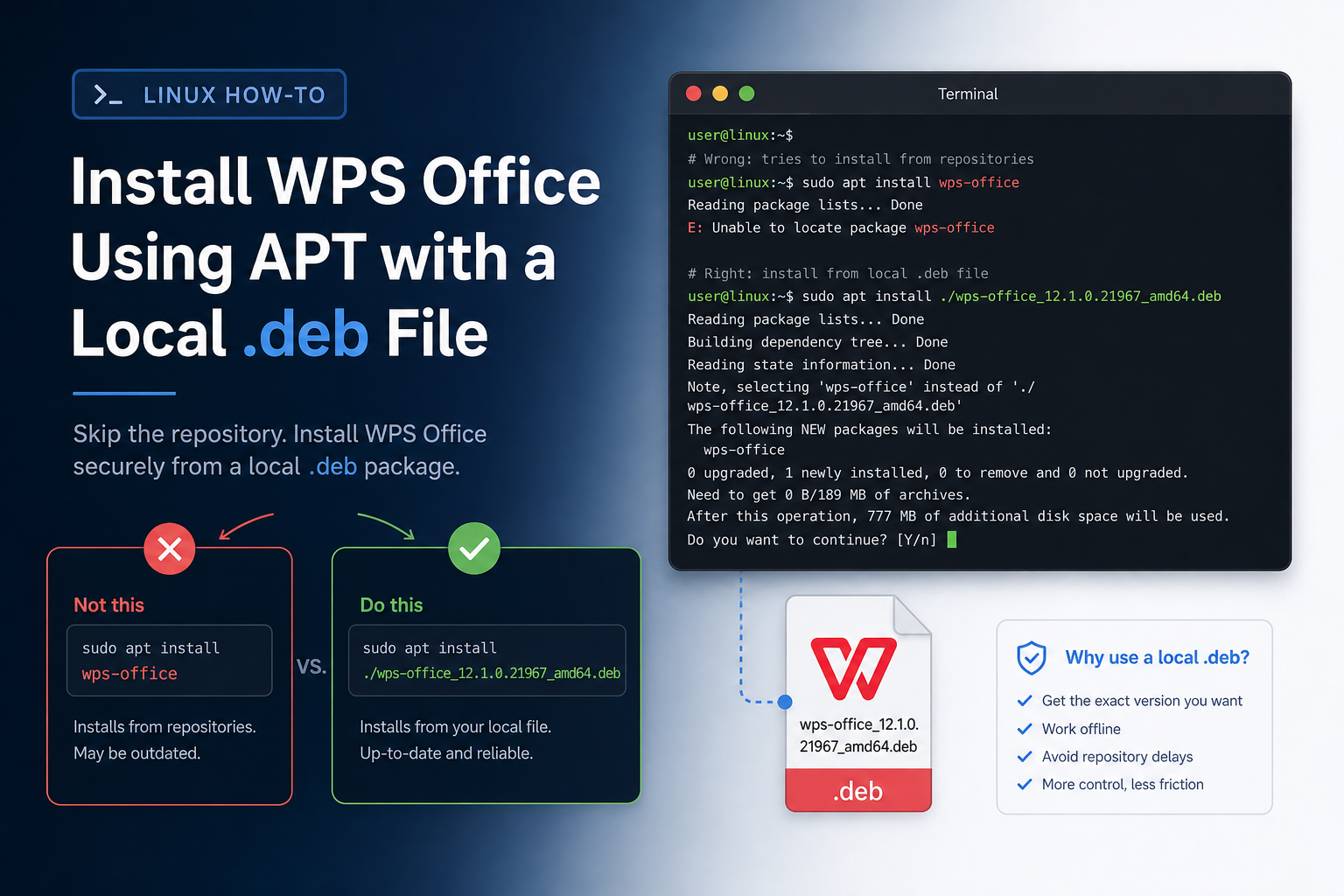
You can install WPS Office using APT on Ubuntu—but only by pointing APT at a local Deb file you downloaded from the official WPS Linux page. The vendor page publishes Deb and Rpm packages. It does not document an official WPS APT repository or PPA that makes sudo apt install wps-office resolve from Ubuntu’s default archives. When people say “install with APT,” they often mean the local-file form that still uses the APT tool.
Correct pattern: download the Deb, then run sudo apt install ./wps-office_VERSION_amd64.deb. Wrong patterns: repository lookup with no providing repo, adding an unverified PPA, or pasting expired direct links. Success means APT configures wps-office and the suite launches on a graphical desktop.
For the main Ubuntu terminal install path, start with How to Install WPS Office via Terminal.
Repository Lookup vs Local Deb File
| Form | Example | What happens for WPS |
|---|---|---|
| Repository lookup | sudo apt install wps-office | Usually “Unable to locate package” on stock Ubuntu |
| Local file | sudo apt install ./wps-office_12.1.0.xxxxx_amd64.deb | Supported after downloading the official Deb |
That table is the entire point of this keyword. APT is still the right tool; the argument must be a path to the Deb. Community update answers that mention sudo apt install ./package_name.deb after downloading a package are describing this same local-file mechanism—not a secret Ubuntu archive entry.
How Ask Ubuntu Dependency Threads Connect to APT
Search results for WPS install failures on Ubuntu repeatedly show the same stderr shape: dpkg: dependency problems prevent configuration of wps-office, followed by a named library, followed by Errors were encountered while processing: wps-office. When the user then runs the classic fix-install command, APT may schedule WPS for removal. That is why this article insists on APT’s local install form from the start: you want dependency resolution and package configuration in one deliberate transaction whenever Ubuntu’s archives can satisfy the Depends line.
Historical posts about libpng12-0 on Ubuntu 16.10-era packages are useful as warnings, not as a permanent APT ritual. If a brand-new official Deb from today’s WPS Linux page still names a dependency, install what APT prints. If an ancient cached Deb from 2016 names libraries your release no longer carries, replace the Deb—do not rebuild an old Debian archive on a modern desktop just to honor a blog comment.
Why Prefer APT Over Bare dpkg
Ubuntu dependency threads show the same failure movie: dpkg -i unpacks WPS, prints unmet dependencies such as a missing library, then apt-get install -f offers to remove the broken package. Beginners who answer “Y” watch the suite disappear and think APT “rejected” WPS. APT’s local install form tries to fetch missing dependencies from Ubuntu repositories during the same transaction, which is why it is the preferred command once you have the official Deb.
cd ~/Downloads
sudo apt update
sudo apt install ./wps-office_12.1.0.xxxxx_amd64.deb
Prepare Architecture and Indexes
uname -m
dpkg --print-architecture
sudo apt update
Match the Deb architecture to your system. Installing i386 on an amd64 machine is a well-documented way to create dependency dead-ends that later block cleanup and produce “needs to be reinstalled, but I can’t find an archive for it.” Kubuntu reports that mention dependency failures after chasing libpng12-0 sometimes also involve architecture confusion—fix architecture before you chase obsolete libraries.
dpkg-deb -I ./wps-office_12.1.0.xxxxx_amd64.deb | grep -E 'Package|Version|Architecture|Depends'Download the Official Deb, Then Hand It to APT
Get the Deb Package from wps.com/office/linux. Prefer that page over outdated community mirrors and over multi-year-old direct wget recipes. Note the exact filename:
ls -lh ~/Downloads/wps-office*.debThen install with the local path form shown earlier. Expected result: APT installs wps-office and any resolvable dependencies without leaving the package half-configured. Keep the Deb file until you have verified launch—you may need the same file to repair a interrupted configuration.
Step-by-Step APT Session You Can Copy
Use this as a single sitting checklist on a graphical Ubuntu desktop:
uname -m && dpkg --print-architecture
sudo apt update
cd ~/Downloads
ls -lh wps-office*.deb
dpkg-deb -I ./wps-office_REPLACE_ME_amd64.deb | grep -E "Package|Version|Architecture"
sudo apt install ./wps-office_REPLACE_ME_amd64.deb
dpkg -l wps-office
dpkg -L wps-office | grep /usr/bin/
Replace REPLACE_ME with the real version string from ls. If the install pauses on a dependency question, read it. If it completes cleanly, launch from the menu. If it fails, capture the full terminal output before trying unrelated Snap or Flatpak advice.
Repair Unmet Dependencies Without Losing the Package
If configuration fails, start with:
sudo apt --fix-broken install
sudo dpkg --configure -a
dpkg -l wps-office
Read the exact missing package names. On older WPS builds, users historically saw obsolete libraries such as libpng12-0 that newer Ubuntu releases no longer ship. Those Ask Ubuntu workarounds were version-era specific. Treating them as a universal APT requirement for every Ubuntu release today is how people accumulate random Debs from Debian Jessie mirrors. Prefer a current official Deb from the WPS Linux page.
If APT proposes removing wps-office to fix the system, answer carefully. Removal is not the same as a successful install. Abort, inspect the dependency, and only continue with a plan that ends in a configured package—not an empty system.
Verify Launchers After APT Finishes
dpkg -L wps-office | grep /usr/bin/
command -v wps
dpkg -l wps-office
Launcher names are build-dependent. Confirm with dpkg -L. Launch only from a graphical desktop session. Open a sample Office file and confirm save works. If you see formula-symbol font warnings, handle fonts as a separate follow-up; they do not mean APT failed.
Updating Later Still Uses Local APT Installs
Because the official Deb flow does not add a WPS repository, future upgrades usually mean downloading a newer Deb and running sudo apt install ./newer-file.deb again—not expecting apt upgrade alone to notice WPS. That is also why “update without reinstalling” threads resolve to installing a newer local Deb rather than a magical repository sync.
Common APT Error Texts and What They Mean
- Unable to locate package wps-office — repository lookup with no providing repo; switch to
./file.deb. - dependency problems prevent configuration — Deb unpacked but Depends not satisfied; use APT fix or a newer official Deb.
- The following packages will be REMOVED: wps-office during a fix operation — APT is offering to delete the broken package; abort unless you intend to uninstall.
- package needs to be reinstalled, but I can’t find an archive for it — often a mismatched or removed Deb left the package database inconsistent; clean with dpkg/APT carefully, then install a matching official Deb.
Those strings appear across install, update, and uninstall threads. Learning them once makes APT troubleshooting faster than memorizing every WPS version number.
APT vs Snap vs Flatpak (Decision Notes)
APT local-Deb is the vendor-file path. Snap is an Ubuntu Store channel with confinement and refresh behavior. Flatpak appears in some community installs and has its own font dialog reports. If your search intent is specifically “using APT,” stay on Deb+APT and do not silently switch mid-article to Snap unless you are explaining a fallback. If Snap confinement later blocks second-disk files, that is a reason some users migrate from Snap to Deb—not a reason to pretend Snap is an APT install.
Keep the mental model simple: APT commands manage Deb packages; Snap commands manage snaps. Typing apt install wps-office will not install the Snap, and snap install will not register a Deb in dpkg -l. That separation is why detection commands appear in install, update, and uninstall articles alike.
APT-Specific Pitfalls
Unable to locate package wps-office
You used repository lookup. Download the official Deb and use ./file.deb.
Third-party PPA instructions
Skip unverified PPAs. They are not a substitute for the vendor Deb page and can leave you with untrusted package sources.
Wrong architecture
Inspect Deb metadata before installing. Fix mismatches before chasing dependency folklore.
Held or broken packages
sudo apt --fix-broken install
sudo dpkg --configure -a
GDebi vs APT
GDebi can install the same Deb graphically. This guide keeps one clear APT command-line path so errors stay readable in the terminal.
FAQ
Is “using APT” the same as an official APT repo?
No. Here APT installs a local Deb from WPS. That is not a WPS-maintained repository subscription.
Will apt upgrade update WPS later?
Not through the default Deb download flow. Install a newer official Deb the same way.
Is Snap the same as APT?
No. Snap is a different packaging system with different update and permission behavior.
Can I use gdebi?
You can, but this guide keeps one clear APT command-line path for troubleshooting.
Should I keep old libpng12 workarounds bookmarked?
Only as historical context for old WPS builds. Prefer a current official Deb on current Ubuntu.
Does sudo apt install ./file.deb work from any directory?
The path must resolve to the Deb. Using cd ~/Downloads plus ./exact-name.deb is the least error-prone pattern when the file lives in Downloads.



'%3e%3cpath%20d='M19.9911%204.11386V6.471H18.5894C18.0775%206.471%2017.7322%206.57814%2017.5536%206.79243C17.3751%207.00671%2017.2858%207.32814%2017.2858%207.75671V9.44421H19.9019L19.5536%2012.0871H17.2858V18.8639H14.5536V12.0871H12.2769V9.44421H14.5536V7.49779C14.5536%206.39064%2014.8632%205.53201%2015.4822%204.92189C16.1013%204.31177%2016.9257%204.00671%2017.9554%204.00671C18.8304%204.00671%2019.509%204.04243%2019.9911%204.11386Z'%20fill='%23333333'/%3e%3c/g%3e%3cdefs%3e%3cclipPath%20id='clip0_2938_8199'%3e%3crect%20width='16'%20height='16'%20fill='white'%20transform='translate(8%204.00671)'/%3e%3c/clipPath%3e%3c/defs%3e%3c/svg%3e)
'%3e%3cpath%20d='M17.5237%2010.7813L23.4811%204H22.0699L16.8949%209.88693L12.7648%204H8L14.2469%2012.9029L8%2020.0133H9.4112L14.8725%2013.7952L19.2352%2020.0133H24M9.92053%205.04213H12.0885L22.0688%2019.0224H19.9003'%20fill='%23333333'/%3e%3c/g%3e%3cdefs%3e%3cclipPath%20id='clip0_2938_8200'%3e%3crect%20width='16'%20height='16.0134'%20fill='white'%20transform='translate(8%204)'/%3e%3c/clipPath%3e%3c/defs%3e%3c/svg%3e)


