

'%3e%3cpath%20d='M8%200C12.4183%200%2016%203.58172%2016%208C16%2012.4183%2012.4183%2016%208%2016C3.58172%2016%200%2012.4183%200%208C0%203.58172%203.58172%200%208%200ZM11.6162%204.38379C11.2257%203.99337%2010.5927%203.99338%2010.2021%204.38379L8%206.58594L5.79785%204.38379C5.40732%203.99334%204.77429%203.99329%204.38379%204.38379C3.99331%204.77429%203.99335%205.40733%204.38379%205.79785L6.58594%208L4.38379%2010.2021C3.99348%2010.5927%203.99341%2011.2257%204.38379%2011.6162C4.77426%2012.0066%205.40734%2012.0065%205.79785%2011.6162L8%209.41406L10.2021%2011.6162C10.5927%2012.0066%2011.2257%2012.0067%2011.6162%2011.6162C12.0067%2011.2257%2012.0066%2010.5927%2011.6162%2010.2021L9.41406%208L11.6162%205.79785C12.0066%205.40735%2012.0066%204.77429%2011.6162%204.38379Z'%20fill='%23080E17'%20fill-opacity='0.46'/%3e%3c/g%3e%3cdefs%3e%3cclipPath%20id='clip0_3761_713'%3e%3crect%20width='16'%20height='16'%20fill='white'/%3e%3c/clipPath%3e%3c/defs%3e%3c/svg%3e)




'%3e%3cpath%20fill-rule='evenodd'%20clip-rule='evenodd'%20d='M21.4999%2010.9993C21.4999%205.20009%2016.7986%200.498901%2010.9993%200.498901C5.19994%200.498901%200.498657%205.20009%200.498657%2010.9993C0.498657%2016.2404%204.33858%2020.5844%209.35855%2021.3722V14.0346H6.69238V10.9993H9.35855V8.68594C9.35855%206.05427%2010.9262%204.60062%2013.3248%204.60062C14.4736%204.60062%2015.6753%204.80571%2015.6753%204.80571V7.38979H14.3512C13.0468%207.38979%2012.64%208.19921%2012.64%209.0296V10.9993H15.5523L15.0867%2014.0346H12.64V21.3722C17.66%2020.5844%2021.4999%2016.2404%2021.4999%2010.9993Z'%20fill='%231568EA'/%3e%3c/g%3e%3c/svg%3e)


'%3e%3cpath%20d='M2.42045%2022.1876H6.31818V12.7217L0.75%208.54553V20.5171C0.75%2021.4414%201.49892%2022.1876%202.42045%2022.1876Z'%20fill='%234285F4'/%3e%3cpath%20d='M19.682%2022.1876H23.5797C24.5041%2022.1876%2025.2502%2021.4387%2025.2502%2020.5171V8.54553L19.682%2012.7217'%20fill='%2334A853'/%3e%3cpath%20d='M19.682%205.48293V12.7216L25.2502%208.54543V6.31816C25.2502%204.25236%2022.8921%203.07469%2021.2411%204.31361'%20fill='%23FBBC04'/%3e%3cpath%20d='M6.31824%2012.7217V5.48303L13.0001%2010.4944L19.6819%205.48303V12.7217L13.0001%2017.733'%20fill='%23EA4335'/%3e%3cpath%20d='M0.75%206.31816V8.54543L6.31818%2012.7216V5.48293L4.75909%204.31361C3.10534%203.07469%200.75%204.25236%200.75%206.31816Z'%20fill='%23C5221F'/%3e%3c/g%3e%3cdefs%3e%3cclipPath%20id='clip0_2954_7305'%3e%3crect%20width='24.5'%20height='18.375'%20fill='white'%20transform='translate(0.75%203.8125)'/%3e%3c/clipPath%3e%3c/defs%3e%3c/svg%3e)


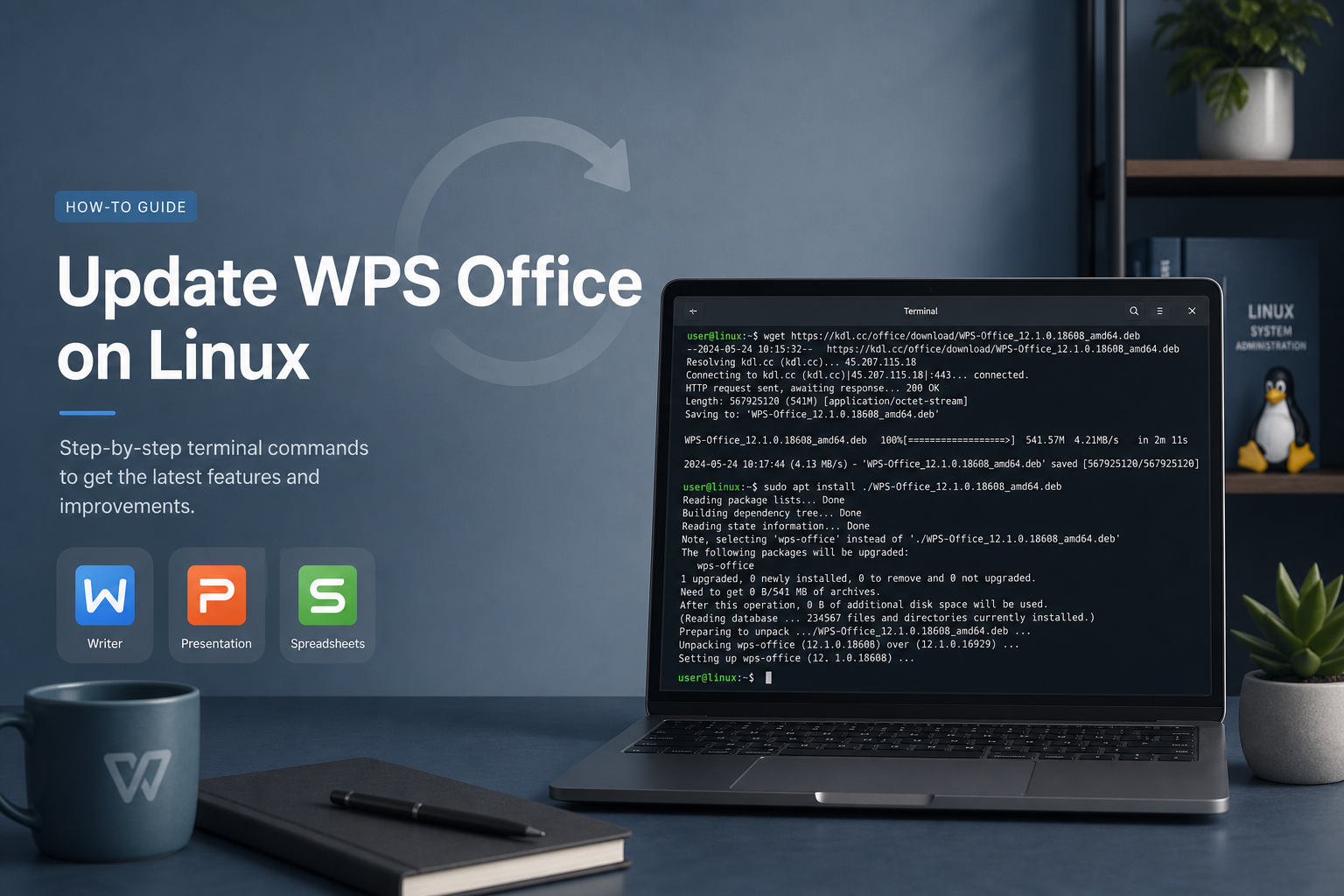
To update WPS Office from the terminal on Ubuntu, first identify whether you installed a Deb package or a Snap package. A Deb from the official WPS Linux page does not register a vendor APT repository, so sudo apt upgrade usually will not move WPS forward. The reliable Deb update is to download the newer official Deb and install that exact local file over the existing package. If you installed via Snap, use Snap refresh instead.
Ask Ubuntu’s “How do I update WPS Office to the latest version?” reports the exact confusion people still hit: they look for a Windows-style Check for Updates control, cannot find it, and assume they are stuck. Missing that button is not a dead end—it means you update through the packaging channel you originally used. Success means the installed version string increases and Writer still opens after the update.
For the main Ubuntu terminal install path, start with How to Install WPS Office via Terminal.
Why “Check for Updates” Searches Lead People Astray
Windows help articles often show an in-app updater. On Linux builds, that control may be missing or incomplete. Community answers therefore split into two correct camps: Snap users should refresh the snap; Deb users should install a newer .deb with APT’s local-file form. Mixing those answers—running snap refresh when you only have a Deb, or waiting for apt upgrade when no WPS repository exists—is why people conclude “terminal update does nothing.”
In the Ubuntu 18.04 update thread, one answer correctly routes Snap users to sudo snap refresh wps-office, while another shows the Deb pattern sudo apt install ./package_name.deb after downloading a package. Both can be right—on different machines. Your job in the terminal is not to memorize every answer; it is to detect which packaging world you are in, then apply only that world’s update command.
Map Your Install History Before You Upgrade
Think through how WPS arrived on the computer. Did you click Deb Package on the official Linux page and double-click or APT-install a file from Downloads? Did Software / Snap Store install a snap? Did an older tutorial tell you to wget a versioned URL and run dpkg -i? Each path leaves different evidence:
- Deb path:
dpkg -l wps-officeshowsii, and you may still have a.debin Downloads - Snap path:
snap listshows a WPS-related snap, andsnap connectionsmay list plugs - Broken leftover path: APT complains about reinstall archives, or both Deb and Snap traces exist
If your history is unclear, run the detection commands in the next section and trust those outputs over memory. Updating the wrong channel cannot raise the version string you care about.
Detect the Channel Before You Type Upgrade Commands
dpkg -l wps-office
snap list 2>/dev/null | grep -i wps
command -v wps
command -v wps-office
Interpret the signals carefully. An ii row for wps-office means Deb/APT packaging. A Snap list entry means Snap packaging. If both appear, you may have conflicting installs—decide which launcher you actually use daily, then update only that channel. Updating the wrong channel is the fastest way to waste an afternoon and still see the same About dialog version.
Record the Version You Have Now
dpkg -l wps-office
snap info wps-office 2>/dev/null | sed -n '1,40p'
Save this output in a text file or screenshot. Without a before/after comparison, you cannot tell whether the terminal update applied a newer build or silently reinstalled an older Deb that was still sitting in Downloads. For Snap, note both the tracking channel and the revision if snap info shows them.
Update a Deb Install: Newer Official File, Same APT Pattern
Community answers that suggest sudo apt --only-upgrade install wps-office only help when a repository actually publishes that package. The official Deb download workflow typically does not. Use this path instead:
- Open the official WPS Linux page.
- Download the current Deb Package for your architecture.
- Confirm architecture still matches with
dpkg-deb -I. - Install the local file with APT.
cd ~/Downloads
sudo apt update
sudo apt install ./wps-office_NEWERVERSION_amd64.deb
Expected result: APT replaces/upgrades the existing wps-office package. You normally do not need to uninstall first. Uninstalling first is a last resort when the package database is already corrupted, not a routine step for every update.
If dependencies break mid-upgrade:
sudo apt --fix-broken install
sudo dpkg --configure -a
Then compare versions deliberately:
dpkg-deb -I ./wps-office_NEWERVERSION_amd64.deb | grep Version
dpkg -l wps-office
The installed version line should match the Deb you intended. If it does not, you likely installed an older file still present in Downloads—sort by modification time and pick the newest official download.
Practical Deb Update Walkthrough
Here is a concrete sequence that mirrors how careful Ubuntu users recover when “apt upgrade did nothing”:
mkdir -p ~/Downloads/wps-update && cd ~/Downloads/wps-update
# Download the current Deb from the official WPS Linux page into this folder
ls -lt
dpkg-deb -I ./wps-office_*.deb | grep -E "Package|Version|Architecture"
sudo apt install ./wps-office_*.deb
Prefer one Deb in that folder so a wildcard cannot grab the wrong file. If Downloads is messy, move only the newest official Deb into a clean directory first. After APT finishes, reopen Writer from the menu and check About / version information if your build exposes it, then compare with the earlier dpkg -l snapshot.
If APT prints dependency problems, resist the urge to paste the first outdated libpng12 workaround you find. Those workarounds were written for older WPS builds on older Ubuntu releases. On a current official Deb, start with sudo apt --fix-broken install and only install packages APT names explicitly.
Update a Snap Install: Refresh the Snap
When Ubuntu answers identify a Snap install, the terminal update is:
sudo snap refresh wps-office
snap info wps-office
Snap packages are designed to refresh automatically; the refresh command forces an update check. Use the exact snap name from snap list if your install is named differently (for example a multilanguage snap). Snap Store packaging is a different channel from the vendor Deb/Rpm downloads—do not call it the official Deb path, and do not expect Deb update recipes to move a Snap install.
If refresh reports the snap is already on the latest revision, your update problem may actually be a feature or permission problem rather than a version problem. Re-test document open paths and snap connections before downloading random third-party packages “to force an update.”
Choosing Between Refresh and a Full Channel Switch
Sometimes the real goal behind “update WPS” is “make USB / second HDD documents work” or “stop a crash.” Updating in place helps when the bug is fixed in a newer build. It does not help when Snap confinement blocks a second disk—those Ask Ubuntu reports are solved by connecting removable-media or migrating to Deb, not by refreshing forever. Likewise, a Deb install stuck on an obsolete dependency story is often fixed by installing a current official Deb, which is an update and a repair at the same time.
What Will Not Update a Deb WPS Install
sudo apt update && sudo apt upgradealone when no WPS repository exists- Expired community
wgetURLs pointing at old builds - Unofficial PPAs that claim to track WPS without vendor documentation
- Waiting for a Windows-style in-app updater that your Linux build does not expose
- Running Snap refresh when
dpkg -lshows Deb and Snap list is empty
Post-Update Verification Checklist
- Compare old and new version strings from the commands above.
- Launch a confirmed binary or menu entry on a graphical session.
- Open one existing document and save a trivial edit.
- If you rely on USB drives or a second HDD, re-test those paths—especially if you are on Snap confinement, where removable-media connections matter.
- If fonts warnings appear only after an upgrade, treat them as a separate issue from “update failed.”
Update Failures and Safe Fixes
APT offers to remove wps-office during the “fix”
Abort removal unless you intend to uninstall. Read the dependency names, fix what Ubuntu can provide, or download a different current official Deb. This is the same trap install threads document when apt-get install -f tries to delete a half-configured package.
Version string did not change
You may have reinstalled an older Deb still sitting in Downloads, or refreshed a Snap that was already current. Re-check file timestamps and snap info.
App fails to start after update
sudo dpkg --configure -a
sudo apt --fix-broken install
Reinstall the same newer Deb if the package is half-configured. Destructive purge is last and only after you back up documents.
snap refresh finds nothing
Run snap list | grep -i wps. If Snap is absent, you are on Deb—use the Deb update path. If the snap uses another name, refresh that exact name.
Need features that still fail after updating
Some usability issues—slow open times, second-disk permission errors, printer discovery—are channel/confinement problems rather than version problems. Updating alone will not fix a Snap removable-media gap; connecting the interface or moving to Deb may be required.
FAQ
Can I update without reinstalling?
For Deb installs, installing a newer Deb over the old package is the normal upgrade and does not require a purge first. For Snap, refresh updates in place.
Why is Check for Updates missing?
Some Linux builds do not expose the same in-app control documented for Windows. Use the packaging channel instead.
Should I mix Snap refresh and Deb upgrades?
No. Pick one install method and stay on it to avoid duplicate binaries and confusing version checks.
Will apt upgrade ever update Deb WPS?
Only if a configured repository publishes wps-office. The official Deb download path does not create that repository for you.
Is terminal update safer than downloading again in a browser?
You still need a trustworthy Deb file. The terminal part is the install/upgrade command; the source should remain the official Linux page.



'%3e%3cpath%20d='M19.9911%204.11386V6.471H18.5894C18.0775%206.471%2017.7322%206.57814%2017.5536%206.79243C17.3751%207.00671%2017.2858%207.32814%2017.2858%207.75671V9.44421H19.9019L19.5536%2012.0871H17.2858V18.8639H14.5536V12.0871H12.2769V9.44421H14.5536V7.49779C14.5536%206.39064%2014.8632%205.53201%2015.4822%204.92189C16.1013%204.31177%2016.9257%204.00671%2017.9554%204.00671C18.8304%204.00671%2019.509%204.04243%2019.9911%204.11386Z'%20fill='%23333333'/%3e%3c/g%3e%3cdefs%3e%3cclipPath%20id='clip0_2938_8199'%3e%3crect%20width='16'%20height='16'%20fill='white'%20transform='translate(8%204.00671)'/%3e%3c/clipPath%3e%3c/defs%3e%3c/svg%3e)
'%3e%3cpath%20d='M17.5237%2010.7813L23.4811%204H22.0699L16.8949%209.88693L12.7648%204H8L14.2469%2012.9029L8%2020.0133H9.4112L14.8725%2013.7952L19.2352%2020.0133H24M9.92053%205.04213H12.0885L22.0688%2019.0224H19.9003'%20fill='%23333333'/%3e%3c/g%3e%3cdefs%3e%3cclipPath%20id='clip0_2938_8200'%3e%3crect%20width='16'%20height='16.0134'%20fill='white'%20transform='translate(8%204)'/%3e%3c/clipPath%3e%3c/defs%3e%3c/svg%3e)


