



'%3e%3cpath%20fill-rule='evenodd'%20clip-rule='evenodd'%20d='M21.4999%2010.9993C21.4999%205.20009%2016.7986%200.498901%2010.9993%200.498901C5.19994%200.498901%200.498657%205.20009%200.498657%2010.9993C0.498657%2016.2404%204.33858%2020.5844%209.35855%2021.3722V14.0346H6.69238V10.9993H9.35855V8.68594C9.35855%206.05427%2010.9262%204.60062%2013.3248%204.60062C14.4736%204.60062%2015.6753%204.80571%2015.6753%204.80571V7.38979H14.3512C13.0468%207.38979%2012.64%208.19921%2012.64%209.0296V10.9993H15.5523L15.0867%2014.0346H12.64V21.3722C17.66%2020.5844%2021.4999%2016.2404%2021.4999%2010.9993Z'%20fill='%231568EA'/%3e%3c/g%3e%3c/svg%3e)


'%3e%3cpath%20d='M2.42045%2022.1876H6.31818V12.7217L0.75%208.54553V20.5171C0.75%2021.4414%201.49892%2022.1876%202.42045%2022.1876Z'%20fill='%234285F4'/%3e%3cpath%20d='M19.682%2022.1876H23.5797C24.5041%2022.1876%2025.2502%2021.4387%2025.2502%2020.5171V8.54553L19.682%2012.7217'%20fill='%2334A853'/%3e%3cpath%20d='M19.682%205.48293V12.7216L25.2502%208.54543V6.31816C25.2502%204.25236%2022.8921%203.07469%2021.2411%204.31361'%20fill='%23FBBC04'/%3e%3cpath%20d='M6.31824%2012.7217V5.48303L13.0001%2010.4944L19.6819%205.48303V12.7217L13.0001%2017.733'%20fill='%23EA4335'/%3e%3cpath%20d='M0.75%206.31816V8.54543L6.31818%2012.7216V5.48293L4.75909%204.31361C3.10534%203.07469%200.75%204.25236%200.75%206.31816Z'%20fill='%23C5221F'/%3e%3c/g%3e%3cdefs%3e%3cclipPath%20id='clip0_2954_7305'%3e%3crect%20width='24.5'%20height='18.375'%20fill='white'%20transform='translate(0.75%203.8125)'/%3e%3c/clipPath%3e%3c/defs%3e%3c/svg%3e)


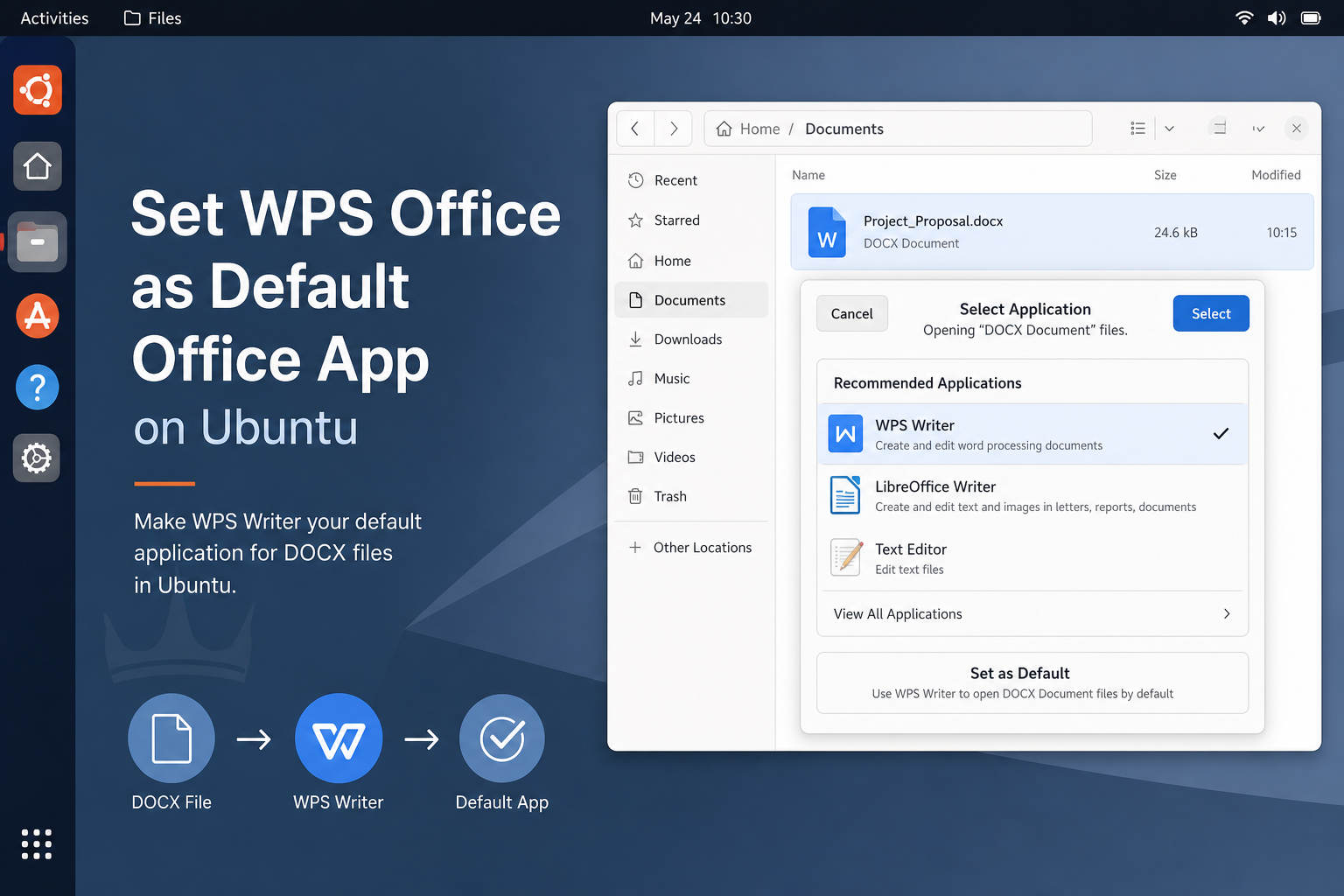
To make WPS Office the default Office apps on Ubuntu, set the MIME defaults for each file type you care about—DOCX, XLSX, PPTX, and optionally PDF—using Ubuntu’s Open With UI or xdg-mime with the exact WPS .desktop files installed on your system. GUI toggles sometimes fail to stick when Wine/MS Office entries, leftover Kingsoft MIME overrides, or conflicting mimeapps.list lines keep winning.
Shortest path: confirm WPS opens a sample file manually → identify desktop file IDs → set defaults for the MIME types you need → verify with xdg-mime query default and a Files double-click. Success means double-clicking a DOCX opens WPS Writer (and the same idea for sheets/decks) as your normal user.
For the main Ubuntu terminal install path, start with How to Install WPS Office via Terminal.
Confirm WPS Can Open the File Before Changing Defaults
Defaults only launch what already works. Right-click a DOCX → Open With → pick WPS Writer once. If that fails, fix install/launch issues first—do not chase MIME files while Writer cannot start.
dpkg -l wps-office 2>/dev/null
snap list 2>/dev/null | grep -i wps
ls /usr/share/applications/*wps* ~/.local/share/applications/*wps* /var/lib/snapd/desktop/applications/*wps* 2>/dev/null
If WPS is missing from Open With entirely, the desktop files were not installed or the session needs a logout after install. Launch Writer from the app grid once, then revisit Files. Setting xdg-mime to a desktop id that does not exist will appear to succeed in some cases and still fail on double-click.
Identify Exact Desktop File IDs
Ubuntu’s xdg-mime tool expects a desktop file id such as something.desktop, not a full path. Names are build-dependent. List candidates and open them to confirm Name=/Exec= lines:
grep -H "^Name=" /usr/share/applications/*wps* 2>/dev/null
grep -H "^MimeType=" /usr/share/applications/*wps* 2>/dev/null | head
Note separate desktop files for Writer, Spreadsheets, Presentation, and PDF when your build ships them. Snap installs may live under /var/lib/snapd/desktop/applications/—still pass only the basename to xdg-mime.
Example names you might see include variants of wps-office-wps.desktop, wps-office-et.desktop, and wps-office-wpp.desktop, but you must confirm on your machine. Guessing a name from a blog post written for another WPS version is a common reason defaults appear to set while Files still opens LibreOffice.
GUI Method (When It Sticks)
- In Files, right-click a
.docx→ Properties → Open With (wording varies by Ubuntu flavor). - Select the WPS Writer entry → Set as default.
- Repeat for
.xlsxand.pptxwith the matching WPS apps. - Open a new file of each type from Files to verify.
On GNOME, you can also use Settings → Default Applications for some categories, but Office formats often still need per-type Open With defaults.
On Kubuntu/Plasma, use the file Properties dialog or System Settings default application pages where available, then still verify with xdg-mime query default. GUI labels differ by flavor; the MIME verification commands do not. If the GUI appears to save but double-click behavior does not change, move to the terminal method immediately instead of repeating the same Properties click path.
Which MIME Types Matter for Everyday Office Files
Modern Microsoft formats use Office Open XML MIME types. Legacy binary formats use older types. Set both if you still receive .doc/.xls/.ppt files:
- DOCX:
application/vnd.openxmlformats-officedocument.wordprocessingml.document - DOC:
application/msword - XLSX:
application/vnd.openxmlformats-officedocument.spreadsheetml.sheet - XLS:
application/vnd.ms-excel - PPTX:
application/vnd.openxmlformats-officedocument.presentationml.presentation - PPT:
application/vnd.ms-powerpoint - PDF (optional):
application/pdf
You do not need to memorize them if you copy from this list, but you do need to set the ones you actually open weekly. Skipping legacy types is fine when you never see those extensions.
Terminal Method With xdg-mime (Reliable When GUI Fights You)
Per the Ubuntu xdg-mime manual, set defaults as your desktop user:
xdg-mime default WPS-WRITER.desktop application/vnd.openxmlformats-officedocument.wordprocessingml.document
xdg-mime default WPS-WRITER.desktop application/msword
xdg-mime default WPS-ET.desktop application/vnd.openxmlformats-officedocument.spreadsheetml.sheet
xdg-mime default WPS-ET.desktop application/vnd.ms-excel
xdg-mime default WPS-WPP.desktop application/vnd.openxmlformats-officedocument.presentationml.presentation
xdg-mime default WPS-WPP.desktop application/vnd.ms-powerpoint
Replace WPS-WRITER.desktop, WPS-ET.desktop, and WPS-WPP.desktop with the real filenames you listed. Optional PDF:
xdg-mime default WPS-PDF.desktop application/pdfVerify:
xdg-mime query default application/vnd.openxmlformats-officedocument.wordprocessingml.document
xdg-mime query default application/vnd.openxmlformats-officedocument.spreadsheetml.sheet
xdg-mime query default application/vnd.openxmlformats-officedocument.presentationml.presentation
Expected result: each query prints your WPS desktop id.
If you are unsure which desktop file maps to Writer versus Spreadsheets, search by MIME type claims and visible names:
grep -l "wordprocessingml\|msword" /usr/share/applications/*wps* 2>/dev/null
grep -l "spreadsheetml\|ms-excel" /usr/share/applications/*wps* 2>/dev/null
grep -l "presentationml\|ms-powerpoint" /usr/share/applications/*wps* 2>/dev/null
grep -l "application/pdf" /usr/share/applications/*wps* 2>/dev/null
Those greps only work when the desktop files declare MimeType lines. If a build omits them, Open With may still list the app from Name=/Exec= metadata, but xdg-mime default can be stricter—another reason to confirm with a manual open before fighting defaults. If you switch from Snap to Deb (or the reverse), redo the defaults carefully—the desktop file names almost always change afterward. Remove the channel you do not use so Open With lists stay readable.
When GUI Defaults Keep Jumping Back to Wine / MS Office
Ask Ubuntu users who installed both Wine MS Office and WPS report that Properties/Open With keeps restoring Microsoft entries for DOCX/XLSX/PPTX after newer WPS builds. Fixes that helped:
- Set the WPS default again via GUI or
xdg-mime. - Open
~/.config/mimeapps.list(show hidden files in your home folder). - Under
[Default Applications], remove leftover lines that still point at Wine/MS Office desktop ids for the Office MIME types. - Save, then re-query with
xdg-mime.
test -f ~/.config/mimeapps.list && grep -nE "wordprocessingml|spreadsheetml|presentationml|msword|ms-excel|ms-powerpoint" ~/.config/mimeapps.listDelete only the conflicting assignment lines you recognize. Do not wipe the entire file blindly. After editing, run the xdg-mime default commands again so the file contains explicit WPS lines you trust.
Clear Stale Kingsoft MIME Overrides (Carefully)
Some reports mention Kingsoft install scripts writing files under ~/.local/share/mime that override system instructions. If defaults still refuse to stick after mimeapps cleanup:
ls ~/.local/share/mimeBack up that directory first. Community advice sometimes removes stray files while leaving subfolders—only do this if you understand you are deleting user MIME overrides, then log out/in and reset xdg-mime defaults again.
cp -a ~/.local/share/mime ~/mime-backup-$(date +%F)
# inspect before deleting any files
After cleanup, re-run your xdg-mime default commands and confirm with xdg-mime query default before testing Files again. If the backup is large, keep it for a day until you are sure Office formats open correctly.
Browsers, Mail Clients, and Mixed LibreOffice Defaults
Making WPS default for Microsoft formats does not automatically change ODT/ODS handling. If you still want LibreOffice for OpenDocument files, leave those MIME types alone. Mixed defaults are normal and often preferable on Ubuntu when coworkers send both DOCX and ODT.
Browsers may keep their own download actions. After system defaults are correct, check the browser’s download/open settings for DOCX/PDF. System xdg-mime results will not override an explicit browser “always open with” choice. In Firefox or Chrome-based browsers, clear a remembered DOCX helper once, download a fresh sample file, and choose WPS Writer with “always open similar files” only after system MIME defaults already point at WPS.
Thunderbird, Evolution, and third-party file managers may cache handlers. After changing defaults, open an attachment once through the client’s own Open With menu if double-click from Files already works but mail attachments do not. Nemo, Dolphin, and Nautilus/Files all honor xdg-mime in slightly different UI ways, but the verification commands stay the same. If one file manager respects WPS and another does not, re-query defaults and check for a second mimeapps file under the older ~/.local/share/applications/mimeapps.list path.
Verify Success
xdg-mime query defaultshows WPS desktop ids for the MIME types you set.- Double-click DOCX/XLSX/PPTX in Files opens the matching WPS app.
- Optional: confirm PDF if you set it.
- Re-test after logout if the session cached old handlers.
After Defaults Stick: Open Office Files Directly in WPS
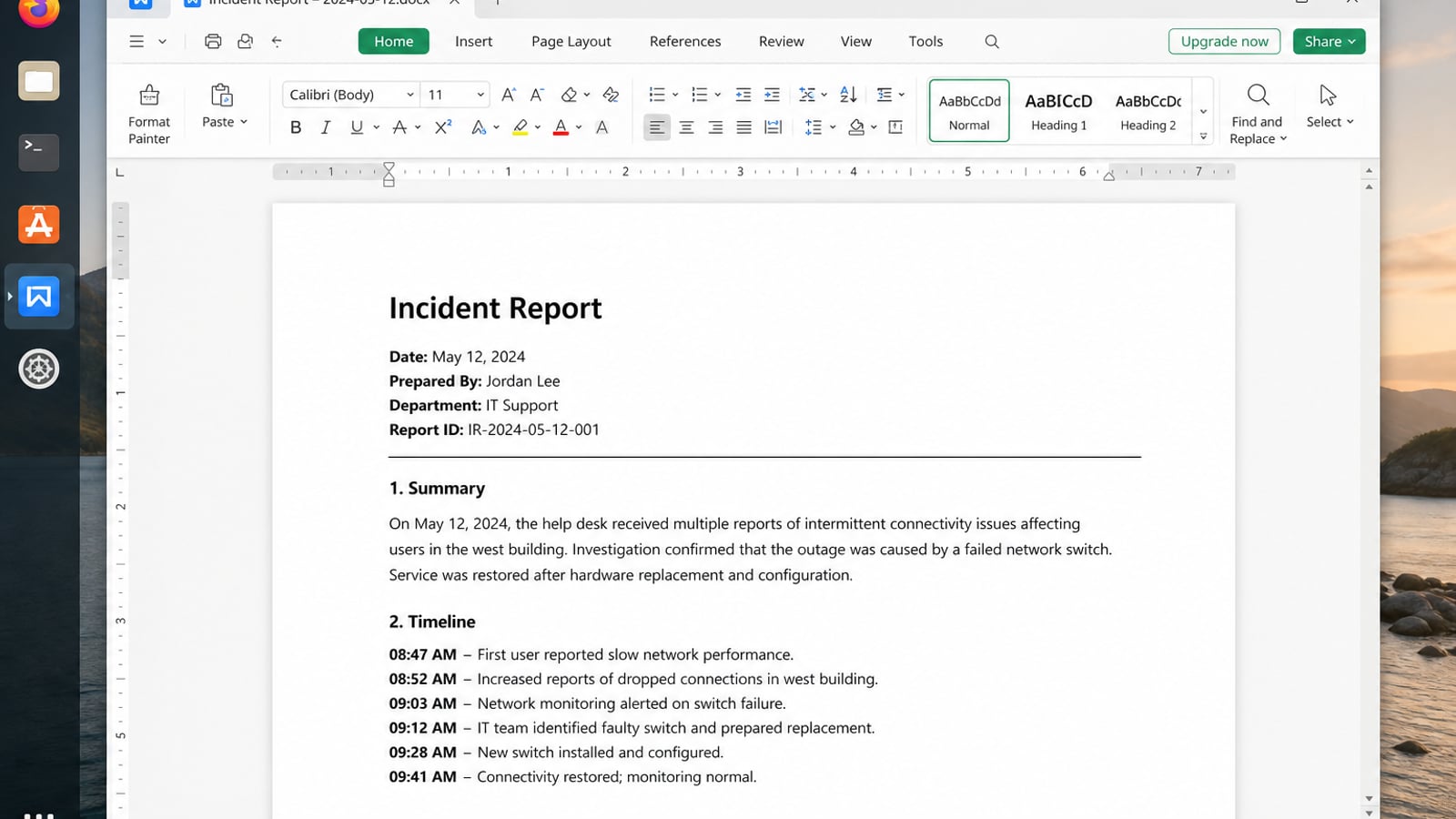
Once MIME defaults point at the correct WPS .desktop files, everyday DOCX, XLSX, and PPTX should open in Writer, Spreadsheet, or Presentation—not Wine leftovers or another suite by accident.
WPS Office for Linux is the suite those defaults should land on: familiar ribbon apps, strong Microsoft Office compatibility, and PDF tools when you need a fixed export.
| What you need next | What WPS gives you |
|---|---|
| Make double-click open WPS for everyday Office files | Strong .docx / .xlsx / .pptx / PDF workflow fidelity on Ubuntu and across Windows handoffs |
| One place for notes, sheets, slides, and PDFs | Free core suite: Writer, Spreadsheet, Presentation, plus PDF view/edit/convert tools |
| A familiar desktop UI | Ribbon-style apps with a lighter footprint than many heavy suites |
| A trusted install path | Official DEB (Ubuntu/Debian/Mint) and RPM packages from the vendor |
If WPS is missing or outdated, download the current package from the official WPS Office for Linux download page, install with sudo apt install ./wps-office_VERSION_amd64.deb, confirm the desktop IDs, then re-check xdg-mime so defaults stay on WPS.


FAQ
Can I set one default for all Office files in a single click?
Usually no. Set Writer, Spreadsheets, and Presentation MIME types separately.
Should I run xdg-mime as root?
No. The Ubuntu man page recommends using it inside your desktop user session.
Why does LibreOffice keep winning?
It is still registered for those MIME types. Explicitly set WPS defaults and remove conflicting mimeapps lines.
Do defaults survive a WPS update?
Often yes if desktop ids stay the same; after a channel change, re-verify.
What if Open With does not list WPS?
The desktop file may be missing or the install is broken—repair the install before MIME edits.
Can defaults differ per user on a shared PC?
Yes. xdg-mime and ~/.config/mimeapps.list are per-user. Each Ubuntu account must set WPS defaults separately on a shared PC.
Should CSV files also open in WPS Spreadsheets?
Only if you want that. CSV often stays with a text editor or LibreOffice by choice—set the text/csv MIME type deliberately if you change it to WPS Spreadsheets.
Do I need to set defaults again after every reboot?
No. Correct MIME defaults persist across reboots for that user account. Re-check only after reinstalling WPS, switching Deb or Snap channels, or editing mimeapps.list again.

'%3e%3cpath%20d='M19.9911%204.11386V6.471H18.5894C18.0775%206.471%2017.7322%206.57814%2017.5536%206.79243C17.3751%207.00671%2017.2858%207.32814%2017.2858%207.75671V9.44421H19.9019L19.5536%2012.0871H17.2858V18.8639H14.5536V12.0871H12.2769V9.44421H14.5536V7.49779C14.5536%206.39064%2014.8632%205.53201%2015.4822%204.92189C16.1013%204.31177%2016.9257%204.00671%2017.9554%204.00671C18.8304%204.00671%2019.509%204.04243%2019.9911%204.11386Z'%20fill='%23333333'/%3e%3c/g%3e%3cdefs%3e%3cclipPath%20id='clip0_2938_8199'%3e%3crect%20width='16'%20height='16'%20fill='white'%20transform='translate(8%204.00671)'/%3e%3c/clipPath%3e%3c/defs%3e%3c/svg%3e)
'%3e%3cpath%20d='M17.5237%2010.7813L23.4811%204H22.0699L16.8949%209.88693L12.7648%204H8L14.2469%2012.9029L8%2020.0133H9.4112L14.8725%2013.7952L19.2352%2020.0133H24M9.92053%205.04213H12.0885L22.0688%2019.0224H19.9003'%20fill='%23333333'/%3e%3c/g%3e%3cdefs%3e%3cclipPath%20id='clip0_2938_8200'%3e%3crect%20width='16'%20height='16.0134'%20fill='white'%20transform='translate(8%204)'/%3e%3c/clipPath%3e%3c/defs%3e%3c/svg%3e)


