

'%3e%3cpath%20d='M8%200C12.4183%200%2016%203.58172%2016%208C16%2012.4183%2012.4183%2016%208%2016C3.58172%2016%200%2012.4183%200%208C0%203.58172%203.58172%200%208%200ZM11.6162%204.38379C11.2257%203.99337%2010.5927%203.99338%2010.2021%204.38379L8%206.58594L5.79785%204.38379C5.40732%203.99334%204.77429%203.99329%204.38379%204.38379C3.99331%204.77429%203.99335%205.40733%204.38379%205.79785L6.58594%208L4.38379%2010.2021C3.99348%2010.5927%203.99341%2011.2257%204.38379%2011.6162C4.77426%2012.0066%205.40734%2012.0065%205.79785%2011.6162L8%209.41406L10.2021%2011.6162C10.5927%2012.0066%2011.2257%2012.0067%2011.6162%2011.6162C12.0067%2011.2257%2012.0066%2010.5927%2011.6162%2010.2021L9.41406%208L11.6162%205.79785C12.0066%205.40735%2012.0066%204.77429%2011.6162%204.38379Z'%20fill='%23080E17'%20fill-opacity='0.46'/%3e%3c/g%3e%3cdefs%3e%3cclipPath%20id='clip0_3761_713'%3e%3crect%20width='16'%20height='16'%20fill='white'/%3e%3c/clipPath%3e%3c/defs%3e%3c/svg%3e)




'%3e%3cpath%20fill-rule='evenodd'%20clip-rule='evenodd'%20d='M21.4999%2010.9993C21.4999%205.20009%2016.7986%200.498901%2010.9993%200.498901C5.19994%200.498901%200.498657%205.20009%200.498657%2010.9993C0.498657%2016.2404%204.33858%2020.5844%209.35855%2021.3722V14.0346H6.69238V10.9993H9.35855V8.68594C9.35855%206.05427%2010.9262%204.60062%2013.3248%204.60062C14.4736%204.60062%2015.6753%204.80571%2015.6753%204.80571V7.38979H14.3512C13.0468%207.38979%2012.64%208.19921%2012.64%209.0296V10.9993H15.5523L15.0867%2014.0346H12.64V21.3722C17.66%2020.5844%2021.4999%2016.2404%2021.4999%2010.9993Z'%20fill='%231568EA'/%3e%3c/g%3e%3c/svg%3e)


'%3e%3cpath%20d='M2.42045%2022.1876H6.31818V12.7217L0.75%208.54553V20.5171C0.75%2021.4414%201.49892%2022.1876%202.42045%2022.1876Z'%20fill='%234285F4'/%3e%3cpath%20d='M19.682%2022.1876H23.5797C24.5041%2022.1876%2025.2502%2021.4387%2025.2502%2020.5171V8.54553L19.682%2012.7217'%20fill='%2334A853'/%3e%3cpath%20d='M19.682%205.48293V12.7216L25.2502%208.54543V6.31816C25.2502%204.25236%2022.8921%203.07469%2021.2411%204.31361'%20fill='%23FBBC04'/%3e%3cpath%20d='M6.31824%2012.7217V5.48303L13.0001%2010.4944L19.6819%205.48303V12.7217L13.0001%2017.733'%20fill='%23EA4335'/%3e%3cpath%20d='M0.75%206.31816V8.54543L6.31818%2012.7216V5.48293L4.75909%204.31361C3.10534%203.07469%200.75%204.25236%200.75%206.31816Z'%20fill='%23C5221F'/%3e%3c/g%3e%3cdefs%3e%3cclipPath%20id='clip0_2954_7305'%3e%3crect%20width='24.5'%20height='18.375'%20fill='white'%20transform='translate(0.75%203.8125)'/%3e%3c/clipPath%3e%3c/defs%3e%3c/svg%3e)


To uninstall WPS Office on Ubuntu, identify whether the suite was installed as a Deb package or as a Snap, then remove that exact package with the matching tool. Ask Ubuntu’s long-running uninstall threads start with a familiar Software Center problem: the store shows Reinstall instead of Remove after a crashy or unwanted install. Removing the wrong channel—or removing an unrelated libwps library—explains many “I uninstalled it but it is still there” and “I broke something else” reports.
Back up documents before purge-style cleanup. Success means package queries no longer list WPS Office and confirmed launchers are gone. Menu icons may linger until you refresh the session even when the package is already removed.
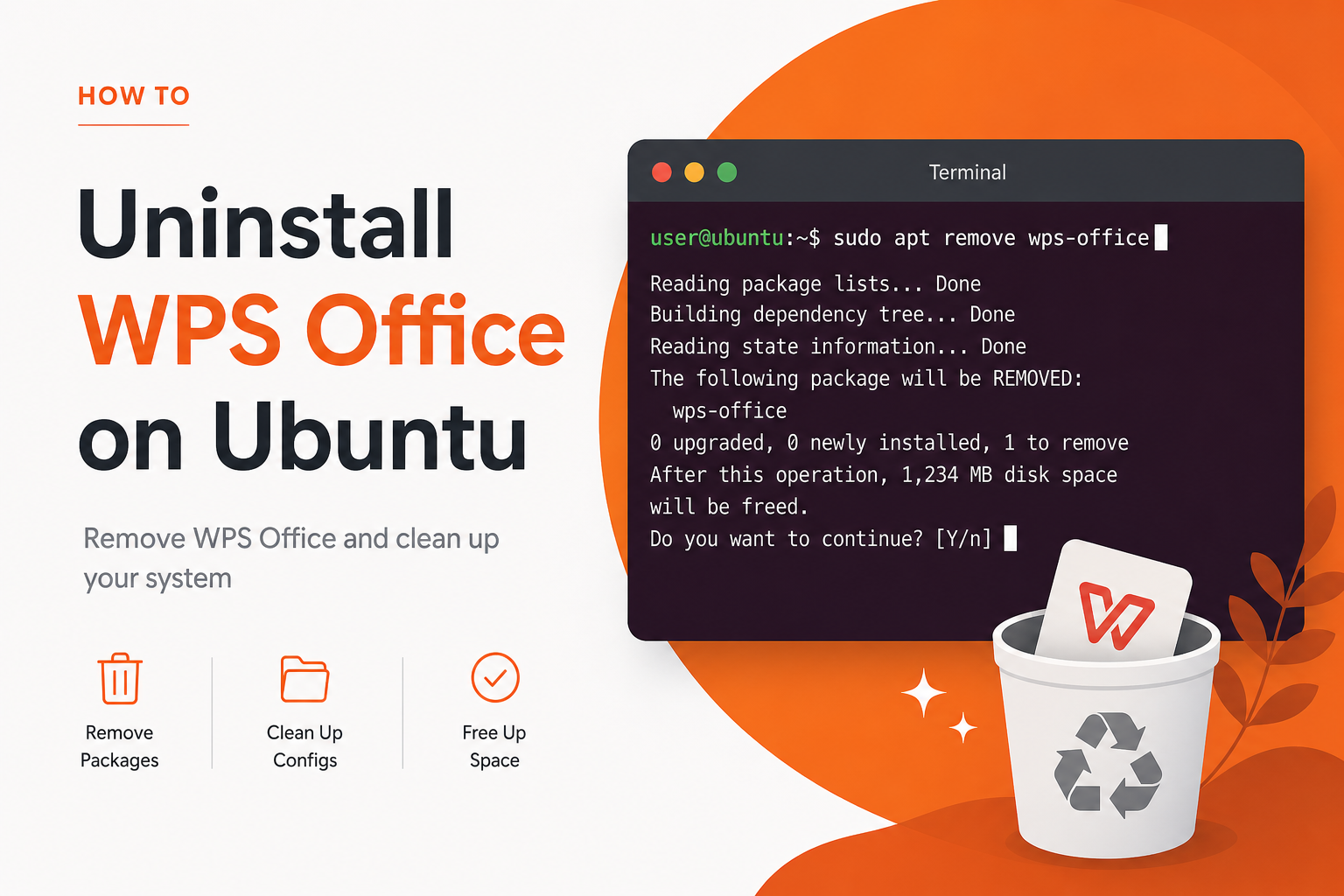
For the main Ubuntu terminal install path, start with How to Install WPS Office via Terminal.
What the Classic Uninstall Threads Actually Show
Early “How can I uninstall WPS Office for Linux?” reports describe Chinese beta builds installed from community write-ups, Software Center offering only Reinstall, and confusion between wps-office and older kingsoft-office package names. Later threads on Ubuntu 19.10/20.04 add new failure modes: apt-get purge appears to run, Snap remove says the snap is not installed, dpkg --get-selections | grep wps returns nothing—yet the application is still visible. Those cases usually mean the real package name was never the one typed, or the install was Snap under an unexpected snap name such as a branded 2019 snap.
Another pattern appears when someone installed with GDebi from an official-looking Deb, then tries only Snap remove commands, or the reverse. Uninstall is not one universal command—it is a detection problem first. If you skip detection, every “correct” command from a random answer can truthfully say the package is not installed while the app icon still launches.
Backup First: What Uninstall Does and Does Not Delete
Removing the application package deletes the program files managed by APT or Snap. It does not automatically mean every document in your home folder is wiped, but purge can clear package-shipped configuration, and optional manual cleanup can delete user config directories if you choose to. Before you proceed:
- Copy important
.docx,.xlsx, and.pptxfiles out of recent folders - Export templates you still need
- Note whether documents also live in cloud storage or on a second disk
- If you plan to reinstall later, write down whether you were on Deb or Snap so you do not recreate the same confusion
Detect What Is Actually Installed
dpkg -l wps-office kingsoft-office 2>/dev/null
snap list | grep -i wps
dpkg --get-selections | grep -i wps
command -v wps
command -v wps-office
Focus on wps-office, historical names such as kingsoft-office only when dpkg shows them, or Snap names returned by snap list. A line like libwps-0.4-4 can appear on systems that never installed WPS Office—it is a different library used by other software. Do not remove it because the letters “wps” appear.
Some uninstall attempts fail because APT says there is no apt package while also hinting a Snap exists—or because the Snap name is not literally wps-office. Always trust the live query on your machine over a blog’s assumed package name. If snap list shows something like a 2019-branded snap, that exact name is what you must remove.
Remove a Deb / APT Install
Standard removal:
sudo apt remove wps-officeStronger cleanup of package-shipped configuration files:
sudo apt purge wps-officeOptional cleanup of unused dependencies:
sudo apt autoremoveExpected result: dpkg -l wps-office no longer shows an installed ii row. Older threads mention kingsoft-office for certain historical builds—only purge that name if your dpkg -l output shows it:
sudo apt purge kingsoft-officeIf apt-get purge fails in a way you cannot reproduce from the error text alone, low-level cleanup is the community fallback:
sudo dpkg --purge wps-officeRemove a Snap Install
snap list | grep -i wps
sudo snap remove wps-office
If removal says the snap is not installed, list snaps again and copy the exact name. Support answers have shown alternate names such as multilanguage snaps or older branded snap names. Use the name your system prints:
sudo snap remove EXACT-NAME-FROM-SNAP-LISTExpected result: the snap disappears from snap list. Icons may need a logout or session restart to clear. Do not assume APT purge will remove a Snap—those tools manage different packaging worlds.
Worked Example: Commands That Look Successful but Miss the App
Imagine this sequence, which mirrors real uninstall threads:
dpkg --get-selections | grep wps-office
# no output
sudo snap remove wps-office
# error: snap "wps-office" is not installed
sudo apt-get purge kingsoft-office
# Unable to locate package kingsoft-office
None of those results prove the computer is clean. They only prove those exact names are absent. Next:
snap list | grep -i wps
dpkg -l | grep -iE "wps|kingsoft"
ls /var/lib/snapd/snaps 2>/dev/null | grep -i wps
If snap list shows a differently named snap, remove that name. If dpkg -l shows wps-office with a weird status character instead of a clean absence, use APT/dpkg repair and purge on that package. If both are empty but a .desktop file remains in ~/.local/share/applications, delete only the leftover launcher file after you confirm no binary remains.
When Software Center Cannot Remove It
If Software Center only offers Reinstall, switch to the terminal detection steps above. The GUI store often mishandles channel confusion between Deb and Snap, and it may keep showing an icon for a package that APT no longer tracks. The terminal queries are the source of truth. After a successful terminal remove, reopen Software / Snap Store only to confirm the entry is gone—not as your first tool.
Broken Package States During Uninstall
If APT claims the package needs to be reinstalled but no archive exists—common after architecture mistakes or interrupted installs—you may need a more aggressive dpkg removal after backups:
sudo dpkg --remove --force-remove-reinstreq wps-officeUse this only when normal apt remove fails and dpkg reports a broken state. Then run:
sudo apt --fix-broken install
sudo dpkg --configure -a
Do not loop force flags on healthy packages. The goal is to leave APT consistent, not to delete as aggressively as possible.
Optional Residual Cleanup (Last)
Only after the package is gone, inspect leftover user directories if search still finds WPS:
ls -ld ~/.config/*wps* ~/.local/share/*wps* 2>/dev/null
find ~/.local/share/applications -iname "*wps*" 2>/dev/null
Delete only folders you recognize as WPS user data after backups. Avoid recursive deletes of broad home paths. Leftover .desktop files can keep menu entries alive even when the binary is gone—removing those stubs is safer than wiping entire config trees blindly.
Verify Removal
dpkg -l wps-office
snap list | grep -i wps
command -v wps
command -v wps-office
Expected result: package queries are empty/not installed, and previous launch commands are not found. Log out and back in if a menu icon remains, then re-check. If an icon still launches something, you likely still have the other channel installed.
Reinstall Notes After a Clean Removal
If you remove WPS because of Snap confinement problems on a second disk, reinstall with the official Deb from the WPS Linux page rather than immediately returning to the same Snap. If you remove it because of a broken Deb dependency state, download a current official Deb and use APT’s local install form instead of resurrecting an old cached Deb from Downloads.
Safety Notes Before Force Flags
Force-remove and force-reinstreq options exist because Ubuntu users do get stuck with half-installed packages. They are still sharp tools. Take a moment to copy important documents, close Writer/Spreadsheets/Presentation if they are running, and paste terminal output into a note before you escalate. Most uninstalls never need force flags—exact package-name detection solves more cases than aggressive dpkg options. When in doubt, stop after a failed command and re-run the detection block instead of stacking more force switches.
FAQ
Does uninstall delete my documents?
Usually not your Documents files, but purge can remove package configs and manual cleanup can remove user settings. Back up first.
Remove or purge?
Use remove for a normal uninstall; use purge when you also want package-shipped configuration files cleared.
Why did someone tell me to remove libwps?
That library can exist without WPS Office. Removing it does not reliably uninstall WPS and may affect other software.
APT says no package but the icon remains
Check Snap list for an unexpected snap name, remove that exact snap, then refresh your desktop session.
Can I uninstall from Windows Subsystem for Linux the same way?
Only if you installed the Linux package inside that environment. WSL uninstall of a Linux Deb/Snap is unrelated to uninstalling Windows WPS.
I removed WPS and apt still mentions it during other installs
Run dpkg -l wps-office and sudo dpkg --configure -a. A half-removed package can block unrelated APT operations until the database is consistent again.



'%3e%3cpath%20d='M19.9911%204.11386V6.471H18.5894C18.0775%206.471%2017.7322%206.57814%2017.5536%206.79243C17.3751%207.00671%2017.2858%207.32814%2017.2858%207.75671V9.44421H19.9019L19.5536%2012.0871H17.2858V18.8639H14.5536V12.0871H12.2769V9.44421H14.5536V7.49779C14.5536%206.39064%2014.8632%205.53201%2015.4822%204.92189C16.1013%204.31177%2016.9257%204.00671%2017.9554%204.00671C18.8304%204.00671%2019.509%204.04243%2019.9911%204.11386Z'%20fill='%23333333'/%3e%3c/g%3e%3cdefs%3e%3cclipPath%20id='clip0_2938_8199'%3e%3crect%20width='16'%20height='16'%20fill='white'%20transform='translate(8%204.00671)'/%3e%3c/clipPath%3e%3c/defs%3e%3c/svg%3e)
'%3e%3cpath%20d='M17.5237%2010.7813L23.4811%204H22.0699L16.8949%209.88693L12.7648%204H8L14.2469%2012.9029L8%2020.0133H9.4112L14.8725%2013.7952L19.2352%2020.0133H24M9.92053%205.04213H12.0885L22.0688%2019.0224H19.9003'%20fill='%23333333'/%3e%3c/g%3e%3cdefs%3e%3cclipPath%20id='clip0_2938_8200'%3e%3crect%20width='16'%20height='16.0134'%20fill='white'%20transform='translate(8%204)'/%3e%3c/clipPath%3e%3c/defs%3e%3c/svg%3e)


