



'%3e%3cpath%20fill-rule='evenodd'%20clip-rule='evenodd'%20d='M21.4999%2010.9993C21.4999%205.20009%2016.7986%200.498901%2010.9993%200.498901C5.19994%200.498901%200.498657%205.20009%200.498657%2010.9993C0.498657%2016.2404%204.33858%2020.5844%209.35855%2021.3722V14.0346H6.69238V10.9993H9.35855V8.68594C9.35855%206.05427%2010.9262%204.60062%2013.3248%204.60062C14.4736%204.60062%2015.6753%204.80571%2015.6753%204.80571V7.38979H14.3512C13.0468%207.38979%2012.64%208.19921%2012.64%209.0296V10.9993H15.5523L15.0867%2014.0346H12.64V21.3722C17.66%2020.5844%2021.4999%2016.2404%2021.4999%2010.9993Z'%20fill='%231568EA'/%3e%3c/g%3e%3c/svg%3e)


'%3e%3cpath%20d='M2.42045%2022.1876H6.31818V12.7217L0.75%208.54553V20.5171C0.75%2021.4414%201.49892%2022.1876%202.42045%2022.1876Z'%20fill='%234285F4'/%3e%3cpath%20d='M19.682%2022.1876H23.5797C24.5041%2022.1876%2025.2502%2021.4387%2025.2502%2020.5171V8.54553L19.682%2012.7217'%20fill='%2334A853'/%3e%3cpath%20d='M19.682%205.48293V12.7216L25.2502%208.54543V6.31816C25.2502%204.25236%2022.8921%203.07469%2021.2411%204.31361'%20fill='%23FBBC04'/%3e%3cpath%20d='M6.31824%2012.7217V5.48303L13.0001%2010.4944L19.6819%205.48303V12.7217L13.0001%2017.733'%20fill='%23EA4335'/%3e%3cpath%20d='M0.75%206.31816V8.54543L6.31818%2012.7216V5.48293L4.75909%204.31361C3.10534%203.07469%200.75%204.25236%200.75%206.31816Z'%20fill='%23C5221F'/%3e%3c/g%3e%3cdefs%3e%3cclipPath%20id='clip0_2954_7305'%3e%3crect%20width='24.5'%20height='18.375'%20fill='white'%20transform='translate(0.75%203.8125)'/%3e%3c/clipPath%3e%3c/defs%3e%3c/svg%3e)


To fix WPS PDF Reader not working on Ubuntu, confirm whether PDF is failing inside the WPS PDF component, during convert-to-PDF, or only as a system “Open with” association—then match the fix to that branch. On Ubuntu 24.04 (and some 23.04) Deb installs, Ask Ubuntu users report PDF open and PDF conversion failing together when libtiff.so.5 is missing while the system ships libtiff.so.6.
Shortest path: launch the PDF tool from a terminal → note the exact error → check Deb vs Snap → apply the matching library or reinstall step → verify a sample PDF opens and a simple convert works. Success means WPS PDF opens a local PDF without root and stays open.
If PDF and convert-to-PDF both fail on Ubuntu 24.04 Deb → check for missing libtiff.so.5.
If Writer works but PDF never starts → verify the PDF component/launcher exists.
If only double-click associations fail → fix MIME defaults, not the PDF engine.
If only files on USB fail → check Snap removable-media.
For the main Ubuntu terminal install path, start with How to Install WPS Office via Terminal.
Separate Three Different “PDF Not Working” Meanings
WPS PDF component will not start or closes immediately.
Conversion to PDF fails from Writer/Spreadsheets/Presentation.
Ubuntu opens PDFs in another app even though WPS PDF is installed.
Only the first two are engine/library problems. The third is a default-application problem and should be fixed with Ubuntu’s Open With / xdg-mime tools after you confirm WPS PDF itself can open a file when launched directly.
Write down which of the three you have before changing system libraries. Creating a libtiff symlink will not change Firefox’s PDF handler, and fixing MIME defaults will not repair a missing shared library. Mixing those fixes wastes time and makes it harder to undo changes later.
Confirm Channel and PDF Launchers
dpkg -l wps-office 2>/dev/null
snap list 2>/dev/null | grep -i wps
dpkg -L wps-office 2>/dev/null | grep -iE "pdf|application" | head -n 40
ls /usr/share/applications/*wps* 2>/dev/null
Look for a PDF-related desktop entry shipped by your build. Launcher names are build-dependent. Launch from the menu entry labeled PDF when present, or from the binary path dpkg -L reveals.
Capture the PDF Error From a Terminal
Start the PDF component from a graphical session terminal. If the menu entry is unclear, open a PDF with WPS once from “Open with” while watching the terminal if you started the binary there. Copy missing .so names exactly—those names matter more than generic “reinstall Ubuntu” advice.
If the process exits with no message, re-check whether you launched Writer instead of PDF, and whether multiple WPS processes are already half-running in the background. Fully quit other WPS windows, then retry the PDF launcher alone so the terminal output belongs to the failing component.
Ubuntu 24.04 / 23.04 Deb: Missing libtiff.so.5
On Ask Ubuntu’s “WPS PDF reader is not working on Ubuntu 24.04,” users could neither open PDFs nor convert other files to PDF. The reported cause was the absence of libtiff.so.5 on systems that provide libtiff.so.6. A community workaround creates a compatibility symlink:
ls -l /usr/lib/x86_64-linux-gnu/libtiff.so.*
cd /usr/lib/x86_64-linux-gnu
sudo ln -s libtiff.so.6 libtiff.so.5
This is a release-specific workaround for Deb/Rpm builds that still look for the older SONAME. It is not a universal fix for every Ubuntu version, and it is not a substitute for installing a current official package when a newer WPS build no longer needs it. Verify libtiff.so.6 exists before creating the link. After linking, retry WPS PDF and a simple convert-to-PDF.
If ls shows neither library, install the TIFF library package your Ubuntu release provides (APT will name it for your release), then re-check the .so files. Do not download random .so files from unofficial sites.
After creating the symlink, relaunch WPS PDF from the terminal once. If a different missing library appears next, treat that new name as the next lead—do not assume every PDF failure is TIFF. Keep a short note of what you changed so you can undo the symlink after a future WPS upgrade if the vendor build no longer needs it:
sudo rm /usr/lib/x86_64-linux-gnu/libtiff.so.5
# only if it is the symlink you created and a newer WPS build no longer needs it
When Writer Works but PDF Does Not
Confirm the suite package actually includes the PDF toolkit for your build. Reinstall the current official Deb from wps.com/office/linux using APT’s local-file form:
cd ~/Downloads
sudo apt install ./wps-office_VERSION_amd64.deb
dpkg -L wps-office | grep -i pdf
Use the exact Deb filename you downloaded. If you are on Snap, refresh or reinstall the snap and re-test:
sudo snap refresh wps-office
snap run wps-office
Reproduce With a Minimal PDF
Before declaring PDF “broken forever,” test three files: a one-page text PDF from Documents, a scanned/image-heavy PDF, and a PDF on removable media if you use USB drives. Engine/library failures usually break all three. Permission failures break only external paths. Viewer-association failures never start WPS at all on double-click but still succeed when you launch WPS PDF first and use File → Open.
That matrix is especially useful on Ubuntu 24.04 where community reports tied both open and convert failures to the same TIFF SONAME gap. If convert fails but File → Open works, capture the convert error separately—it may still be TIFF-related, or it may be a different component path.
Snap Confinement Blocking PDF Files on External Disks
If WPS PDF opens home-folder PDFs but fails on USB/second disks with permission errors, connect removable-media:
snap connections wps-office
sudo snap connect wps-office:removable-media
If the plug does not exist or still fails, switch to the official Deb path for broader filesystem access.
MIME Defaults: PDF Opens in the Wrong App
If WPS PDF works when launched directly, but double-clicked PDFs open in Firefox, Evince, or another viewer, fix associations after you identify the exact desktop file:
ls /usr/share/applications/*wps* /var/lib/snapd/desktop/applications/*wps* 2>/dev/null
xdg-mime query default application/pdf
xdg-mime default EXACT-WPS-PDF.desktop application/pdf
xdg-mime query default application/pdf
Replace EXACT-WPS-PDF.desktop with the real filename on your system. Run these commands as your desktop user, not as root.
Annotations, Language Input, and “PDF Features Missing”
Some Ask Ubuntu PDF threads are not about launch failures at all—they are about annotation languages or missing toolkit actions inside an already-open PDF window. If WPS PDF opens files but a specific tool (note, comment, language input) fails, that is a feature/input-method problem, not the Ubuntu 24.04 TIFF launch bug. Fix launch/convert first; then test annotations on a fresh PDF. Do not apply library symlinks for UI feature gaps.
Printer Discovery Is a Different Failure
Reports that WPS “has not found any installed printers” can appear while PDF viewing still works. Do not treat printer-plug problems as PDF-reader breakage. Check Snap connections for cups-related plugs when printing fails, and keep PDF open/convert triage on the library and launcher path above. Mixing printer fixes into a PDF-open outage creates unnecessary Snap reconnect loops.
Non-Destructive Checks Before Aggressive Cleanup
sudo dpkg --configure -a
sudo apt --fix-broken install
Finish half-configured packages first. Back up important PDFs before purge/reinstall. Destructive remove is last:
sudo apt remove wps-office
# download a fresh official Deb, then:
sudo apt install ./wps-office_VERSION_amd64.deb
If you were on Snap and Deb libraries are irrelevant to your install, do not create system symlinks “just in case.” Stay on Snap refresh/remove/install until you intentionally migrate channels.
Verify Success
Open a sample PDF from Documents in WPS PDF.
Convert a one-page Writer document to PDF if you use that feature.
Re-test a PDF on removable media if that is part of your workflow.
Confirm double-click uses the app you intend.
After PDF Opens Again: Use WPS PDF with the Full Suite
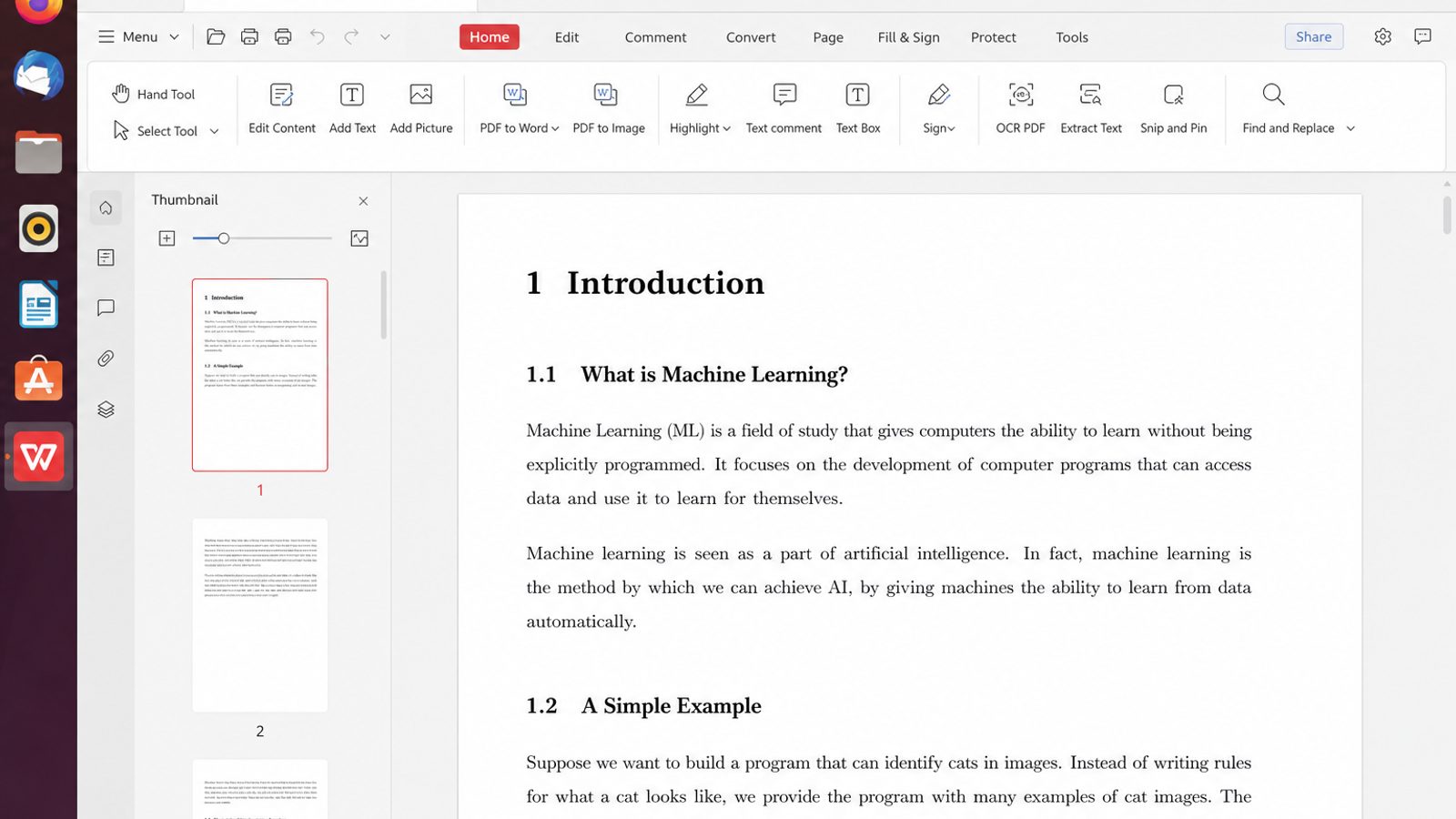
Separating engine failures from MIME and Snap issues is the hard part. Once a sample PDF opens in WPS again, the useful habit is to keep reading, converting, and light edits inside the same official suite as your Writer and Spreadsheet files.
WPS Office for Linux includes PDF tools alongside Writer, Spreadsheet, and Presentation—so you do not need a second random PDF app for everyday office workflows on Ubuntu.
| What you need next | What WPS gives you |
|---|---|
| Keep PDF viewing and conversion next to DOCX/XLSX work | Strong .docx / .xlsx / .pptx / PDF workflow fidelity on Ubuntu and across Windows handoffs |
| One place for notes, sheets, slides, and PDFs | Free core suite: Writer, Spreadsheet, Presentation, plus PDF view/edit/convert tools |
| A familiar desktop UI | Ribbon-style apps with a lighter footprint than many heavy suites |
| A trusted install path | Official DEB (Ubuntu/Debian/Mint) and RPM packages from the vendor |
If you still need a clean Deb install, get the current 64-bit package from the official WPS Office for Linux download page, then install with sudo apt install ./wps-office_VERSION_amd64.deb. After PDF works, stay on that official channel for updates instead of mixing Snap and Deb fixes casually.


FAQ
Is the libtiff symlink safe forever?
It is a compatibility bridge for builds expecting libtiff.so.5 on releases that ship .so.6. Prefer a current official WPS build when available, and revisit after major Ubuntu upgrades.
Does this fix system PDF viewers too?
No. It targets WPS PDF / convert failures, not Evince or browser PDF plugins.
Can I apt install a package named wps-pdf?
Not from Ubuntu’s default archives as a separate official package name. Install the official suite Deb or the Snap you chose.
Why do convert and open fail together?
On the Ubuntu 24.04 reports, both paths depended on the same missing TIFF library name.
Should I use a third-party PPA for PDF?
No. Stay with the official Deb/Rpm downloads or the Snap channel you already trust.
Convert works in LibreOffice but not in WPS—is my file corrupt?
Not necessarily. On Ubuntu 24.04 Deb reports, WPS convert failed alongside open because of the shared TIFF dependency gap. Test a brand-new one-page Writer file after the library fix before blaming the document.
Do I need a separate WPS PDF download?
Usually no. The Linux suite download includes the PDF toolkit for current official packages. Reinstall the suite Deb or Snap rather than hunting a standalone PDF-only Linux installer.

'%3e%3cpath%20d='M19.9911%204.11386V6.471H18.5894C18.0775%206.471%2017.7322%206.57814%2017.5536%206.79243C17.3751%207.00671%2017.2858%207.32814%2017.2858%207.75671V9.44421H19.9019L19.5536%2012.0871H17.2858V18.8639H14.5536V12.0871H12.2769V9.44421H14.5536V7.49779C14.5536%206.39064%2014.8632%205.53201%2015.4822%204.92189C16.1013%204.31177%2016.9257%204.00671%2017.9554%204.00671C18.8304%204.00671%2019.509%204.04243%2019.9911%204.11386Z'%20fill='%23333333'/%3e%3c/g%3e%3cdefs%3e%3cclipPath%20id='clip0_2938_8199'%3e%3crect%20width='16'%20height='16'%20fill='white'%20transform='translate(8%204.00671)'/%3e%3c/clipPath%3e%3c/defs%3e%3c/svg%3e)
'%3e%3cpath%20d='M17.5237%2010.7813L23.4811%204H22.0699L16.8949%209.88693L12.7648%204H8L14.2469%2012.9029L8%2020.0133H9.4112L14.8725%2013.7952L19.2352%2020.0133H24M9.92053%205.04213H12.0885L22.0688%2019.0224H19.9003'%20fill='%23333333'/%3e%3c/g%3e%3cdefs%3e%3cclipPath%20id='clip0_2938_8200'%3e%3crect%20width='16'%20height='16.0134'%20fill='white'%20transform='translate(8%204)'/%3e%3c/clipPath%3e%3c/defs%3e%3c/svg%3e)


