

'%3e%3cpath%20d='M8%200C12.4183%200%2016%203.58172%2016%208C16%2012.4183%2012.4183%2016%208%2016C3.58172%2016%200%2012.4183%200%208C0%203.58172%203.58172%200%208%200ZM11.6162%204.38379C11.2257%203.99337%2010.5927%203.99338%2010.2021%204.38379L8%206.58594L5.79785%204.38379C5.40732%203.99334%204.77429%203.99329%204.38379%204.38379C3.99331%204.77429%203.99335%205.40733%204.38379%205.79785L6.58594%208L4.38379%2010.2021C3.99348%2010.5927%203.99341%2011.2257%204.38379%2011.6162C4.77426%2012.0066%205.40734%2012.0065%205.79785%2011.6162L8%209.41406L10.2021%2011.6162C10.5927%2012.0066%2011.2257%2012.0067%2011.6162%2011.6162C12.0067%2011.2257%2012.0066%2010.5927%2011.6162%2010.2021L9.41406%208L11.6162%205.79785C12.0066%205.40735%2012.0066%204.77429%2011.6162%204.38379Z'%20fill='%23080E17'%20fill-opacity='0.46'/%3e%3c/g%3e%3cdefs%3e%3cclipPath%20id='clip0_3761_713'%3e%3crect%20width='16'%20height='16'%20fill='white'/%3e%3c/clipPath%3e%3c/defs%3e%3c/svg%3e)




'%3e%3cpath%20fill-rule='evenodd'%20clip-rule='evenodd'%20d='M21.4999%2010.9993C21.4999%205.20009%2016.7986%200.498901%2010.9993%200.498901C5.19994%200.498901%200.498657%205.20009%200.498657%2010.9993C0.498657%2016.2404%204.33858%2020.5844%209.35855%2021.3722V14.0346H6.69238V10.9993H9.35855V8.68594C9.35855%206.05427%2010.9262%204.60062%2013.3248%204.60062C14.4736%204.60062%2015.6753%204.80571%2015.6753%204.80571V7.38979H14.3512C13.0468%207.38979%2012.64%208.19921%2012.64%209.0296V10.9993H15.5523L15.0867%2014.0346H12.64V21.3722C17.66%2020.5844%2021.4999%2016.2404%2021.4999%2010.9993Z'%20fill='%231568EA'/%3e%3c/g%3e%3c/svg%3e)


'%3e%3cpath%20d='M2.42045%2022.1876H6.31818V12.7217L0.75%208.54553V20.5171C0.75%2021.4414%201.49892%2022.1876%202.42045%2022.1876Z'%20fill='%234285F4'/%3e%3cpath%20d='M19.682%2022.1876H23.5797C24.5041%2022.1876%2025.2502%2021.4387%2025.2502%2020.5171V8.54553L19.682%2012.7217'%20fill='%2334A853'/%3e%3cpath%20d='M19.682%205.48293V12.7216L25.2502%208.54543V6.31816C25.2502%204.25236%2022.8921%203.07469%2021.2411%204.31361'%20fill='%23FBBC04'/%3e%3cpath%20d='M6.31824%2012.7217V5.48303L13.0001%2010.4944L19.6819%205.48303V12.7217L13.0001%2017.733'%20fill='%23EA4335'/%3e%3cpath%20d='M0.75%206.31816V8.54543L6.31818%2012.7216V5.48293L4.75909%204.31361C3.10534%203.07469%200.75%204.25236%200.75%206.31816Z'%20fill='%23C5221F'/%3e%3c/g%3e%3cdefs%3e%3cclipPath%20id='clip0_2954_7305'%3e%3crect%20width='24.5'%20height='18.375'%20fill='white'%20transform='translate(0.75%203.8125)'/%3e%3c/clipPath%3e%3c/defs%3e%3c/svg%3e)


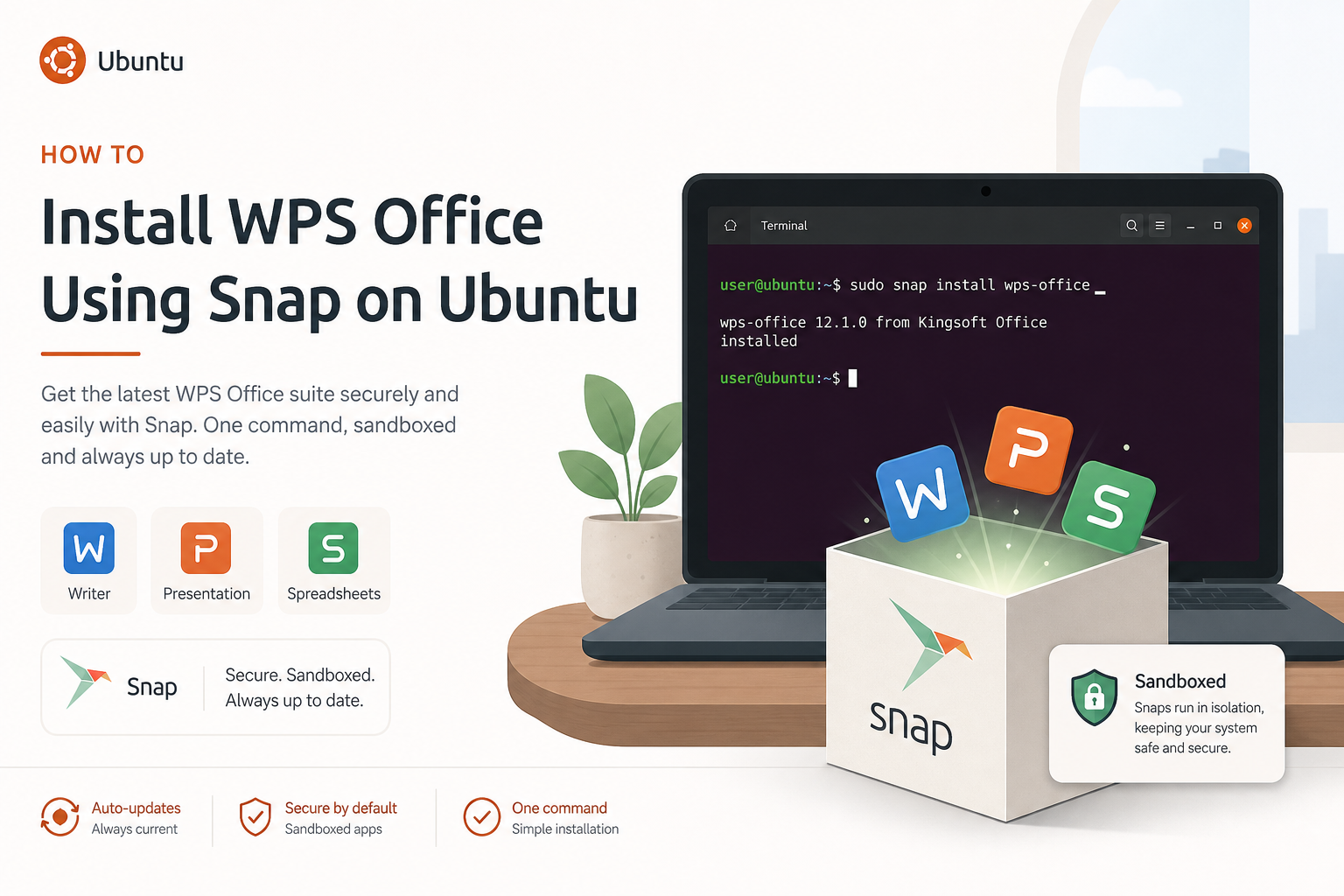
To install WPS Office using Snap on Ubuntu, use Snap tooling: sudo snap install wps-office. Ask Ubuntu answers treat this as a convenient channel that auto-refreshes and often needs an extra snap connect for removable media. It is still a Snap Store distribution path—not the Deb/Rpm pair published on the official WPS Linux page. If you need the vendor package file, download Deb from that page instead.
Shortest Snap path: confirm Snap works, install the snap, connect interfaces only when file access fails, then launch on a graphical desktop. Success means snap list shows the package and Writer opens. If second-disk or USB documents still fail after connections, that is a known Snap confinement pattern—and a common reason to switch to Deb.
For the main Ubuntu terminal install path, start with How to Install WPS Office via Terminal.
Channel Clarity: Snap Store vs Vendor Deb
- Vendor Deb/Rpm: wps.com/office/linux
- Snap package names such as
wps-office: installed withsnap install
Choose Snap when you want Snap refresh and are comfortable with confinement. Choose Deb when you want the vendor file and classic APT/local-Deb maintenance. Avoid installing both unless you are deliberately testing. High-view terminal answers sometimes present Snap as the simple Ubuntu-native install; that is fine as long as you do not relabel Snap as “the official Deb package.”
What Snap Answers on Ask Ubuntu Emphasize
Across install-via-terminal, Kubuntu launch, external-disk permission, and uninstall threads, Snap guidance clusters around four practical facts:
- Install with
sudo snap install wps-office(or another exact name Snap lists). - Connect
removable-mediawhen USB/external documents fail. - Expect automatic refresh, or force it with
snap refresh. - When confinement still blocks second disks or dual-boot NTFS paths, remove the Snap and move to the vendor Deb.
Those four points are enough to install and operate Snap WPS for many home-folder workflows. They also explain why Snap is not a drop-in replacement for every Deb user who stores files on secondary volumes.
Prerequisites
snap version
snap find wps-office
Expected result: Snap responds and search lists a relevant package. Read the live output—names can include multilanguage variants. Only install names that Snap actually lists. On minimal systems missing Snap, install/enable snapd using Ubuntu documentation for your release, then re-run the find command before installing.
Install the Snap
sudo snap install wps-officesnap info wps-office
snap list wps-officeUbuntu answers also mention wps-office-multilang for broader language packs. Install that only after snap find/snap info confirms it. Do not invent package names. Some machines also show older branded snap names in uninstall threads—always copy from snap list on your system.
Connect Removable Media When External Disks Fail
A very common Snap failure on Ask Ubuntu is opening documents on USB drives, external disks, or a second HDD: permission errors even though other apps can read the same files. One Ubuntu 24.04 report shows WPS Writer unable to open/create files on a second mounted disk even when the user believed all permissions were granted. Check connections:
snap connections wps-officeIf removable-media shows an empty slot, connect it using the exact snap name from snap list:
sudo snap connect wps-office:removable-media
snap connections wps-office
Expected result: the removable-media line shows a connected slot. Re-test the external document. Multilanguage snaps use the same idea with their own snap name:
sudo snap connect wps-office-multilang:removable-mediaIf the snap has no removable-media plug at all, confinement cannot be fixed with connect—and community answers then recommend removing the Snap and installing the vendor Deb package instead.
Reading snap connections Output Without Guessing
After install, run:
snap connections wps-officeLook specifically for plugs related to home, removable-media, cups/printers, and desktop integration. An empty Slot column on removable-media is the smoking gun for USB and second-disk failures described in Ask Ubuntu permission threads. Connecting that plug is a one-line fix when the plug exists. Granting random “permissions” inside a software center GUI without verifying snap connections is how people believe they already allowed everything while Writer still cannot create a file on the second HDD.
If your snap name is multilanguage or branded differently, substitute that name in both snap connections and snap connect. Using the wrong name produces “snap not found” errors that look like the feature is unsupported when you simply typed the common name instead of the installed name.
Launch and Verify
snap run wps-officeMenu entries may also appear after install. Launcher names can differ by revision—prefer snap run and the menu labels your system shows. This is GUI software; use a desktop session. Open a sample document from your home folder first, then re-test USB/second-disk paths if you need them daily.
Update and Remove on the Snap Channel
sudo snap refresh wps-office
sudo snap remove wps-office
Refresh forces an update check; removal clears the Snap. If remove says the snap is not installed, list snaps and copy the exact name—uninstall threads show cases where people typed wps-office while the installed snap used another name. APT purge will not remove a Snap.
When Snap Confinement Is the Wrong Tool
If you must edit files on secondary NTFS disks, unusual mount points, or dual-boot partitions and Snap permissions keep blocking Writer even after connect attempts, Ubuntu answers frequently recommend removing the Snap and installing the official Deb instead:
sudo snap remove wps-office
# then download Deb from the official WPS Linux page
sudo apt install ./wps-office_12.1.0.xxxxx_amd64.deb
That migration is a packaging decision, not a claim that Snap is “broken for everyone.” Snap remains a good fit when documents live in home storage and auto-refresh matters more than broad filesystem access.
Side-by-Side Decision: Stay on Snap or Move to Deb
| Situation | Prefer Snap | Prefer Deb |
|---|---|---|
| Documents mostly in home | Yes | Also fine |
| Need vendor package file | No | Yes |
| USB / second HDD daily | Only after connect works | Often simpler |
| Want auto refresh | Yes | Manual newer Deb |
Printers, Fonts, and Other Nearby Issues
Separate Snap threads mention printer discovery problems and other sandbox limits. Treat those as interface/permission investigations with snap connections, not as reasons to run Deb dependency folklore. Font-symbol dialogs are more often associated with Flatpak or missing fonts than with a successful Snap install itself—read the exact error before installing random font packages.
End-to-End Snap Session Checklist
Use this when you want one clean pass from zero to verified:
snap version
snap find wps-office
sudo snap install wps-office
snap list | grep -i wps
snap connections wps-office
# If removable-media slot is empty and you need USB/second disk:
sudo snap connect wps-office:removable-media
snap connections wps-office
snap run wps-office
After Writer opens, test three files if you can: one in Documents, one on a USB stick, and one on a secondary mount you actually use. That short matrix catches confinement issues faster than waiting until a deadline document fails. If only the external paths fail, stay in Snap troubleshooting. If even home documents fail, capture snap run terminal output before removing the snap. Keep that output; it is more useful than a vague “WPS won’t open” description when you search Ask Ubuntu later.
Snap Troubleshooting
snap: command not found
Install/enable snapd per Ubuntu docs, then retry.
USB or second disk documents fail
Connect removable-media if the plug exists; otherwise consider Deb.
Conflicts with a Deb install
dpkg -l wps-office
snap list | grep -i wps
Remove the channel you do not want so version checks and file associations stay sane.
App opens then closes
Launch with snap run from a terminal to capture errors before applying unrelated fixes from Wine or Flatpak threads.
FAQ
Is Snap the official WPS Linux package?
The official WPS Linux page highlights Deb and Rpm. Snap is an alternate Ubuntu distribution method.
Does Snap auto-update?
Snap refreshes are designed to update automatically; you can also run sudo snap refresh wps-office.
Snap or Deb for beginners?
Deb for the vendor file and fewer confinement surprises on secondary disks; Snap for simple refresh if confinement is acceptable.
Can I apt install the Snap?
No. Snaps use snap install. APT local-Deb installs are a different workflow.
Why does removable-media matter so much?
Because many real documents live on USB drives and second disks, and Snap confinement blocks those paths until the interface is connected—or until you switch to Deb.
Can I keep Snap for updates and Deb for files?
Running both usually creates confusion about which launcher opens. Pick one channel. If you need second-disk access and Deb works better on your machine, remove the Snap after the Deb install is verified.
Does snap install require the official website Deb first?
No. Snap install pulls from the Snap Store. The official website Deb is a separate vendor package path. You only need the Deb path if you decide Snap confinement is a poor fit for your disks and mounts.



'%3e%3cpath%20d='M19.9911%204.11386V6.471H18.5894C18.0775%206.471%2017.7322%206.57814%2017.5536%206.79243C17.3751%207.00671%2017.2858%207.32814%2017.2858%207.75671V9.44421H19.9019L19.5536%2012.0871H17.2858V18.8639H14.5536V12.0871H12.2769V9.44421H14.5536V7.49779C14.5536%206.39064%2014.8632%205.53201%2015.4822%204.92189C16.1013%204.31177%2016.9257%204.00671%2017.9554%204.00671C18.8304%204.00671%2019.509%204.04243%2019.9911%204.11386Z'%20fill='%23333333'/%3e%3c/g%3e%3cdefs%3e%3cclipPath%20id='clip0_2938_8199'%3e%3crect%20width='16'%20height='16'%20fill='white'%20transform='translate(8%204.00671)'/%3e%3c/clipPath%3e%3c/defs%3e%3c/svg%3e)
'%3e%3cpath%20d='M17.5237%2010.7813L23.4811%204H22.0699L16.8949%209.88693L12.7648%204H8L14.2469%2012.9029L8%2020.0133H9.4112L14.8725%2013.7952L19.2352%2020.0133H24M9.92053%205.04213H12.0885L22.0688%2019.0224H19.9003'%20fill='%23333333'/%3e%3c/g%3e%3cdefs%3e%3cclipPath%20id='clip0_2938_8200'%3e%3crect%20width='16'%20height='16.0134'%20fill='white'%20transform='translate(8%204)'/%3e%3c/clipPath%3e%3c/defs%3e%3c/svg%3e)


