

'%3e%3cpath%20d='M8%200C12.4183%200%2016%203.58172%2016%208C16%2012.4183%2012.4183%2016%208%2016C3.58172%2016%200%2012.4183%200%208C0%203.58172%203.58172%200%208%200ZM11.6162%204.38379C11.2257%203.99337%2010.5927%203.99338%2010.2021%204.38379L8%206.58594L5.79785%204.38379C5.40732%203.99334%204.77429%203.99329%204.38379%204.38379C3.99331%204.77429%203.99335%205.40733%204.38379%205.79785L6.58594%208L4.38379%2010.2021C3.99348%2010.5927%203.99341%2011.2257%204.38379%2011.6162C4.77426%2012.0066%205.40734%2012.0065%205.79785%2011.6162L8%209.41406L10.2021%2011.6162C10.5927%2012.0066%2011.2257%2012.0067%2011.6162%2011.6162C12.0067%2011.2257%2012.0066%2010.5927%2011.6162%2010.2021L9.41406%208L11.6162%205.79785C12.0066%205.40735%2012.0066%204.77429%2011.6162%204.38379Z'%20fill='%23080E17'%20fill-opacity='0.46'/%3e%3c/g%3e%3cdefs%3e%3cclipPath%20id='clip0_3761_713'%3e%3crect%20width='16'%20height='16'%20fill='white'/%3e%3c/clipPath%3e%3c/defs%3e%3c/svg%3e)




'%3e%3cpath%20fill-rule='evenodd'%20clip-rule='evenodd'%20d='M21.4999%2010.9993C21.4999%205.20009%2016.7986%200.498901%2010.9993%200.498901C5.19994%200.498901%200.498657%205.20009%200.498657%2010.9993C0.498657%2016.2404%204.33858%2020.5844%209.35855%2021.3722V14.0346H6.69238V10.9993H9.35855V8.68594C9.35855%206.05427%2010.9262%204.60062%2013.3248%204.60062C14.4736%204.60062%2015.6753%204.80571%2015.6753%204.80571V7.38979H14.3512C13.0468%207.38979%2012.64%208.19921%2012.64%209.0296V10.9993H15.5523L15.0867%2014.0346H12.64V21.3722C17.66%2020.5844%2021.4999%2016.2404%2021.4999%2010.9993Z'%20fill='%231568EA'/%3e%3c/g%3e%3c/svg%3e)


'%3e%3cpath%20d='M2.42045%2022.1876H6.31818V12.7217L0.75%208.54553V20.5171C0.75%2021.4414%201.49892%2022.1876%202.42045%2022.1876Z'%20fill='%234285F4'/%3e%3cpath%20d='M19.682%2022.1876H23.5797C24.5041%2022.1876%2025.2502%2021.4387%2025.2502%2020.5171V8.54553L19.682%2012.7217'%20fill='%2334A853'/%3e%3cpath%20d='M19.682%205.48293V12.7216L25.2502%208.54543V6.31816C25.2502%204.25236%2022.8921%203.07469%2021.2411%204.31361'%20fill='%23FBBC04'/%3e%3cpath%20d='M6.31824%2012.7217V5.48303L13.0001%2010.4944L19.6819%205.48303V12.7217L13.0001%2017.733'%20fill='%23EA4335'/%3e%3cpath%20d='M0.75%206.31816V8.54543L6.31818%2012.7216V5.48293L4.75909%204.31361C3.10534%203.07469%200.75%204.25236%200.75%206.31816Z'%20fill='%23C5221F'/%3e%3c/g%3e%3cdefs%3e%3cclipPath%20id='clip0_2954_7305'%3e%3crect%20width='24.5'%20height='18.375'%20fill='white'%20transform='translate(0.75%203.8125)'/%3e%3c/clipPath%3e%3c/defs%3e%3c/svg%3e)


Opening a PDF only to find the text pressed against the very edge of the page is a common frustration. Printers trim a few millimeters on every side, binders and hole punches cover the inner edge, and there is nowhere left to write a note or stamp a signature. The fix is to add extra white space around the content.
This guide explains how to add margins to a PDF in WPS Office: when extra margins help, what to decide before you start, the exact click path, and the margin values that work for printing, binding, and annotations.
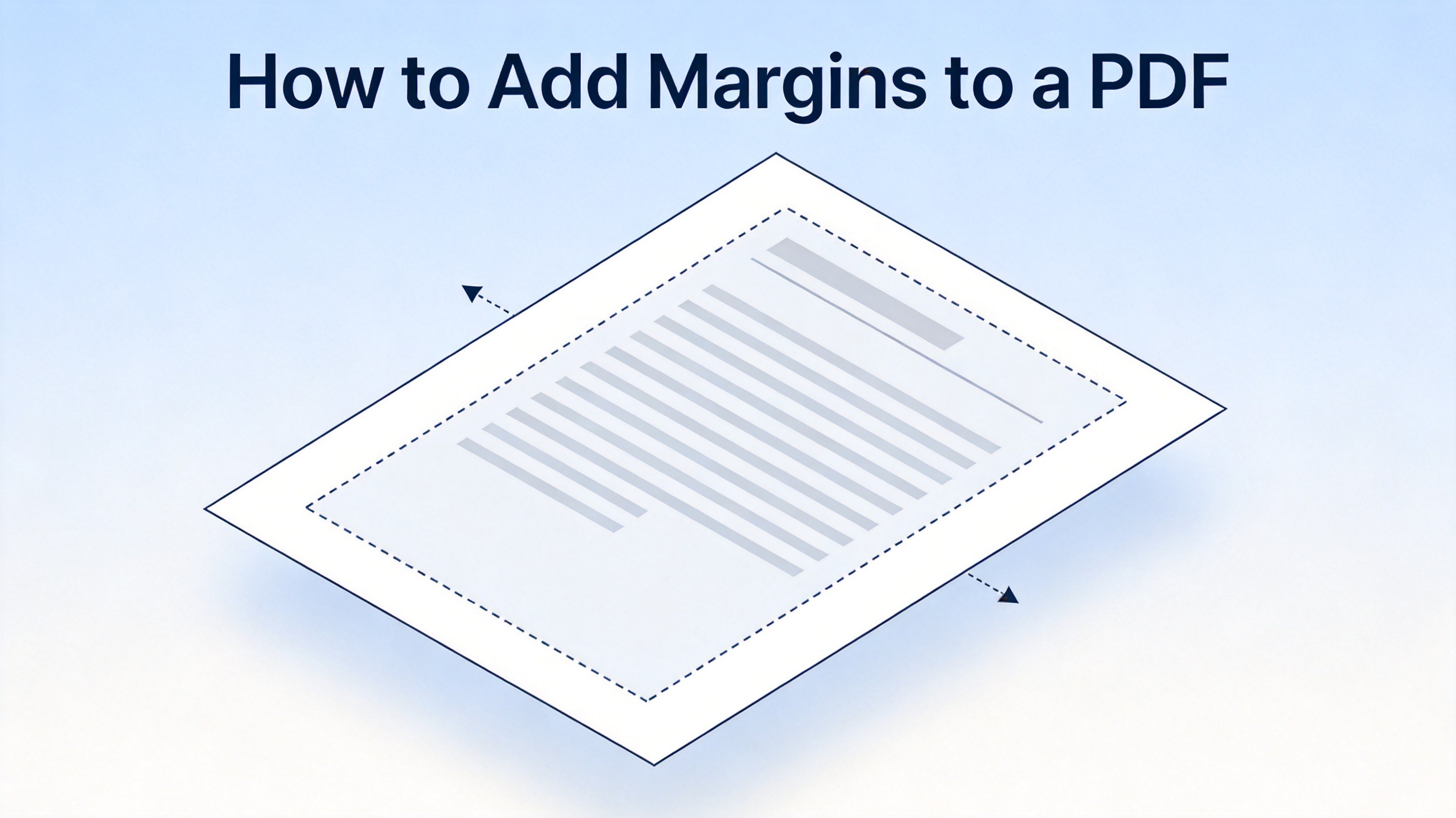
How to Add Margins to a PDF
Why Add Margins to a PDF
A PDF is a fixed-layout format: what you see is exactly what gets printed. When the text already reaches the paper edge, there is no buffer left for the real world — printers, binders, and pens all need room.
Adding margins to a PDF helps in four everyday situations:
Print safety. Most home and office printers cannot print to the paper edge. An unprintable border of a few millimeters can cut off text, page numbers, or footers. Extra margins keep every character inside the printable area.
Binding and hole punching. Comb binding, stapling, and three-hole punches all cover part of the page. A wider inner margin keeps the text readable after the document is bound.
Annotations and signatures. Reviewers need space to write notes, stamp approval marks, or sign a contract without covering the content.
Cleaner screen reading. On tablets and e-readers, balanced margins make long documents easier and more comfortable to read.
One important clarification: adding margins does not change or scale your text. The operation adds white space around the existing page content, so the original layout stays intact.
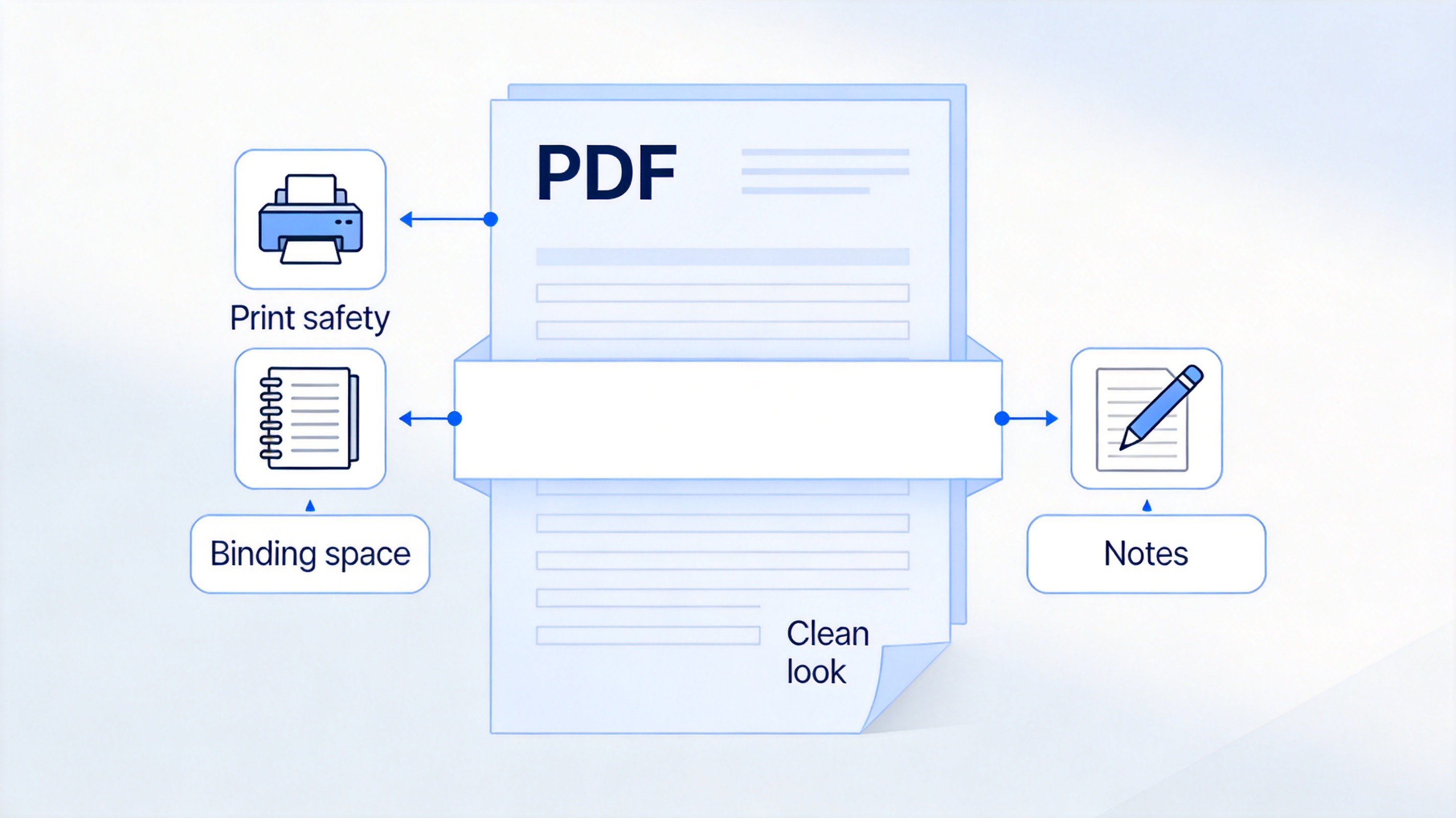
Why add margins to a PDF


How to Add Margins to a PDF in WPS Office
WPS PDF can adjust the page margins of an existing PDF directly, without converting the file to Word first, so fonts and layout stay exactly as they were. Before you start, settle three quick decisions: the target page size (A4 or US Letter), whether all four sides get the same value or different ones, and whether the change applies to every page or only some of them.
Then follow these steps:
Open the PDF in WPS Office. Right-click the file, choose Open with, and select WPS Office, or launch the app first and use File > Open.
Go to the Page tab on the ribbon and find the page tools area.
Click Page Margins to open the settings dialog.
Set the values for Top, Bottom, Left, and Right. A good default for general documents is 15 mm (about 0.6 in) on all four sides. Choose All pages in the Page Range box, or limit the change to selected pages.
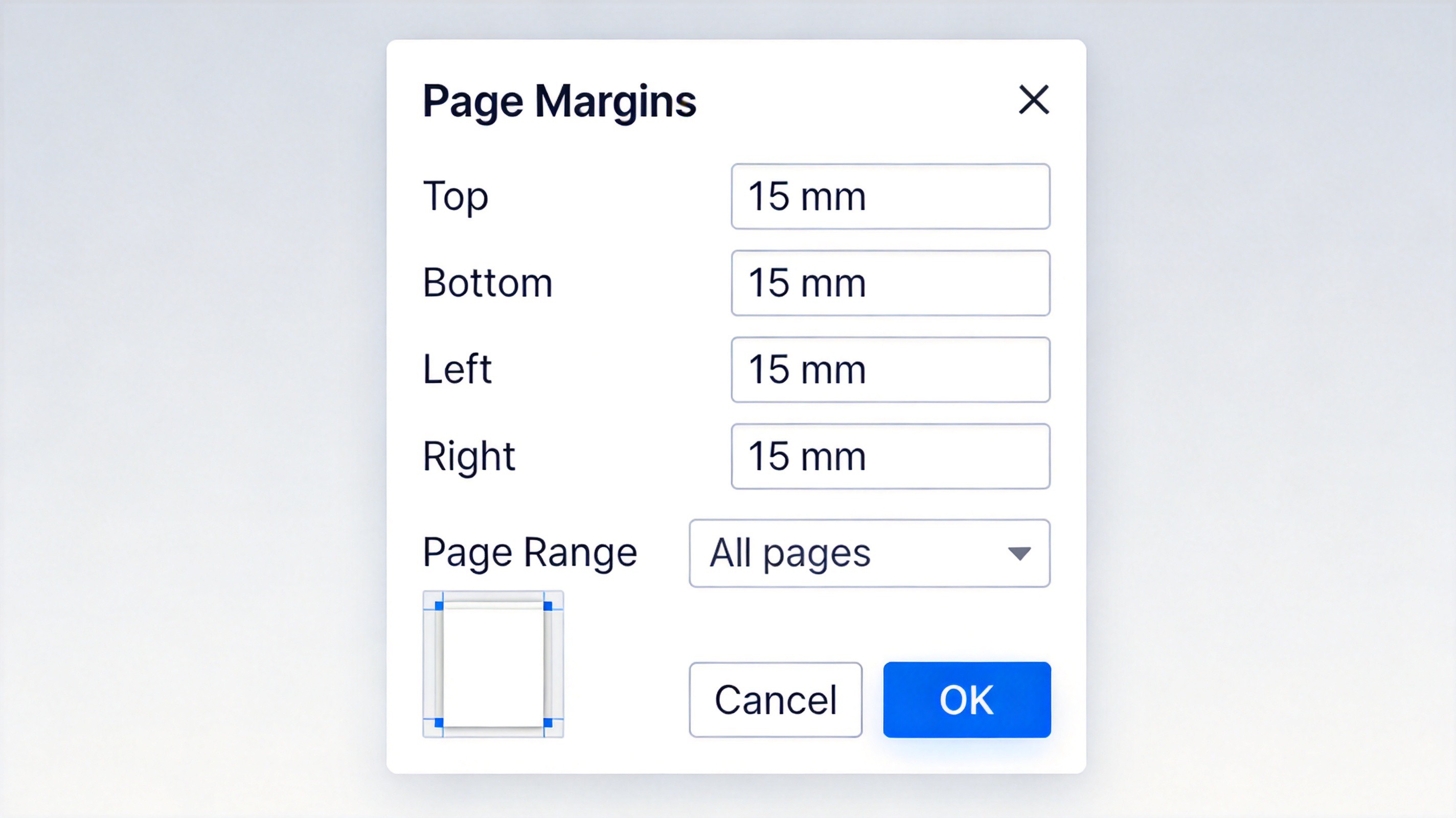
WPS PDF Page Margins dialog options
Check the live preview to make sure no content is pushed off the page, then click OK to apply.
Save the file with File > Save (or Save As if you want to keep the original untouched).
Tip: keep the units consistent. If the dialog shows millimeters, plan all values in millimeters; switching between inches and millimeters mid-task is the fastest way to end up with uneven margins. Also note that custom margin values cannot be negative or larger than the page itself, otherwise content gets clipped.
Add Margins to a PDF for Binding, Annotations, and Signatures
Equal margins suit everyday printing, but bound documents and reviewed documents need asymmetric values. The table below collects the setups that work well in practice.
| Purpose | Top / Bottom | Left / Right |
|---|---|---|
| General handouts | 15 mm each | 15 mm each |
| Teacher copies with note space | 15 mm each | Left 15 mm, right 25 mm |
| Double-sided bound reports | 15 mm each | Inner 25 mm, outer 15 mm |
| Contracts with a signature block | 15 mm, bottom 30 mm | 20 mm each |
For double-sided printing, the extra binding room must alternate sides: odd pages get the wider margin on the left, even pages on the right. Set the left margin to 25 mm and apply it to odd pages first, then set the right margin to 25 mm and apply it to even pages. This mirrored layout keeps the text clear of the spine on every sheet.
The same logic applies to annotations and signatures: widen only the right and bottom margins (around 10 mm extra each) so reviewers and signers have open space without shrinking the document body.
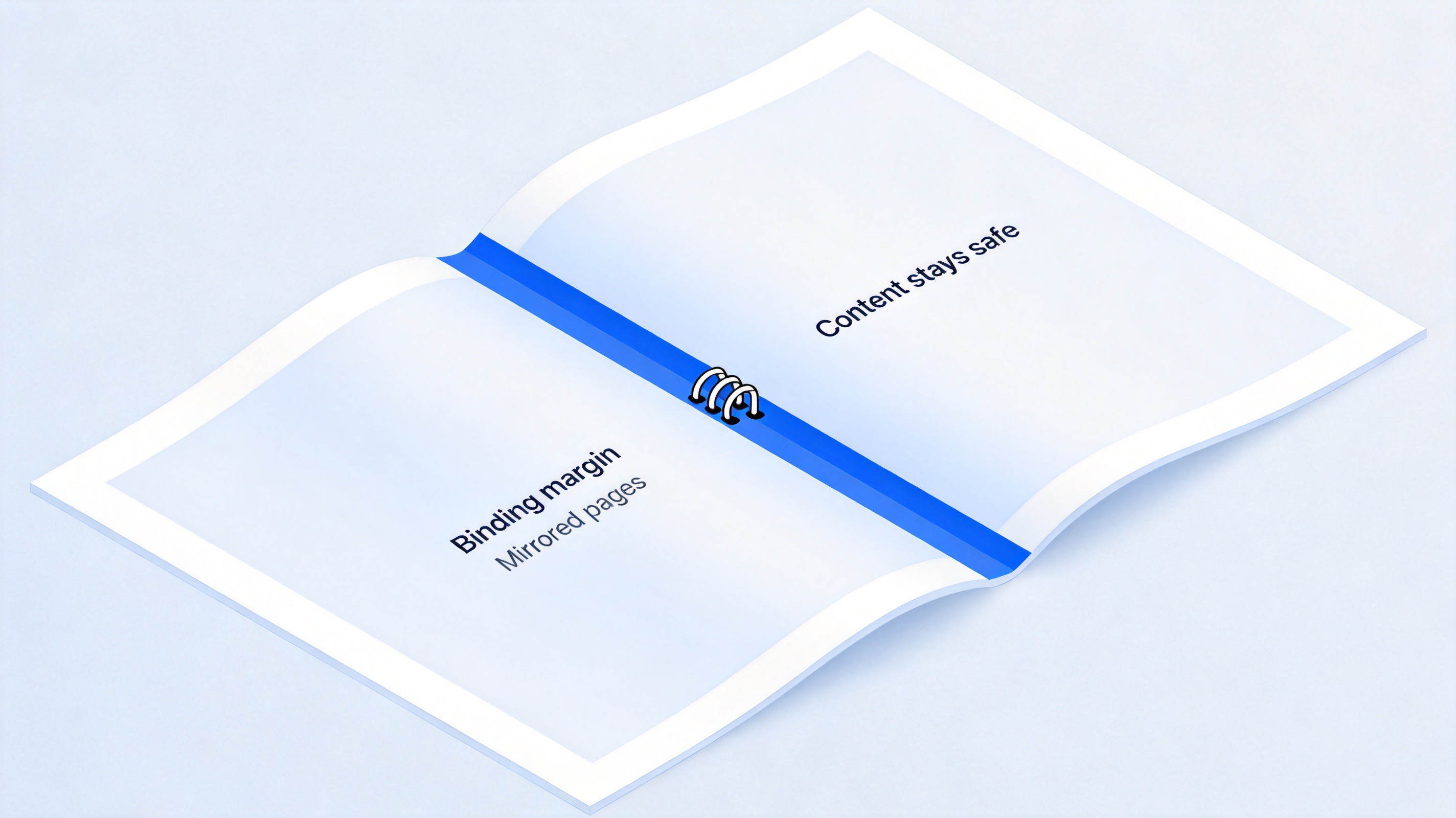
Mirrored binding margins for a PDF
After applying the margins, print one or two test sheets before running the full batch, and flip through the saved file to confirm nothing was clipped. If your real goal is the opposite — removing the white border for edge-to-edge output — see our guide on how to print a PDF without margins.
The Best Free Alternative: WPS Office
Plenty of tools can adjust PDF pages, but they usually split the job across several apps: one for the PDF work, another for the documents inside it. WPS Office keeps everything in one free suite. The built-in PDF toolkit handles margin changes, page organization, and editing, while Writer, Spreadsheet, and Presentation open the same files you exchange with Word, Excel, and PowerPoint users.
All-in-one. Edit the PDF margins, then fix the source document, without switching software.
Free to start. Download and use the core features at no cost, with no watermarks on everyday work.
Familiar interface. The tabbed layout matches what most office users already know, so the learning curve is short.
WPS Office free office suite
FAQs
Does adding margins to a PDF change the text size?
No. Adding margins places white space around the existing page content. The text and images keep their original size and position; only the usable area around them changes. Content is only at risk if you enter a negative value or a margin larger than the page.
Can I add margins to all pages of a PDF at once?
Yes. In the WPS PDF Page Margins dialog, set Page Range to All pages, and the same values apply to the whole document in one pass. You can also target a custom range when only part of the file needs adjustment.
What is a good margin size for printing a PDF?
For general documents, 15 mm (about 0.6 in) on all four sides is a safe, comfortable default. Leave extra room where the printer, binder, or pen will intrude: add 6–10 mm on the inner edge for binding, or a deeper bottom margin for signature blocks.
Can I add margins to a PDF online for free?
Yes, several free browser tools adjust PDF margins without installing anything. They are fine for non-sensitive files, but avoid uploading confidential documents to unfamiliar websites — keep that work in a desktop app such as WPS Office, where the file stays on your machine.
Why does my printed PDF still cut off the edges?
Check two settings. First, confirm the margins you applied are larger than the printer's unprintable area (usually 3–5 mm). Second, in the print dialog, make sure Actual size is selected instead of a scaling option that enlarges the page, and that the paper size matches the document's page size.


'%3e%3cpath%20d='M19.9911%204.11386V6.471H18.5894C18.0775%206.471%2017.7322%206.57814%2017.5536%206.79243C17.3751%207.00671%2017.2858%207.32814%2017.2858%207.75671V9.44421H19.9019L19.5536%2012.0871H17.2858V18.8639H14.5536V12.0871H12.2769V9.44421H14.5536V7.49779C14.5536%206.39064%2014.8632%205.53201%2015.4822%204.92189C16.1013%204.31177%2016.9257%204.00671%2017.9554%204.00671C18.8304%204.00671%2019.509%204.04243%2019.9911%204.11386Z'%20fill='%23333333'/%3e%3c/g%3e%3cdefs%3e%3cclipPath%20id='clip0_2938_8199'%3e%3crect%20width='16'%20height='16'%20fill='white'%20transform='translate(8%204.00671)'/%3e%3c/clipPath%3e%3c/defs%3e%3c/svg%3e)
'%3e%3cpath%20d='M17.5237%2010.7813L23.4811%204H22.0699L16.8949%209.88693L12.7648%204H8L14.2469%2012.9029L8%2020.0133H9.4112L14.8725%2013.7952L19.2352%2020.0133H24M9.92053%205.04213H12.0885L22.0688%2019.0224H19.9003'%20fill='%23333333'/%3e%3c/g%3e%3cdefs%3e%3cclipPath%20id='clip0_2938_8200'%3e%3crect%20width='16'%20height='16.0134'%20fill='white'%20transform='translate(8%204)'/%3e%3c/clipPath%3e%3c/defs%3e%3c/svg%3e)


