

'%3e%3cpath%20d='M8%200C12.4183%200%2016%203.58172%2016%208C16%2012.4183%2012.4183%2016%208%2016C3.58172%2016%200%2012.4183%200%208C0%203.58172%203.58172%200%208%200ZM11.6162%204.38379C11.2257%203.99337%2010.5927%203.99338%2010.2021%204.38379L8%206.58594L5.79785%204.38379C5.40732%203.99334%204.77429%203.99329%204.38379%204.38379C3.99331%204.77429%203.99335%205.40733%204.38379%205.79785L6.58594%208L4.38379%2010.2021C3.99348%2010.5927%203.99341%2011.2257%204.38379%2011.6162C4.77426%2012.0066%205.40734%2012.0065%205.79785%2011.6162L8%209.41406L10.2021%2011.6162C10.5927%2012.0066%2011.2257%2012.0067%2011.6162%2011.6162C12.0067%2011.2257%2012.0066%2010.5927%2011.6162%2010.2021L9.41406%208L11.6162%205.79785C12.0066%205.40735%2012.0066%204.77429%2011.6162%204.38379Z'%20fill='%23080E17'%20fill-opacity='0.46'/%3e%3c/g%3e%3cdefs%3e%3cclipPath%20id='clip0_3761_713'%3e%3crect%20width='16'%20height='16'%20fill='white'/%3e%3c/clipPath%3e%3c/defs%3e%3c/svg%3e)


'%3e%3cpath%20fill-rule='evenodd'%20clip-rule='evenodd'%20d='M21.4999%2010.9993C21.4999%205.20009%2016.7986%200.498901%2010.9993%200.498901C5.19994%200.498901%200.498657%205.20009%200.498657%2010.9993C0.498657%2016.2404%204.33858%2020.5844%209.35855%2021.3722V14.0346H6.69238V10.9993H9.35855V8.68594C9.35855%206.05427%2010.9262%204.60062%2013.3248%204.60062C14.4736%204.60062%2015.6753%204.80571%2015.6753%204.80571V7.38979H14.3512C13.0468%207.38979%2012.64%208.19921%2012.64%209.0296V10.9993H15.5523L15.0867%2014.0346H12.64V21.3722C17.66%2020.5844%2021.4999%2016.2404%2021.4999%2010.9993Z'%20fill='%231568EA'/%3e%3c/g%3e%3c/svg%3e)


'%3e%3cpath%20d='M2.42045%2022.1876H6.31818V12.7217L0.75%208.54553V20.5171C0.75%2021.4414%201.49892%2022.1876%202.42045%2022.1876Z'%20fill='%234285F4'/%3e%3cpath%20d='M19.682%2022.1876H23.5797C24.5041%2022.1876%2025.2502%2021.4387%2025.2502%2020.5171V8.54553L19.682%2012.7217'%20fill='%2334A853'/%3e%3cpath%20d='M19.682%205.48293V12.7216L25.2502%208.54543V6.31816C25.2502%204.25236%2022.8921%203.07469%2021.2411%204.31361'%20fill='%23FBBC04'/%3e%3cpath%20d='M6.31824%2012.7217V5.48303L13.0001%2010.4944L19.6819%205.48303V12.7217L13.0001%2017.733'%20fill='%23EA4335'/%3e%3cpath%20d='M0.75%206.31816V8.54543L6.31818%2012.7216V5.48293L4.75909%204.31361C3.10534%203.07469%200.75%204.25236%200.75%206.31816Z'%20fill='%23C5221F'/%3e%3c/g%3e%3cdefs%3e%3cclipPath%20id='clip0_2954_7305'%3e%3crect%20width='24.5'%20height='18.375'%20fill='white'%20transform='translate(0.75%203.8125)'/%3e%3c/clipPath%3e%3c/defs%3e%3c/svg%3e)


Presentation creators constantly battle wrong slide dimensions that ruin projector displays, mobile views, or printed handouts. Users searching how to change slide size in Google Slides face limited options that distort carefully crafted layouts and demand hours of manual fixes. This comprehensive 2026 guide delivers precise instructions for change slide size google slides while introducing WPS AI Slides, the intelligent solution that auto-adapts designs perfectly every time.
Understanding Google Slides Dimension Options

Google Slides dimension choices form the foundation before any change slide size google slides attempt, matching real-world display requirements across devices and platforms. The standard 4:3 ratio at 1024x768 pixels serves traditional monitors and older projectors while widescreen 16:9 at 1920x1080 pixels dominates modern HD televisions, laptops, and conference rooms. Additional 16:10 option provides slightly taller 1920x1200 canvas for certain Mac displays, and custom slide size google slides unlocks precise control with pixels, inches, or centimeters for specialized outputs.
Tips: Always verify target platform specifications. Social media crops unexpectedly without proper google slides slide dimensions.
Access the Page Setup Menu
How to change slide size in Google Slides follows a streamlined path through the familiar File menu, surprisingly tucked away from obvious toolbar access. Users discover this essential feature serves quick adjustments across existing presentations despite requiring subsequent content refinement for professional polish.
Step 1: Launch and open target Google Slides presentation file.
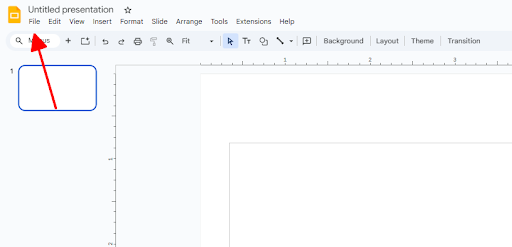
Step 2: Click File menu from top-left navigation bar.
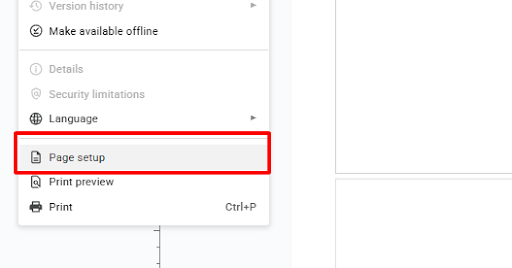
Step 3: Select Page setup from dropdown list revealing size options.
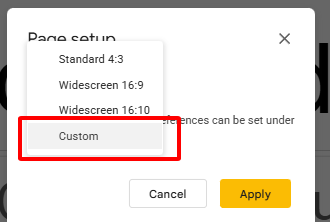
Step 4: Choose preset ratio or Custom for google slides slide dimensions input.
Step 5: Enter precise width/height values in preferred units.
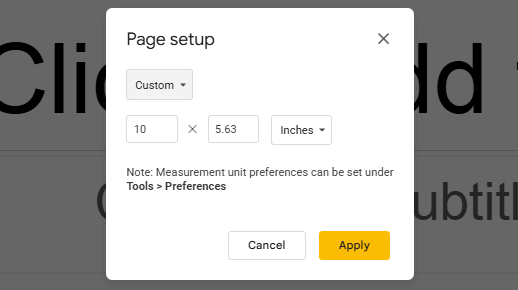
Step 6: Click Apply button to execute change slide size google slides across entire deck.
Existing elements scale proportionally but frequently require individual repositioning. Text overflows boxes while images stretch unnaturally without manual intervention.
Considerations and Limitations
Google Slides enforces strict uniform sizing where every slide shares identical dimensions throughout single presentation file. This architectural limitation prevents creative mixed-format decks combining standard presentations with embedded posters or infographics. Post-resize content disruption demands meticulous element-by-element realignment frustrating time-conscious professionals.
Strategic size selection proves critical: 16:9 excels for contemporary projectors and video platforms, 4:3 maintains compatibility with legacy equipment, while custom slide size google slides enables targeted applications like conference banners (2560x1440) or business card mockups (1080x1920). Advanced users duplicate presentations pre-resize preserving original layouts as safety net.
Beyond Basic Resizing: Design with WPS AI Slides

WPS AI Slides elevates presentation creation far beyond Google Slides fundamental resizing capabilities through sophisticated visual interface and embedded intelligence. This comprehensive platform merges flexible page formatting, automated layout optimization, extensive template ecosystem, and seamless cross-platform export preserving pixel-perfect fidelity. Creative professionals escaping Google constraints embrace WPS comprehensive workflow supporting everything from corporate keynotes to social media carousels.
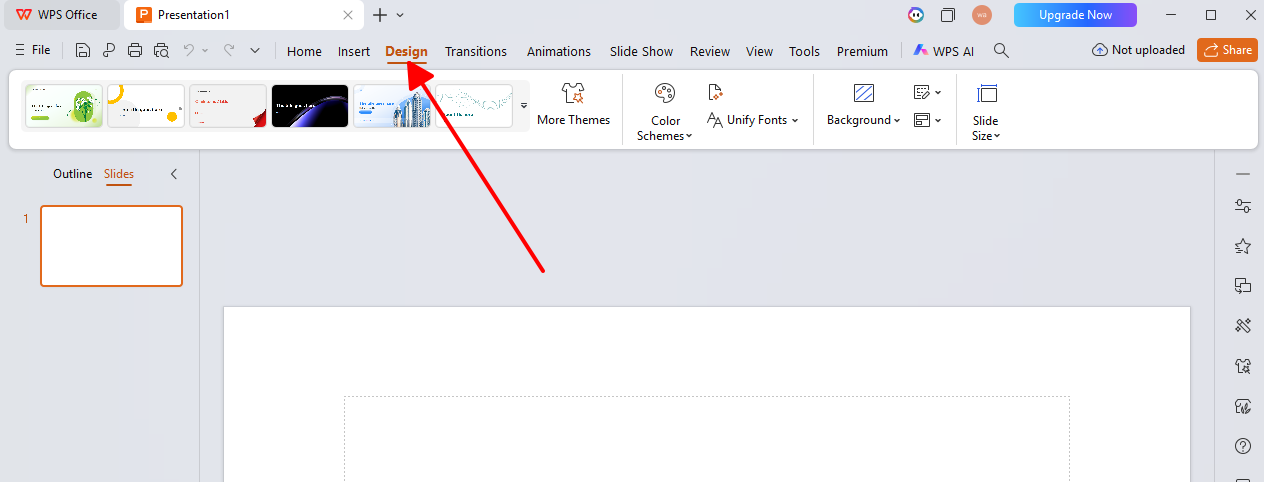
The dedicated Design workspace centralizes dimension controls with interactive sliders replacing clunky dialog boxes. AI algorithms analyze content relationships during change slide size google slides operations, proposing context-aware arrangements that maintain visual hierarchy and messaging clarity automatically.
How to Change Slide Size and Design in WPS AI Slides
WPS AI Slides redefines resizing methodology through intuitive Design tab navigation contrasting sharply with Google Slides text-heavy dialogs. Professional users appreciate immediate visual feedback and intelligent content preservation throughout dimension modifications.
Step 1: Open WPS Presentation application and create new blank canvas.
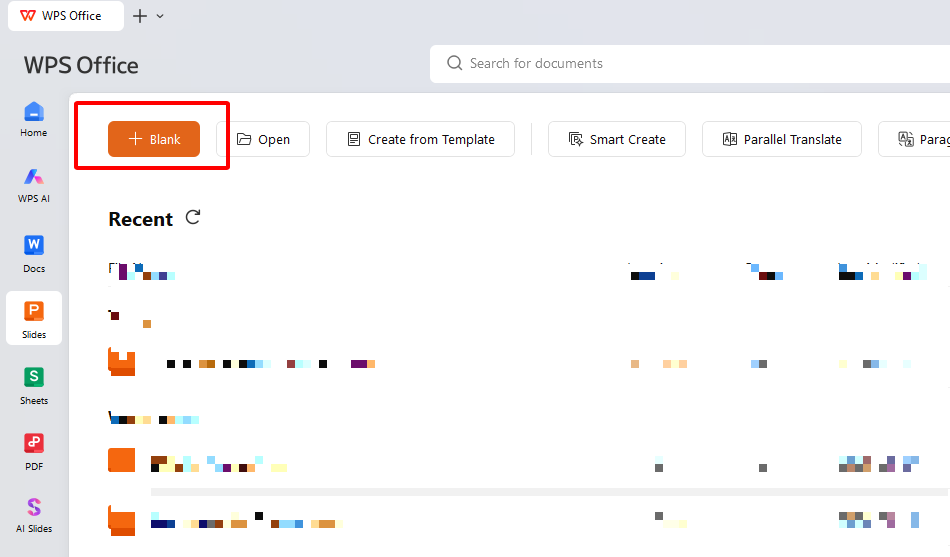
Step 2: Access Design tab revealing comprehensive Page Setup controls.
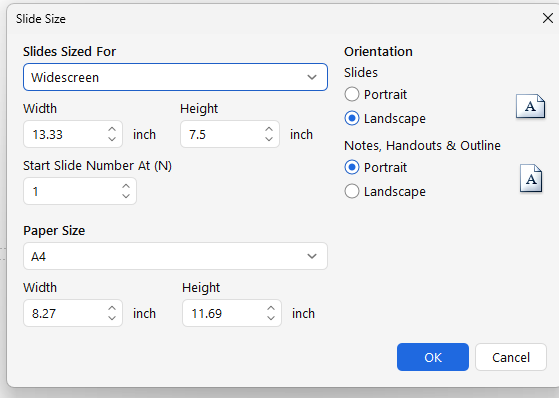
Step 3: Utilize slider interface or manually input custom slide size google slides specifications.
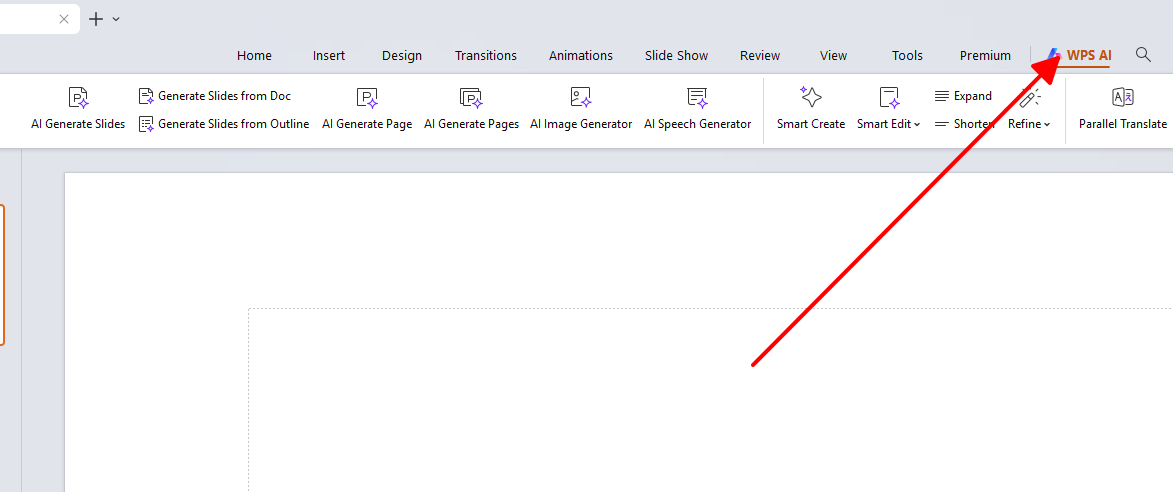
Step 4: AI engine generates multiple optimized layout variations instantly.
Step 5: Select preferred arrangement watching content reposition fluidly.
Step 6: Fine-tune elements using smart guides and alignment assistance.
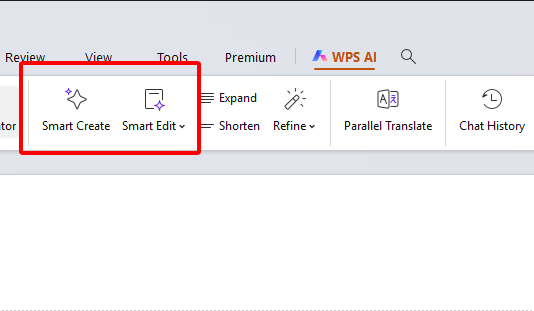
Step 7: Export .pptx preserving modifications for Google Slides compatibility.
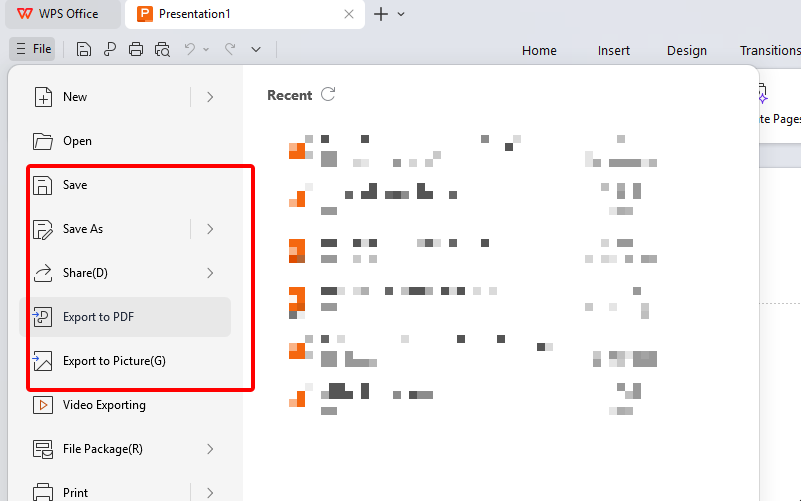
Unlike Google automatic scaling, WPS maintains design integrity through relationship-aware reorganization eliminating hours of manual drudgery.
Why WPS AI Slides Enhances Your Slide Design Workflow

WPS AI Slides demonstrates clear superiority across critical presentation workflow dimensions compared to Google Slides basic functionality.
Key Advantages for Flexible Presentations
Superior dimensional mastery arrives through visual precision controls unavailable in Google Slides rigid framework. Revolutionary AI efficiency eliminates repositioning tedium transforming complex deck modifications into fluid operations. Comprehensive office suite integration ensures brand consistency across Writer documents, Sheets data visualizations, and presentation deliverables effortlessly.
Professional output quality exceeds expectations with print-ready specifications and universal .pptx portability. Advanced template library accelerates project initiation matching target google slides slide dimensions precisely from inception.
Quick Decision Guide
Occasional simple resizing maintains viability through native Google Slides Page Setup efficiency. Professional frequent multi-format production demands WPS AI Slides unmatched flexibility and automation.
FAQs
1: Can I have different slide sizes within one Google Slides presentation?
Google Slides architecture mandates uniform dimensions across entire presentation preventing mixed-format creative expression. Professionals create separate files for posters, infographics, or standard decks as workaround sacrificing workflow continuity. Advanced users leverage hyperlinks between files maintaining navigation flow despite size constraints.
2: How do I prevent my content from looking stretched or distorted when resizing?
Google Slides proportional scaling rarely achieves perfection requiring comprehensive manual verification of text overflows and image distortions post change slide size google slides. WPS AI Slides circumvents issues entirely through intelligent layout algorithms reorganizing elements contextually. Professional practice demands target device preview confirming final rendering accuracy before delivery.
3: What size works best for social media graphics in Google Slides?
Custom slide size google slides specifications prove essential matching platform requirements precisely: Instagram squares demand 1080x1080 pixels while Stories require 1080x1920 vertical orientation. LinkedIn optimizes at 1200x627 pixels maximizing organic reach without algorithmic cropping. Export testing verifies crisp rendering across target channels maintaining brand quality standards.
4: Can WPS AI Slides open and edit Google Slides files directly?
WPS imports Google Slides .pptx exports retaining complete formatting structure and slide relationships intact. AI enhancement tools elevate original designs during editing sessions while preserving dimensional modifications. Final .pptx re-export maintains universal compatibility supporting seamless team collaboration across platforms and devices.
5: How does WPS AI handle complex charts and data visualizations during resize?
WPS AI analyzes data relationships maintaining chart legibility and proportional scaling during change slide size google slides operations. Smart grouping preserves element associations preventing scattered data points common in Google Slides basic scaling. Professional users appreciate automatic legend repositioning and axis label optimization ensuring analytical clarity across dimension changes.
Summary
Complete mastery of how to change slide size in Google Slides now equips users with preset navigation, custom slide size google slides precision, and critical limitation awareness. Uniform sizing constraints and manual content wrangling persist as inherent challenges. WPS AI Slides revolutionizes workflow through intelligent auto-layouts, visual dimension controls, and professional template acceleration transforming presentation creation entirely for 2026 demands.

'%3e%3cpath%20d='M19.9911%204.11386V6.471H18.5894C18.0775%206.471%2017.7322%206.57814%2017.5536%206.79243C17.3751%207.00671%2017.2858%207.32814%2017.2858%207.75671V9.44421H19.9019L19.5536%2012.0871H17.2858V18.8639H14.5536V12.0871H12.2769V9.44421H14.5536V7.49779C14.5536%206.39064%2014.8632%205.53201%2015.4822%204.92189C16.1013%204.31177%2016.9257%204.00671%2017.9554%204.00671C18.8304%204.00671%2019.509%204.04243%2019.9911%204.11386Z'%20fill='%23333333'/%3e%3c/g%3e%3cdefs%3e%3cclipPath%20id='clip0_2938_8199'%3e%3crect%20width='16'%20height='16'%20fill='white'%20transform='translate(8%204.00671)'/%3e%3c/clipPath%3e%3c/defs%3e%3c/svg%3e)
'%3e%3cpath%20d='M17.5237%2010.7813L23.4811%204H22.0699L16.8949%209.88693L12.7648%204H8L14.2469%2012.9029L8%2020.0133H9.4112L14.8725%2013.7952L19.2352%2020.0133H24M9.92053%205.04213H12.0885L22.0688%2019.0224H19.9003'%20fill='%23333333'/%3e%3c/g%3e%3cdefs%3e%3cclipPath%20id='clip0_2938_8200'%3e%3crect%20width='16'%20height='16.0134'%20fill='white'%20transform='translate(8%204)'/%3e%3c/clipPath%3e%3c/defs%3e%3c/svg%3e)


