

'%3e%3cpath%20d='M8%200C12.4183%200%2016%203.58172%2016%208C16%2012.4183%2012.4183%2016%208%2016C3.58172%2016%200%2012.4183%200%208C0%203.58172%203.58172%200%208%200ZM11.6162%204.38379C11.2257%203.99337%2010.5927%203.99338%2010.2021%204.38379L8%206.58594L5.79785%204.38379C5.40732%203.99334%204.77429%203.99329%204.38379%204.38379C3.99331%204.77429%203.99335%205.40733%204.38379%205.79785L6.58594%208L4.38379%2010.2021C3.99348%2010.5927%203.99341%2011.2257%204.38379%2011.6162C4.77426%2012.0066%205.40734%2012.0065%205.79785%2011.6162L8%209.41406L10.2021%2011.6162C10.5927%2012.0066%2011.2257%2012.0067%2011.6162%2011.6162C12.0067%2011.2257%2012.0066%2010.5927%2011.6162%2010.2021L9.41406%208L11.6162%205.79785C12.0066%205.40735%2012.0066%204.77429%2011.6162%204.38379Z'%20fill='%23080E17'%20fill-opacity='0.46'/%3e%3c/g%3e%3cdefs%3e%3cclipPath%20id='clip0_3761_713'%3e%3crect%20width='16'%20height='16'%20fill='white'/%3e%3c/clipPath%3e%3c/defs%3e%3c/svg%3e)


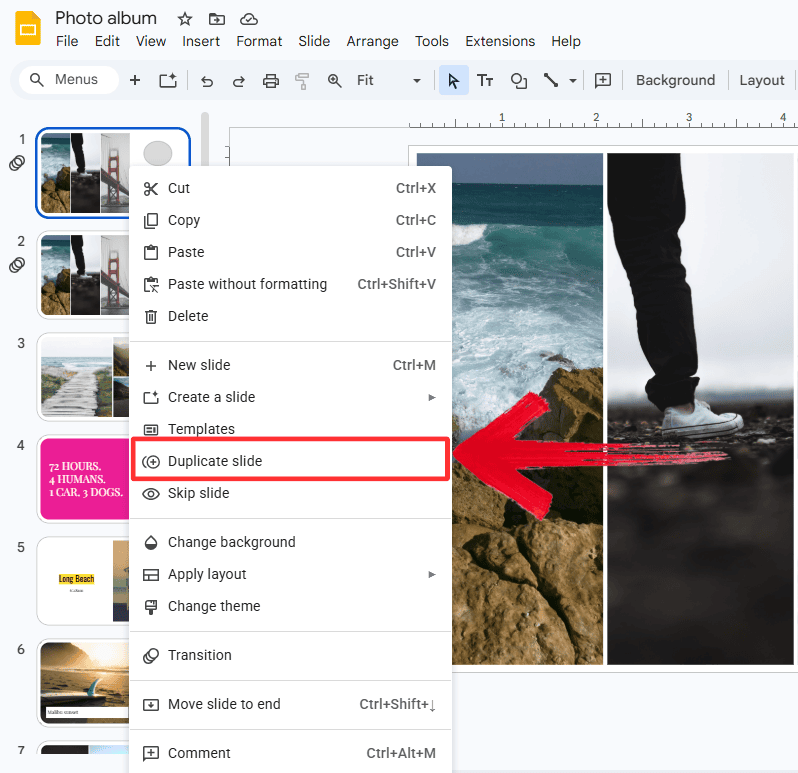
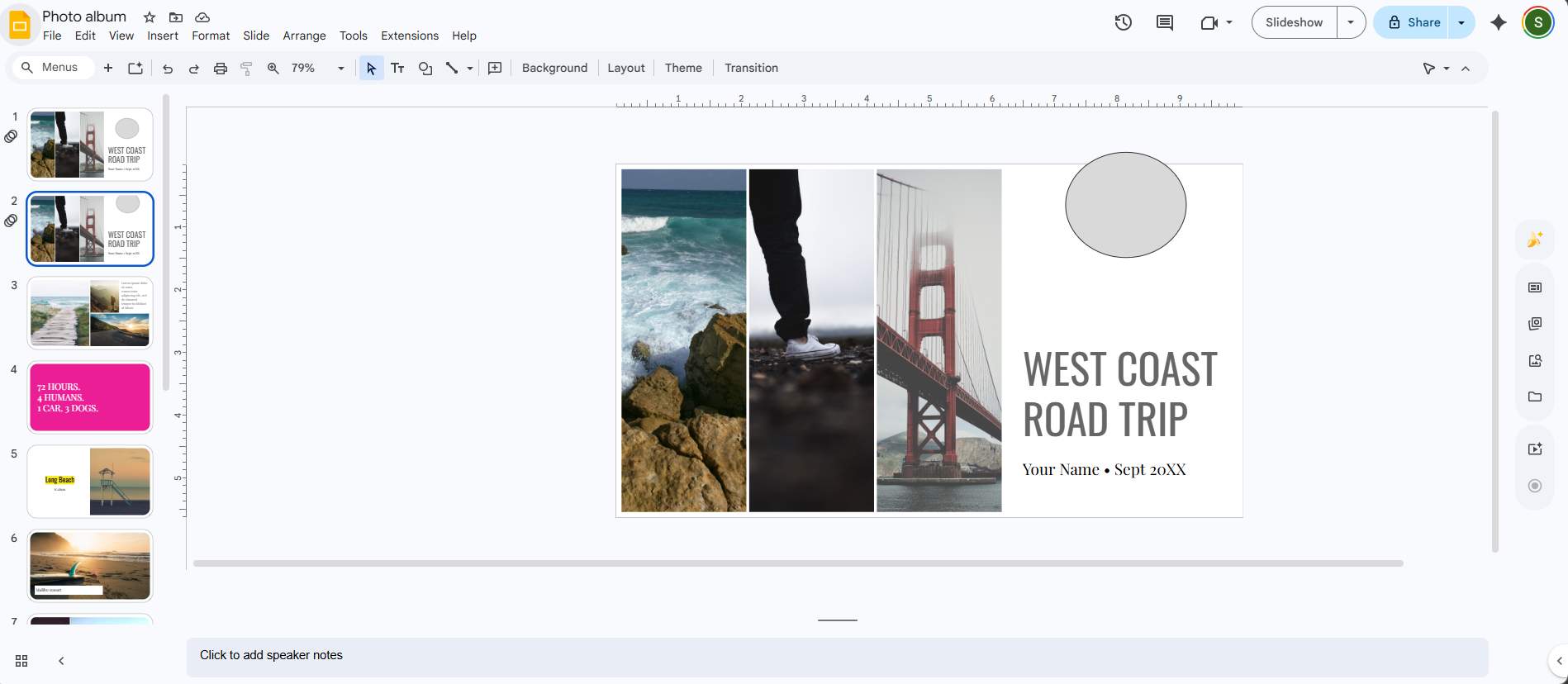
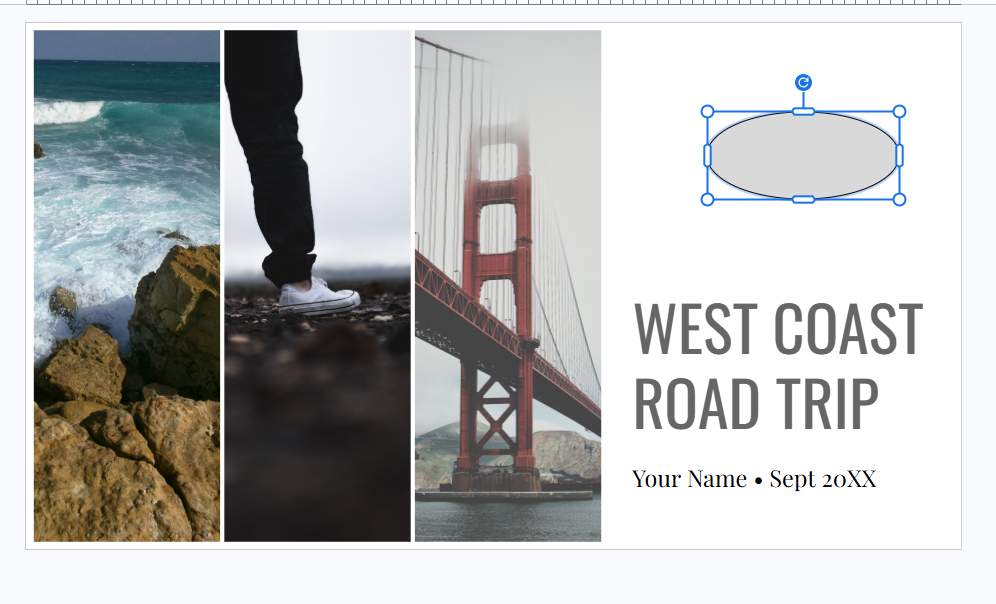
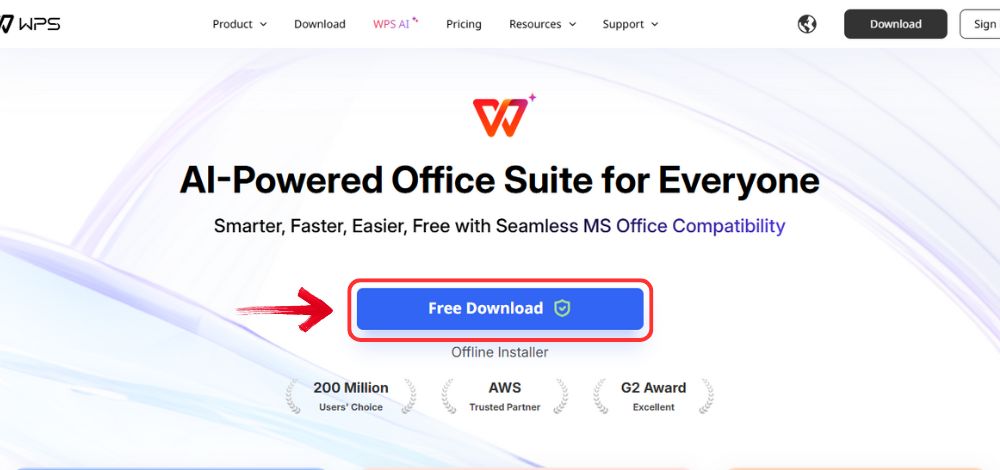
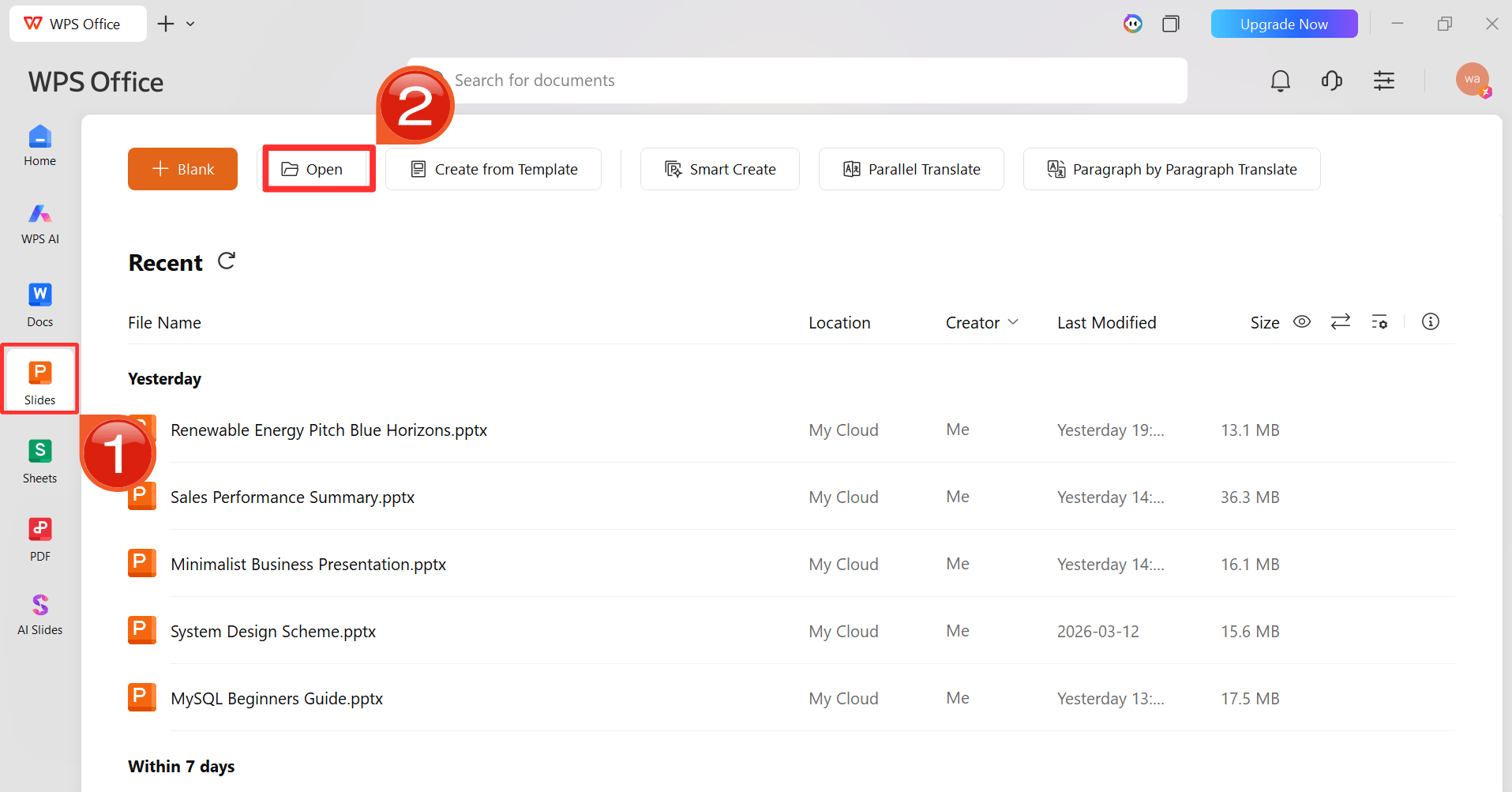
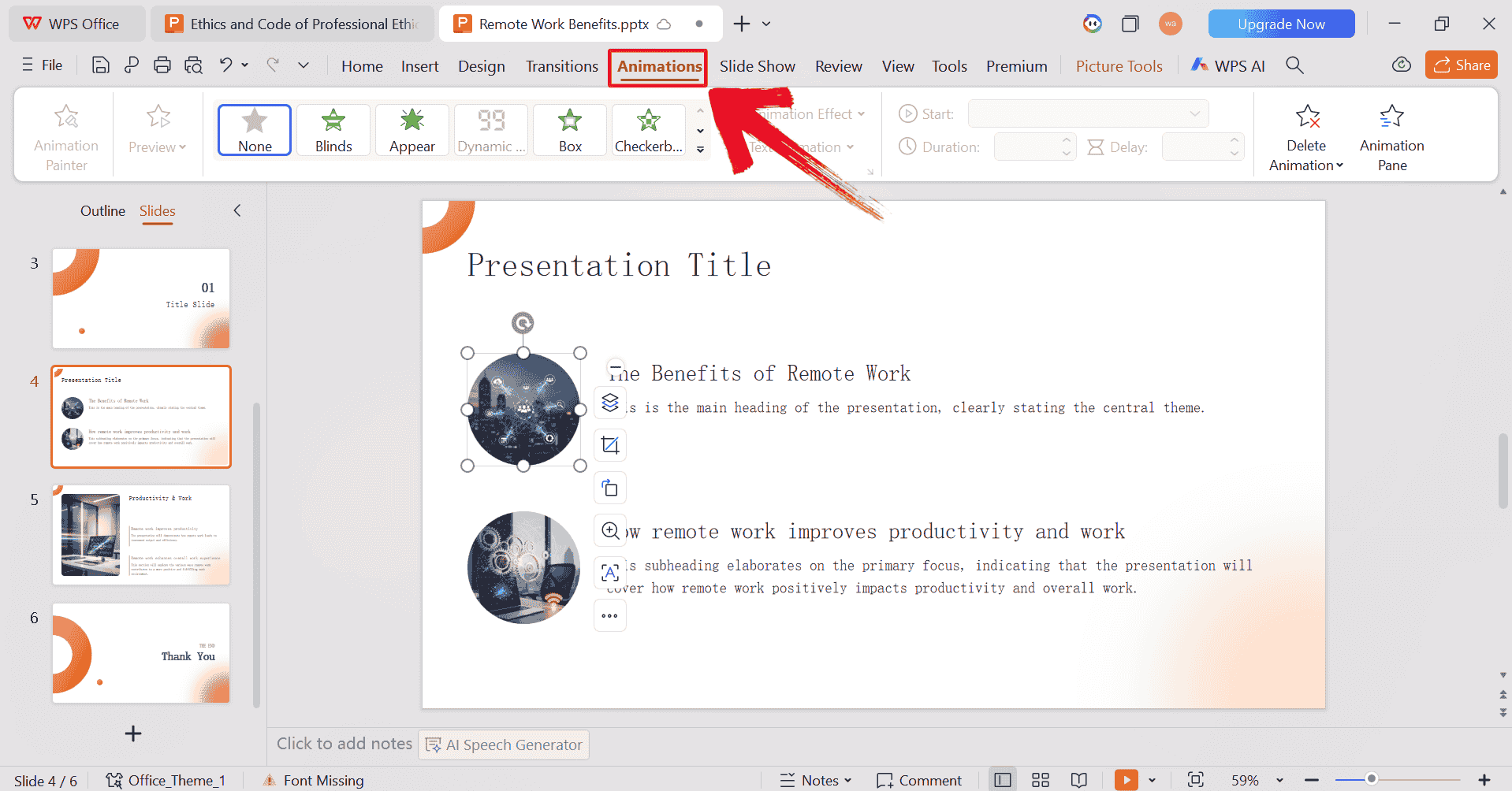
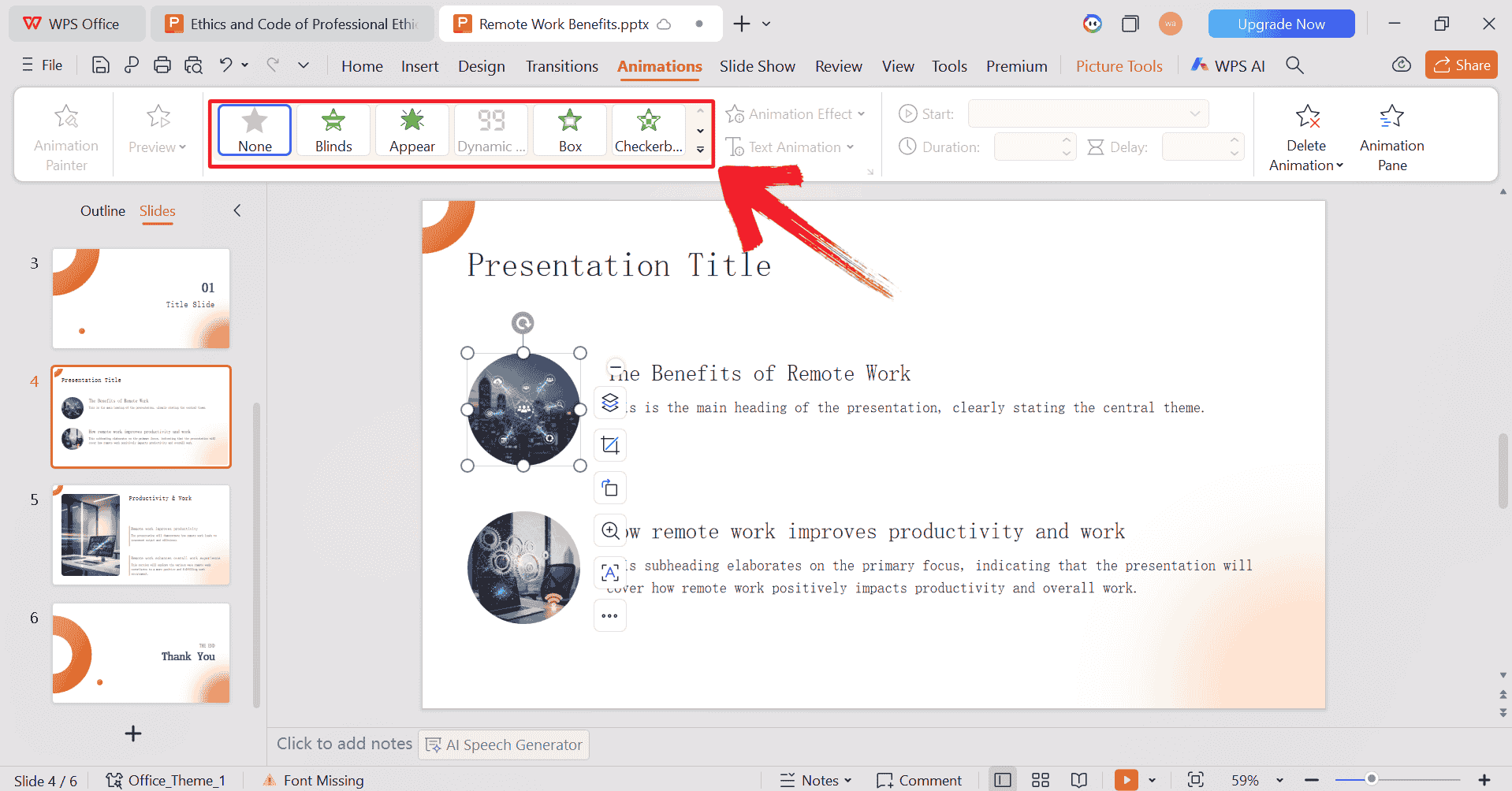
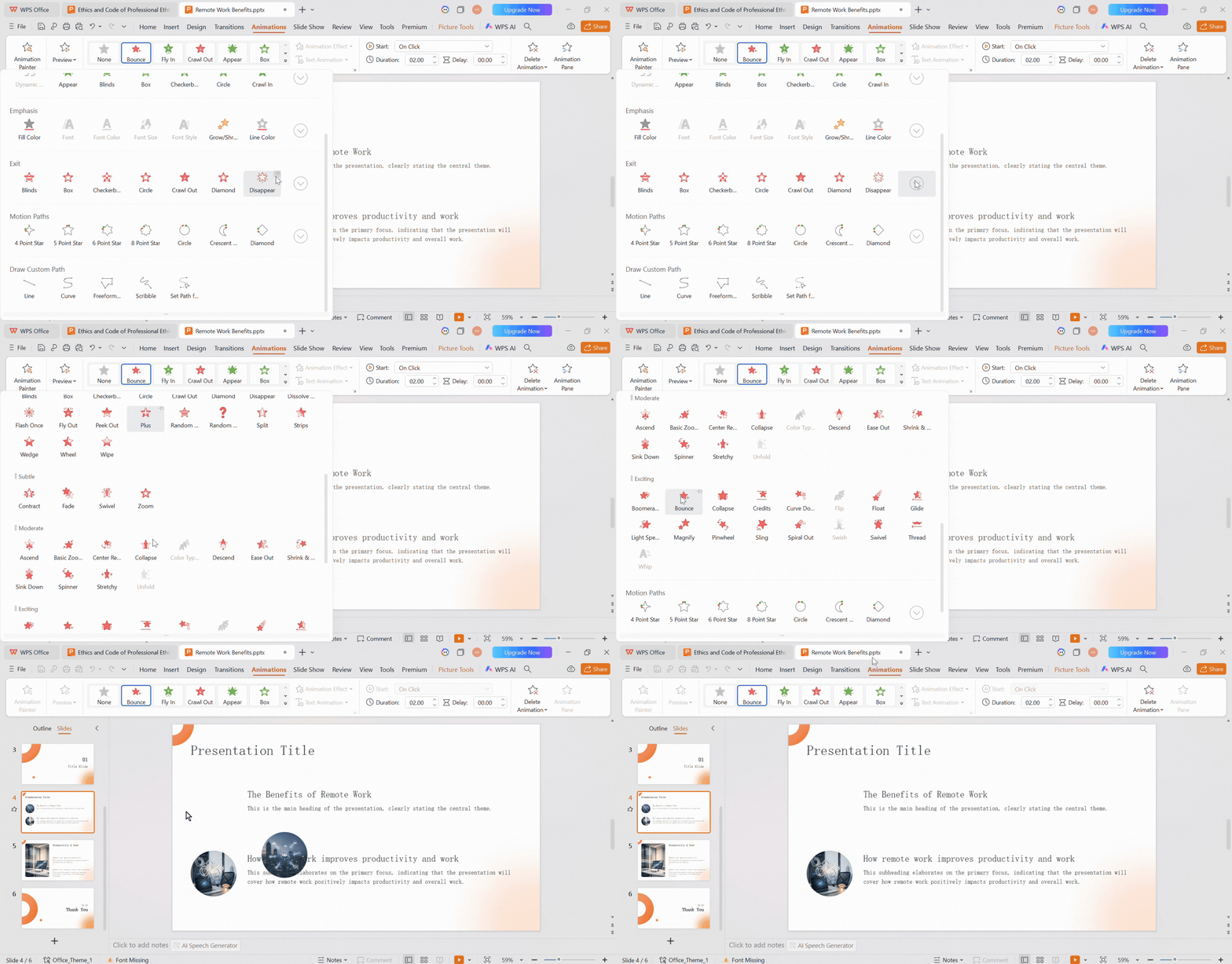
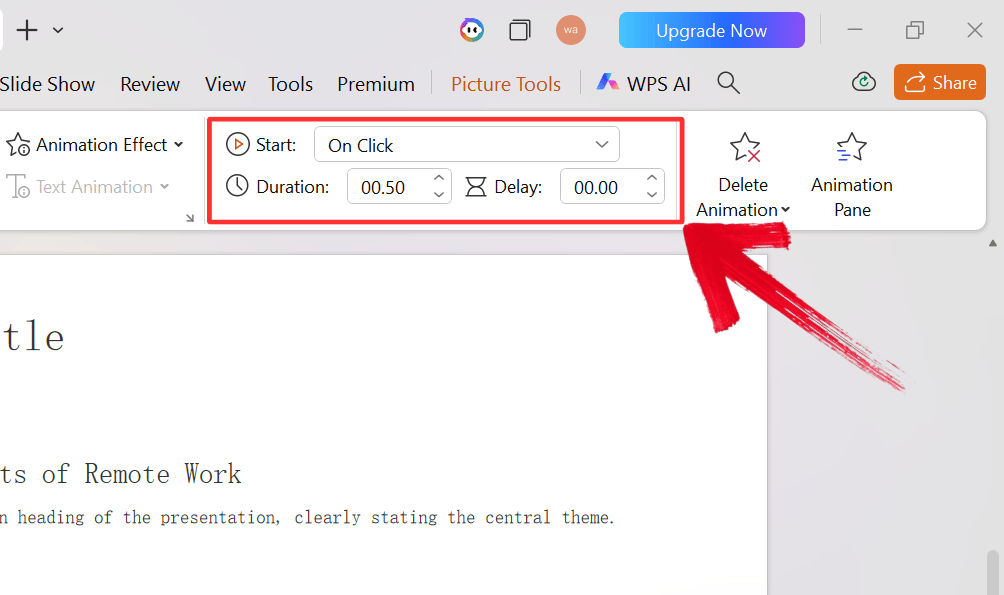
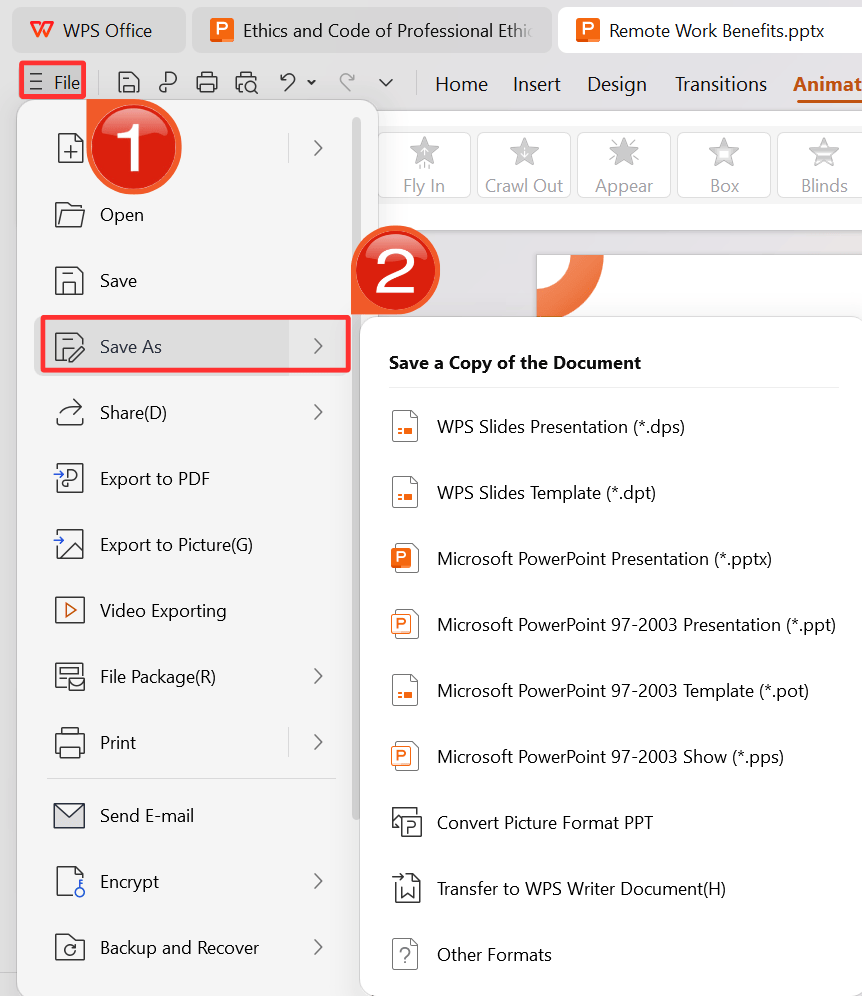
Animations make presentations more engaging, and a well-timed bounce effect can do a lot for drawing attention to the right element at the right moment. The problem is that Google Slides does not have a built-in bounce animation, so anyone who wants that effect has to build it manually by duplicating slides and nudging objects one frame at a time. It works, but it takes longer than most people expect and falls apart quickly if you need to make changes afterward. This guide walks through how to make object bounce Google Slides using the manual method, covers the limitations honestly, and then shows how WPS AI Slides handles animation in a way that skips most of the repetitive work. Google Slides does not support keyframe animation or motion paths the way PowerPoint does. The only way to simulate movement is to duplicate slides repeatedly and shift the object slightly in each copy, so that when you advance through them quickly in presentation mode, the object appears to move. It is the same principle as a flipbook. The more copies you make, the smoother the motion looks. For a bounce effect specifically, you are simulating three phases: the object falling toward a surface, a brief squash when it hits, and the rebound back upward. Each phase requires its own set of duplicated slides with small positional changes between them. Before starting, it helps to think of each slide as a single frame in a short video clip. The distance the object moves between frames controls the speed of the animation. Larger gaps between positions look fast. Smaller gaps look slow. To simulate gravity during the fall, the gaps should get progressively larger as the object drops. To simulate deceleration during the rise, the gaps should get progressively smaller as it goes back up. This method is the most reliable way to create bounce animation Google Slides without using external plugins. It relies on precise positioning and the physics of motion to make a simple circle behave like a rubber ball. Here’s how to make a ball bounce in presentation slides effectively: Step 1: Use the slide duplicate animation effect by right-clicking the thumbnail and selecting "Duplicate slide". Step 2: Then move the ball slightly upward on the new slide. Step 3: At the point of impact, duplicate the slide and slightly compress the shape vertically while stretching it horizontally to create a squash effect. Step 4: Copy your previous slides and paste them in reverse order after the squash frame to show the ball rebounding back into the air. Step 5: Enter presentation mode and use your arrow keys to cycle through the slides rapidly to preview the smoothness of the bounce. Getting the movement to look natural comes down to three things. The spacing between frames matters more than the number of frames. During the fall, each slide should move the object a little further than the one before it. During the rise, each slide should move it a little less. Even small adjustments here make a noticeable difference in how realistic the motion looks. Keep background elements consistent across every frame. If anything on the slide accidentally shifts between copies, it will appear to flicker during the animation. Work on a clean slide with minimal content outside the object you are animating. More frames means smoother motion, but also more work if you need to edit later. For most presentations, 8 to 12 frames per phase is enough to look smooth without becoming unmanageable. The manual approach gets the job done, but it comes with real tradeoffs worth knowing before you start. It is time-consuming even for a simple animation. A single smooth bounce across all three phases can require 20 or more duplicated slides. Multiply that by the number of objects you want to animate, and it adds up quickly. Editing is painful once the animation is built. If you want to change the speed, adjust the height of the bounce, or move the object to a different spot on the slide, you are essentially rebuilding the sequence from scratch. There is no easy way to tweak individual parameters after the fact. It also requires a reasonable feel for how motion works. If the frame spacing is off or the squash effect is too heavy or too light, the result looks mechanical. First attempts rarely look right without some trial and error. Now that we’ve learned how to make object bounce Google Slides you’d notice that although the manual method described above works, every minute spent duplicating slides and nudging objects is time not spent on the actual content of the presentation. WPS AI Slides approaches animation differently. Instead of building motion frame by frame, you describe what you want, and the AI applies it. For anyone creating presentations with multiple animated elements or working under time pressure, the difference in effort is significant. Smart animation suggestions based on context: When you select an object, the AI looks at what type of element it is and how it sits within the slide, then suggests animation effects that fit rather than presenting a flat list with no guidance. One-click application across multiple objects: Apply an animation to one element and extend it across the whole presentation with consistent timing and pacing, without manually matching settings on each object individually. Richer animation library than Google Slides: WPS AI Slides includes effects like Bounce, Fly In, Fade, and more, with controls for duration, delay, and repetition that Google Slides does not offer natively. Export that preserves animations: Once your presentation is ready, export it as a .pptx file. When opened in Google Slides or PowerPoint, the animation effects carry over, so you can build in WPS and present anywhere. Focus on what you want, not how to build it: Instead of figuring out how to move an object frame by frame, you describe the effect you want. The AI translates that into actual slide motion, which is a much faster way to work. Now we will look at the full process of building an animated presentation in WPS AI Slides, from applying animation effects to exporting a file that is ready to present. You do not need any prior experience with animation or slide design to follow along. Step 1: Open your browser to visit WPS Office and click the "Free Download" button to start the download. Step 2: The download will finish in a few seconds. Once done, run the installation file like you would for any other app or software. Step 3: WPS Office will show you a few simple terms and conditions. Accept them, then click the "Install Now" button to begin the installation. Step 4: After installation, in WPS Office, click “Slides” from the left sidebar. Click “Open” to edit the PPT in WPS Slides. Step 5: Select the object you want to add animations to and click “Animations” in the ribbon. Step 6: In the menu that opens, select an animation to apply to your object. Step 7: Click on the drop-down menu and find the bounce animation. Click on it and preview the animation. Alt text: Animation preview gif Step 8: Then use the timing panel to adjust the duration or delay. Step 9: Finally, click on the “File” menu and then click “Save As” to download your PPT. No. Google Slides does not include a native bounce animation effect. To get a bounce in Google Slides, you have to simulate it manually using the slide duplication method covered in this guide. If you want a proper bounce effect without the manual work, WPS AI Slides includes it as a built-in animation that applies in a single click. Yes. The slide duplication method works for any object you can insert into a slide, including text boxes, images, shapes, and icons. The process is the same regardless of object type. Text boxes and images do need more careful alignment between frames to avoid appearing to jump sideways during the animation. As a general guide, 6 to 10 slides per phase of the bounce gives a reasonably smooth result for most presentations. That puts the total slide count for one complete bounce at around 20 slides minimum. If it still looks choppy, add more frames with smaller positional gaps between them. Keep in mind that more slides also means more work if you need to edit the animation later. Most standard effects including bounce, fade, and fly-in transfer correctly when you export from WPS AI Slides as a .pptx and open it in Google Slides. Very complex or layered effects may simplify slightly depending on how Google Slides reads the file, so run a quick preview after uploading to check everything looks right before presenting. Knowing how to make object bounce Google Slide using the slide duplication method is a useful skill, and for a quick one-off effect it gets the job done. But it is one of the more tedious things you can do in Google Slides, and the result is hard to adjust once it is built. For anyone who wants animation to be a natural part of how they design presentations rather than a separate technical task, WPS AI Slides is a much more practical starting point. Build the animation there, export it, and you are ready to present anywhere.
The Manual Method: Make an Object Bounce in Google Slides
Core Principle: Simulating Animation via Slide Duplication
Step-by-Step Tutorial: Making a Ball Bounce
Tips for More Professional Animation
Limitations of This Method
The Intelligent Alternative: Creating Dynamic Animations with WPS AI Slides
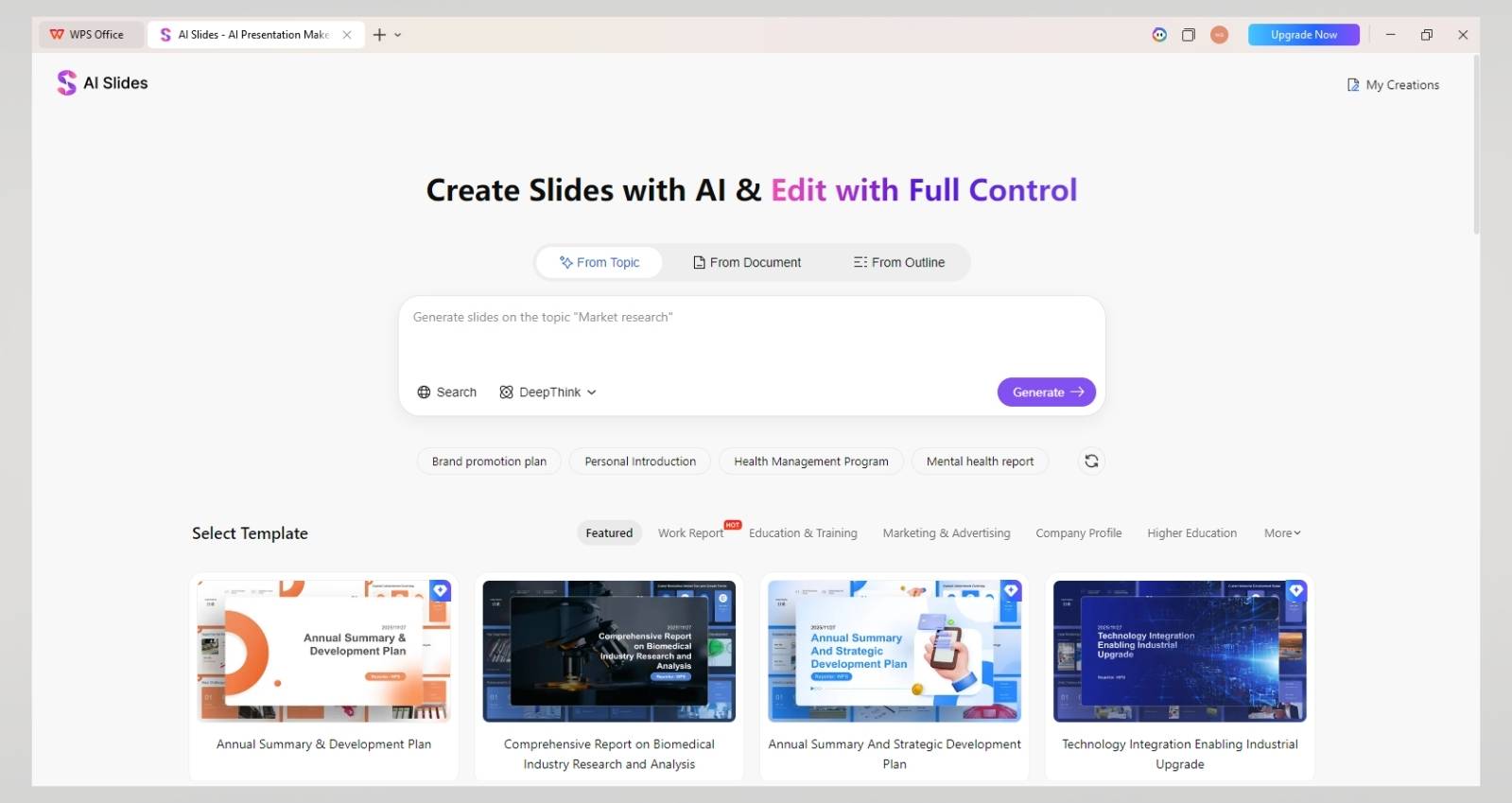
Key Advantages for Creating Animated Presentations:
Tutorial: Conceptualizing & Applying Animations with WPS AI Slides

FAQs
1. Does Google Slides have a built-in bounce animation?
2. Can I make text or an image bounce using this method?
3. How many slides do I need to make the bounce look smooth?
4. Will animations created in WPS AI Slides work when I open the file in Google Slides?
From Manual Workaround to Smarter Presentation Design

Table of Content

Share Article
'%3e%3cpath%20fill-rule='evenodd'%20clip-rule='evenodd'%20d='M21.4999%2010.9993C21.4999%205.20009%2016.7986%200.498901%2010.9993%200.498901C5.19994%200.498901%200.498657%205.20009%200.498657%2010.9993C0.498657%2016.2404%204.33858%2020.5844%209.35855%2021.3722V14.0346H6.69238V10.9993H9.35855V8.68594C9.35855%206.05427%2010.9262%204.60062%2013.3248%204.60062C14.4736%204.60062%2015.6753%204.80571%2015.6753%204.80571V7.38979H14.3512C13.0468%207.38979%2012.64%208.19921%2012.64%209.0296V10.9993H15.5523L15.0867%2014.0346H12.64V21.3722C17.66%2020.5844%2021.4999%2016.2404%2021.4999%2010.9993Z'%20fill='%231568EA'/%3e%3c/g%3e%3c/svg%3e)


'%3e%3cpath%20d='M2.42045%2022.1876H6.31818V12.7217L0.75%208.54553V20.5171C0.75%2021.4414%201.49892%2022.1876%202.42045%2022.1876Z'%20fill='%234285F4'/%3e%3cpath%20d='M19.682%2022.1876H23.5797C24.5041%2022.1876%2025.2502%2021.4387%2025.2502%2020.5171V8.54553L19.682%2012.7217'%20fill='%2334A853'/%3e%3cpath%20d='M19.682%205.48293V12.7216L25.2502%208.54543V6.31816C25.2502%204.25236%2022.8921%203.07469%2021.2411%204.31361'%20fill='%23FBBC04'/%3e%3cpath%20d='M6.31824%2012.7217V5.48303L13.0001%2010.4944L19.6819%205.48303V12.7217L13.0001%2017.733'%20fill='%23EA4335'/%3e%3cpath%20d='M0.75%206.31816V8.54543L6.31818%2012.7216V5.48293L4.75909%204.31361C3.10534%203.07469%200.75%204.25236%200.75%206.31816Z'%20fill='%23C5221F'/%3e%3c/g%3e%3cdefs%3e%3cclipPath%20id='clip0_2954_7305'%3e%3crect%20width='24.5'%20height='18.375'%20fill='white'%20transform='translate(0.75%203.8125)'/%3e%3c/clipPath%3e%3c/defs%3e%3c/svg%3e)


How to Make an Object Bounce in Google Slides: Step-by-Step Guide and a Smarter AI Method
Posted by Chanuka Geekiyanage

2026-04-30

871

4

'%3e%3cpath%20d='M19.9911%204.11386V6.471H18.5894C18.0775%206.471%2017.7322%206.57814%2017.5536%206.79243C17.3751%207.00671%2017.2858%207.32814%2017.2858%207.75671V9.44421H19.9019L19.5536%2012.0871H17.2858V18.8639H14.5536V12.0871H12.2769V9.44421H14.5536V7.49779C14.5536%206.39064%2014.8632%205.53201%2015.4822%204.92189C16.1013%204.31177%2016.9257%204.00671%2017.9554%204.00671C18.8304%204.00671%2019.509%204.04243%2019.9911%204.11386Z'%20fill='%23333333'/%3e%3c/g%3e%3cdefs%3e%3cclipPath%20id='clip0_2938_8199'%3e%3crect%20width='16'%20height='16'%20fill='white'%20transform='translate(8%204.00671)'/%3e%3c/clipPath%3e%3c/defs%3e%3c/svg%3e)
'%3e%3cpath%20d='M17.5237%2010.7813L23.4811%204H22.0699L16.8949%209.88693L12.7648%204H8L14.2469%2012.9029L8%2020.0133H9.4112L14.8725%2013.7952L19.2352%2020.0133H24M9.92053%205.04213H12.0885L22.0688%2019.0224H19.9003'%20fill='%23333333'/%3e%3c/g%3e%3cdefs%3e%3cclipPath%20id='clip0_2938_8200'%3e%3crect%20width='16'%20height='16.0134'%20fill='white'%20transform='translate(8%204)'/%3e%3c/clipPath%3e%3c/defs%3e%3c/svg%3e)


With over 13 years of hands-on experience in office software and tech, I help users navigate the digital world with ease. From mastering Excel to exploring cutting-edge productivity tools, I break down complex features into simple, actionable steps.
Other Posts You Might Enjoy

How to Record a Presentation on Google Slides in 2026: Guide and AI-Powered Workflow


How to Embed a Website in Google Slides in 2026: Workarounds & Smarter Solutions

How to Change Text Color in Google Slides in 2026: Master Guide & AI-Powered Design

How to Change Google Slides Defaults in 2026: Master Guide & Smarter Alternative

The Smart Guide on How to Make a Pitch Deck in 2026

The Ultimate Guide to Adding Animation in PowerPoint (2026 Edition)