

'%3e%3cpath%20d='M8%200C12.4183%200%2016%203.58172%2016%208C16%2012.4183%2012.4183%2016%208%2016C3.58172%2016%200%2012.4183%200%208C0%203.58172%203.58172%200%208%200ZM11.6162%204.38379C11.2257%203.99337%2010.5927%203.99338%2010.2021%204.38379L8%206.58594L5.79785%204.38379C5.40732%203.99334%204.77429%203.99329%204.38379%204.38379C3.99331%204.77429%203.99335%205.40733%204.38379%205.79785L6.58594%208L4.38379%2010.2021C3.99348%2010.5927%203.99341%2011.2257%204.38379%2011.6162C4.77426%2012.0066%205.40734%2012.0065%205.79785%2011.6162L8%209.41406L10.2021%2011.6162C10.5927%2012.0066%2011.2257%2012.0067%2011.6162%2011.6162C12.0067%2011.2257%2012.0066%2010.5927%2011.6162%2010.2021L9.41406%208L11.6162%205.79785C12.0066%205.40735%2012.0066%204.77429%2011.6162%204.38379Z'%20fill='%23080E17'%20fill-opacity='0.46'/%3e%3c/g%3e%3cdefs%3e%3cclipPath%20id='clip0_3761_713'%3e%3crect%20width='16'%20height='16'%20fill='white'/%3e%3c/clipPath%3e%3c/defs%3e%3c/svg%3e)


'%3e%3cpath%20fill-rule='evenodd'%20clip-rule='evenodd'%20d='M21.4999%2010.9993C21.4999%205.20009%2016.7986%200.498901%2010.9993%200.498901C5.19994%200.498901%200.498657%205.20009%200.498657%2010.9993C0.498657%2016.2404%204.33858%2020.5844%209.35855%2021.3722V14.0346H6.69238V10.9993H9.35855V8.68594C9.35855%206.05427%2010.9262%204.60062%2013.3248%204.60062C14.4736%204.60062%2015.6753%204.80571%2015.6753%204.80571V7.38979H14.3512C13.0468%207.38979%2012.64%208.19921%2012.64%209.0296V10.9993H15.5523L15.0867%2014.0346H12.64V21.3722C17.66%2020.5844%2021.4999%2016.2404%2021.4999%2010.9993Z'%20fill='%231568EA'/%3e%3c/g%3e%3c/svg%3e)


'%3e%3cpath%20d='M2.42045%2022.1876H6.31818V12.7217L0.75%208.54553V20.5171C0.75%2021.4414%201.49892%2022.1876%202.42045%2022.1876Z'%20fill='%234285F4'/%3e%3cpath%20d='M19.682%2022.1876H23.5797C24.5041%2022.1876%2025.2502%2021.4387%2025.2502%2020.5171V8.54553L19.682%2012.7217'%20fill='%2334A853'/%3e%3cpath%20d='M19.682%205.48293V12.7216L25.2502%208.54543V6.31816C25.2502%204.25236%2022.8921%203.07469%2021.2411%204.31361'%20fill='%23FBBC04'/%3e%3cpath%20d='M6.31824%2012.7217V5.48303L13.0001%2010.4944L19.6819%205.48303V12.7217L13.0001%2017.733'%20fill='%23EA4335'/%3e%3cpath%20d='M0.75%206.31816V8.54543L6.31818%2012.7216V5.48293L4.75909%204.31361C3.10534%203.07469%200.75%204.25236%200.75%206.31816Z'%20fill='%23C5221F'/%3e%3c/g%3e%3cdefs%3e%3cclipPath%20id='clip0_2954_7305'%3e%3crect%20width='24.5'%20height='18.375'%20fill='white'%20transform='translate(0.75%203.8125)'/%3e%3c/clipPath%3e%3c/defs%3e%3c/svg%3e)


Animations can turn boring slides into clear, engaging stories that guide attention and highlight what matters most. But creating smooth, professional-style animations often takes longer than it should, especially when you are dealing with timelines and fine adjustments. In this PowerPoint animation effects tutorial, you will learn how to add animation in PowerPoint without getting buried in manual editing. It covers everything from simple, hands-on techniques to more advanced, automated options, including how AI tools like WPS AI Slides can streamline the entire process.
How to Add Animation to a PowerPoint Slide?
Although it seems like the process is difficult, it's actually pretty straightforward once you understand the basic method and rules around it. With just a few clicks in the standard menu, you can take full control over how your text and images appear on screen and turn your basic deck into an engaging presentation. Here is how to add animation in PowerPoint to get your content moving.
Step 1: First, open a new PowerPoint presentation on your device.
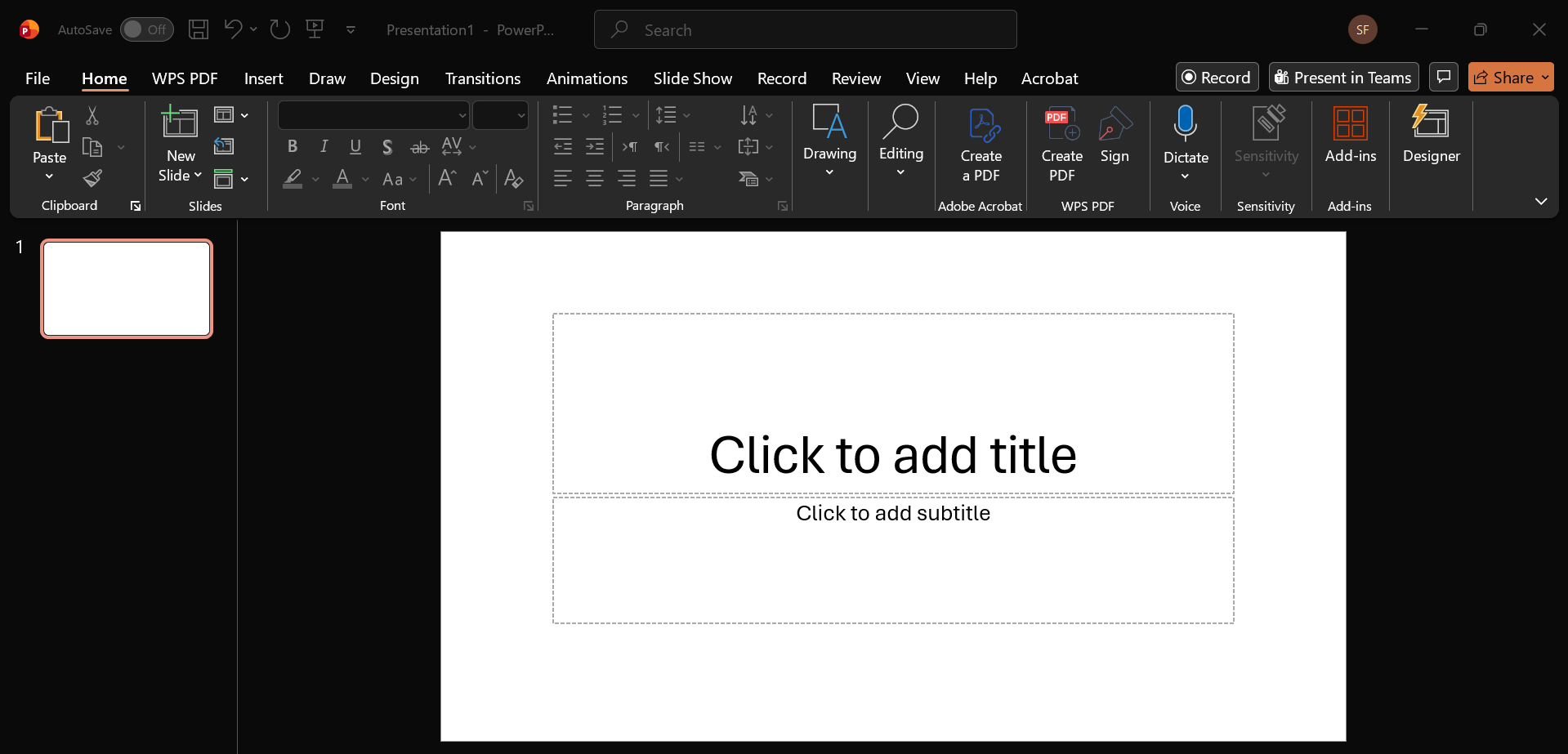
Step 2: Click on the text box, image, or shape you want to animate. You will see a box appear around the object, indicating it is selected.
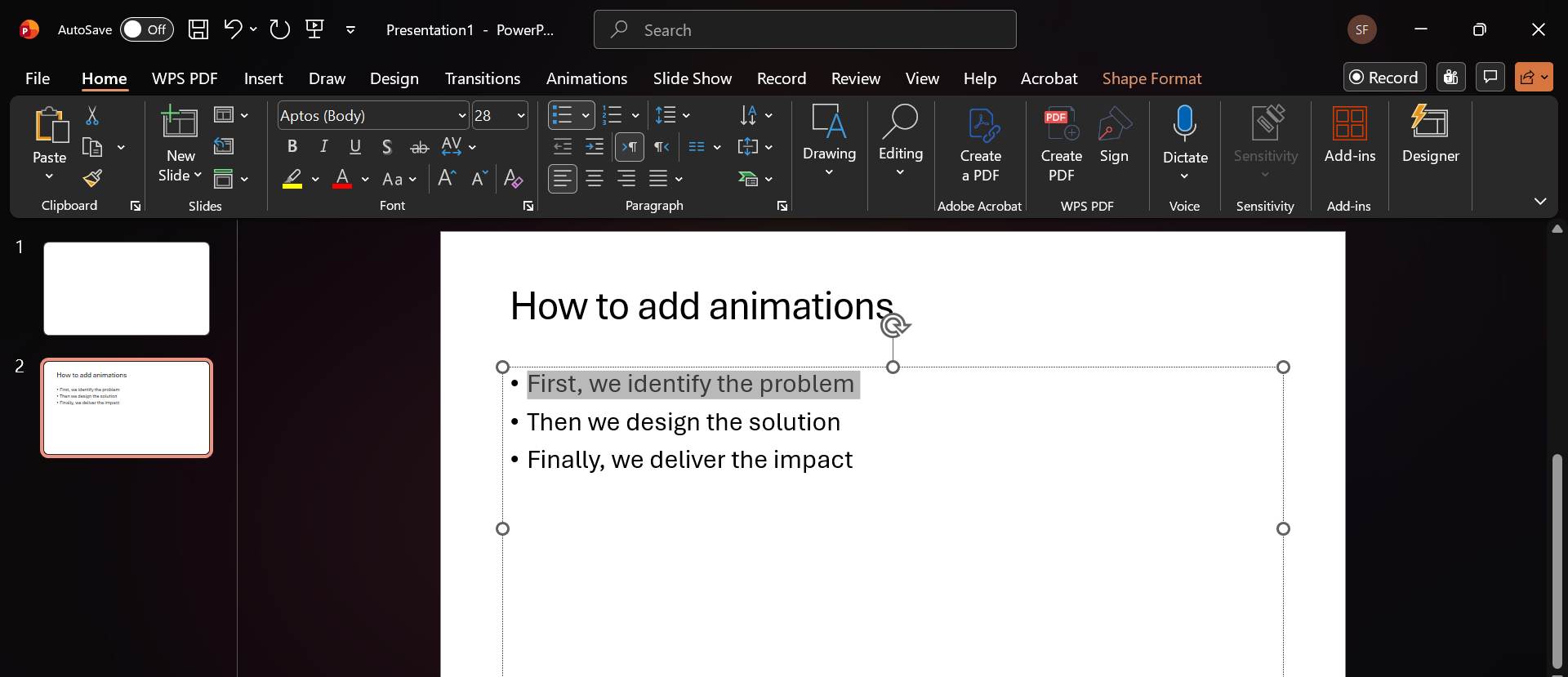
Step 3: Click on the “Animations” tab in the top ribbon. Then click on the downward arrow button next to the green stars to open a gallery of animations.
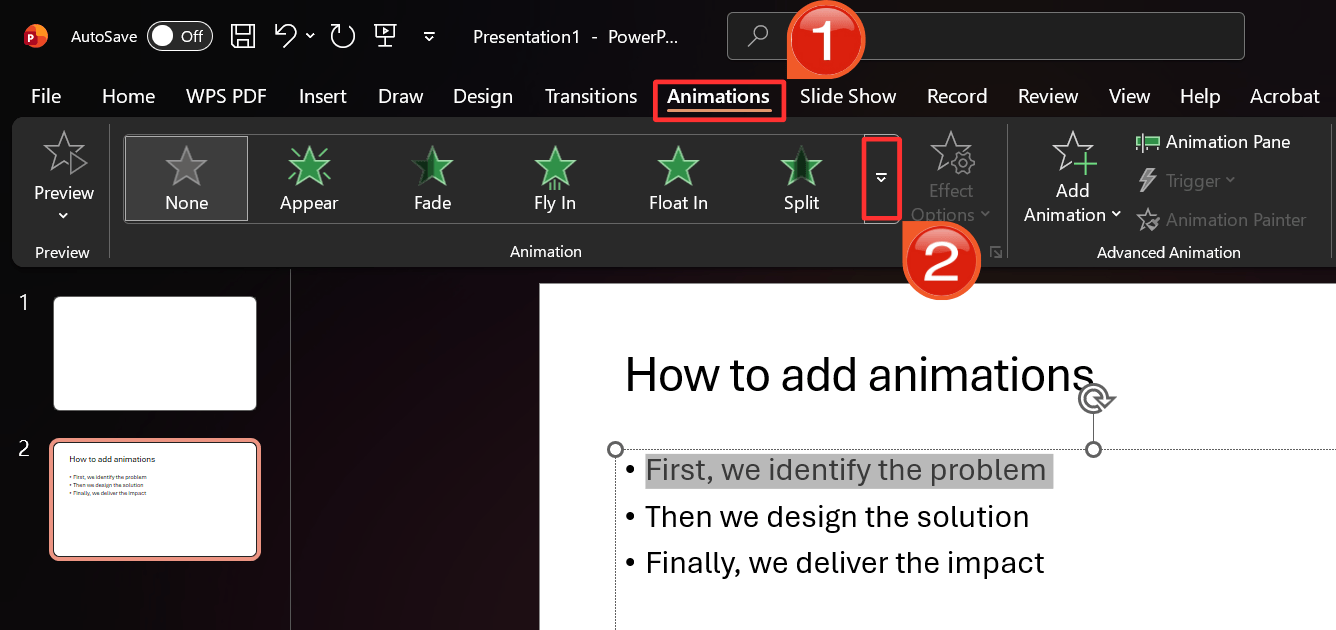
Step 4: Then, from the drop-down gallery, select the animation you want to use on your selected text or image.
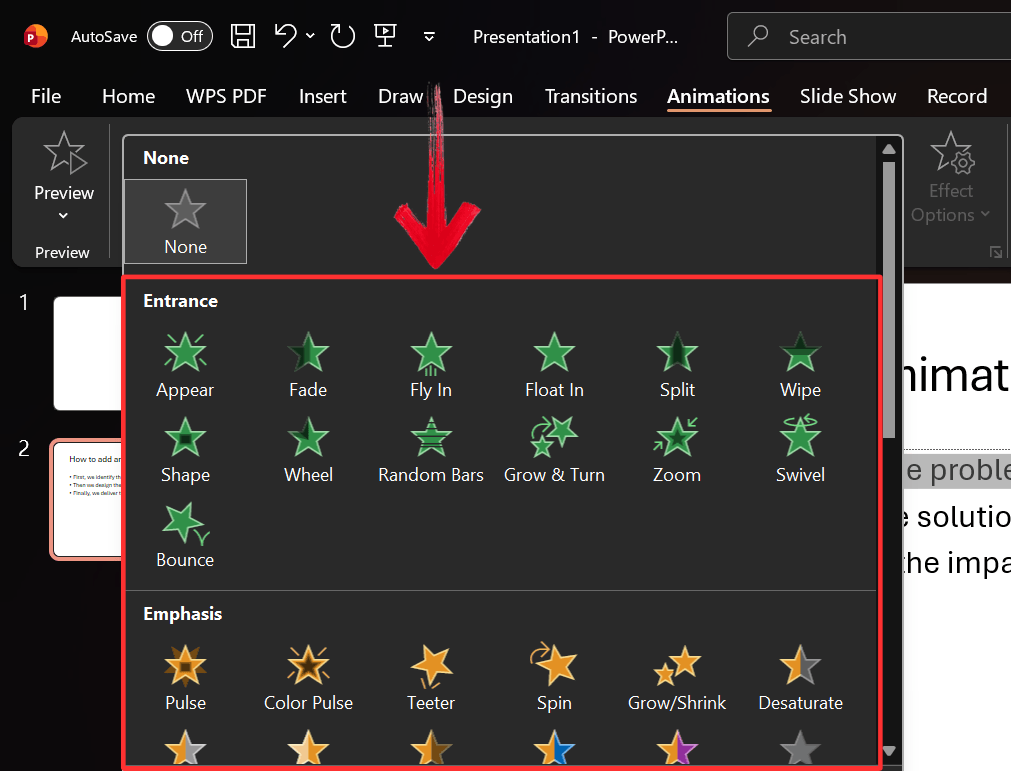
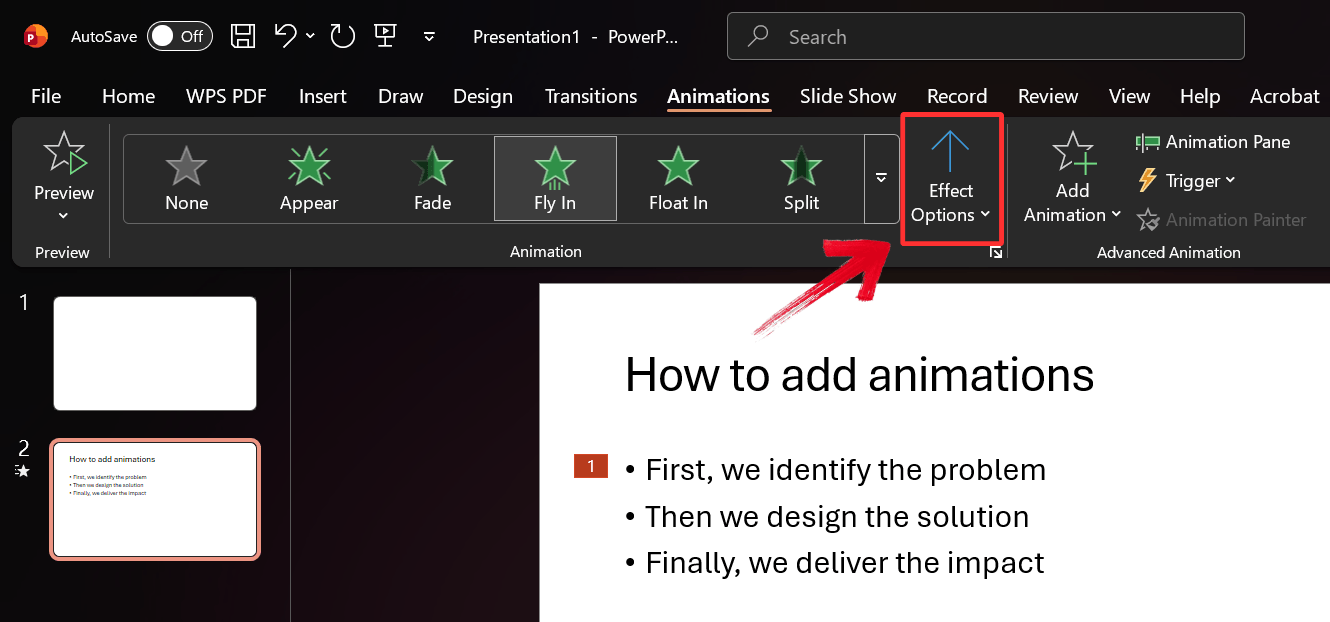
Step 5: Once applied, click “Effect Options” (usually located next to the animation gallery) to change the direction or sequence of the movement.
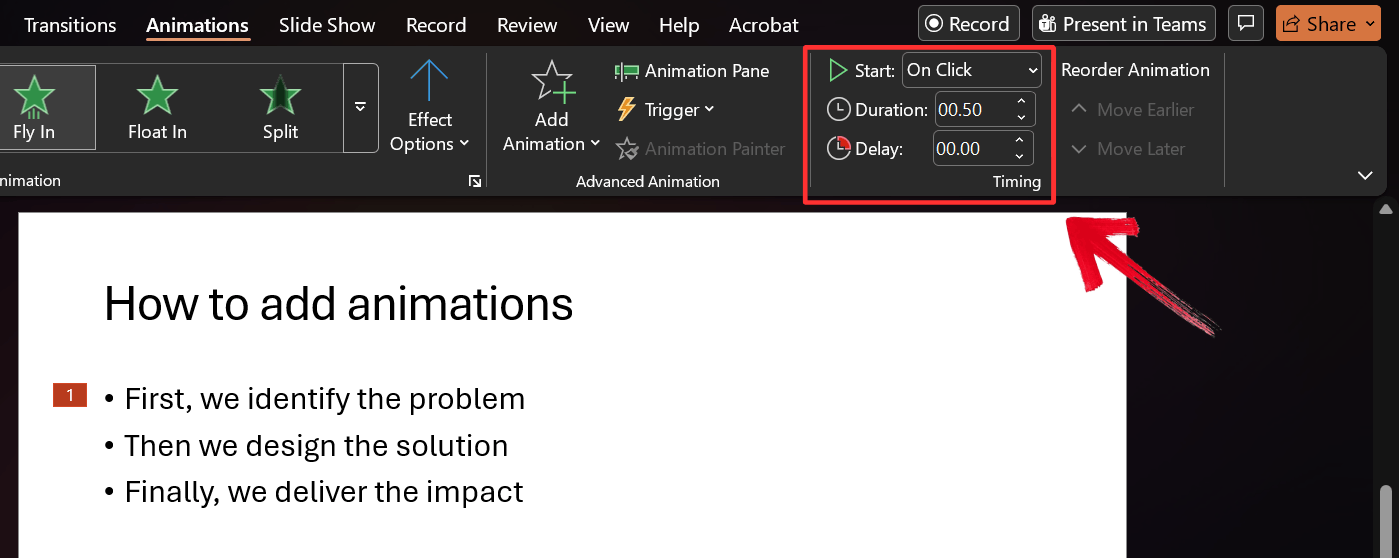
Step 6: On the right side of the ribbon, adjust the “Duration” to make the animation faster or slower, and set the “Start” option according to your preference.
How to Use WPS AI Slides to Add Animations
If clicking through every object to add animation to PowerPoint slide feels slow and repetitive, AI automation offers a smarter way forward. WPS AI Slides can analyze the content of your slides and apply clean, professional animations automatically, saving you from manual setup. Instead of spending minutes fine-tuning each element, you can animate an entire pitch deck in seconds and focus on shaping the message rather than managing timelines.
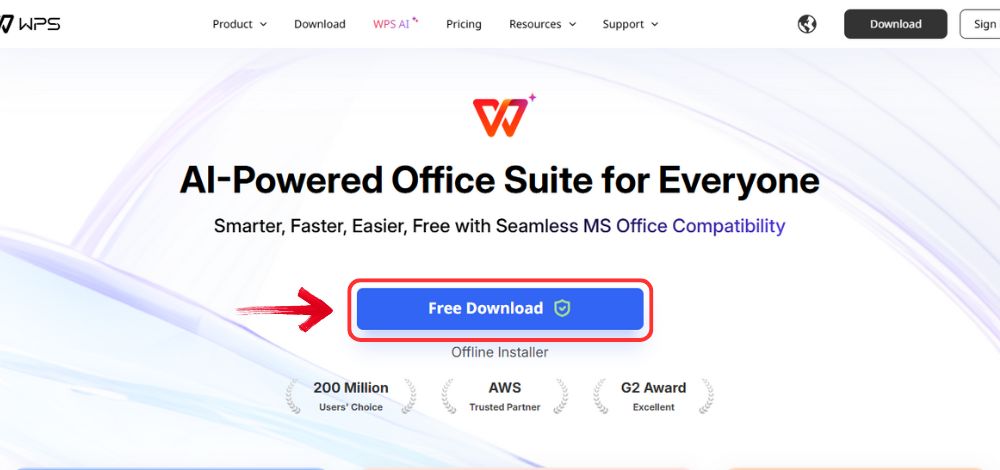
Step 1: First, head over to your browser, open WPS Office, and click the "Free Download" button to start the download.
Step 2: Once finished, run the installation file to start the installation process.
Step 3: Agree to the terms and conditions offered by WPS Office, then click the "Install Now" button to begin the installation.

Step 4: After installation, in WPS Office, click “Slides” from the left sidebar.
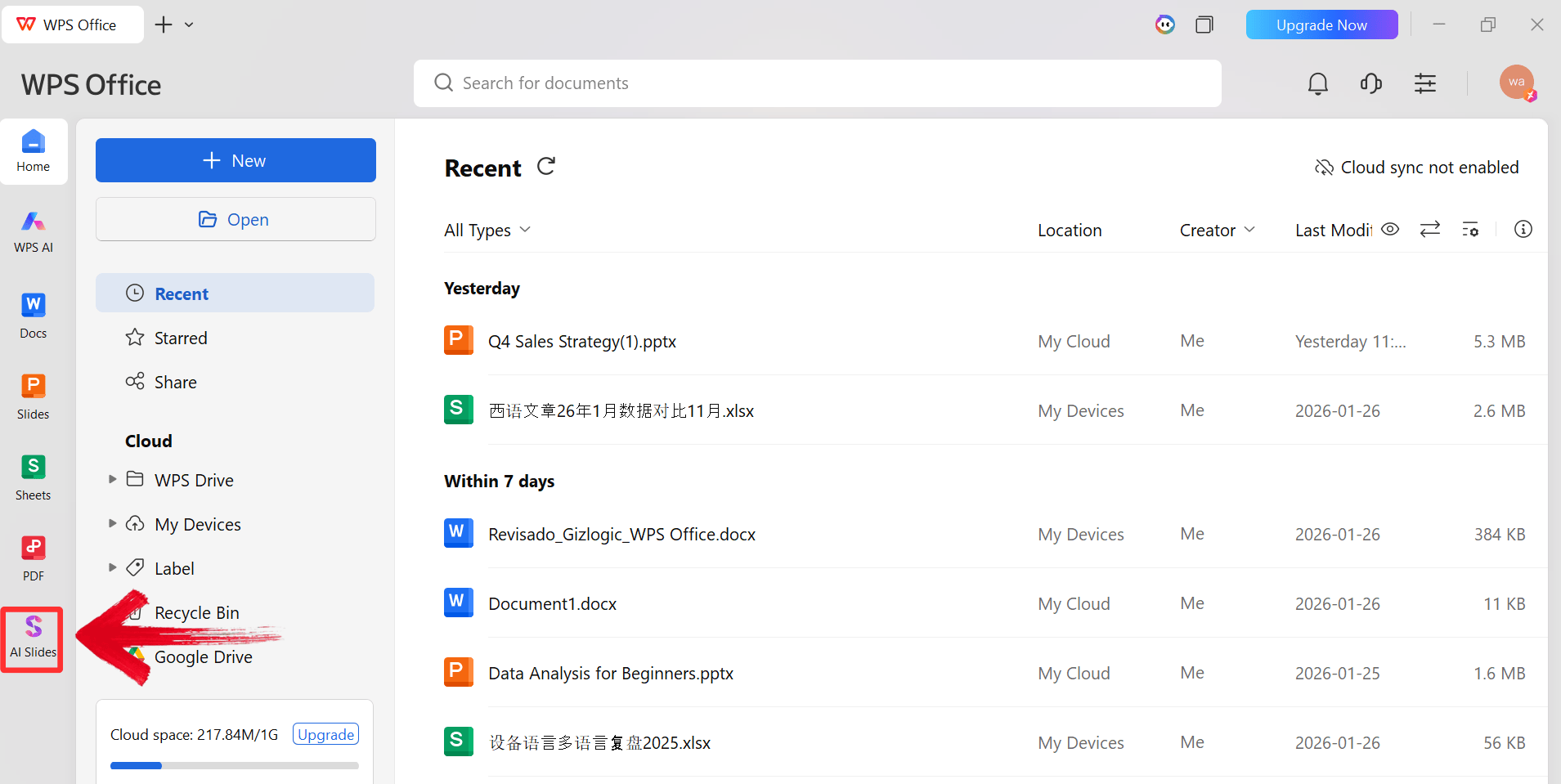
Step 5: Enter your presentation topic (e.g., "Quarterly Marketing Roadmap") into the dialogue box and click “Generate” to create the outline.
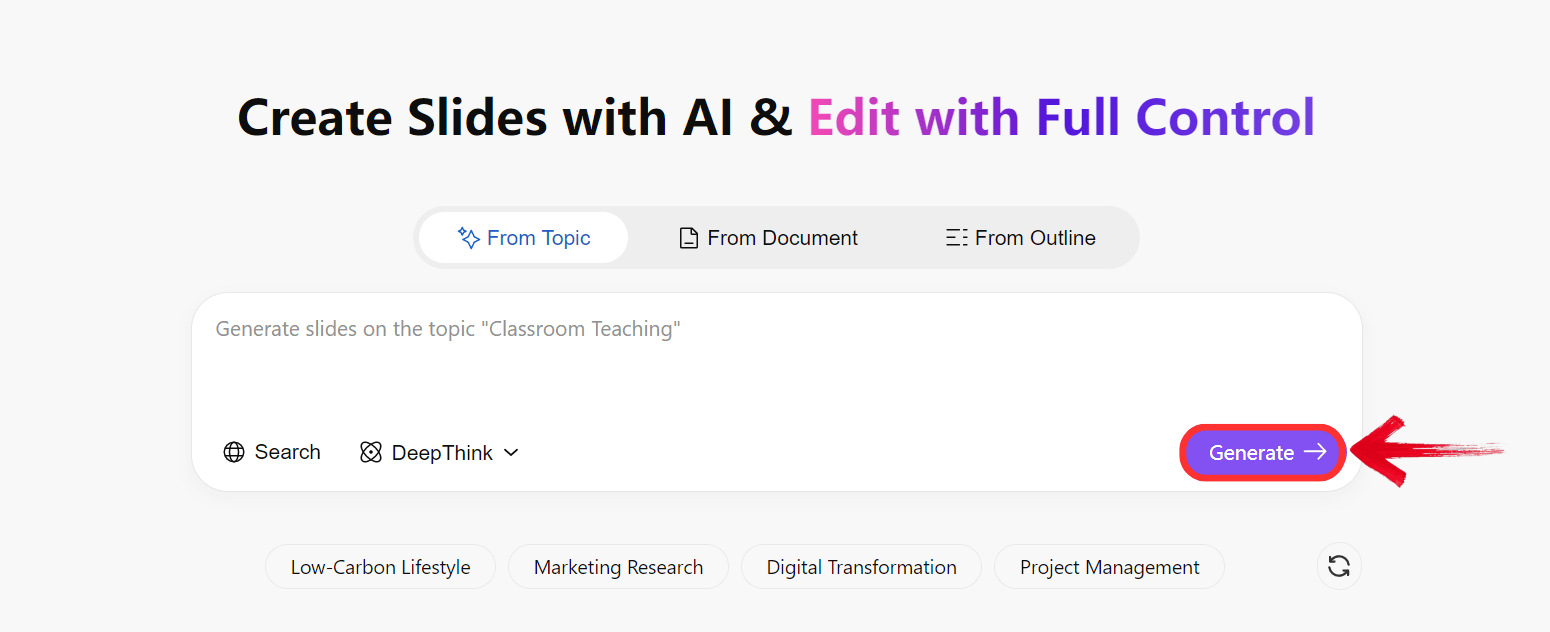
Step 6: After the AI creates the outline, click “Select Template” to pick a template from the already available ones.
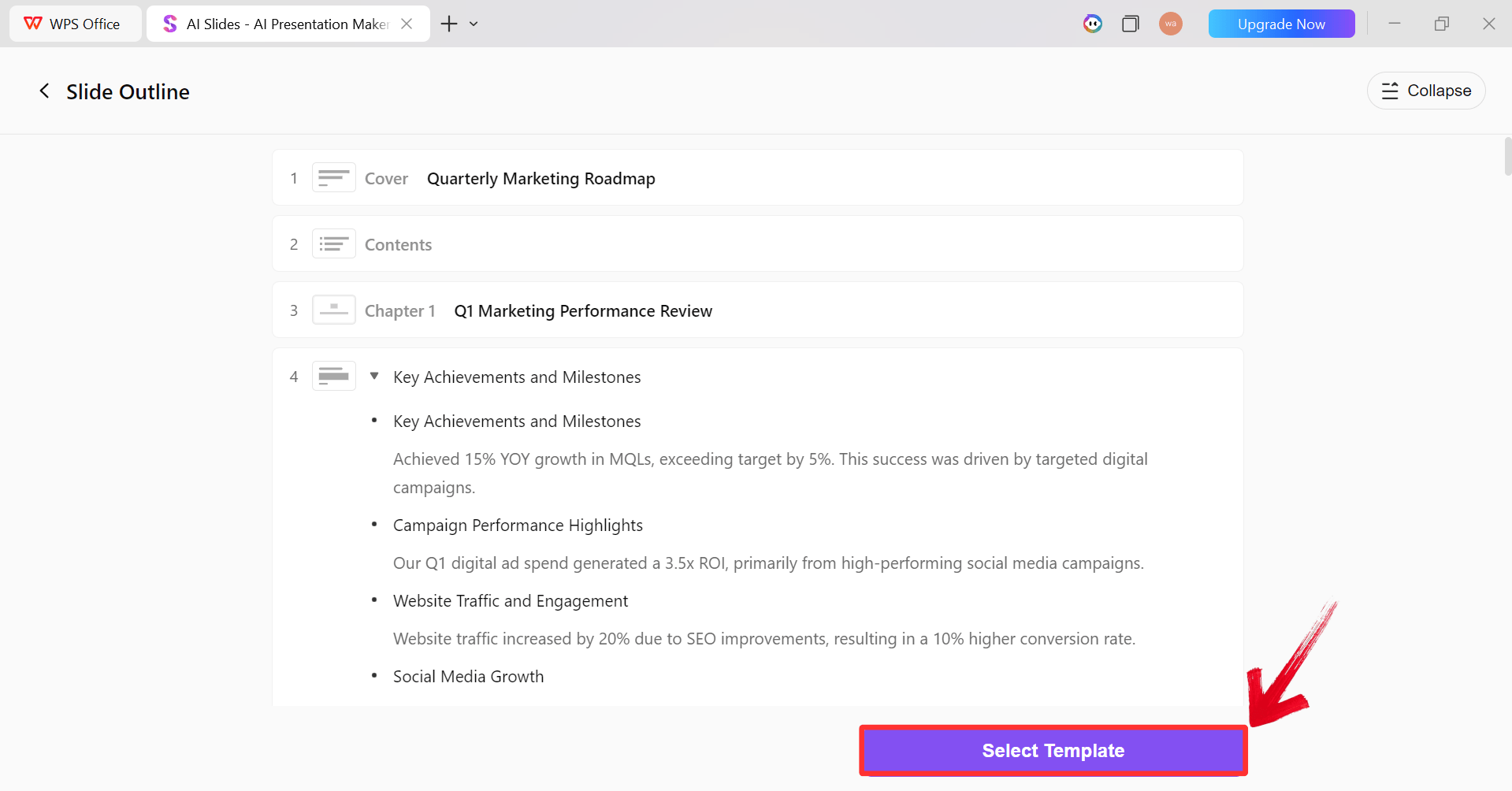
Step 7: Pick a template from the template library and click “Create Slides” to generate your presentation.
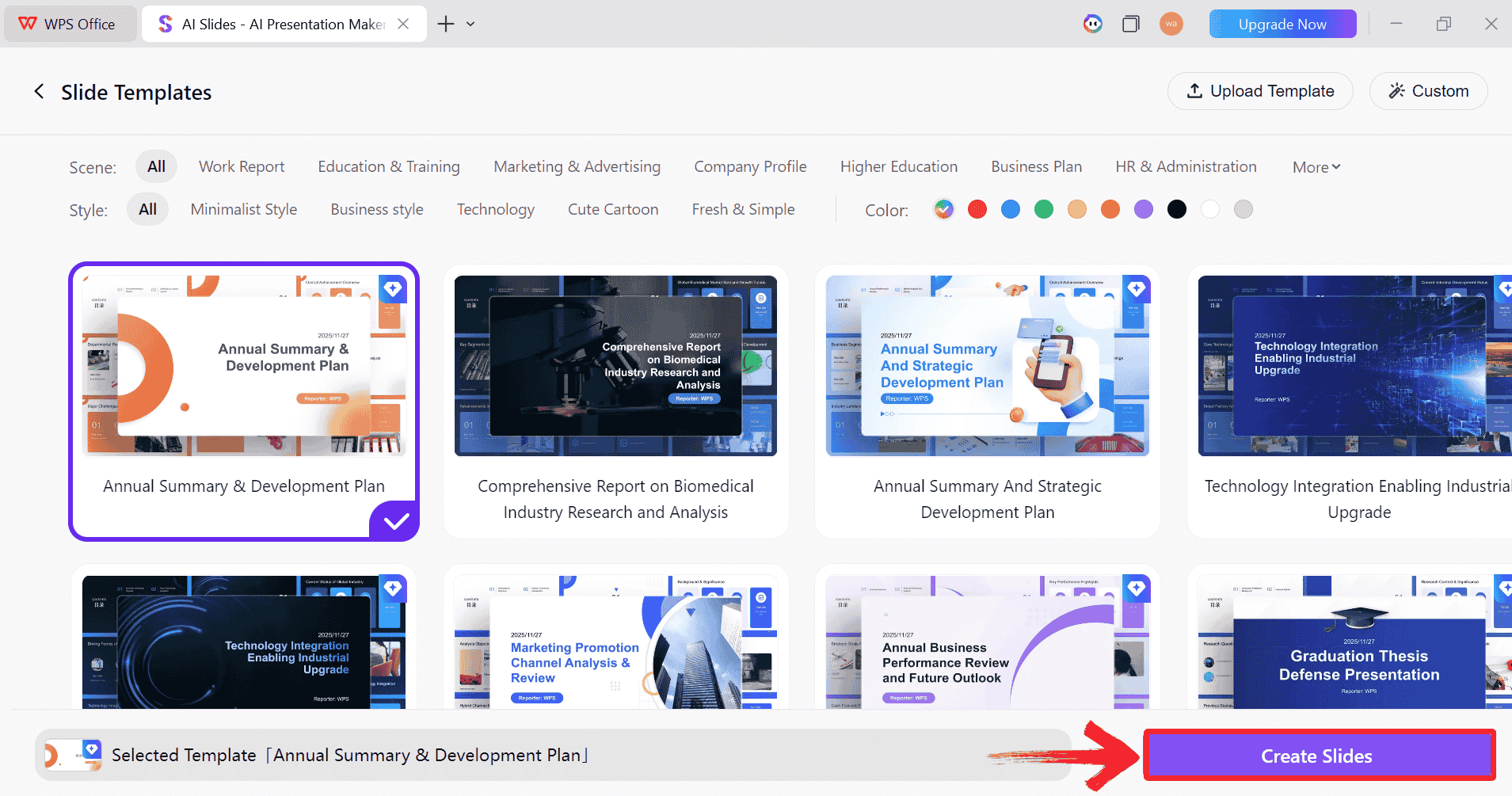
Step 8: Finally, your Slide deck will be generated with the accurate content.
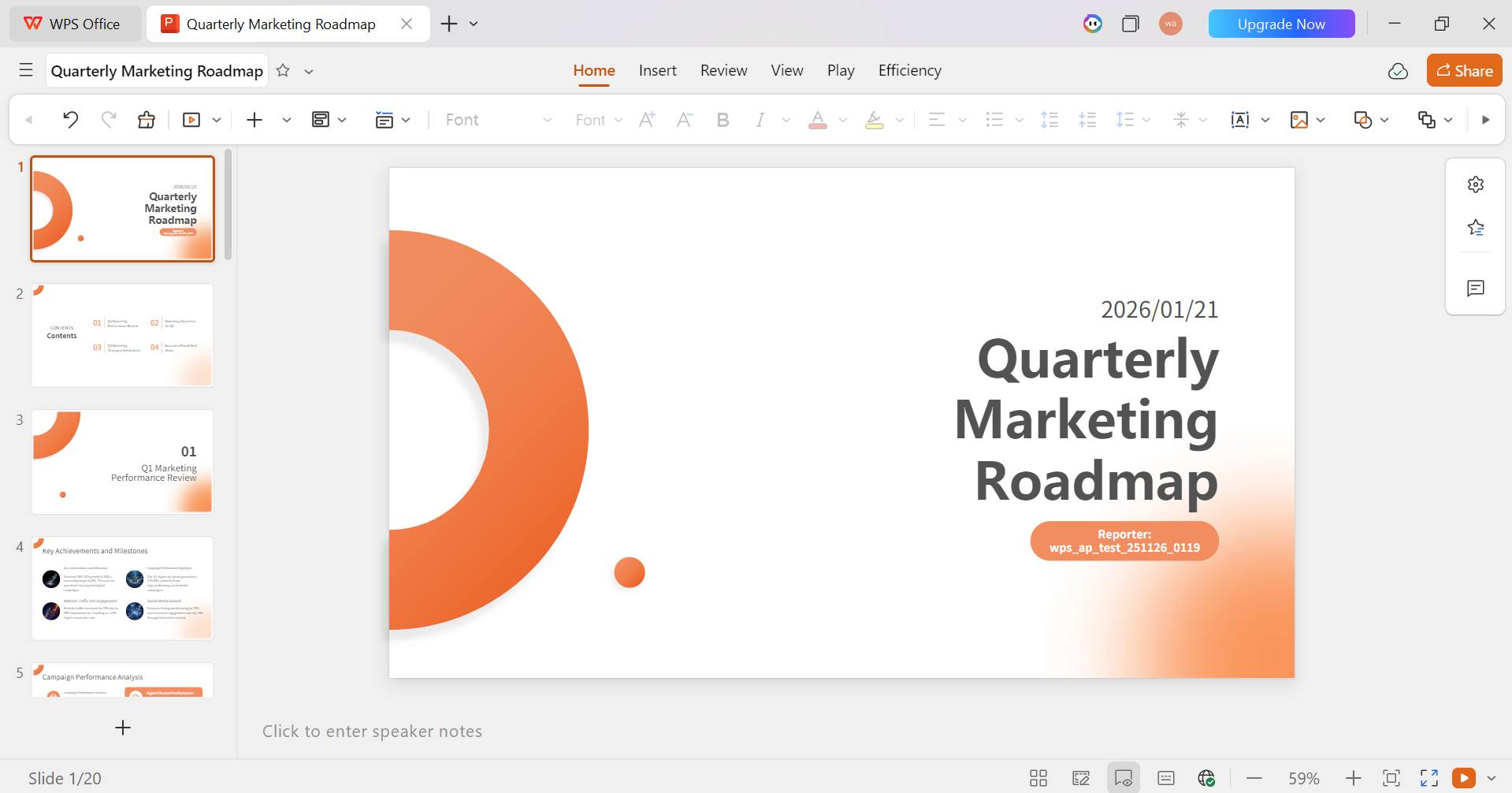
Step 9: You can then, from the ribbon menu above, make different changes using the extensive tools.

Step 10: Now, although WPS AI will add the appropriate animations itself, if you want to add animation to your selected text, click on “Animations” in the ribbon and then click the downwards arrow button to open a gallery of animations.
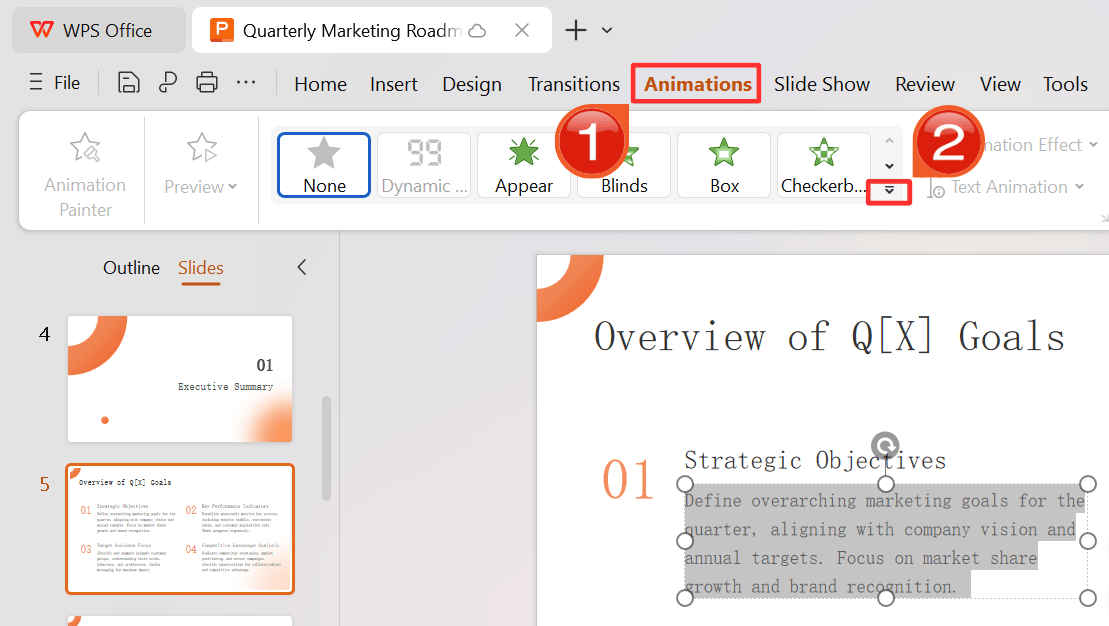
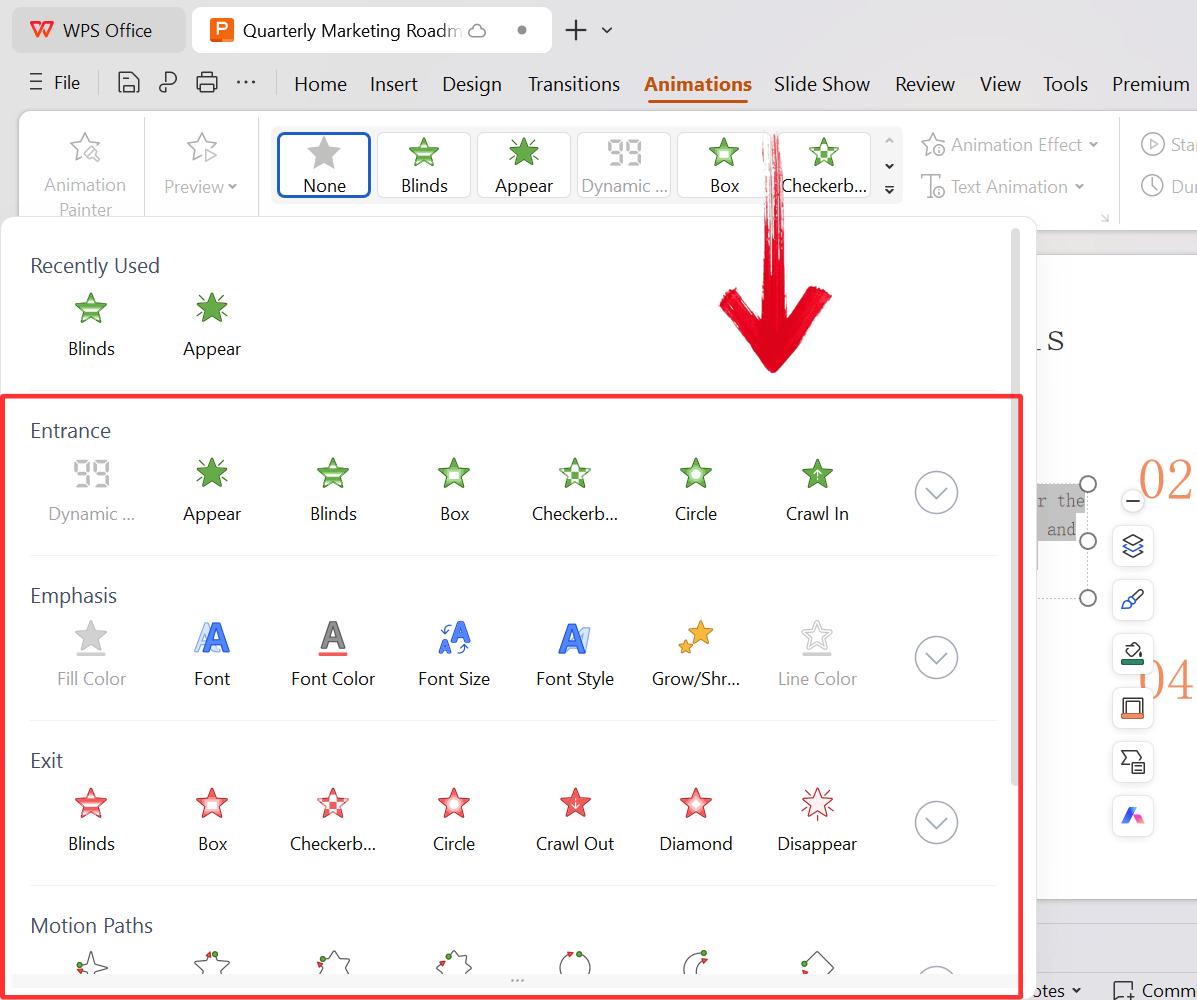
Step 11: Then, from the drop-down menu, select the animation you want to use on your selected text or image.
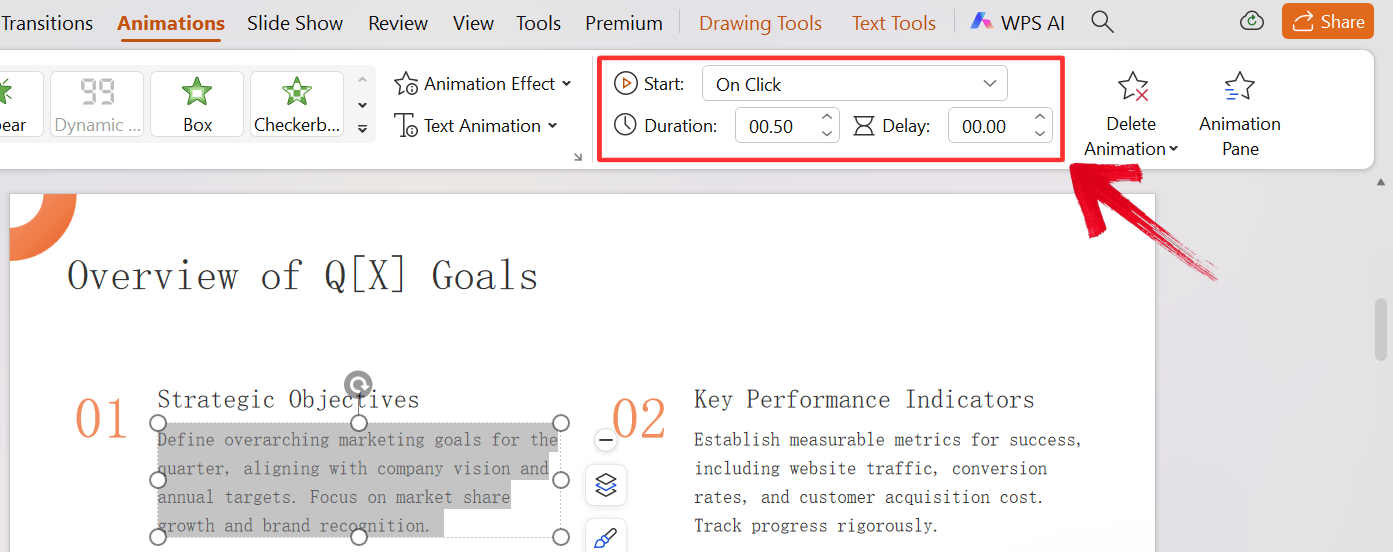
Step 12: You can also adjust the timing and duration of your animation, similar to PowerPoint, on the top right side of your ribbon.
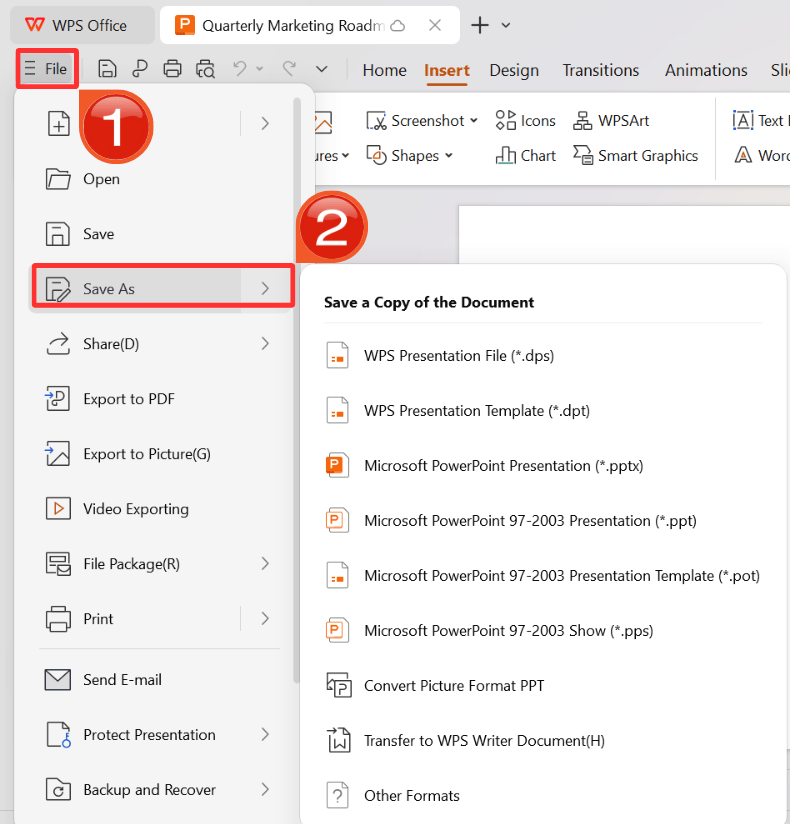
Step 13: Click on the File menu and then click “Save as” to download your PPT.
Why Choose WPS AI Slides for Your PowerPoint Animation Workflow
Adding animations in PowerPoint works, but it takes a lot of time and effort because every slide has to be adjusted manually. WPS AI Slides takes a different approach by handling animation as part of the overall design instead of a slide-by-slide task. The comparison below shows how using AI can save time and create more consistent, polished presentations.
Feature / Aspect | Traditional "Manual" Method in PowerPoint | AI-Assisted Workflow with WPS AI Slides |
Getting Started | Overwhelming. Requires browsing dozens of effect names (Fade, Float In, etc.) and guessing what fits. | Intelligent. Get context-aware suggestions in seconds based on your slide content. |
Applying & Consistency | Repetitive. You must apply and configure timing for each object individually. | Automated. Applies a consistent animation style across selected slides automatically. |
Skill & Time Required | High Barrier. Can take hours to learn timing and triggers. | Low Barrier. Beginners achieve advanced results instantly, saving hours of work. |
Creative Exploration | Linear. Experimenting with different schemes is prohibitively time-consuming. | Dynamic. Quickly generate and preview multiple thematic sets (e.g., "energetic," "subtle"). |
Workflow Integration | Interruption. A separate task that interrupts content creation. | Integrated. Animation is part of the holistic creation process within WPS. |
Key Advantages
AI-enhanced efficiency: Get animation suggestions in seconds and apply styles across all slides automatically to eliminate the guesswork of choosing effects.
Seamless PowerPoint integration: Work natively within the WPS environment and export flawlessly to standard .pptx files to ensure no compatibility issues or broken effects.
Lower skill barrier: Achieve advanced animation styles instantly using AI automation to produce results that rival professional designers without manual fine-tuning.
FAQs
1. What is the easiest way to add animations in PowerPoint?
The easiest method for beginners is to use the built-in Animations tab in PowerPoint and apply simple presets like Fade or Float In. However, for consistent, multi-slide animations, using an AI tool like WPS AI Slides is simpler. It can suggest and apply a complete, professional animation scheme across your entire presentation with just a few clicks.
2. Can AI really create good PowerPoint animations?
Yes, modern tools like WPS AI Slides are surprisingly effective. They do not just apply random effects; they analyze your slide content (headlines, bullet points, images) and suggest context-appropriate animation schemes that enhance storytelling. While they may not replace a custom motion designer, they provide professional-grade results that save immense time for business and education needs.
3. How do I change the order of animations on a slide?
To change the sequence, open the Animation Pane (usually found in the Animations tab). This opens a sidebar list of all effects on the current slide. You can click and drag items up or down the list to reorder them, or use the Move Earlier and Move Later arrows in the ribbon.
4. Can I animate a chart in PowerPoint?
Yes. Select the chart and apply an animation like Wipe or Fade. Then, go to Effect Options. You will see an option to animate the chart As One Object (the whole chart appears at once) or By Series/Category (bars or lines appear one by one), which is excellent for presenting data step-by-step.
Adding Animation to PowerPoint the Smart Way
Learning how to add animation in PowerPoint is essential for creating dynamic, memorable presentations. While the manual tools in PowerPoint offer detailed control, they can be slow and difficult to master. For a more efficient workflow, WPS AI Slides offers an intelligent alternative that automates the animation process, ensuring your slides look professional and consistent with minimal effort.

'%3e%3cpath%20d='M19.9911%204.11386V6.471H18.5894C18.0775%206.471%2017.7322%206.57814%2017.5536%206.79243C17.3751%207.00671%2017.2858%207.32814%2017.2858%207.75671V9.44421H19.9019L19.5536%2012.0871H17.2858V18.8639H14.5536V12.0871H12.2769V9.44421H14.5536V7.49779C14.5536%206.39064%2014.8632%205.53201%2015.4822%204.92189C16.1013%204.31177%2016.9257%204.00671%2017.9554%204.00671C18.8304%204.00671%2019.509%204.04243%2019.9911%204.11386Z'%20fill='%23333333'/%3e%3c/g%3e%3cdefs%3e%3cclipPath%20id='clip0_2938_8199'%3e%3crect%20width='16'%20height='16'%20fill='white'%20transform='translate(8%204.00671)'/%3e%3c/clipPath%3e%3c/defs%3e%3c/svg%3e)
'%3e%3cpath%20d='M17.5237%2010.7813L23.4811%204H22.0699L16.8949%209.88693L12.7648%204H8L14.2469%2012.9029L8%2020.0133H9.4112L14.8725%2013.7952L19.2352%2020.0133H24M9.92053%205.04213H12.0885L22.0688%2019.0224H19.9003'%20fill='%23333333'/%3e%3c/g%3e%3cdefs%3e%3cclipPath%20id='clip0_2938_8200'%3e%3crect%20width='16'%20height='16.0134'%20fill='white'%20transform='translate(8%204)'/%3e%3c/clipPath%3e%3c/defs%3e%3c/svg%3e)


