

'%3e%3cpath%20d='M8%200C12.4183%200%2016%203.58172%2016%208C16%2012.4183%2012.4183%2016%208%2016C3.58172%2016%200%2012.4183%200%208C0%203.58172%203.58172%200%208%200ZM11.6162%204.38379C11.2257%203.99337%2010.5927%203.99338%2010.2021%204.38379L8%206.58594L5.79785%204.38379C5.40732%203.99334%204.77429%203.99329%204.38379%204.38379C3.99331%204.77429%203.99335%205.40733%204.38379%205.79785L6.58594%208L4.38379%2010.2021C3.99348%2010.5927%203.99341%2011.2257%204.38379%2011.6162C4.77426%2012.0066%205.40734%2012.0065%205.79785%2011.6162L8%209.41406L10.2021%2011.6162C10.5927%2012.0066%2011.2257%2012.0067%2011.6162%2011.6162C12.0067%2011.2257%2012.0066%2010.5927%2011.6162%2010.2021L9.41406%208L11.6162%205.79785C12.0066%205.40735%2012.0066%204.77429%2011.6162%204.38379Z'%20fill='%23080E17'%20fill-opacity='0.46'/%3e%3c/g%3e%3cdefs%3e%3cclipPath%20id='clip0_3761_713'%3e%3crect%20width='16'%20height='16'%20fill='white'/%3e%3c/clipPath%3e%3c/defs%3e%3c/svg%3e)


'%3e%3cpath%20fill-rule='evenodd'%20clip-rule='evenodd'%20d='M21.4999%2010.9993C21.4999%205.20009%2016.7986%200.498901%2010.9993%200.498901C5.19994%200.498901%200.498657%205.20009%200.498657%2010.9993C0.498657%2016.2404%204.33858%2020.5844%209.35855%2021.3722V14.0346H6.69238V10.9993H9.35855V8.68594C9.35855%206.05427%2010.9262%204.60062%2013.3248%204.60062C14.4736%204.60062%2015.6753%204.80571%2015.6753%204.80571V7.38979H14.3512C13.0468%207.38979%2012.64%208.19921%2012.64%209.0296V10.9993H15.5523L15.0867%2014.0346H12.64V21.3722C17.66%2020.5844%2021.4999%2016.2404%2021.4999%2010.9993Z'%20fill='%231568EA'/%3e%3c/g%3e%3c/svg%3e)


'%3e%3cpath%20d='M2.42045%2022.1876H6.31818V12.7217L0.75%208.54553V20.5171C0.75%2021.4414%201.49892%2022.1876%202.42045%2022.1876Z'%20fill='%234285F4'/%3e%3cpath%20d='M19.682%2022.1876H23.5797C24.5041%2022.1876%2025.2502%2021.4387%2025.2502%2020.5171V8.54553L19.682%2012.7217'%20fill='%2334A853'/%3e%3cpath%20d='M19.682%205.48293V12.7216L25.2502%208.54543V6.31816C25.2502%204.25236%2022.8921%203.07469%2021.2411%204.31361'%20fill='%23FBBC04'/%3e%3cpath%20d='M6.31824%2012.7217V5.48303L13.0001%2010.4944L19.6819%205.48303V12.7217L13.0001%2017.733'%20fill='%23EA4335'/%3e%3cpath%20d='M0.75%206.31816V8.54543L6.31818%2012.7216V5.48293L4.75909%204.31361C3.10534%203.07469%200.75%204.25236%200.75%206.31816Z'%20fill='%23C5221F'/%3e%3c/g%3e%3cdefs%3e%3cclipPath%20id='clip0_2954_7305'%3e%3crect%20width='24.5'%20height='18.375'%20fill='white'%20transform='translate(0.75%203.8125)'/%3e%3c/clipPath%3e%3c/defs%3e%3c/svg%3e)


Recording a presentation sounds simple until you are actually doing it. You finish your slides, open a recording tool, and then realize the audio is off, the layout looks cluttered on camera, or you have no idea what to say slide by slide. Most guides tell you which button to press, but skip the part where a disorganized deck makes the whole recording feel uncertain and hard to follow. This guide covers how to record presentation on Google Slides using the built-in recorder, browser extensions, and desktop software, and then shows you how WPS AI Slides can cut your preparation time significantly, so the recording itself goes much more smoothly.
How to Record in Google Slides: Native and Third-Party Methods
There are three main ways to record a Google Slides presentation, each suited to a different situation. The method you choose depends on your Google account type, how much control you want over the recording, and how much setup you are willing to do. Here’s how to record presentation on Google Slides using these 3 methods:
Using Google Slides' Built-In Recording Feature
Google Slides has a native recording feature available to users on paid Google Workspace plans, specifically Business Standard, Business Plus, Enterprise, and Education Plus accounts. If you are on one of these plans and using Chrome or Microsoft Edge on a desktop, you will see a Rec button in the top right corner of the editor. It is not available on free personal Google accounts, mobile devices, or other browsers.
When it works for you, it is the most convenient option since everything stays inside one tab. You can record your slides, your webcam feed, and your microphone audio all at once without installing anything extra. Recordings are saved automatically to your Google Drive and capped at 30 minutes per session.
Key Features:
Camera and microphone support: Records webcam and audio directly from your browser with permission prompts on first use
Speaker positioning: Lets you resize and reposition your camera feed within the recording frame
Background blur: Includes a background blur option so your environment does not distract from the content
Drive auto-save: Saves recordings directly to a dedicated folder in Google Drive for easy sharing
Steps:
Before you begin, ensure your environment is quiet and your slides are finalized to avoid unnecessary restarts. Following these steps helps you understand how to record yourself presenting Google Slides using the workspace native interface.
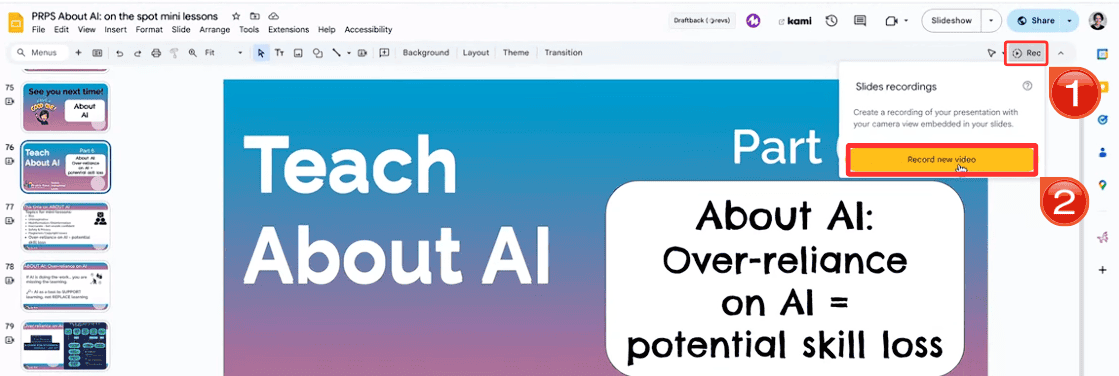
Step 1: Open your presentation in Google Slides using Chrome or Edge on a desktop. Click "Rec", then select "Record new video" from the dropdown.
Step 2: If this is your first time, your browser will ask for camera and microphone permissions. Grant access, then adjust your camera size and position in the frame.
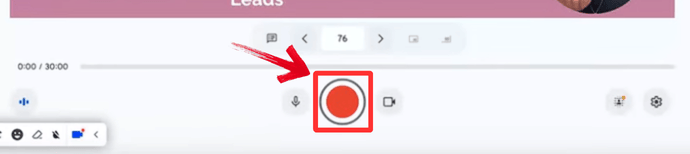
Step 3: Click the red "Record" button in the center of the screen to start. Move through your slides as you normally would during a presentation.
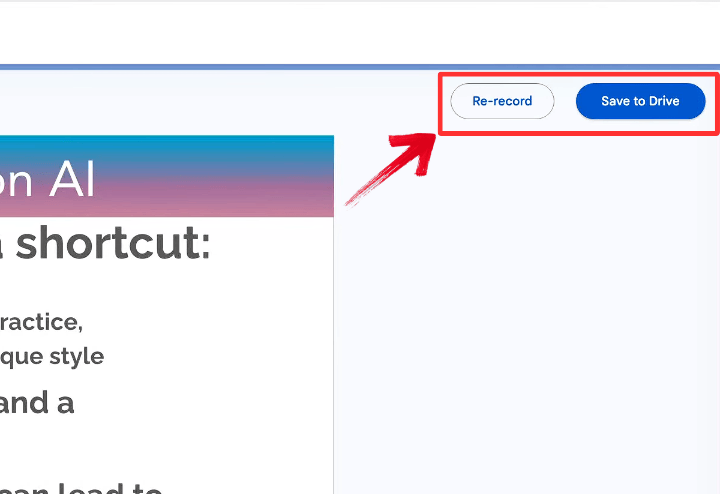
Step 4: When you are done, click "Re-record" or "Save to Drive". Once saved, the recording will appear in your Slides recording sidebar and in a dedicated folder in your Google Drive.
Pros:
No extra tools or installs needed
Saves directly to Drive for instant sharing
Webcam, audio, and slides recorded together in one session
Cons:
Only available on paid Google Workspace plans
Capped at 30 minutes per recording
No editing tools within the native recorder
Does not work on mobile or non-Chromium browsers
Using a Screen Recording Extension
For anyone on a free Google account or who needs more features than the native recorder offers, a Chrome extension is the most practical option. Tools like Loom and Screencastify install directly into your browser and record your slides tab, your webcam feed, and your microphone in one go. They work regardless of your Google account type and add useful extras like picture-in-picture camera, on-screen annotation, and basic trimming after the recording ends.
Loom is generally the more polished option for professional or async sharing, while Screencastify is well-suited for educators who need assignment and quiz features built into the video. Both have free plans with recording time limits, which work fine for most short presentations.
Key Features:
Tab or full-screen recording: Choose to capture just your Slides tab or your entire screen depending on what you need
Picture-in-picture camera: Keeps your webcam feed visible in a corner of the recording so viewers can see you alongside the slides
Annotation tools: Draw, highlight, and mark up your screen while recording to point out specific content
Instant share link: Generates a shareable link the moment your recording ends, without needing to export or upload separately
Steps (using Loom):
Using a browser extension provides a flexible way to screen record Google Slides presentation while maintaining a personal touch with a webcam overlay. This workflow is ideal for quick tutorials or remote team updates.
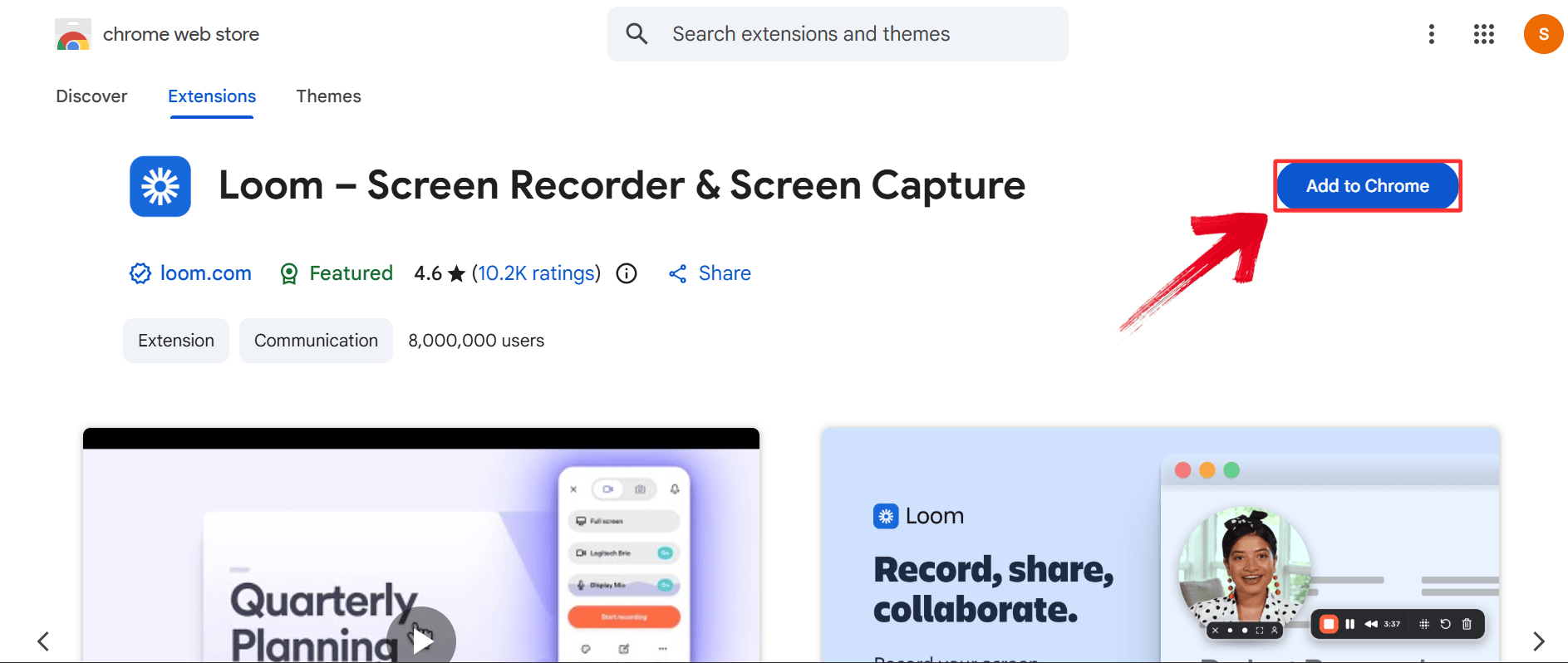
Step 1: Go to the Chrome Web Store, search for Loom, and click "Add to Chrome". Once installed, click the Loom icon in your browser toolbar and sign in or create a free account.
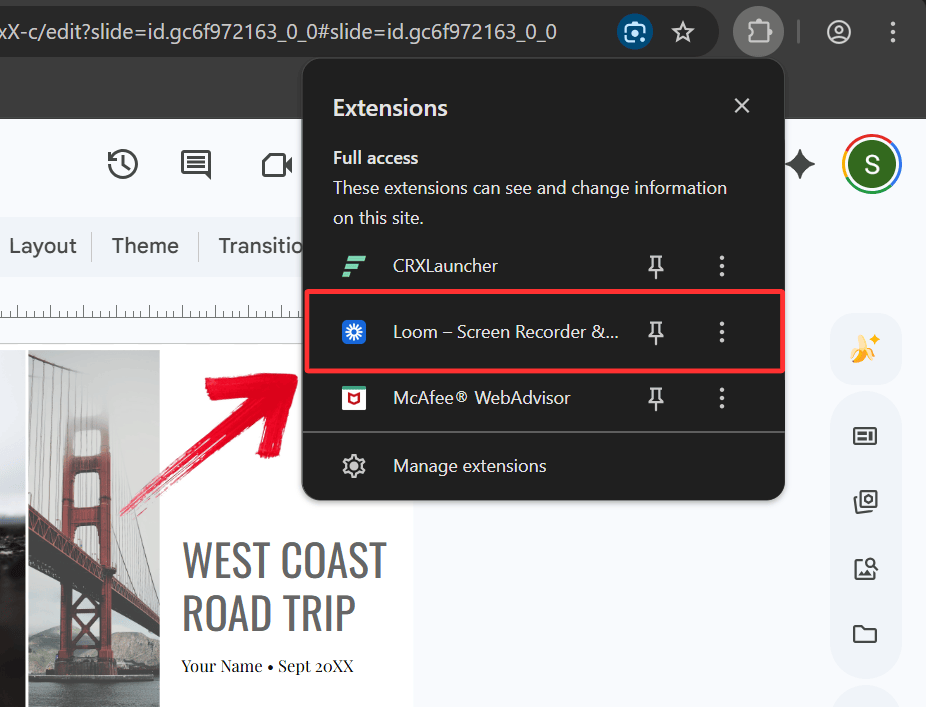
Step 2: Open your Google Slides presentation in a separate tab. Click the Loom extension icon.
Step 3: Toggle your microphone and camera on or off based on your preference.
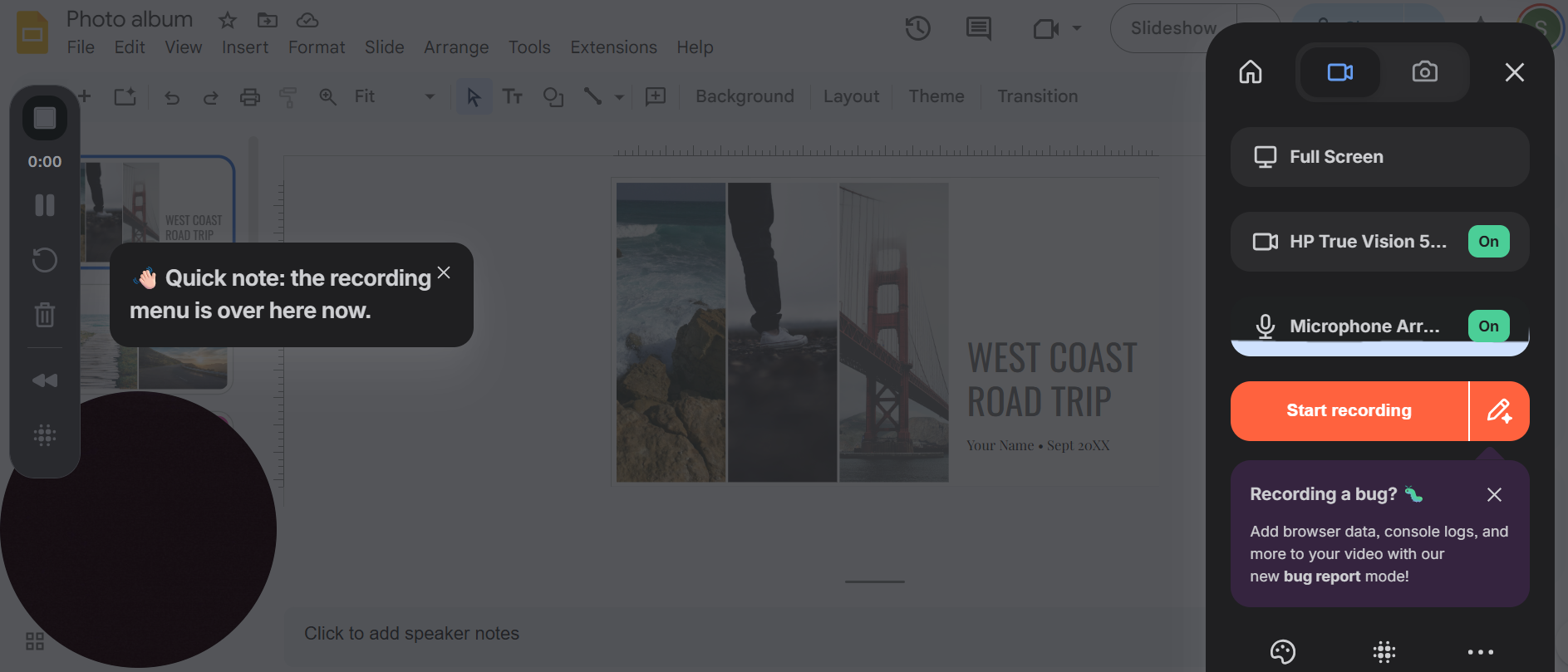
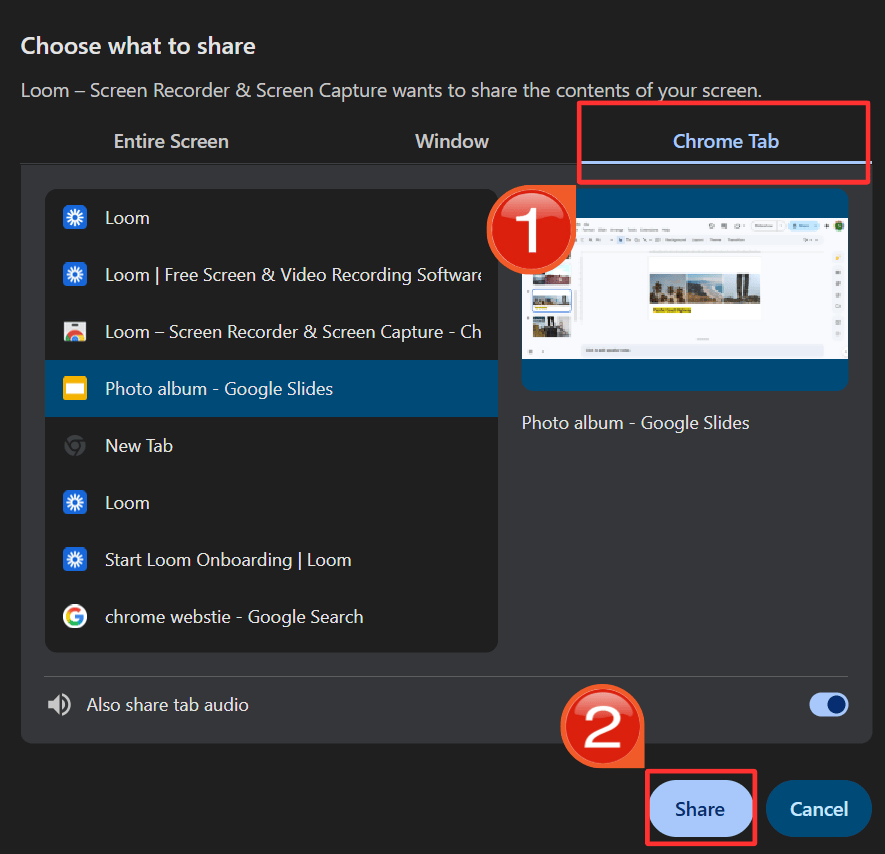
Step 4: Click "Start Recording" in the Loom panel. When prompted, select your Google Slides tab under the Chrome Tab option, then click "Share" to allow Loom to capture it.
Step 5: Click "Start Recording" again to begin. Switch to your Google Slides tab and click "Slideshow" in the top right to enter full-screen presentation mode.
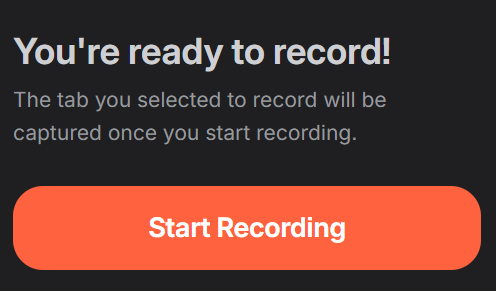
Step 6: Present normally, moving through your slides. When you finish, click the Loom stop button in your toolbar. The recording opens automatically in your Loom library, where you can trim, annotate, and copy the share link.
Pros:
Works on any Google account, free or paid
Picture-in-picture webcam makes recordings feel more personal
Shareable link is ready immediately after recording ends
Free plan is sufficient for most short presentations
Cons:
Free plans on Loom and Screencastify have per-video time limits
Requires an active internet connection and browser tab access
Using Professional Desktop Software
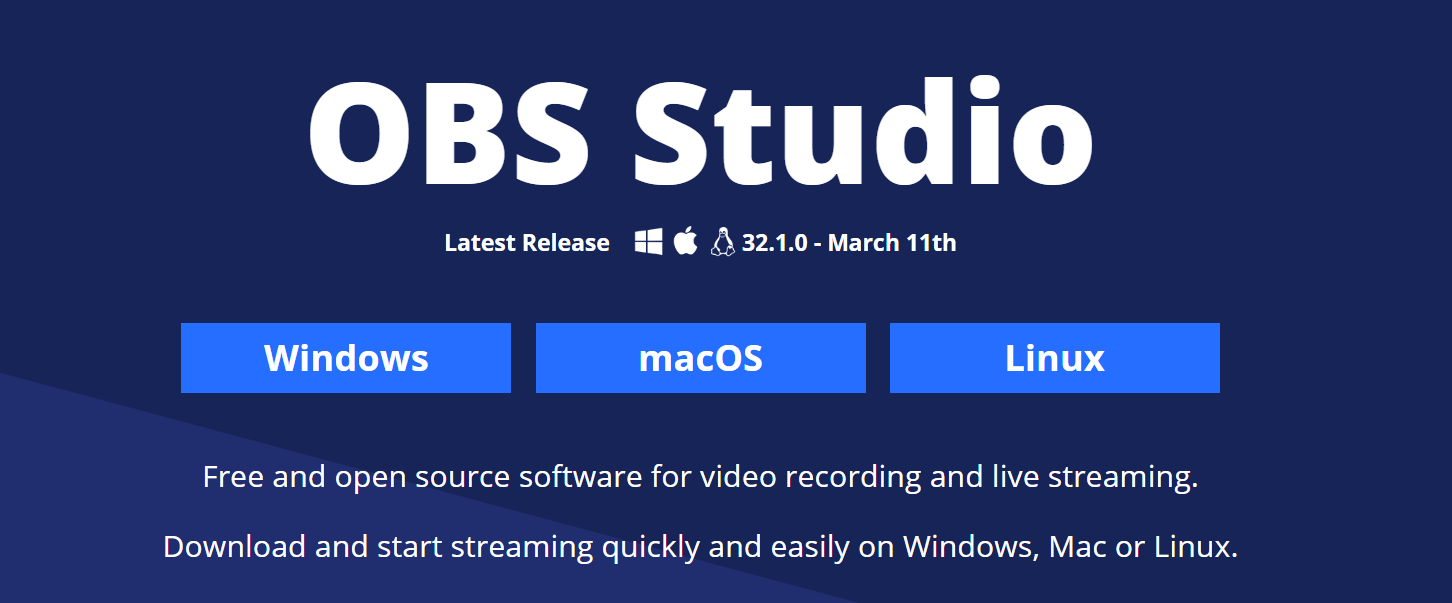
If you need full control over audio quality, multi-camera setups, or polished post-production, desktop recording software like OBS Studio or Camtasia is worth the extra setup time. OBS is free and open-source with powerful scene-switching and source layering. On the other hand, Camtasia is a paid tool with a built-in editor that makes trimming, captioning, and adding callouts much faster after the fact.
This produces the cleanest output and gives you the most flexibility in how the final video looks and sounds.
Key Features:
Multi-source capture: Record your Slides window, webcam, and microphone as separate sources that you can mix and layer
Scene switching: Set up multiple scenes in advance so you can cut between your slides, a whiteboard, or a full-camera view during the recording
Full post-production: Edit cuts, add captions, insert callouts, and export in multiple formats after the recording ends
No time limits: Record for as long as you need without hitting a cap
Steps (using OBS Studio):
This method provides the highest quality output for users who need a permanent, high-resolution file. You can follow these steps to manage complex recording environments effectively.
Step 1: Download and install OBS Studio from obsproject.com. Open the app and go to "Sources" at the bottom of the screen.
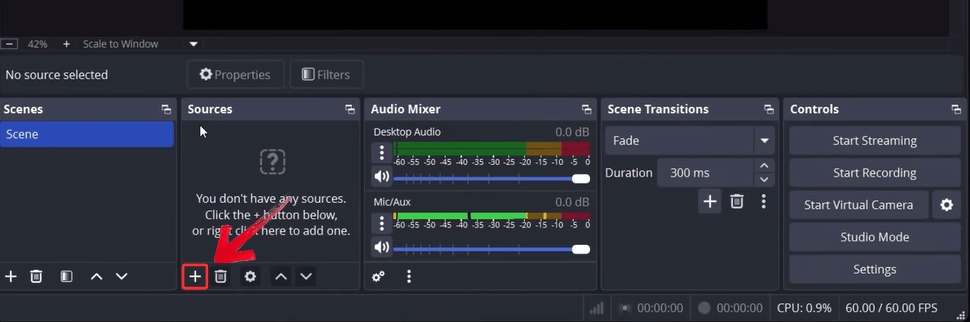
Step 2: After you’re done with the download, under Sources, click the "+" button.
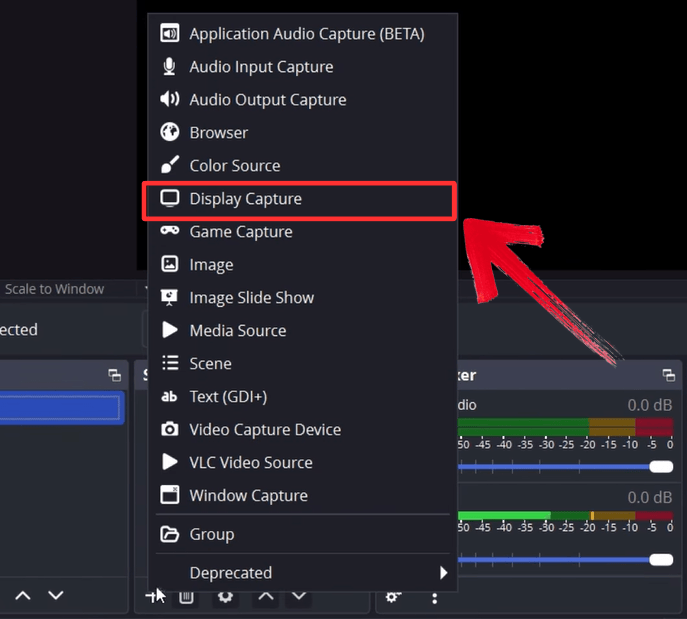
Step 3: Select "Display Capture". From the dropdown, choose your Google Slides browser window to add it as a source.
Step 4: Adjust your settings and then click “OK” to save them.
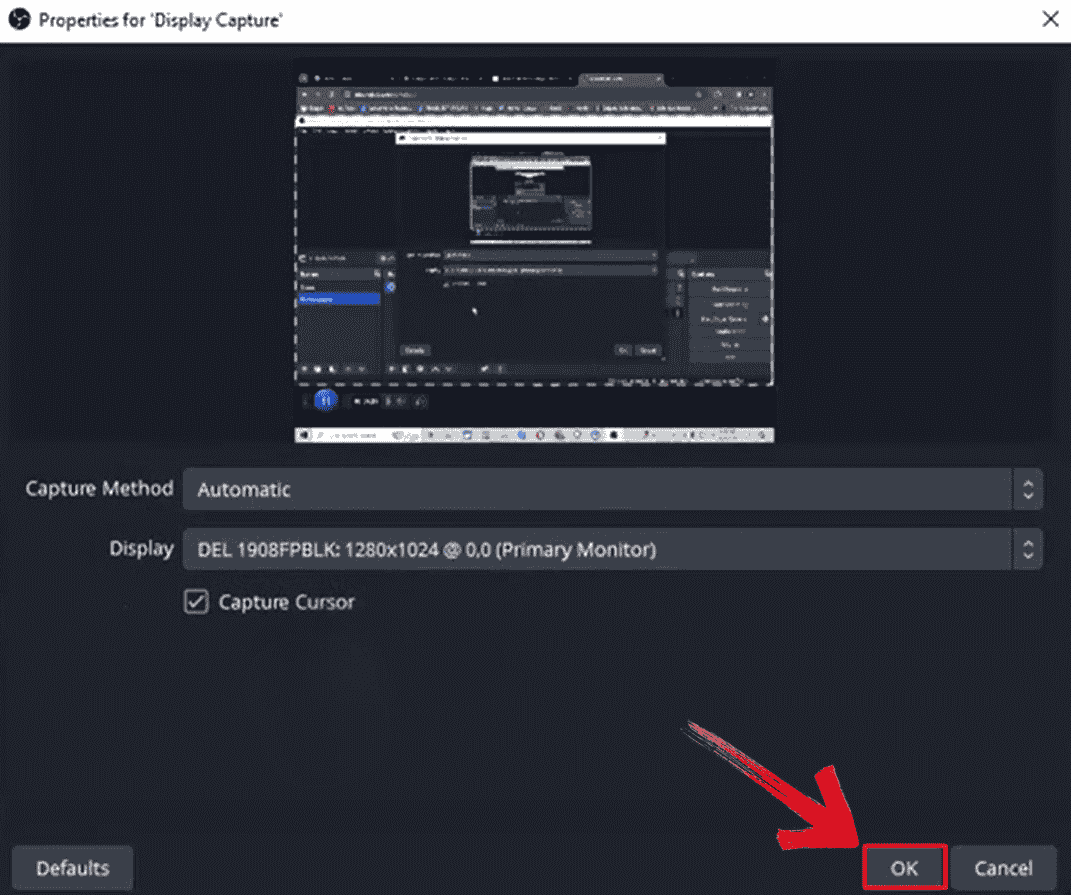
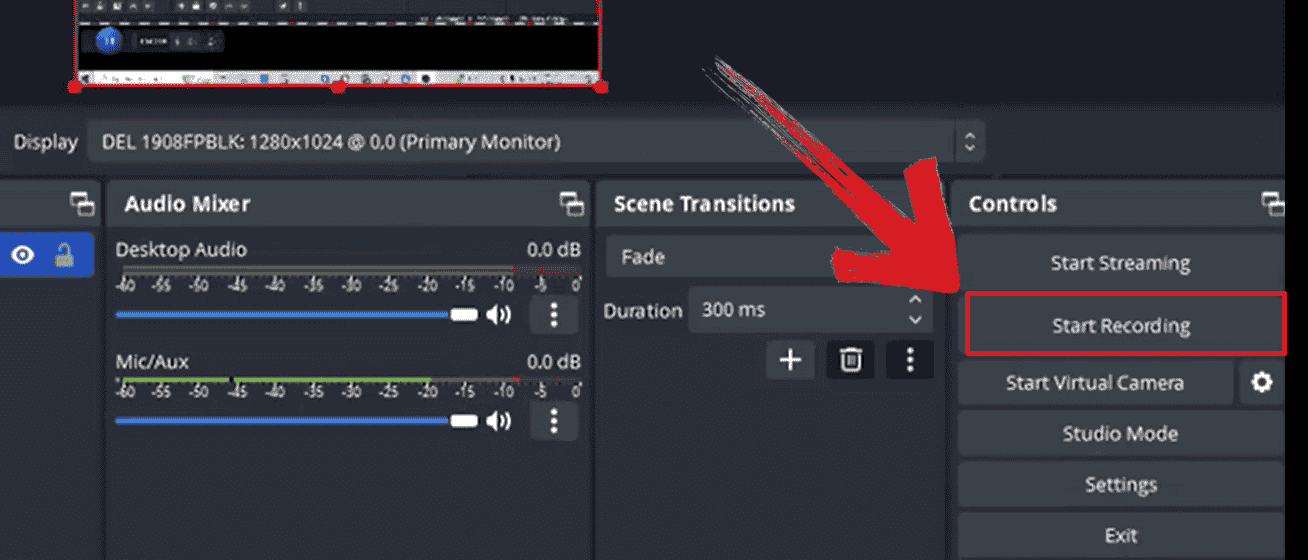
Step 5: Switch to your Google Slides tab and enter full-screen presentation mode. Return to OBS and click "Start Recording". Present normally, then click "Stop Recording" when done. Your file is saved to the location you set.
Pros:
Highest output quality with full control over every setting
No recording time limits
Strong post-production options, especially in Camtasia
Cons:
Takes time to configure sources and scenes correctly the first time
OBS has a steeper learning curve compared to browser extensions
Camtasia requires a paid license for the editing features
The Real Problem Before You Even Hit Record
Finding the right tool to record Google Slides with audio is the easy part. The harder part is getting to a presentation that is actually ready to record. Most people underestimate how much time goes into building a clean, well-structured deck. You need the right content on each slide, a clear narrative flow, speaker notes that actually help you talk through the material, and a design that looks professional on camera rather than cluttered or hard to read.
On top of that, content creation and recording are completely separate steps. You build in Google Slides, then switch to a recording tool, then switch again to edit the video. Each context switch adds friction and makes it easier to lose momentum before you ever press record.
The Smarter Workflow: Prepare and Record with WPS AI Slides
If the preparation side of recording a presentation is where most of the time goes, that is exactly where it makes sense to get help. WPS AI Slides is built into WPS Office and handles the time-consuming parts of slide creation using AI, so you spend less time staring at a blank deck and more time actually delivering and recording your material.
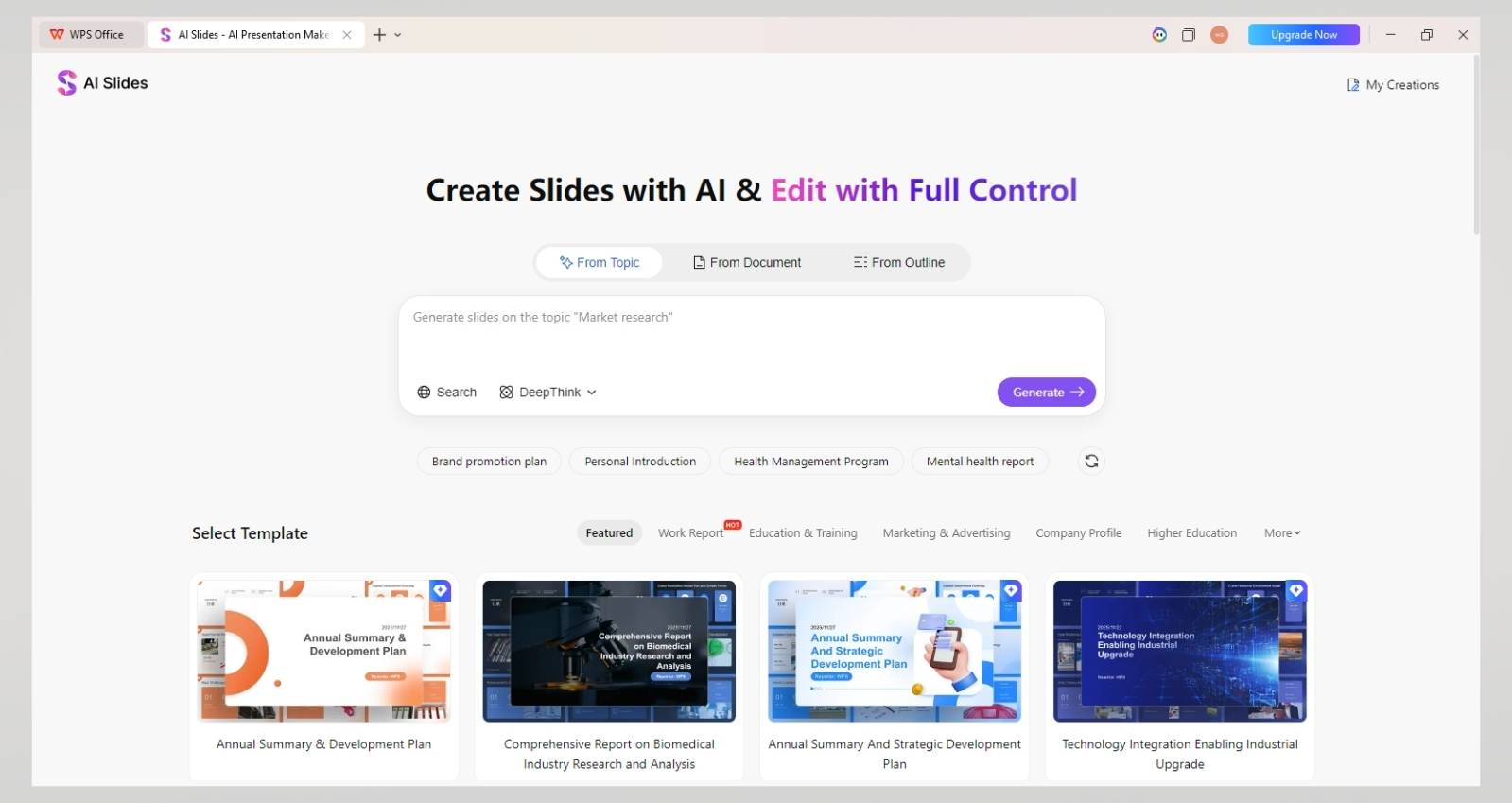
The key difference between WPS AI Slides and most other tools is that the AI does not just generate a few bullet points and leave you to figure out the rest. It builds a full structured outline, suggests slide layouts based on the content, fills in speaker notes, and applies a consistent visual theme across the whole deck. By the time you are ready to record, the presentation is already organized and designed. You are not building as you go.
Key Advantages for Presentation Recording Preparation:
From topic to full draft in minutes: Describe your subject and the AI generates a complete outline with suggested slide content and speaker notes, giving you a solid base to record from rather than starting from scratch.
Design that holds up on camera: AI automatically applies professional layouts and visual themes that stay readable and clean in a recorded video, without you having to manually adjust fonts, spacing, or slide structure.
Speaker notes as your guide: The notes generated alongside each slide give you a clear prompt for what to say, so you are less likely to lose your place or ramble during the recording.
Everything in one place before you export: The full creation process from outline to finished design happens inside WPS Office, so by the time you export, the deck is complete and ready to record.
Exports cleanly to your preferred recording setup: The final deck exports as a .pptx file that opens directly in Google Slides or any recording software, so you can use whichever recording method fits your situation.
Quick Decision Guide
Professionals who already have a finished deck and just need to record it can use one of the methods in Part 1 directly. The native Google Slides recorder works well if you have a paid Workspace account, while Loom or Screencastify can handle the task if you are on a free plan. If you are building a presentation from scratch and want to record something polished, you can start in WPS AI Slides to generate your content and design, export the file as a .pptx, and then open it in Google Slides or your recording tool of choice to begin.
Tutorial: From AI-Powered Creation to Recorded Presentation
Before you even think about your microphone settings, you need a deck that is structured well enough to talk through. These steps show you how to record Google Slides with audio by first building a professional foundation that makes the actual speaking part much easier.
Generate Your Presentation with WPS AI Slides
Step 1: Open your browser to visit WPS Office and click the "Free Download" button to start the download.
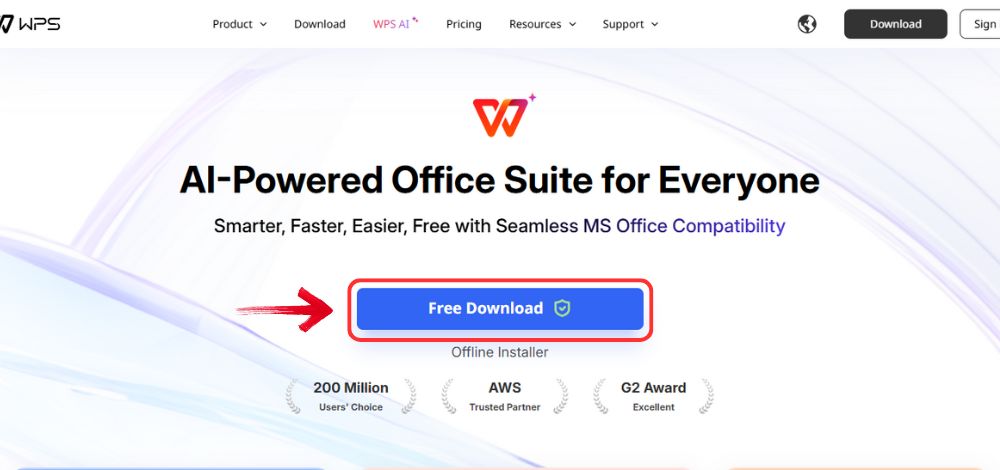
Step 2: The download will finish in a few seconds. Once done, run the installation file like you would for any other app or software.
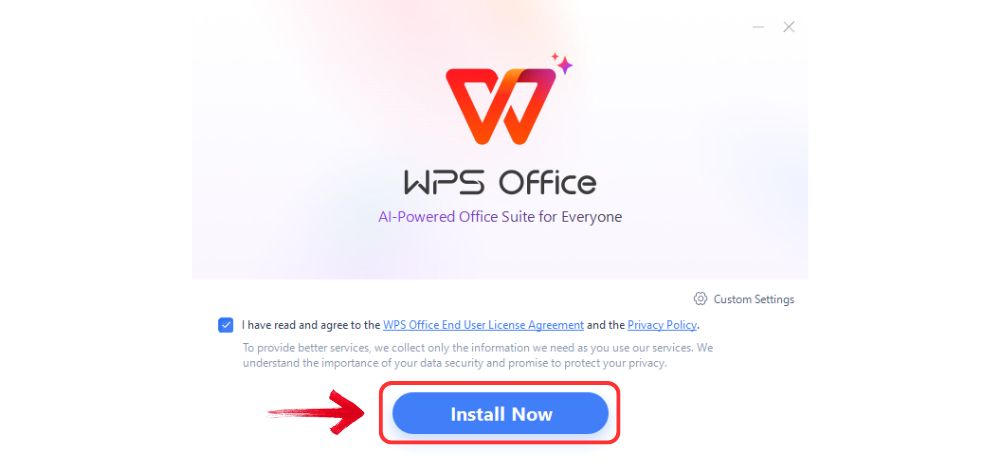
Step 3: WPS Office will show you a few simple terms and conditions. Accept them, then click the "Install Now" button to begin the installation.
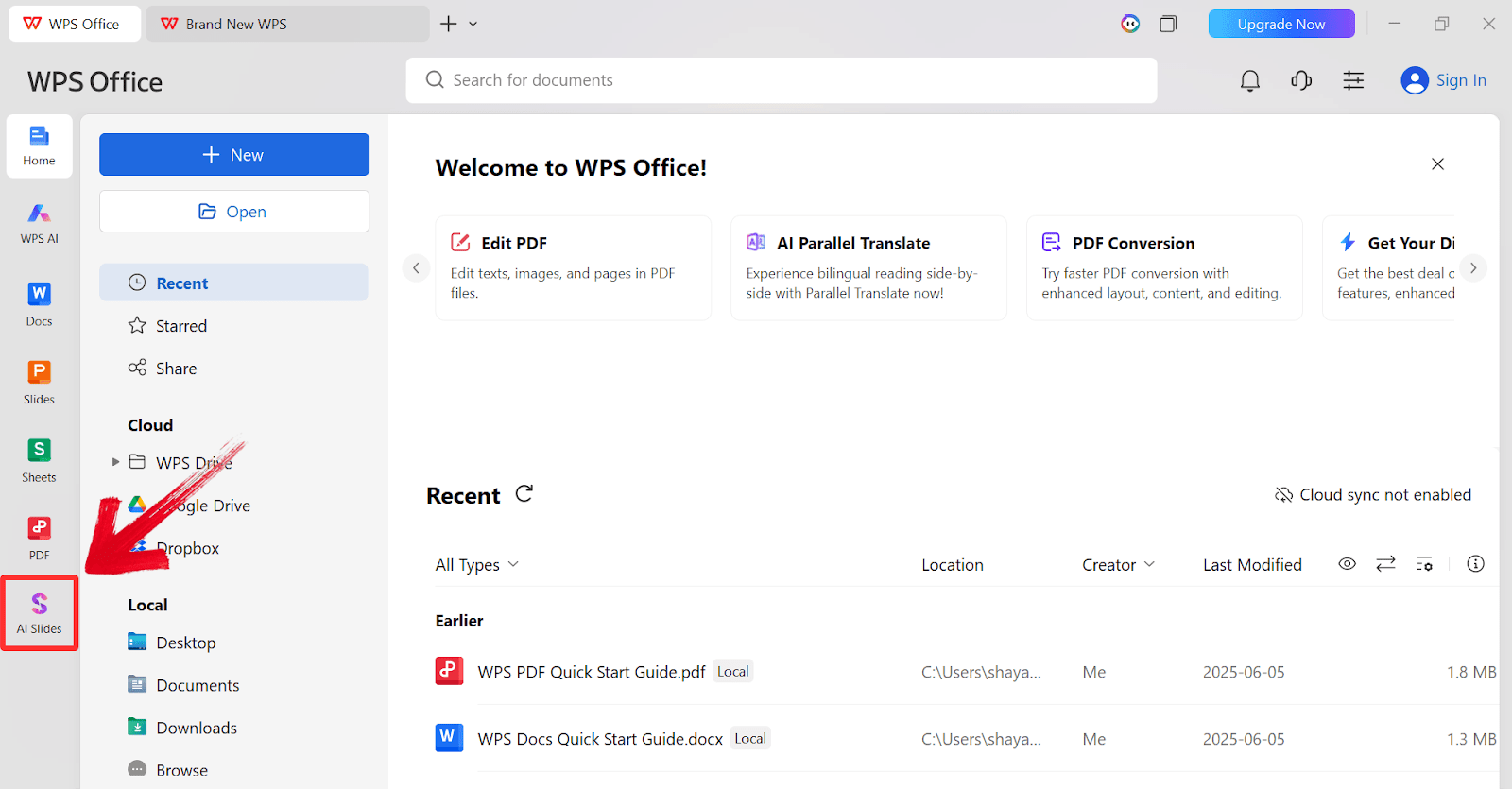
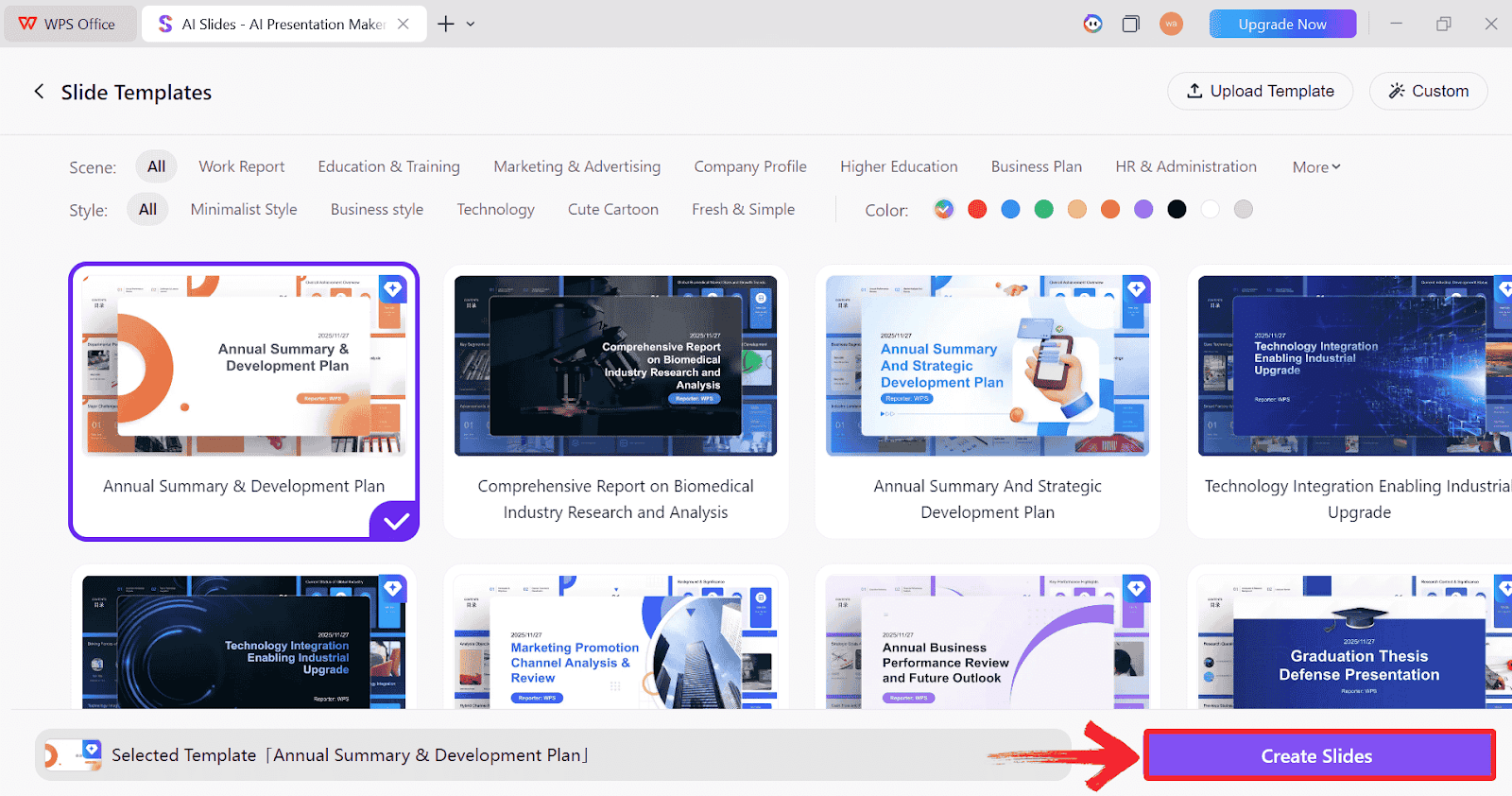
Step 4: After installation, in WPS Office, click “AI Slides” from the left sidebar.
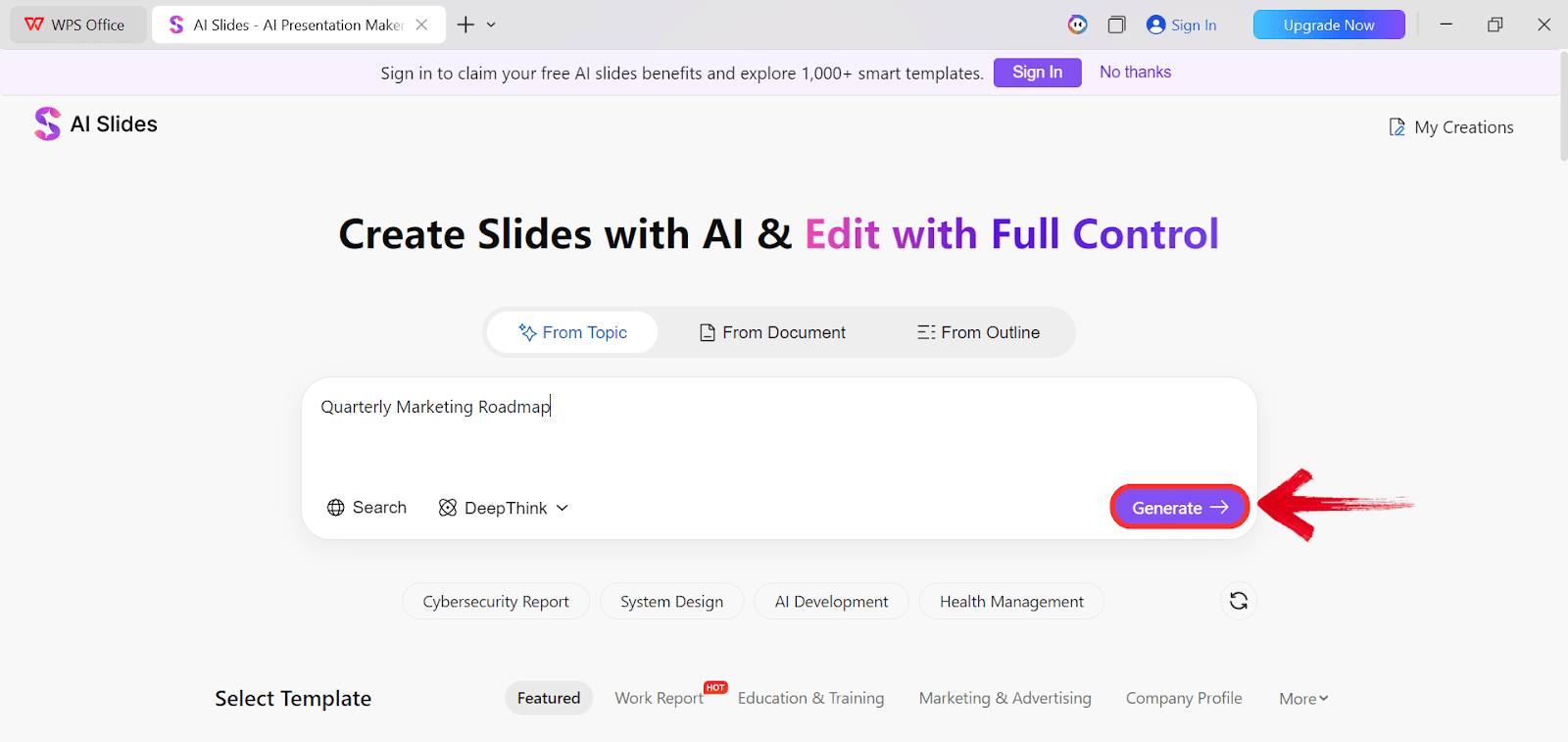
Step 5: Enter your presentation topic (e.g., "Quarterly Marketing Roadmap") into the dialogue box and click “Generate” to create the outline.
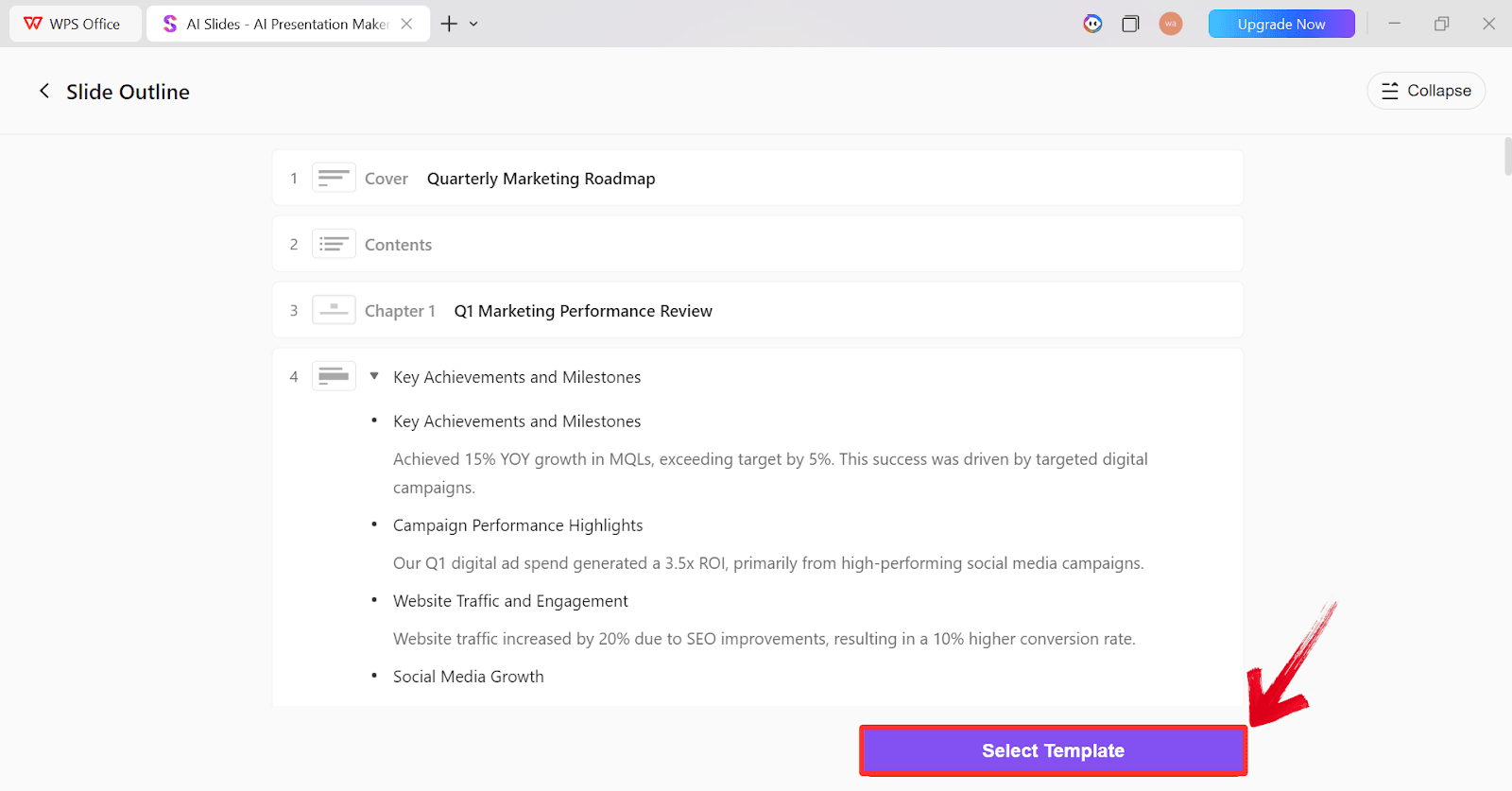
Step 6: After the AI creates the outline, click “Select Template” to pick a template from the already available ones.
Step 7: Choose from the Wide template library and click “Create Slides” to generate your presentation.
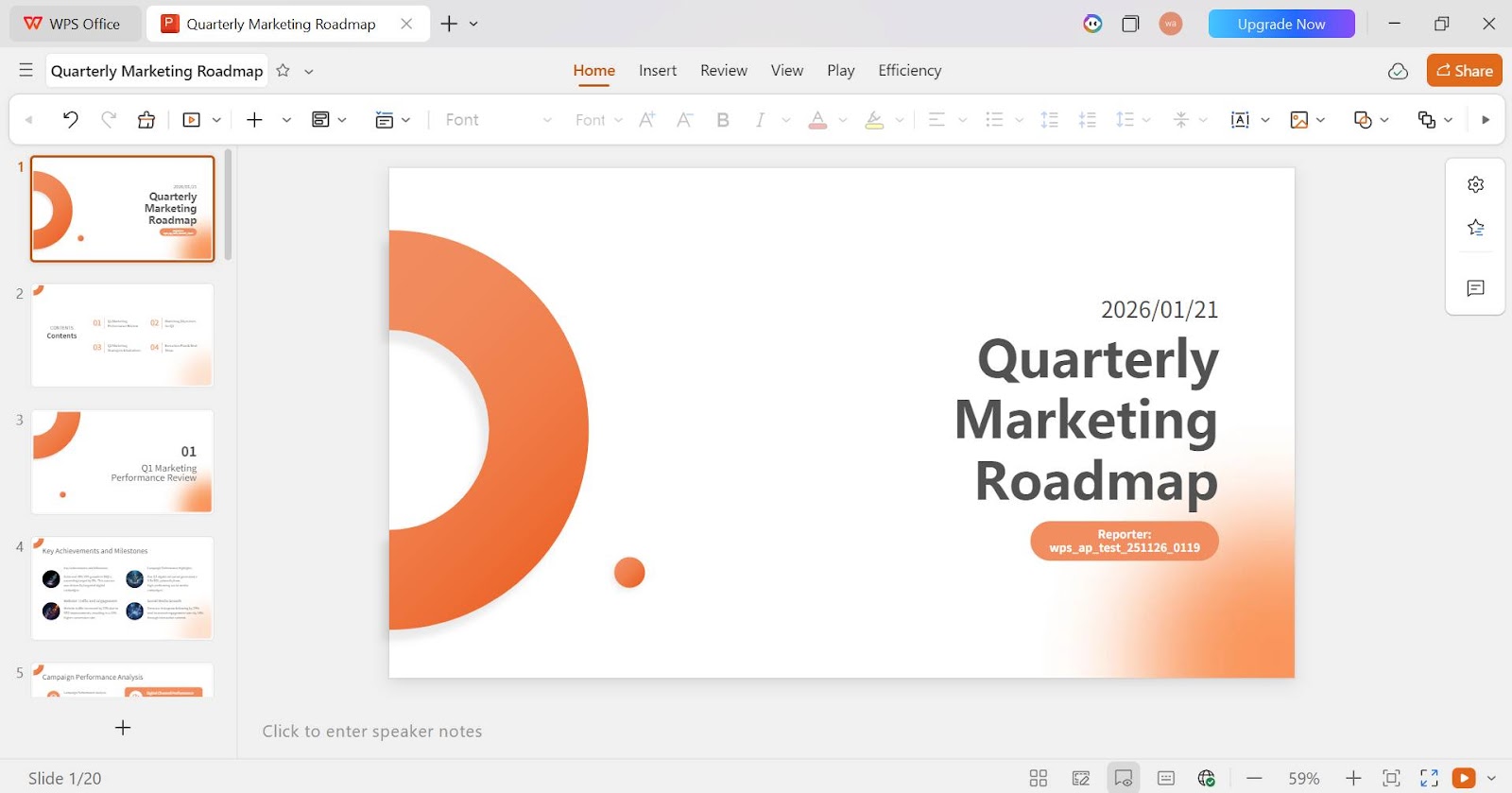
Step 8: Finally, your Slide deck will be generated with the accurate content. You can now import any diagram that you might have generated into the PPT.
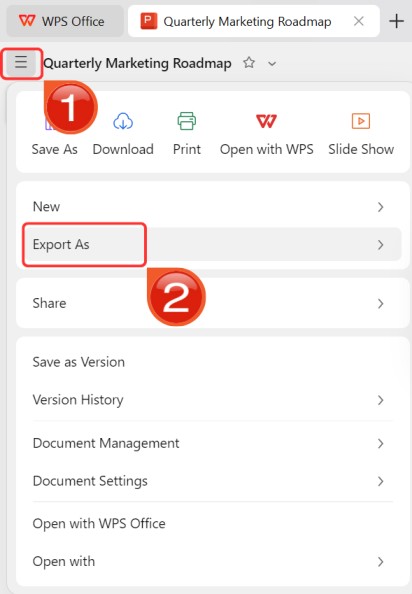
Step 9: Click on the File menu and then click “Export as” to download your PPT.
Set Up Your Recording Environment
Step 1: Open the exported .pptx file in Google Slides by going to Google Drive, clicking "New", selecting "File upload", and uploading your file. Google will convert it to Slides format automatically.
Step 2: Before recording, do a quick run-through of the presentation to get comfortable with the flow. Check that your microphone is picking up audio clearly and your webcam angle looks right if you plan to record yourself on camera.
Record Your Presentation
Step 1: Choose your recording method based on your account type. If you are on a paid Google Workspace plan, click "Rec" in the top right of the Slides editor and select "Record new video". If you are on a free account, open your Loom or Screencastify extension and set it to record your browser tab.
Step 2: Start the recording, then click "Slideshow" to enter full-screen presentation mode. Work through your slides, using the AI-generated speaker notes as your guide.
Step 3: When you finish, stop the recording. Save or export the file from your recording tool and share it via link or download.
FAQs
1. Can I record my voice and video directly inside Google Slides?
As of 2026, yes, but only if you are on a paid Google Workspace plan, specifically Business Standard, Business Plus, Enterprise, or Education Plus. You will see a "Rec" button in the top right of the editor when using Chrome or Edge on desktop. If you are on a free Google account, that button will not appear. In that case, a Chrome extension like Loom or Screencastify is the most reliable free alternative and takes about two minutes to set up.
2. What is the best free tool to record a Google Slides presentation?
Loom and Screencastify are both strong free options. Both let you record your slides, microphone audio, and webcam in picture-in-picture without leaving your browser. Their free plans include time limits per video, typically between 5 and 10 minutes, which covers most short presentations and async updates. If you need longer recordings without a watermark, you will need to upgrade to a paid plan on either tool.
3. How do I make sure my presentation looks good on camera before recording?
Slide design matters more in a recording than in a live presentation because viewers can pause and look closely at every frame. Avoid slides with too much text, inconsistent fonts, or low-contrast color combinations. If you are building your deck from scratch, using WPS AI Slides handles this automatically. It applies a consistent professional theme across all slides and formats the layout for clarity, so you are not adjusting individual slides by hand before you record.
4. Can I edit my Google Slides recording after saving it?
The native Google Slides recorder does not include editing tools. Once saved to Drive, the recording is a finished video file. If you need to cut sections, add captions, or annotate after the fact, you will need to download the file and edit it in a separate tool like Camtasia, CapCut, or even a free option like DaVinci Resolve. Browser extensions like Loom and Screencastify do include basic trimming within their platforms, which is enough for removing a slow start or a long pause at the end.
5. Do I need to finish my slides before I can start recording?
Not necessarily, but starting the recording with an incomplete or unpolished deck usually shows. Slides with placeholder text, uneven formatting, or no speaker notes make the delivery feel improvised and are harder to follow on a recording than in a live setting. Getting the content sorted first, even with a quick AI-generated draft from WPS AI Slides, makes the recording session noticeably smoother and cuts down on retakes.
The Fastest Path from Idea to Finished Recording
There is no single right way on how to record presentations on Google Slides in 2026. The built-in recorder is the cleanest option if you have the right Google Workspace plan. Extensions like Loom and Screencastify cover everyone else without any technical setup. Desktop tools like OBS give you the most control if quality is the priority. The part most guides skip is what happens before the recording starts. A well-structured, clearly designed deck makes every recording method work better, and that is where WPS AI Slides saves the most time. Build your content with AI, export it, and you are already ahead of most people who sit down to record.

'%3e%3cpath%20d='M19.9911%204.11386V6.471H18.5894C18.0775%206.471%2017.7322%206.57814%2017.5536%206.79243C17.3751%207.00671%2017.2858%207.32814%2017.2858%207.75671V9.44421H19.9019L19.5536%2012.0871H17.2858V18.8639H14.5536V12.0871H12.2769V9.44421H14.5536V7.49779C14.5536%206.39064%2014.8632%205.53201%2015.4822%204.92189C16.1013%204.31177%2016.9257%204.00671%2017.9554%204.00671C18.8304%204.00671%2019.509%204.04243%2019.9911%204.11386Z'%20fill='%23333333'/%3e%3c/g%3e%3cdefs%3e%3cclipPath%20id='clip0_2938_8199'%3e%3crect%20width='16'%20height='16'%20fill='white'%20transform='translate(8%204.00671)'/%3e%3c/clipPath%3e%3c/defs%3e%3c/svg%3e)
'%3e%3cpath%20d='M17.5237%2010.7813L23.4811%204H22.0699L16.8949%209.88693L12.7648%204H8L14.2469%2012.9029L8%2020.0133H9.4112L14.8725%2013.7952L19.2352%2020.0133H24M9.92053%205.04213H12.0885L22.0688%2019.0224H19.9003'%20fill='%23333333'/%3e%3c/g%3e%3cdefs%3e%3cclipPath%20id='clip0_2938_8200'%3e%3crect%20width='16'%20height='16.0134'%20fill='white'%20transform='translate(8%204)'/%3e%3c/clipPath%3e%3c/defs%3e%3c/svg%3e)


