

'%3e%3cpath%20d='M8%200C12.4183%200%2016%203.58172%2016%208C16%2012.4183%2012.4183%2016%208%2016C3.58172%2016%200%2012.4183%200%208C0%203.58172%203.58172%200%208%200ZM11.6162%204.38379C11.2257%203.99337%2010.5927%203.99338%2010.2021%204.38379L8%206.58594L5.79785%204.38379C5.40732%203.99334%204.77429%203.99329%204.38379%204.38379C3.99331%204.77429%203.99335%205.40733%204.38379%205.79785L6.58594%208L4.38379%2010.2021C3.99348%2010.5927%203.99341%2011.2257%204.38379%2011.6162C4.77426%2012.0066%205.40734%2012.0065%205.79785%2011.6162L8%209.41406L10.2021%2011.6162C10.5927%2012.0066%2011.2257%2012.0067%2011.6162%2011.6162C12.0067%2011.2257%2012.0066%2010.5927%2011.6162%2010.2021L9.41406%208L11.6162%205.79785C12.0066%205.40735%2012.0066%204.77429%2011.6162%204.38379Z'%20fill='%23080E17'%20fill-opacity='0.46'/%3e%3c/g%3e%3cdefs%3e%3cclipPath%20id='clip0_3761_713'%3e%3crect%20width='16'%20height='16'%20fill='white'/%3e%3c/clipPath%3e%3c/defs%3e%3c/svg%3e)


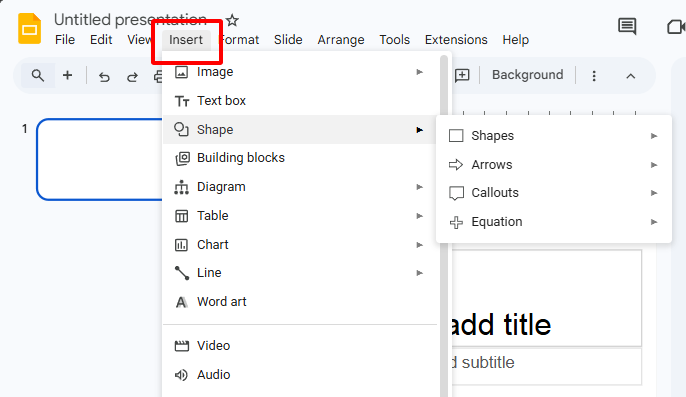
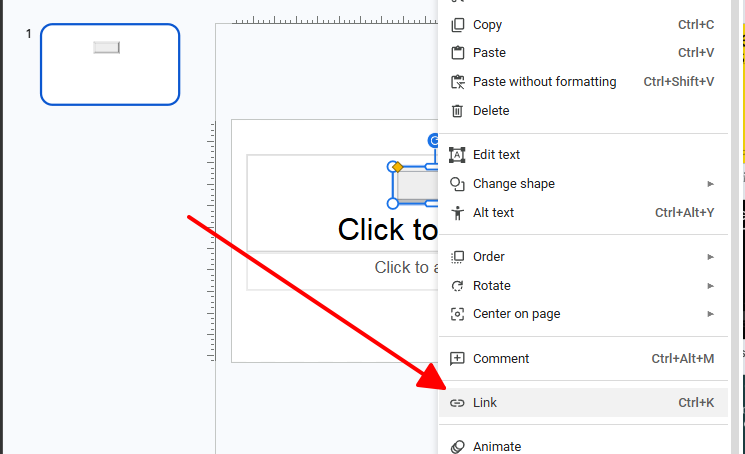
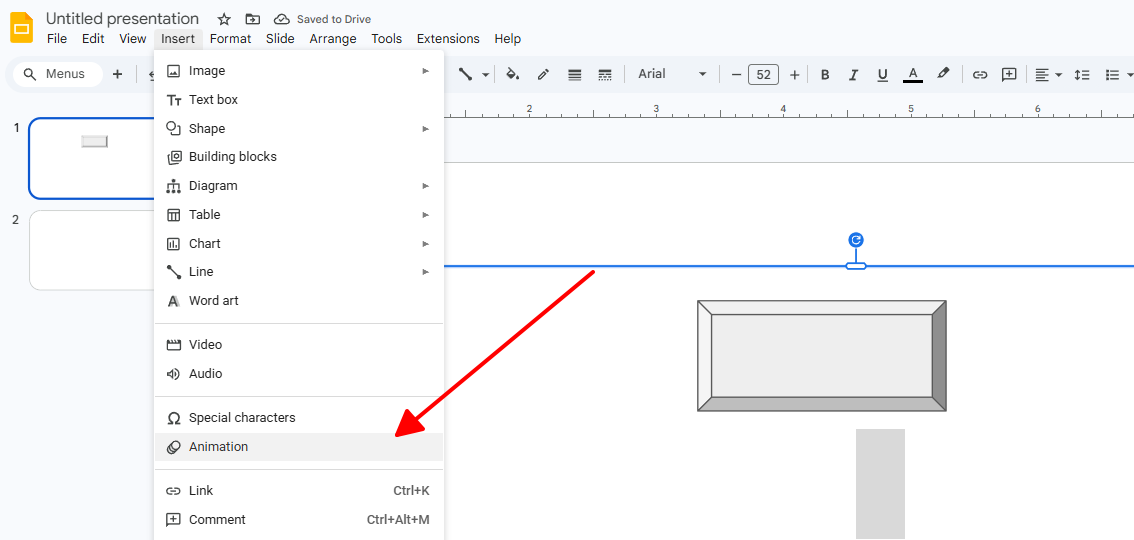
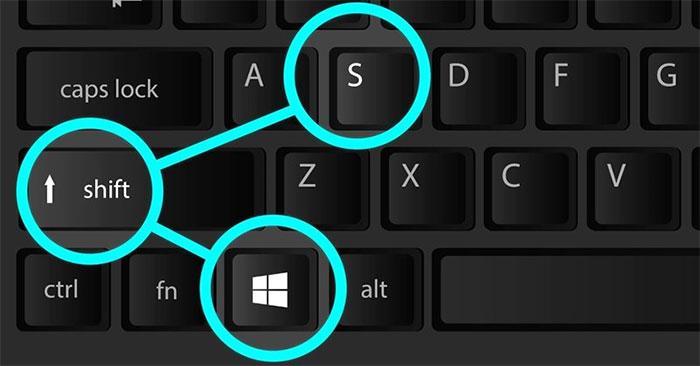
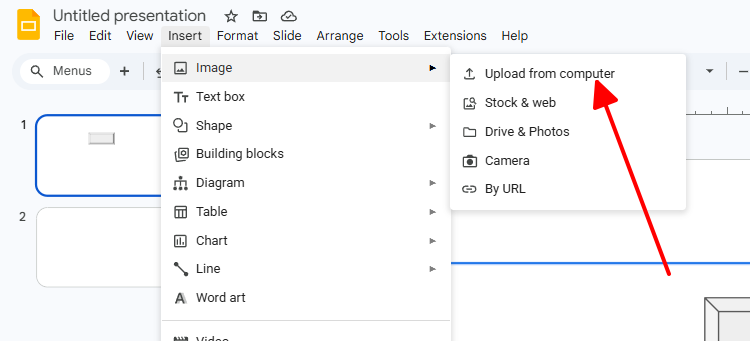
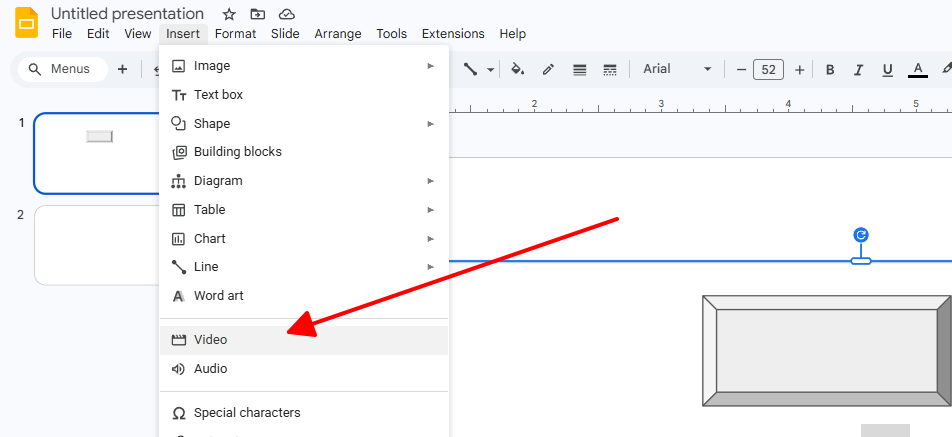
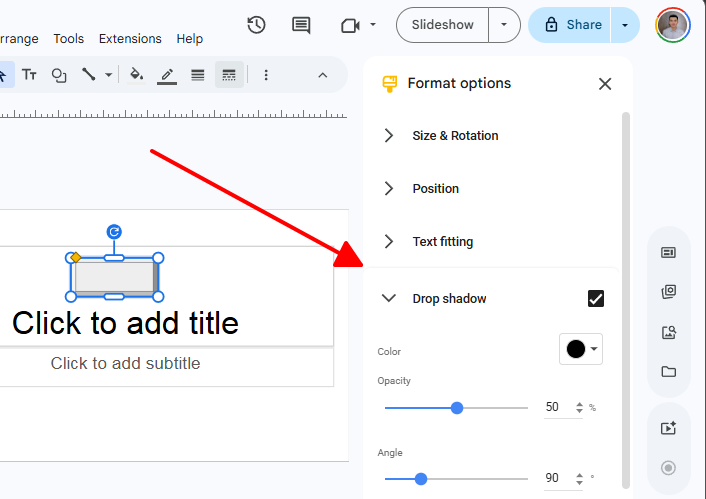
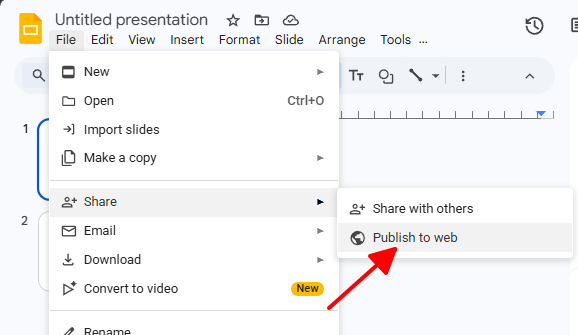
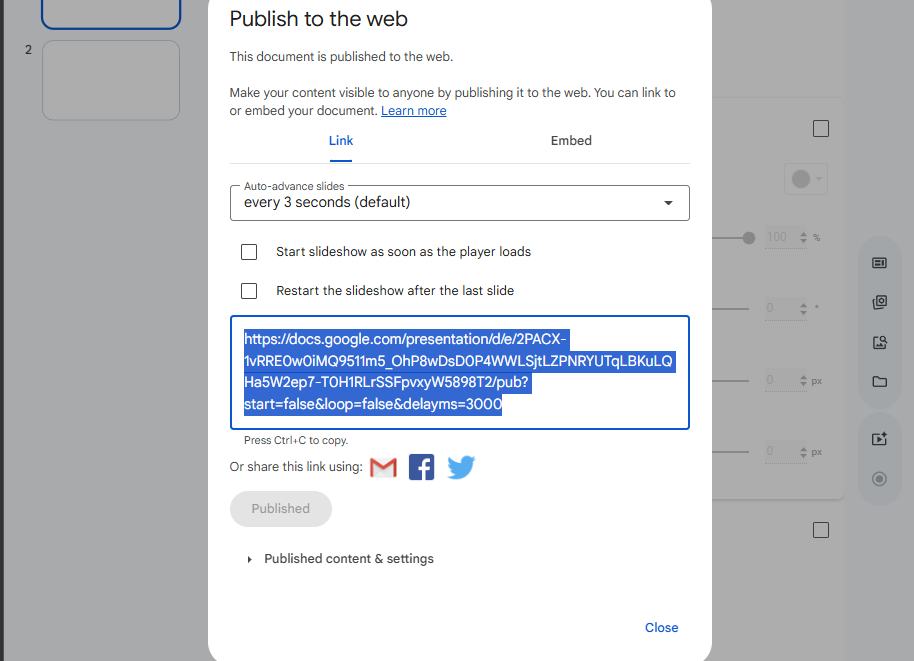
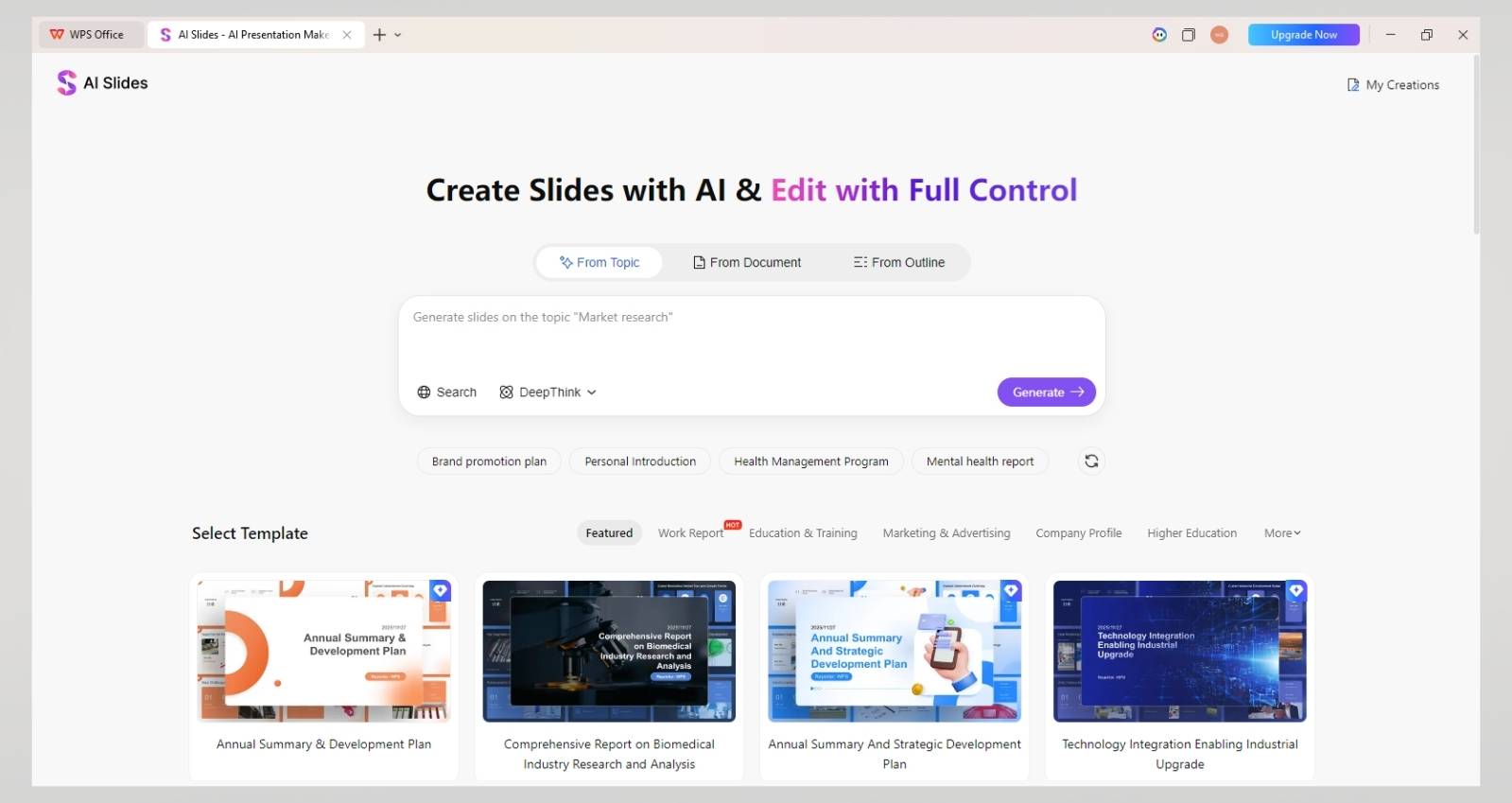
Ever tried slipping a live dashboard or cool interactive tool right into your Google Slides to wow the crowd and back up your story with real-time proof? Yeah, me too - but Google Slides just doesn't have that simple "Insert Web Page" button, so you're left messing with links that kick everyone to a new tab or screenshots that look dated by showtime. This guide gets your frustration and delivers practical hacks plus the game-changer WPS AI Slides that actually digests web stuff into your deck smooth as butter. 1.1 Current State of Official Functionality Look, Google Slides flat-out skips any native way to drop a full live website into a slide, nothing like PowerPoint's web viewer tricks. They lock it down tight for security - think malware hiding in random pages - and to keep things zippy on old laptops or phones during your pitch. So in 2026, how to embed website into Google Slides? Still no magic button; you get links or pics, and that's the deal. But honestly, it forces you to get creative, which isn't all bad if you know the right moves. 1.2 User Community Voice & Demand Hop on Reddit, and it's the same story everywhere: teachers begging to insert webpage into slide for classroom games, marketers dying to show website in presentation with live social feeds, analysts sweating dynamic charts that actually move. Folks rant about that jarring tab switch or stale images killing the vibe, and the upvotes pile up. You're not alone in hunting these fixes - everyone's scrambling for something that just works. Tips: Hyperlinks are your old reliable buddy here - grab any text, shape, or doodad on the slide, juice it with a URL, and boom, clickable gold that fires up perfect on Windows, Macs, tablets, whatever, no fuss no plugins. It's killer for crowds who dig digging deeper themselves, but man, that new tab pop-out can yank the energy right out of your flow if you're not quick on the recovery. Step 1: Fire up Insert menu, snag a Shape, Icon, or Text box - play with colors and curves to make it pop. Step 2: Click your creation, smack Insert > Link or that speedy Ctrl+K, drop in the full https address, eyeball the preview, hit Apply. Step 3: Jump to Present view, hover for the glow-up, click to launch the site fresh tab, Alt+Tab (or Cmd+Tab) back like a pro. Step 4: Fancy it up with a little Insert > Animation pulse so it teases "hey, click me" without screaming. Pros: Bulletproof across every device and export. Zero wait or wipeouts, even prepping offline. Style it wild with fills, borders, icons galore. Slap UTM tags for click tracking if it's your turf. Cons: Total buzzkill tab escape. Live sites demand decent WiFi. Gotta click to see the goods. Mobile means awkward app hopping. Nail it for "resources" slides or chill backup links where wandering off feels natural. Screenshots nail that webpage vibe stuck right on your slide, no clicking around, and you can slap a link on top for the full combo meal. Grab-n-go tools plus quick GIF recorders add fake life to it, perfect for fast demos where you just need the look without live headaches, though yeah, chasing fresh caps when sites change is the grind. Step 1: Crack the page in browser, frame your shot, Fancy it up with a little Insert > Animation, Cmd+Shift+4, or extension like Fireshot for clean crops. Step 2: Flip to Slides, Insert > Image > Upload from computer, stretch and nudge till it sits pretty without squish. Step 3: Right-click > Link for bonus access, or spin a 10-sec GIF walkthrough with Loom or OBS, drop via Insert > Video. Step 4: Polish with Format shadows, crops, masks - make it blend like it grew there. Pros: Glued in place, always ready. Offline king post-capture. Scribble notes, arrows easy. Flexes to any theme colors. Cons: Frozen in time, no heartbeat. Update nag every tweak. Swells file sizes sneaky. Zero inside fiddling. Prime for app tours, mockups, or data freezes where now beats next. Publish flips your whole deck into a playable web thing with buttons and sliders, spitting iframe code for blogs or tab-juggling for side-by-side site peeks, skipping slide surgery entirely. Thinks big-picture for online drops or lobby loops, less for spotlight chats, turning "embed" into a full-show playground. Step 1: File > Share > Publish to web, pick Whole presentation, Embed or Link tab for the goods. Step 2: Copy that iframe chunk or URL straight to Notion, WordPress, email signatures - tweak sizes responsive. Step 3: Fire the published link in browser, pop extra tabs with your sites, bounce between smooth. Step 4: Tag UTMs on bits for who's biting where. Pros: Deck levels up to web app status. Shrinks/scales auto-magic. Caches for spotty nets. Analytics playground. Cons: Whole-deck only, no slide solos. Needs a host spot. Goes public easy. Setup feels like work. Spot-on for portfolios, auto-plays, or digital flyers. Forget wrestling embed live website in Google Slides - WPS AI Slides just inhales your URLs or keywords, chews out headlines, numbers, bites, and pics, coughing up full slides that match your vibe with slick transitions and footnotes. It owns the web smarts instead of framing them shaky, PPTX exports slide into Google for tweaks, turning research slog into instant pro decks that flex for teams or solos. Features: Deep-dive web link pulls and smart sums. Key stats, quotes as tidy bullets. Icons, graphs auto-match your look. PPTX/PDF spits in seconds. Source cites track clean. Handles any language mix. Live collab with undo history. Pros: Raw web to story in blinks. Ditches all embed drama. Free start, paid power-ups. Cloud hops devices easy. Cons: Hone prompts at kickoff. Fancy bits behind paywall. Queries take practice. Quick Decision Guide: Quick nudge? Hyperlinks. Still shot? Screenshots. Web wizardry? WPS AI rules. Download WPS Office trial at wps.com. 1: Is there an "Embed Website" button in Google Slides? Nah, no button anywhere for live embeds - sandbox life's too strict. You stack links and images to fake it good enough for most gigs. Keep eyes peeled on add-ons; they might sneak something useful in eventually. 2: Can I embed a live, interactive website so it updates automatically? Straight no on auto-live embeds; you max out at static snaps or manual refreshes that top the charts. Publish iframes just freeze whatever's current, no real pulse action. AI tools like WPS grab the good stuff and bake it fresh into your flow instead. 3: What if the website requires login or has restricted access? Locked-down sites kill all the visual tricks, leaving plain links as your only play. Public dupes or quick manual sums can bridge it sometimes. WPS AI chews through open content and spits out standalone slides that don't care about access walls. 4: How does WPS AI Slides handle multiple webpages? Toss in a bunch of links and it weaves them into one clean narrative, smartly cutting dupes while spotlighting contrasts with bridging pics. The flow feels natural from slide one, and exports lock in everything for easy team handoffs. 5: Can I use these methods offline during presentations? Screenshots and hyperlinks laugh off no-internet life completely; publish stuff whines for connection though. WPS AI dumps fully baked PPTX files ready to roll anywhere. Always stash a linkless duplicate deck for those dead-zone nightmares. Google Slides stonewalls true how to embed website into Google Slides, funneling embed live website in Google Slides, insert webpage into slide, show website in presentation thru trusty-but-flawed links, grabs, and web-pubs that trade perfection for play. WPS AI Slides blows past, AI-fusing web guts into deck dynamite that hits your live-hit intent without the hack hassle.Part 1. The Reality: Can You Natively Embed a Website in Google Slides?

Part 2. How to Embed Website into Google Slides: Practical Workarounds
Test everything in actual present mode on whatever gear you'll use; make buttons big for fat fingers on phones; jot URLs in notes app just in case.1: Hyperlinks (Most Stable & Universal) - insert webpage into slide
2: Screenshot or Screen Recording (Visual Presentation) - show website in presentation
3: Exploratory Method: Embedding via "Publish to Web" (Limited Scenario)
Part 3. The Smarter Paradigm: Using WPS AI Slides to Integrate Web Content Intelligently
FAQs
Summary

Table of Content

Share Article
'%3e%3cpath%20fill-rule='evenodd'%20clip-rule='evenodd'%20d='M21.4999%2010.9993C21.4999%205.20009%2016.7986%200.498901%2010.9993%200.498901C5.19994%200.498901%200.498657%205.20009%200.498657%2010.9993C0.498657%2016.2404%204.33858%2020.5844%209.35855%2021.3722V14.0346H6.69238V10.9993H9.35855V8.68594C9.35855%206.05427%2010.9262%204.60062%2013.3248%204.60062C14.4736%204.60062%2015.6753%204.80571%2015.6753%204.80571V7.38979H14.3512C13.0468%207.38979%2012.64%208.19921%2012.64%209.0296V10.9993H15.5523L15.0867%2014.0346H12.64V21.3722C17.66%2020.5844%2021.4999%2016.2404%2021.4999%2010.9993Z'%20fill='%231568EA'/%3e%3c/g%3e%3c/svg%3e)


'%3e%3cpath%20d='M2.42045%2022.1876H6.31818V12.7217L0.75%208.54553V20.5171C0.75%2021.4414%201.49892%2022.1876%202.42045%2022.1876Z'%20fill='%234285F4'/%3e%3cpath%20d='M19.682%2022.1876H23.5797C24.5041%2022.1876%2025.2502%2021.4387%2025.2502%2020.5171V8.54553L19.682%2012.7217'%20fill='%2334A853'/%3e%3cpath%20d='M19.682%205.48293V12.7216L25.2502%208.54543V6.31816C25.2502%204.25236%2022.8921%203.07469%2021.2411%204.31361'%20fill='%23FBBC04'/%3e%3cpath%20d='M6.31824%2012.7217V5.48303L13.0001%2010.4944L19.6819%205.48303V12.7217L13.0001%2017.733'%20fill='%23EA4335'/%3e%3cpath%20d='M0.75%206.31816V8.54543L6.31818%2012.7216V5.48293L4.75909%204.31361C3.10534%203.07469%200.75%204.25236%200.75%206.31816Z'%20fill='%23C5221F'/%3e%3c/g%3e%3cdefs%3e%3cclipPath%20id='clip0_2954_7305'%3e%3crect%20width='24.5'%20height='18.375'%20fill='white'%20transform='translate(0.75%203.8125)'/%3e%3c/clipPath%3e%3c/defs%3e%3c/svg%3e)


How to Embed a Website in Google Slides in 2026: Workarounds & Smarter Solutions
Posted by Phi Hung Vo

2026-04-30

873

4

'%3e%3cpath%20d='M19.9911%204.11386V6.471H18.5894C18.0775%206.471%2017.7322%206.57814%2017.5536%206.79243C17.3751%207.00671%2017.2858%207.32814%2017.2858%207.75671V9.44421H19.9019L19.5536%2012.0871H17.2858V18.8639H14.5536V12.0871H12.2769V9.44421H14.5536V7.49779C14.5536%206.39064%2014.8632%205.53201%2015.4822%204.92189C16.1013%204.31177%2016.9257%204.00671%2017.9554%204.00671C18.8304%204.00671%2019.509%204.04243%2019.9911%204.11386Z'%20fill='%23333333'/%3e%3c/g%3e%3cdefs%3e%3cclipPath%20id='clip0_2938_8199'%3e%3crect%20width='16'%20height='16'%20fill='white'%20transform='translate(8%204.00671)'/%3e%3c/clipPath%3e%3c/defs%3e%3c/svg%3e)
'%3e%3cpath%20d='M17.5237%2010.7813L23.4811%204H22.0699L16.8949%209.88693L12.7648%204H8L14.2469%2012.9029L8%2020.0133H9.4112L14.8725%2013.7952L19.2352%2020.0133H24M9.92053%205.04213H12.0885L22.0688%2019.0224H19.9003'%20fill='%23333333'/%3e%3c/g%3e%3cdefs%3e%3cclipPath%20id='clip0_2938_8200'%3e%3crect%20width='16'%20height='16.0134'%20fill='white'%20transform='translate(8%204)'/%3e%3c/clipPath%3e%3c/defs%3e%3c/svg%3e)


10+ Years tech enthusiast specializing in software reviews and comparisons. He provides in-depth evaluations and practical recommendations for the latest apps and digital tools to help readers make informed decisions.
Other Posts You Might Enjoy

How to Record a Presentation on Google Slides in 2026: Guide and AI-Powered Workflow


How to Make an Object Bounce in Google Slides: Step-by-Step Guide and a Smarter AI Method

How to Change Text Color in Google Slides in 2026: Master Guide & AI-Powered Design

How to Change Google Slides Defaults in 2026: Master Guide & Smarter Alternative

The Smart Guide on How to Make a Pitch Deck in 2026

The Ultimate Guide to Adding Animation in PowerPoint (2026 Edition)