

'%3e%3cpath%20d='M8%200C12.4183%200%2016%203.58172%2016%208C16%2012.4183%2012.4183%2016%208%2016C3.58172%2016%200%2012.4183%200%208C0%203.58172%203.58172%200%208%200ZM11.6162%204.38379C11.2257%203.99337%2010.5927%203.99338%2010.2021%204.38379L8%206.58594L5.79785%204.38379C5.40732%203.99334%204.77429%203.99329%204.38379%204.38379C3.99331%204.77429%203.99335%205.40733%204.38379%205.79785L6.58594%208L4.38379%2010.2021C3.99348%2010.5927%203.99341%2011.2257%204.38379%2011.6162C4.77426%2012.0066%205.40734%2012.0065%205.79785%2011.6162L8%209.41406L10.2021%2011.6162C10.5927%2012.0066%2011.2257%2012.0067%2011.6162%2011.6162C12.0067%2011.2257%2012.0066%2010.5927%2011.6162%2010.2021L9.41406%208L11.6162%205.79785C12.0066%205.40735%2012.0066%204.77429%2011.6162%204.38379Z'%20fill='%23080E17'%20fill-opacity='0.46'/%3e%3c/g%3e%3cdefs%3e%3cclipPath%20id='clip0_3761_713'%3e%3crect%20width='16'%20height='16'%20fill='white'/%3e%3c/clipPath%3e%3c/defs%3e%3c/svg%3e)


'%3e%3cpath%20fill-rule='evenodd'%20clip-rule='evenodd'%20d='M21.4999%2010.9993C21.4999%205.20009%2016.7986%200.498901%2010.9993%200.498901C5.19994%200.498901%200.498657%205.20009%200.498657%2010.9993C0.498657%2016.2404%204.33858%2020.5844%209.35855%2021.3722V14.0346H6.69238V10.9993H9.35855V8.68594C9.35855%206.05427%2010.9262%204.60062%2013.3248%204.60062C14.4736%204.60062%2015.6753%204.80571%2015.6753%204.80571V7.38979H14.3512C13.0468%207.38979%2012.64%208.19921%2012.64%209.0296V10.9993H15.5523L15.0867%2014.0346H12.64V21.3722C17.66%2020.5844%2021.4999%2016.2404%2021.4999%2010.9993Z'%20fill='%231568EA'/%3e%3c/g%3e%3c/svg%3e)


'%3e%3cpath%20d='M2.42045%2022.1876H6.31818V12.7217L0.75%208.54553V20.5171C0.75%2021.4414%201.49892%2022.1876%202.42045%2022.1876Z'%20fill='%234285F4'/%3e%3cpath%20d='M19.682%2022.1876H23.5797C24.5041%2022.1876%2025.2502%2021.4387%2025.2502%2020.5171V8.54553L19.682%2012.7217'%20fill='%2334A853'/%3e%3cpath%20d='M19.682%205.48293V12.7216L25.2502%208.54543V6.31816C25.2502%204.25236%2022.8921%203.07469%2021.2411%204.31361'%20fill='%23FBBC04'/%3e%3cpath%20d='M6.31824%2012.7217V5.48303L13.0001%2010.4944L19.6819%205.48303V12.7217L13.0001%2017.733'%20fill='%23EA4335'/%3e%3cpath%20d='M0.75%206.31816V8.54543L6.31818%2012.7216V5.48293L4.75909%204.31361C3.10534%203.07469%200.75%204.25236%200.75%206.31816Z'%20fill='%23C5221F'/%3e%3c/g%3e%3cdefs%3e%3cclipPath%20id='clip0_2954_7305'%3e%3crect%20width='24.5'%20height='18.375'%20fill='white'%20transform='translate(0.75%203.8125)'/%3e%3c/clipPath%3e%3c/defs%3e%3c/svg%3e)


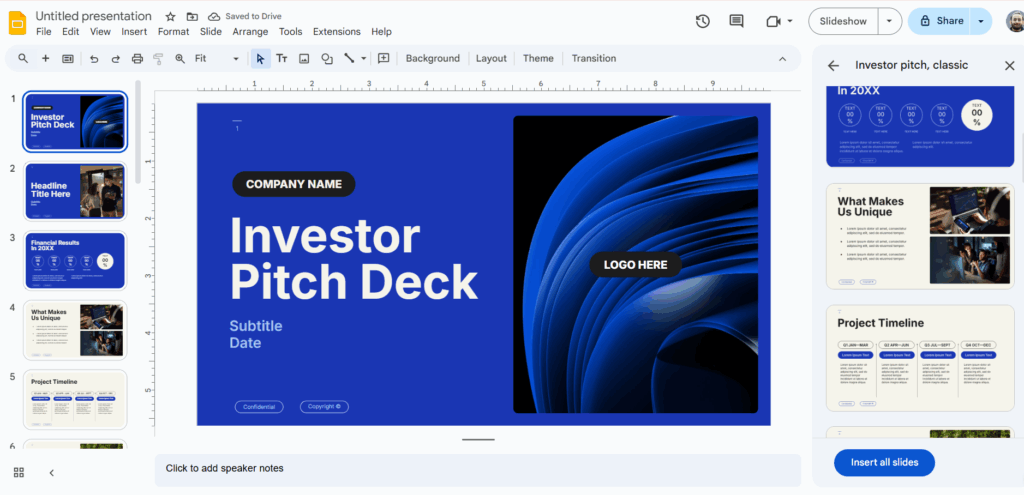
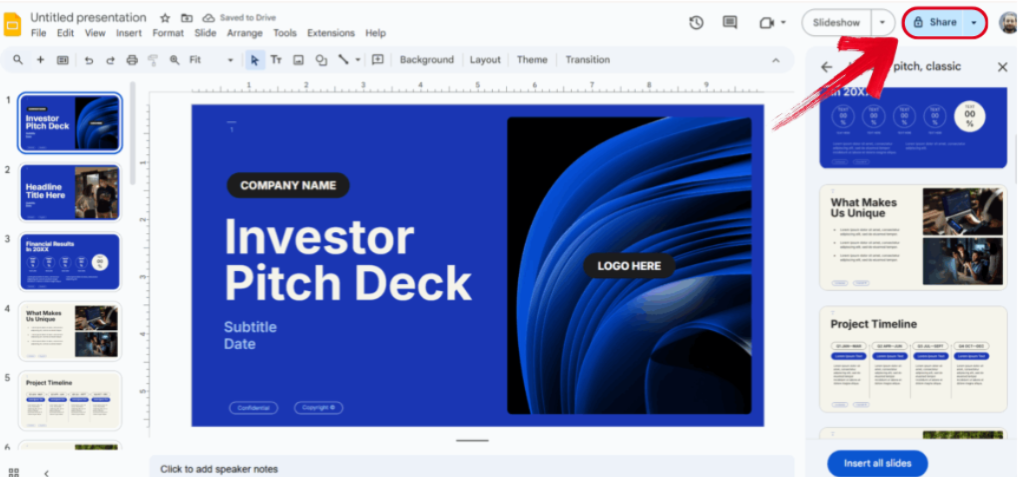
A custom PowerPoint template can be one of the best ways to create your own brand identity and streamline your presentations, but crafting one from scratch can feel incredibly challenging for beginners who lack the design experience. So, what is the quickest way to create a professional PowerPoint template without any extra effort? In this PowerPoint slide master tutorial, I’ll walk you through how to make a pitch deck with a manual method and a modern AI-assisted one to help you simplify the process. A pitch deck is a presentation that acts as a professional slideshow, clearly conveying the business idea, market opportunity, or value proposition you’re trying to convey. It’s commonly used by professionals to present their ideas, products, or services to investors and other peers, making it crucial for businessmen trying to secure funding, attract partnerships, or close important deals. Pitch Deck Format 10-15 slides per deck One central idea per slide Strong visuals with minimal text Clear narrative Once you’ve understood what a pitch deck actually is and what format is typically followed by one, the next step is actually making your own custom deck. If you’re a beginner who is completely unaware of the professional PPT template design features, it can be incredibly difficult to make one from scratch. In this section, I’ll walk you through the entire step-by-step process to help you make a custom PowerPoint template in Google Slides. Step 1: Open Google Slides and select the base template you want to use. You can even look for custom pitch deck templates like the Business Pitch Deck Template. Step 2: Replace the placeholder text with your own content. You can add extra elements to support your content, including images and graphs. Step 3: Once you’re done, all you need to do is review the slides one last time. Then, press Share to send it to your colleagues to have it approved. While manually making your templates is a good option for those wanting complete control over their presentations, it’s an impractical option for beginners with no design experience. This is why I personally rely on WPS AI Slides for all my productivity needs. It’s completely free to use and gives me all the features I need to streamline my workflow and generate professional pitch decks without any extra hassle, making it an ideal option for professionals and students alike. 
What is a Pitch Deck?
How to Make a Pitch Deck in Google Slides?

How to Make a Pitch Deck with WPS AI?
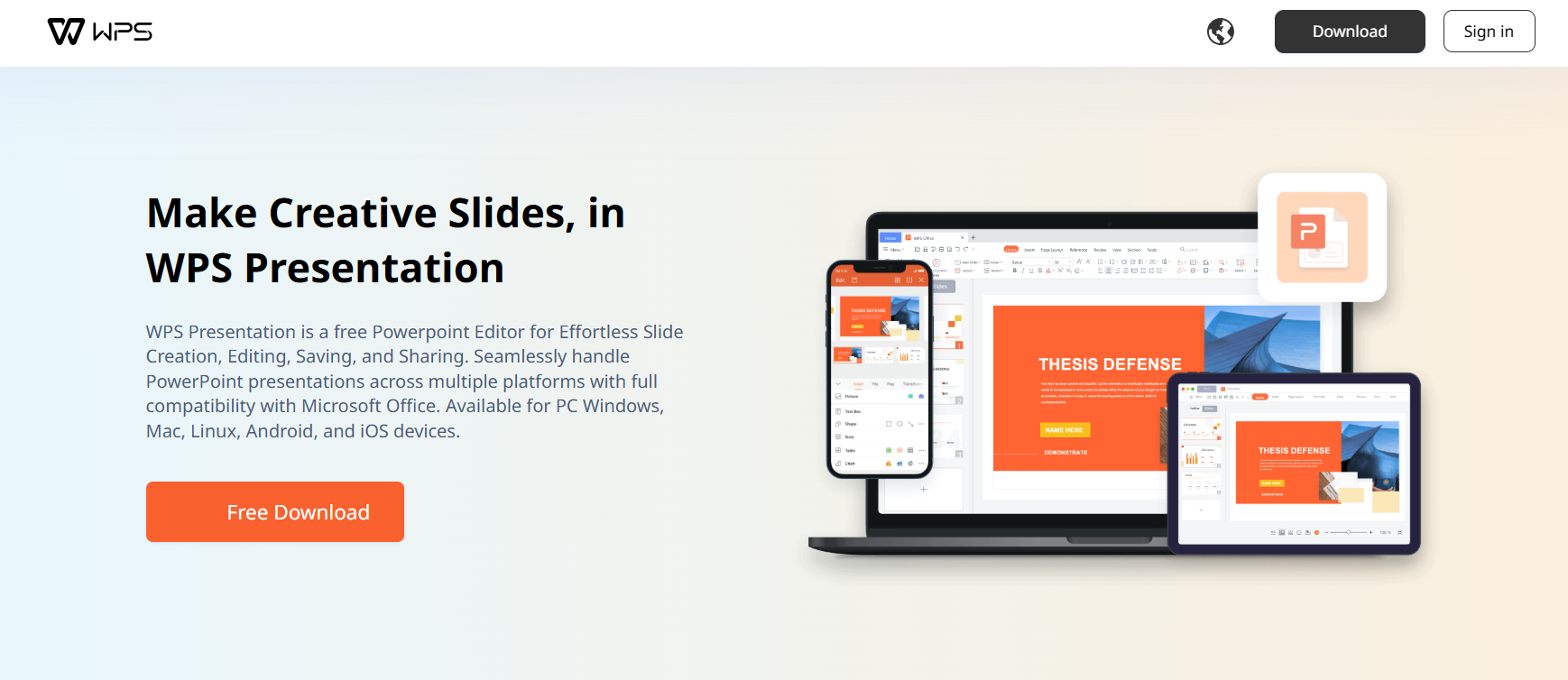
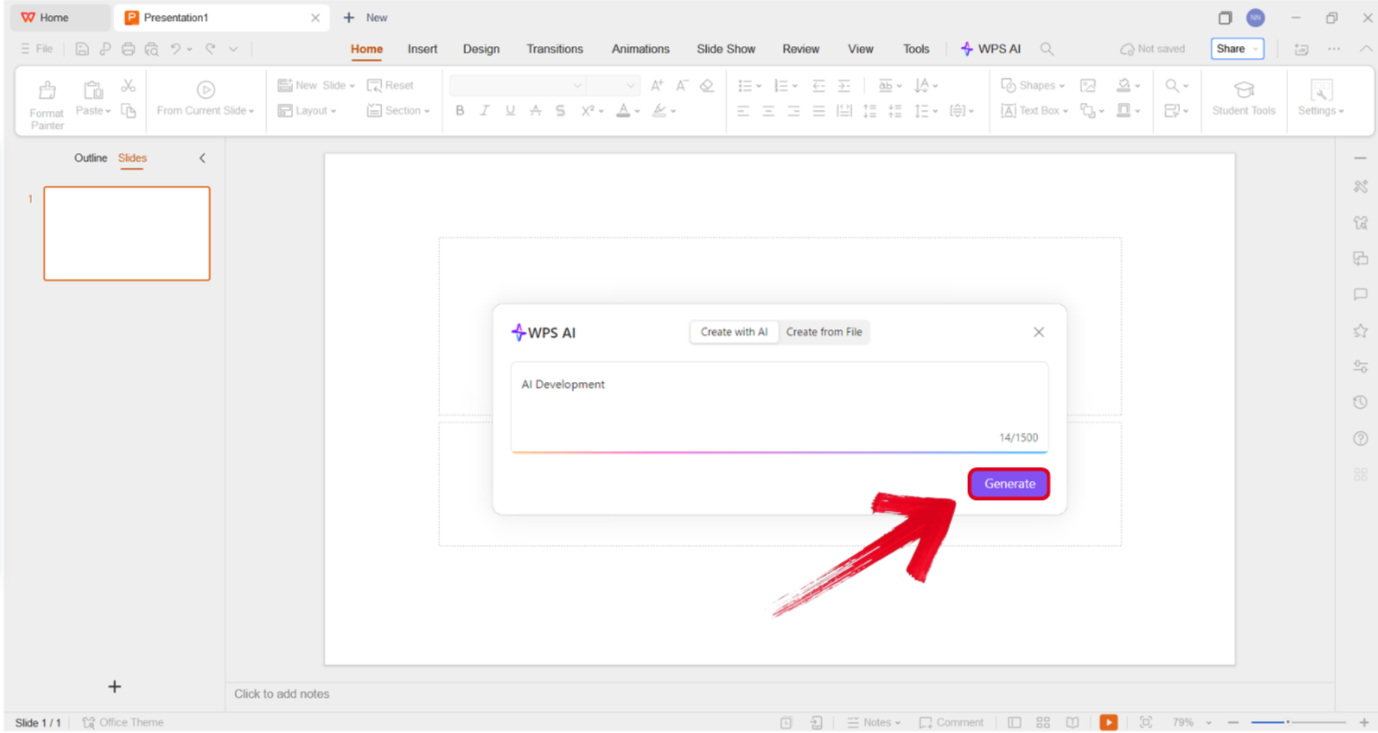
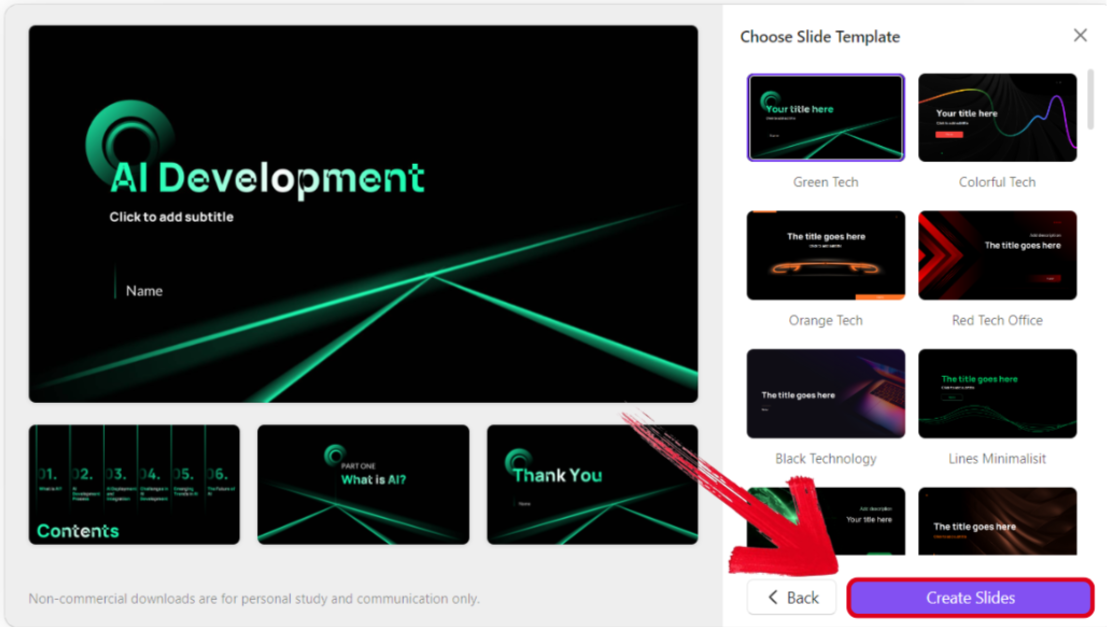
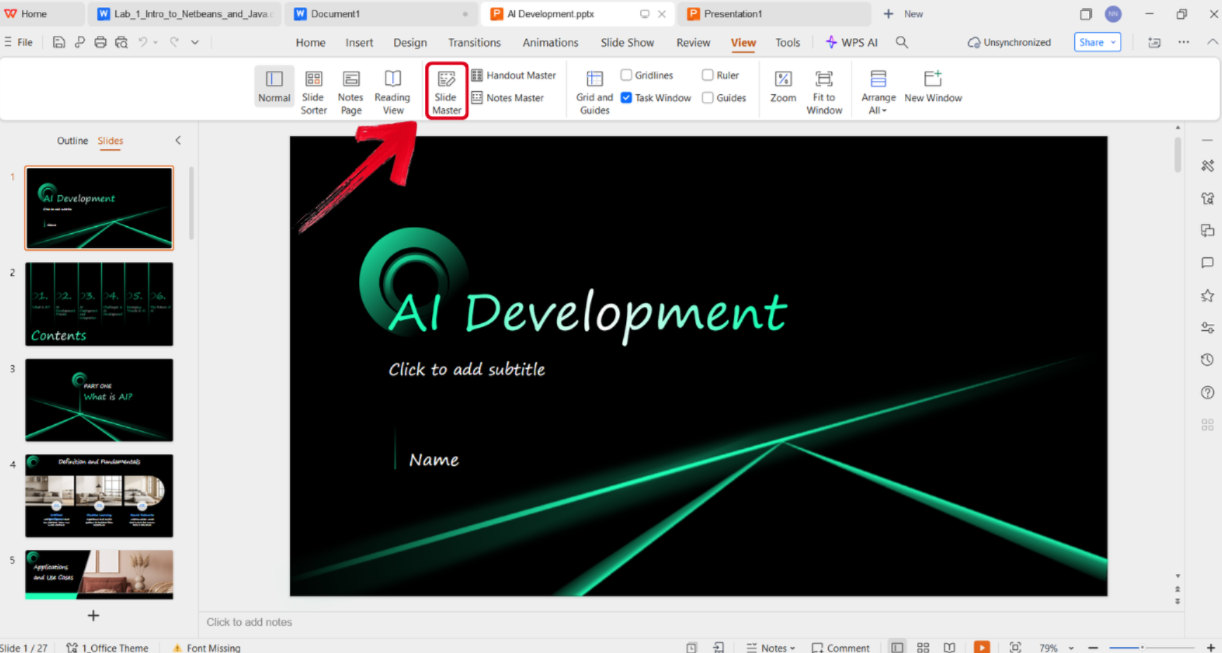
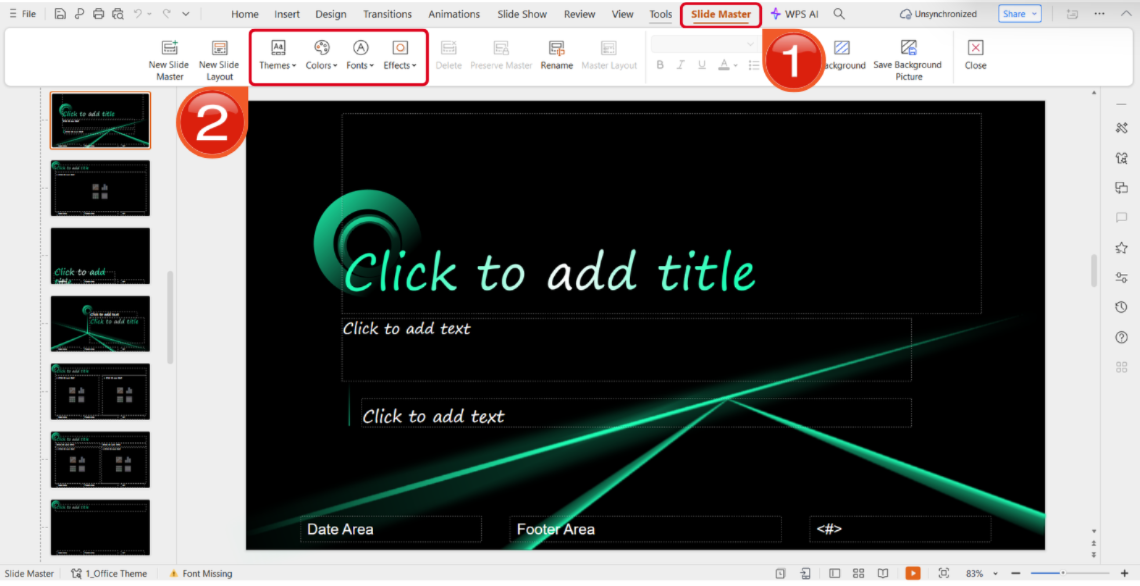
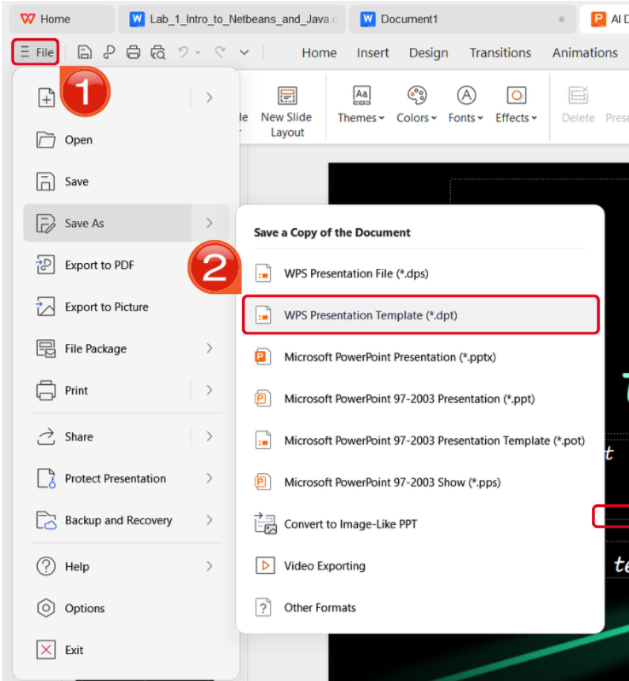
Designing your pitch deck with WPS AI is incredibly convenient and straightforward, and I’ll highlight each step of the process down below. Step 1: Open WPS Presentation and select the Smart Create button to get started. Step 2: Type out the prompt of the presentation you want to design and press Generate. Tip: Make sure your presentation prompt is detailed, including the title, subtitles, and any other visual elements you want to specify for your pitch deck. Step 3: Select the best AI-generated template draft you want to use for your pitch deck and press Create Slides. Step 4: Once the template base has been generated, navigate to the View Tab and select Slide Master to customize it further. Step 5: In the Slide Master Tab, adjust the visual elements of your template, including the theme, color, font, and any effects you want to add. Step 6: Once you’ve finalized the design, navigate to the File Tab and select the Save As Menu, then press WPS Presentation Template to save it. While Google Slides and WPS AI Slides are both practical options for crafting your pitch decks, both take completely different approaches to the process. One takes the manual approach, giving you complete control over every little detail of the deck. Whereas the other gives you an AI-enhanced workflow, providing full automation and saving a lot of time that would otherwise be wasted. In this section, I’ll be comparing both of these approaches to help you decide the best one for yourself. Efficient tools like WPS AI Slides exist completely within an all-in-one office suite, giving you a seamless workflow for your presentations, from AI-generated drafts to refinement in a powerful Slide Master. This integration removes the hassle of switching between multiple specialized apps, making the template creation process more fluid. A .pptx is a single presentation file, while a .potx acts as a reusable blueprint. Opening a .potx automatically creates a new .pptx that inherits all layouts, colors, and fonts, keeping the original template untouched. Yes. Open the .pptx, go to View and Slide Master, clean up layouts, remove specific content, and apply consistent theme settings. Once finalized, save the file as a .potx. No. Edits to a template only apply to new presentations created after the changes, not to existing files. Yes. A .potx file can be shared and reused across teams to maintain consistent branding and slide structure. Having the right template for your presentations can be the difference between a rushed, unorganized presentation and a polished one. However, most users don’t know how to make a pitch deck template from scratch. In this guide, I’ve walked you through the entire creation process, providing two different approaches for users: a traditional manual editing method and an AI-powered, streamlined approach. WPS AI Slides is one of the most efficient tools you can add to your workflow, providing you with all the tools you need for a productive and seamless workflow. 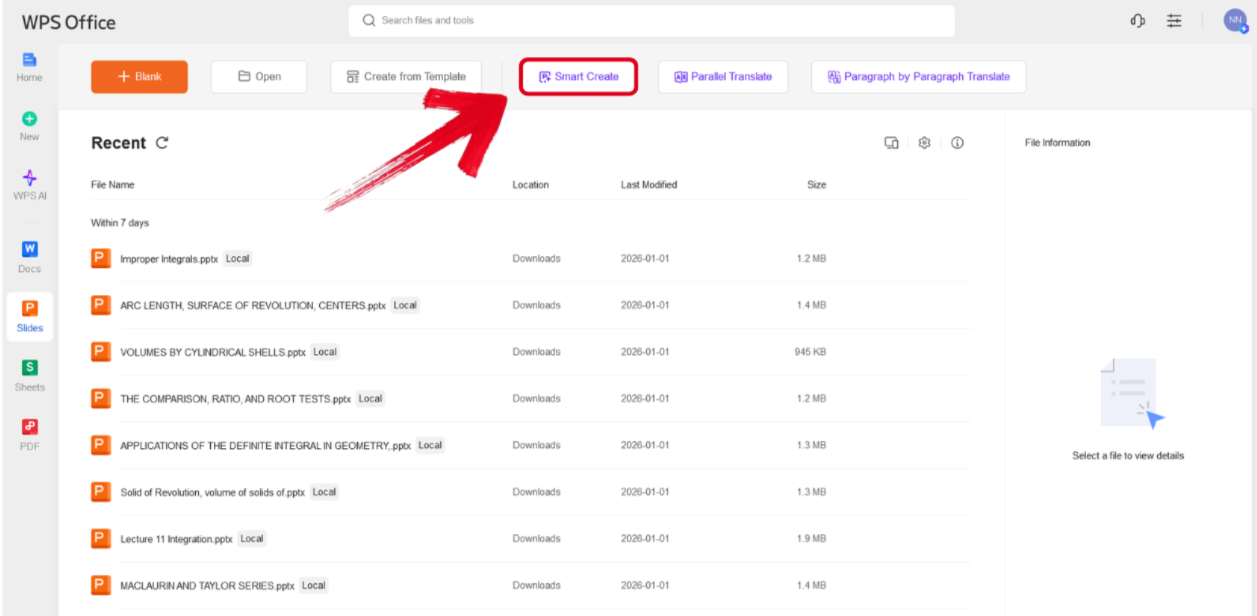
Choosing Your Path: Manual Craft vs. AI-Enhanced Workflow
FAQs
Q1: What is the difference between a PowerPoint Template (.potx) and a regular Presentation (.pptx)?
Q2: Can I convert an existing presentation into a template?
Q3: Will changes to a .potx affect presentations already created from it?
Q4: Can I use the same .potx template across different teams?
Streamlining Pitch Deck Generation

'%3e%3cpath%20d='M19.9911%204.11386V6.471H18.5894C18.0775%206.471%2017.7322%206.57814%2017.5536%206.79243C17.3751%207.00671%2017.2858%207.32814%2017.2858%207.75671V9.44421H19.9019L19.5536%2012.0871H17.2858V18.8639H14.5536V12.0871H12.2769V9.44421H14.5536V7.49779C14.5536%206.39064%2014.8632%205.53201%2015.4822%204.92189C16.1013%204.31177%2016.9257%204.00671%2017.9554%204.00671C18.8304%204.00671%2019.509%204.04243%2019.9911%204.11386Z'%20fill='%23333333'/%3e%3c/g%3e%3cdefs%3e%3cclipPath%20id='clip0_2938_8199'%3e%3crect%20width='16'%20height='16'%20fill='white'%20transform='translate(8%204.00671)'/%3e%3c/clipPath%3e%3c/defs%3e%3c/svg%3e)
'%3e%3cpath%20d='M17.5237%2010.7813L23.4811%204H22.0699L16.8949%209.88693L12.7648%204H8L14.2469%2012.9029L8%2020.0133H9.4112L14.8725%2013.7952L19.2352%2020.0133H24M9.92053%205.04213H12.0885L22.0688%2019.0224H19.9003'%20fill='%23333333'/%3e%3c/g%3e%3cdefs%3e%3cclipPath%20id='clip0_2938_8200'%3e%3crect%20width='16'%20height='16.0134'%20fill='white'%20transform='translate(8%204)'/%3e%3c/clipPath%3e%3c/defs%3e%3c/svg%3e)


