

'%3e%3cpath%20d='M8%200C12.4183%200%2016%203.58172%2016%208C16%2012.4183%2012.4183%2016%208%2016C3.58172%2016%200%2012.4183%200%208C0%203.58172%203.58172%200%208%200ZM11.6162%204.38379C11.2257%203.99337%2010.5927%203.99338%2010.2021%204.38379L8%206.58594L5.79785%204.38379C5.40732%203.99334%204.77429%203.99329%204.38379%204.38379C3.99331%204.77429%203.99335%205.40733%204.38379%205.79785L6.58594%208L4.38379%2010.2021C3.99348%2010.5927%203.99341%2011.2257%204.38379%2011.6162C4.77426%2012.0066%205.40734%2012.0065%205.79785%2011.6162L8%209.41406L10.2021%2011.6162C10.5927%2012.0066%2011.2257%2012.0067%2011.6162%2011.6162C12.0067%2011.2257%2012.0066%2010.5927%2011.6162%2010.2021L9.41406%208L11.6162%205.79785C12.0066%205.40735%2012.0066%204.77429%2011.6162%204.38379Z'%20fill='%23080E17'%20fill-opacity='0.46'/%3e%3c/g%3e%3cdefs%3e%3cclipPath%20id='clip0_3761_713'%3e%3crect%20width='16'%20height='16'%20fill='white'/%3e%3c/clipPath%3e%3c/defs%3e%3c/svg%3e)


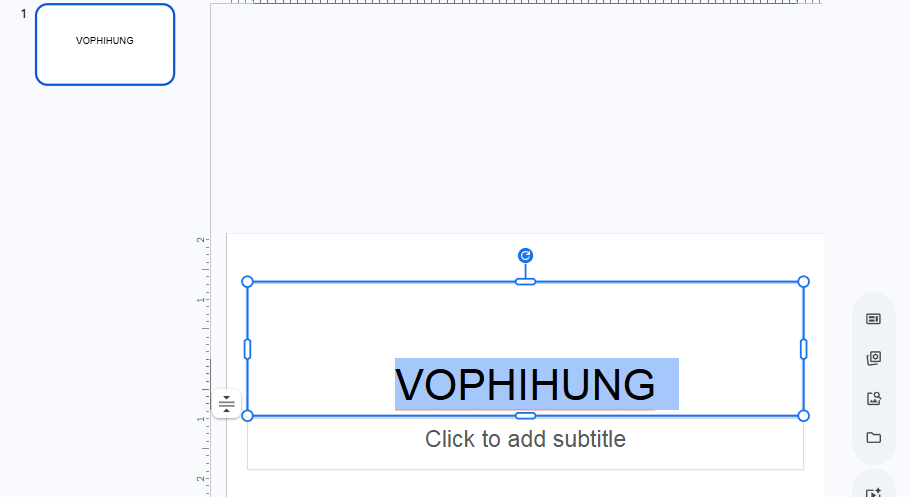
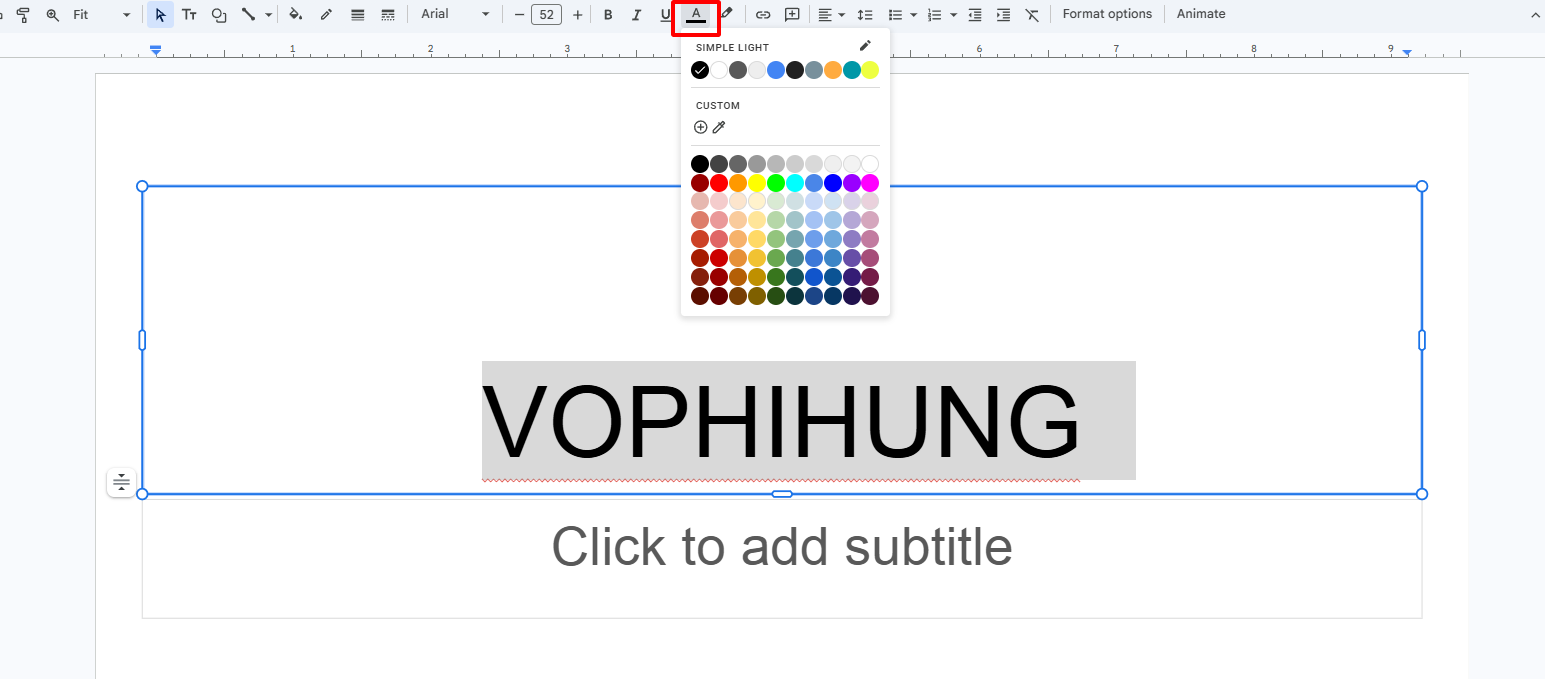
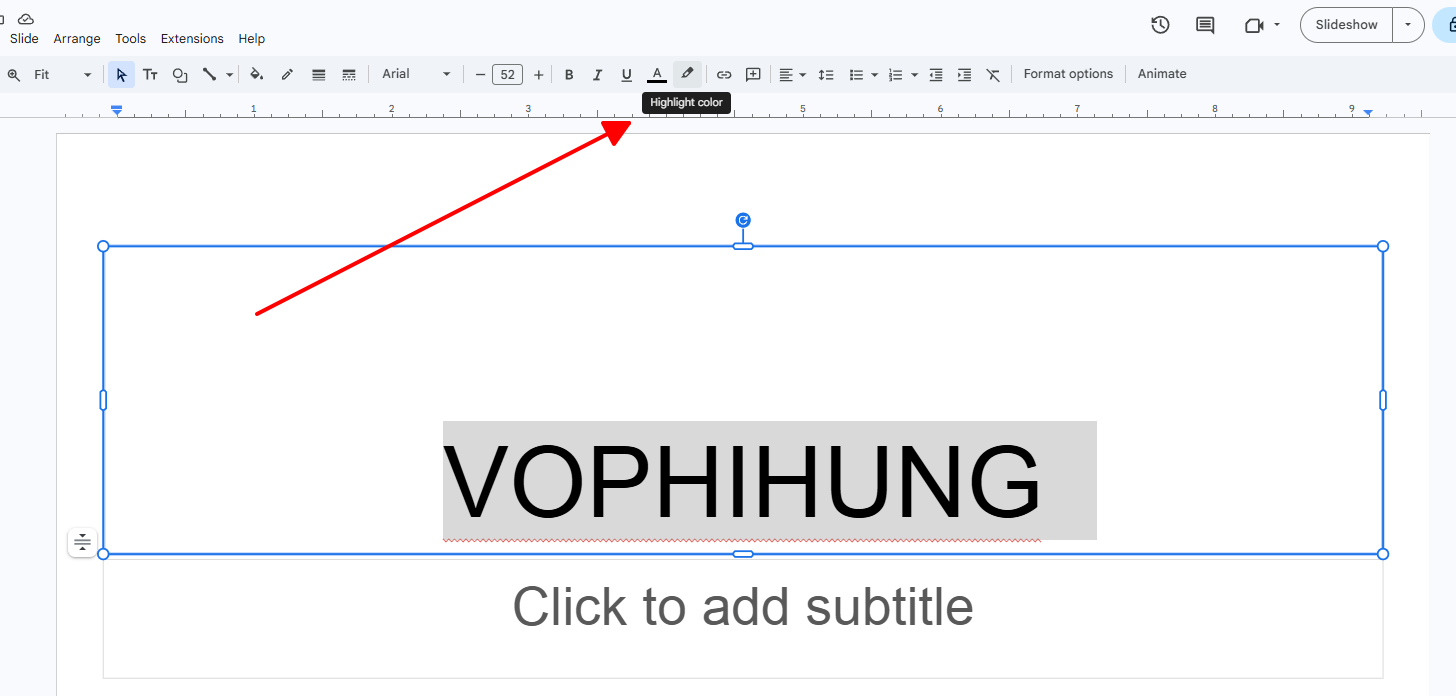
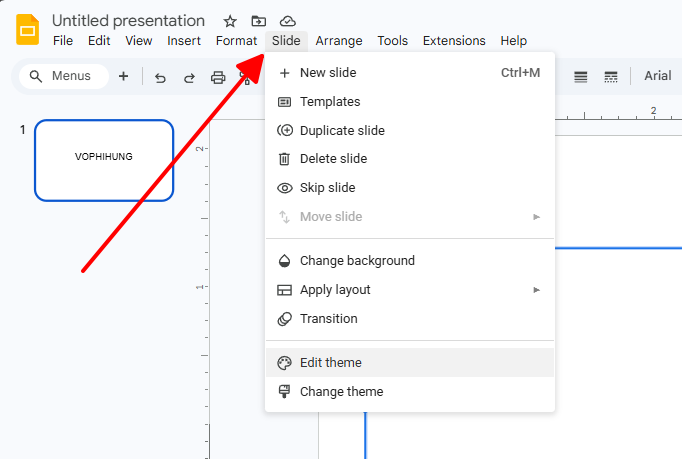
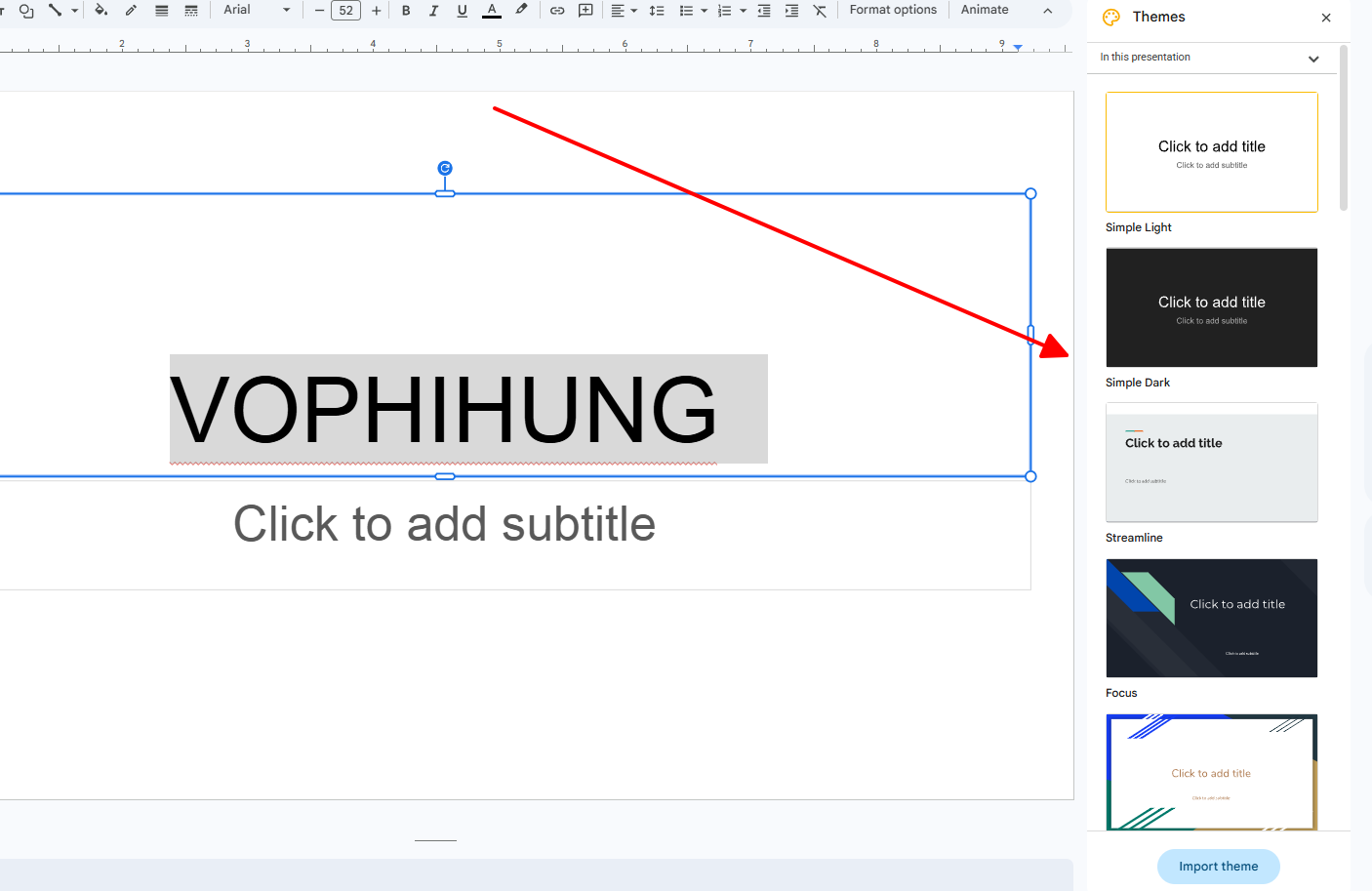
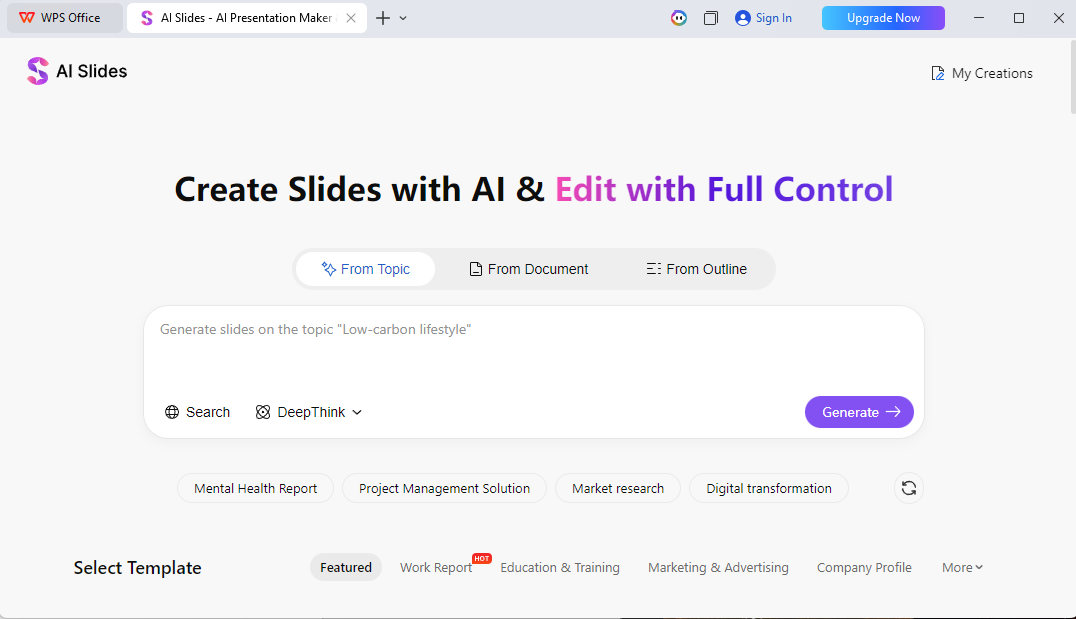
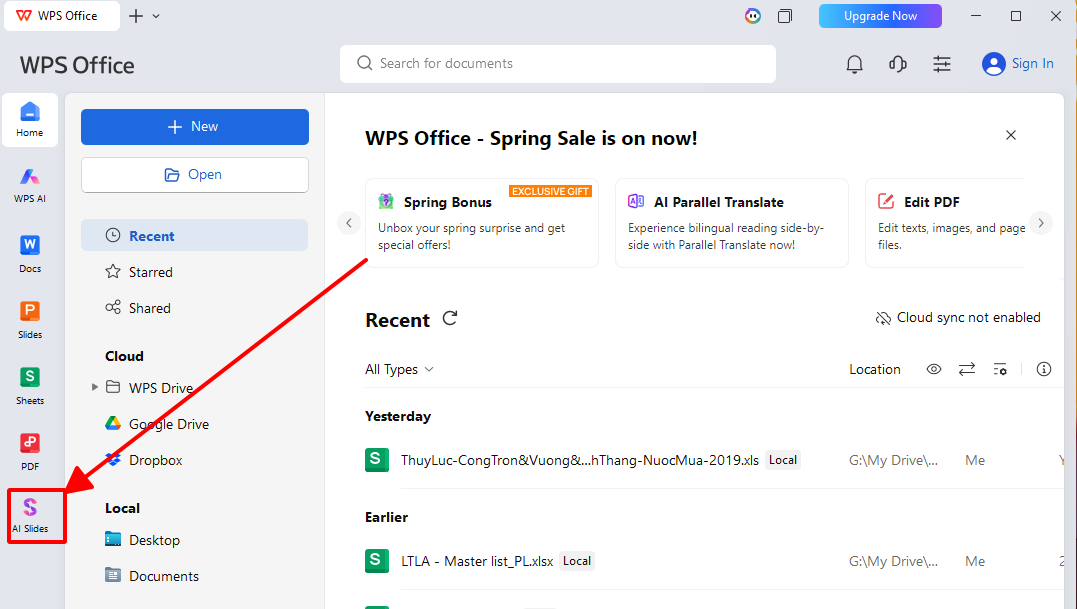
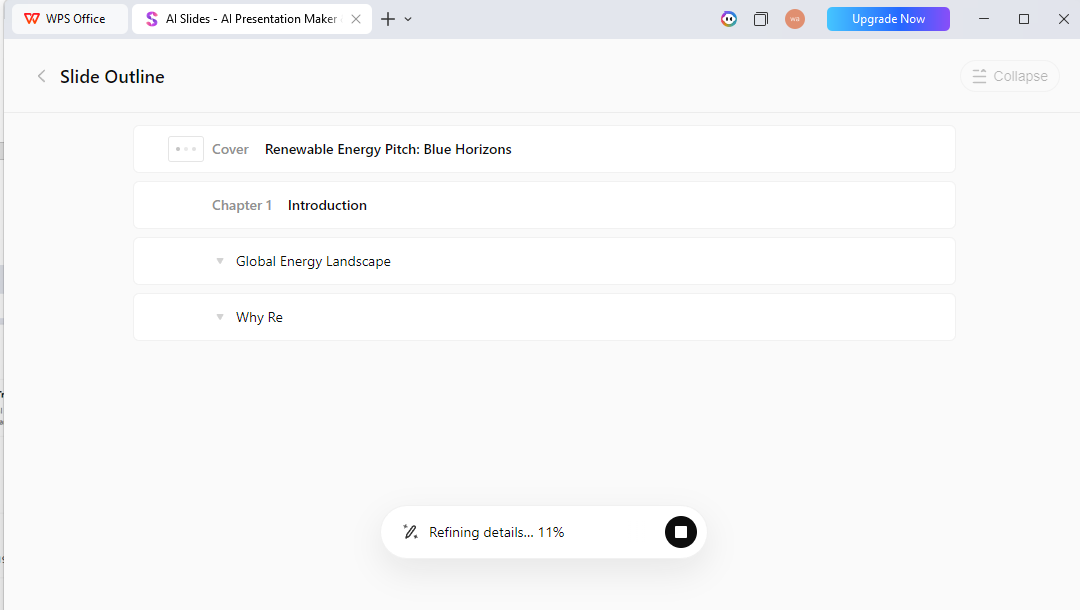
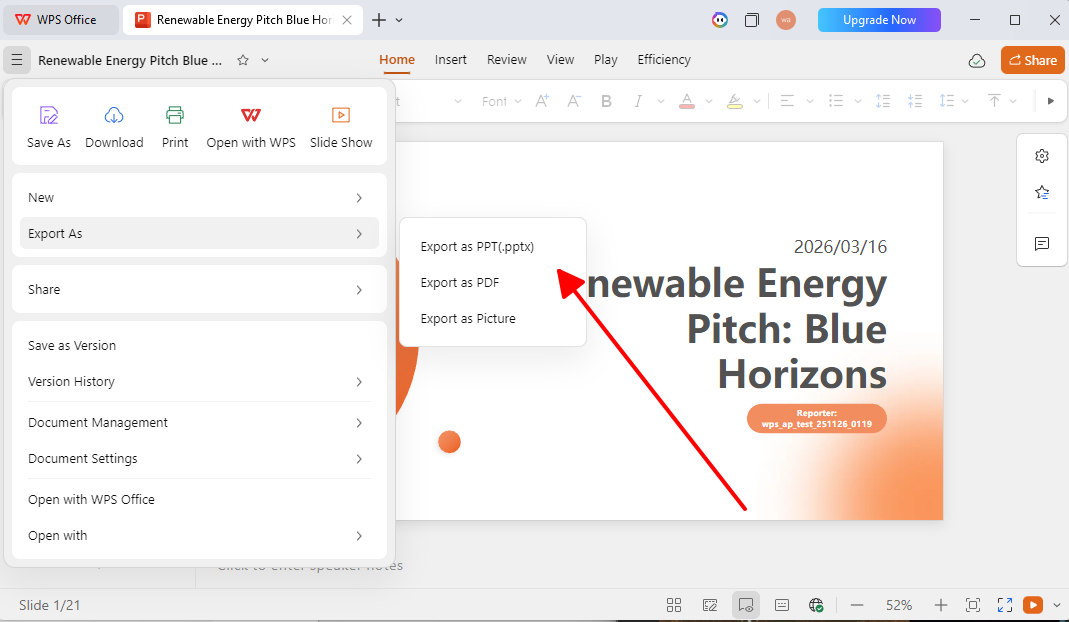
Tired of Google Slides where text colors clash across slides, undermining your message and forcing endless manual fixes? Readers searching how to change text color in Google Slides really want fast, repeatable steps that scale from single tweaks to full-deck consistency, plus tools that handle accessibility and brand harmony automatically. This 2026 guide delivers every method with precision, exposes Google Slides limitations, and reveals WPS AI Slides as the intelligent upgrade that eliminates color chaos completely. Text color control in Google Slides seems basic until you're managing 20+ slides with brand requirements breathing down your neck. What readers need most are methods that balance speed for quick fixes with power for professional consistency across entire presentations. For anyone needing instant emphasis on a bullet point, stat, or callout, the toolbar delivers one-click color changes without leaving your slide. This approach shines when you're mid-edit and just want to make key text pop against the background or match a specific accent, keeping your workflow uninterrupted while pulling from familiar theme colors or custom HEX values on demand. Step 1: Click your text box or drag to highlight the exact text needing color. Step 2: Locate the "Text color" icon (A with underline) right in the main toolbar. Step 3: Click to access theme colors first, standard palette second, or custom picker for precise control. Step 4: Add background highlighting via the adjacent "Highlight color" pen icon if needed. Key Point: Built for fast change font color google slides on individual elements without theme disruption. Tips: In client pitches last month, this saved minutes per slide for urgent highlights, but by deck end, I spent double time fixing mismatches manually, wish it propagated smarter. When customize text color in presentation becomes a brand requirement rather than a nice-to-have, Theme Builder works upstream by redefining placeholder colors that cascade to every matching layout. This method transforms chaotic multi-slide decks into unified systems where titles, subtitles, and body text all inherit your exact palette automatically, perfect for corporate reports or client pitches demanding pixel-perfect uniformity. Step 1: Navigate to Slide menu > Edit theme to enter the master view. Step 2: Select your primary master slide thumbnail or specific layout variant. Step 3: Click title/body placeholders and apply colors through the standard toolbar picker. Changes propagate instantly to all slides using that template. Pro Tip: Establish your 4-6 core brand HEX codes here first, they become the enforced default moving forward. Fixed a 40-slide corporate deck in under 20 minutes this way, compared to hours of per-slide hunting before. Still, overlooked manual boxes meant extra cleanup rounds. Effective colors guide attention subconsciously while building trust through consistency, but Google Slides forces you to engineer this manually at every layer. Readers want harmony that works across projectors, laptops, and phones without constant second-guessing. Test WCAG 4.5:1 contrast ratios using free online checkers before finalizing any combination. Enter precise HEX codes through custom picker to lock set default text color matching corporate guidelines exactly. Establish visual language: crimson for risks, emerald for successes, navy for headers, creating intuitive flow. Theme color updates refresh placeholders exclusively, ignoring manually drawn text boxes completely. Deploying full brand systems demands separate application across titles, bodies, accents, highlights individually. No built-in complementary color recommendations or automatic accessibility analysis exists natively. WPS AI Slides eliminates manual color wrestling entirely by generating complete, design-principle-driven palettes from simple prompts, then intelligently distributing those colors across text hierarchy, shapes, and backgrounds with one approval. Rather than fighting Google's static tools, this creates adaptive systems where change font color google slides becomes an AI-handled afterthought, maintaining perfection through exports and collaborations. Key Advantages for Color Management and Text Design Features: AI generates harmonious palettes from brand keywords, logos, or URLs automatically One-click theme refresh updates entire presentation color systems instantly Style propagation applies defined text formatting to all similar elements automatically Background-aware text color suggestions ensure optimal readability everywhere Perfect .pptx export/import preserves all AI-enhanced colors in Google Slides Pros: Saves hours versus manual theme editing across complex decks Guaranteed design harmony following professional color theory principles Real-time accessibility analysis prevents contrast violations proactively Adapts instantly to brand guideline changes without reworking slides Cons: Requires initial learning curve for optimal AI prompting Premium features need subscription beyond free tier limitations Quick Decision Guide: This workflow demonstrates AI transforming vague color ideas into production-ready presentations, proving why manual methods feel archaic by comparison when scaling beyond basic slides. Step 1: Launch WPS AI Slides, prompt: "Create renewable energy pitch using professional blue-gray palette with full text accessibility compliance." Step 2: Review AI-generated slides showing perfect text hierarchy, then test: "Recolor entire theme vibrant green-white maintaining all contrast ratios." Step 3: Apply final refinements through enhanced tools, export .pptx, import to Google Slides with 100% color fidelity preserved. 1: How do I change the default text color for all my slides? Edit Slide > Edit theme and modify placeholder colors on master layouts for automatic inheritance by new content. Manually drawn text boxes require separate formatting since they bypass theme inheritance entirely. Plan standardized layouts upfront to minimize this gap. 2: Can I use custom brand colors (HEX codes)? Select Custom from any color picker and input HEX values directly for precision matching. Save frequently used codes to your theme via Edit theme > Colors > Customize for easier access. Different element types still demand individual application despite theme storage. 3: Why should my text color be consistent? Consistent coloring creates immediate professional credibility, reinforces brand recognition instantly, accelerates audience comprehension dramatically, and establishes clear visual hierarchy naturally. Random color choices signal amateur execution and fracture viewer focus across slides. 4: Can WPS AI Slides import Google Slides files? WPS AI handles .pptx imports seamlessly, applies intelligent color enhancements and design improvements, then exports cleanly while preserving every formatting detail. This creates hybrid workflows bridging manual Google work with AI-powered perfection without data loss. 5: How to check text color contrast quickly? WPS AI provides live contrast analysis during design, flagging issues instantly across all slide elements. For Google Slides, copy HEX pairs to web-based contrast checkers targeting WCAG 4.5:1 minimums essential for diverse display environments. 6: What's the fastest way to recolor an entire deck? Google Theme Builder updates placeholders globally but misses custom elements, while WPS AI Slides refreshes everything through simple prompts including manually placed content. Hybrid export workflows maintain perfection across platforms without manual intervention. Master how to change text color in Google Slides through toolbar immediacy and theme-level control, but recognize manual limitations when scaling professionally. WPS AI Slides revolutionizes this entirely with intelligent palette generation, automatic application, and guaranteed consistency that exports flawlessly. Download free at wps.com and eliminate color management drudgery permanently.How to Change Text Color in Google Slides: Complete Guide
The Basic Method: Using the Toolbar
Always preview against your actual slide background before committing. Ctrl+Z undoes instantly if the contrast falls flat.Advanced Control: Using the Theme Builder for Global Consistency
Pro Tips for Impact and Practical Limitations
Pro Tips for Effective Color Use
Limitations and Manual Effort
The Intelligent Approach: Automated Color & Design with WPS AI Slides
Tutorial: Implementing a Color Scheme with WPS AI Slides
FAQs
Summary

Table of Content

Share Article
'%3e%3cpath%20fill-rule='evenodd'%20clip-rule='evenodd'%20d='M21.4999%2010.9993C21.4999%205.20009%2016.7986%200.498901%2010.9993%200.498901C5.19994%200.498901%200.498657%205.20009%200.498657%2010.9993C0.498657%2016.2404%204.33858%2020.5844%209.35855%2021.3722V14.0346H6.69238V10.9993H9.35855V8.68594C9.35855%206.05427%2010.9262%204.60062%2013.3248%204.60062C14.4736%204.60062%2015.6753%204.80571%2015.6753%204.80571V7.38979H14.3512C13.0468%207.38979%2012.64%208.19921%2012.64%209.0296V10.9993H15.5523L15.0867%2014.0346H12.64V21.3722C17.66%2020.5844%2021.4999%2016.2404%2021.4999%2010.9993Z'%20fill='%231568EA'/%3e%3c/g%3e%3c/svg%3e)


'%3e%3cpath%20d='M2.42045%2022.1876H6.31818V12.7217L0.75%208.54553V20.5171C0.75%2021.4414%201.49892%2022.1876%202.42045%2022.1876Z'%20fill='%234285F4'/%3e%3cpath%20d='M19.682%2022.1876H23.5797C24.5041%2022.1876%2025.2502%2021.4387%2025.2502%2020.5171V8.54553L19.682%2012.7217'%20fill='%2334A853'/%3e%3cpath%20d='M19.682%205.48293V12.7216L25.2502%208.54543V6.31816C25.2502%204.25236%2022.8921%203.07469%2021.2411%204.31361'%20fill='%23FBBC04'/%3e%3cpath%20d='M6.31824%2012.7217V5.48303L13.0001%2010.4944L19.6819%205.48303V12.7217L13.0001%2017.733'%20fill='%23EA4335'/%3e%3cpath%20d='M0.75%206.31816V8.54543L6.31818%2012.7216V5.48293L4.75909%204.31361C3.10534%203.07469%200.75%204.25236%200.75%206.31816Z'%20fill='%23C5221F'/%3e%3c/g%3e%3cdefs%3e%3cclipPath%20id='clip0_2954_7305'%3e%3crect%20width='24.5'%20height='18.375'%20fill='white'%20transform='translate(0.75%203.8125)'/%3e%3c/clipPath%3e%3c/defs%3e%3c/svg%3e)


How to Change Text Color in Google Slides in 2026: Master Guide & AI-Powered Design
Posted by Bushra Parveen

2026-04-30

870

4

'%3e%3cpath%20d='M19.9911%204.11386V6.471H18.5894C18.0775%206.471%2017.7322%206.57814%2017.5536%206.79243C17.3751%207.00671%2017.2858%207.32814%2017.2858%207.75671V9.44421H19.9019L19.5536%2012.0871H17.2858V18.8639H14.5536V12.0871H12.2769V9.44421H14.5536V7.49779C14.5536%206.39064%2014.8632%205.53201%2015.4822%204.92189C16.1013%204.31177%2016.9257%204.00671%2017.9554%204.00671C18.8304%204.00671%2019.509%204.04243%2019.9911%204.11386Z'%20fill='%23333333'/%3e%3c/g%3e%3cdefs%3e%3cclipPath%20id='clip0_2938_8199'%3e%3crect%20width='16'%20height='16'%20fill='white'%20transform='translate(8%204.00671)'/%3e%3c/clipPath%3e%3c/defs%3e%3c/svg%3e)
'%3e%3cpath%20d='M17.5237%2010.7813L23.4811%204H22.0699L16.8949%209.88693L12.7648%204H8L14.2469%2012.9029L8%2020.0133H9.4112L14.8725%2013.7952L19.2352%2020.0133H24M9.92053%205.04213H12.0885L22.0688%2019.0224H19.9003'%20fill='%23333333'/%3e%3c/g%3e%3cdefs%3e%3cclipPath%20id='clip0_2938_8200'%3e%3crect%20width='16'%20height='16.0134'%20fill='white'%20transform='translate(8%204)'/%3e%3c/clipPath%3e%3c/defs%3e%3c/svg%3e)


I simplify tech—especially Office tools—so anyone can use it confidently. For 5+ years, I've created clear how-tos & guides to make tech feel easy, not overwhelming. Follow for practical tips!
Other Posts You Might Enjoy

How to Record a Presentation on Google Slides in 2026: Guide and AI-Powered Workflow


How to Make an Object Bounce in Google Slides: Step-by-Step Guide and a Smarter AI Method

How to Embed a Website in Google Slides in 2026: Workarounds & Smarter Solutions

How to Change Google Slides Defaults in 2026: Master Guide & Smarter Alternative

The Smart Guide on How to Make a Pitch Deck in 2026

The Ultimate Guide to Adding Animation in PowerPoint (2026 Edition)