

'%3e%3cpath%20d='M8%200C12.4183%200%2016%203.58172%2016%208C16%2012.4183%2012.4183%2016%208%2016C3.58172%2016%200%2012.4183%200%208C0%203.58172%203.58172%200%208%200ZM11.6162%204.38379C11.2257%203.99337%2010.5927%203.99338%2010.2021%204.38379L8%206.58594L5.79785%204.38379C5.40732%203.99334%204.77429%203.99329%204.38379%204.38379C3.99331%204.77429%203.99335%205.40733%204.38379%205.79785L6.58594%208L4.38379%2010.2021C3.99348%2010.5927%203.99341%2011.2257%204.38379%2011.6162C4.77426%2012.0066%205.40734%2012.0065%205.79785%2011.6162L8%209.41406L10.2021%2011.6162C10.5927%2012.0066%2011.2257%2012.0067%2011.6162%2011.6162C12.0067%2011.2257%2012.0066%2010.5927%2011.6162%2010.2021L9.41406%208L11.6162%205.79785C12.0066%205.40735%2012.0066%204.77429%2011.6162%204.38379Z'%20fill='%23080E17'%20fill-opacity='0.46'/%3e%3c/g%3e%3cdefs%3e%3cclipPath%20id='clip0_3761_713'%3e%3crect%20width='16'%20height='16'%20fill='white'/%3e%3c/clipPath%3e%3c/defs%3e%3c/svg%3e)


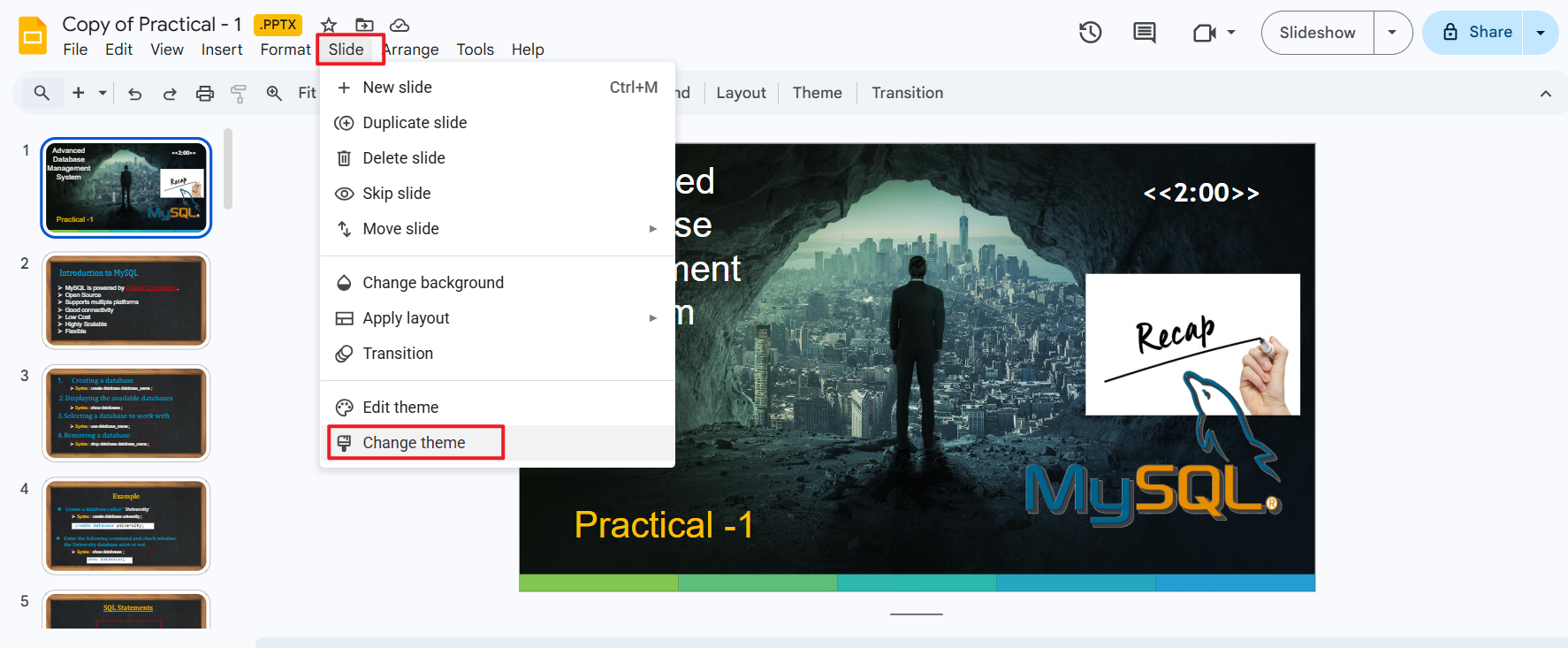
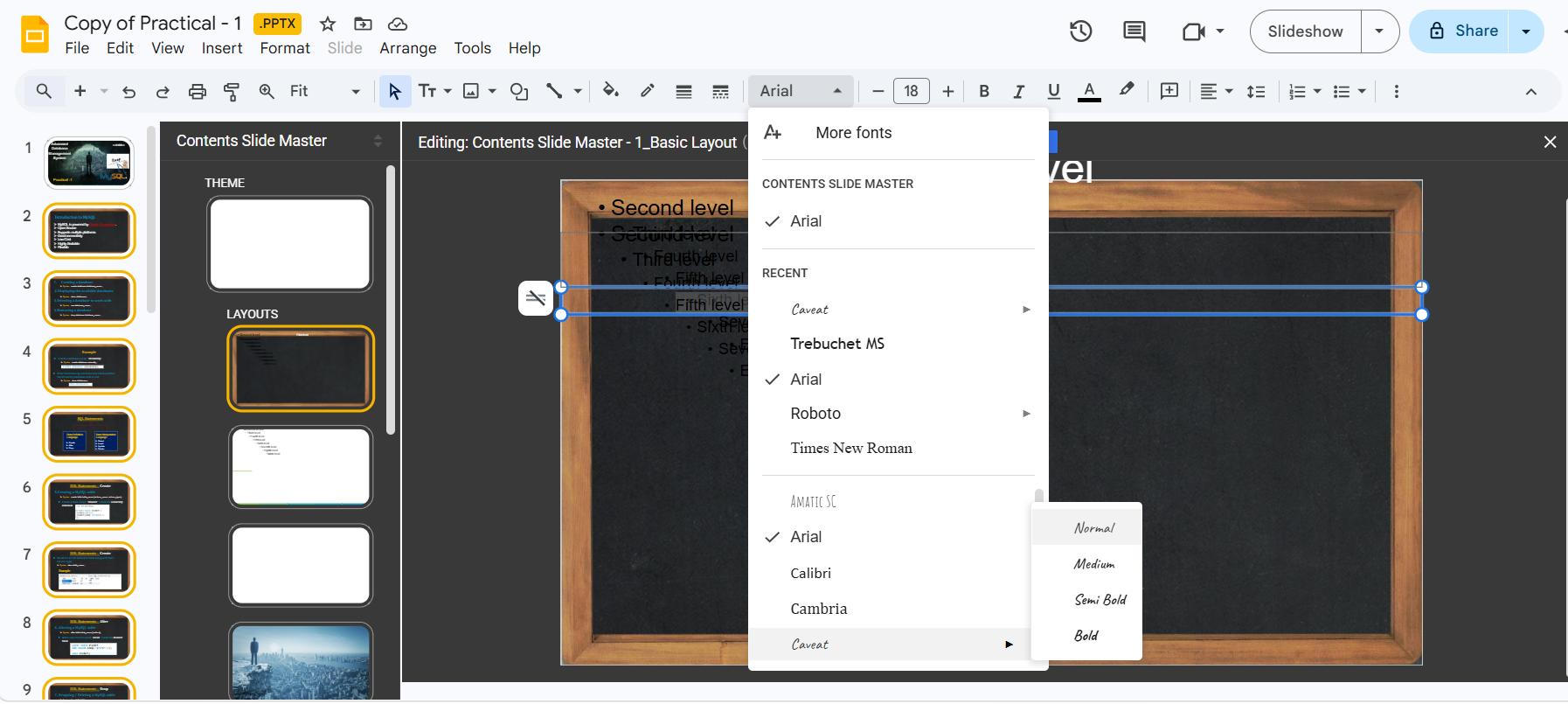
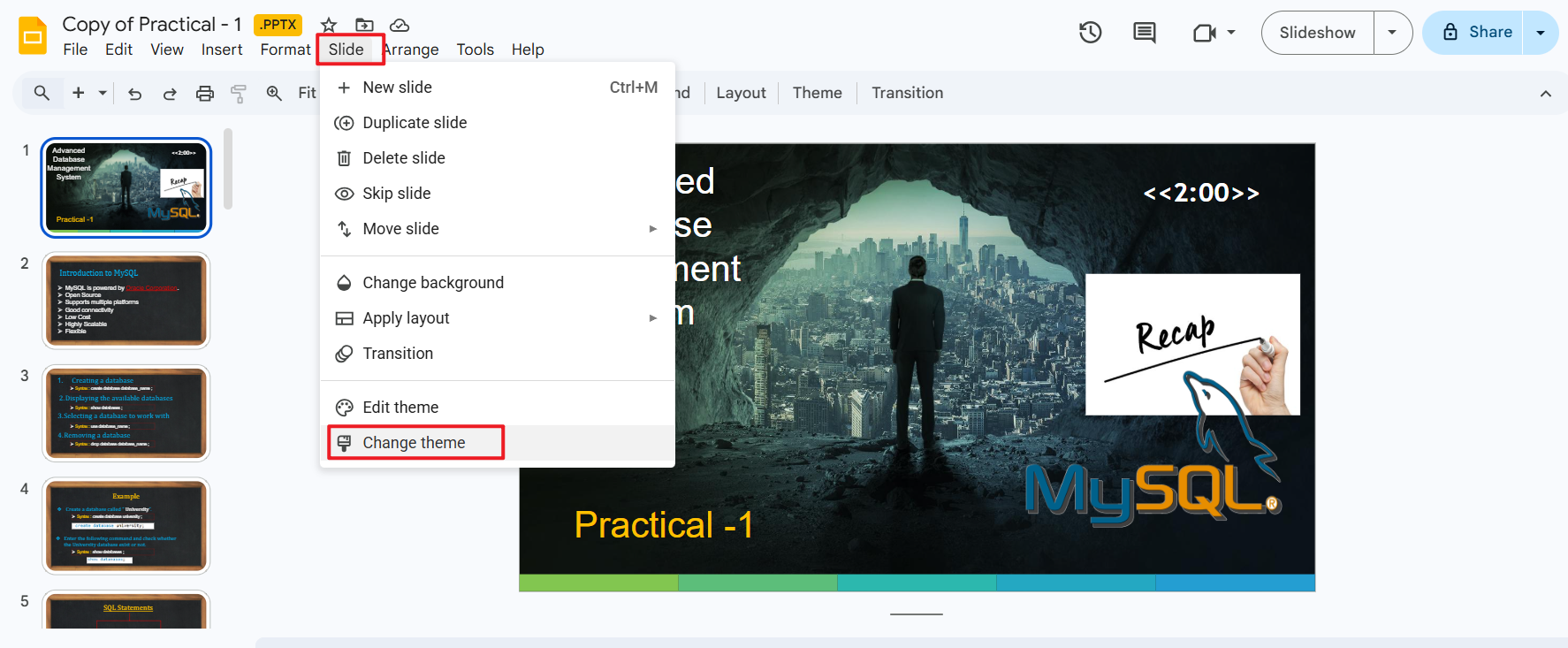
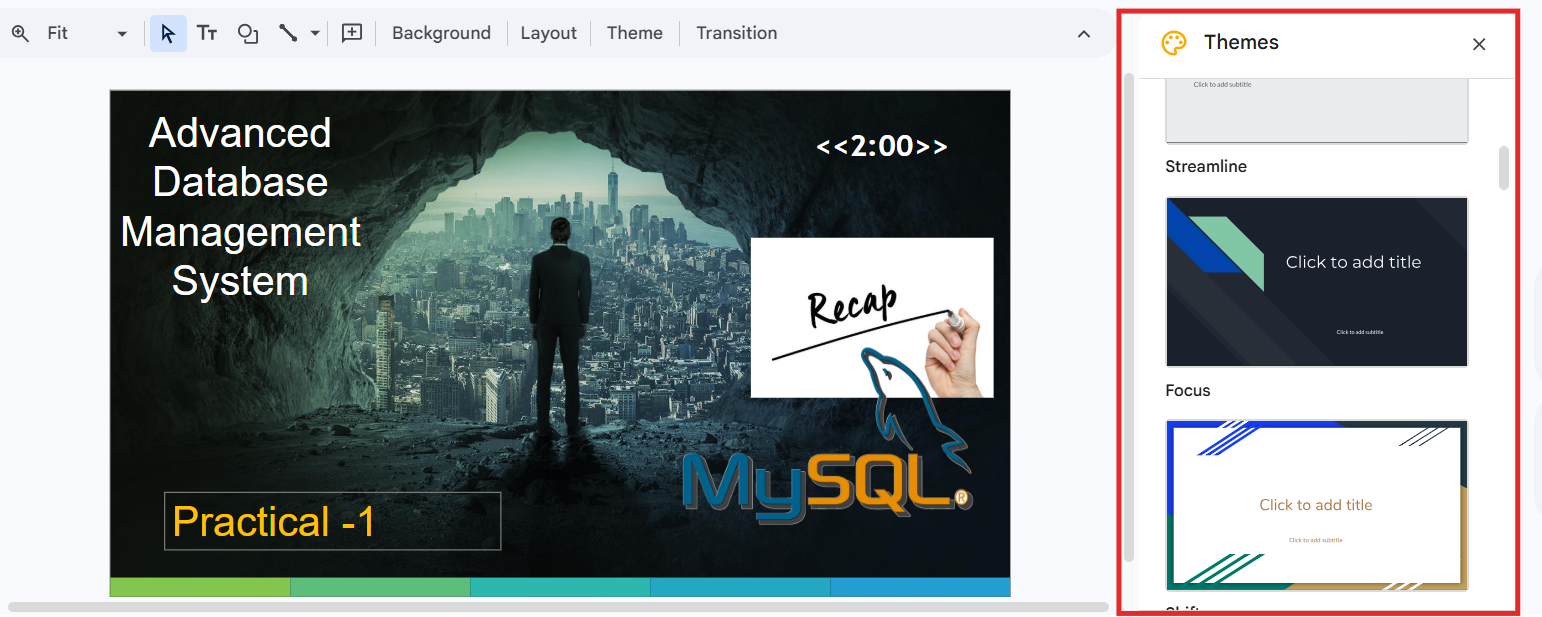
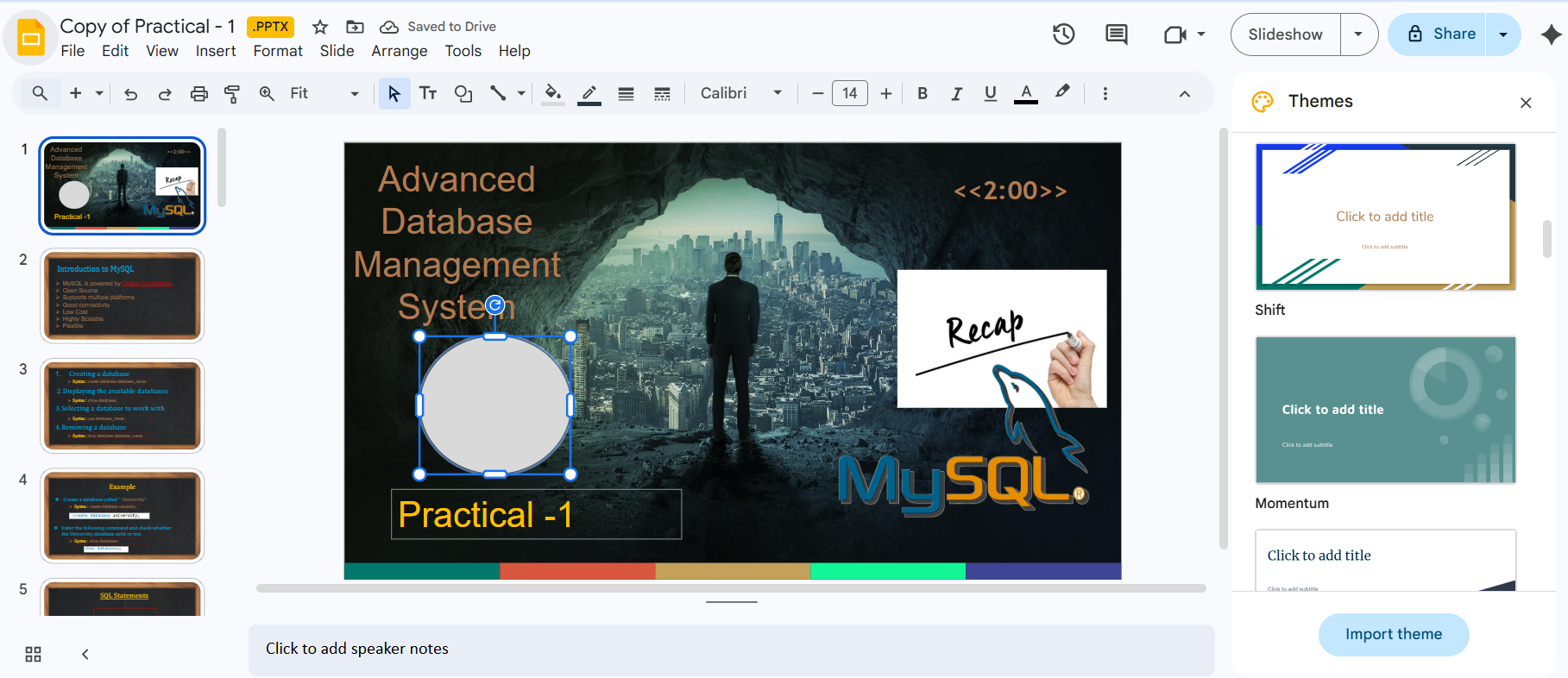
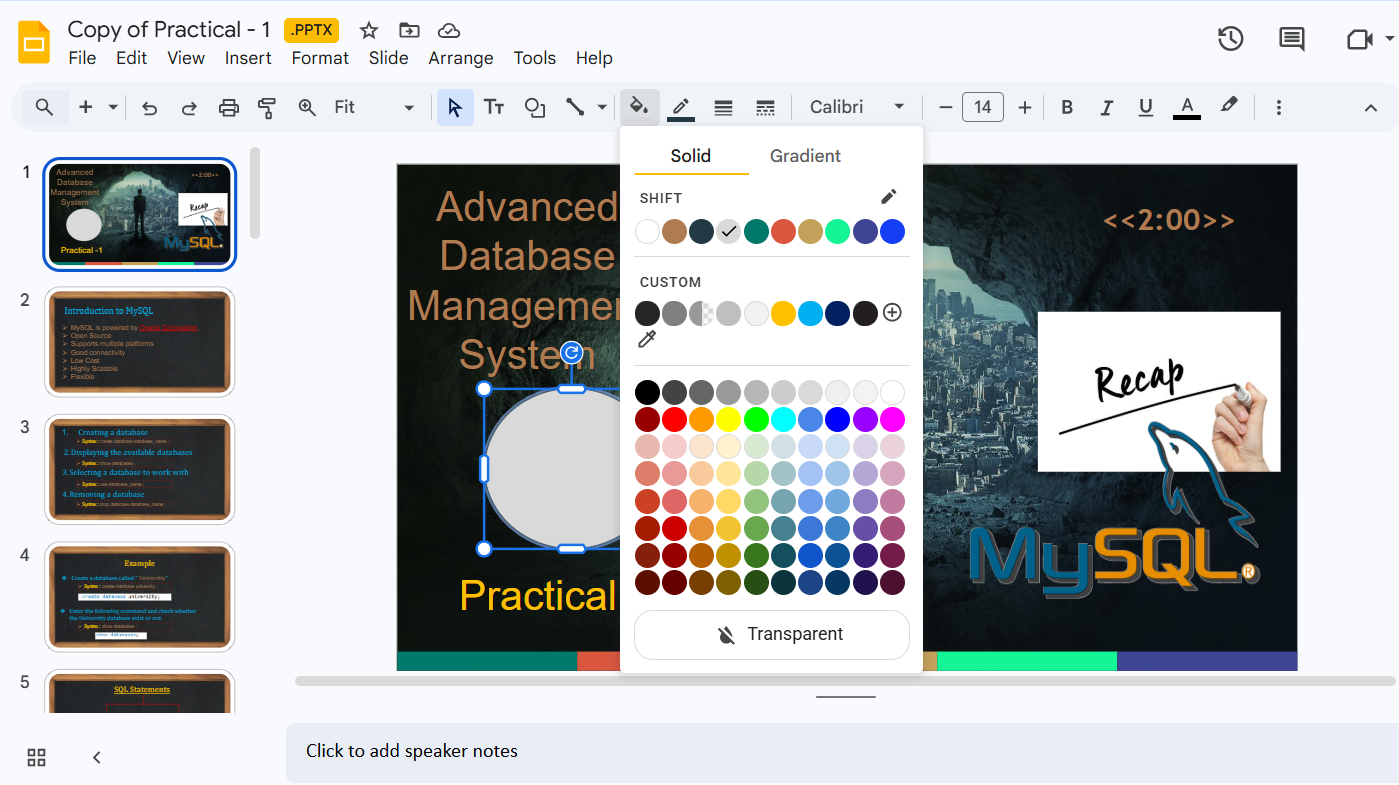
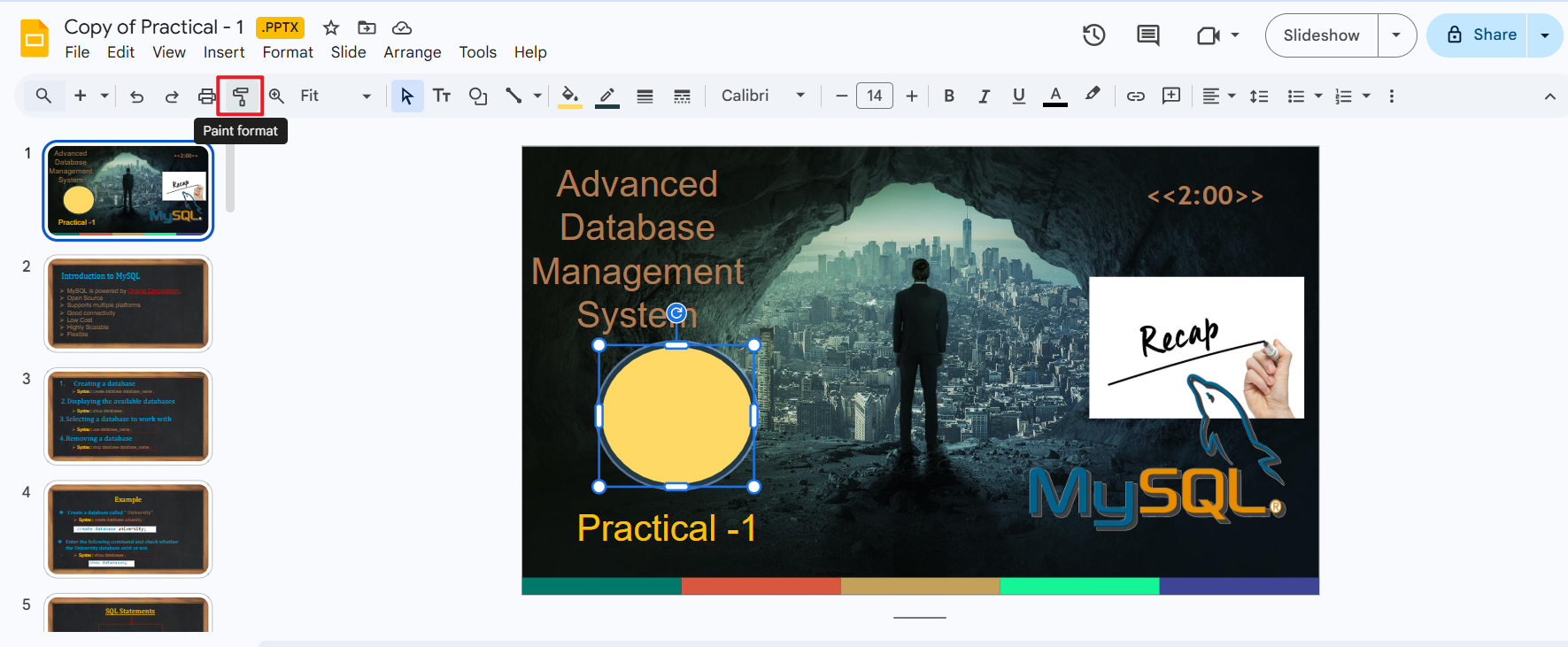
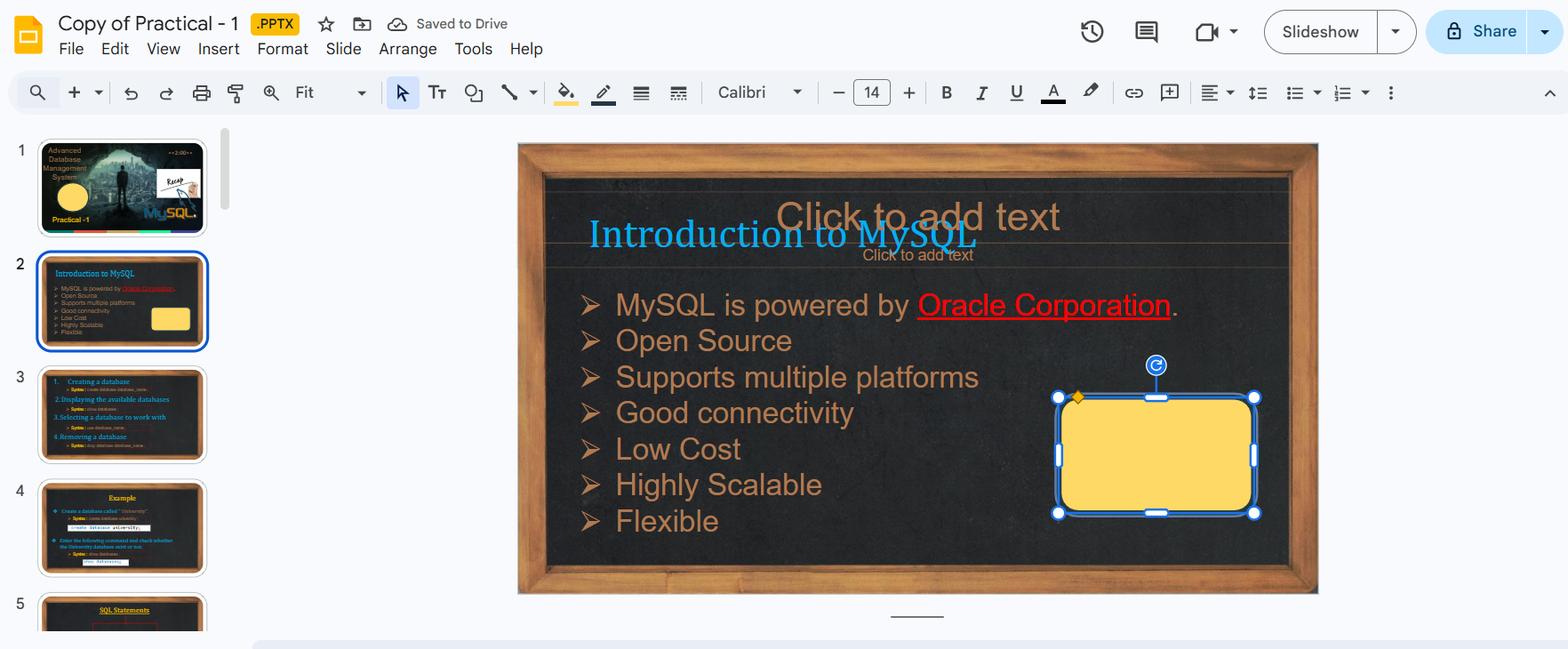
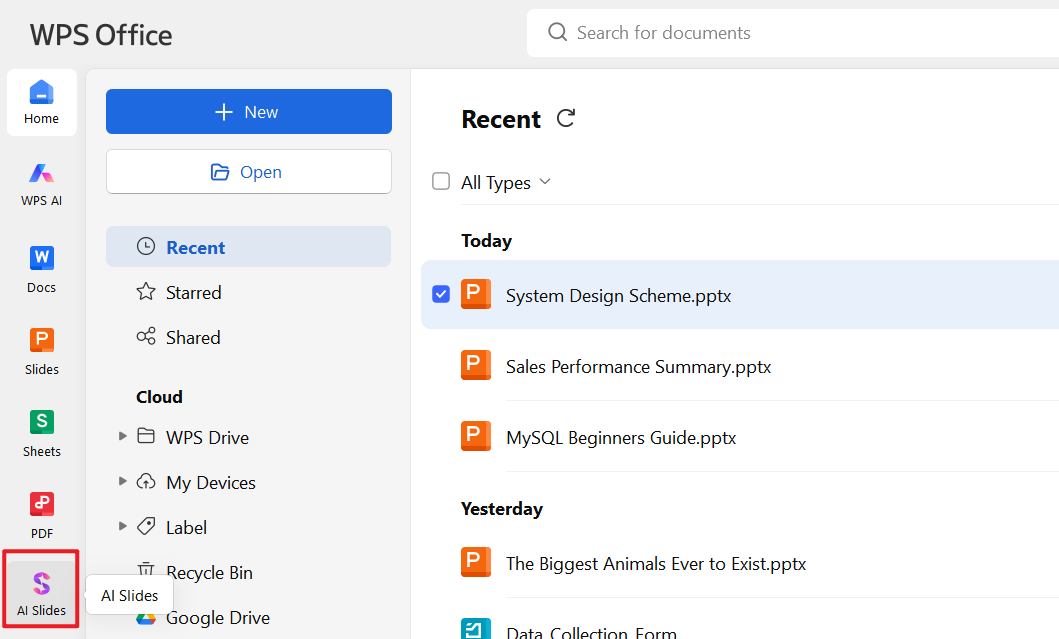
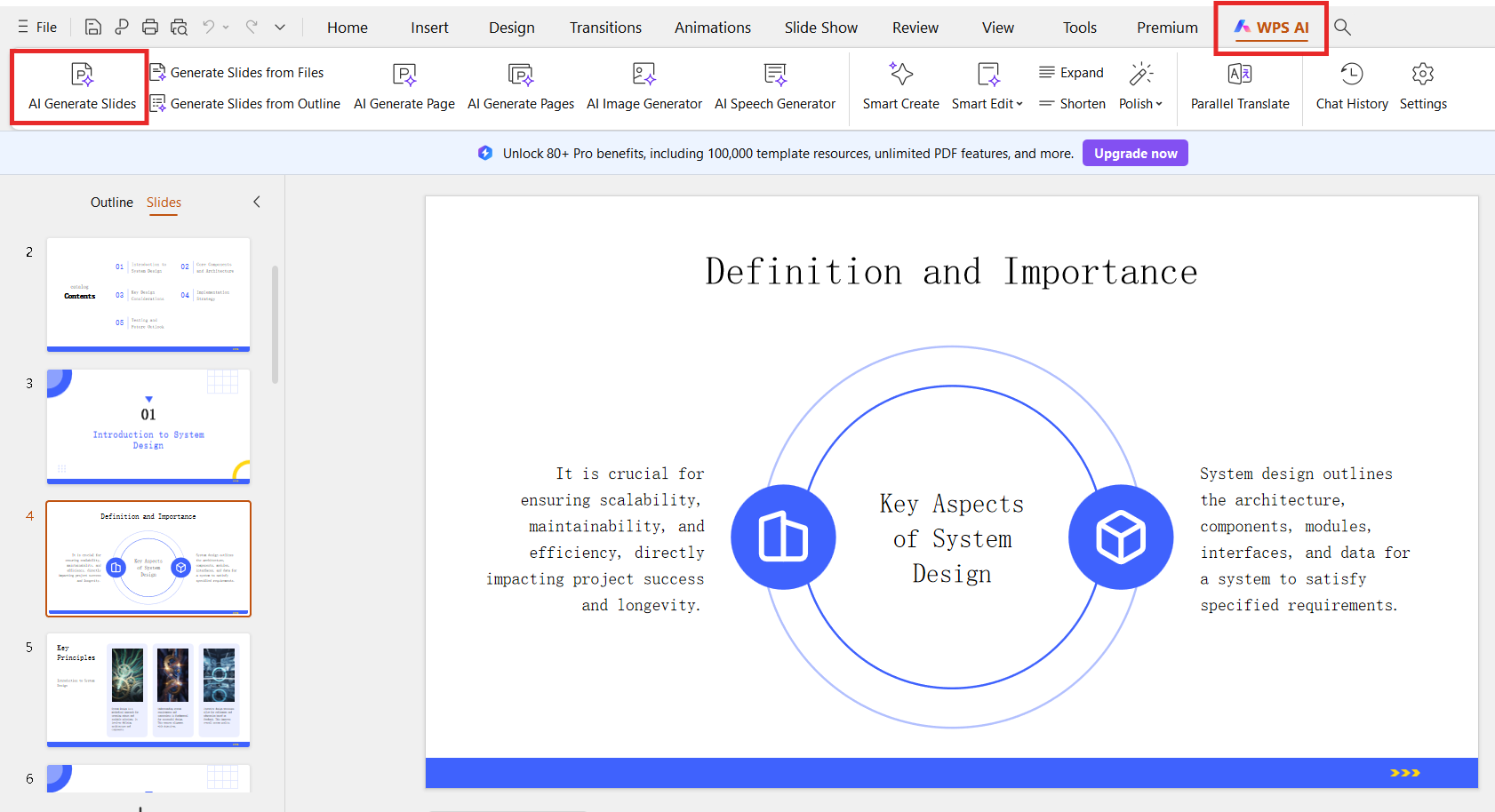
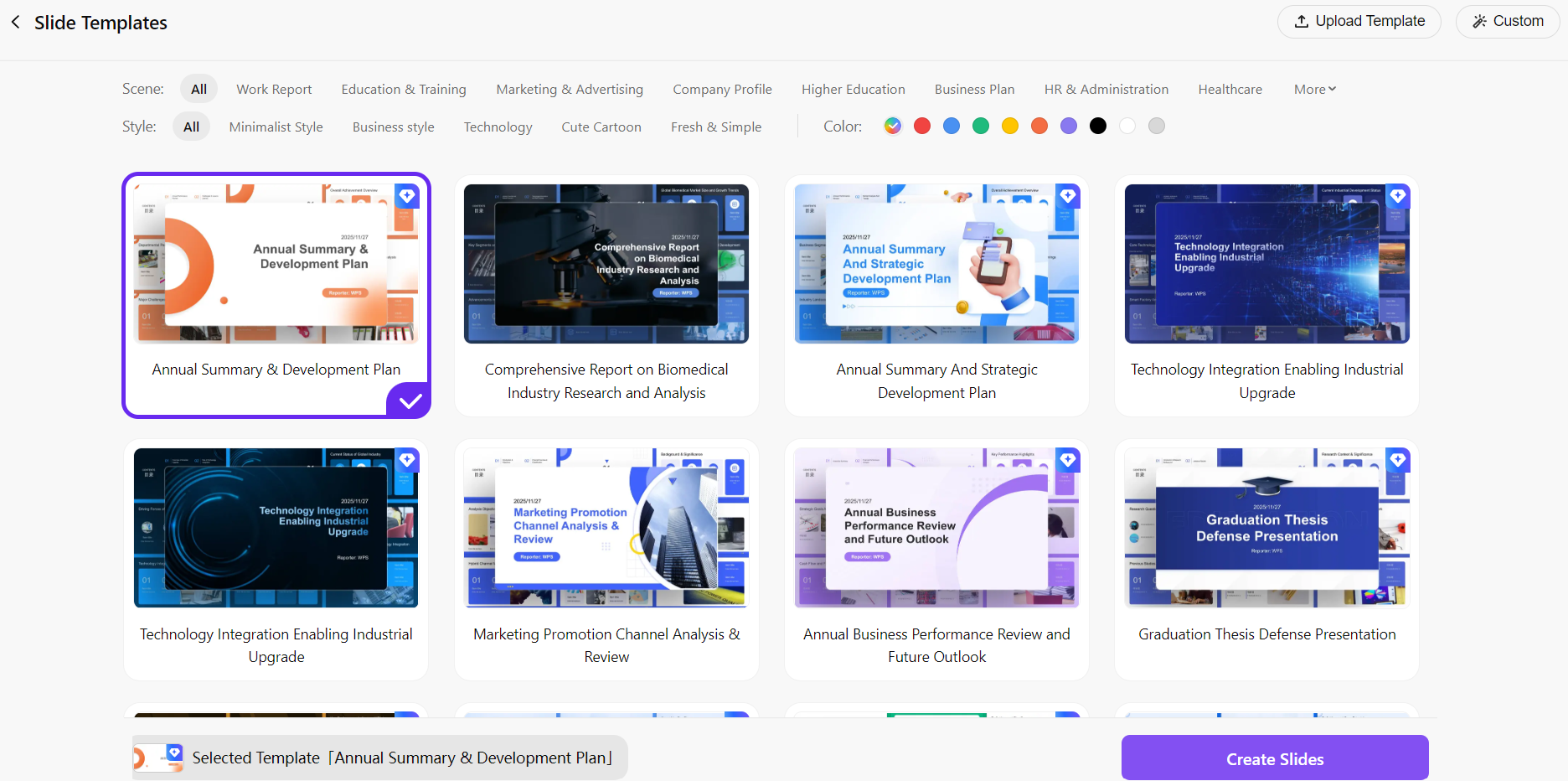
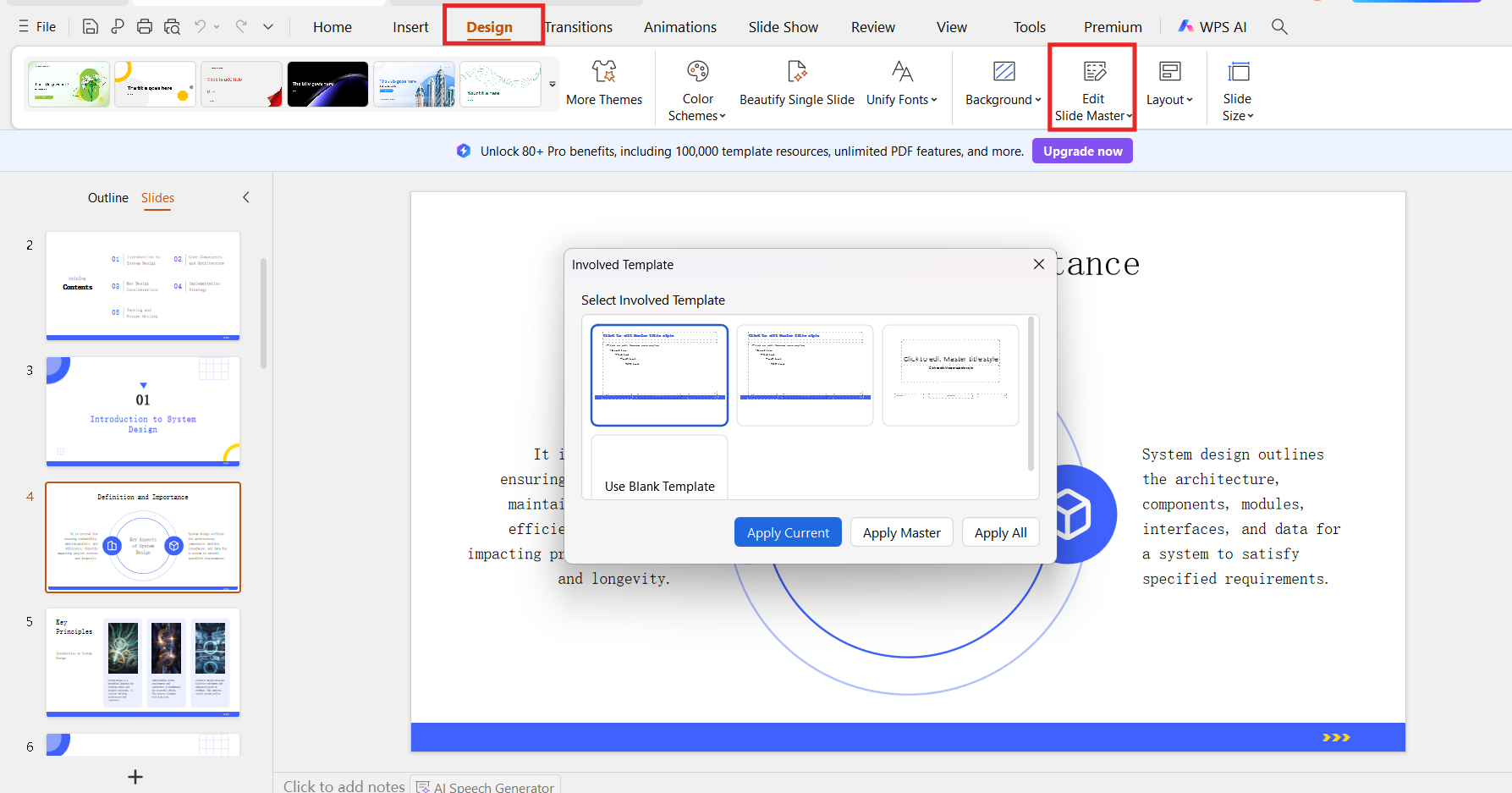
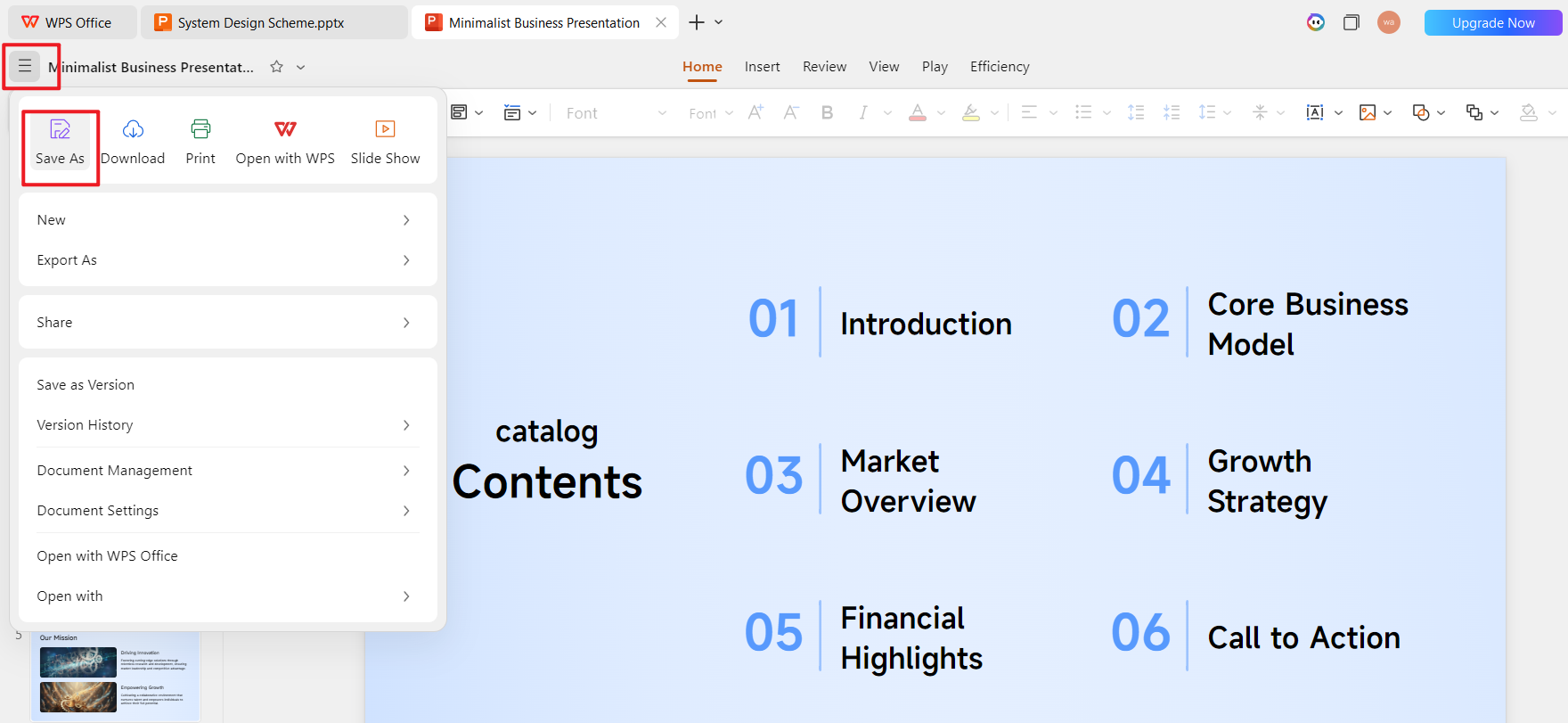
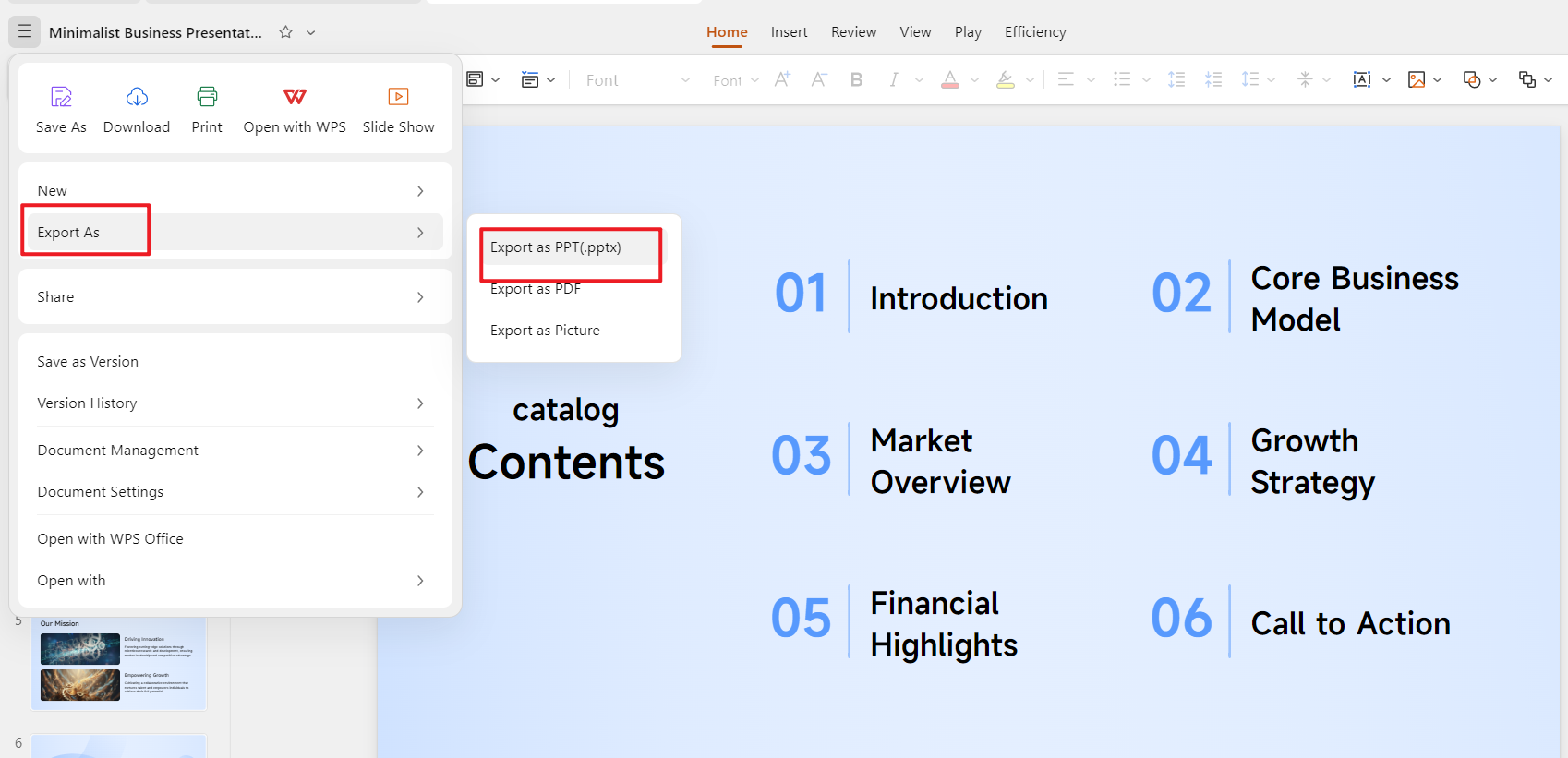
Creating presentations should be about sharing ideas, not fixing the same fonts, colors, and layouts again and again. Yet many users still spend time adjusting formatting whenever they start a new deck. The challenge is that Google Slides doesn’t provide a clear one-click option to set global defaults. So how do you actually control these settings efficiently? In this guide, we’ll explore how to change Google Slides defaults, step by step, and also look at a smarter method that simplifies design management using WPS AI Slides. Changing the default settings in Google Slides may seem like a small adjustment, but it can significantly improve your workflow. When the right fonts, colors, and layouts are already set, creating presentations becomes faster and far more consistent. If you regularly edit fonts or adjust layouts every time you open a new presentation, those minutes add up quickly. Setting proper defaults eliminates repeated formatting tasks. Instead of reapplying the same style to each slide, your presentation starts with the correct design automatically. Consistency is one of the most important aspects of professional presentations. When every slide follows the same typography, spacing, and layout rules, the entire deck looks polished. This is especially useful when working with teams, where inconsistent formatting can easily appear. For companies, educators, and content creators, visual identity matters. Fonts, colors, and layouts should match the brand style. By learning how to change the default font in Google Slides and adjusting themes properly, you can ensure every presentation reflects the same brand guidelines. When multiple people edit a presentation, formatting differences often occur. Setting consistent defaults reduces this problem. Team members can focus on content instead of fixing styles. A presentation that starts with the right design looks more professional from the first slide. It also helps your audience focus on the message rather than distracting formatting changes. Small improvements in design consistency often lead to stronger communication overall. Google Slides allows you to adjust fonts, themes, and layouts through the Slide Master and Theme settings. While these controls are not presented as a single “default settings” panel, they still allow you to define the style used across your presentation. Below are the most practical ways to manage formatting when learning how to change Google Slides' defaults. If you want consistent typography across your slides, the best place to start is the Slide Master. This setting controls the fonts used by new layouts in your presentation. Steps Step 1: Open your presentation in Google Slides. Step 2: Click View in the top menu. Step 3: Select Theme Builder (previously called Slide Master). Step 4: Click the top master slide in the left panel. Step 5: Highlight the text placeholder where you want to change the font. Step 6: Select a new font from the toolbar. And click reapply to all. Step 7: Close the Theme Builder to apply the change. Key Point This adjustment changes the style used by new text boxes added through layouts. However, it does not automatically update text boxes that already exist on slides. This method is often used by teams trying to control typography across a deck. In practice, it’s also the closest approach to how to change font in Google Slides for all slides, since the master slide governs most layout elements. Experience Insight: When I adjust fonts through the Theme Builder, it saves a surprising amount of time. Instead of fixing each slide later, the typography stays consistent as new slides are created. Themes control more than fonts; they also include colors, backgrounds, and layout styles. If you want a consistent visual structure, learning how to set a default theme in Google Slides is essential. Steps Step 1: Open your presentation in Google Slides. Step 2: Click Slide → Change theme in the menu. Step 3: Browse the available themes on the right panel. Step 4: Select a theme that matches your presentation style. Step 5: Customize it through Theme Builder if needed. Step 6: Save this presentation as a template or duplicate it when starting new projects. Key Point Custom themes include defined fonts, colors, and layouts, making them essential for maintaining brand style. Many teams create a company theme once and reuse it for all presentations. This ensures every slide deck starts with the same visual identity. Experience Insight: In real projects, I often create a “template presentation” with the desired theme. Whenever I need a new deck, I simply duplicate that file instead of rebuilding styles from scratch. Beyond fonts and themes, you may also want consistent styling for shapes, text boxes, and lines. These elements often appear in diagrams and visual explanations. Steps Step 1: Insert a shape or line into your slide. Step 2: Adjust the color, border style, and thickness. Step 3: Right-click the object. Step 4: Select Set as default style (if available in your editing workflow) or copy the format with Format Paint. Step 5: Apply the same style to other elements using Format Painter. Key Point Default styling for graphical elements exists, but it is somewhat hidden in the interface. Many users rely on Format Painter or master slide customization to maintain consistent shapes. When managing diagrams across many slides, these small adjustments can significantly improve visual clarity. Experience Insight: Shapes and diagrams often cause inconsistency in presentations. Once I started defining line styles early in the slide master, diagrams became much easier to maintain. Although Google Slides provides tools for adjusting styles, the process still has several limitations. Not Global Default settings are typically linked to a specific theme or master slide. If you switch themes later, your customized settings may disappear. This means the changes are not truly global across all presentations. Scattered Operations Fonts, layouts, colors, and graphic styles are located in different menus. Because of this, users often need to search through multiple settings when trying to standardize their design. This also affects workflows such as changing the default layout in Google Slides, which requires editing layouts within the Theme Builder rather than adjusting them directly in the slide view. Lack of Intelligent Application Another challenge is that Google Slides does not automatically apply design decisions based on content. Users must manually adjust formatting every time they add text, charts, or visuals. For example, mobile users who want to know how to change font size on Google Slides on a phone still need to modify each element individually. In other words, Google Slides offers control, but not automation. The native tools in Google Slides work well for basic formatting. However, they still require users to manually manage themes, layouts, and styling across multiple menus. If you create presentations frequently or need strong brand consistency, a smarter approach is helpful. This is where WPS AI Slides becomes valuable. Instead of simply adjusting settings one by one, it helps apply design specifications automatically across the entire presentation. In practice, it works more like a design assistant than a traditional formatting tool. One of the most useful advantages of WPS AI Slides is its ability to maintain a consistent design automatically. Intelligent Theme Generation and Matching Rather than manually editing the Slide Master, you can simply describe the visual style you want. For example, you can input instructions such as: “Tech-focused presentation with blue tones” “Minimalist corporate style” “Education theme with simple icons” The AI analyzes the request and generates a theme that includes: Font pairings Color palette Layout styles Icon sets This complete design system can then be applied across the entire presentation. In effect, the generated theme becomes your default design foundation. Experience Insight: When working on brand-focused presentations, defining style through keywords is often faster than adjusting dozens of formatting settings manually. Another advantage is that the AI understands the structure of your content. When you insert text, charts, or images, the system recommends layouts that already match the presentation style. This removes the need to repeatedly adjust spacing, alignment, or formatting. Instead of worrying about design details, you can focus on the message you want to present. WPS AI Slides also offers a powerful formatting system that allows quick style propagation. For example, if you define the style of a title box or chart, that formatting can be applied throughout the presentation with minimal effort. This approach is especially helpful when maintaining consistency across many slides. Another important advantage is compatibility. Many users prefer Google Slides for collaboration, but they still want stronger design tools when creating presentations. WPS AI Slides solves this by maintaining compatibility between both platforms. Presentations created in WPS AI Slides can be saved in .pptx format, which works smoothly with Google Slides. Once uploaded to Google Drive, the presentation opens normally without losing design elements such as fonts, layouts, or color schemes. This means the design work completed in WPS AI Slides remains intact when the file is shared. Users can move between WPS and Google Slides depending on their workflow. For example: Design and structure the presentation in WPS AI Slides Export the file Collaborate with teammates using Google Slides This flexibility allows teams to benefit from AI-assisted design while still using familiar collaboration tools. Another difference is that WPS AI Slides supports the entire presentation creation process. Instead of starting with an empty slide and manually applying formatting later, the system can generate: Presentation outlines Slide content Visual layouts Design styling All of these elements follow the same theme and formatting rules from the beginning. This approach creates consistency much earlier in the workflow. Choosing the right approach depends on your workflow. For occasional adjustments, the built-in Google Slides tools are usually enough. However, for professionals who create presentations regularly, using an AI-assisted tool can dramatically reduce formatting time while keeping the design consistent. Instead of adjusting formatting repeatedly in each presentation, WPS AI Slides allows you to define a design foundation once and reuse it automatically. This approach makes it easier to maintain consistent styles across slides while reducing manual work. Below is a practical walkthrough of how to set up intelligent design defaults using WPS AI Slides. AI Slides can generate presentation content that automatically follows the design structure. Steps Step 1: Open WPS Office and select AI Slides. Step 2: Navigate to WPS AI and AI Generate Slides. Step 3: Enter keywords describing your preferred presentation style. For example: “Minimalist business presentation” “Technology theme with blue tones” “Corporate style with modern fonts” Step 4: The AI will generate several theme suggestions that include fonts, colors, and layouts. Step 5: Select the theme that best fits your needs. Step 6: Open the Slide Master to fine-tune elements such as typography, spacing, and colors. Why This Helps Unlike manual formatting in other tools, this method creates a complete visual system in one place. Once the theme is defined, every slide will automatically follow the same design standards. Experience Insight: When setting up presentations for recurring projects, defining a theme once saves a significant amount of time. It also prevents design inconsistencies when new slides are added later. Even if the presentation is created using WPS AI Slides, you can still collaborate through Google Slides without losing formatting. Steps Step 1: After completing the presentation, click File. Step 2: Select Save As. Step 3: Or go to Export and choose PowerPoint Presentation (.pptx) as the file format. Step 4: Upload the file to Google Drive. Step 5: Open it using Google Slides for sharing or collaboration. Why This Helps The exported file keeps the design elements generated by WPS AI Slides. Fonts, colors, and layouts remain intact when the presentation is opened in Google Slides. This makes it easy to combine AI-assisted design with the collaborative features of Google Slides. 1. Can I set a true global default font in Google Slides? Not directly. Google Slides does not offer a universal default font for every presentation. The closest solution is modifying the font within the Slide Master, which applies the style to layouts within that presentation. However, this change does not automatically apply to new presentations. For consistent formatting, many users create and reuse a custom theme. 2. What is the fastest way to ensure every new presentation has my company’s branding? The typical approach is to create a custom theme containing brand fonts, colors, and logos, then start each new presentation using that theme. Another efficient option is using WPS AI Slides. Once your brand style is defined, the AI can generate new presentations that automatically follow those visual standards. 3. Does changing the Slide Master update existing slides? Usually, changes made in the Slide Master affect future content or layouts, but they may not automatically update text boxes that were manually edited earlier. If existing slides already have customized formatting, they might need to be adjusted individually. 4. Can Google Slides automatically apply a design based on my content? Google Slides primarily relies on manual formatting and predefined themes. It does not automatically generate layouts based on the meaning or structure of your content. Tools like WPS AI Slides can analyze your topic or outline and generate slides with layouts and styles already applied. Understanding how to change Google Slides' defaults can greatly improve your presentation workflow. Adjusting fonts, themes, and layouts through the Slide Master allows you to create more consistent and professional slides. However, the process in Google Slides often requires manual adjustments across several menus. Default settings are also limited to individual presentations or themes rather than being globally applied. For users who frequently create presentations or need stronger brand consistency, WPS AI Slides offers a more efficient alternative. By using AI to generate themes, layouts, and content, it ensures that formatting stays consistent from the start of the presentation process.
Part 1. Why Change Google Slides Defaults?
Save Time on Formatting
Maintain Visual Consistency
Reflect Brand Identity
Simplify Collaboration
Better First Impressions
Part 2. How to Change Defaults in Google Slides (Step-by-Step)
Change the Default Font
Set a Default Theme
Adjust Other Defaults (Shapes, Lines)
Core Limitations and Pain Points
Part 3. A Smarter Alternative: Using WPS AI Slides to Define & Apply Defaults Intelligently
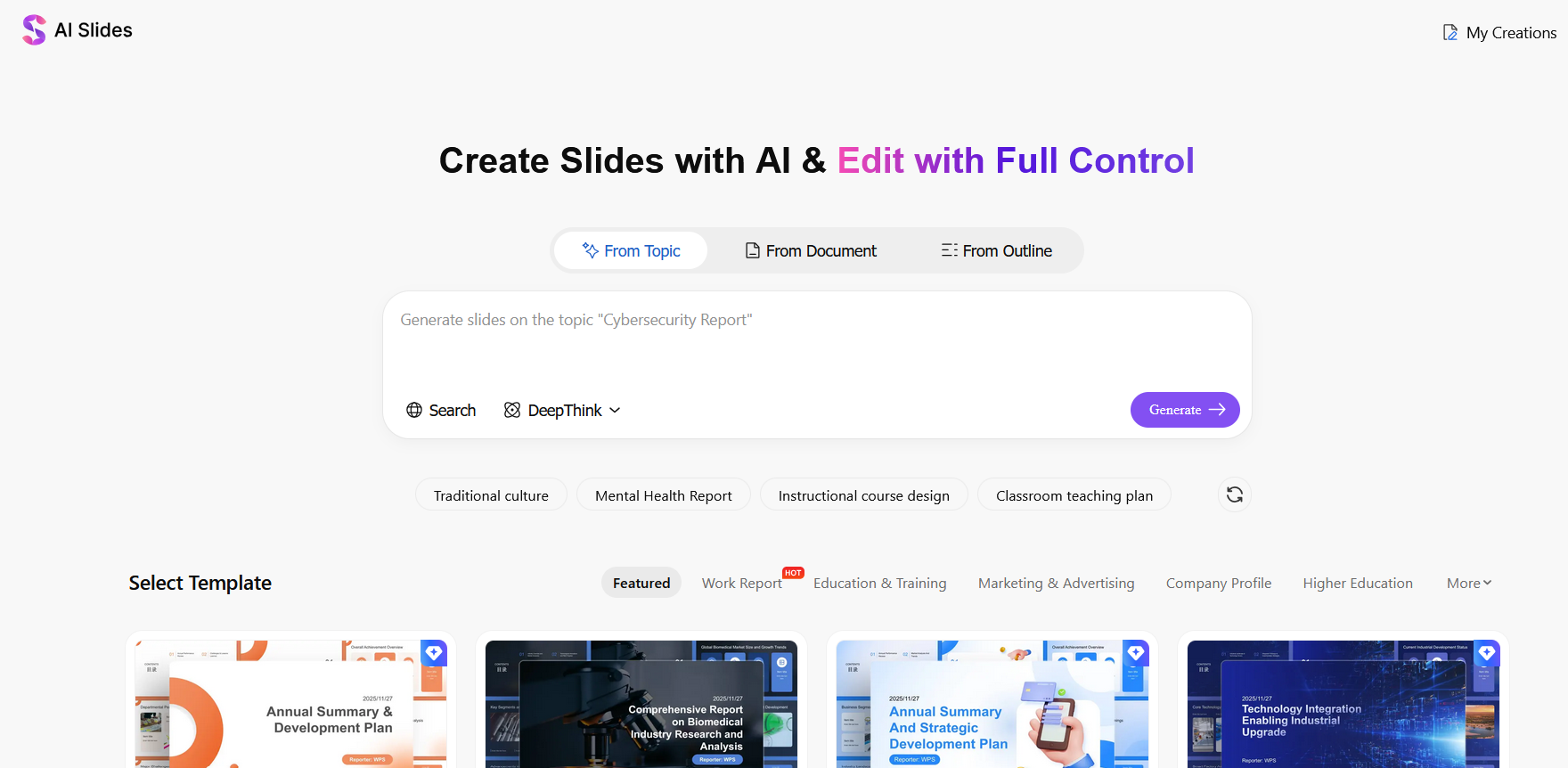
AI-Powered Design Consistency
Content-Adaptive Layout
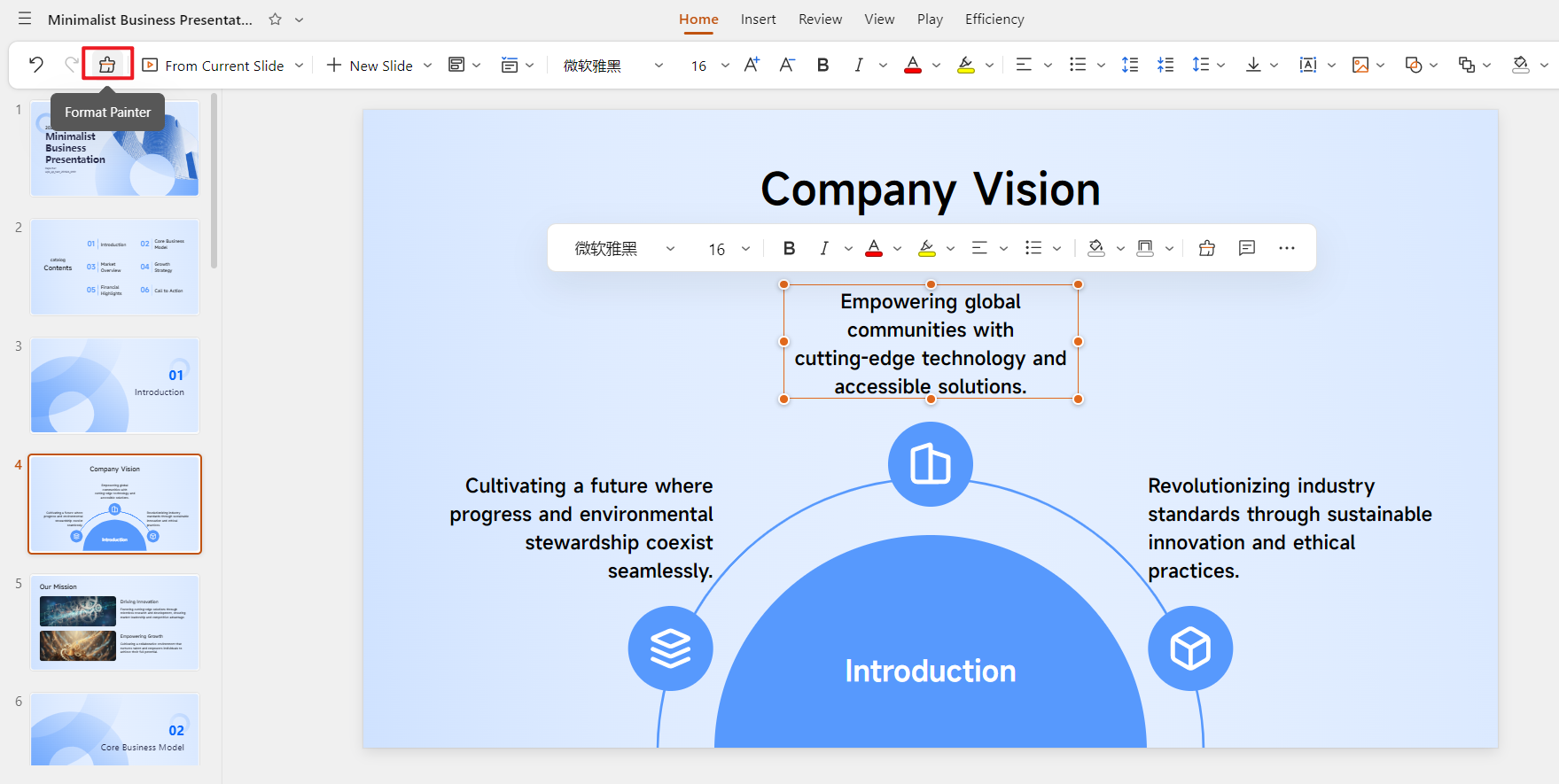
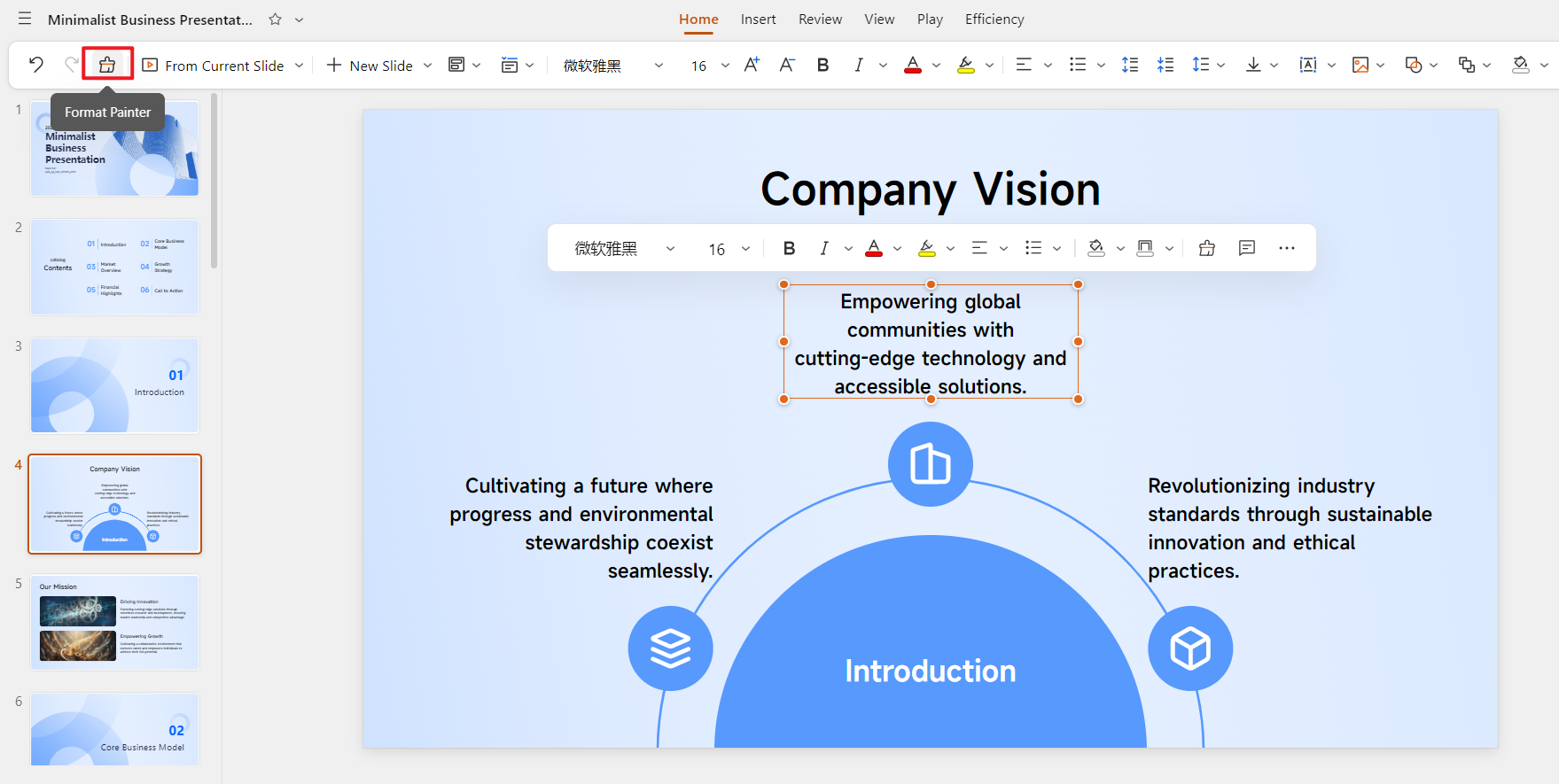
Unified Format Painter
Seamless Workflow with Google Slides
Perfect File Compatibility
Bidirectional Editing
Beyond Defaults – Full-Cycle AI Creation
Quick Decision Guide
Part 4. Practical Tutorial: How to Use WPS AI Slides to Establish Smart Defaults
Leverage AI for Consistent Content Creation
Export and Collaborate in Google Slides
FAQs
Summary

Table of Content

Share Article
'%3e%3cpath%20fill-rule='evenodd'%20clip-rule='evenodd'%20d='M21.4999%2010.9993C21.4999%205.20009%2016.7986%200.498901%2010.9993%200.498901C5.19994%200.498901%200.498657%205.20009%200.498657%2010.9993C0.498657%2016.2404%204.33858%2020.5844%209.35855%2021.3722V14.0346H6.69238V10.9993H9.35855V8.68594C9.35855%206.05427%2010.9262%204.60062%2013.3248%204.60062C14.4736%204.60062%2015.6753%204.80571%2015.6753%204.80571V7.38979H14.3512C13.0468%207.38979%2012.64%208.19921%2012.64%209.0296V10.9993H15.5523L15.0867%2014.0346H12.64V21.3722C17.66%2020.5844%2021.4999%2016.2404%2021.4999%2010.9993Z'%20fill='%231568EA'/%3e%3c/g%3e%3c/svg%3e)


'%3e%3cpath%20d='M2.42045%2022.1876H6.31818V12.7217L0.75%208.54553V20.5171C0.75%2021.4414%201.49892%2022.1876%202.42045%2022.1876Z'%20fill='%234285F4'/%3e%3cpath%20d='M19.682%2022.1876H23.5797C24.5041%2022.1876%2025.2502%2021.4387%2025.2502%2020.5171V8.54553L19.682%2012.7217'%20fill='%2334A853'/%3e%3cpath%20d='M19.682%205.48293V12.7216L25.2502%208.54543V6.31816C25.2502%204.25236%2022.8921%203.07469%2021.2411%204.31361'%20fill='%23FBBC04'/%3e%3cpath%20d='M6.31824%2012.7217V5.48303L13.0001%2010.4944L19.6819%205.48303V12.7217L13.0001%2017.733'%20fill='%23EA4335'/%3e%3cpath%20d='M0.75%206.31816V8.54543L6.31818%2012.7216V5.48293L4.75909%204.31361C3.10534%203.07469%200.75%204.25236%200.75%206.31816Z'%20fill='%23C5221F'/%3e%3c/g%3e%3cdefs%3e%3cclipPath%20id='clip0_2954_7305'%3e%3crect%20width='24.5'%20height='18.375'%20fill='white'%20transform='translate(0.75%203.8125)'/%3e%3c/clipPath%3e%3c/defs%3e%3c/svg%3e)


How to Change Google Slides Defaults in 2026: Master Guide & Smarter Alternative
Posted by Nimra Malik

2026-04-29

873

4

'%3e%3cpath%20d='M19.9911%204.11386V6.471H18.5894C18.0775%206.471%2017.7322%206.57814%2017.5536%206.79243C17.3751%207.00671%2017.2858%207.32814%2017.2858%207.75671V9.44421H19.9019L19.5536%2012.0871H17.2858V18.8639H14.5536V12.0871H12.2769V9.44421H14.5536V7.49779C14.5536%206.39064%2014.8632%205.53201%2015.4822%204.92189C16.1013%204.31177%2016.9257%204.00671%2017.9554%204.00671C18.8304%204.00671%2019.509%204.04243%2019.9911%204.11386Z'%20fill='%23333333'/%3e%3c/g%3e%3cdefs%3e%3cclipPath%20id='clip0_2938_8199'%3e%3crect%20width='16'%20height='16'%20fill='white'%20transform='translate(8%204.00671)'/%3e%3c/clipPath%3e%3c/defs%3e%3c/svg%3e)
'%3e%3cpath%20d='M17.5237%2010.7813L23.4811%204H22.0699L16.8949%209.88693L12.7648%204H8L14.2469%2012.9029L8%2020.0133H9.4112L14.8725%2013.7952L19.2352%2020.0133H24M9.92053%205.04213H12.0885L22.0688%2019.0224H19.9003'%20fill='%23333333'/%3e%3c/g%3e%3cdefs%3e%3cclipPath%20id='clip0_2938_8200'%3e%3crect%20width='16'%20height='16.0134'%20fill='white'%20transform='translate(8%204)'/%3e%3c/clipPath%3e%3c/defs%3e%3c/svg%3e)


With 4 years of hands-on experience, I specialize in finding smart tools that boost productivity and make work-life smoother. If it streamlines the office, I’ve probably tested it—follow for practical tech tips and trusted recommendations.
Other Posts You Might Enjoy

How to Record a Presentation on Google Slides in 2026: Guide and AI-Powered Workflow


How to Make an Object Bounce in Google Slides: Step-by-Step Guide and a Smarter AI Method

How to Embed a Website in Google Slides in 2026: Workarounds & Smarter Solutions

How to Change Text Color in Google Slides in 2026: Master Guide & AI-Powered Design

The Smart Guide on How to Make a Pitch Deck in 2026

The Ultimate Guide to Adding Animation in PowerPoint (2026 Edition)