

'%3e%3cpath%20d='M8%200C12.4183%200%2016%203.58172%2016%208C16%2012.4183%2012.4183%2016%208%2016C3.58172%2016%200%2012.4183%200%208C0%203.58172%203.58172%200%208%200ZM11.6162%204.38379C11.2257%203.99337%2010.5927%203.99338%2010.2021%204.38379L8%206.58594L5.79785%204.38379C5.40732%203.99334%204.77429%203.99329%204.38379%204.38379C3.99331%204.77429%203.99335%205.40733%204.38379%205.79785L6.58594%208L4.38379%2010.2021C3.99348%2010.5927%203.99341%2011.2257%204.38379%2011.6162C4.77426%2012.0066%205.40734%2012.0065%205.79785%2011.6162L8%209.41406L10.2021%2011.6162C10.5927%2012.0066%2011.2257%2012.0067%2011.6162%2011.6162C12.0067%2011.2257%2012.0066%2010.5927%2011.6162%2010.2021L9.41406%208L11.6162%205.79785C12.0066%205.40735%2012.0066%204.77429%2011.6162%204.38379Z'%20fill='%23080E17'%20fill-opacity='0.46'/%3e%3c/g%3e%3cdefs%3e%3cclipPath%20id='clip0_3761_713'%3e%3crect%20width='16'%20height='16'%20fill='white'/%3e%3c/clipPath%3e%3c/defs%3e%3c/svg%3e)




'%3e%3cpath%20fill-rule='evenodd'%20clip-rule='evenodd'%20d='M21.4999%2010.9993C21.4999%205.20009%2016.7986%200.498901%2010.9993%200.498901C5.19994%200.498901%200.498657%205.20009%200.498657%2010.9993C0.498657%2016.2404%204.33858%2020.5844%209.35855%2021.3722V14.0346H6.69238V10.9993H9.35855V8.68594C9.35855%206.05427%2010.9262%204.60062%2013.3248%204.60062C14.4736%204.60062%2015.6753%204.80571%2015.6753%204.80571V7.38979H14.3512C13.0468%207.38979%2012.64%208.19921%2012.64%209.0296V10.9993H15.5523L15.0867%2014.0346H12.64V21.3722C17.66%2020.5844%2021.4999%2016.2404%2021.4999%2010.9993Z'%20fill='%231568EA'/%3e%3c/g%3e%3c/svg%3e)


'%3e%3cpath%20d='M2.42045%2022.1876H6.31818V12.7217L0.75%208.54553V20.5171C0.75%2021.4414%201.49892%2022.1876%202.42045%2022.1876Z'%20fill='%234285F4'/%3e%3cpath%20d='M19.682%2022.1876H23.5797C24.5041%2022.1876%2025.2502%2021.4387%2025.2502%2020.5171V8.54553L19.682%2012.7217'%20fill='%2334A853'/%3e%3cpath%20d='M19.682%205.48293V12.7216L25.2502%208.54543V6.31816C25.2502%204.25236%2022.8921%203.07469%2021.2411%204.31361'%20fill='%23FBBC04'/%3e%3cpath%20d='M6.31824%2012.7217V5.48303L13.0001%2010.4944L19.6819%205.48303V12.7217L13.0001%2017.733'%20fill='%23EA4335'/%3e%3cpath%20d='M0.75%206.31816V8.54543L6.31818%2012.7216V5.48293L4.75909%204.31361C3.10534%203.07469%200.75%204.25236%200.75%206.31816Z'%20fill='%23C5221F'/%3e%3c/g%3e%3cdefs%3e%3cclipPath%20id='clip0_2954_7305'%3e%3crect%20width='24.5'%20height='18.375'%20fill='white'%20transform='translate(0.75%203.8125)'/%3e%3c/clipPath%3e%3c/defs%3e%3c/svg%3e)


You need the pages of a PDF as an SVG for a website, a laser cutter, or an editor like Figma, and you want the lines to stay sharp at any size. Convert the PDF with a free online converter for quick jobs, or open it in Inkscape and save as SVG when the drawing must stay fully vector and editable. Scanned pages need one extra step first, which this guide covers.
How to Convert a PDF to SVG: Free Methods That Keep It Vector
Convert a PDF to SVG with a Free Online Converter
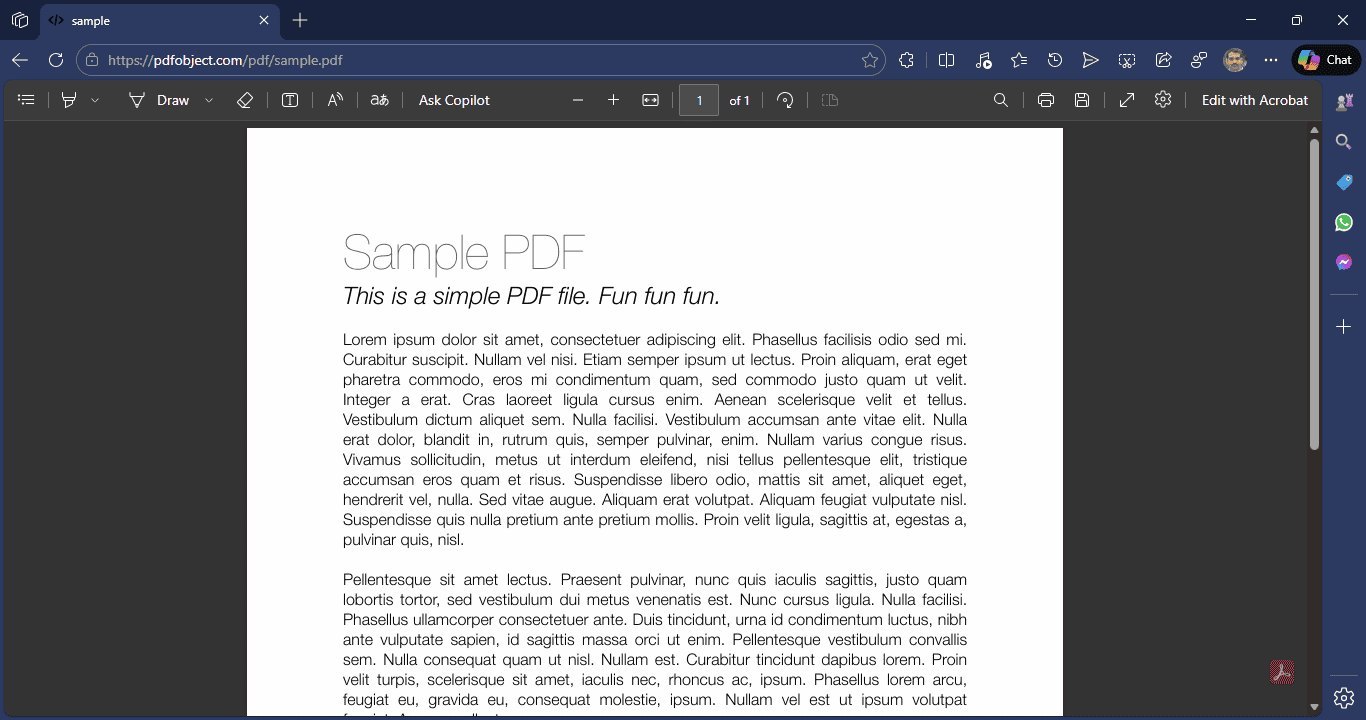
Online converters are the fastest PDF to SVG route: no install, one upload, and multi-page PDFs usually come back as separate SVG files or a ZIP.
Open a free PDF to SVG converter such as PDF24 Tools, CleverUtils or CandyFile. All three work without an account.
Upload the PDF. Tools accept files up to 50-100 MB, which covers all but the largest print documents.
Convert. The service extracts the vector elements of each page and writes them as SVG. Text stays as text, and shapes stay as paths, so nothing is flattened to pixels.
Download the SVG - single file or ZIP for multi-page documents - and open it in a browser to confirm it renders.
Converting a PDF to SVG in the browser
Check the privacy line before uploading a contract or a design that has not shipped: the best tools state that files are encrypted in transit and auto-deleted within one to two hours. For anything confidential, prefer the offline Inkscape route instead.
Convert a PDF to SVG Losslessly in Inkscape
Inkscape is the free, offline way to convert a PDF to SVG without losing vector quality, and it keeps the text editable as real text elements instead of outlines.
Download Inkscape from the official site - it is free and open source on Windows, macOS and Linux.
Open the PDF: choose File > Open and select the PDF. Inkscape asks which page to import and whether to read text as text or convert it to paths - keep "Read text as text" for editable wording.
Clean up if needed: delete unwanted layers or elements, then choose File > Save As and set the format to SVG.
Save and test: open the SVG in a browser to confirm it displays, and zoom far in to check that lines stay sharp.
Opening a PDF in WPS Office for SVG export
One known limit: multi-page PDFs open one page at a time in Inkscape, so a ten-page document means repeating the import ten times. For long documents, use an online converter for the bulk and Inkscape for the pages that need hand-editing.
Check the PDF First: Vector Text or Scanned Image
Whether your PDF to SVG conversion stays sharp depends on what is inside the PDF, and you can check it in ten seconds.
Try to select a word with your cursor. Selectable text means the PDF is vector-native - a design exported from Illustrator or an office app - and the SVG will stay crisp at any zoom.
Nothing selects and zooming shows grain? The PDF is a scan: a flat image of the page. No converter can recover vectors from pixels, so an SVG made from it is just a picture in an SVG wrapper.
Checking text layers with WPS AI PDF tools
For scanned pages, tracing is the honest route: export the page as a high-resolution image and let a tracing tool re-draw the shapes as paths. The result is an approximation, so expect minor wobble in fine details and proofread any traced text.
Prepare the PDF in WPS Office Before Converting to SVG
Most failed PDF to SVG conversions are really PDF problems: too many pages, a page that is not needed, or a scan with no text layer. Fixing those first in WPS Office makes the conversion clean.
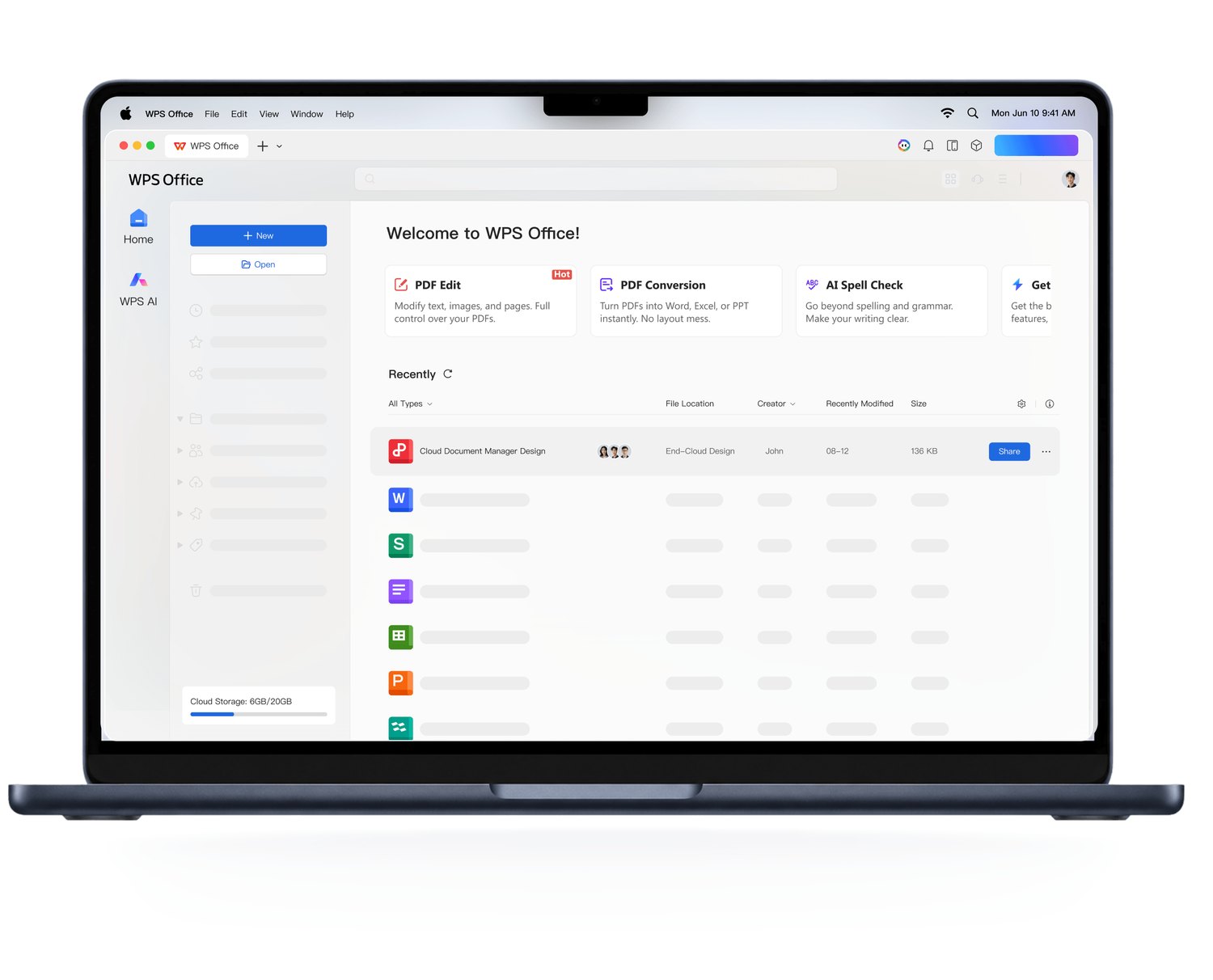
Open the PDF in WPS Office and remove the pages you do not need, so the converter only processes the relevant artwork.
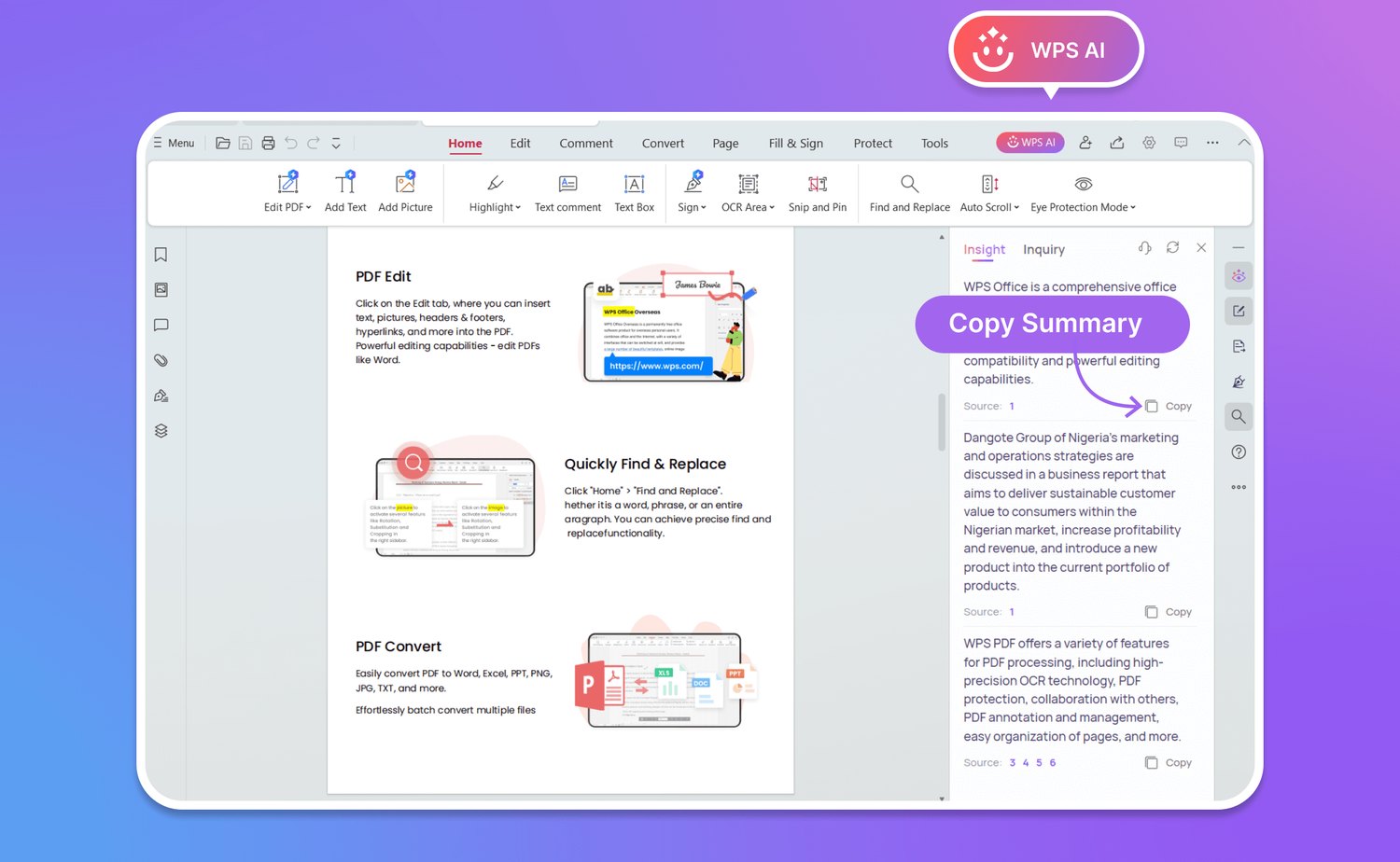
Run OCR on scanned pages. WPS PDF can recognise text and add a real text layer, which converters then carry into the SVG as selectable text.
Fix small text edits or overlaps before exporting - cleaner input always produces cleaner SVG output.
Export a fresh PDF and run the conversion from that file instead of the original.
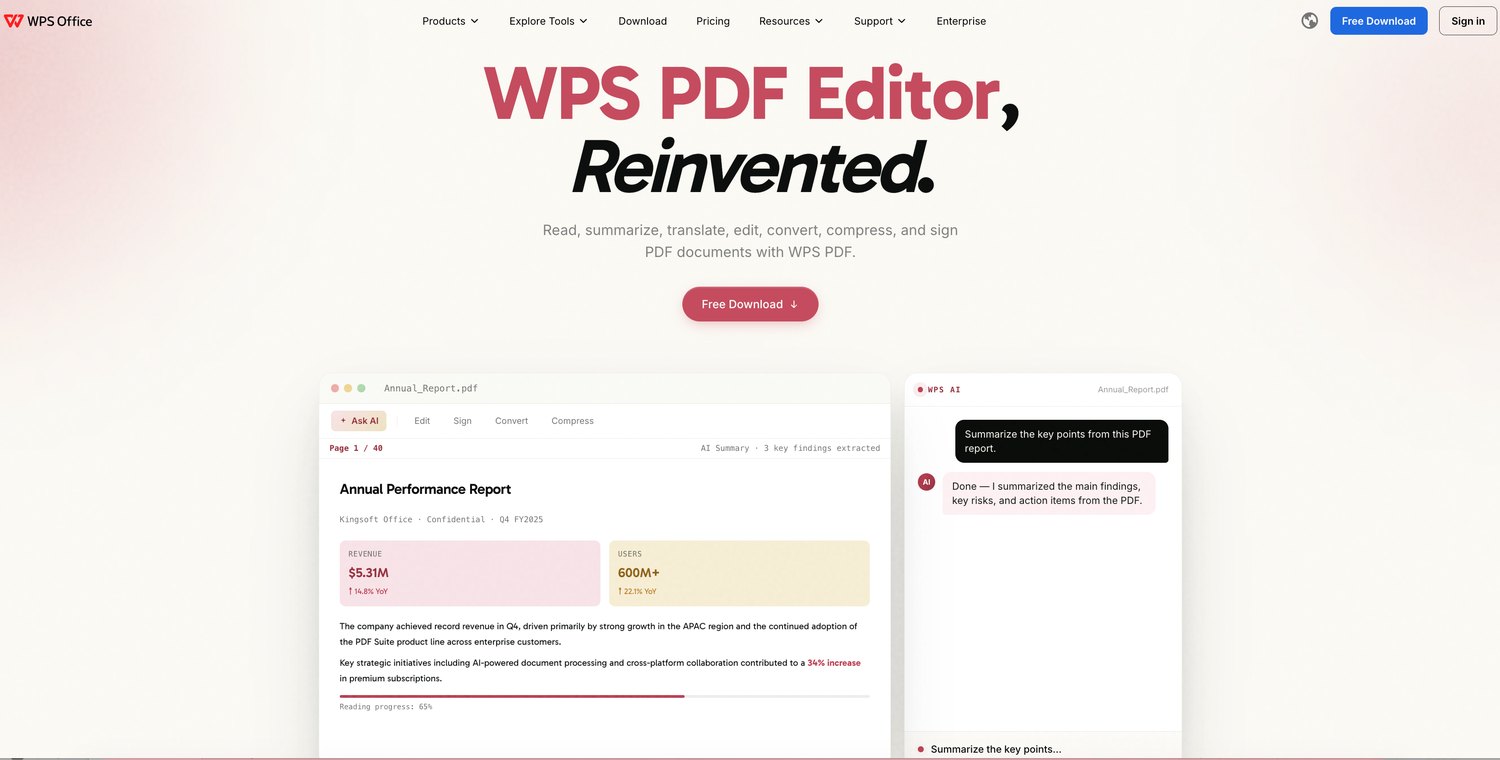
WPS PDF tools website for conversion prep
SVG is the web's native vector format: the same file powers sharp logos on a phone screen, a billboard print, or an animation in CSS. A clean vector PDF in means a clean SVG out - which is why the preparation step is worth the minute it takes.
The Best Free Alternative: WPS Office
WPS Office does not replace a dedicated converter, but it is the free all-in-one tool for everything around the PDF to SVG job: cleaning the source PDF, OCR for scans, and handling the result.
Prepare the source: crop, reorder or delete pages, and add a text layer to scans before conversion.
Work with the output: open the SVG in WPS Presentation to combine it with slides, or drop it into a Writer document for a logo in a proposal.
Free on every platform: Windows, Mac, Linux and mobile, with no ads in your documents.
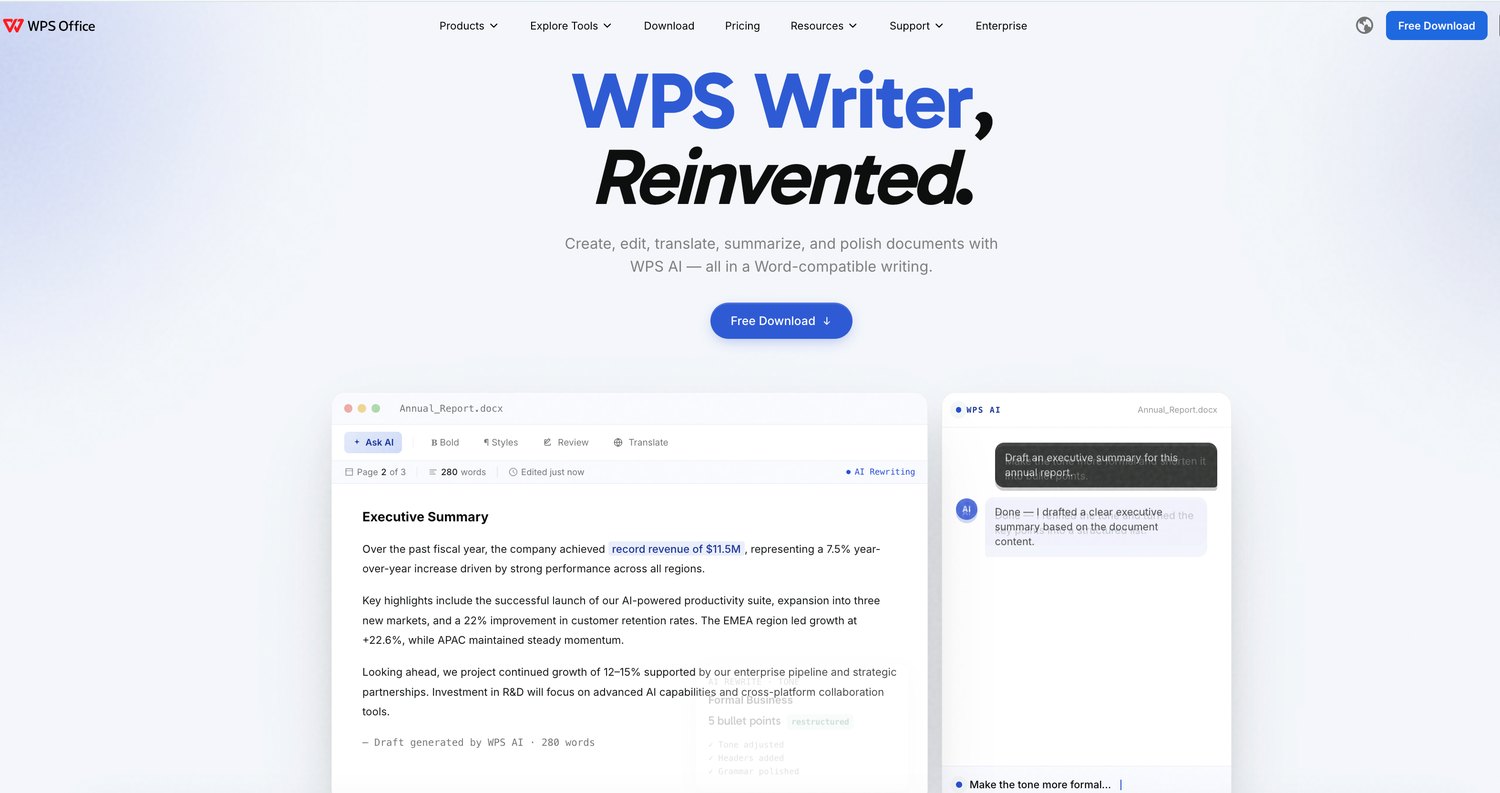
WPS Writer official website
FAQs
1. How do I convert a PDF to SVG for free?
Use a free online converter such as PDF24 Tools, CleverUtils or CandyFile, or open the PDF in Inkscape and save it as SVG. Online tools handle multi-page PDFs quickly; Inkscape keeps the result fully vector and editable.
2. Is a PDF to SVG conversion lossless?
For vector-native PDFs, yes: lines, curves and text transfer as real SVG elements. For scanned PDFs, no converter can recover lost vectors, so the page is embedded as an image or traced into approximate paths.
3. Can I convert multiple PDF pages to SVG at once?
Yes. Online converters turn every page into its own SVG and deliver them as a ZIP. Inkscape imports one page per operation, so batch jobs are easier online and hand-edited pages are easier in Inkscape.
4. Why does my SVG look blurry when I zoom in?
The source PDF was a scan or the converter rasterised the page. Re-export from the original vector file when possible, or trace the page image into paths and accept that fine details will be approximate.
5. Can I edit the SVG after conversion?
Yes. SVG is an editable vector format: open the file in Inkscape, Illustrator or Figma to change colors, shapes and text, or embed it in a webpage and style it with CSS.

'%3e%3cpath%20d='M19.9911%204.11386V6.471H18.5894C18.0775%206.471%2017.7322%206.57814%2017.5536%206.79243C17.3751%207.00671%2017.2858%207.32814%2017.2858%207.75671V9.44421H19.9019L19.5536%2012.0871H17.2858V18.8639H14.5536V12.0871H12.2769V9.44421H14.5536V7.49779C14.5536%206.39064%2014.8632%205.53201%2015.4822%204.92189C16.1013%204.31177%2016.9257%204.00671%2017.9554%204.00671C18.8304%204.00671%2019.509%204.04243%2019.9911%204.11386Z'%20fill='%23333333'/%3e%3c/g%3e%3cdefs%3e%3cclipPath%20id='clip0_2938_8199'%3e%3crect%20width='16'%20height='16'%20fill='white'%20transform='translate(8%204.00671)'/%3e%3c/clipPath%3e%3c/defs%3e%3c/svg%3e)
'%3e%3cpath%20d='M17.5237%2010.7813L23.4811%204H22.0699L16.8949%209.88693L12.7648%204H8L14.2469%2012.9029L8%2020.0133H9.4112L14.8725%2013.7952L19.2352%2020.0133H24M9.92053%205.04213H12.0885L22.0688%2019.0224H19.9003'%20fill='%23333333'/%3e%3c/g%3e%3cdefs%3e%3cclipPath%20id='clip0_2938_8200'%3e%3crect%20width='16'%20height='16.0134'%20fill='white'%20transform='translate(8%204)'/%3e%3c/clipPath%3e%3c/defs%3e%3c/svg%3e)


