

'%3e%3cpath%20d='M8%200C12.4183%200%2016%203.58172%2016%208C16%2012.4183%2012.4183%2016%208%2016C3.58172%2016%200%2012.4183%200%208C0%203.58172%203.58172%200%208%200ZM11.6162%204.38379C11.2257%203.99337%2010.5927%203.99338%2010.2021%204.38379L8%206.58594L5.79785%204.38379C5.40732%203.99334%204.77429%203.99329%204.38379%204.38379C3.99331%204.77429%203.99335%205.40733%204.38379%205.79785L6.58594%208L4.38379%2010.2021C3.99348%2010.5927%203.99341%2011.2257%204.38379%2011.6162C4.77426%2012.0066%205.40734%2012.0065%205.79785%2011.6162L8%209.41406L10.2021%2011.6162C10.5927%2012.0066%2011.2257%2012.0067%2011.6162%2011.6162C12.0067%2011.2257%2012.0066%2010.5927%2011.6162%2010.2021L9.41406%208L11.6162%205.79785C12.0066%205.40735%2012.0066%204.77429%2011.6162%204.38379Z'%20fill='%23080E17'%20fill-opacity='0.46'/%3e%3c/g%3e%3cdefs%3e%3cclipPath%20id='clip0_3761_713'%3e%3crect%20width='16'%20height='16'%20fill='white'/%3e%3c/clipPath%3e%3c/defs%3e%3c/svg%3e)




'%3e%3cpath%20fill-rule='evenodd'%20clip-rule='evenodd'%20d='M21.4999%2010.9993C21.4999%205.20009%2016.7986%200.498901%2010.9993%200.498901C5.19994%200.498901%200.498657%205.20009%200.498657%2010.9993C0.498657%2016.2404%204.33858%2020.5844%209.35855%2021.3722V14.0346H6.69238V10.9993H9.35855V8.68594C9.35855%206.05427%2010.9262%204.60062%2013.3248%204.60062C14.4736%204.60062%2015.6753%204.80571%2015.6753%204.80571V7.38979H14.3512C13.0468%207.38979%2012.64%208.19921%2012.64%209.0296V10.9993H15.5523L15.0867%2014.0346H12.64V21.3722C17.66%2020.5844%2021.4999%2016.2404%2021.4999%2010.9993Z'%20fill='%231568EA'/%3e%3c/g%3e%3c/svg%3e)


'%3e%3cpath%20d='M2.42045%2022.1876H6.31818V12.7217L0.75%208.54553V20.5171C0.75%2021.4414%201.49892%2022.1876%202.42045%2022.1876Z'%20fill='%234285F4'/%3e%3cpath%20d='M19.682%2022.1876H23.5797C24.5041%2022.1876%2025.2502%2021.4387%2025.2502%2020.5171V8.54553L19.682%2012.7217'%20fill='%2334A853'/%3e%3cpath%20d='M19.682%205.48293V12.7216L25.2502%208.54543V6.31816C25.2502%204.25236%2022.8921%203.07469%2021.2411%204.31361'%20fill='%23FBBC04'/%3e%3cpath%20d='M6.31824%2012.7217V5.48303L13.0001%2010.4944L19.6819%205.48303V12.7217L13.0001%2017.733'%20fill='%23EA4335'/%3e%3cpath%20d='M0.75%206.31816V8.54543L6.31818%2012.7216V5.48293L4.75909%204.31361C3.10534%203.07469%200.75%204.25236%200.75%206.31816Z'%20fill='%23C5221F'/%3e%3c/g%3e%3cdefs%3e%3cclipPath%20id='clip0_2954_7305'%3e%3crect%20width='24.5'%20height='18.375'%20fill='white'%20transform='translate(0.75%203.8125)'/%3e%3c/clipPath%3e%3c/defs%3e%3c/svg%3e)


Your iPhone saves photos as HEIC, and the upload form on the other end keeps rejecting them — a HEIF to PDF conversion turns those camera shots into a file any system, form, or printer accepts. This guide walks through the two-step route that works on both Windows and Mac without uploading your photos to a sketchy site.
How to Convert HEIF to PDF on Windows and Mac
Why Your iPhone Photos Need a HEIF to PDF Conversion
Your phone stores photos as HEIC by default to save space and keep quality, but most desktop tools and older Windows systems do not read that container natively. So when you need to send a scan of an ID, upload a receipt, or print an invoice, the safest common denominator is a PDF — every portal accepts it.
For document-style photos, a PDF also keeps several images in one neat file instead of a folder of loose pictures. That single-file habit makes a HEIF to PDF workflow genuinely useful, not just a format excuse.
Because PDF is designed to look identical everywhere, you also skip the surprise of a photo that renders dark on one screen and too bright on another. What you convert is exactly what the recipient prints, files, or signs — which matters for IDs, invoices, and anything with a deadline.
What a HEIF File Actually Is (and When to Convert)
HEIF is the High Efficiency Image File Format, and HEIC is the iPhone's implementation of it. The format compresses photos about as well as half a JPEG at similar quality, which is why your phone loves it — but that compression is exactly why a Windows PC without the right codec sees an unopenable file.
Convert when a recipient needs to open it, when a form accepts only PDF or JPG, or when you want to archive a batch of photos as one readable document. If everyone on the receiving end already opens HEIC, you can leave the files as they are.
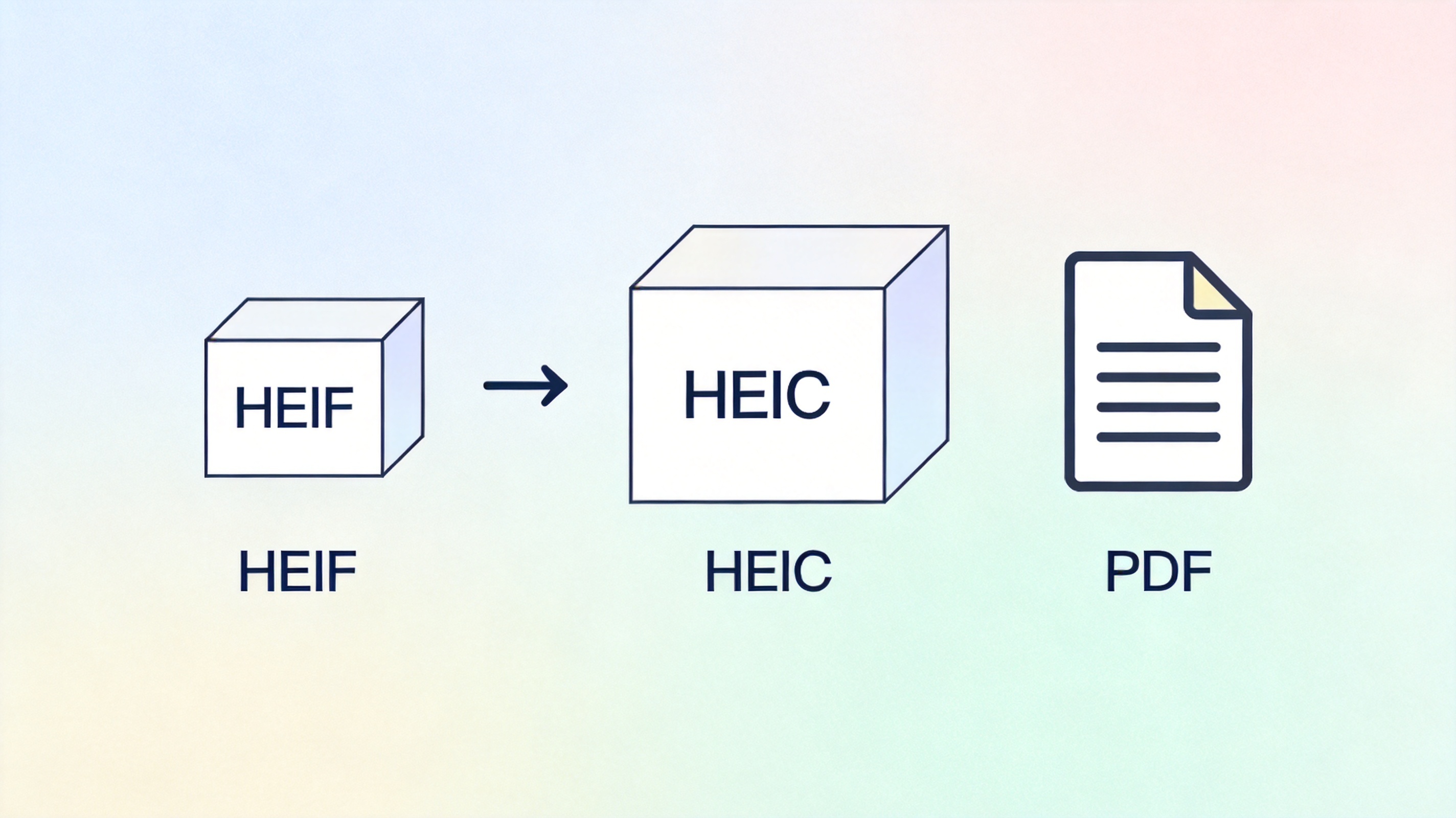
HEIF, HEIC, and PDF: the formats you juggle
Convert HEIF to PDF with WPS Office (Step-by-Step)
Because HEIC is a photo container that many desktop apps cannot read, the reliable route is two small steps: turn the photo into a broadly compatible JPG, then let WPS Office assemble the PDF.
Step 1: Turn HEIC into JPG. On a Mac, open the photo in Preview and choose File > Export with JPEG selected. On an iPhone, set Settings > Photos > Transfer to Mac or PC > Automatic, or use a free browser converter for the odd single file. On Windows, install the free HEIF Image Extension, then open the file in Photos and save a copy as JPEG.
Step 2: Make the PDF in WPS. Open WPS Office, go to the PDF module, and choose PDF from File. Select the JPG you just made, and WPS turns it into a single-page PDF — local, fast, and without uploading anything.
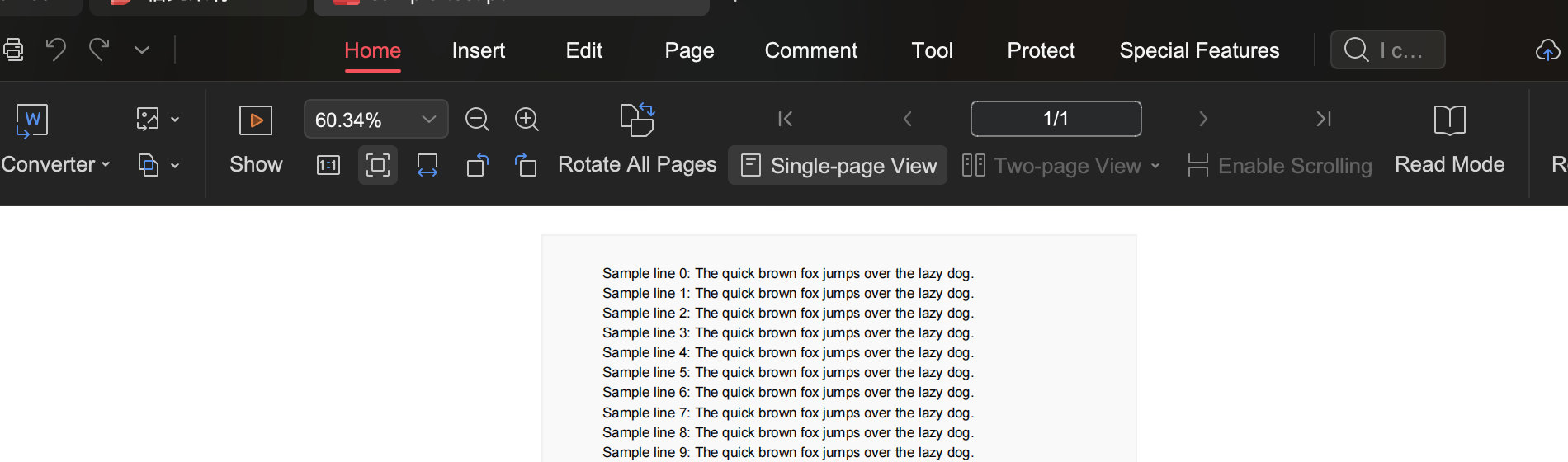
PDF document open in WPS Office


That two-step flow is honest about where the work happens: your phone or system handles the photo format, and WPS handles the professional PDF you can print, sign, or submit.
Turn Many HEIF Photos into One PDF in WPS
Receipts from a trip, pages of a lease, or a stack of ID scans rarely belong in separate files. In WPS, the PDF from File step accepts several JPGs at once, and you can combine them into a single multi-page PDF — one document instead of a folder of photos.
Select the converted JPGs together, add them in the order you want the pages to appear, and let WPS merge them. Then Save the PDF and check that the pages run in the right sequence before you send it.
This is where a desktop tool beats a quick web page: everything stays on your machine, so a folder full of sensitive scans never crosses the internet. Add, reorder, and rebuild as many times as you need until the document looks exactly how the other side expects it.
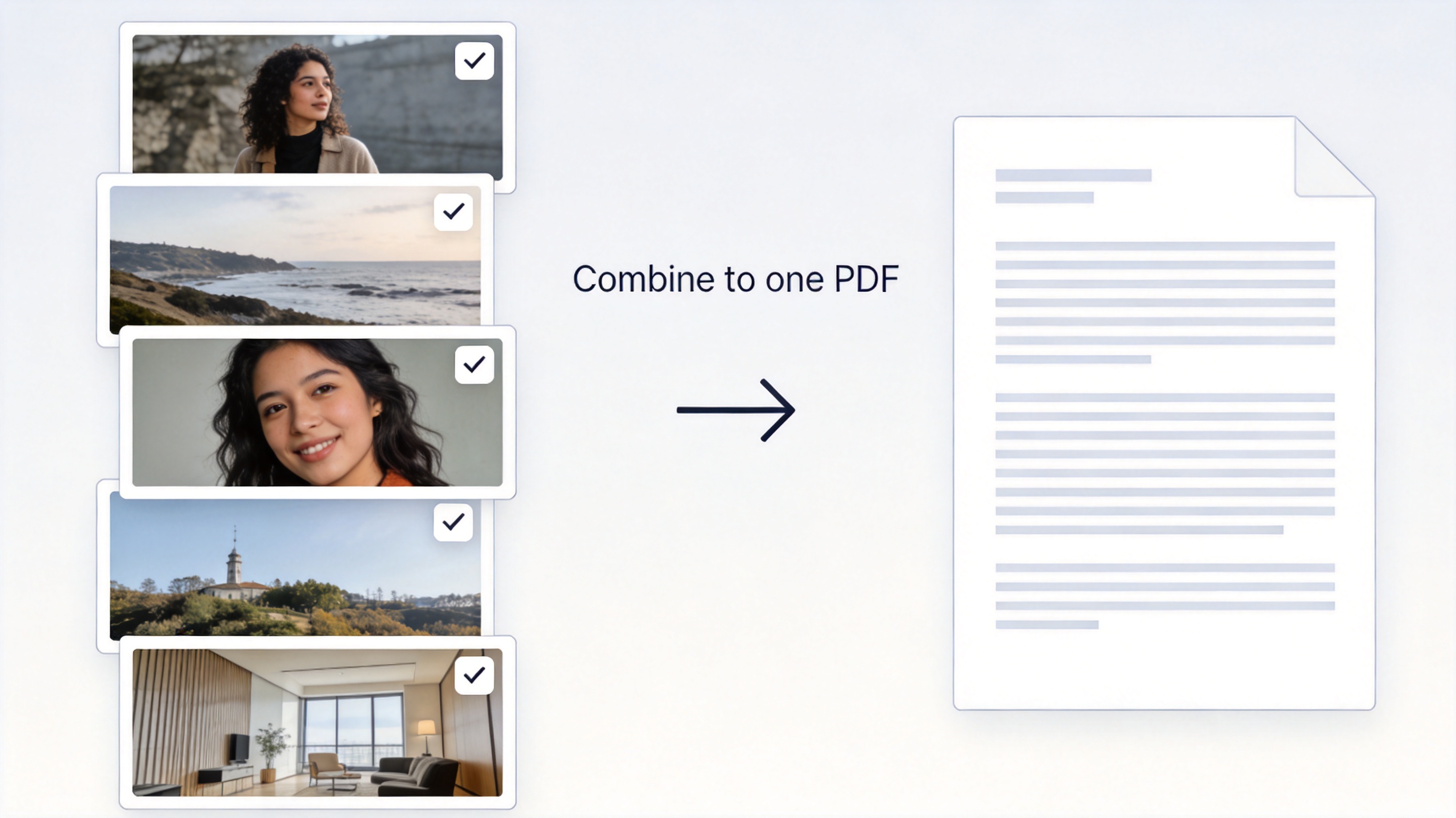
Combine many photos into one PDF document
HEIF, HEIC, and PDF: When Each Format Wins
Keep the three formats straight and you will know when to convert:
- HEIF / HEIC — best on your phone for storage efficiency and quality; keep it while you stay inside the Apple ecosystem.
- JPG — the reliable bridge format almost every tool opens; use it as the middle step.
- PDF — the delivery format for forms, printing, and archiving; this is what a HEIF to PDF conversion hands to the person on the other side.
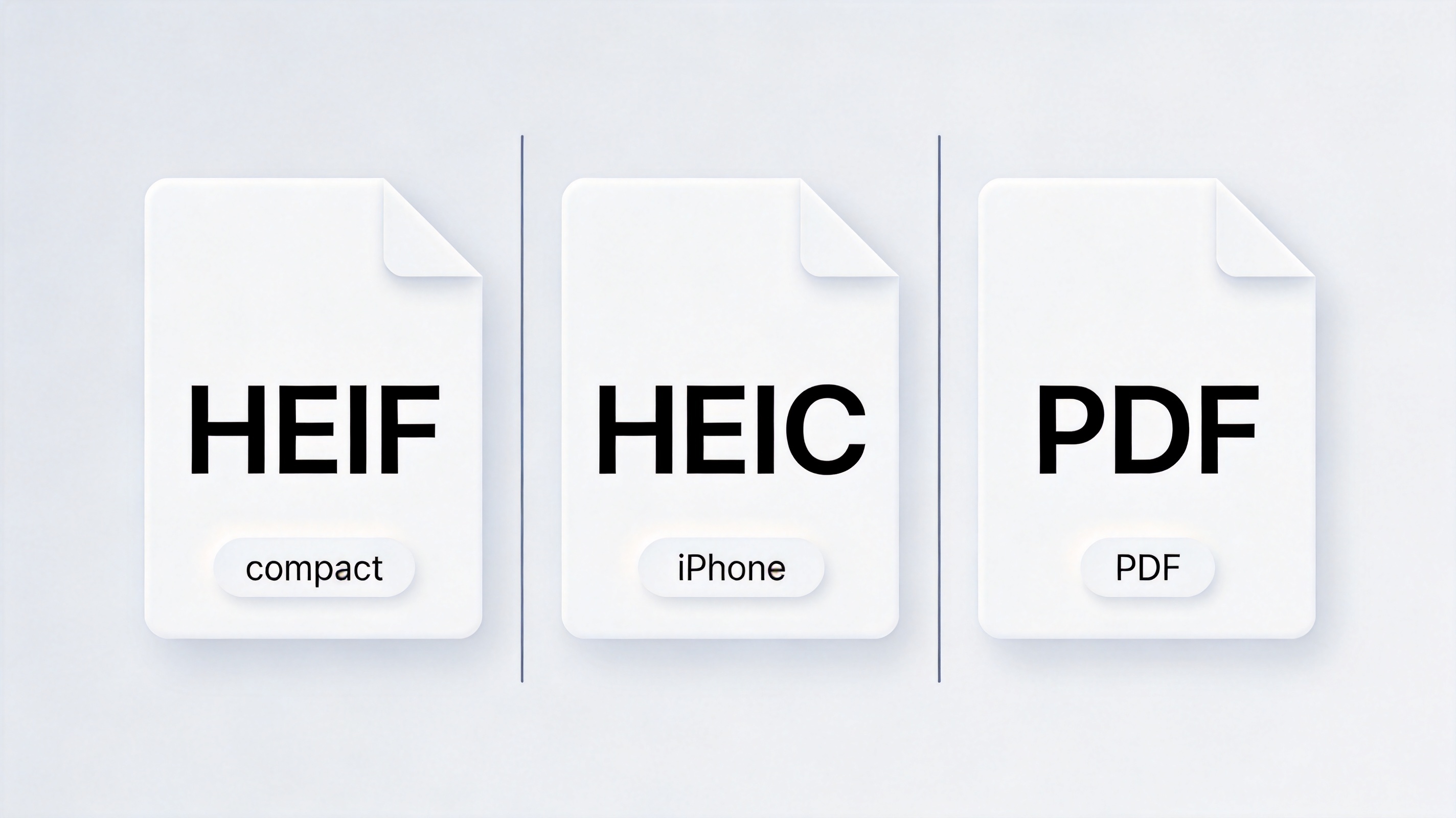
HEIF, HEIC, and PDF: pick the right format
The Best Free PDF Alternative: WPS Office
WPS Office brings everything together for free: a full PDF module that builds a PDF from image files, plus tools to edit, merge, and sign the result. Because it is a desktop app, your photos stay local and your work keeps running without an internet connection.
From the converted JPGs to a polished, shareable PDF, WPS covers the entire tail end of the HEIF to PDF job — and stays free for personal use. Download it, build the PDF once, and reuse the same flow every time your phone hands you a HEIC you need to submit somewhere.
And once the PDF exists, WPS stays useful: rotate a sideways scan, merge a cover page, or sign the document before you send it. You are not just converting a photo — you are finishing a file that is ready to be handed over.
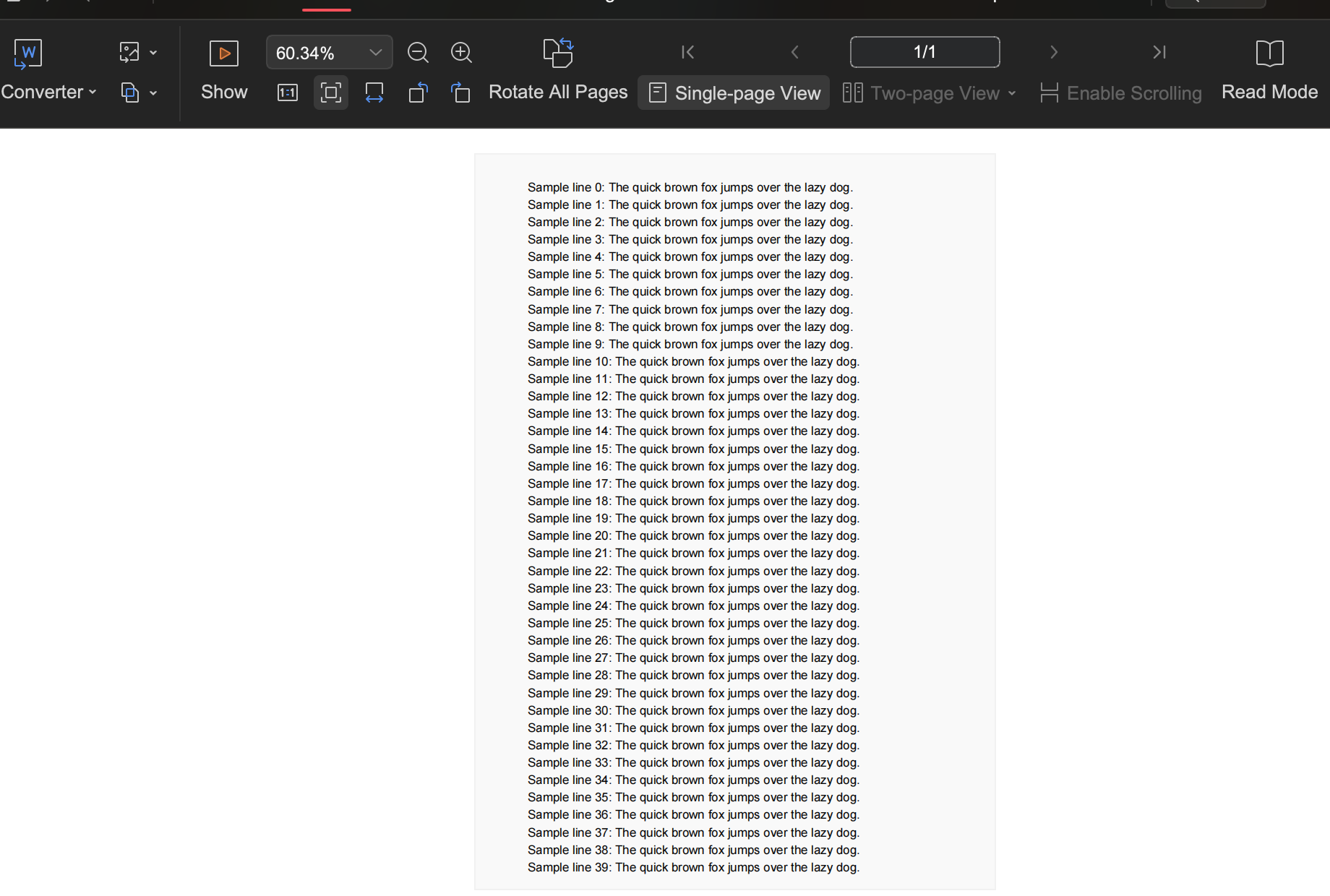
WPS PDF editing interface, free to use
FAQs
Does WPS Office convert HEIF files directly to PDF?
WPS reads and converts broadly compatible image formats. Because HEIC is a photo container many desktop apps cannot open natively, convert the photo to JPG first, then use WPS PDF from File to build the PDF.
How do I convert HEIC to JPG on a Mac?
Open the photo in Preview, choose File, then Export, select JPEG, and save. The JPG opens everywhere, including WPS.
Can I put several HEIC photos into one PDF?
Yes. Convert the photos to JPG, then in WPS choose PDF from File and select all the JPGs at once — WPS combines them into a single multi-page PDF.
Why do portals keep rejecting my HEIC photo?
Many forms and older Windows systems do not install the HEIF codec, so they cannot decode the image. A JPG or PDF avoids the problem entirely.
Is my photo uploaded anywhere during conversion?
No. The two-step flow keeps everything on your device: convert locally, then build the PDF in WPS without uploading.

'%3e%3cpath%20d='M19.9911%204.11386V6.471H18.5894C18.0775%206.471%2017.7322%206.57814%2017.5536%206.79243C17.3751%207.00671%2017.2858%207.32814%2017.2858%207.75671V9.44421H19.9019L19.5536%2012.0871H17.2858V18.8639H14.5536V12.0871H12.2769V9.44421H14.5536V7.49779C14.5536%206.39064%2014.8632%205.53201%2015.4822%204.92189C16.1013%204.31177%2016.9257%204.00671%2017.9554%204.00671C18.8304%204.00671%2019.509%204.04243%2019.9911%204.11386Z'%20fill='%23333333'/%3e%3c/g%3e%3cdefs%3e%3cclipPath%20id='clip0_2938_8199'%3e%3crect%20width='16'%20height='16'%20fill='white'%20transform='translate(8%204.00671)'/%3e%3c/clipPath%3e%3c/defs%3e%3c/svg%3e)
'%3e%3cpath%20d='M17.5237%2010.7813L23.4811%204H22.0699L16.8949%209.88693L12.7648%204H8L14.2469%2012.9029L8%2020.0133H9.4112L14.8725%2013.7952L19.2352%2020.0133H24M9.92053%205.04213H12.0885L22.0688%2019.0224H19.9003'%20fill='%23333333'/%3e%3c/g%3e%3cdefs%3e%3cclipPath%20id='clip0_2938_8200'%3e%3crect%20width='16'%20height='16.0134'%20fill='white'%20transform='translate(8%204)'/%3e%3c/clipPath%3e%3c/defs%3e%3c/svg%3e)


