

'%3e%3cpath%20d='M8%200C12.4183%200%2016%203.58172%2016%208C16%2012.4183%2012.4183%2016%208%2016C3.58172%2016%200%2012.4183%200%208C0%203.58172%203.58172%200%208%200ZM11.6162%204.38379C11.2257%203.99337%2010.5927%203.99338%2010.2021%204.38379L8%206.58594L5.79785%204.38379C5.40732%203.99334%204.77429%203.99329%204.38379%204.38379C3.99331%204.77429%203.99335%205.40733%204.38379%205.79785L6.58594%208L4.38379%2010.2021C3.99348%2010.5927%203.99341%2011.2257%204.38379%2011.6162C4.77426%2012.0066%205.40734%2012.0065%205.79785%2011.6162L8%209.41406L10.2021%2011.6162C10.5927%2012.0066%2011.2257%2012.0067%2011.6162%2011.6162C12.0067%2011.2257%2012.0066%2010.5927%2011.6162%2010.2021L9.41406%208L11.6162%205.79785C12.0066%205.40735%2012.0066%204.77429%2011.6162%204.38379Z'%20fill='%23080E17'%20fill-opacity='0.46'/%3e%3c/g%3e%3cdefs%3e%3cclipPath%20id='clip0_3761_713'%3e%3crect%20width='16'%20height='16'%20fill='white'/%3e%3c/clipPath%3e%3c/defs%3e%3c/svg%3e)




'%3e%3cpath%20fill-rule='evenodd'%20clip-rule='evenodd'%20d='M21.4999%2010.9993C21.4999%205.20009%2016.7986%200.498901%2010.9993%200.498901C5.19994%200.498901%200.498657%205.20009%200.498657%2010.9993C0.498657%2016.2404%204.33858%2020.5844%209.35855%2021.3722V14.0346H6.69238V10.9993H9.35855V8.68594C9.35855%206.05427%2010.9262%204.60062%2013.3248%204.60062C14.4736%204.60062%2015.6753%204.80571%2015.6753%204.80571V7.38979H14.3512C13.0468%207.38979%2012.64%208.19921%2012.64%209.0296V10.9993H15.5523L15.0867%2014.0346H12.64V21.3722C17.66%2020.5844%2021.4999%2016.2404%2021.4999%2010.9993Z'%20fill='%231568EA'/%3e%3c/g%3e%3c/svg%3e)


'%3e%3cpath%20d='M2.42045%2022.1876H6.31818V12.7217L0.75%208.54553V20.5171C0.75%2021.4414%201.49892%2022.1876%202.42045%2022.1876Z'%20fill='%234285F4'/%3e%3cpath%20d='M19.682%2022.1876H23.5797C24.5041%2022.1876%2025.2502%2021.4387%2025.2502%2020.5171V8.54553L19.682%2012.7217'%20fill='%2334A853'/%3e%3cpath%20d='M19.682%205.48293V12.7216L25.2502%208.54543V6.31816C25.2502%204.25236%2022.8921%203.07469%2021.2411%204.31361'%20fill='%23FBBC04'/%3e%3cpath%20d='M6.31824%2012.7217V5.48303L13.0001%2010.4944L19.6819%205.48303V12.7217L13.0001%2017.733'%20fill='%23EA4335'/%3e%3cpath%20d='M0.75%206.31816V8.54543L6.31818%2012.7216V5.48293L4.75909%204.31361C3.10534%203.07469%200.75%204.25236%200.75%206.31816Z'%20fill='%23C5221F'/%3e%3c/g%3e%3cdefs%3e%3cclipPath%20id='clip0_2954_7305'%3e%3crect%20width='24.5'%20height='18.375'%20fill='white'%20transform='translate(0.75%203.8125)'/%3e%3c/clipPath%3e%3c/defs%3e%3c/svg%3e)


Converting PDF to JPG has become extremely important, especially if you're involved in anything related to the digital and online world. But with the massive amounts of conversion tools online, it can get confusing which one to use regularly. Most of them are paid and aren't even worth their money since you’ll end up with blurry images on their outdated websites. In this guide, I'll show you how to convert PDF to JPG while ensuring your images stay sharp and professional.


How to Convert PDF to JPG: Using Online Converters
Online tools are often the fastest option to convert PDF to JPG free, especially when you just want a quick conversion. Many users prefer them because they’re accessible on every device and don’t require installation. I often recommend this method when someone needs a single image fast or wants a PDF to JPG online free workflow. Here’s how to save a PDF as a jpeg using an online converter.
Step 1: First, head on over to an online converter like WPS PDF tool or SmallPDF.
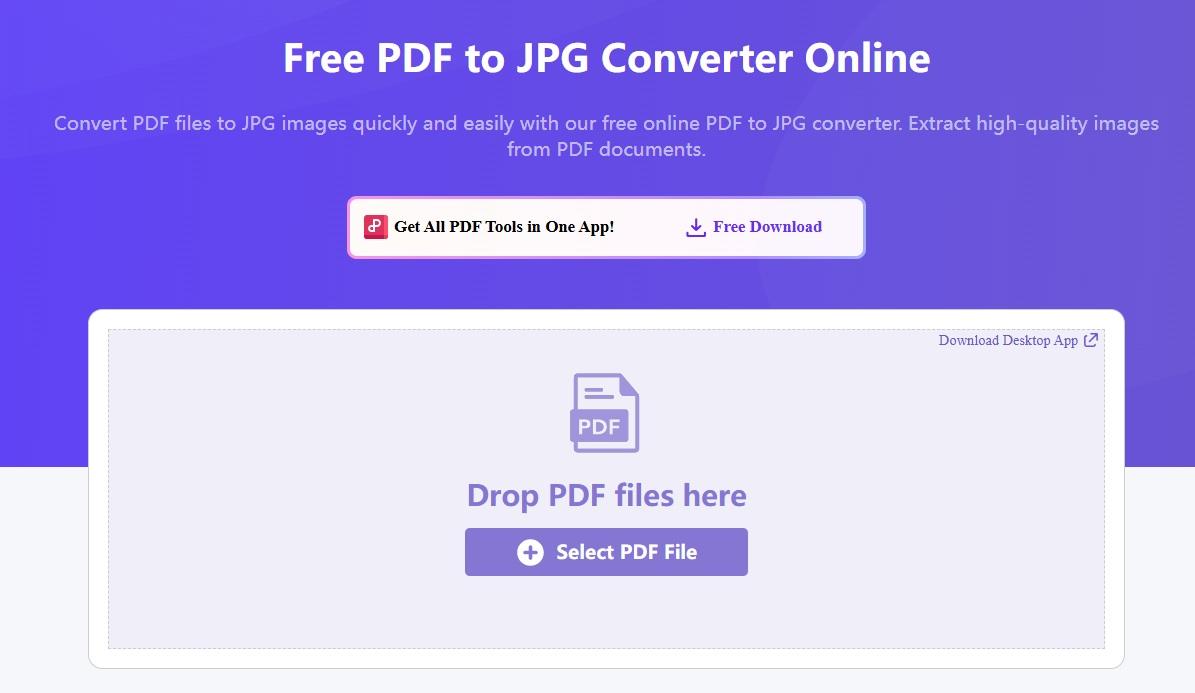
Step 2: Upload your files by dragging them or clicking the ‘Select PDF File’ button.

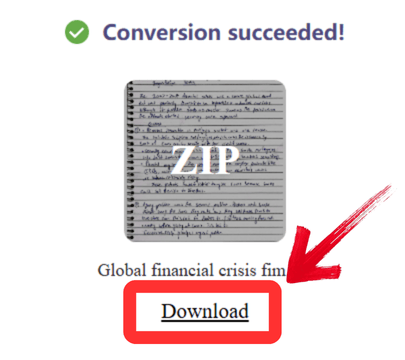
Step 3: Your file will be converted automatically, then just click ‘Download’ to save the extracted file onto your device.
How to Convert PDF to JPG: Using Desktop Software
For situations where you are dealing with sensitive contracts or a large batch of files, an online tool often falls short. You might have concerns about privacy or file size limits. This is where dedicated desktop software like WPS Office becomes essential. It gives you the power to process hundreds of pages offline, ensuring your data never leaves your computer.
This reliability makes it a better choice than web-based tools for converting PDF to JPG high quality. Here’s how to convert PDF to JPG using desktop software.
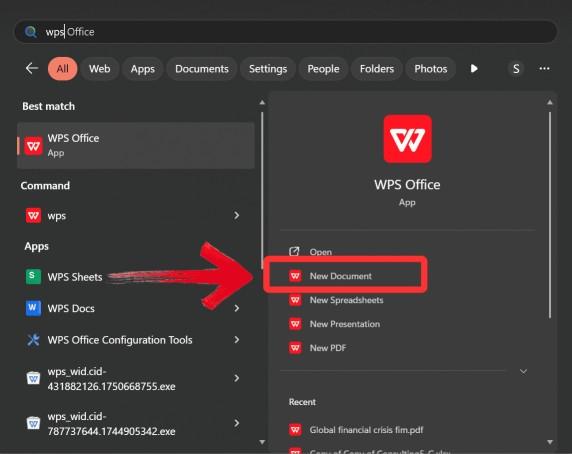
Step 1: First, open a ‘New Document’ in the WPS Office desktop app.
Step 2: Go to the 'Convert' tab and select from the options below what you want to convert your document into.

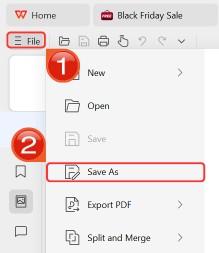
Step 3: The OCR will process the image. Once complete, you click ‘File’ and then click ‘Save as’ to export your converted file.
How to Convert PDF to JPG: Using Desktop Software Using Built-in System Tools
Sometimes, you may not want to upload a file or install a new application, preferring to use what you already have. If you use a Mac or PC, your operating system likely includes native tools for this. Using these built-in options is a fantastic, zero-cost way to handle simple conversions. While they may lack the advanced features of dedicated software, they are often faster for turning a single PDF page into an image since you do not need to open any external programs.
Step 1: First, head on over to your files app on a windows pc and right-click the PDF you want to open and click ‘Open With’. On a Mac, double-click your PDF to open it in 'Preview'.
Note: On Windows, you can use the "Snipping Tool" for single pages, though it's less efficient for whole documents.
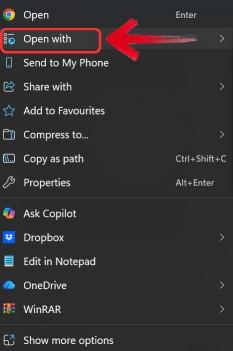
Step 2: After you’ve opened your document in your default browser then just convert it to the JPEG format. Here, the document is opened in Adobe Acrobat.
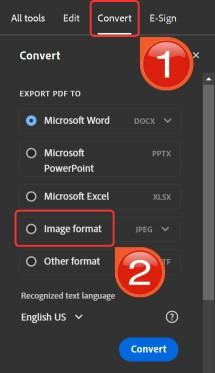
Step 3: In the Menu on the left, click ‘convert’ and then select ‘Image Format’. Then click the convert button at the bottom.
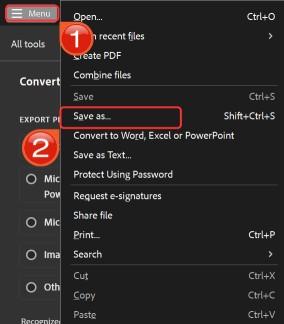
Step 4: Finally, click ‘Menu’ in the top left. Click 'Save as' to finish. This is a quick, built-in way to handle simple conversions without third-party apps.
Why WPS PDF Tools is the Top Recommendation
From all the converters I’ve tested, the WPS PDF Tool just checks all the right boxes. First off, it's genuinely free. You get a suite of powerful online tools and a full, downloadable desktop app without watermarks or hidden subscription costs, just straight-up functionality. And then, the conversion quality is really impressive. It handles PDF and Word layouts perfectly, preserving the fonts and formatting without any issues. That’s something many online-only tools still struggle with.
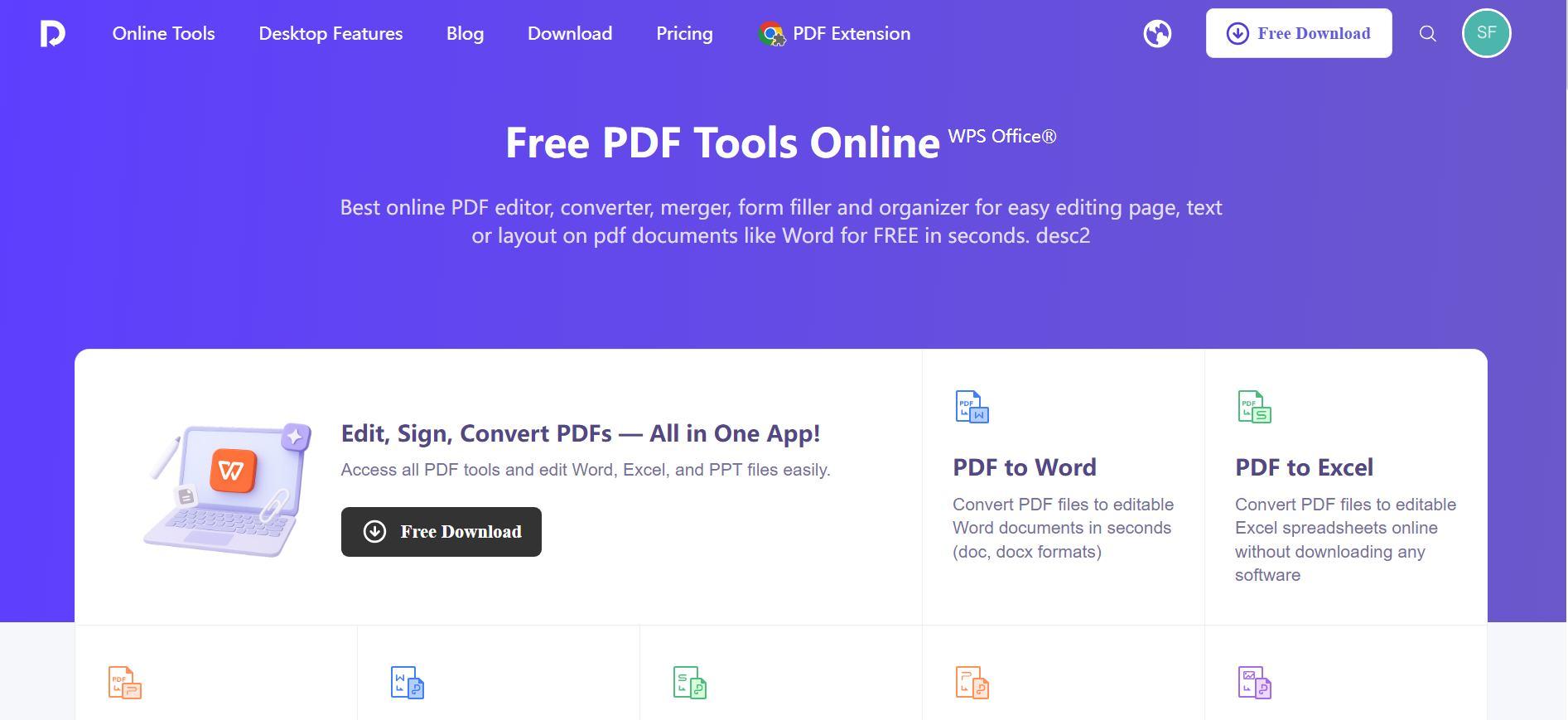
What really comes off as a bonus is its power beyond just being an image converter. The desktop app’s ability to be a PDF to JPG tool one minute and then convert a scanned JPG back into an editable Word document, complete with the extracted text, is a feature I use constantly. Compared to basic, single-task tools, the WPS suite just feels more complete, professional, and reliable for any task you throw at it.
WPS consistently demonstrates why it's the preferred choice. It strikes the perfect balance between being accessible for casual users and powerful enough for professionals. Unlike many competitors that add watermarks or degrade quality in their free versions, WPS maintains excellent output. I recently had to convert a 50-page report for a presentation, and the batch processing feature saved me hours compared to using a simple online tool. It just integrates perfectly into a professional workflow.
FAQs
Q1: What's the difference between online and desktop PDF to JPG converters?
Online tools offer convenience and no installation, perfect for quick jobs. Desktop software like WPS provides offline access, better privacy, and typically faster processing for large files.
Q2: How can I convert a PDF to JPG without losing quality?
Use high-quality converters like WPS that preserve original resolution. Ensure your source PDF has adequate image quality and always adjust output settings to maximum quality when available.
Q3: Can I convert specific pages from a multi-page PDF to JPG?
Yes, most quality converters, including WPS, allow you to select specific pages or page ranges, giving you precise control over which content gets converted.
Q4: Can I do this on my phone?
Absolutely. You can use the WPS Office mobile app or their online tool in mobile browsers to convert files directly on your smartphone.
Q5: Is it safe to convert sensitive PDFs online?
For sensitive documents, I always recommend using desktop software like WPS Office to ensure the file never leaves your computer.

'%3e%3cpath%20d='M19.9911%204.11386V6.471H18.5894C18.0775%206.471%2017.7322%206.57814%2017.5536%206.79243C17.3751%207.00671%2017.2858%207.32814%2017.2858%207.75671V9.44421H19.9019L19.5536%2012.0871H17.2858V18.8639H14.5536V12.0871H12.2769V9.44421H14.5536V7.49779C14.5536%206.39064%2014.8632%205.53201%2015.4822%204.92189C16.1013%204.31177%2016.9257%204.00671%2017.9554%204.00671C18.8304%204.00671%2019.509%204.04243%2019.9911%204.11386Z'%20fill='%23333333'/%3e%3c/g%3e%3cdefs%3e%3cclipPath%20id='clip0_2938_8199'%3e%3crect%20width='16'%20height='16'%20fill='white'%20transform='translate(8%204.00671)'/%3e%3c/clipPath%3e%3c/defs%3e%3c/svg%3e)
'%3e%3cpath%20d='M17.5237%2010.7813L23.4811%204H22.0699L16.8949%209.88693L12.7648%204H8L14.2469%2012.9029L8%2020.0133H9.4112L14.8725%2013.7952L19.2352%2020.0133H24M9.92053%205.04213H12.0885L22.0688%2019.0224H19.9003'%20fill='%23333333'/%3e%3c/g%3e%3cdefs%3e%3cclipPath%20id='clip0_2938_8200'%3e%3crect%20width='16'%20height='16.0134'%20fill='white'%20transform='translate(8%204)'/%3e%3c/clipPath%3e%3c/defs%3e%3c/svg%3e)


