

'%3e%3cpath%20d='M8%200C12.4183%200%2016%203.58172%2016%208C16%2012.4183%2012.4183%2016%208%2016C3.58172%2016%200%2012.4183%200%208C0%203.58172%203.58172%200%208%200ZM11.6162%204.38379C11.2257%203.99337%2010.5927%203.99338%2010.2021%204.38379L8%206.58594L5.79785%204.38379C5.40732%203.99334%204.77429%203.99329%204.38379%204.38379C3.99331%204.77429%203.99335%205.40733%204.38379%205.79785L6.58594%208L4.38379%2010.2021C3.99348%2010.5927%203.99341%2011.2257%204.38379%2011.6162C4.77426%2012.0066%205.40734%2012.0065%205.79785%2011.6162L8%209.41406L10.2021%2011.6162C10.5927%2012.0066%2011.2257%2012.0067%2011.6162%2011.6162C12.0067%2011.2257%2012.0066%2010.5927%2011.6162%2010.2021L9.41406%208L11.6162%205.79785C12.0066%205.40735%2012.0066%204.77429%2011.6162%204.38379Z'%20fill='%23080E17'%20fill-opacity='0.46'/%3e%3c/g%3e%3cdefs%3e%3cclipPath%20id='clip0_3761_713'%3e%3crect%20width='16'%20height='16'%20fill='white'/%3e%3c/clipPath%3e%3c/defs%3e%3c/svg%3e)




'%3e%3cpath%20fill-rule='evenodd'%20clip-rule='evenodd'%20d='M21.4999%2010.9993C21.4999%205.20009%2016.7986%200.498901%2010.9993%200.498901C5.19994%200.498901%200.498657%205.20009%200.498657%2010.9993C0.498657%2016.2404%204.33858%2020.5844%209.35855%2021.3722V14.0346H6.69238V10.9993H9.35855V8.68594C9.35855%206.05427%2010.9262%204.60062%2013.3248%204.60062C14.4736%204.60062%2015.6753%204.80571%2015.6753%204.80571V7.38979H14.3512C13.0468%207.38979%2012.64%208.19921%2012.64%209.0296V10.9993H15.5523L15.0867%2014.0346H12.64V21.3722C17.66%2020.5844%2021.4999%2016.2404%2021.4999%2010.9993Z'%20fill='%231568EA'/%3e%3c/g%3e%3c/svg%3e)


'%3e%3cpath%20d='M2.42045%2022.1876H6.31818V12.7217L0.75%208.54553V20.5171C0.75%2021.4414%201.49892%2022.1876%202.42045%2022.1876Z'%20fill='%234285F4'/%3e%3cpath%20d='M19.682%2022.1876H23.5797C24.5041%2022.1876%2025.2502%2021.4387%2025.2502%2020.5171V8.54553L19.682%2012.7217'%20fill='%2334A853'/%3e%3cpath%20d='M19.682%205.48293V12.7216L25.2502%208.54543V6.31816C25.2502%204.25236%2022.8921%203.07469%2021.2411%204.31361'%20fill='%23FBBC04'/%3e%3cpath%20d='M6.31824%2012.7217V5.48303L13.0001%2010.4944L19.6819%205.48303V12.7217L13.0001%2017.733'%20fill='%23EA4335'/%3e%3cpath%20d='M0.75%206.31816V8.54543L6.31818%2012.7216V5.48293L4.75909%204.31361C3.10534%203.07469%200.75%204.25236%200.75%206.31816Z'%20fill='%23C5221F'/%3e%3c/g%3e%3cdefs%3e%3cclipPath%20id='clip0_2954_7305'%3e%3crect%20width='24.5'%20height='18.375'%20fill='white'%20transform='translate(0.75%203.8125)'/%3e%3c/clipPath%3e%3c/defs%3e%3c/svg%3e)


Mac users work with PDF files every day, whether it is for assignments, workplace documents, client presentations, or creative projects. In many of these situations, converting a PDF into a JPG becomes necessary. That is why knowing how to convert PDF to JPG on Mac quickly and accurately matters.
However, not all converters offer the results users expect. Some online tools reduce image clarity, while others require expensive subscriptions or slow downloads.
So, what is the easiest and most reliable workflow? This guide explains how to convert PDF to JPG on Mac using three practical approaches, online tools, OCR software, and mobile apps.


Part 1. How to Convert PDF to JPG Online on Mac
Online converters remain the most efficient choice for Mac users who want a fast, simple way to process files without installing large applications.
Among all the online options I tested, the WPS PDF to JPG Online tool stood out for its clarity, simplicity, and layout preservation. It is reliable when learning how to convert PDF to JPG on Mac, especially if you prefer a straightforward workflow that does not require a subscription or account.
How to Convert PDF to JPG on WPS Online (Step-by-Step)
Step 1: Visit WPS PDF to JPG Online
Go to: https://pdf.wps.com/convert-pdf-to-jpg/
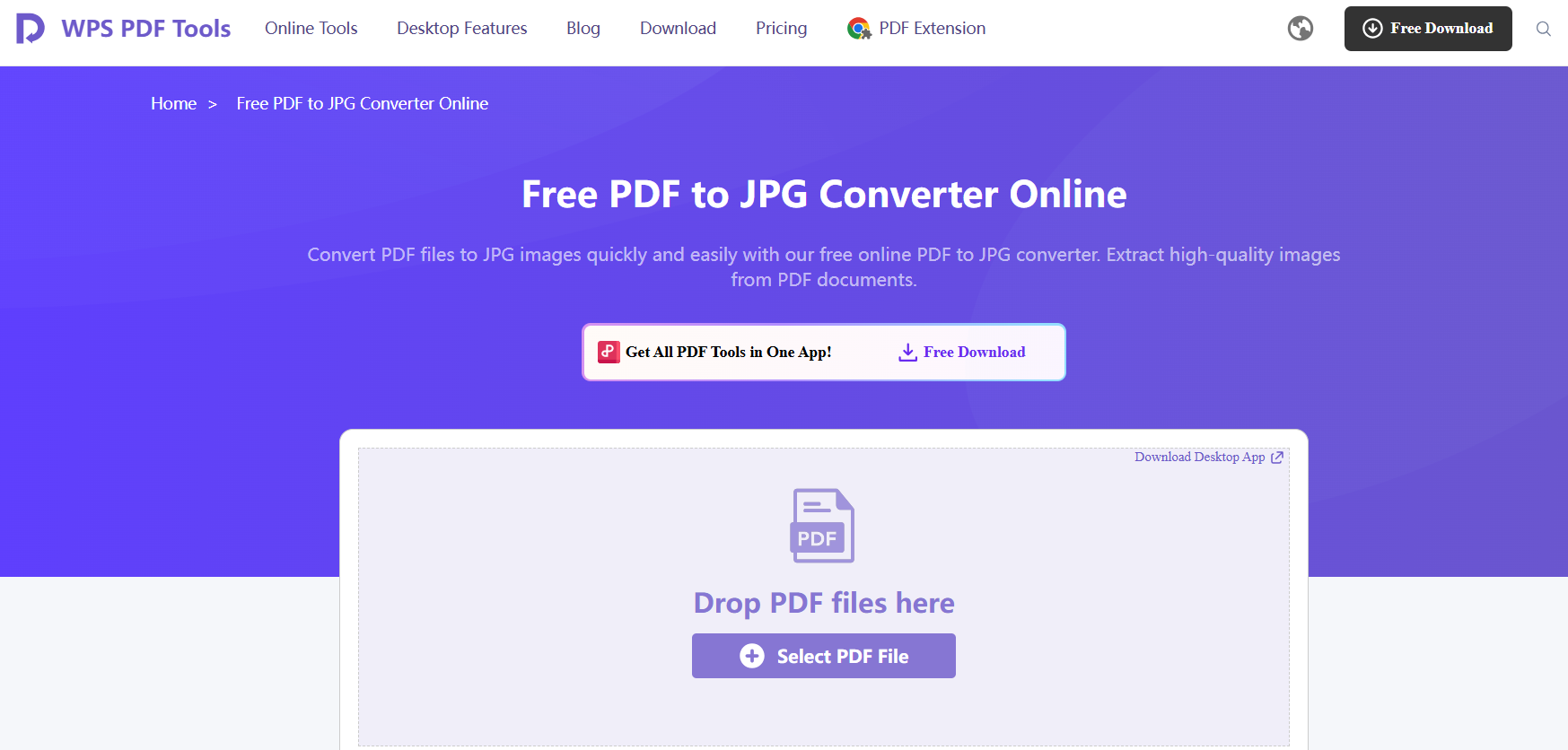
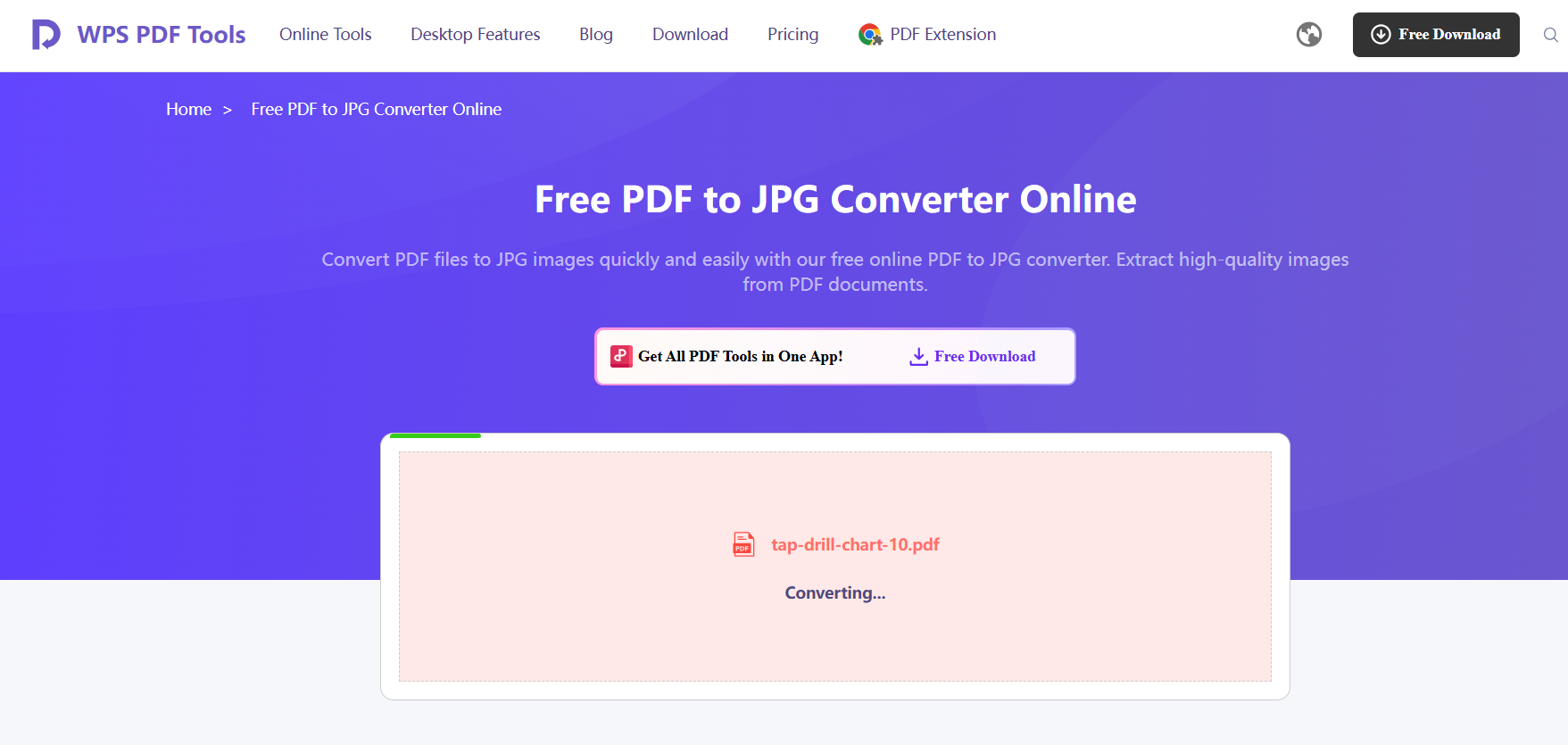
Step 2: Upload your PDF
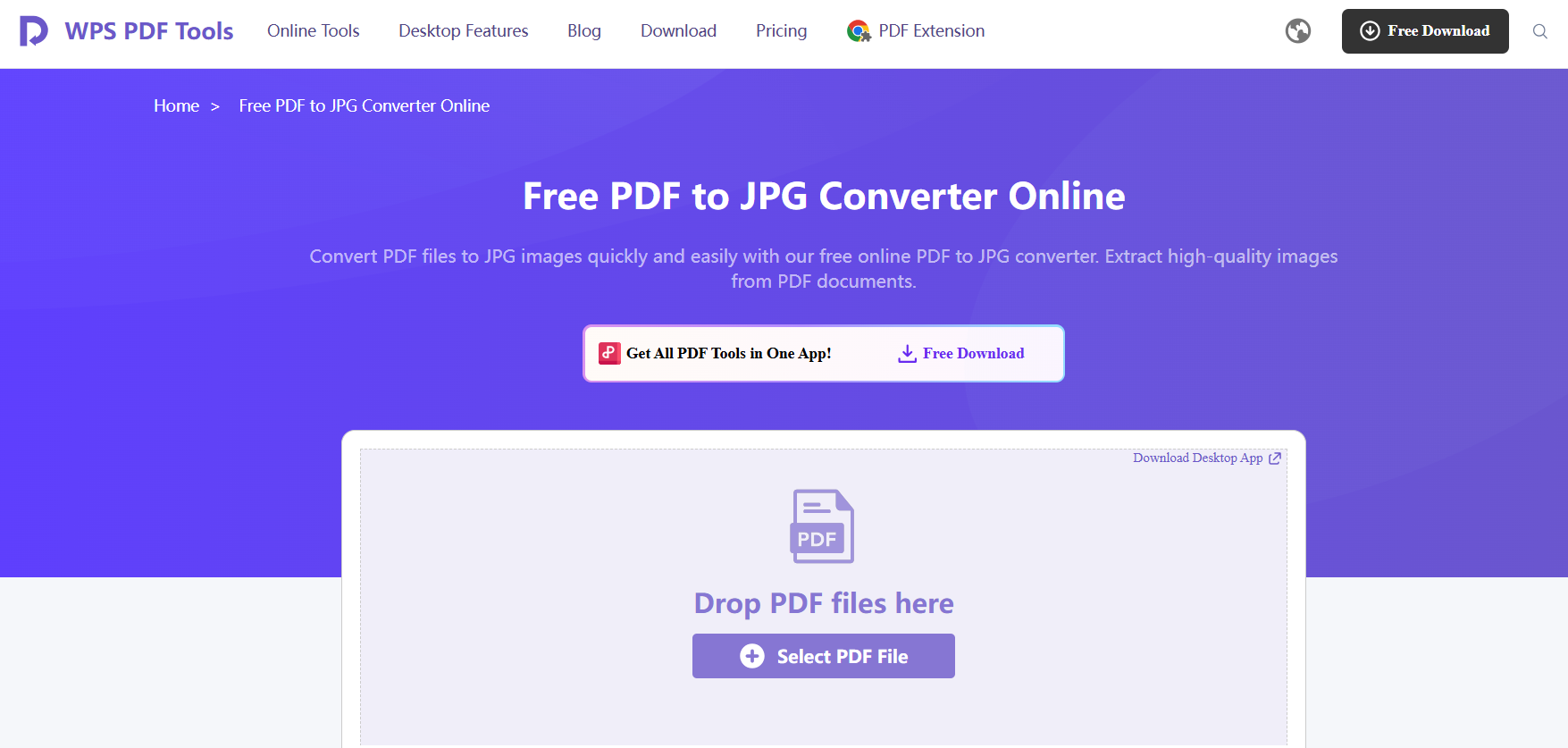
Click Upload and choose the PDF file you want to convert. The file begins processing immediately.
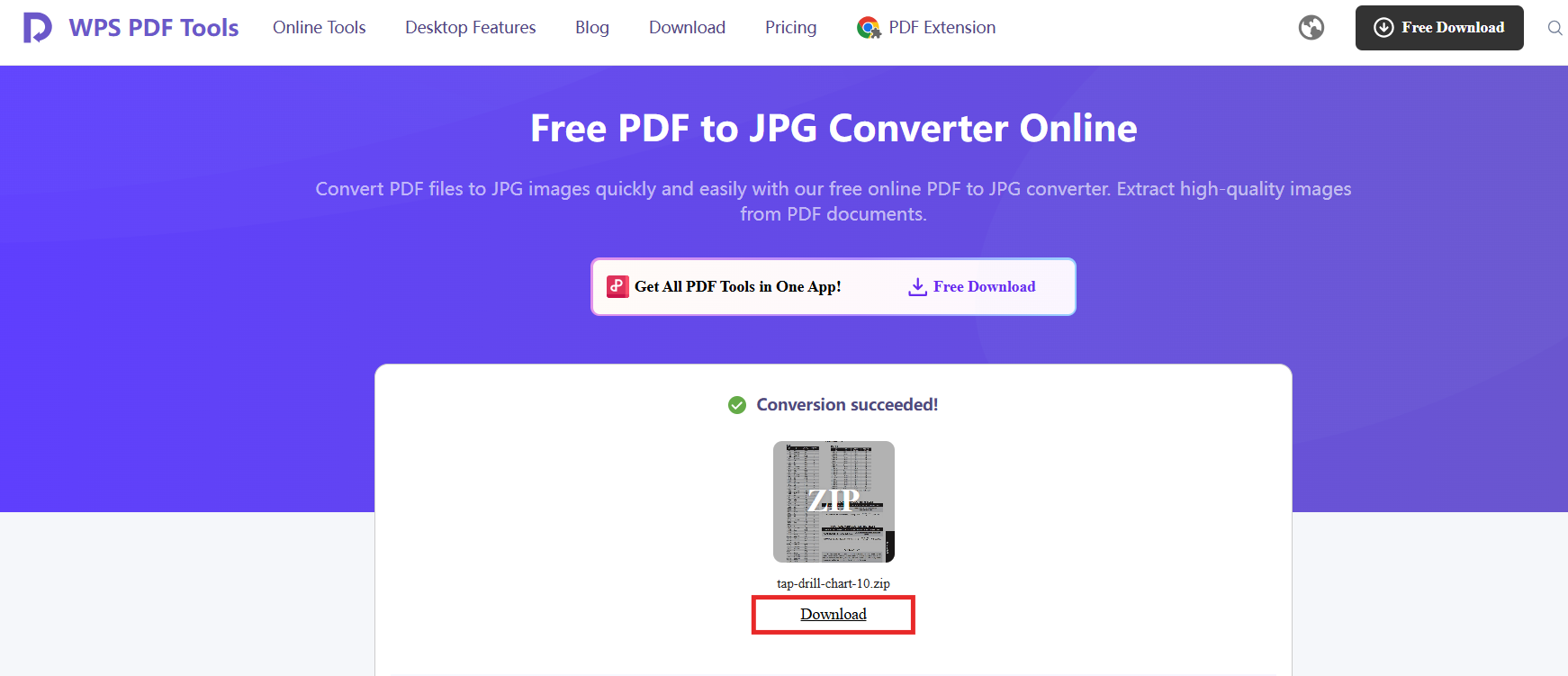
Step 3: Download the JPG images
Save the zip file with converted images to your Mac for further use.
This method works for users who want to know how to convert PDF to JPG on Mac for free without quality loss. It is particularly helpful when you need to export documents quickly or are unsure how to export a PDF as a JPG on a Mac using built-in software.
Why the Online Method Is the Most Practical
If you only convert PDFs occasionally, a browser-based tool is by far the most convenient method. There is no installation, no login, and no system limitations. It is also useful for anyone who wants to know how to convert PDF to JPG on Mac without losing quality, since the WPS converter retains most of the original formatting.
WPS is compatible with macOS, Windows, and mobile browsers, making it a flexible Mac PDF to JPG converter for multi-device users.
Comparison Table: WPS vs iLovePDF vs FreeConverter
| Feature | WPS Online | iLovePDF | FreeConverter |
|---|---|---|---|
| Ease of Use | Very simple, clean UI | Moderate | Moderate |
| Format Preservation | High (images and text remain sharp) | Medium | Medium |
| Conversion Speed | Fast | Average | Slow to average |
| File Limitations | Fewer restrictions | Limits for free users | Limits for free users |
| System Compatibility | Mac, Windows, browsers | Browser-based | Browser-based |
Highlight: WPS consistently maintained layout accuracy better than the others during my testing.
My Experience
To evaluate the performance, I converted a 6-page PDF that included images, tables, and text blocks. WPS preserved the formatting with noticeably better sharpness than iLovePDF and FreeConverter. This confirmed that for users looking for a quick, reliable Mac PDF to JPG converter, the WPS online tool provides a practical balance between speed and quality.
At this stage, if someone asked me how to convert a PDF to JPG on Mac without Adobe, I would recommend the WPS online converter first because of its simplicity. It also helps users who later explore solutions like how to convert PDF to JPG on Windows or how to convert PDF to JPG on Canva, since the workflow is universal and requires no learning curve.
Part 2. How to Convert PDF to JPG with OCR (Higher Quality Method)
For users who frequently convert documents or handle scanned PDFs, online tools may not always deliver the level of sharpness or text clarity required. In these cases, desktop software provides noticeably higher accuracy. OCR technology is especially valuable when learning how to convert PDF to JPG on Mac because it recognizes text within scanned images and preserves layouts more precisely than standard converters.
This method is also suitable for users who want to know how to convert PDF to JPG on Mac without losing quality, especially when working with diagrams, textbooks, contracts, or scanned receipts. Compared to basic online tools, OCR software can extract cleaner text layers and produce JPG images that remain crisp even when zoomed in.
How to Convert PDF to JPG Using WPS Office (OCR Method)
Step 1: Open WPS Office on your Mac
Launch the WPS PDF tool from the main dashboard.
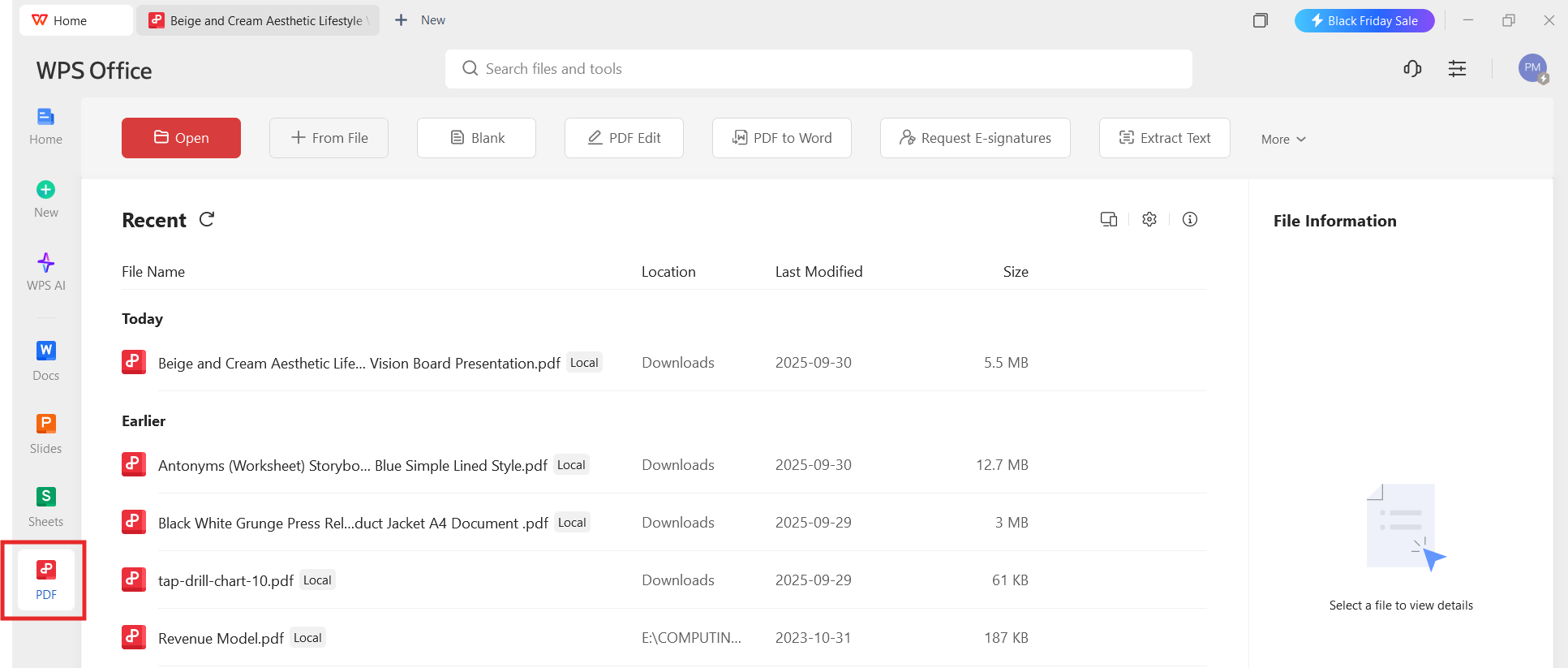
Step 2: Import your PDF
Click Open and select the file you want to convert.
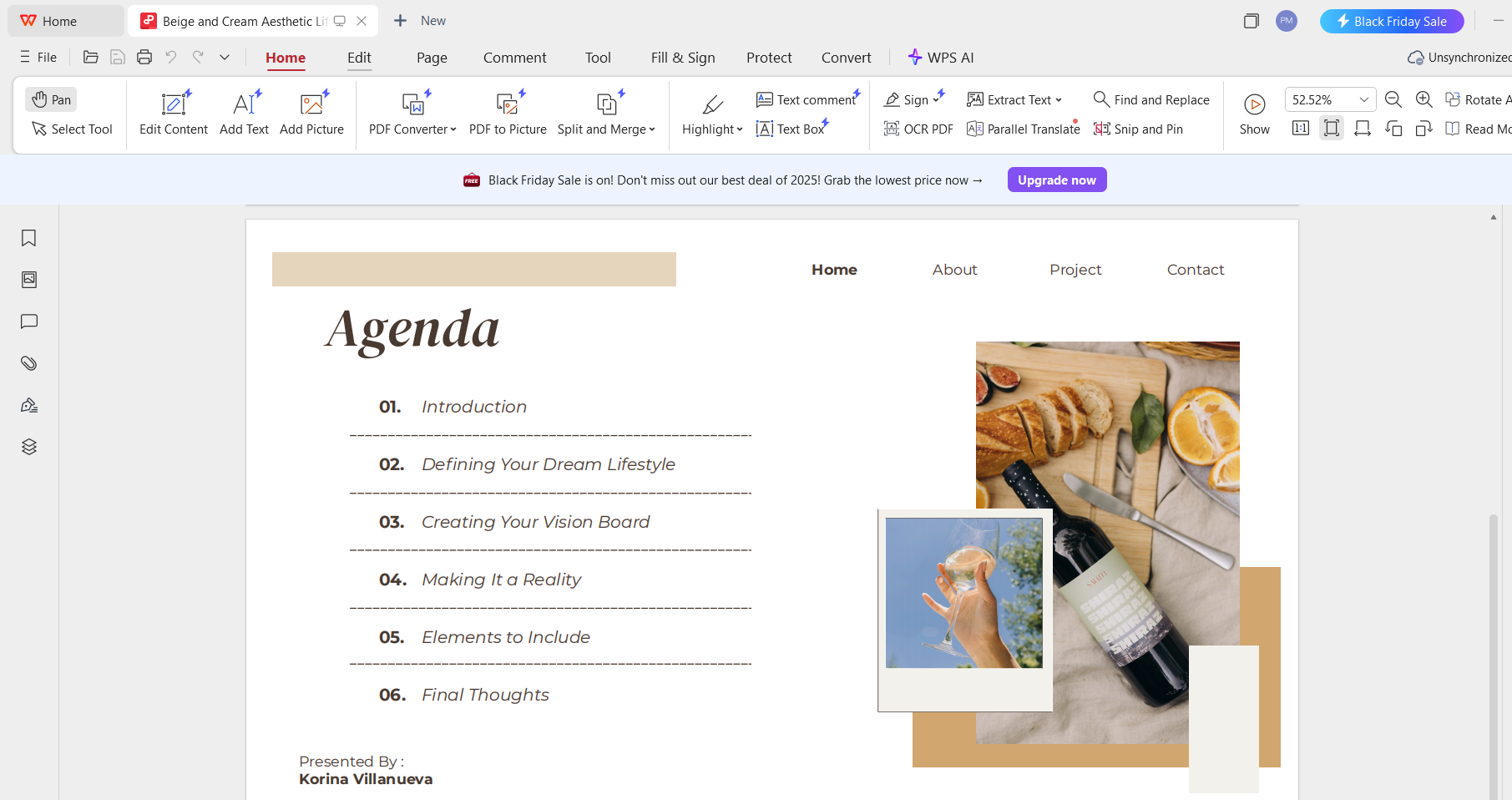
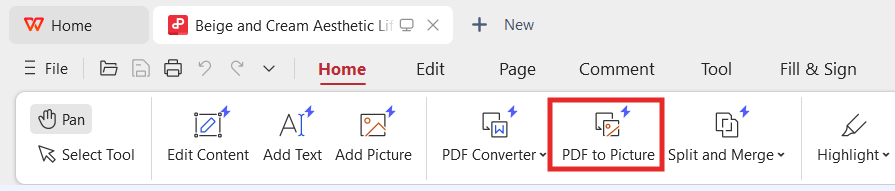
Step 3: Click PDF to Picture
Click PDF to Picture to improve recognition quality.
Step 4: Choose Export to Image
Select JPG as the output format.
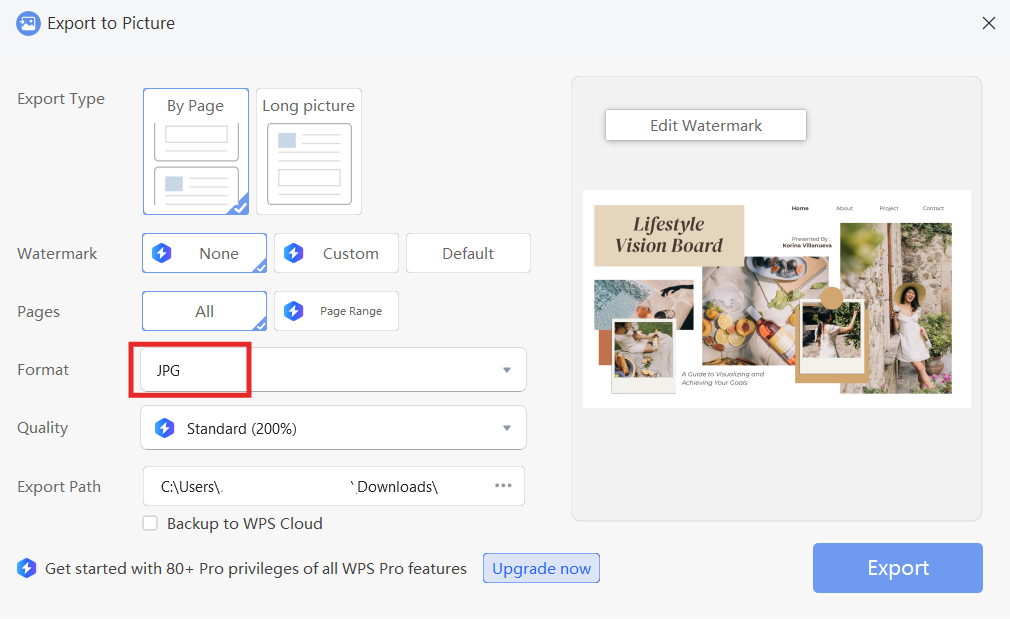
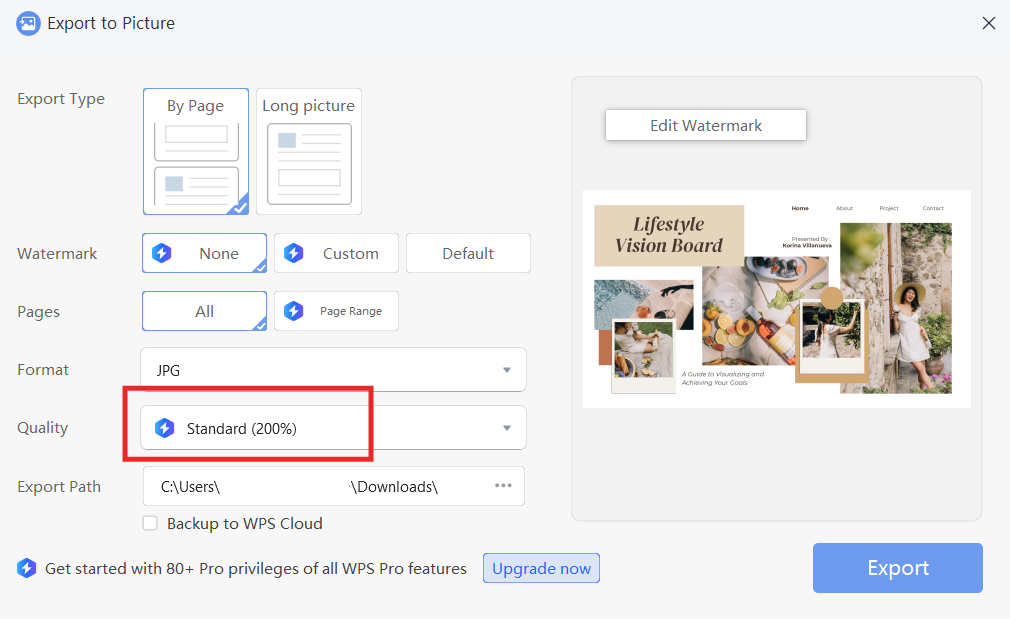
Step 5: Adjust quality settings if needed
You can optimize clarity depending on your document type.
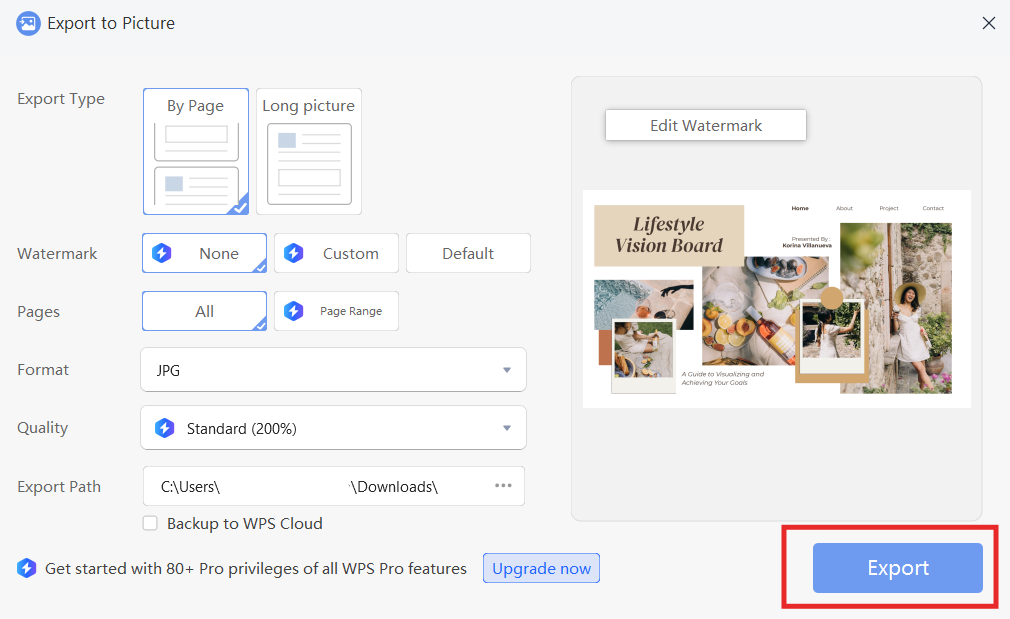
Step 6: Export and save the JPG
Save the output file to your preferred folder on Mac.
This process works well for users comparing different software options, including those researching how to convert PDF to JPG using Adobe Acrobat, how to convert PDF to JPG without Adobe, or alternative tools like PDFelement. Regardless of the application, the OCR step significantly improves text readability.
Why OCR Tools Offer Higher Accuracy
Desktop tools reduce compression artifacts and maintain visual clarity across different fonts and layouts. They also allow more control compared to online converters. Users who regularly work with forms, handwritten notes, or scanned textbooks will notice an immediate quality improvement with OCR-supported tools such as WPS Office.
OCR also helps preserve the structure of complex files, which is useful when converting PDFs that include columns, tables, and embedded images. It solves many issues users face when they first attempt to convert PDF to JPG on Mac free online and discover that the results lack sharpness.
Comparison Table: WPS Office vs Adobe Acrobat vs Wondershare PDFelement
| Feature | WPS Office | Adobe Acrobat | Wondershare PDFelement |
|---|---|---|---|
| Conversion Accuracy | High (text + images remain crisp) | High | Medium to high |
| Layout Preservation | Excellent | Excellent | Good |
| OCR for Scanned PDFs | Fully supported | Fully supported | Supported |
| Post-Conversion Editing | Convenient and integrated | Advanced but complex | Moderate |
| Processing Speed | Fast | Moderate | Moderate |
Highlight: WPS delivers accuracy comparable to Adobe while remaining lighter and easier to operate on macOS.
My Experience
To evaluate OCR performance, I converted a scanned multi-page instructional PDF that included diagrams and labels. Adobe Acrobat produced a clean result, but WPS preserved both the diagram lines and label spacing more consistently. PDFelement required additional adjustments to improve clarity. WPS delivered the best balance of accuracy and speed on my Mac, especially when I tested multiple conversion batches.
For users who want a simple but reliable method or are still comparing how to convert PDF to JPG on Windows, how to convert PDF to JPG on Canva, or browser-based converters, the OCR workflow in WPS remains the most practical for long-term use.
Part 3. Why Choose WPS Office to Convert PDF to JPG on Mac
WPS Office has become a practical, all-in-one solution for Mac users who frequently work with PDF files. It supports document editing, PDF management, OCR processing, and high-quality export functions, making it suitable for both casual and professional workflows.
Since many users looking for how to convert PDF to JPG on Mac also want a lightweight tool that does not slow down their system, WPS Office stands out due to its clean interface and balanced performance.
Key Features of WPS Office
WPS Office provides several features that benefit users who regularly convert documents:
Converts PDF to JPG with high-quality output
Includes full OCR support for scanned PDFs
Enables batch conversion for large files
Works across Mac, Windows, Android, and iOS
Offers free online tools with no registration required
Supports document editing before and after conversion
These features make it more versatile than basic converters, especially for users searching for free PDF to JPG Mac options that still deliver strong performance.
Unique Advantages of WPS Office
Free Online Converter + Desktop Editor
WPS offers both an online converter and a full desktop suite. The online tool is convenient for quick tasks, while the desktop OCR engine improves accuracy for complex documents.
Full OCR Support
OCR capabilities ensure sharp, readable JPG outputs even when converting scanned books, receipts, forms, or old documents. This improves clarity and reduces the need for third-party tools.
Works on Both Mac and Mobile
Users who transition between macOS and mobile devices can convert files seamlessly without relearning the interface.
High-Quality PDF to JPG Conversion
WPS consistently maintains text structure, spacing, and image sharpness. This matters for users who want to know how to convert PDF to JPG on Mac without losing quality across different document types.
User-Friendly Interface
The interface is simple enough for beginners but still supports advanced workflows for users who work with PDFs daily.
Personal Experience
When testing WPS Office against other converters during this guide, I noticed that it handled diverse documents more consistently. For example, when I converted a scanned academic PDF, WPS maintained both diagram clarity and text readability without requiring additional adjustments. In contrast, Adobe performed well but required more manual settings, and some online tools compressed the output.
For users who want a single, reliable solution, whether they prefer online tools or desktop OCR workflows, WPS offers a balanced, accurate, and easy-to-use approach. It works smoothly for those comparing methods, such as how to convert PDF to JPG using Adobe Acrobat, how to convert PDF to JPG on Canva, or even how to convert PDF to JPG without Adobe.
FAQs
1. How can I convert a PDF to JPG on Mac without installing software?
You can use WPS PDF to JPG Online, which works directly in your browser and requires no installation. This is the simplest way for users who prefer a fast, convert PDF to JPG Mac online solution.
2. Does converting PDF to JPG on Mac reduce image quality?
Not typically. Tools such as WPS Office and Adobe Acrobat preserve most of the original resolution. If you want to know how to convert PDF to JPG on Mac without losing quality, using OCR tools or a desktop converter offers the best results.
3. Can I convert scanned PDFs to JPG on Mac?
Yes. Scanned PDFs require OCR support to preserve clarity. Applications like WPS Office and Adobe Acrobat recognize text and improve JPG output when converting scanned files.
4. Is there a free way to convert a PDF to JPG on a Mac?
Yes. WPS PDF to JPG Online and FreeConvert allow how to convert PDF to JPG on Mac free for basic file types. These are ideal for users who do not convert documents often.
5. Can I convert only one page of a PDF to a JPG on Mac?
Yes. Most tools, including WPS Office, let you choose specific pages during export. This is helpful when you only need a single JPG for sharing or editing.
6. How do I convert a PDF to JPG on Mac Preview?
Preview can export one page at a time, but it does not offer batch conversion, for users who want a faster workflow, online converters or desktop tools are more convenient.
7. Which converter works best for large PDF files on Mac?
WPS Office handles large files efficiently and keeps layouts intact. It is suitable for users comparing different Mac PDF to JPG converter options or dealing with heavy documents.
8. Can I convert PDFs to JPG on other platforms if needed?
Yes. If you ever need to convert a PDF to JPG on Windows or use alternative tools such as Canva, the steps are similar. However, WPS Office provides a more consistent experience across platforms.
9. Can I convert a PDF to JPG without Adobe?
Yes. Tools like WPS Office or its online converter provide how to convert PDF to JPG without Adobe with comparable accuracy and no subscription requirement.
10. Can I convert a PDF to JPG using Adobe Acrobat?
Yes. Adobe supports exporting to image formats and provides strong OCR performance. This is useful for users comparing how to convert PDF to JPG using Adobe Acrobat with other methods.

'%3e%3cpath%20d='M19.9911%204.11386V6.471H18.5894C18.0775%206.471%2017.7322%206.57814%2017.5536%206.79243C17.3751%207.00671%2017.2858%207.32814%2017.2858%207.75671V9.44421H19.9019L19.5536%2012.0871H17.2858V18.8639H14.5536V12.0871H12.2769V9.44421H14.5536V7.49779C14.5536%206.39064%2014.8632%205.53201%2015.4822%204.92189C16.1013%204.31177%2016.9257%204.00671%2017.9554%204.00671C18.8304%204.00671%2019.509%204.04243%2019.9911%204.11386Z'%20fill='%23333333'/%3e%3c/g%3e%3cdefs%3e%3cclipPath%20id='clip0_2938_8199'%3e%3crect%20width='16'%20height='16'%20fill='white'%20transform='translate(8%204.00671)'/%3e%3c/clipPath%3e%3c/defs%3e%3c/svg%3e)
'%3e%3cpath%20d='M17.5237%2010.7813L23.4811%204H22.0699L16.8949%209.88693L12.7648%204H8L14.2469%2012.9029L8%2020.0133H9.4112L14.8725%2013.7952L19.2352%2020.0133H24M9.92053%205.04213H12.0885L22.0688%2019.0224H19.9003'%20fill='%23333333'/%3e%3c/g%3e%3cdefs%3e%3cclipPath%20id='clip0_2938_8200'%3e%3crect%20width='16'%20height='16.0134'%20fill='white'%20transform='translate(8%204)'/%3e%3c/clipPath%3e%3c/defs%3e%3c/svg%3e)


