

'%3e%3cpath%20d='M8%200C12.4183%200%2016%203.58172%2016%208C16%2012.4183%2012.4183%2016%208%2016C3.58172%2016%200%2012.4183%200%208C0%203.58172%203.58172%200%208%200ZM11.6162%204.38379C11.2257%203.99337%2010.5927%203.99338%2010.2021%204.38379L8%206.58594L5.79785%204.38379C5.40732%203.99334%204.77429%203.99329%204.38379%204.38379C3.99331%204.77429%203.99335%205.40733%204.38379%205.79785L6.58594%208L4.38379%2010.2021C3.99348%2010.5927%203.99341%2011.2257%204.38379%2011.6162C4.77426%2012.0066%205.40734%2012.0065%205.79785%2011.6162L8%209.41406L10.2021%2011.6162C10.5927%2012.0066%2011.2257%2012.0067%2011.6162%2011.6162C12.0067%2011.2257%2012.0066%2010.5927%2011.6162%2010.2021L9.41406%208L11.6162%205.79785C12.0066%205.40735%2012.0066%204.77429%2011.6162%204.38379Z'%20fill='%23080E17'%20fill-opacity='0.46'/%3e%3c/g%3e%3cdefs%3e%3cclipPath%20id='clip0_3761_713'%3e%3crect%20width='16'%20height='16'%20fill='white'/%3e%3c/clipPath%3e%3c/defs%3e%3c/svg%3e)




'%3e%3cpath%20fill-rule='evenodd'%20clip-rule='evenodd'%20d='M21.4999%2010.9993C21.4999%205.20009%2016.7986%200.498901%2010.9993%200.498901C5.19994%200.498901%200.498657%205.20009%200.498657%2010.9993C0.498657%2016.2404%204.33858%2020.5844%209.35855%2021.3722V14.0346H6.69238V10.9993H9.35855V8.68594C9.35855%206.05427%2010.9262%204.60062%2013.3248%204.60062C14.4736%204.60062%2015.6753%204.80571%2015.6753%204.80571V7.38979H14.3512C13.0468%207.38979%2012.64%208.19921%2012.64%209.0296V10.9993H15.5523L15.0867%2014.0346H12.64V21.3722C17.66%2020.5844%2021.4999%2016.2404%2021.4999%2010.9993Z'%20fill='%231568EA'/%3e%3c/g%3e%3c/svg%3e)


'%3e%3cpath%20d='M2.42045%2022.1876H6.31818V12.7217L0.75%208.54553V20.5171C0.75%2021.4414%201.49892%2022.1876%202.42045%2022.1876Z'%20fill='%234285F4'/%3e%3cpath%20d='M19.682%2022.1876H23.5797C24.5041%2022.1876%2025.2502%2021.4387%2025.2502%2020.5171V8.54553L19.682%2012.7217'%20fill='%2334A853'/%3e%3cpath%20d='M19.682%205.48293V12.7216L25.2502%208.54543V6.31816C25.2502%204.25236%2022.8921%203.07469%2021.2411%204.31361'%20fill='%23FBBC04'/%3e%3cpath%20d='M6.31824%2012.7217V5.48303L13.0001%2010.4944L19.6819%205.48303V12.7217L13.0001%2017.733'%20fill='%23EA4335'/%3e%3cpath%20d='M0.75%206.31816V8.54543L6.31818%2012.7216V5.48293L4.75909%204.31361C3.10534%203.07469%200.75%204.25236%200.75%206.31816Z'%20fill='%23C5221F'/%3e%3c/g%3e%3cdefs%3e%3cclipPath%20id='clip0_2954_7305'%3e%3crect%20width='24.5'%20height='18.375'%20fill='white'%20transform='translate(0.75%203.8125)'/%3e%3c/clipPath%3e%3c/defs%3e%3c/svg%3e)


You have a .ps file from a print shop, a publisher, or an old software export, and it will not open. The direct answer: upload it to a free online PS to PDF converter, or open it on a Mac where Preview converts it automatically, and the result is a standard PDF. Below are all three free routes, the exact steps, and what to do with the PDF afterwards.
How to Convert PS to PDF: Free Methods for PostScript Files
Convert PS to PDF with a Free Online Converter (No Install)
A browser-based converter is the fastest route: no install, no Ghostscript setup, and it works on Windows, Mac, Linux and phones.
Open a free PS to PDF tool such as PDF24 Tools, XConvert or KissPDF. None of them require an account.
Upload the .ps file. Most tools accept files up to 20-100 MB, which covers typical print jobs and publishing exports.
Convert. The service interprets the PostScript and writes a PDF. Text stays selectable and vector artwork stays sharp where the source file carries fonts and vector data.
Download the PDF and open it in any browser or reader to confirm it renders.
For a contract, a design that has not shipped, or any confidential print file, check the privacy line first, and prefer the offline routes below for anything sensitive.
Open the PS File on Mac: Preview Converts It Automatically
macOS converts PostScript to PDF on its own, so Mac users often do not need any converter at all.
Double-click the .ps file. Preview opens it by converting the PostScript into a PDF in the background.
Choose File > Export as PDF to save the converted copy with a new name, or press Cmd+P and use Save as PDF in the print dialog.
Confirm the layout page by page, since complex PostScript with custom page setup can shift slightly during the system conversion.
Convert PS to PDF Offline with Ghostscript (Free Command Line)
Ghostscript is the free open-source PostScript interpreter, and its ps2pdf command is the classic offline route for technical users and batches.
Windows and Linux: install Ghostscript from the official site, open a terminal, and run ps2pdf input.ps output.pdf in the file's folder.
Quality presets: add -dPDFSETTINGS=/ebook, /printer or /prepress after ps2pdf to trade size against fidelity. The /printer setting is the safe default for documents.
Font embedding: run ps2pdf -dEmbedAllFonts=true -dSubsetFonts=true input.ps output.pdf so the PDF looks right on machines that lack the original fonts.
Mac: install Ghostscript via Homebrew (brew install ghostscript), then use the same ps2pdf command in Terminal.
This route also handles whole folders in one pass, which makes it the best pick when a publisher sends you dozens of .ps files at once.
Check and Polish the Result in WPS Office
Once the .ps file becomes a PDF, the practical work usually starts: proofing, fixing, and sharing. WPS Office covers that part for free.
Open the PDF in WPS Office and check that fonts, page order and margins survived the conversion.
Edit directly if something shifted: fix text, move images, or correct a page number without returning to the .ps source.
Merge or split when the converter delivered one file per page, or compress the PDF when a print-grade file is too heavy to email.
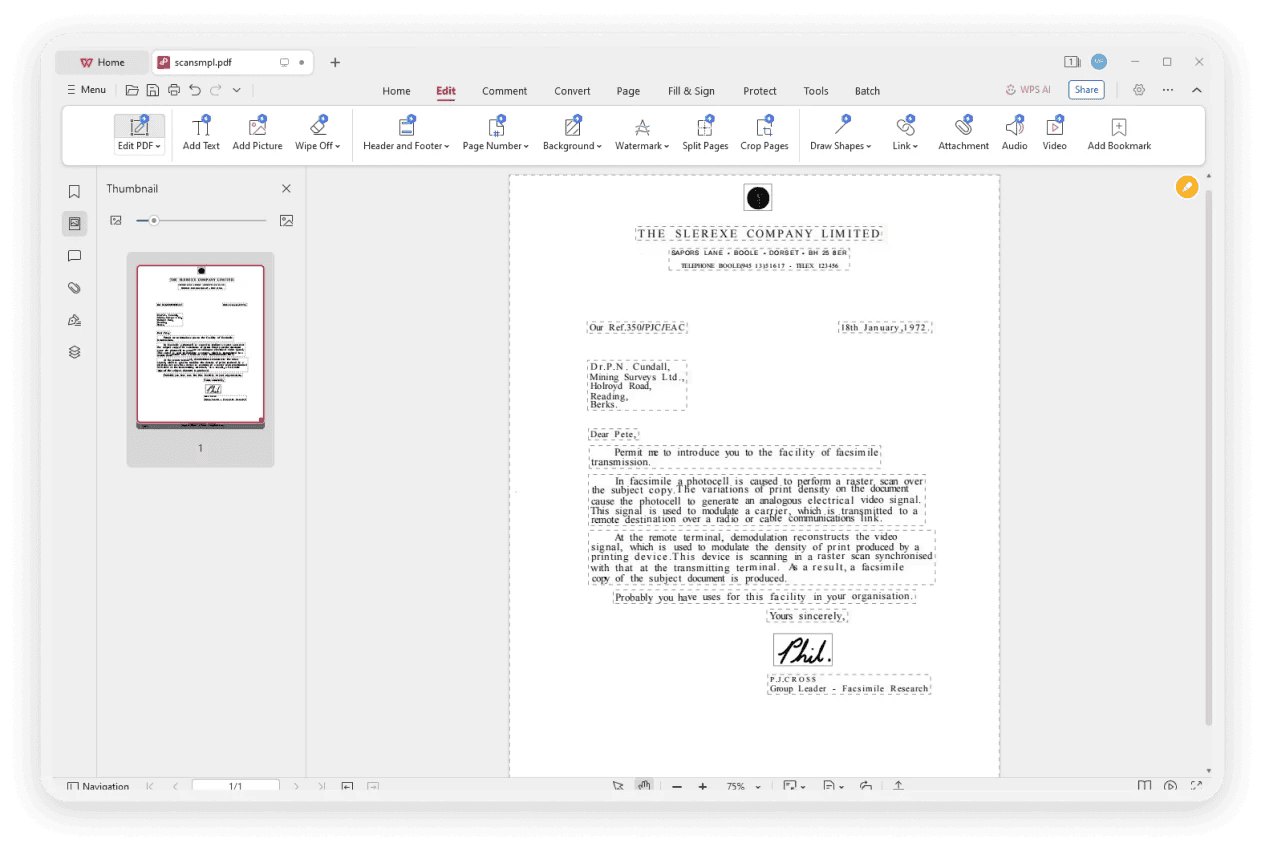
PDF opened in WPS Office
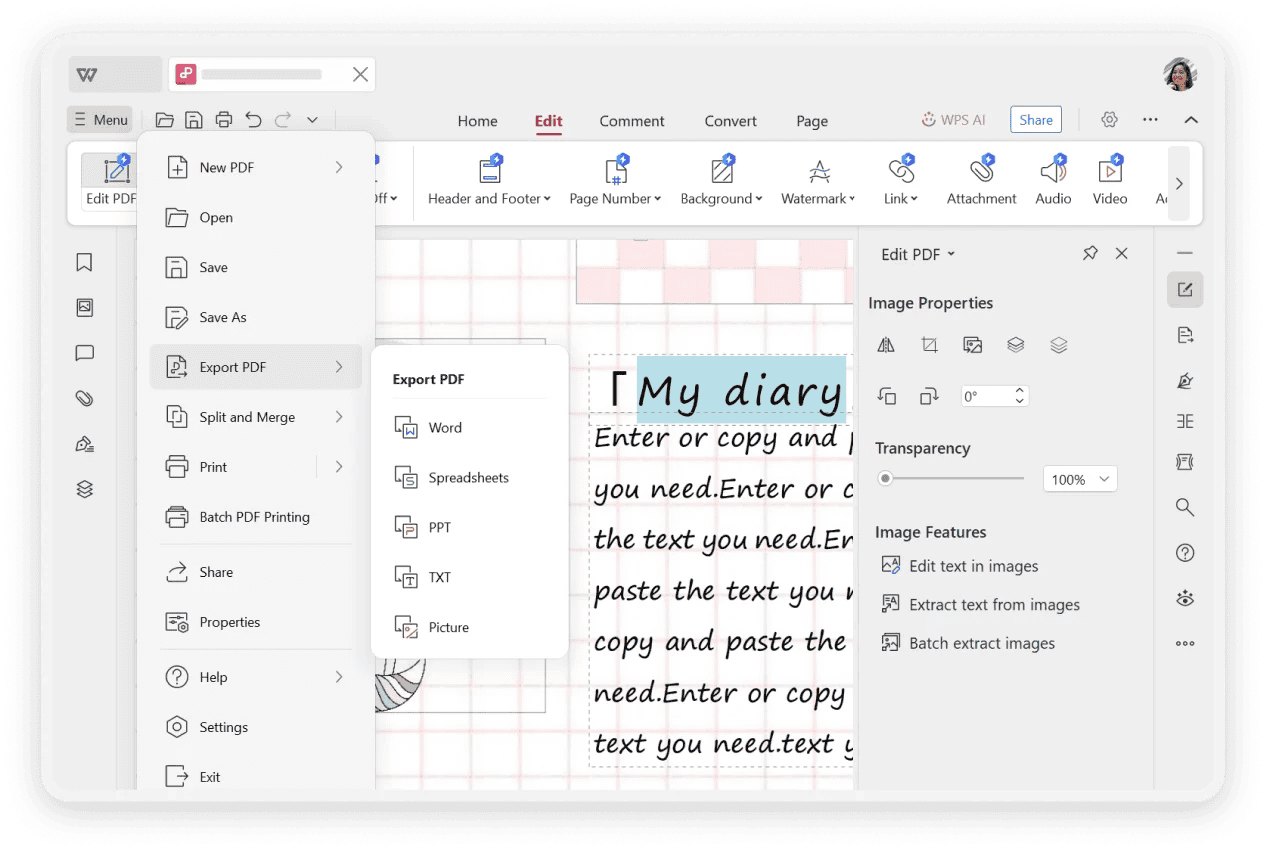
WPS PDF export menu
PS vs PDF: Why the Switch Is Worth It
PostScript is a programming language for printers, written by Adobe in 1985. A .ps file is essentially a set of drawing and printing instructions, which is why modern apps do not display it directly, and why some .ps files carry executable code risk.
PDF opens everywhere. Browsers, phones and office suites read PDF natively; .ps needs a PostScript interpreter or a converter.
PDF is fixed-layout. The same file looks identical on every device, while PostScript rendering depends on the printer that interprets it.
PDF is safer to share. A converted PDF removes the executable-code concern and travels cleanly through email and cloud storage.
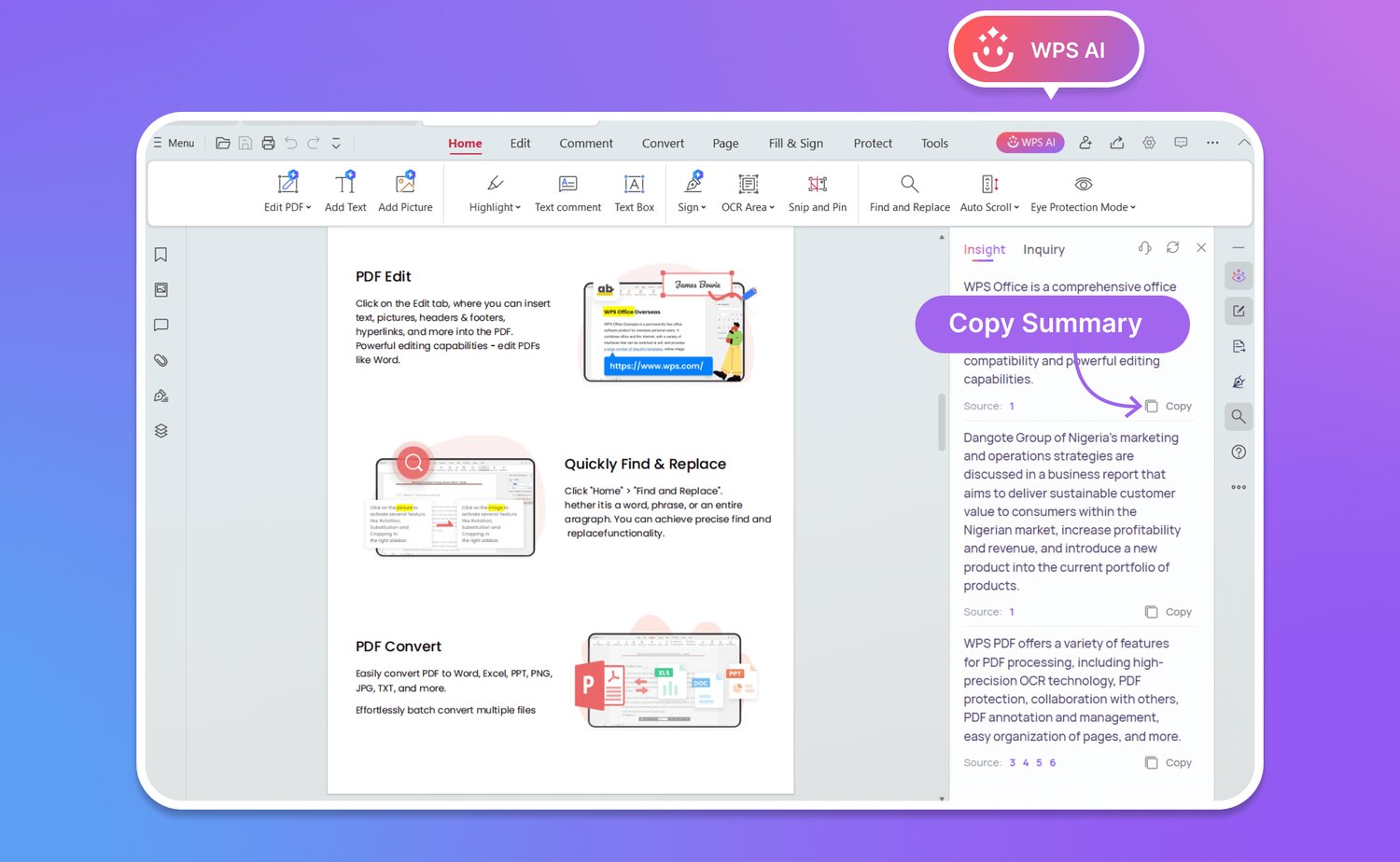
WPS AI PDF summary tool
WPS Spreadsheet website
FAQs
1. How do I convert a PS file to PDF for free?
Upload the .ps file to a free online converter such as PDF24 Tools, XConvert or KissPDF and download the PDF. On Mac, double-click the file and Preview converts it automatically; on the command line, run ps2pdf input.ps output.pdf with Ghostscript.
2. Can I open a PS file on Mac?
Yes. macOS converts PostScript to PDF automatically, so double-clicking a .ps file opens it in Preview as a PDF, which you can then export or print to a new file.
3. What is the difference between PS and PDF?
PostScript is a printer programming language from 1985 that needs an interpreter to render. PDF is its fixed-layout descendant: the same file opens identically in browsers, phones and office apps without any interpreter.
4. Does WPS Office open PS files?
WPS Office works with the PDF you convert the .ps file into. Run the conversion with an online tool, Preview or Ghostscript first, then open the PDF in WPS Office to edit, merge, compress and sign.
5. Why does my PS to PDF conversion fail or come out blank?
The .ps file likely references fonts that are missing, or contains instructions the converter cannot interpret. Re-generate the .ps with fonts embedded, or try another converter; Ghostscript handles the widest range of PostScript dialects.

'%3e%3cpath%20d='M19.9911%204.11386V6.471H18.5894C18.0775%206.471%2017.7322%206.57814%2017.5536%206.79243C17.3751%207.00671%2017.2858%207.32814%2017.2858%207.75671V9.44421H19.9019L19.5536%2012.0871H17.2858V18.8639H14.5536V12.0871H12.2769V9.44421H14.5536V7.49779C14.5536%206.39064%2014.8632%205.53201%2015.4822%204.92189C16.1013%204.31177%2016.9257%204.00671%2017.9554%204.00671C18.8304%204.00671%2019.509%204.04243%2019.9911%204.11386Z'%20fill='%23333333'/%3e%3c/g%3e%3cdefs%3e%3cclipPath%20id='clip0_2938_8199'%3e%3crect%20width='16'%20height='16'%20fill='white'%20transform='translate(8%204.00671)'/%3e%3c/clipPath%3e%3c/defs%3e%3c/svg%3e)
'%3e%3cpath%20d='M17.5237%2010.7813L23.4811%204H22.0699L16.8949%209.88693L12.7648%204H8L14.2469%2012.9029L8%2020.0133H9.4112L14.8725%2013.7952L19.2352%2020.0133H24M9.92053%205.04213H12.0885L22.0688%2019.0224H19.9003'%20fill='%23333333'/%3e%3c/g%3e%3cdefs%3e%3cclipPath%20id='clip0_2938_8200'%3e%3crect%20width='16'%20height='16.0134'%20fill='white'%20transform='translate(8%204)'/%3e%3c/clipPath%3e%3c/defs%3e%3c/svg%3e)


