

'%3e%3cpath%20d='M8%200C12.4183%200%2016%203.58172%2016%208C16%2012.4183%2012.4183%2016%208%2016C3.58172%2016%200%2012.4183%200%208C0%203.58172%203.58172%200%208%200ZM11.6162%204.38379C11.2257%203.99337%2010.5927%203.99338%2010.2021%204.38379L8%206.58594L5.79785%204.38379C5.40732%203.99334%204.77429%203.99329%204.38379%204.38379C3.99331%204.77429%203.99335%205.40733%204.38379%205.79785L6.58594%208L4.38379%2010.2021C3.99348%2010.5927%203.99341%2011.2257%204.38379%2011.6162C4.77426%2012.0066%205.40734%2012.0065%205.79785%2011.6162L8%209.41406L10.2021%2011.6162C10.5927%2012.0066%2011.2257%2012.0067%2011.6162%2011.6162C12.0067%2011.2257%2012.0066%2010.5927%2011.6162%2010.2021L9.41406%208L11.6162%205.79785C12.0066%205.40735%2012.0066%204.77429%2011.6162%204.38379Z'%20fill='%23080E17'%20fill-opacity='0.46'/%3e%3c/g%3e%3cdefs%3e%3cclipPath%20id='clip0_3761_713'%3e%3crect%20width='16'%20height='16'%20fill='white'/%3e%3c/clipPath%3e%3c/defs%3e%3c/svg%3e)




'%3e%3cpath%20fill-rule='evenodd'%20clip-rule='evenodd'%20d='M21.4999%2010.9993C21.4999%205.20009%2016.7986%200.498901%2010.9993%200.498901C5.19994%200.498901%200.498657%205.20009%200.498657%2010.9993C0.498657%2016.2404%204.33858%2020.5844%209.35855%2021.3722V14.0346H6.69238V10.9993H9.35855V8.68594C9.35855%206.05427%2010.9262%204.60062%2013.3248%204.60062C14.4736%204.60062%2015.6753%204.80571%2015.6753%204.80571V7.38979H14.3512C13.0468%207.38979%2012.64%208.19921%2012.64%209.0296V10.9993H15.5523L15.0867%2014.0346H12.64V21.3722C17.66%2020.5844%2021.4999%2016.2404%2021.4999%2010.9993Z'%20fill='%231568EA'/%3e%3c/g%3e%3c/svg%3e)


'%3e%3cpath%20d='M2.42045%2022.1876H6.31818V12.7217L0.75%208.54553V20.5171C0.75%2021.4414%201.49892%2022.1876%202.42045%2022.1876Z'%20fill='%234285F4'/%3e%3cpath%20d='M19.682%2022.1876H23.5797C24.5041%2022.1876%2025.2502%2021.4387%2025.2502%2020.5171V8.54553L19.682%2012.7217'%20fill='%2334A853'/%3e%3cpath%20d='M19.682%205.48293V12.7216L25.2502%208.54543V6.31816C25.2502%204.25236%2022.8921%203.07469%2021.2411%204.31361'%20fill='%23FBBC04'/%3e%3cpath%20d='M6.31824%2012.7217V5.48303L13.0001%2010.4944L19.6819%205.48303V12.7217L13.0001%2017.733'%20fill='%23EA4335'/%3e%3cpath%20d='M0.75%206.31816V8.54543L6.31818%2012.7216V5.48293L4.75909%204.31361C3.10534%203.07469%200.75%204.25236%200.75%206.31816Z'%20fill='%23C5221F'/%3e%3c/g%3e%3cdefs%3e%3cclipPath%20id='clip0_2954_7305'%3e%3crect%20width='24.5'%20height='18.375'%20fill='white'%20transform='translate(0.75%203.8125)'/%3e%3c/clipPath%3e%3c/defs%3e%3c/svg%3e)


Need to open an XPS file on a device that does not support it? XPS was created by Microsoft as a fixed-layout document format, but it is not natively supported on macOS, iOS, Android, or most modern browsers. Converting XPS to PDF gives you a universal file that opens anywhere, prints cleanly, and is easy to share. In this guide, you will learn why you should convert XPS to PDF and how to do it with the Windows XPS Viewer and with WPS Office on desktop and mobile.
How to Convert XPS to PDF with Windows and WPS Office
Why Should You Convert XPS to PDF?
XPS (XML Paper Specification) is Microsoft’s answer to PDF. It captures the exact layout, fonts, and formatting of a document so it looks the same on screen and in print. The problem is reach: XPS works best inside Windows, and it has little or no native support on Mac, iPhone, iPad, Android, or the browsers most people use every day. When someone sends you an XPS file, you can often see it only after installing a dedicated viewer.
Moving your file to PDF removes that friction. Here is why the switch is worth it:
Cross-platform compatibility. PDF opens natively on Windows, macOS, iOS, Android, and every major browser, so no extra viewer is needed.
Easy to print and share. PDF is the default format for sending contracts, reports, and invoices, and it prints with consistent results everywhere.
Higher security. PDFs support password protection, permissions, and electronic signatures, which matters for sensitive documents.
Smaller file size. A well-compressed PDF is usually lighter and faster to email than its XPS source.
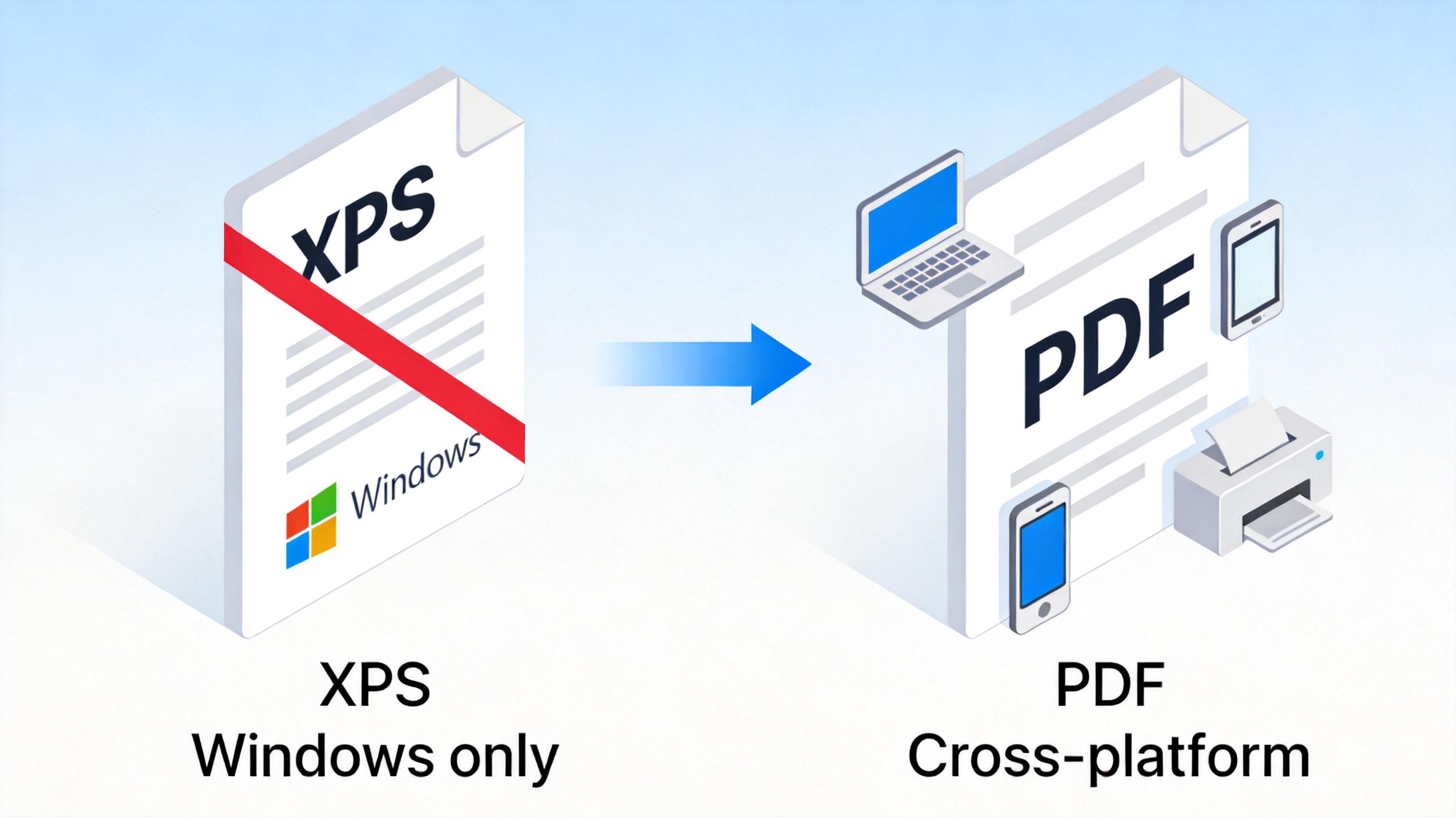
XPS to PDF cross-platform compatibility comparison


Method 1: Convert XPS to PDF with the Windows XPS Viewer
If you only need a quick conversion on your PC, the built-in XPS Viewer and Microsoft Print to PDF printer are the simplest way to convert XPS to PDF without installing anything.
Open the XPS file in the XPS Viewer. Double-click the file and it opens in the Windows XPS Viewer.
Click File > Print. In the Print dialog, choose Microsoft Print to PDF as the printer.
Set the page range and click Print. A save window appears.
Save the PDF. Name the file, choose a location, and click Save to create your PDF.
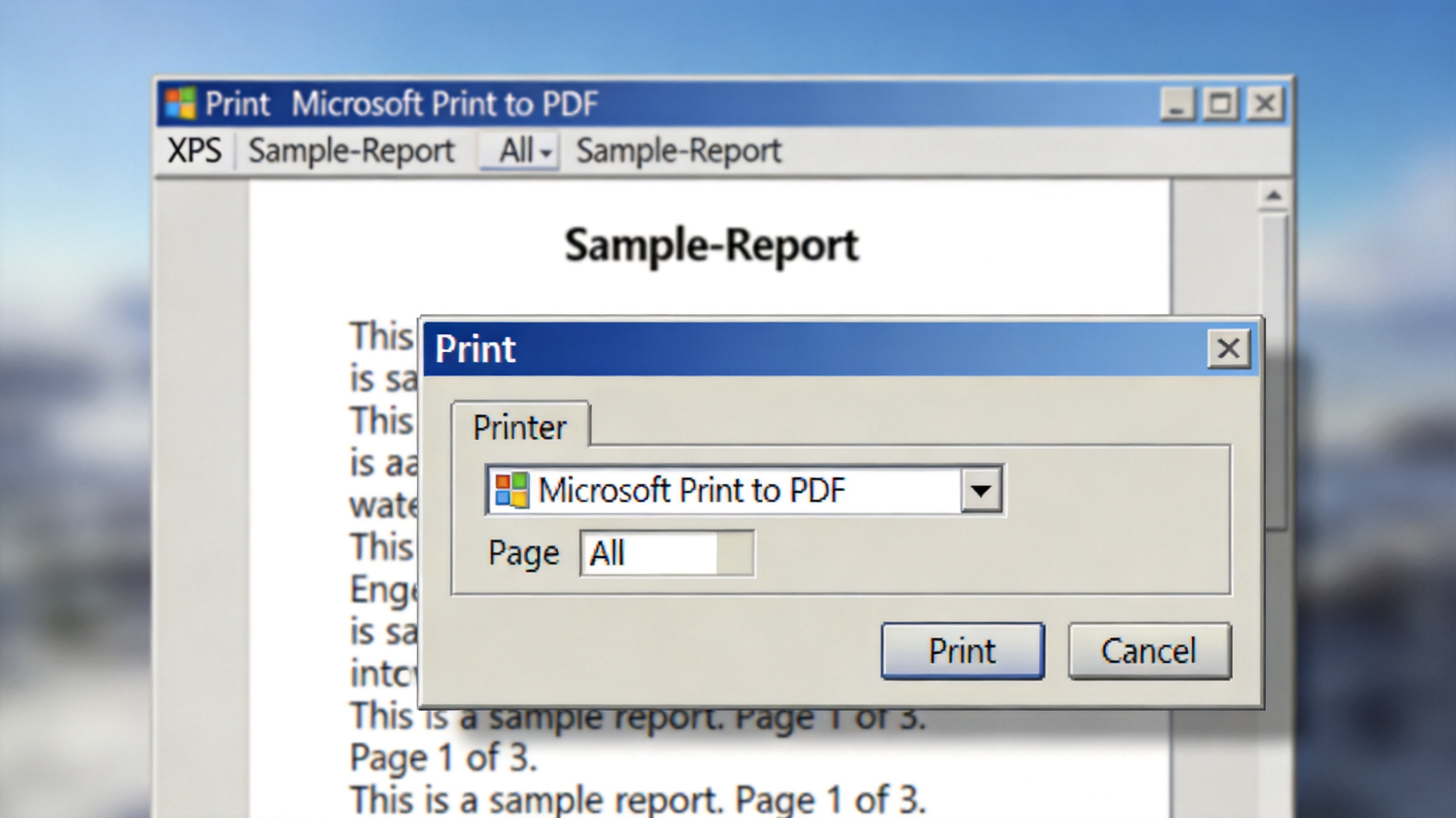
Print XPS to PDF with Microsoft Print to PDF
Method 2: Convert XPS to PDF with WPS Office (Desktop & Mobile)
WPS Office offers two easy ways to convert XPS to PDF on your computer or phone. Pick the one that fits how you work.
Method 2A: Open and Save As in the WPS PDF module
Open WPS Office and launch the PDF component. From the home screen, choose the PDF module.
Open your XPS file. Click Open, set the file type to All files or XPS file (*.xps), select your XPS document, and open it.
3. Export to PDF. Once the XPS file is open, go to File > Save As or Export to PDF, choose the PDF format, adjust settings such as page range or compression, and save the file.
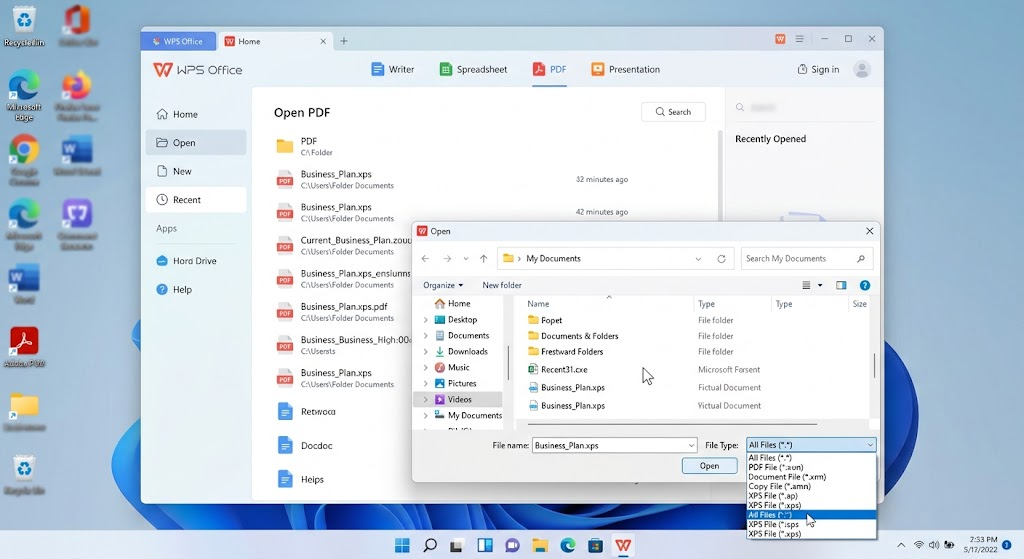
Export XPS to PDF in WPS dialog
Method 2B: Use the WPS PDF Conversion tool
Open the WPS main screen. Go to the Tools or Apps tab.
Find the Format Conversion or PDF tool. Open the conversion utility inside WPS.
Choose Convert to PDF. Drag and drop your XPS file into the tool, click Start Conversion, and download the resulting PDF.
Best PDF Editor for Windows and Mac: Beyond XPS to PDF Conversion
Once your XPS file is a PDF, you may want to do more than view it. WPS PDF is an all-in-one editor that goes far beyond a simple XPS to PDF converter, giving you the tools you normally expect from a full office suite.
Text & Image Editing. Fix a typo or replace an image right inside the PDF, just like editing a Word document.
Page Management. Merge or split pages, extract specific page numbers, and rotate pages with a few clicks.
Annotation & Signing. Highlight key points, add comments, and apply a legally binding electronic signature.
All-in-one Office Suite. Convert your PDF back to Word, Excel, or PPT, and use the same familiar WPS tools for documents, spreadsheets, and slides without switching apps.
Explore the full feature set of the WPS PDF editor to see how it fits your workflow.
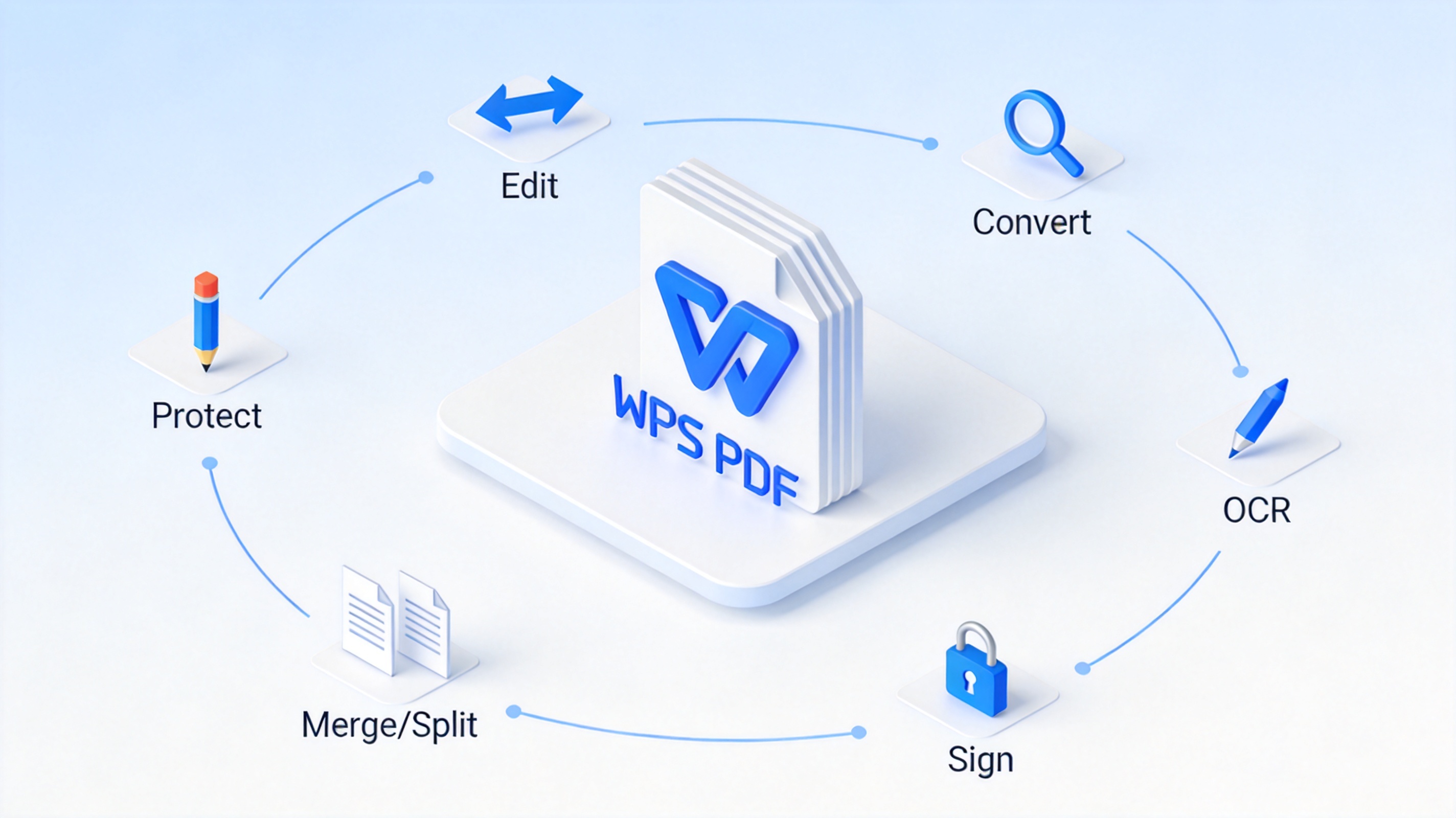
WPS PDF editor all-in-one tools
FAQs
Can WPS Office open XPS files?
Yes. WPS Office can open XPS documents and export them as PDF, so you can view and convert the file without installing a separate XPS viewer.
Is converting XPS to PDF free with WPS?
Yes. The core convert XPS to PDF workflow is available in WPS Office at no extra cost, and the PDF editor adds editing, signing, and conversion tools in one place.
How do I convert XPS to PDF without extra software?
Use the Windows XPS Viewer together with the built-in Microsoft Print to PDF printer. Open the XPS file, choose File > Print, select Microsoft Print to PDF, and save the output as a PDF.
Why does my Mac or phone not open XPS files?
Because XPS is a Microsoft format with no native support on macOS, iOS, or Android. Converting XPS to PDF solves the problem, since PDF opens on every platform.
Can I edit the converted PDF in WPS?
Yes. WPS PDF lets you edit text and images, organize pages, add annotations, and apply electronic signatures after you convert XPS to PDF.


'%3e%3cpath%20d='M19.9911%204.11386V6.471H18.5894C18.0775%206.471%2017.7322%206.57814%2017.5536%206.79243C17.3751%207.00671%2017.2858%207.32814%2017.2858%207.75671V9.44421H19.9019L19.5536%2012.0871H17.2858V18.8639H14.5536V12.0871H12.2769V9.44421H14.5536V7.49779C14.5536%206.39064%2014.8632%205.53201%2015.4822%204.92189C16.1013%204.31177%2016.9257%204.00671%2017.9554%204.00671C18.8304%204.00671%2019.509%204.04243%2019.9911%204.11386Z'%20fill='%23333333'/%3e%3c/g%3e%3cdefs%3e%3cclipPath%20id='clip0_2938_8199'%3e%3crect%20width='16'%20height='16'%20fill='white'%20transform='translate(8%204.00671)'/%3e%3c/clipPath%3e%3c/defs%3e%3c/svg%3e)
'%3e%3cpath%20d='M17.5237%2010.7813L23.4811%204H22.0699L16.8949%209.88693L12.7648%204H8L14.2469%2012.9029L8%2020.0133H9.4112L14.8725%2013.7952L19.2352%2020.0133H24M9.92053%205.04213H12.0885L22.0688%2019.0224H19.9003'%20fill='%23333333'/%3e%3c/g%3e%3cdefs%3e%3cclipPath%20id='clip0_2938_8200'%3e%3crect%20width='16'%20height='16.0134'%20fill='white'%20transform='translate(8%204)'/%3e%3c/clipPath%3e%3c/defs%3e%3c/svg%3e)


