

'%3e%3cpath%20d='M8%200C12.4183%200%2016%203.58172%2016%208C16%2012.4183%2012.4183%2016%208%2016C3.58172%2016%200%2012.4183%200%208C0%203.58172%203.58172%200%208%200ZM11.6162%204.38379C11.2257%203.99337%2010.5927%203.99338%2010.2021%204.38379L8%206.58594L5.79785%204.38379C5.40732%203.99334%204.77429%203.99329%204.38379%204.38379C3.99331%204.77429%203.99335%205.40733%204.38379%205.79785L6.58594%208L4.38379%2010.2021C3.99348%2010.5927%203.99341%2011.2257%204.38379%2011.6162C4.77426%2012.0066%205.40734%2012.0065%205.79785%2011.6162L8%209.41406L10.2021%2011.6162C10.5927%2012.0066%2011.2257%2012.0067%2011.6162%2011.6162C12.0067%2011.2257%2012.0066%2010.5927%2011.6162%2010.2021L9.41406%208L11.6162%205.79785C12.0066%205.40735%2012.0066%204.77429%2011.6162%204.38379Z'%20fill='%23080E17'%20fill-opacity='0.46'/%3e%3c/g%3e%3cdefs%3e%3cclipPath%20id='clip0_3761_713'%3e%3crect%20width='16'%20height='16'%20fill='white'/%3e%3c/clipPath%3e%3c/defs%3e%3c/svg%3e)




'%3e%3cpath%20fill-rule='evenodd'%20clip-rule='evenodd'%20d='M21.4999%2010.9993C21.4999%205.20009%2016.7986%200.498901%2010.9993%200.498901C5.19994%200.498901%200.498657%205.20009%200.498657%2010.9993C0.498657%2016.2404%204.33858%2020.5844%209.35855%2021.3722V14.0346H6.69238V10.9993H9.35855V8.68594C9.35855%206.05427%2010.9262%204.60062%2013.3248%204.60062C14.4736%204.60062%2015.6753%204.80571%2015.6753%204.80571V7.38979H14.3512C13.0468%207.38979%2012.64%208.19921%2012.64%209.0296V10.9993H15.5523L15.0867%2014.0346H12.64V21.3722C17.66%2020.5844%2021.4999%2016.2404%2021.4999%2010.9993Z'%20fill='%231568EA'/%3e%3c/g%3e%3c/svg%3e)


'%3e%3cpath%20d='M2.42045%2022.1876H6.31818V12.7217L0.75%208.54553V20.5171C0.75%2021.4414%201.49892%2022.1876%202.42045%2022.1876Z'%20fill='%234285F4'/%3e%3cpath%20d='M19.682%2022.1876H23.5797C24.5041%2022.1876%2025.2502%2021.4387%2025.2502%2020.5171V8.54553L19.682%2012.7217'%20fill='%2334A853'/%3e%3cpath%20d='M19.682%205.48293V12.7216L25.2502%208.54543V6.31816C25.2502%204.25236%2022.8921%203.07469%2021.2411%204.31361'%20fill='%23FBBC04'/%3e%3cpath%20d='M6.31824%2012.7217V5.48303L13.0001%2010.4944L19.6819%205.48303V12.7217L13.0001%2017.733'%20fill='%23EA4335'/%3e%3cpath%20d='M0.75%206.31816V8.54543L6.31818%2012.7216V5.48293L4.75909%204.31361C3.10534%203.07469%200.75%204.25236%200.75%206.31816Z'%20fill='%23C5221F'/%3e%3c/g%3e%3cdefs%3e%3cclipPath%20id='clip0_2954_7305'%3e%3crect%20width='24.5'%20height='18.375'%20fill='white'%20transform='translate(0.75%203.8125)'/%3e%3c/clipPath%3e%3c/defs%3e%3c/svg%3e)


I often need to double space documents when working on essays, reports, or other writing projects, and it's one of the easiest ways to make a document more readable while meeting formatting requirements. Over the years, I've found a few simple methods in Microsoft Word that make the process quick, whether I'm formatting an entire document or just a few paragraphs.
In this guide, I'll show you four easy ways to double space in Word and explain when each method works best, so you can choose the one that fits your workflow.
Method 1: Use the Ctrl + 2 Shortcut (Fastest)
This is the quickest way to apply double spacing to an entire document.
1. Select the text you want to format.
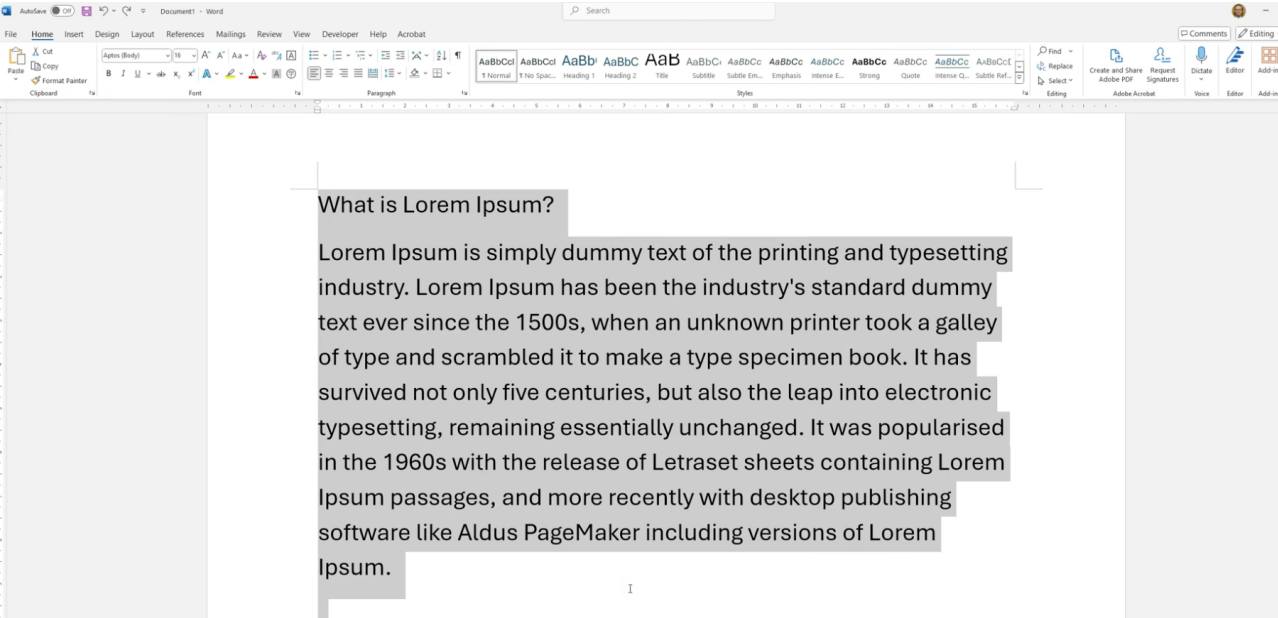
2. Press Ctrl + 2 on your keyboard.
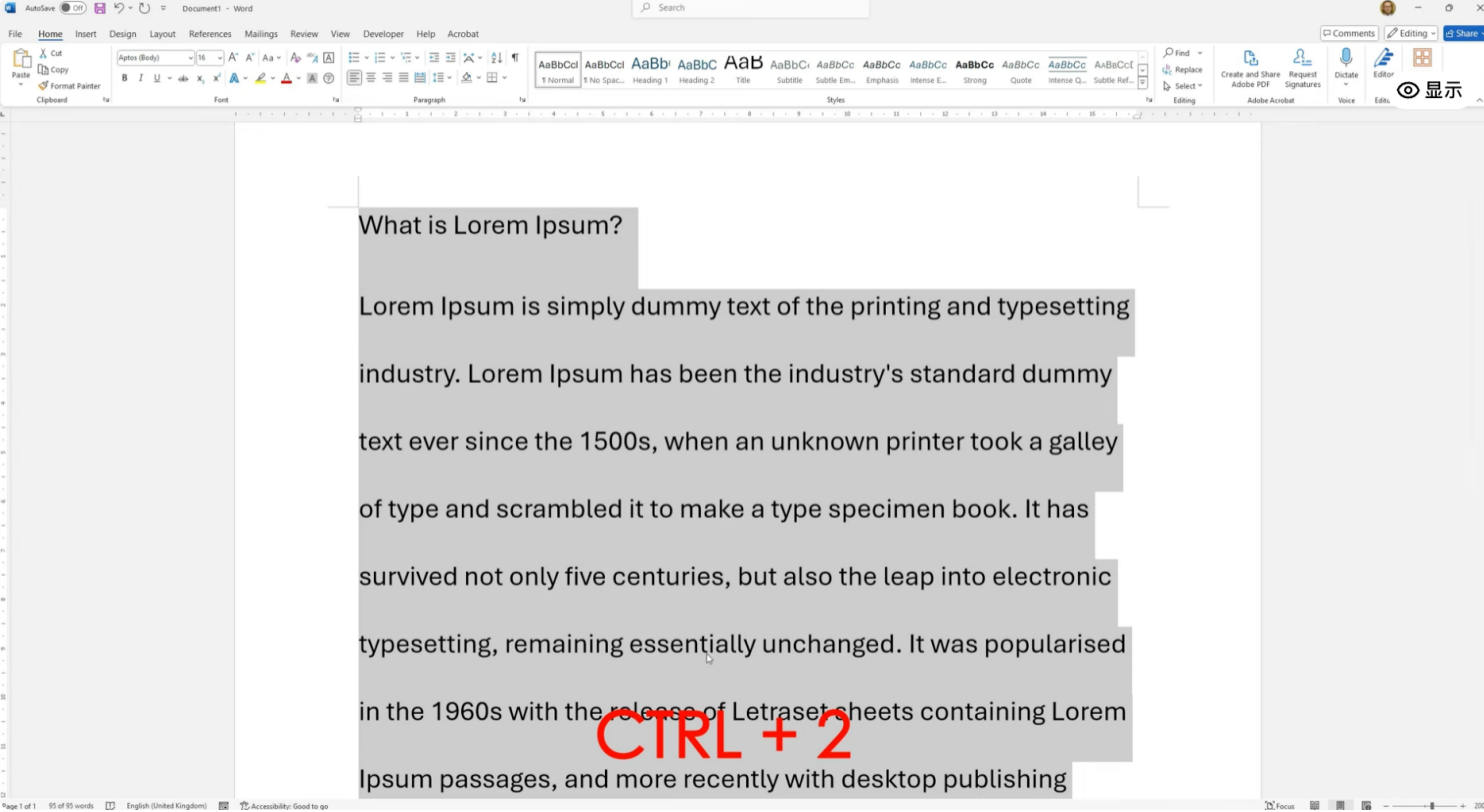
Word immediately changes the line spacing to 2.0.
Best for: Users who want the fastest solution without opening any menus.
Method 2: Use the Line and Paragraph Spacing Button
If you prefer using the toolbar, this method only takes a few clicks.
1. Select the text you want to format.
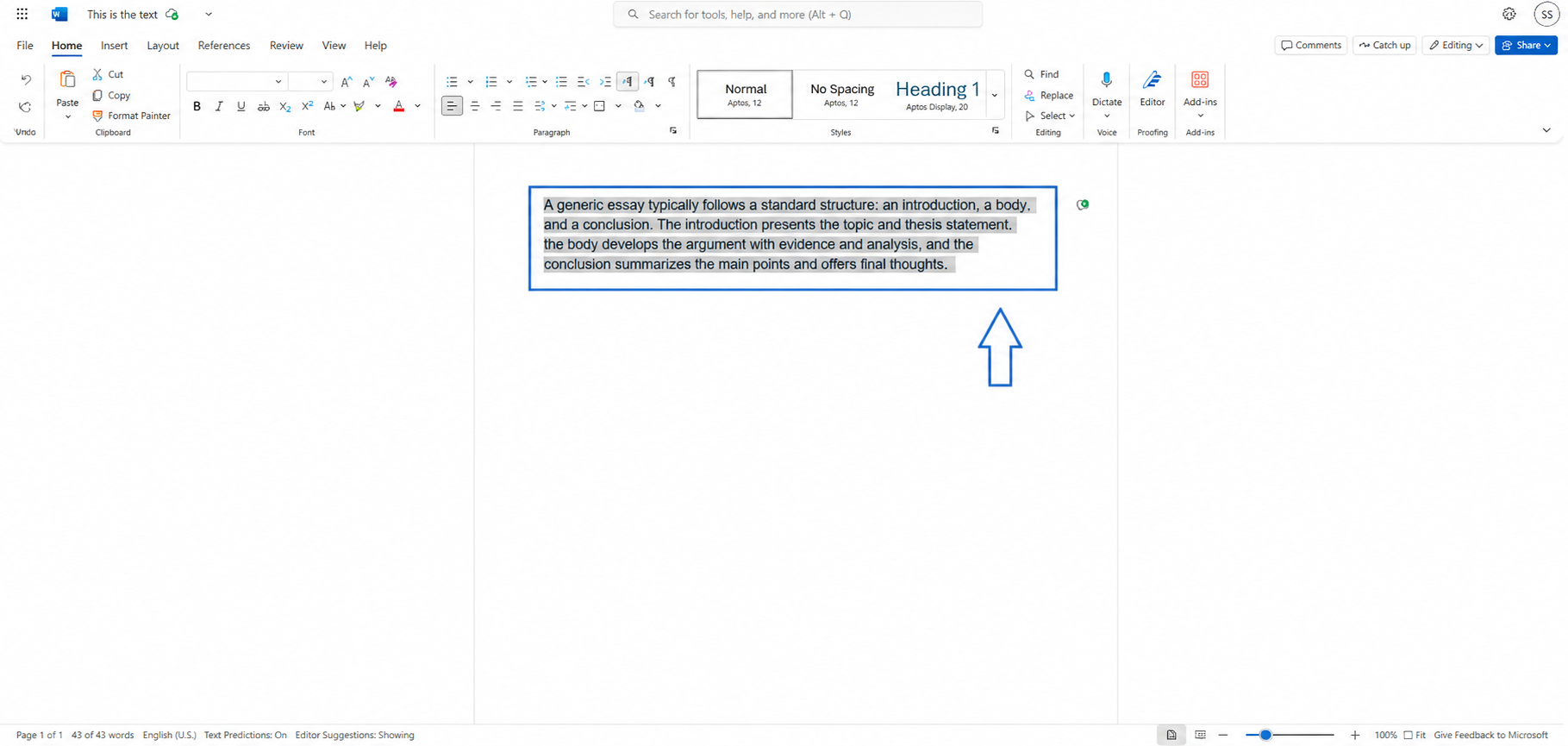
2. Go to the Home tab.
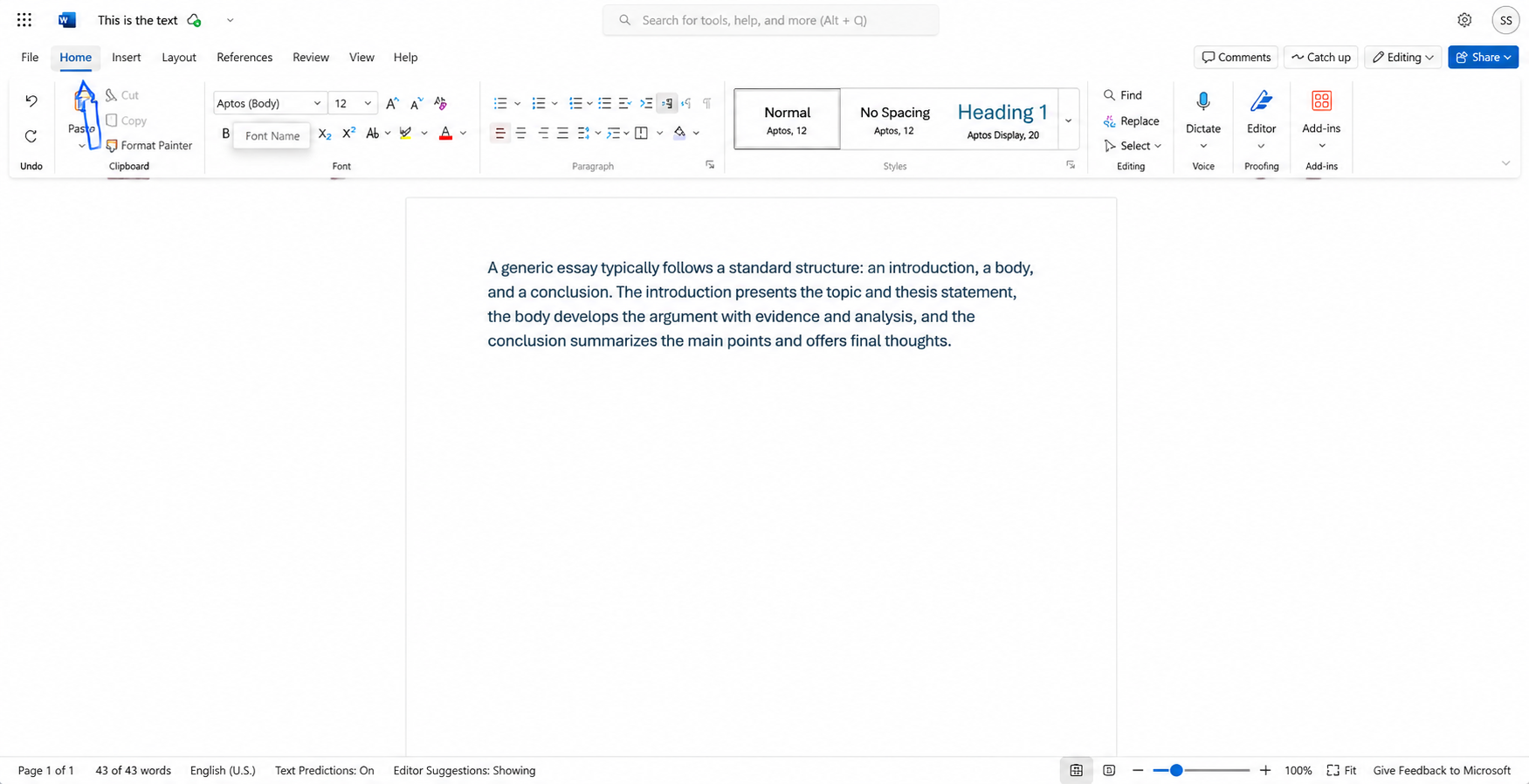
3. In the Paragraph group, click the drop-down menu for "Line Spacing" three horizontal lines with an up and down arrow on the right.
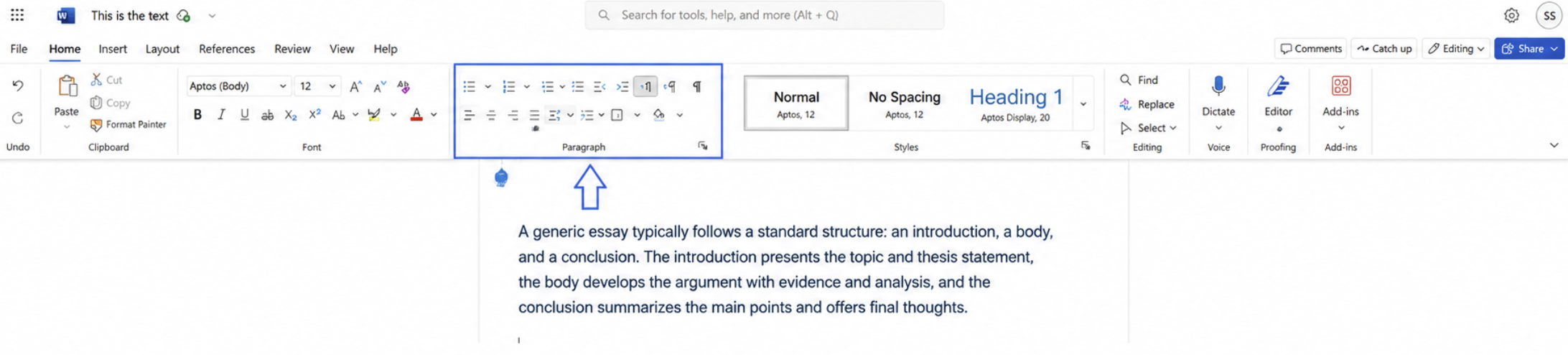
4. Select 2.0 from the drop-down menu.
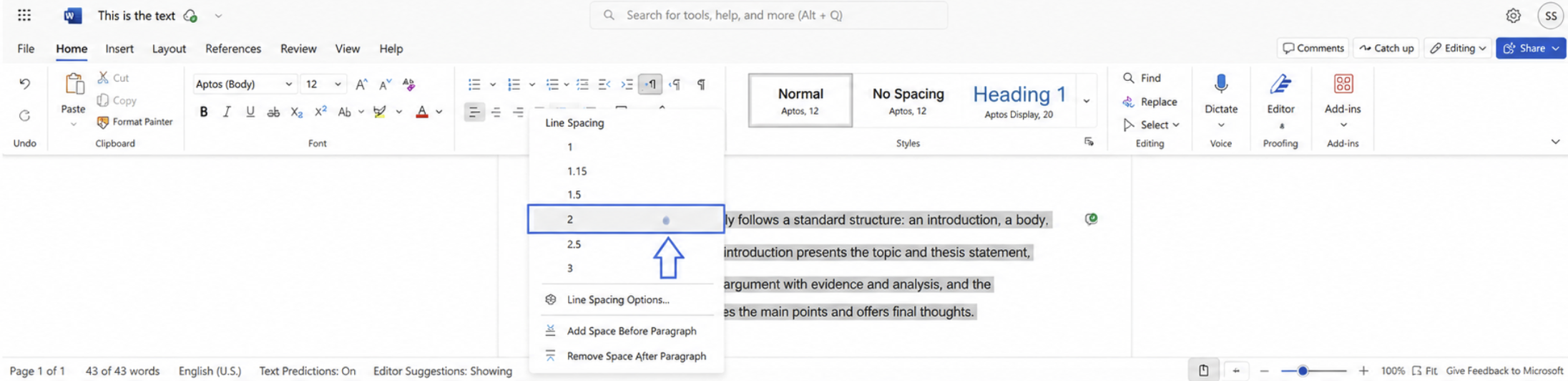
Word instantly applies double spacing to the selected text.
Best for: Beginners who prefer using the ribbon instead of keyboard shortcuts.
Tipps: If you’re new to computers, you can try an office suite fully compatible with Microsoft Office: WPS Office. Compared with Microsoft Office, it features simpler operations and is perfect for light office tasks—plus it’s completely free to use.
 4.8
4.8
Method 3: Change Line Spacing in Paragraph Settings
The Paragraph dialog gives you more control over spacing options.
1. Select the text you want to edit.
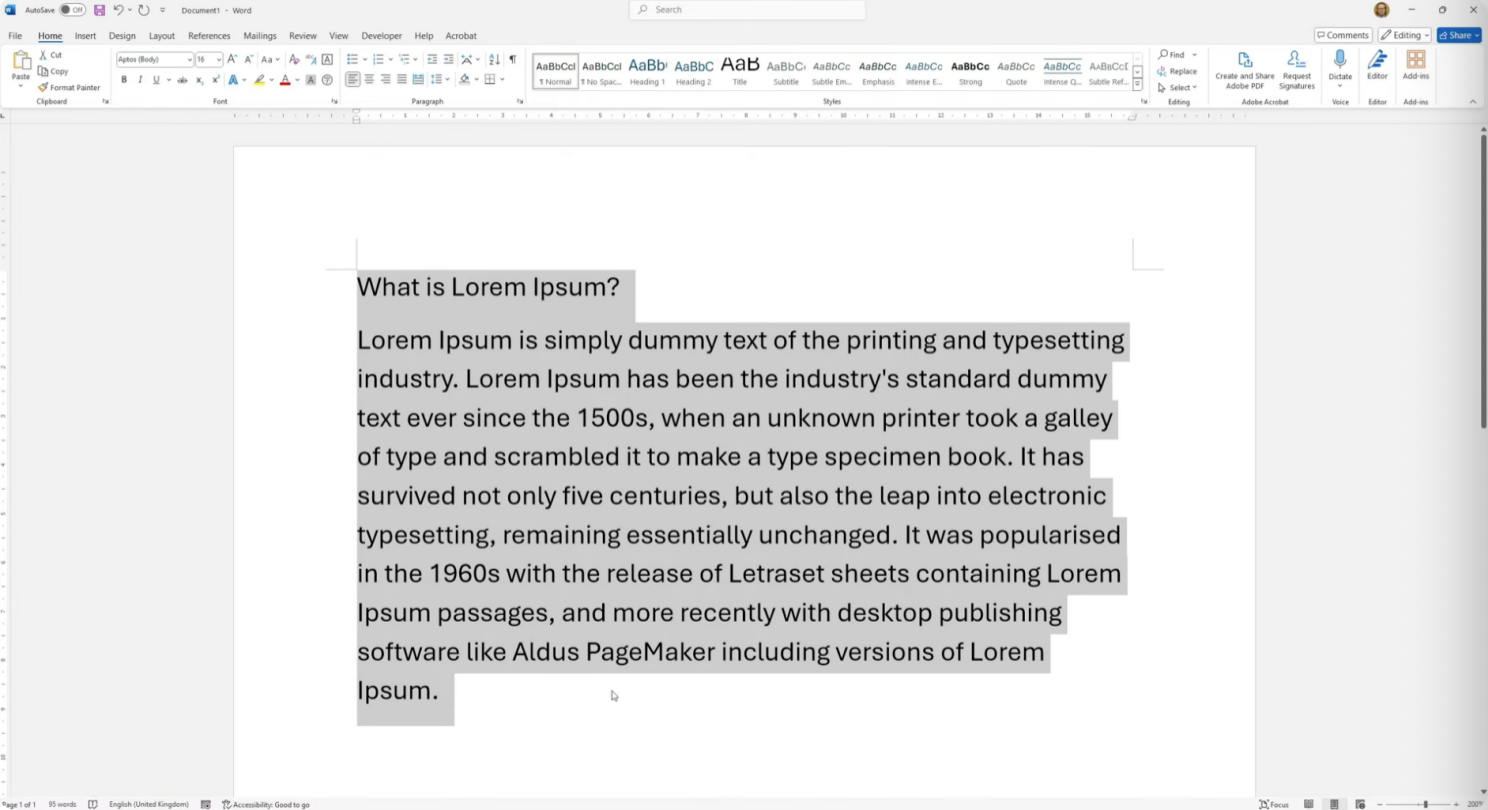
2. Open the Home tab.
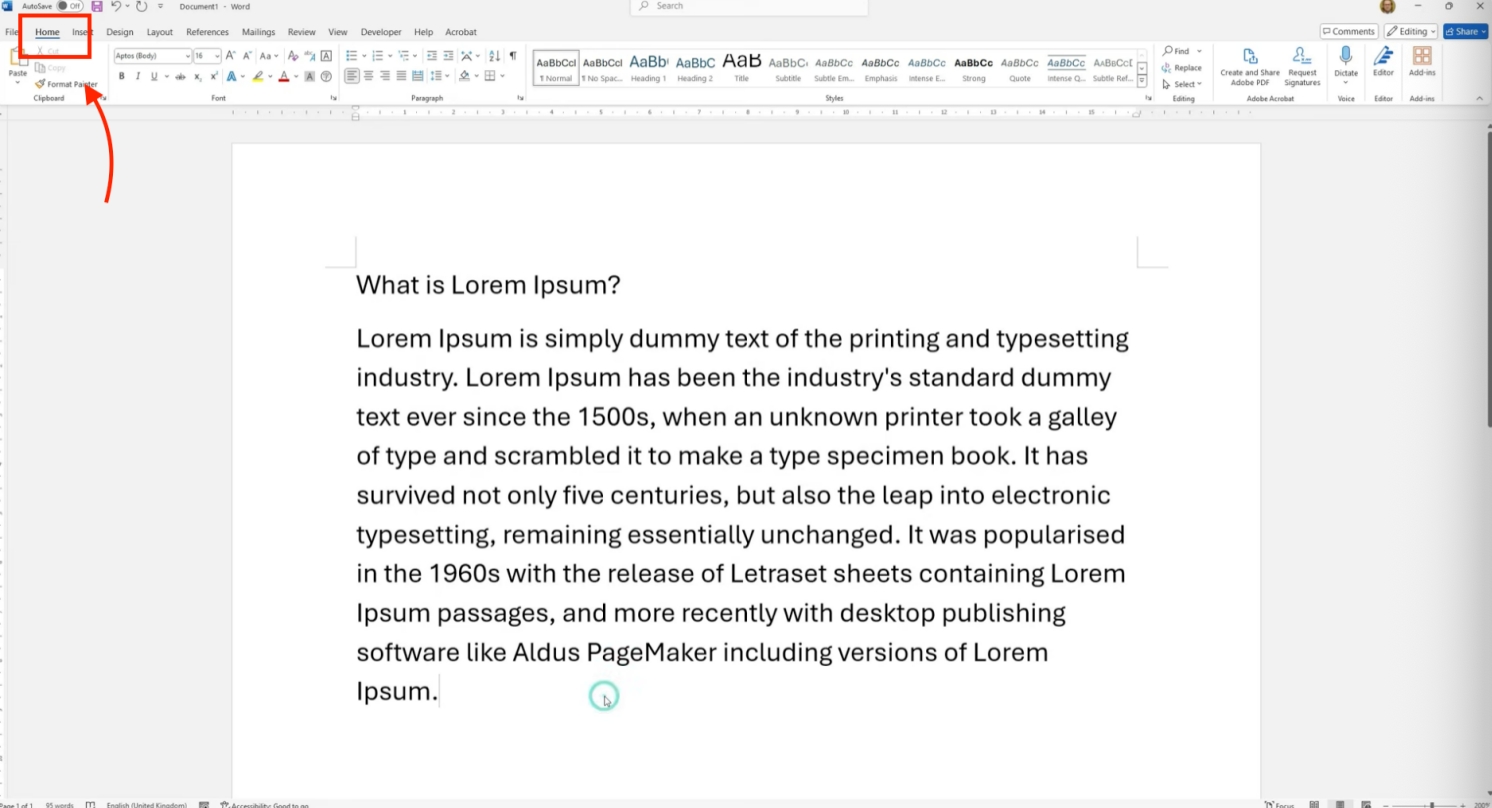
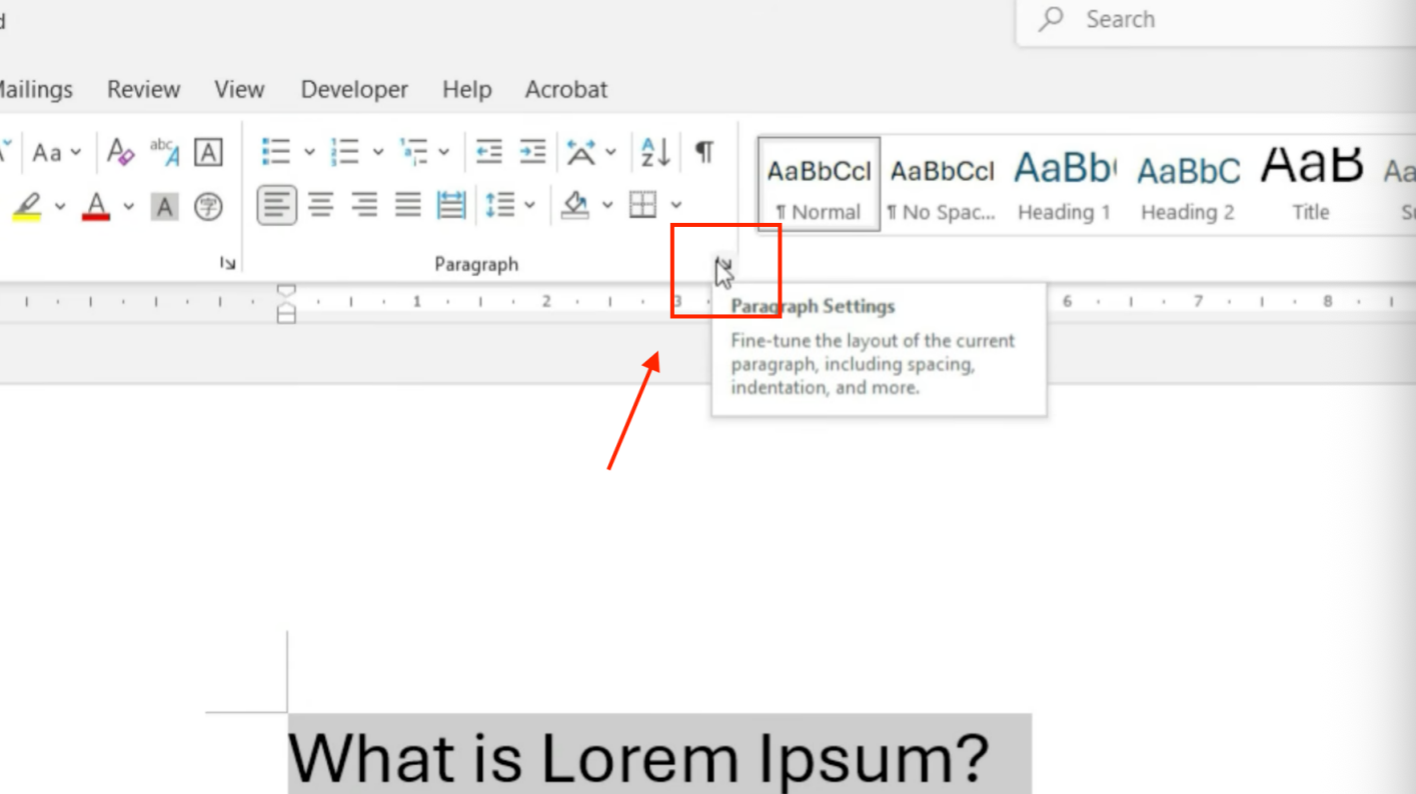
3. Click the small launcher icon“ Paragraph settings” in the lower-right corner of the Paragraph group.
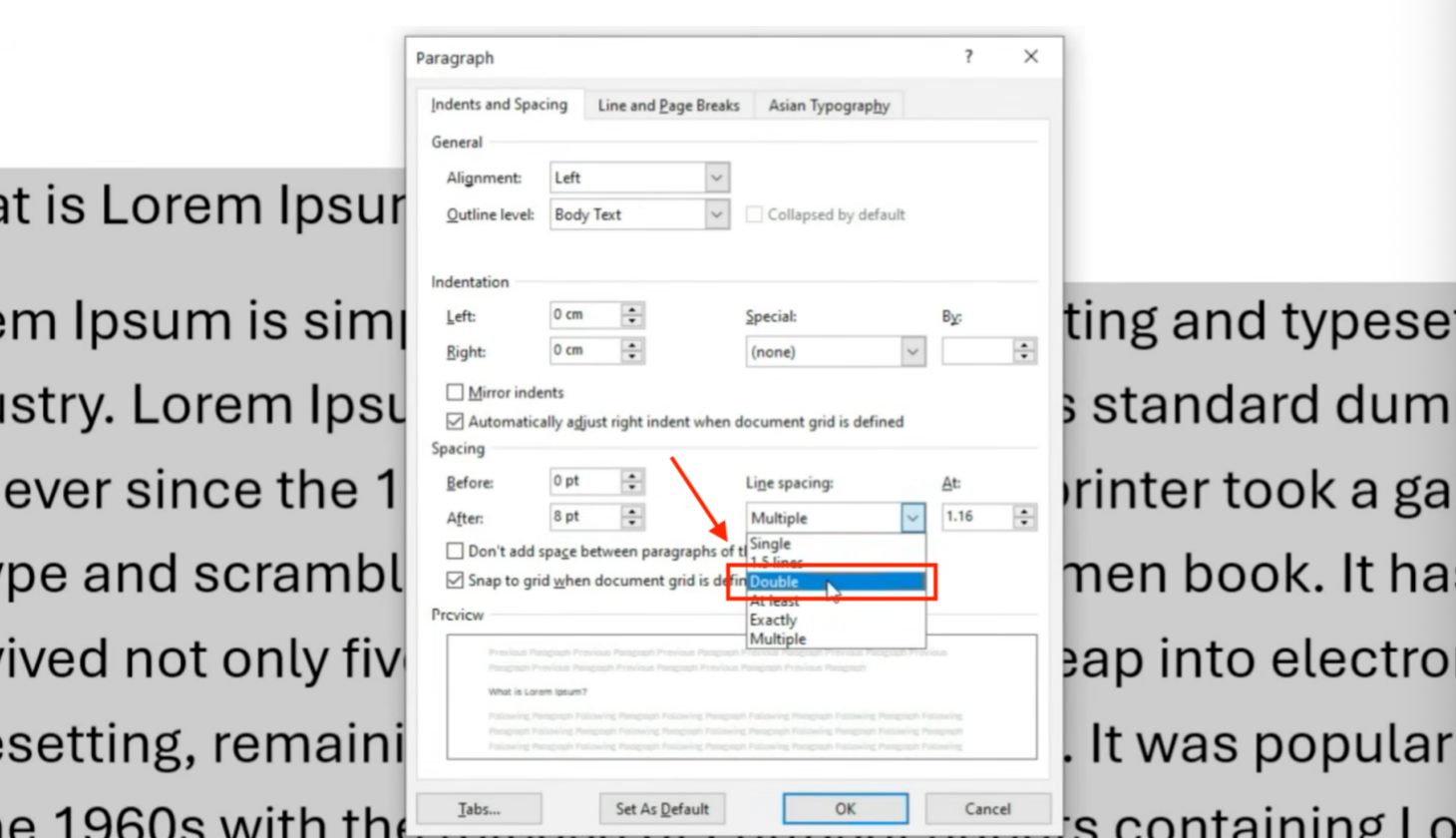
4. Under Line spacing, choose Double.
5. Click OK to save the changes.
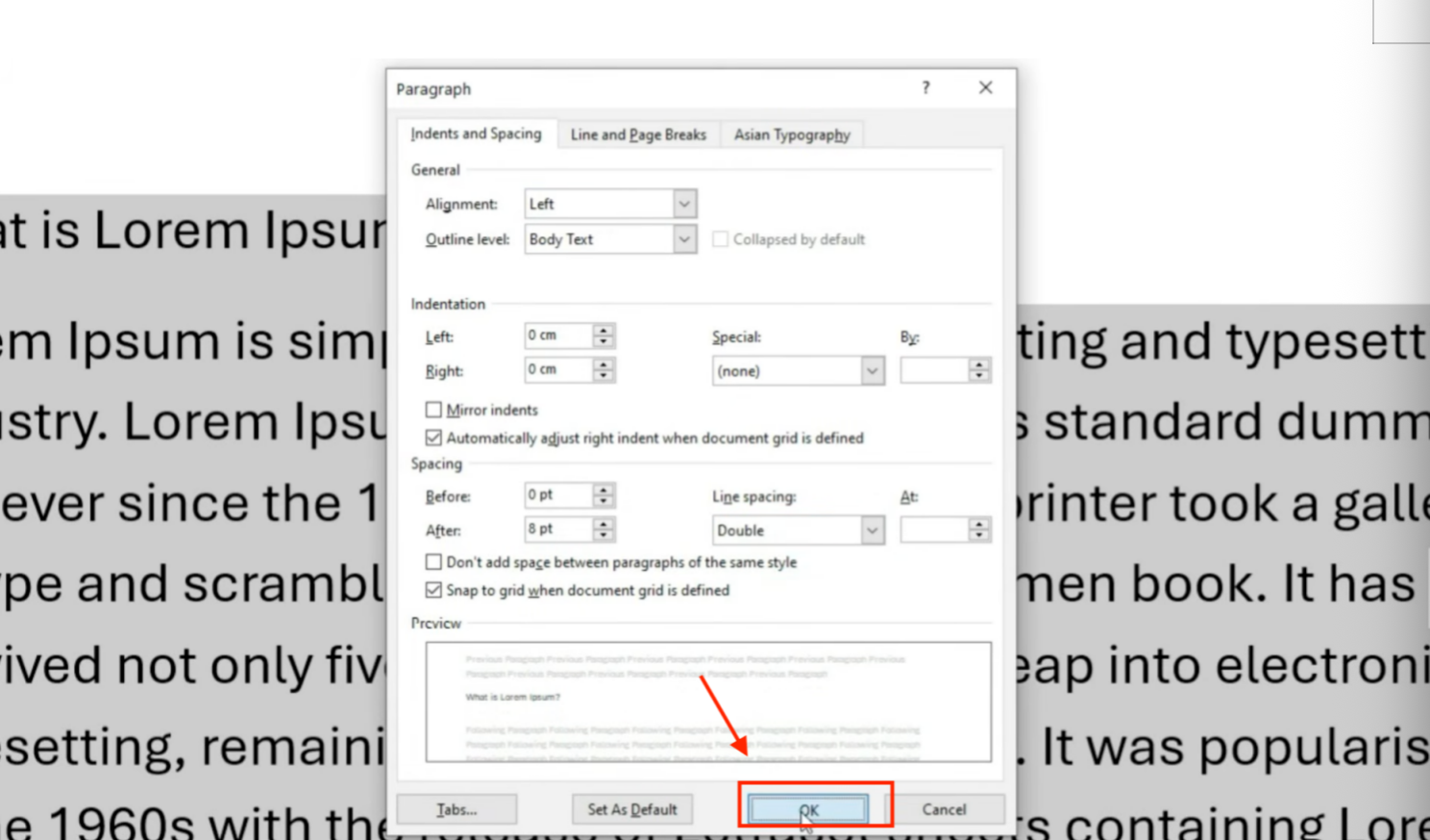
This method is useful when you also need to adjust spacing before or after paragraphs. You can also adjust the line spacing to a custom value in the Paragraph Settings.
Best for: Documents that require more precise formatting.
Method 4: Apply Double Spacing to the Entire Document
If you're starting a new document or want consistent formatting throughout, you can change the document's paragraph spacing.
1. Select the text you want to edit.
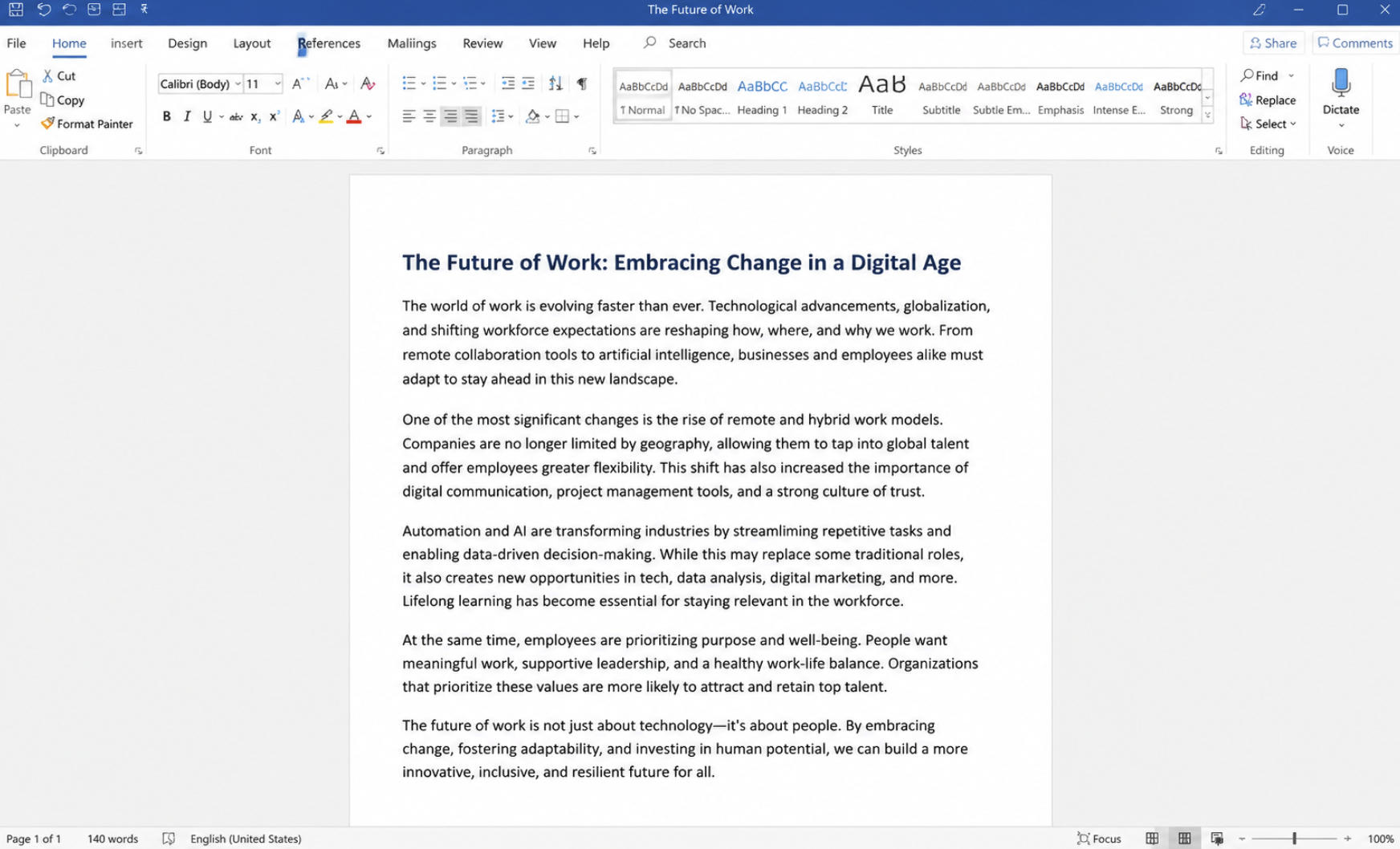
2. Go to the Design tab.
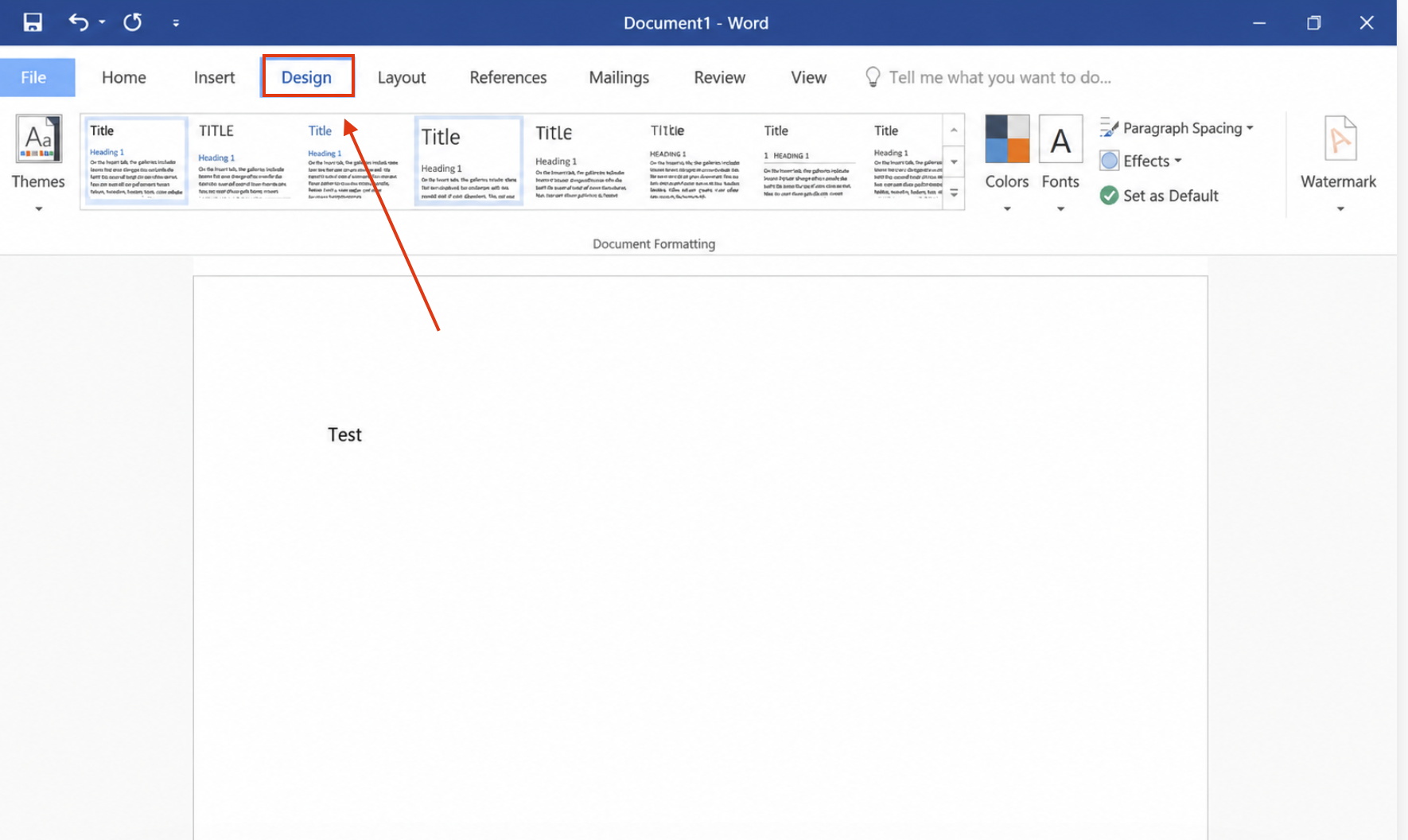
3. Click Paragraph Spacing and Choose Double.
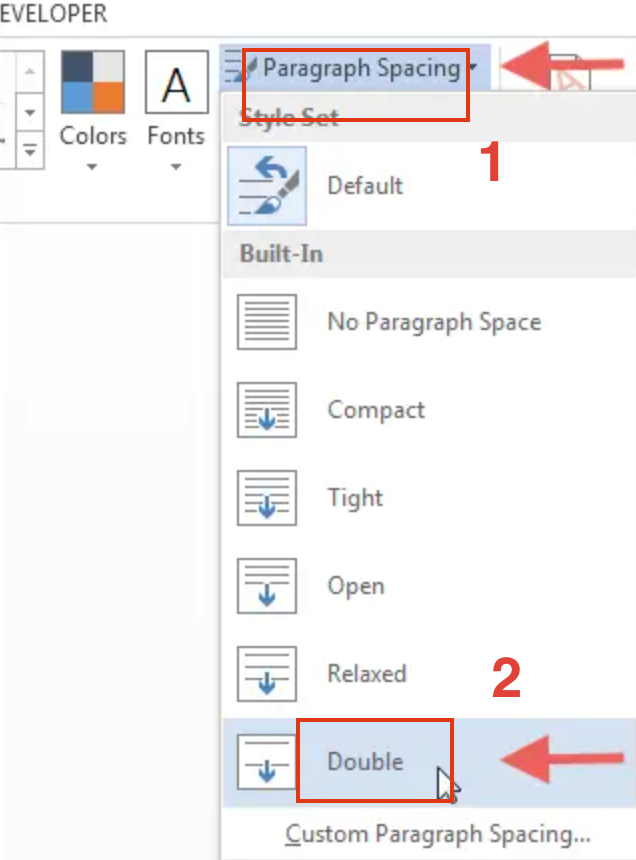
The setting is applied across the document, helping keep formatting consistent. When I was a student, this feature allowed me to quickly format my entire paper to APA style.
Best for: Long reports or documents that need the same spacing throughout.
Once you've set your document to double spacing, the next question is often whether it will meet your page requirement. If you're writing an essay, research paper, or report, you need to know the typical word count for a 10-page document and the formatting factors that can affect the final page length.
Besides Microsoft Office users, those using Google Docs can also adjust double line spacing directly via the toolbar.
After years of using MC Word, I eventually find WPS Office, and it quickly became my go-to tool for everyday formatting. The method of changing line spacing feels much simpler, yet it's fully compatible with Word documents, so I never have to worry about file formats. For light office work, essays, or reports, documents that once took me an hour to polish in Word now take just a few minutes in WPS. What I like most is the built-in AI—it can help with everything from academic paper formatting to business document layouts, saving me a lot of manual work.
However, after trying the methods above, you may also want a simpler alternative. Once I started using WPS Office, it quickly became my go-to tool, not just for spacing, but for all my writing and formatting needs. WPS Office lets you change line spacing in just a few clicks while remaining fully compatible with Microsoft Word documents. It’s completely free to download. If you regularly edit DOC or DOCX files, it's a lightweight option worth considering.


FAQ
How to double space in Word on Mac?
Select the text you want to format, or press Command (⌘) + A to select the entire document. Then go to the Home tab, click Line and Paragraph Spacing, and choose 2.0 (Double). If you need more control over paragraph formatting, open Line Spacing Options to adjust spacing before and after paragraphs.
How do I change line spacing in Word?
To change line spacing in Word, select your text, go to the Home tab, and click Line and Paragraph Spacing. You can choose a preset such as 1.0, 1.15, 1.5, or 2.0, or select Line Spacing Options to customize the spacing and paragraph settings.
How do I change character spacing in Word?
Character spacing controls the space between individual letters rather than the space between lines. Select the text, open the Font dialog box (Ctrl + D on Windows), switch to the Advanced tab, and choose Expanded or Condensed under Spacing. You can then adjust the amount of spacing before clicking OK to apply the changes.
Why isn't Ctrl + 2 working in Word?
Make sure your text is selected first. If the shortcut still doesn't work, your keyboard shortcuts may have been customized, or another application could be overriding the command.
Does double spacing change paragraph spacing?
No. Double spacing only increases the space between lines within a paragraph. Paragraph spacing before and after each paragraph is controlled separately.
'%3e%3cpath%20d='M19.9911%204.11386V6.471H18.5894C18.0775%206.471%2017.7322%206.57814%2017.5536%206.79243C17.3751%207.00671%2017.2858%207.32814%2017.2858%207.75671V9.44421H19.9019L19.5536%2012.0871H17.2858V18.8639H14.5536V12.0871H12.2769V9.44421H14.5536V7.49779C14.5536%206.39064%2014.8632%205.53201%2015.4822%204.92189C16.1013%204.31177%2016.9257%204.00671%2017.9554%204.00671C18.8304%204.00671%2019.509%204.04243%2019.9911%204.11386Z'%20fill='%23333333'/%3e%3c/g%3e%3cdefs%3e%3cclipPath%20id='clip0_2938_8199'%3e%3crect%20width='16'%20height='16'%20fill='white'%20transform='translate(8%204.00671)'/%3e%3c/clipPath%3e%3c/defs%3e%3c/svg%3e)
'%3e%3cpath%20d='M17.5237%2010.7813L23.4811%204H22.0699L16.8949%209.88693L12.7648%204H8L14.2469%2012.9029L8%2020.0133H9.4112L14.8725%2013.7952L19.2352%2020.0133H24M9.92053%205.04213H12.0885L22.0688%2019.0224H19.9003'%20fill='%23333333'/%3e%3c/g%3e%3cdefs%3e%3cclipPath%20id='clip0_2938_8200'%3e%3crect%20width='16'%20height='16.0134'%20fill='white'%20transform='translate(8%204)'/%3e%3c/clipPath%3e%3c/defs%3e%3c/svg%3e)


