

'%3e%3cpath%20d='M8%200C12.4183%200%2016%203.58172%2016%208C16%2012.4183%2012.4183%2016%208%2016C3.58172%2016%200%2012.4183%200%208C0%203.58172%203.58172%200%208%200ZM11.6162%204.38379C11.2257%203.99337%2010.5927%203.99338%2010.2021%204.38379L8%206.58594L5.79785%204.38379C5.40732%203.99334%204.77429%203.99329%204.38379%204.38379C3.99331%204.77429%203.99335%205.40733%204.38379%205.79785L6.58594%208L4.38379%2010.2021C3.99348%2010.5927%203.99341%2011.2257%204.38379%2011.6162C4.77426%2012.0066%205.40734%2012.0065%205.79785%2011.6162L8%209.41406L10.2021%2011.6162C10.5927%2012.0066%2011.2257%2012.0067%2011.6162%2011.6162C12.0067%2011.2257%2012.0066%2010.5927%2011.6162%2010.2021L9.41406%208L11.6162%205.79785C12.0066%205.40735%2012.0066%204.77429%2011.6162%204.38379Z'%20fill='%23080E17'%20fill-opacity='0.46'/%3e%3c/g%3e%3cdefs%3e%3cclipPath%20id='clip0_3761_713'%3e%3crect%20width='16'%20height='16'%20fill='white'/%3e%3c/clipPath%3e%3c/defs%3e%3c/svg%3e)




'%3e%3cpath%20fill-rule='evenodd'%20clip-rule='evenodd'%20d='M21.4999%2010.9993C21.4999%205.20009%2016.7986%200.498901%2010.9993%200.498901C5.19994%200.498901%200.498657%205.20009%200.498657%2010.9993C0.498657%2016.2404%204.33858%2020.5844%209.35855%2021.3722V14.0346H6.69238V10.9993H9.35855V8.68594C9.35855%206.05427%2010.9262%204.60062%2013.3248%204.60062C14.4736%204.60062%2015.6753%204.80571%2015.6753%204.80571V7.38979H14.3512C13.0468%207.38979%2012.64%208.19921%2012.64%209.0296V10.9993H15.5523L15.0867%2014.0346H12.64V21.3722C17.66%2020.5844%2021.4999%2016.2404%2021.4999%2010.9993Z'%20fill='%231568EA'/%3e%3c/g%3e%3c/svg%3e)


'%3e%3cpath%20d='M2.42045%2022.1876H6.31818V12.7217L0.75%208.54553V20.5171C0.75%2021.4414%201.49892%2022.1876%202.42045%2022.1876Z'%20fill='%234285F4'/%3e%3cpath%20d='M19.682%2022.1876H23.5797C24.5041%2022.1876%2025.2502%2021.4387%2025.2502%2020.5171V8.54553L19.682%2012.7217'%20fill='%2334A853'/%3e%3cpath%20d='M19.682%205.48293V12.7216L25.2502%208.54543V6.31816C25.2502%204.25236%2022.8921%203.07469%2021.2411%204.31361'%20fill='%23FBBC04'/%3e%3cpath%20d='M6.31824%2012.7217V5.48303L13.0001%2010.4944L19.6819%205.48303V12.7217L13.0001%2017.733'%20fill='%23EA4335'/%3e%3cpath%20d='M0.75%206.31816V8.54543L6.31818%2012.7216V5.48293L4.75909%204.31361C3.10534%203.07469%200.75%204.25236%200.75%206.31816Z'%20fill='%23C5221F'/%3e%3c/g%3e%3cdefs%3e%3cclipPath%20id='clip0_2954_7305'%3e%3crect%20width='24.5'%20height='18.375'%20fill='white'%20transform='translate(0.75%203.8125)'/%3e%3c/clipPath%3e%3c/defs%3e%3c/svg%3e)



Microsoft does not ship a native Microsoft Word desktop app for Linux. You will not find a supported .deb or .rpm Word installer on Microsoft's site.
What most people mean by "get Microsoft Word for Linux" is one of these jobs: open and edit .docx files that Word users send, use Microsoft's own Word interface in a browser, or run the real Windows Word binary when a license already exists. This guide covers each path so you can pick by offline needs, cost, and compatibility.
Ways to use Word files on Linux
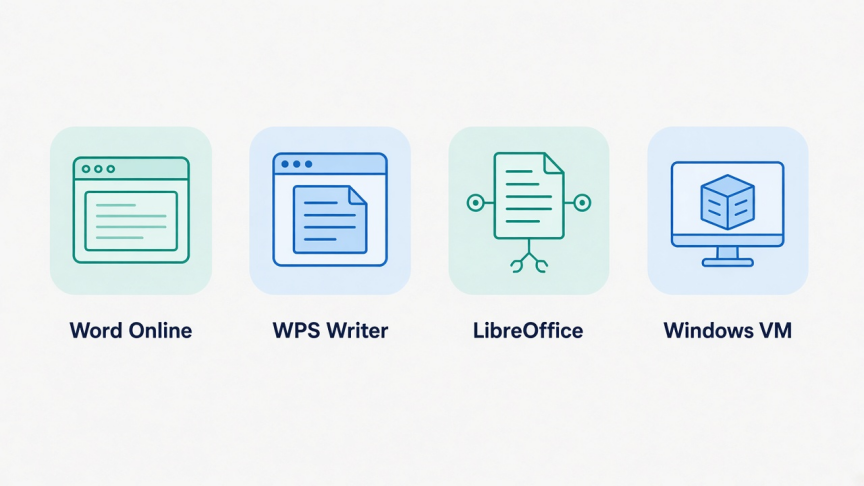
Start with the outcome you need, not with the Windows installer.
| Option | Best for | Offline | Cost note |
|---|---|---|---|
| Microsoft Word for the web | Official Microsoft Word UI in a browser | No | Free Microsoft account; fewer features than desktop Word |
| WPS Writer | Native Linux editing of DOCX and DOC | Yes | Free desktop suite for Linux; no Windows license needed |
| LibreOffice Writer | Open-source preference and distro packages | Yes | Free; complex Word layouts may need a fidelity check |
| Wine / Bottles / PlayOnLinux | Older Windows Office installs for tinkerers | Yes | Office license still required; modern Microsoft 365 is unreliable |
| Windows virtual machine | Full desktop Word with the highest compatibility | Yes | Needs a Windows license plus Microsoft 365 or Office license |
For everyday free document work on Linux, start with Word Online or a native suite such as WPS Writer. Use a VM only when you truly need desktop Word features that web Word and Linux suites cannot replace.
Can you install Microsoft Word on Linux?
There is no official native Microsoft Word app for Linux. Microsoft supports Word on Windows, macOS, mobile, and the web. Linux is not listed as a desktop Word platform.
So "install Word on Linux" usually means:
Use Word for the web in Chrome, Edge, or Firefox
Open .docx files in another Linux word processor
Run Windows Word inside a virtual machine (or, less reliably, through Wine)
The first two paths cover most school, work, and personal documents. A VM is the realistic path for macros, special add-ins, or strict desktop Word fidelity. Wine-based installs of current Microsoft 365 desktop apps often fail or break after updates.
Use Microsoft Word Online on Linux
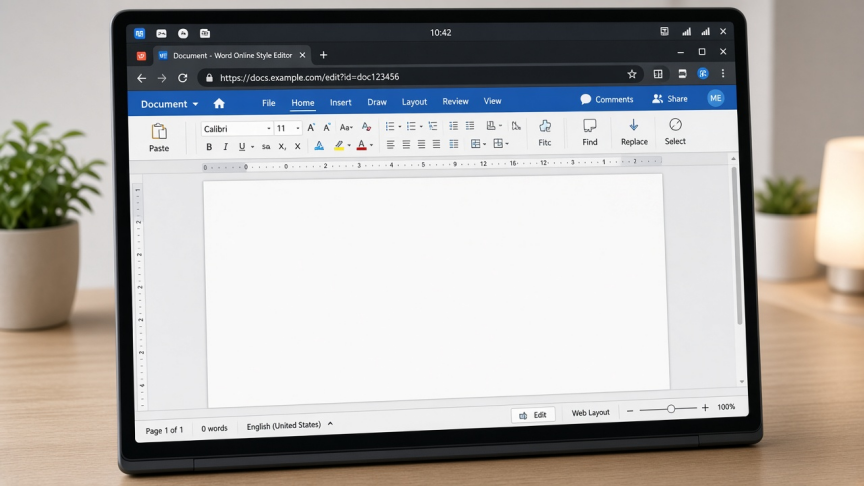
Word for the web is the simplest way to use Microsoft's own Word interface on Linux. You do not install Windows software.
Step 1. Connect to the internet. Word Online needs a stable connection.
Step 2. Open Chrome, Microsoft Edge, Firefox, or another current browser.
Step 3. Go to office.com or Microsoft 365 and sign in with a Microsoft account. Create a free account if you do not have one.
Step 4. Open Word from the app launcher.
Step 5. Create a blank document, open a file from OneDrive, or upload a .docx from your Linux Downloads folder.
Pros
Works on any Linux distro with a modern browser
No Wine, VM, or desktop installer
Real-time collaboration and OneDrive saves
Free for basic use with a Microsoft account
Cons
Requires internet access
Missing some desktop Word features, including many macro workflows
Free OneDrive storage is limited
Local files are less convenient than in a native desktop app
Choose Word Online when collaboration and Microsoft's web Word UI matter more than offline local files.
Edit Word documents offline with WPS Writer
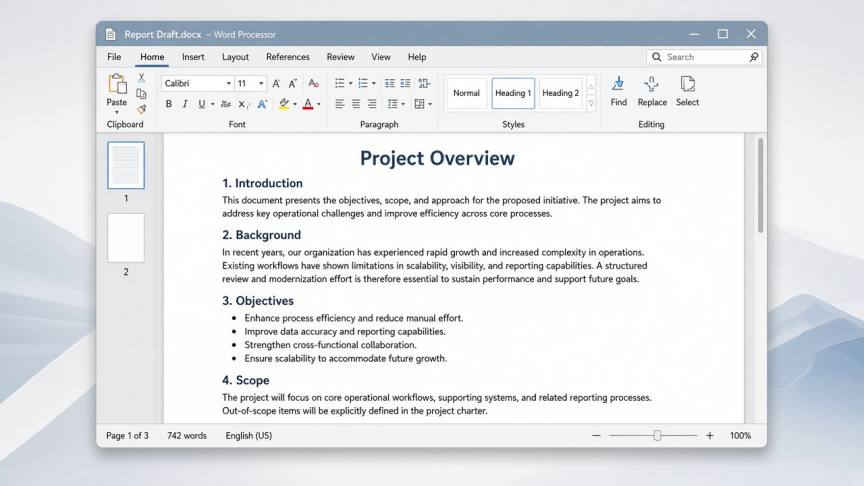 WPS Writer is part of the free WPS Office Linux suite
If you want a desktop word processor on Linux without a Microsoft 365 subscription, WPS Office for Linux includes WPS Writer. You can open and save common Word formats, keep files on your machine, and share .docx files with Windows and Mac teammates.
Why WPS Writer fits Linux users
Opens and saves DOCX and DOC for everyday sharing with Word users
Familiar ribbon-style layout for writing, formatting, and review
Runs as a native Linux desktop app, so offline editing is available
Includes Spreadsheet, Presentation, and PDF tools in the same suite
Does not require Wine or a Windows license for normal document work
LibreOffice Writer is a better fit if an open-source license is non-negotiable. Word Online is better if browser-only collaboration is the priority. WPS Writer is a practical middle path when you want a Microsoft-like desktop editor and Microsoft-format files on Linux.
Download and install WPS Office on Linux
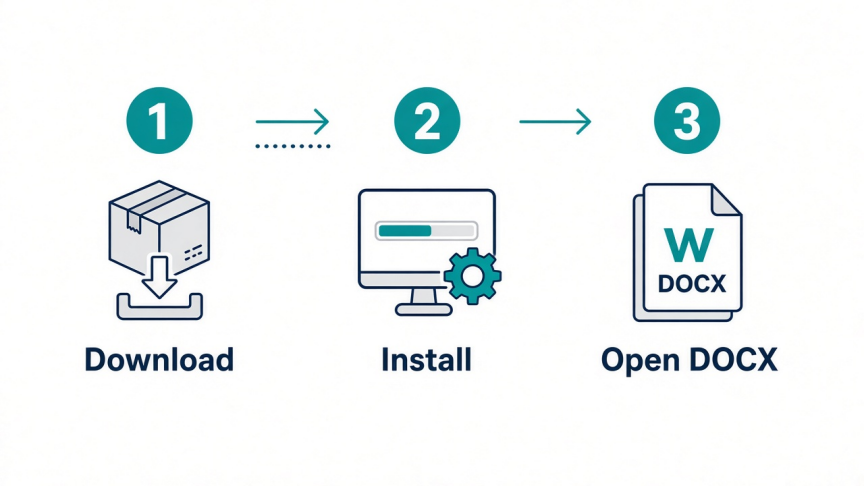 Download the Deb or Rpm package, install it, then open DOCX in Writer
Step 1. Open the official WPS Office for Linux page.
Step 2. Download the Deb package for Ubuntu, Debian, Linux Mint, and similar systems, or the Rpm package for Fedora and related distributions.
Step 3. Save the file (usually in ~/Downloads) and note the exact filename. Version numbers change over time.
Step 4. Install the local package. On Ubuntu, you can right-click the .deb and open it with Software Install, or install from a terminal with
sudo apt install ./exact-file-name.deb.Step 5. Enter your administrator password when prompted, then wait for the install to finish.
For a fuller install walkthrough, see how to install WPS Office on Linux. If the graphical installer stalls, use the terminal install guide.
Open, edit, and save DOCX files
Step 1. Open WPS Writer from your application menu, or launch WPS Office and choose Writer.
Step 2. Create a blank document, or open an existing .docx / .doc file from your Linux folders.
Step 3. Edit text, styles, tables, and images the same way you would in a typical desktop word processor.
Step 4. Save as DOCX when you need to share with Microsoft Word users. Use Save As if you also need PDF or another format.
Test any document that uses complex tracked changes, nested fields, or heavy SmartArt before you treat the file as final. Simple reports, letters, resumes, and school papers usually transfer cleanly.
LibreOffice Writer for open-source users
LibreOffice Writer is a strong choice if open-source software is your priority. It is free, available in most distribution repositories, and opens many Word files without a Microsoft account.
Install it from your distro's software center or package manager, then open DOCX files in Writer. For highly formatted Word documents, open the file, check styles and pagination, and save a copy before you overwrite the original.
Choose LibreOffice when package-manager installs and an open-source license matter more than matching Word's interface. Choose WPS Writer when you prefer a Microsoft-like desktop layout and want Spreadsheet, Presentation, and PDF tools in one Linux install.
Wine or a Windows VM for licensed desktop Word
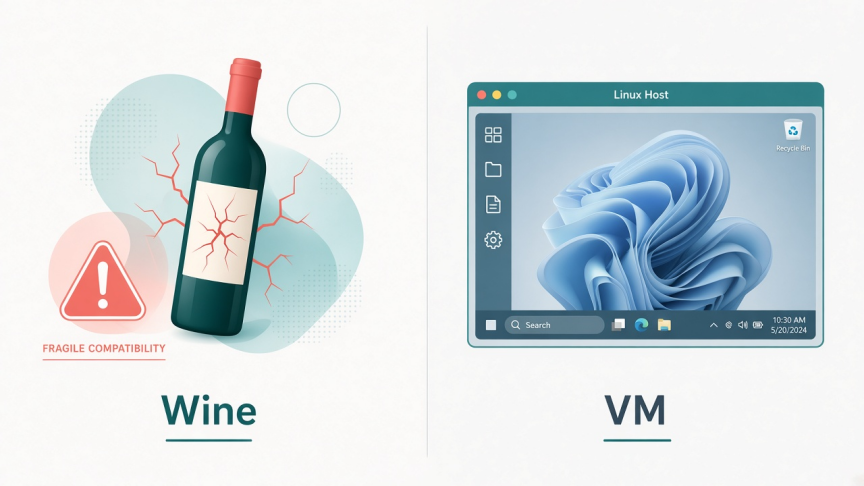 Wine can run some older Windows Office builds; a VM runs full desktop Word more reliably
Wine (and front ends such as Bottles or PlayOnLinux) translates Windows API calls so some Windows apps can run on Linux. A virtual machine runs a full Windows system inside Linux with tools such as VirtualBox, VMware, or Boxes.
These methods can run desktop Word when you already own a Windows Word or Microsoft 365 license. They are not a free Word license. They also need more disk space, more setup time, and occasional fixes after Office or Wine updates.
Important for 2026: older Office installers may still run under Wine with effort. Current Microsoft 365 desktop apps are widely reported as unreliable or unsupported on Wine. Do not treat PlayOnLinux plus an old Office 2013 ISO as a modern "genuine easy" default. Prefer a Windows VM when you need real desktop Word.
Use a VM when compatibility must be exact (complex macros, special add-ins, enterprise templates). Use Wine only if you are comfortable troubleshooting Windows installers on Linux. For most free document work, Word Online or a native Linux suite is simpler.
FAQ
Is Microsoft Word free on Linux? Word for the web is free for basic use with a Microsoft account. The full desktop Word app is not a free native Linux product. Desktop Word through Wine or a VM still needs a valid Microsoft license.
Is there a Microsoft Word .deb or .rpm for Ubuntu or Fedora? No. Microsoft does not publish an official Word package for Linux distributions. Use Word Online, a Linux office suite, or Windows inside a VM.
Can I open and edit .docx files on Linux without Microsoft Word? Yes. Use WPS Writer, LibreOffice Writer, ONLYOFFICE, or another DOCX-capable editor. Save as DOCX when sharing with Word users, and spot-check formatting on complex files.
Does PlayOnLinux install Microsoft Office on Linux easily? Sometimes for older Office versions, and often not for current Microsoft 365. Treat Wine-based Office installs as experimental. A Windows VM is the more dependable path for licensed desktop Word.
Can I collaborate with Windows or Mac Word users from Linux? Yes. Share DOCX files through OneDrive, Google Drive, email, or shared folders. Word Online supports real-time co-authoring in the browser. Desktop suites on Linux can exchange DOCX files; confirm formatting after round-trips on complex documents.
What is the easiest free option for Ubuntu? For quick Microsoft Word access, use Word Online in your browser. For offline local files on Ubuntu, install WPS Office for Linux (Deb package) or LibreOffice from Ubuntu's repositories.
Does WPS Writer work without the internet? Yes. After you install the Linux desktop app, you can open, edit, and save Word files offline. Cloud features still need a connection when you choose to use them.
Conclusion
You cannot install an official native Microsoft Word package on Linux, but you can still do Word work every day.
Use Word Online when you want Microsoft's web interface and cloud collaboration. Use WPS Writer when you need offline DOCX editing on the Linux desktop. Use LibreOffice Writer when open-source packaging is the deciding factor. Reserve Wine for experiments, and use a Windows VM for licensed desktop Word cases that truly need it.
The trade-off that matters most is offline local files versus Microsoft's own Word UI. Decide that first, then install only the path you will actually use.
Ready to edit Word documents on Linux without a Windows install? Download WPS Office for Linux and open your next DOCX in Writer.

'%3e%3cpath%20d='M19.9911%204.11386V6.471H18.5894C18.0775%206.471%2017.7322%206.57814%2017.5536%206.79243C17.3751%207.00671%2017.2858%207.32814%2017.2858%207.75671V9.44421H19.9019L19.5536%2012.0871H17.2858V18.8639H14.5536V12.0871H12.2769V9.44421H14.5536V7.49779C14.5536%206.39064%2014.8632%205.53201%2015.4822%204.92189C16.1013%204.31177%2016.9257%204.00671%2017.9554%204.00671C18.8304%204.00671%2019.509%204.04243%2019.9911%204.11386Z'%20fill='%23333333'/%3e%3c/g%3e%3cdefs%3e%3cclipPath%20id='clip0_2938_8199'%3e%3crect%20width='16'%20height='16'%20fill='white'%20transform='translate(8%204.00671)'/%3e%3c/clipPath%3e%3c/defs%3e%3c/svg%3e)
'%3e%3cpath%20d='M17.5237%2010.7813L23.4811%204H22.0699L16.8949%209.88693L12.7648%204H8L14.2469%2012.9029L8%2020.0133H9.4112L14.8725%2013.7952L19.2352%2020.0133H24M9.92053%205.04213H12.0885L22.0688%2019.0224H19.9003'%20fill='%23333333'/%3e%3c/g%3e%3cdefs%3e%3cclipPath%20id='clip0_2938_8200'%3e%3crect%20width='16'%20height='16.0134'%20fill='white'%20transform='translate(8%204)'/%3e%3c/clipPath%3e%3c/defs%3e%3c/svg%3e)


