



'%3e%3cpath%20fill-rule='evenodd'%20clip-rule='evenodd'%20d='M21.4999%2010.9993C21.4999%205.20009%2016.7986%200.498901%2010.9993%200.498901C5.19994%200.498901%200.498657%205.20009%200.498657%2010.9993C0.498657%2016.2404%204.33858%2020.5844%209.35855%2021.3722V14.0346H6.69238V10.9993H9.35855V8.68594C9.35855%206.05427%2010.9262%204.60062%2013.3248%204.60062C14.4736%204.60062%2015.6753%204.80571%2015.6753%204.80571V7.38979H14.3512C13.0468%207.38979%2012.64%208.19921%2012.64%209.0296V10.9993H15.5523L15.0867%2014.0346H12.64V21.3722C17.66%2020.5844%2021.4999%2016.2404%2021.4999%2010.9993Z'%20fill='%231568EA'/%3e%3c/g%3e%3c/svg%3e)


'%3e%3cpath%20d='M2.42045%2022.1876H6.31818V12.7217L0.75%208.54553V20.5171C0.75%2021.4414%201.49892%2022.1876%202.42045%2022.1876Z'%20fill='%234285F4'/%3e%3cpath%20d='M19.682%2022.1876H23.5797C24.5041%2022.1876%2025.2502%2021.4387%2025.2502%2020.5171V8.54553L19.682%2012.7217'%20fill='%2334A853'/%3e%3cpath%20d='M19.682%205.48293V12.7216L25.2502%208.54543V6.31816C25.2502%204.25236%2022.8921%203.07469%2021.2411%204.31361'%20fill='%23FBBC04'/%3e%3cpath%20d='M6.31824%2012.7217V5.48303L13.0001%2010.4944L19.6819%205.48303V12.7217L13.0001%2017.733'%20fill='%23EA4335'/%3e%3cpath%20d='M0.75%206.31816V8.54543L6.31818%2012.7216V5.48293L4.75909%204.31361C3.10534%203.07469%200.75%204.25236%200.75%206.31816Z'%20fill='%23C5221F'/%3e%3c/g%3e%3cdefs%3e%3cclipPath%20id='clip0_2954_7305'%3e%3crect%20width='24.5'%20height='18.375'%20fill='white'%20transform='translate(0.75%203.8125)'/%3e%3c/clipPath%3e%3c/defs%3e%3c/svg%3e)


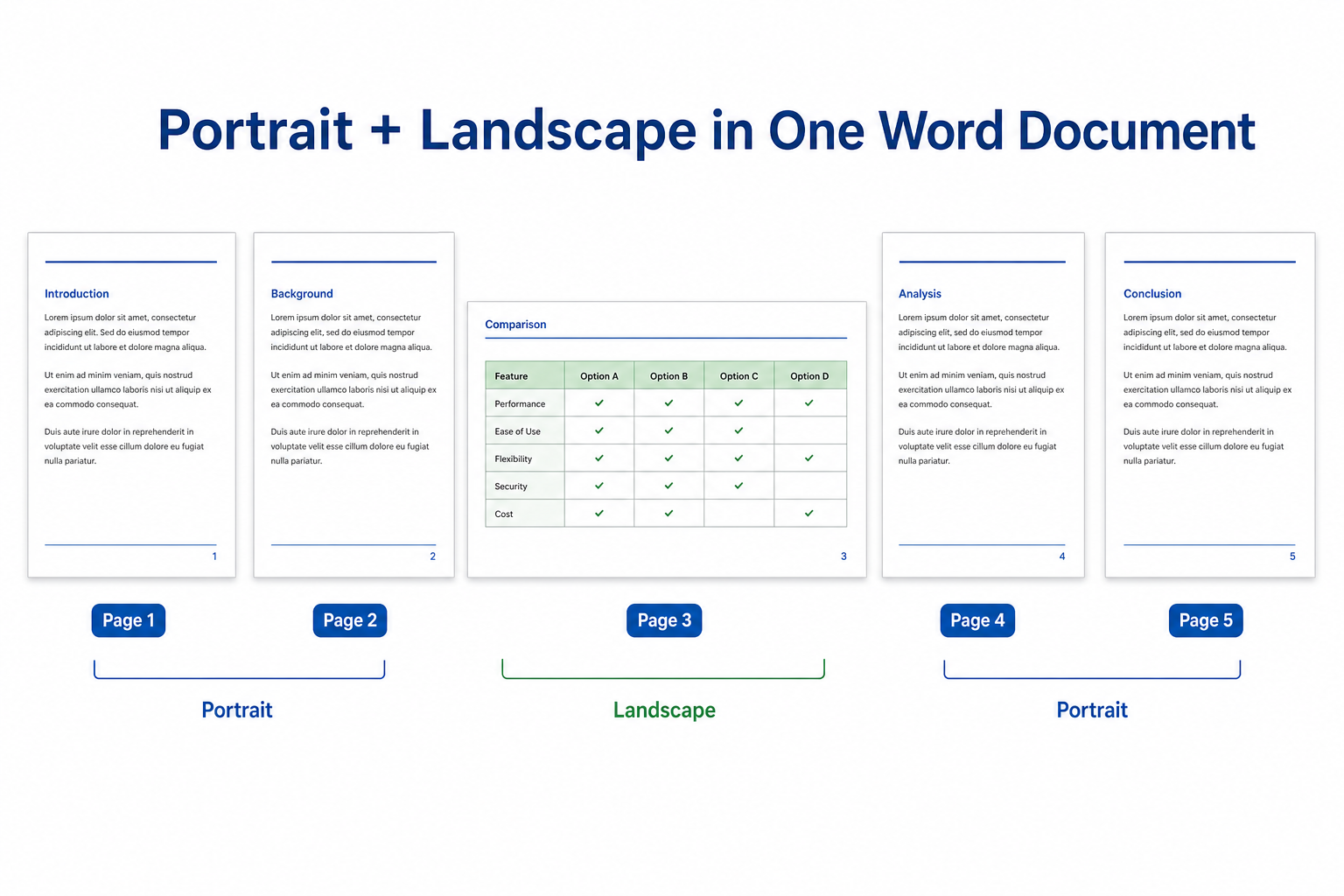
Think a Word file has to be all portrait or all landscape? It does not. You can mix portrait (vertical) and landscape (horizontal) pages in the same document — a must-have trick for reports, school papers, and business files where body text stays vertical but wide tables and charts need more horizontal room.
Quick answer: Use a section break to split your document into parts, then set each part’s orientation under Layout → Orientation. For a fast fix, select your content and choose Page Setup → Landscape → Apply to: Selected text.
Why Section Breaks Are the Key
Word cannot put portrait on one page and landscape on the next unless those pages sit in different sections. Click Layout → Orientation with no section break in place, and Word usually rotates the entire file.
Section breaks let each block of pages have its own orientation, margins, headers, and footers — without touching the rest of your document.
| Orientation | Layout | Best For |
|---|---|---|
| Portrait | Taller than wide | Body text, cover pages, conclusions |
| Landscape | Wider than tall | Wide tables, charts, diagrams, timelines |
Before You Start
Save your file before changing layout settings
Use View → Print Layout to preview page direction accurately
Turn on Home → Show/Hide ¶ so section breaks are visible
Know which page(s) need landscape before you insert breaks
Method 1: Selected Text (Fastest for One Page)
Best for beginners. Word inserts the section breaks for you — ideal when you want one or a few continuous pages in landscape while everything else stays portrait.
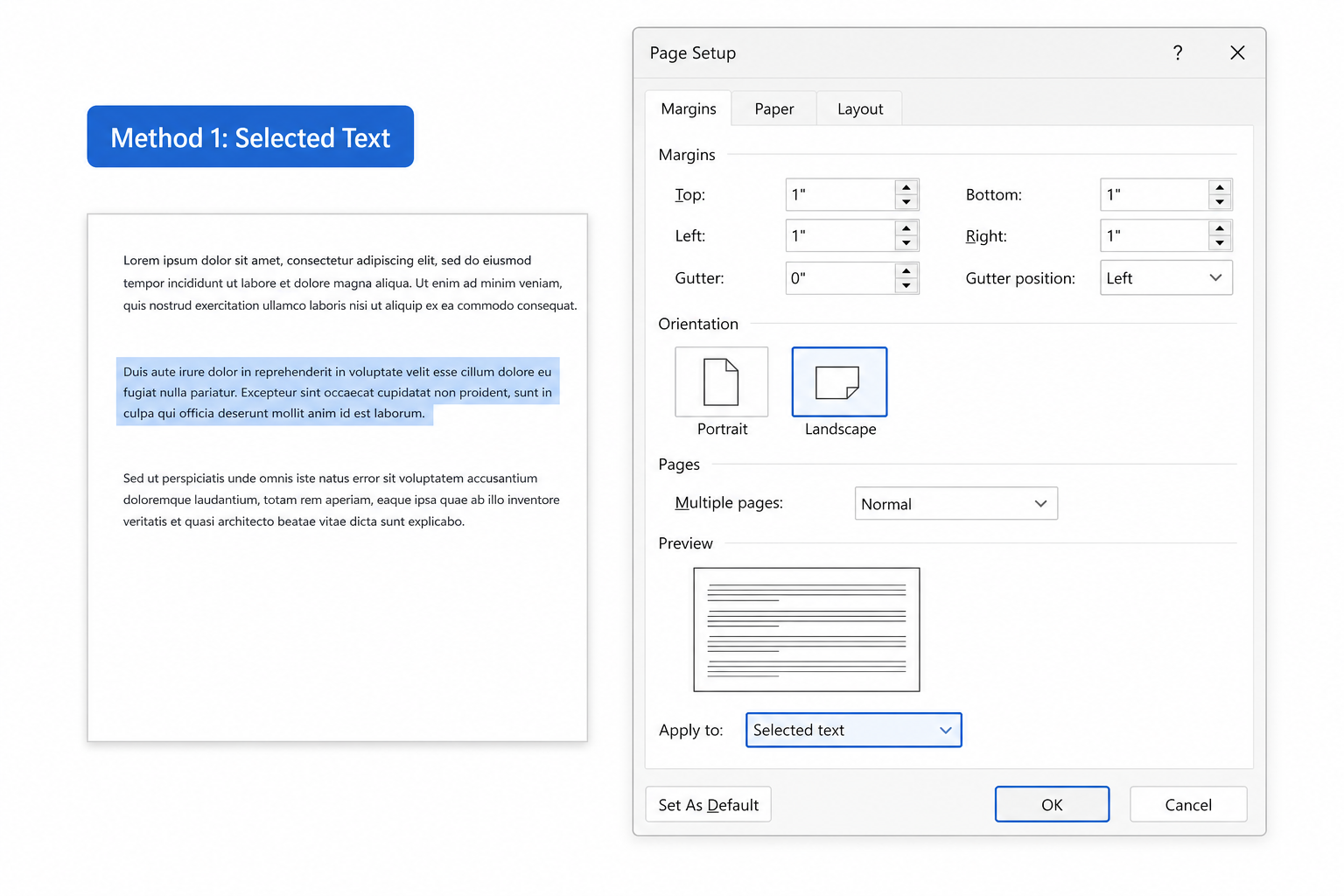
Select all content on the page(s) you want in landscape.
Go to the Layout tab.
Click the small arrow in the bottom-right corner of the Page Setup group to open the full dialog.
Under Orientation, choose Landscape.
Set Apply to: Selected text.
Click OK.
Only your selection switches to landscape. The rest of the document stays portrait. Turn on Show/Hide ¶ to see the section breaks Word added automatically.
Method 2: Section Breaks (Best for Long or Complex Documents)
Need multiple portrait/landscape switches in one file? Manual section breaks give you full control — the go-to approach for formal reports and multi-section documents.
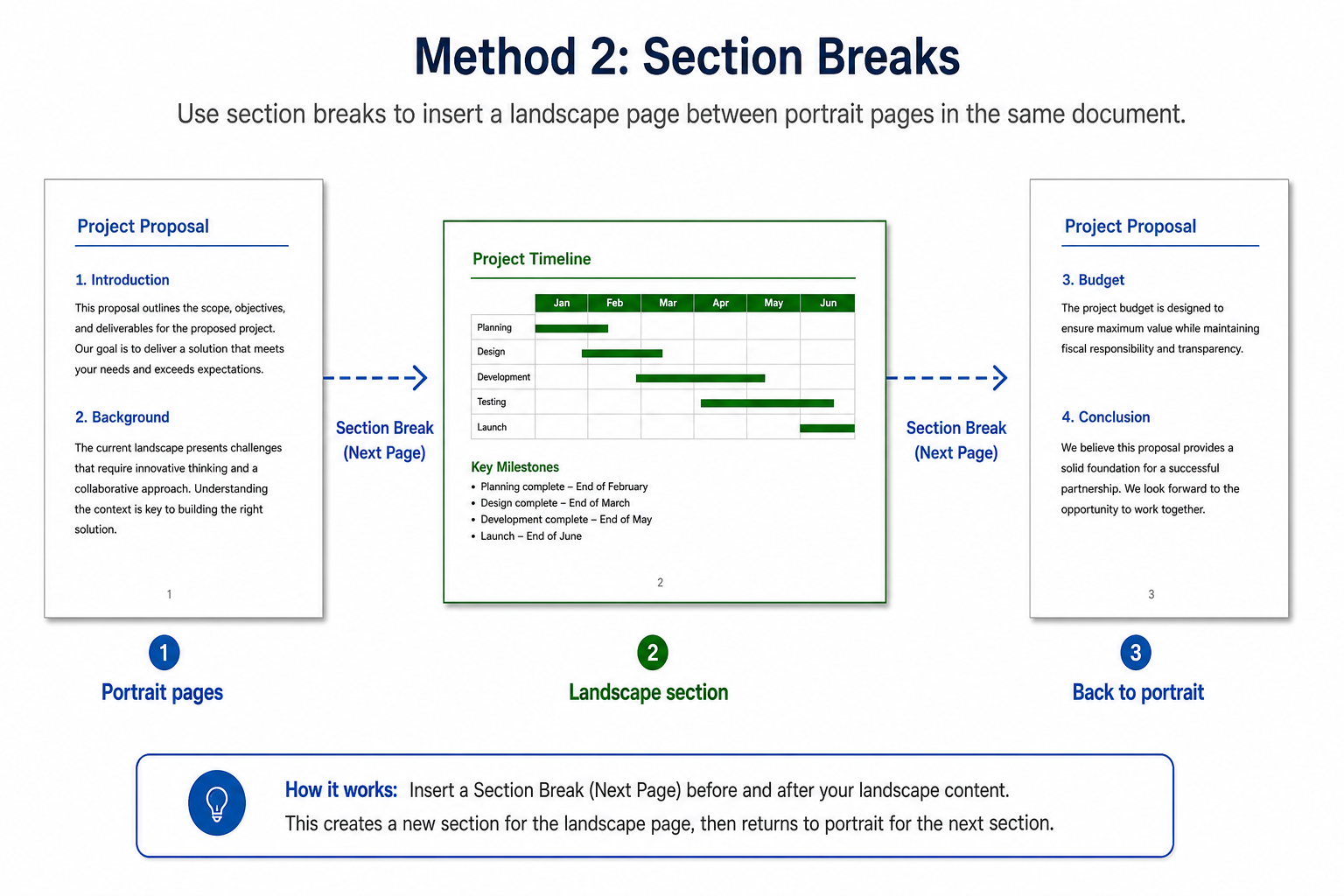
Step 1: Insert a break before the landscape section
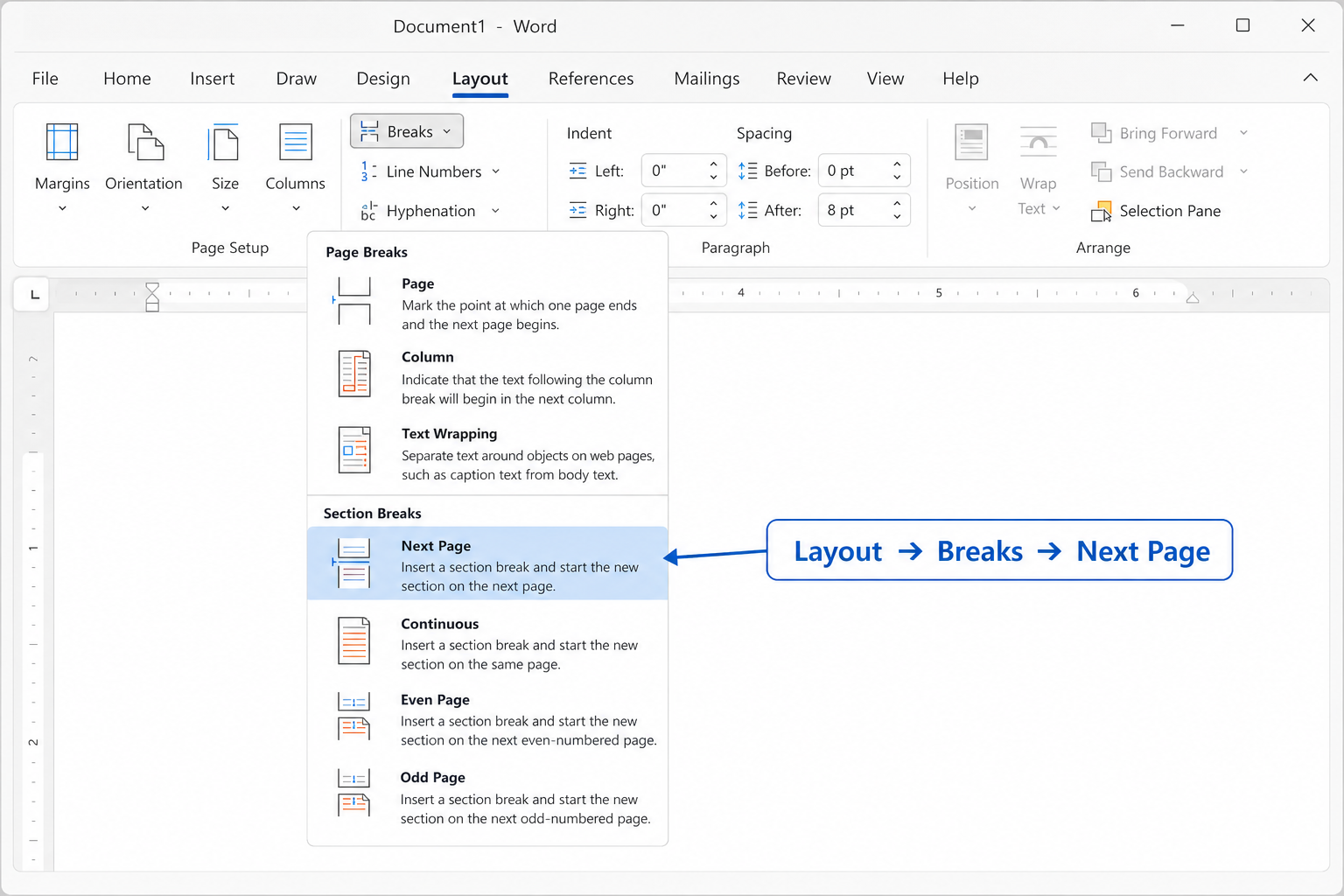
Place your cursor at the start of the page where landscape should begin.
Go to Layout → Breaks → Next Page (under Section Breaks).
Step 2: Insert a break after the landscape section
Move your cursor to the end of the landscape content.
Insert another Layout → Breaks → Next Page section break.
Step 3: Set the middle section to landscape
Click anywhere between the two section breaks.
Go to Layout → Orientation → Landscape.
Pages before the first break and after the second stay portrait. Only the middle section becomes landscape.
How to Switch Back to Portrait
After a landscape block, later pages should return to standard vertical layout.
Place your cursor at the end of the landscape section.
Insert a Next Page section break if one is not already there.
Click inside the new section and choose Layout → Orientation → Portrait.
All following pages use portrait again unless you add another section break and change orientation again.
When to Mix Portrait and Landscape
Portrait — Main paragraphs, cover pages, and anything meant for comfortable top-to-bottom reading
Landscape — Wide tables, financial charts, Gantt timelines, and large images that would get cut off in portrait
Mixed layout — Academic papers, project reports, and business documents that combine narrative text with data-heavy pages
Quick Reference
| Goal | What to Do |
|---|---|
| One landscape page in a portrait doc | Select content → Page Setup → Landscape → Apply to: Selected text |
| Multiple switches in one file | Next Page breaks + Orientation per section |
| Switch back to portrait | New section break → click inside → Layout → Orientation → Portrait |
New to orientation basics? See how to change page orientation in Word. Adjusting margins on landscape pages? Read how to change margins in Word.
FAQ
Can I have one landscape page in an otherwise portrait Word document?
Yes. Select that page’s content and apply landscape to Selected text, or place the page between two Next Page section breaks and set only that section to landscape.
Why did my entire document change to landscape?
Your cursor was in a section that covers the whole file, or you skipped section breaks. Insert Next Page breaks before and after the target pages so the change stays local.
How do I fix blank pages after changing orientation?
Extra section breaks often cause this. Turn on Home → Show/Hide ¶, find redundant breaks, and delete the ones you do not need.
Why do my headers and footers look wrong after switching layout?
New sections link to the previous header/footer by default. Double-click the header or footer and turn off Link to Previous to format each section on its own.
Can I switch between portrait and landscape multiple times in one document?
Yes. Repeat the section-break method as many times as you need. Each new section can have its own orientation.
Conclusion
Mixing portrait and landscape in one Word document comes down to section breaks. Use the Selected text shortcut for quick one-page fixes. Use manual Next Page breaks when you need precise control in longer files. Preview in Print Layout, check headers if anything looks off, and you are set.



'%3e%3cpath%20d='M19.9911%204.11386V6.471H18.5894C18.0775%206.471%2017.7322%206.57814%2017.5536%206.79243C17.3751%207.00671%2017.2858%207.32814%2017.2858%207.75671V9.44421H19.9019L19.5536%2012.0871H17.2858V18.8639H14.5536V12.0871H12.2769V9.44421H14.5536V7.49779C14.5536%206.39064%2014.8632%205.53201%2015.4822%204.92189C16.1013%204.31177%2016.9257%204.00671%2017.9554%204.00671C18.8304%204.00671%2019.509%204.04243%2019.9911%204.11386Z'%20fill='%23333333'/%3e%3c/g%3e%3cdefs%3e%3cclipPath%20id='clip0_2938_8199'%3e%3crect%20width='16'%20height='16'%20fill='white'%20transform='translate(8%204.00671)'/%3e%3c/clipPath%3e%3c/defs%3e%3c/svg%3e)
'%3e%3cpath%20d='M17.5237%2010.7813L23.4811%204H22.0699L16.8949%209.88693L12.7648%204H8L14.2469%2012.9029L8%2020.0133H9.4112L14.8725%2013.7952L19.2352%2020.0133H24M9.92053%205.04213H12.0885L22.0688%2019.0224H19.9003'%20fill='%23333333'/%3e%3c/g%3e%3cdefs%3e%3cclipPath%20id='clip0_2938_8200'%3e%3crect%20width='16'%20height='16.0134'%20fill='white'%20transform='translate(8%204)'/%3e%3c/clipPath%3e%3c/defs%3e%3c/svg%3e)


