Google Forms is a popular free tool used by many educators,
businesses, and individuals due to its integration with Google
Workspace. However, many beginners waste a lot of time setting up a
proper form. The interface, while simple, can be limiting for advanced
form creation and lacks robust offline capabilities. This guide provides
comprehensive instructions on how to make a Google Form and introduces a
powerful alternative for advanced form creation.
How to Make a Google Form
How to Create a Basic Google
Form
Google Forms create forms that serve as a foundational tool for data
gathering, allowing anyone with a Google account to build interactive
web forms in a matter of minutes. It is incredibly versatile since you
can use it for anything from high-school researchprojects and event registrations to professional customer feedback
surveys and workplace order forms. By mastering the basics, you can
transform a blank page into a structured tool that organizes data for
you automatically.
Here’s how to create a Google Form in a few simple steps, either on
the Google Forms website or Google Forms app:
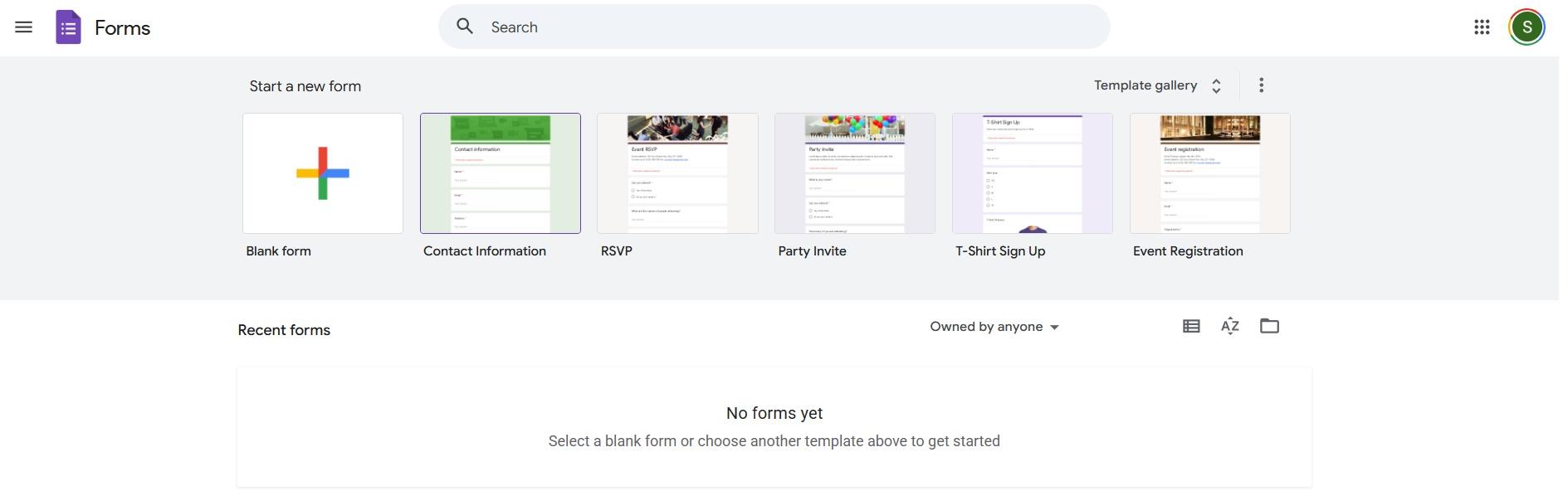
Step 1: Access the tool by navigating to theGoogle
Forms website or by selecting "New"and then "Google Forms" within Google Drive.
Google Forms Website
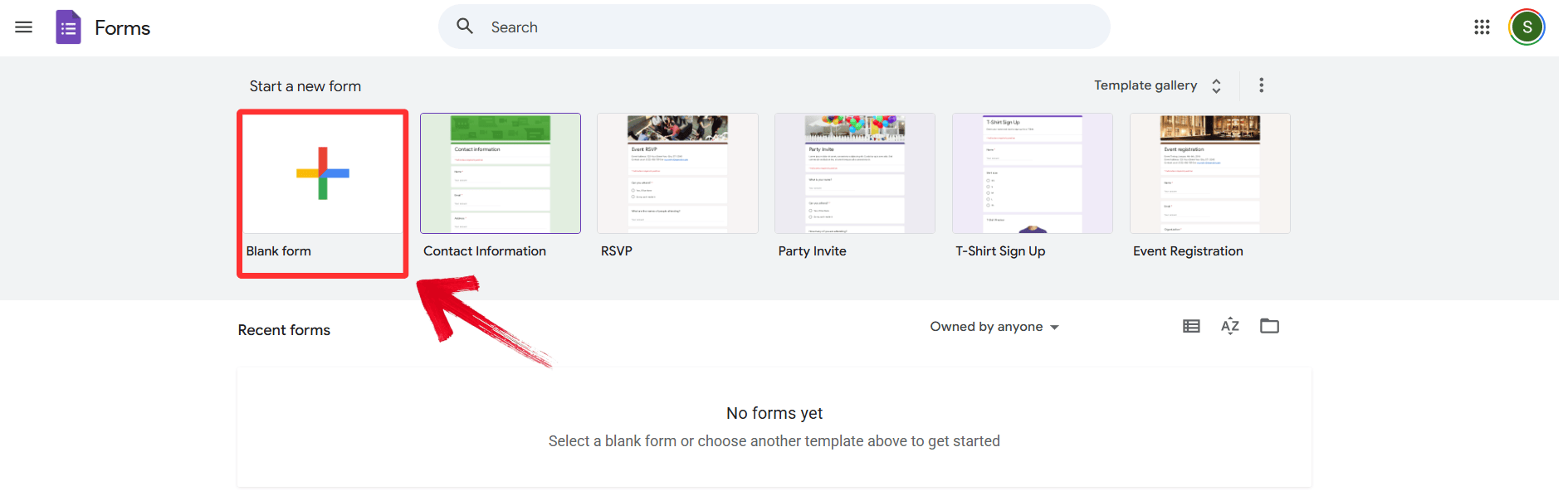
Step 2: Start with a blank form or utilize the quick
start option by choosing from pre-made Google Forms templates.
Create Blank Form
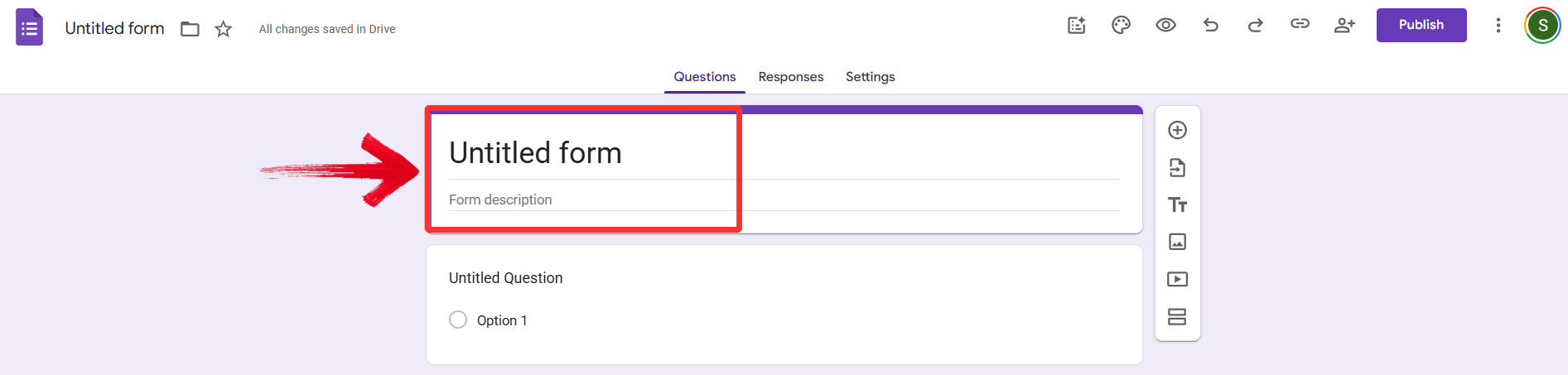
Step 3: Click on the "Untitled
form" area to add a specific title and a brief description to
inform your respondents.
Enter title and description
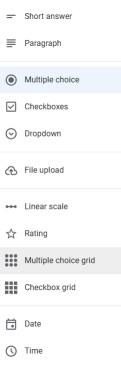
Step 4: Add questions by selecting the appropriate
type, such as "Multiple choice", "Short
answer", or "Paragraph".
Add Questions
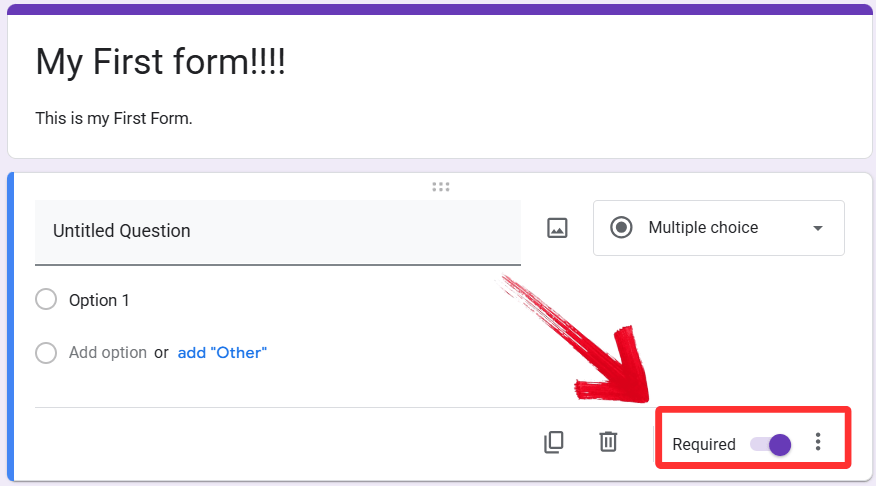
Step 5: To ensure a question is answered, toggle the"Required" switch at the bottom of the question
field.
Toggle Required On
Comparison of Form
Creation Platforms
It is helpful to understand how different platforms handle the form
creation process. While Google is a leader in cloud-based sharing, other
suites offer deeper layout customization or offline stability. I
recommend reviewing the following comparison to see which environment
best suits your data collection goals
Feature
Google Forms
WPS Office
Microsoft Forms
Primary Access
Web-based URL
Desktop & Mobile App
Web-based URL
Storage Type
Google Drive Cloud
Local Device or Cloud
OneDrive Cloud
Best For
Quick social surveys
Professional fillable docs
Corporate internal data
Offline Ability
Limited / Online preferred
Full offline creation
Limited / Online preferred
Editing Style
Drag-and-drop blocks
Word processing layout
Structured blocks
Advanced Google
Form Features and Customization
Now you’ve learned how to make a Google
Form to get your data collection moving, but you can make your
form look even better and function more intelligently with a few
advanced adjustments. Google Form creates excellent forms by adding
custom branding and logical sections, not only making your form more
professional but also significantly improving the quality of the answers
you receive. By utilizing conditional logic, you can ensure your users
only see questions relevant to them, making the experience much smoother
for everyone.
1. Use a theme
with your organization's branding
Maintaining a consistent brand identity is essential for professional
surveys, as a familiar look helps build trust and increases respondent
engagement. Google Forms allows you to apply curated themes that
coordinate colors and styles instantly, ensuring your form does not look
like a generic template.
Step 1: Open your form and click the"Customize theme" palette icon in the top-right
corner.
Click Customize theme
Step 2: Under the "Themes" section,
select a pre-designed theme to instantly apply a coordinated look.
Select Your Preferred theme
Note: The organization-branded themes appear only if your
administrator has made them available for your
workspace.
2. Create sections
When dealing with complex surveys or multiple topics, sections are a
powerful tool to prevent form fatigue by breaking content into
digestible pages. This method allows you to guide the respondent through
a logical flow, making the data collection process feel less
overwhelming.
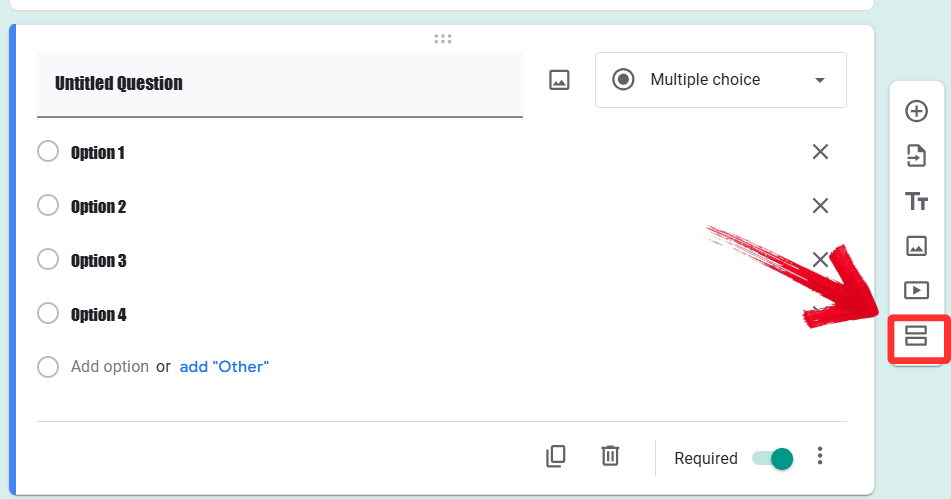
Step 1: Open your form and click the "Add
Section" icon (two horizontal rectangles) on the floating
sidebar.
Click Add Section
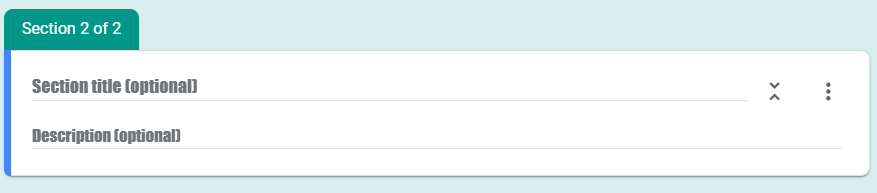
Step 2: Provide a name and optional description for
the new section to provide context for the upcoming questions.
Add title and description
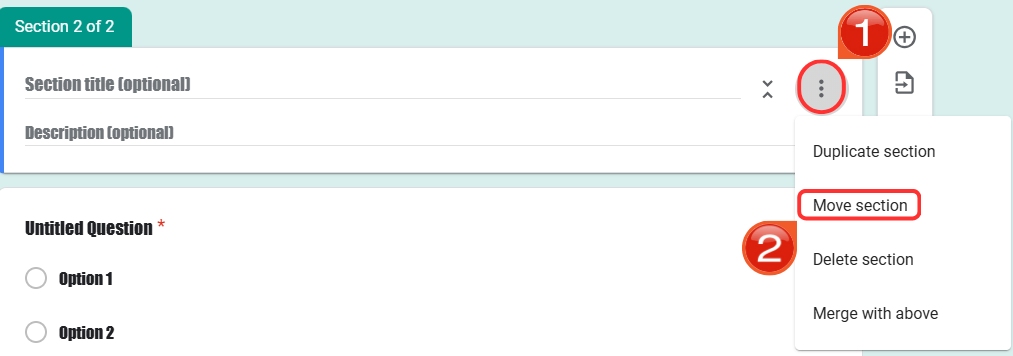
Step 3: To change the order of your pages, click"More" (three dots) at the top of a section and select"Move section".
Move Section
3. Change the color or header
Visual impact is key to setting the right tone for your form, whether
it is for a formal business registration or a casual event RSVP. By
uploading a custom header and fine-tuning the background colors, you can
create a unique, recognizable experience that stands out to your
users.
Step 1: Click the "Customize theme"palette icon at the top-right corner of the editor.
Click Customize theme
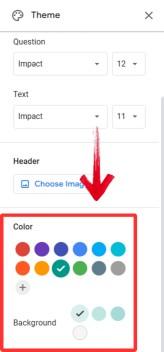
Step 2: Under "Color," choose a
preset theme color and background color, or click "Add custom
color" to enter a specific brand code.
Select Preferred Color
Step 3: To personalize the top of the form, look
under "Header" and click "Choose
image" to upload your logo or choose from the gallery.
Adjust Header style
4. Change the font
Typography plays a significant role in readability and overall user
experience. Adjusting the font allows you to highlight specific headers
or ensure that long questions are easy to skim, adding a final layer of
professional polish to your data collection tool.
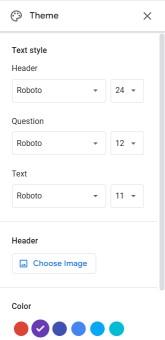
Step 1: Open the "Customize theme"panel from the top toolbar.
Click Customize theme
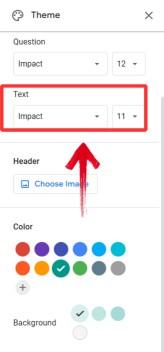
Step 2: Scroll down to the "Text"section to find font settings for headers, questions, and body text.
Adjust text settings
A Powerful Alternative: WPS
Office
While Google Forms is excellent for web-based links, many
professionals require deeper customization and full offline
functionality. WPS Office serves as a robust alternative, particularly
for creating fillable forms that don't require a constant internet
connection.
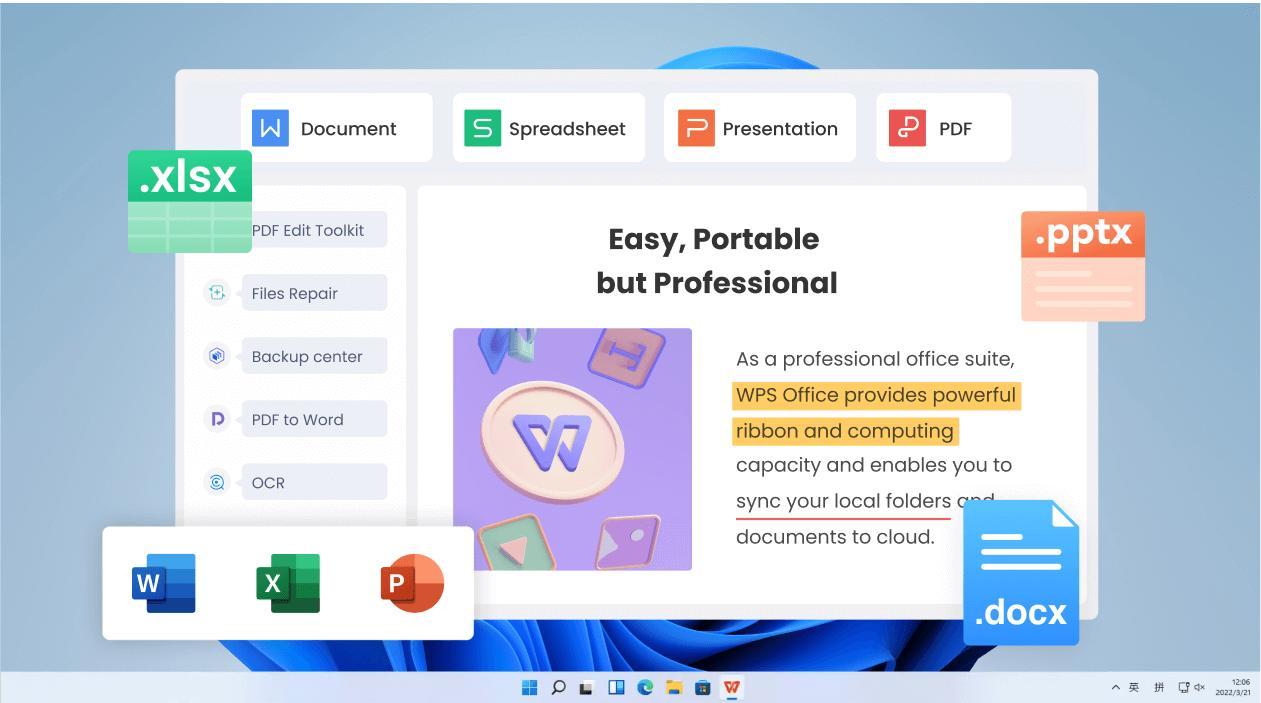
WPS Office
WPS Office provides a
diverse set of tools for form creation, allowing users to build data
forms within Spreadsheetsor create professional fillable PDF documents in Writer. Its Smart
AI simplifies complex processes. This is ideal for situations
where the creator needs to maintain strict control over the document's
appearance.
Key Features of WPS Forms:
Offline Data Collection: Users can design and
complete forms without an active internet connection, ensuring
reliability in field environments.
Interactive PDF Creation: The software enables
the generation of fillable PDF documents that include text boxes,
checkboxes, and dropdown lists for universal compatibility.
Spreadsheet Integration: Data forms can be
created directly within WPS Spreadsheets to collect information and
automatically organize it for immediate analysis.
Professional Layout Control: Unlike block-based
builders, WPS allows for precise placement of text and form fields using
familiar word processing tools.
Step-by-Step WPS Form
Creation:
Creating a professional form in WPS Office is a straightforward
process that allows for greater design flexibility and offline
functionality compared to standard web-based builders. This method is
particularly useful when the goal is to produce a polished, branded
document that can be distributed as an interactive file.
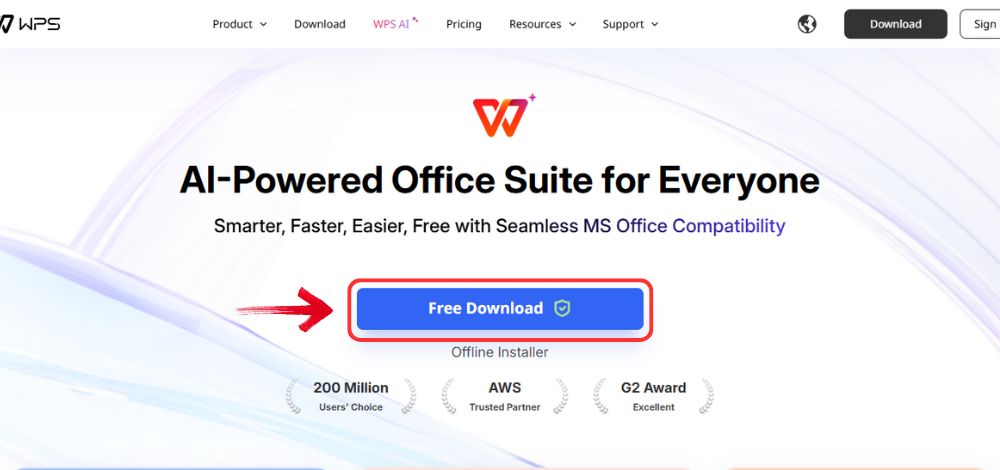
Step 1: Open your browser to visit WPS Office and click the"Free Download" button to start the download.
Download WPS Office
Step 2: The download will finish in a few seconds.
Once done, run the installation file like you would for any other app or
software.
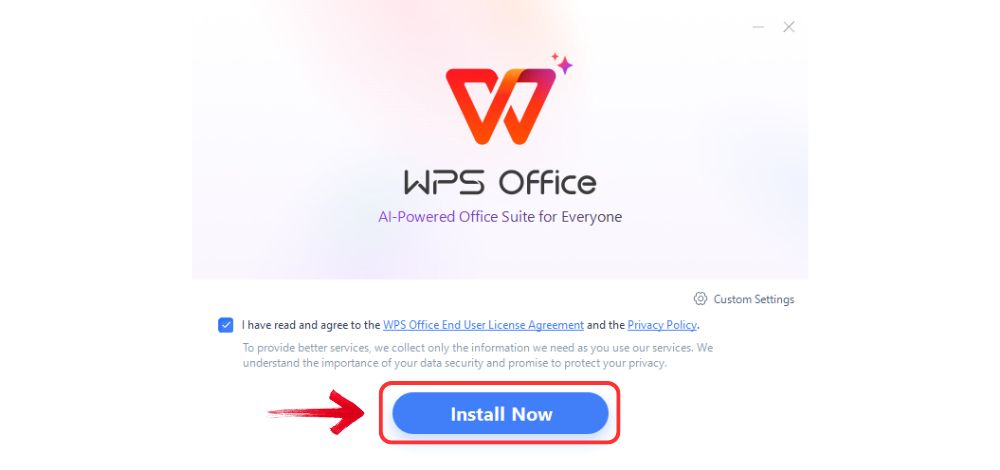
Step 3: WPS Office will show you a few simple terms
and conditions. Accept them, then click the "Install
Now" button to begin the installation.
Install WPS Office
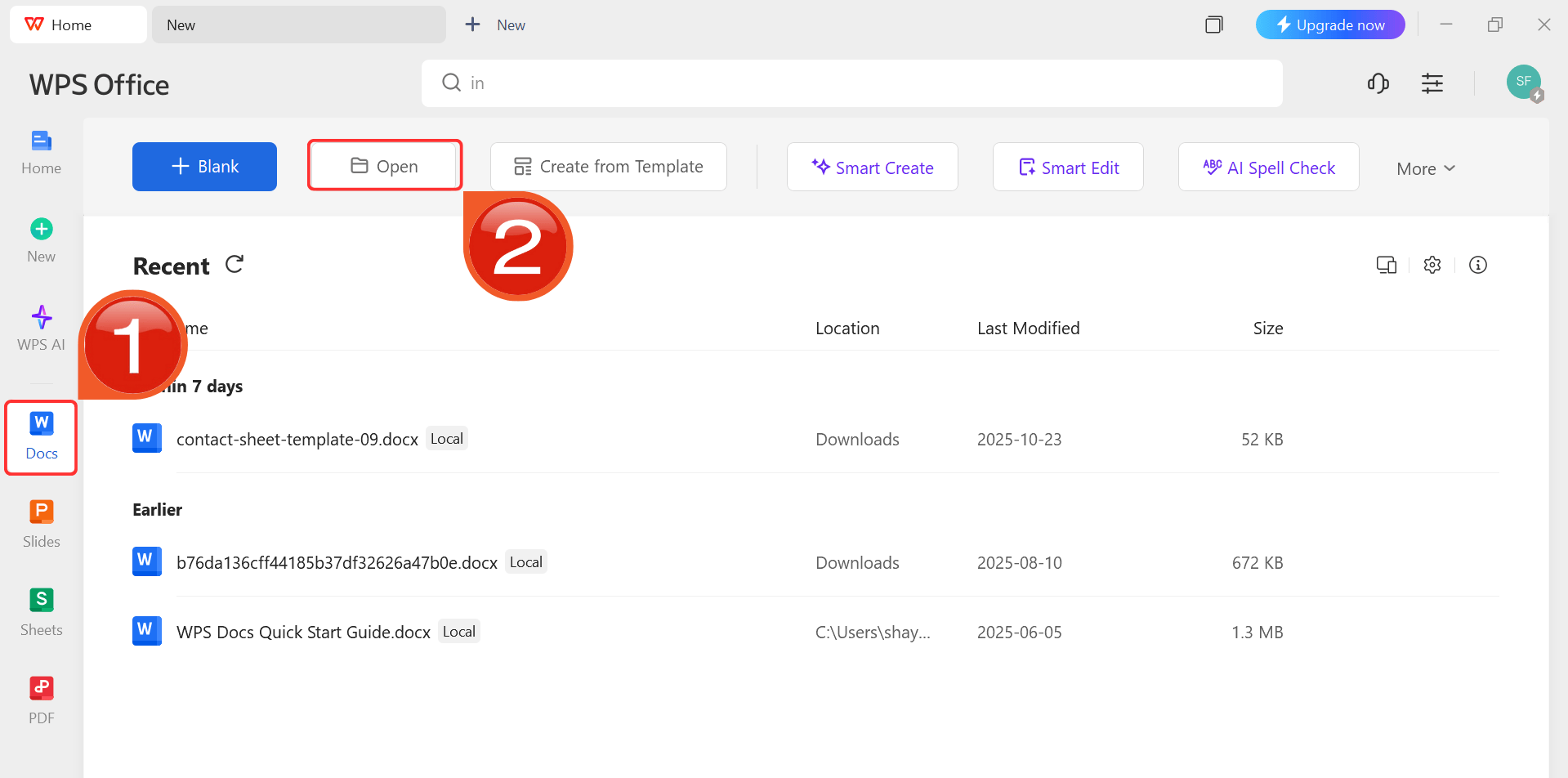
Step 4: After installation, in WPS Office, click“Docs” from the left sidebar and hit“Open”.
WPS Docs Dashboard
Step 5: First Go to “Insert” and
then click “Quick Parts” to open a drop-down menu.
Open Quick Parts drop-down
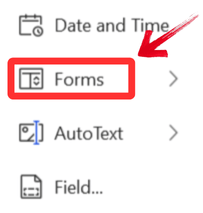
Step 6: Then, click on “Forms” to
generate a form in WPS Writer.
Open Forms
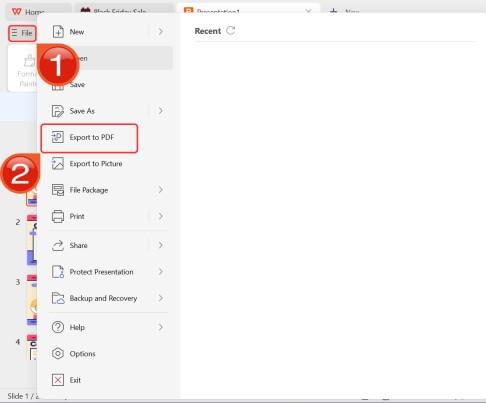
Step 7: After you’re done, head to“File” and choose “Save as”.
Export as PDF
Why
Consider WPS Office as Your Form Creation Solution
Choosing between these platforms depends on whether the priority is
simple web sharing or high-fidelity document design and offline
reliability. The following comparison highlights why many users
transition to WPS Office to handle advanced form creation needs that
exceed basic cloud-basedlimitations.
Aspect
Google Forms
WPS Office
Advantage
Cost
Free
Freemium
Comparable
Customization
Limited colors/themes
Advanced styling options
WPS
Offline Functionality
Limited
Full offline creation
WPS
Templates
Basic
Professional templates
WPS
Conditional Logic
Basic
Advanced branching
WPS
FAQs
Q1: Can I use Google Forms without a Google
account?
No, you need a Google account to create and manage Google Forms. For
account-free options, consider WPS Forms, which allows more flexible
access options.
Q2: How do I add conditional questions that only appear based
on previous answers?
In Google Forms, use the Go to section based on answer feature
located in the three-dot menu of a multiple-choice question. In WPS
Forms, use more advanced conditional logic tools for complex branching
scenarios.
Q3: Can I create fillable PDF forms with Google
Forms?
Google Forms creates web forms, not fillable PDFs. For PDF form
creation, use WPS Writer's form field features to create professional
fillable PDF forms.
Q4: How do I see the responses?
In Google Forms, you can view responses in the Responses tab or
export them to Google Sheets for deeper analysis. WPS Spreadsheet forms
allow you to collect and manage data directly within the sheet.
Balancing
Cloud Accessibility with Desktop Precision
Learning how to make a Google Form is an excellent skill for quick,
cloud-integrated surveys and feedback. However, for users who require
advanced customization, professional fillable PDFs, and the ability to
work offline, WPS Office tools
provide a more powerful and flexible alternative. By combining the
accessibility of cloud tools with the precision of a local office suite,
you can handle any data collection task with confidence.
I'm Maira, experienced in using office suite tools and technology to support professional tasks. My regular use of Office software has helped me develop strong command over these tools, especially in drafting legal instruments and helpful content.


'%3e%3cpath%20d='M8%200C12.4183%200%2016%203.58172%2016%208C16%2012.4183%2012.4183%2016%208%2016C3.58172%2016%200%2012.4183%200%208C0%203.58172%203.58172%200%208%200ZM11.6162%204.38379C11.2257%203.99337%2010.5927%203.99338%2010.2021%204.38379L8%206.58594L5.79785%204.38379C5.40732%203.99334%204.77429%203.99329%204.38379%204.38379C3.99331%204.77429%203.99335%205.40733%204.38379%205.79785L6.58594%208L4.38379%2010.2021C3.99348%2010.5927%203.99341%2011.2257%204.38379%2011.6162C4.77426%2012.0066%205.40734%2012.0065%205.79785%2011.6162L8%209.41406L10.2021%2011.6162C10.5927%2012.0066%2011.2257%2012.0067%2011.6162%2011.6162C12.0067%2011.2257%2012.0066%2010.5927%2011.6162%2010.2021L9.41406%208L11.6162%205.79785C12.0066%205.40735%2012.0066%204.77429%2011.6162%204.38379Z'%20fill='%23080E17'%20fill-opacity='0.46'/%3e%3c/g%3e%3cdefs%3e%3cclipPath%20id='clip0_3761_713'%3e%3crect%20width='16'%20height='16'%20fill='white'/%3e%3c/clipPath%3e%3c/defs%3e%3c/svg%3e)




'%3e%3cpath%20fill-rule='evenodd'%20clip-rule='evenodd'%20d='M21.4999%2010.9993C21.4999%205.20009%2016.7986%200.498901%2010.9993%200.498901C5.19994%200.498901%200.498657%205.20009%200.498657%2010.9993C0.498657%2016.2404%204.33858%2020.5844%209.35855%2021.3722V14.0346H6.69238V10.9993H9.35855V8.68594C9.35855%206.05427%2010.9262%204.60062%2013.3248%204.60062C14.4736%204.60062%2015.6753%204.80571%2015.6753%204.80571V7.38979H14.3512C13.0468%207.38979%2012.64%208.19921%2012.64%209.0296V10.9993H15.5523L15.0867%2014.0346H12.64V21.3722C17.66%2020.5844%2021.4999%2016.2404%2021.4999%2010.9993Z'%20fill='%231568EA'/%3e%3c/g%3e%3c/svg%3e)


'%3e%3cpath%20d='M2.42045%2022.1876H6.31818V12.7217L0.75%208.54553V20.5171C0.75%2021.4414%201.49892%2022.1876%202.42045%2022.1876Z'%20fill='%234285F4'/%3e%3cpath%20d='M19.682%2022.1876H23.5797C24.5041%2022.1876%2025.2502%2021.4387%2025.2502%2020.5171V8.54553L19.682%2012.7217'%20fill='%2334A853'/%3e%3cpath%20d='M19.682%205.48293V12.7216L25.2502%208.54543V6.31816C25.2502%204.25236%2022.8921%203.07469%2021.2411%204.31361'%20fill='%23FBBC04'/%3e%3cpath%20d='M6.31824%2012.7217V5.48303L13.0001%2010.4944L19.6819%205.48303V12.7217L13.0001%2017.733'%20fill='%23EA4335'/%3e%3cpath%20d='M0.75%206.31816V8.54543L6.31818%2012.7216V5.48293L4.75909%204.31361C3.10534%203.07469%200.75%204.25236%200.75%206.31816Z'%20fill='%23C5221F'/%3e%3c/g%3e%3cdefs%3e%3cclipPath%20id='clip0_2954_7305'%3e%3crect%20width='24.5'%20height='18.375'%20fill='white'%20transform='translate(0.75%203.8125)'/%3e%3c/clipPath%3e%3c/defs%3e%3c/svg%3e)





'%3e%3cpath%20d='M19.9911%204.11386V6.471H18.5894C18.0775%206.471%2017.7322%206.57814%2017.5536%206.79243C17.3751%207.00671%2017.2858%207.32814%2017.2858%207.75671V9.44421H19.9019L19.5536%2012.0871H17.2858V18.8639H14.5536V12.0871H12.2769V9.44421H14.5536V7.49779C14.5536%206.39064%2014.8632%205.53201%2015.4822%204.92189C16.1013%204.31177%2016.9257%204.00671%2017.9554%204.00671C18.8304%204.00671%2019.509%204.04243%2019.9911%204.11386Z'%20fill='%23333333'/%3e%3c/g%3e%3cdefs%3e%3cclipPath%20id='clip0_2938_8199'%3e%3crect%20width='16'%20height='16'%20fill='white'%20transform='translate(8%204.00671)'/%3e%3c/clipPath%3e%3c/defs%3e%3c/svg%3e)
'%3e%3cpath%20d='M17.5237%2010.7813L23.4811%204H22.0699L16.8949%209.88693L12.7648%204H8L14.2469%2012.9029L8%2020.0133H9.4112L14.8725%2013.7952L19.2352%2020.0133H24M9.92053%205.04213H12.0885L22.0688%2019.0224H19.9003'%20fill='%23333333'/%3e%3c/g%3e%3cdefs%3e%3cclipPath%20id='clip0_2938_8200'%3e%3crect%20width='16'%20height='16.0134'%20fill='white'%20transform='translate(8%204)'/%3e%3c/clipPath%3e%3c/defs%3e%3c/svg%3e)


