

'%3e%3cpath%20d='M8%200C12.4183%200%2016%203.58172%2016%208C16%2012.4183%2012.4183%2016%208%2016C3.58172%2016%200%2012.4183%200%208C0%203.58172%203.58172%200%208%200ZM11.6162%204.38379C11.2257%203.99337%2010.5927%203.99338%2010.2021%204.38379L8%206.58594L5.79785%204.38379C5.40732%203.99334%204.77429%203.99329%204.38379%204.38379C3.99331%204.77429%203.99335%205.40733%204.38379%205.79785L6.58594%208L4.38379%2010.2021C3.99348%2010.5927%203.99341%2011.2257%204.38379%2011.6162C4.77426%2012.0066%205.40734%2012.0065%205.79785%2011.6162L8%209.41406L10.2021%2011.6162C10.5927%2012.0066%2011.2257%2012.0067%2011.6162%2011.6162C12.0067%2011.2257%2012.0066%2010.5927%2011.6162%2010.2021L9.41406%208L11.6162%205.79785C12.0066%205.40735%2012.0066%204.77429%2011.6162%204.38379Z'%20fill='%23080E17'%20fill-opacity='0.46'/%3e%3c/g%3e%3cdefs%3e%3cclipPath%20id='clip0_3761_713'%3e%3crect%20width='16'%20height='16'%20fill='white'/%3e%3c/clipPath%3e%3c/defs%3e%3c/svg%3e)




'%3e%3cpath%20fill-rule='evenodd'%20clip-rule='evenodd'%20d='M21.4999%2010.9993C21.4999%205.20009%2016.7986%200.498901%2010.9993%200.498901C5.19994%200.498901%200.498657%205.20009%200.498657%2010.9993C0.498657%2016.2404%204.33858%2020.5844%209.35855%2021.3722V14.0346H6.69238V10.9993H9.35855V8.68594C9.35855%206.05427%2010.9262%204.60062%2013.3248%204.60062C14.4736%204.60062%2015.6753%204.80571%2015.6753%204.80571V7.38979H14.3512C13.0468%207.38979%2012.64%208.19921%2012.64%209.0296V10.9993H15.5523L15.0867%2014.0346H12.64V21.3722C17.66%2020.5844%2021.4999%2016.2404%2021.4999%2010.9993Z'%20fill='%231568EA'/%3e%3c/g%3e%3c/svg%3e)


'%3e%3cpath%20d='M2.42045%2022.1876H6.31818V12.7217L0.75%208.54553V20.5171C0.75%2021.4414%201.49892%2022.1876%202.42045%2022.1876Z'%20fill='%234285F4'/%3e%3cpath%20d='M19.682%2022.1876H23.5797C24.5041%2022.1876%2025.2502%2021.4387%2025.2502%2020.5171V8.54553L19.682%2012.7217'%20fill='%2334A853'/%3e%3cpath%20d='M19.682%205.48293V12.7216L25.2502%208.54543V6.31816C25.2502%204.25236%2022.8921%203.07469%2021.2411%204.31361'%20fill='%23FBBC04'/%3e%3cpath%20d='M6.31824%2012.7217V5.48303L13.0001%2010.4944L19.6819%205.48303V12.7217L13.0001%2017.733'%20fill='%23EA4335'/%3e%3cpath%20d='M0.75%206.31816V8.54543L6.31818%2012.7216V5.48293L4.75909%204.31361C3.10534%203.07469%200.75%204.25236%200.75%206.31816Z'%20fill='%23C5221F'/%3e%3c/g%3e%3cdefs%3e%3cclipPath%20id='clip0_2954_7305'%3e%3crect%20width='24.5'%20height='18.375'%20fill='white'%20transform='translate(0.75%203.8125)'/%3e%3c/clipPath%3e%3c/defs%3e%3c/svg%3e)


Making a picture transparent sounds simple, but it can mean two different things. You may want to fade the whole image so text can sit on top of it, or you may want to remove the background so only the subject remains.
The good news is that both tasks are easy when you choose the right method. In this guide, you will learn how to make a picture transparent in WPS Office, when to use background removal, and how to save the result without getting an unwanted white box.
How to Make a Picture Transparent: Easy Ways for Documents, Slides, and PNG Images
What Does It Mean to Make a Picture Transparent?
Before you edit the image, decide what kind of transparency you need.
If you want the entire picture to look lighter, you need picture transparency or opacity adjustment. This is useful for watermarks, slide backgrounds, posters, or documents where text must stay readable.
If you want to delete the background behind a subject, you need background removal. This is useful for logos, product photos, profile images, thumbnails, stickers, and presentation visuals.
These two edits look similar in search results, but they solve different problems:
| Goal | Best Method | Best Output |
|---|---|---|
| Make the whole picture faded | Adjust transparency or opacity | DOCX, PPTX, PDF, or image |
| Remove a solid color background | Set Transparent Color | PNG or document image |
| Remove a complex background | AI background remover | PNG with transparent background |
| Keep text or objects clean | Manual edge checking | PNG |
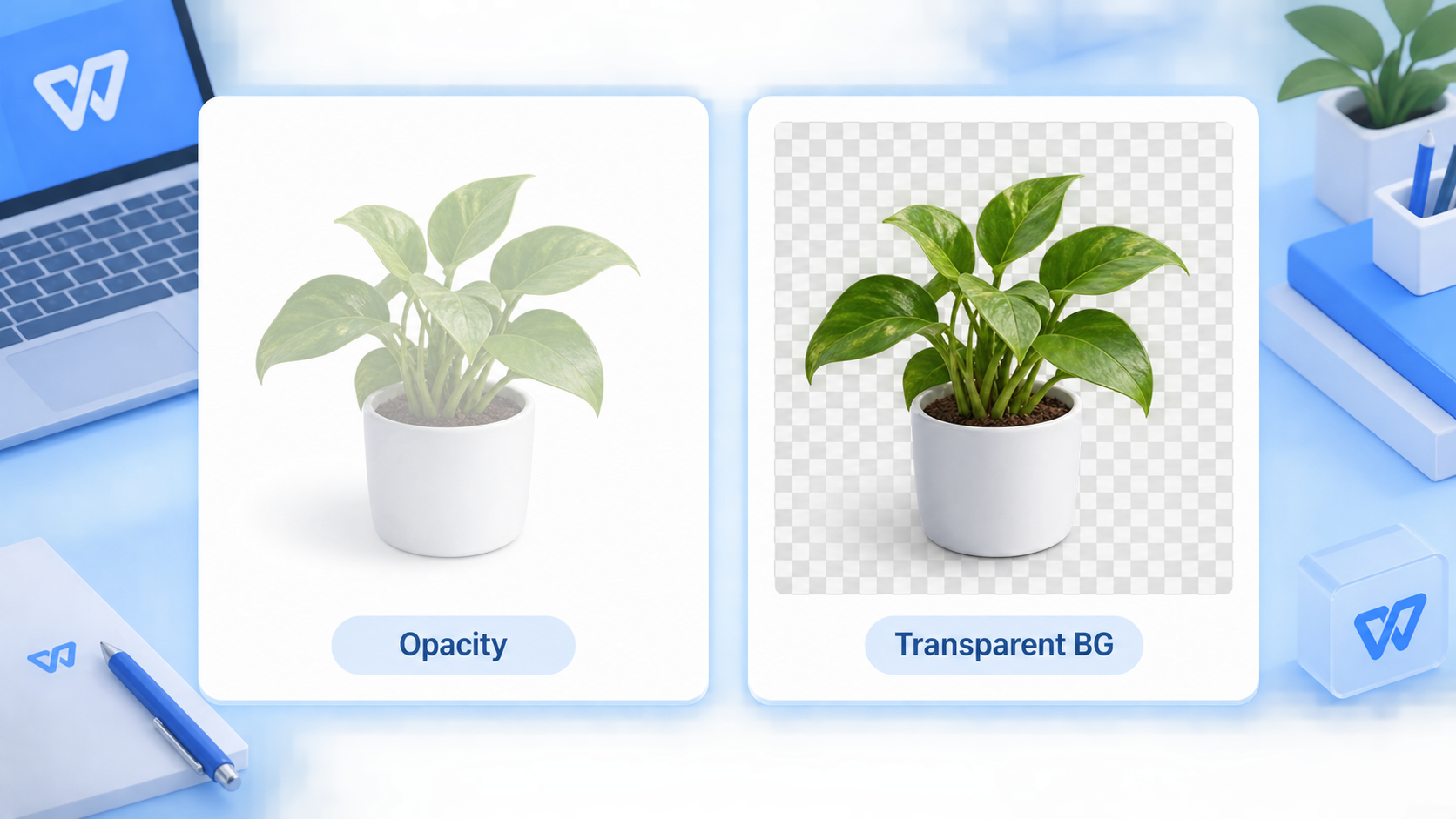
Picture transparency versus background removal


How to Make a Picture Transparent in WPS Office
WPS Office is a good first choice when your image is already inside a document, spreadsheet, or presentation. You do not need to open a professional design app for a simple transparent background or faded picture effect.
Here is the quickest way to remove a plain background color in WPS Writer:
Open your document in WPS Writer.
Click the picture you want to edit.
Go to Picture Tools.
Choose Set Transparent Color.
Click the background color you want to remove.
Check whether the subject remains clean.
This works best when the image has a simple, flat background, such as white, light gray, or a single solid color. For example, if a logo has a white square around it, this method can often remove that white area in one click.
However, it is not always the best option for photos. If the background has shadows, gradients, hair, trees, fabric, or many colors, a one-color transparency tool may leave rough edges.
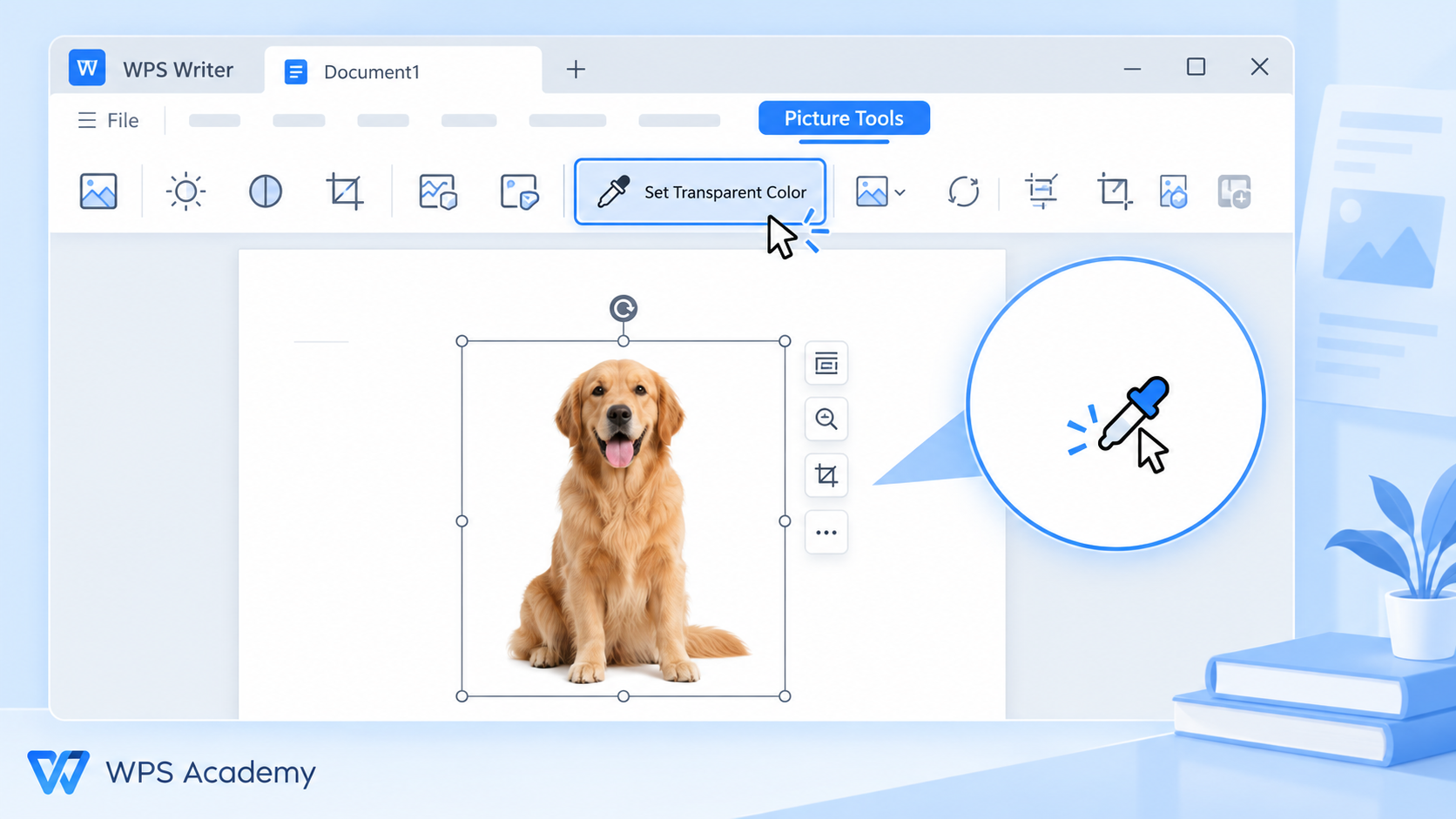
Set transparent color in WPS
How to Make a Picture Transparent for Slides and Documents
When you want the whole image to become lighter, do not remove the background. Instead, adjust the picture transparency.
This method is useful when the image is used as:
a document watermark;
a slide background;
a soft visual behind text;
a header image;
a report cover background.
In WPS Presentation, you can use the object formatting options to adjust background or picture transparency. A lower transparency value keeps the image visible, while a higher value makes it softer and lighter.
A practical rule is simple:
Use 15% to 30% transparency when the picture should still be visible.
Use 40% to 60% transparency when text needs to stand out.
Use 70% or more only when the image is mainly decorative.
If your text becomes hard to read, add more transparency or place a light shape behind the text. The goal is not just to make the image look good, but to make the document or slide easy to read.

Picture transparency for slide backgrounds
How to Make a Picture Background Transparent with AI
For product photos, portraits, hair, plants, fabric, glass, or shadows, use an AI background remover instead of a basic one-color tool.
WPS AI Background Remover is designed for this kind of task. It can detect the main subject and remove the surrounding background more accurately than a simple color-based tool. This is especially helpful when the background is not plain white.
Use AI background removal when:
the background has multiple colors;
the subject has soft edges;
the picture includes hair or fur;
the object has shadows;
the image will be used in a presentation, thumbnail, or product page.
After removing the background, always zoom in and check the edges. A transparent PNG may look fine on a white page but show rough edges on a dark slide or colored design.

AI background removal for pictures
How to Save a Transparent Picture Without a White Background
The most common mistake is editing the picture correctly but saving it in the wrong format.
If you want the background to stay transparent, save or export the image as PNG. PNG supports transparency. JPG does not. If you save a transparent image as JPG, the transparent area usually becomes white.
Before using the final image, check these details:
Use PNG format
Choose PNG when you need a transparent background.Preview on a checkerboard or colored background
A checkerboard usually means the area is transparent. You can also place the image on a colored slide to check for hidden white edges.Check the subject edges
Look around hair, corners, shadows, and small details.Avoid repeated compression
Re-exporting images many times may reduce quality.Keep an editable copy
Save your original document or project in case you need to adjust the image later.
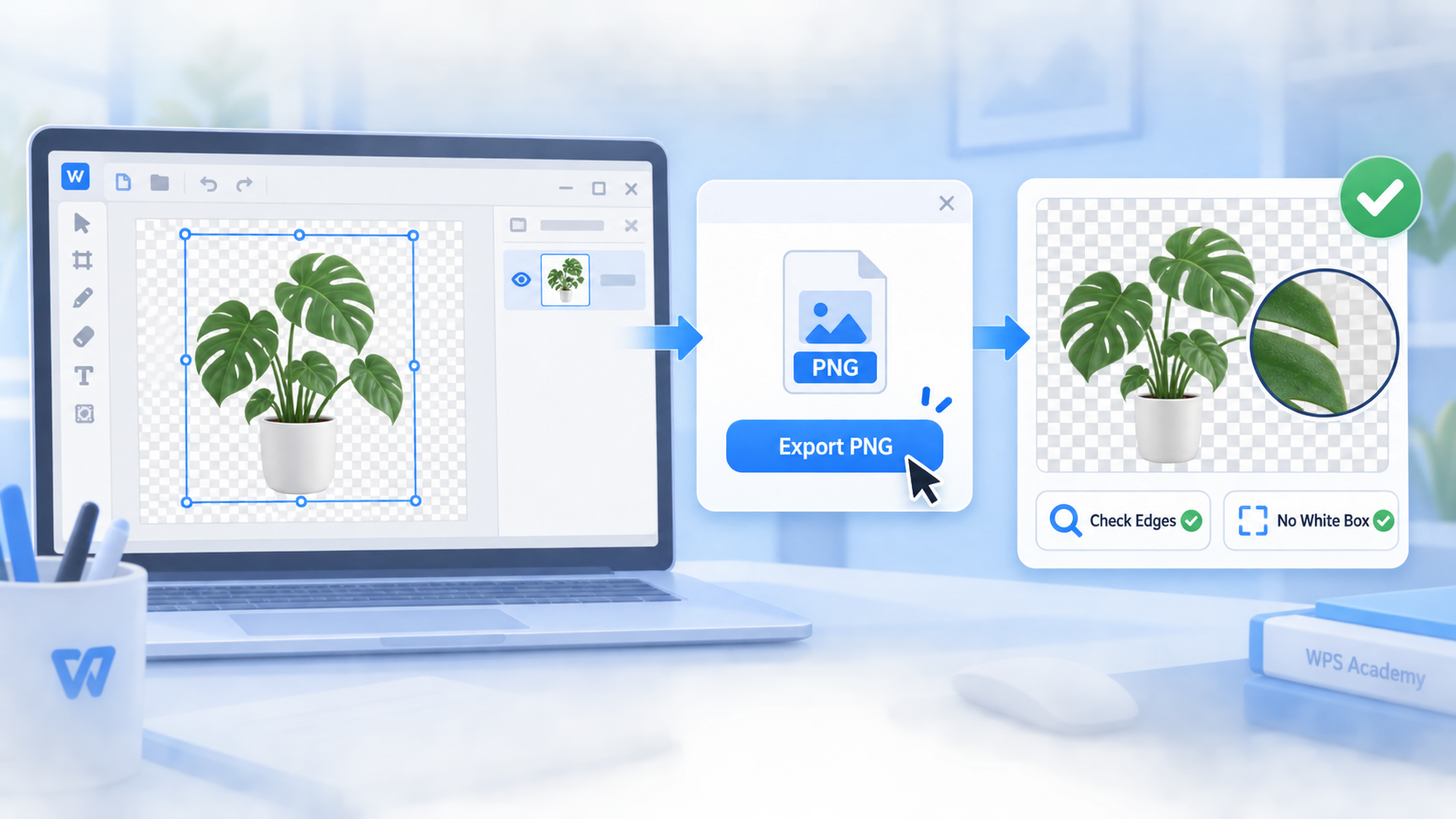
Export transparent picture as PNG
FAQs
How do I make a picture transparent without removing the background?
Use a transparency or opacity setting. This fades the whole picture while keeping the original background and subject.
How do I remove only the white background from a picture?
In WPS Writer, select the picture, go to Picture Tools, choose Set Transparent Color, and click the white background.
Why does my transparent picture turn white after saving?
You probably saved it as JPG. Use PNG if you need to keep a transparent background.
Can I make a picture transparent in PowerPoint-style slides?
Yes. In WPS Presentation, you can adjust picture or background transparency from the formatting options.
What is the best method for complex photo backgrounds?
Use an AI background remover when the background has many colors, shadows, hair, fur, or soft edges.


'%3e%3cpath%20d='M19.9911%204.11386V6.471H18.5894C18.0775%206.471%2017.7322%206.57814%2017.5536%206.79243C17.3751%207.00671%2017.2858%207.32814%2017.2858%207.75671V9.44421H19.9019L19.5536%2012.0871H17.2858V18.8639H14.5536V12.0871H12.2769V9.44421H14.5536V7.49779C14.5536%206.39064%2014.8632%205.53201%2015.4822%204.92189C16.1013%204.31177%2016.9257%204.00671%2017.9554%204.00671C18.8304%204.00671%2019.509%204.04243%2019.9911%204.11386Z'%20fill='%23333333'/%3e%3c/g%3e%3cdefs%3e%3cclipPath%20id='clip0_2938_8199'%3e%3crect%20width='16'%20height='16'%20fill='white'%20transform='translate(8%204.00671)'/%3e%3c/clipPath%3e%3c/defs%3e%3c/svg%3e)
'%3e%3cpath%20d='M17.5237%2010.7813L23.4811%204H22.0699L16.8949%209.88693L12.7648%204H8L14.2469%2012.9029L8%2020.0133H9.4112L14.8725%2013.7952L19.2352%2020.0133H24M9.92053%205.04213H12.0885L22.0688%2019.0224H19.9003'%20fill='%23333333'/%3e%3c/g%3e%3cdefs%3e%3cclipPath%20id='clip0_2938_8200'%3e%3crect%20width='16'%20height='16.0134'%20fill='white'%20transform='translate(8%204)'/%3e%3c/clipPath%3e%3c/defs%3e%3c/svg%3e)


