If you have ever tried to compare two photos or create a simple
collage, you have likely wondered how to make side by side pictures
without spending too much time editing. The good news is that you can
make side by side pictures for free using quick online editors, mobile
apps, and even built-in phone features. In this guide, I will walk you
through the easiest methods so you can create clean, aligned results
suitable for social media, presentations, and personal use.
How to Make Pictures Side by Side
Part 1: How to
Make Pictures Side by Side Online
If you prefer working on a desktop and want a convenient way to
combine photos, online editors are a strong choice. They work directly
in your browser, allow quick drag-and-drop editing, and are ideal when
you need to make side by side pictures free without installing any
software.
Canva is one of the most beginner-friendly tools to make side by side
pictures online. It offers pre-designed collage templates, flexible
editing options, and a smooth interface that suits both personal and
professional use.
how to make side by side pictures online
Key Features
Multiple collage templates for quick layouts
Drag-and-drop photo placement and resizing
Add text, icons, and backgrounds for customization
Price: Free (Pro available with extra features)
Pros
Easy to use and suitable for beginners
Wide range of modern design templates
Works on both mobile and desktop
Cons
Requires login to export
Some premium visuals require Pro access
How to Edit and Save in Canva
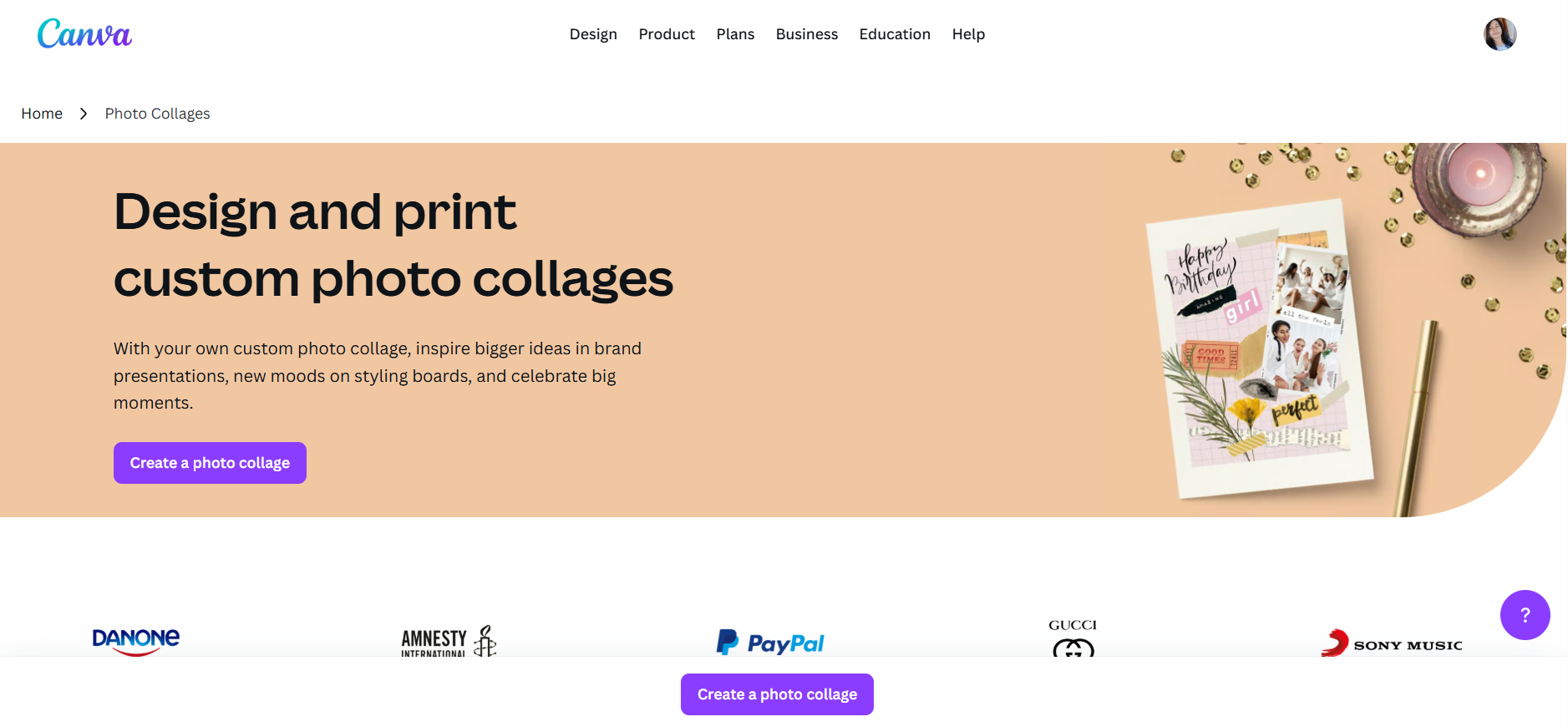
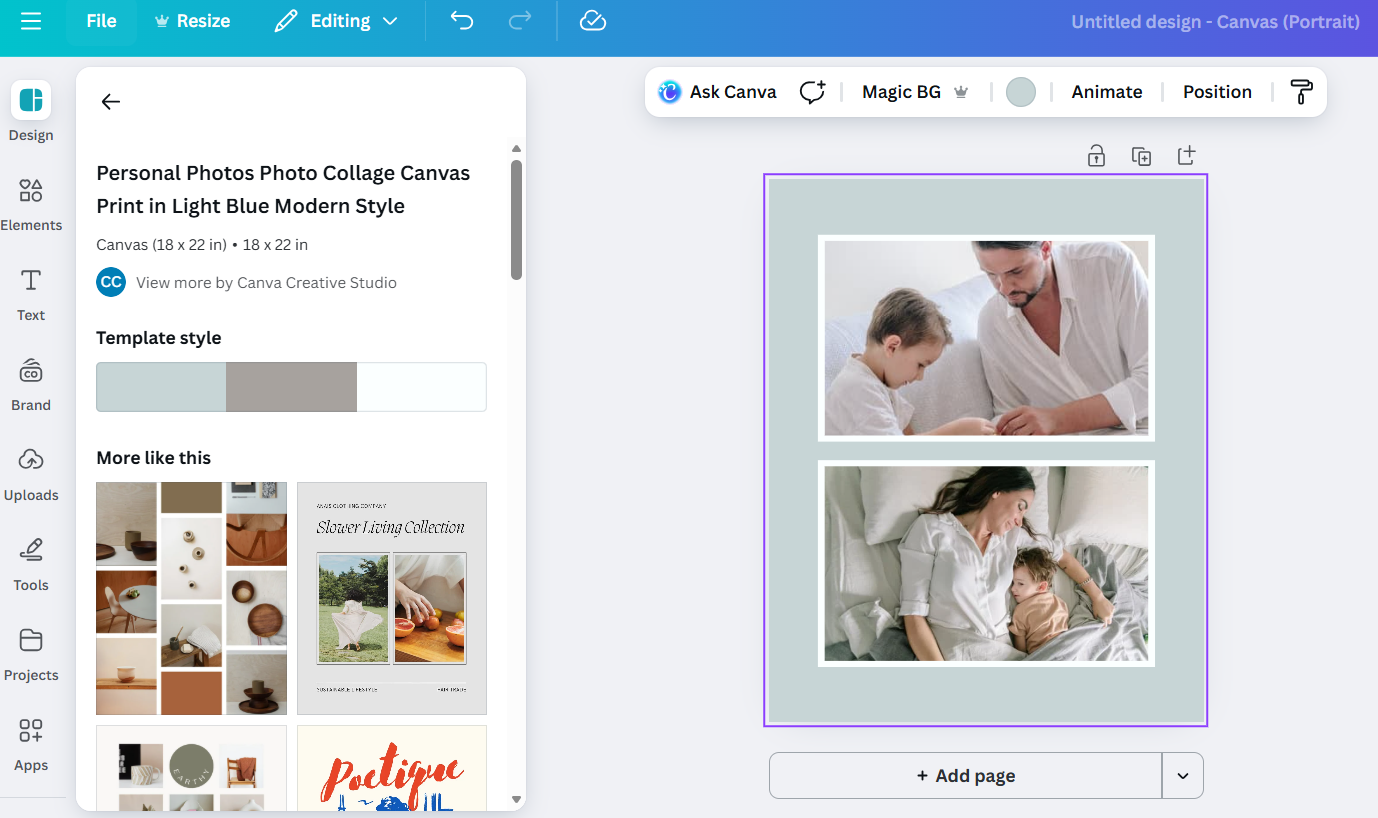
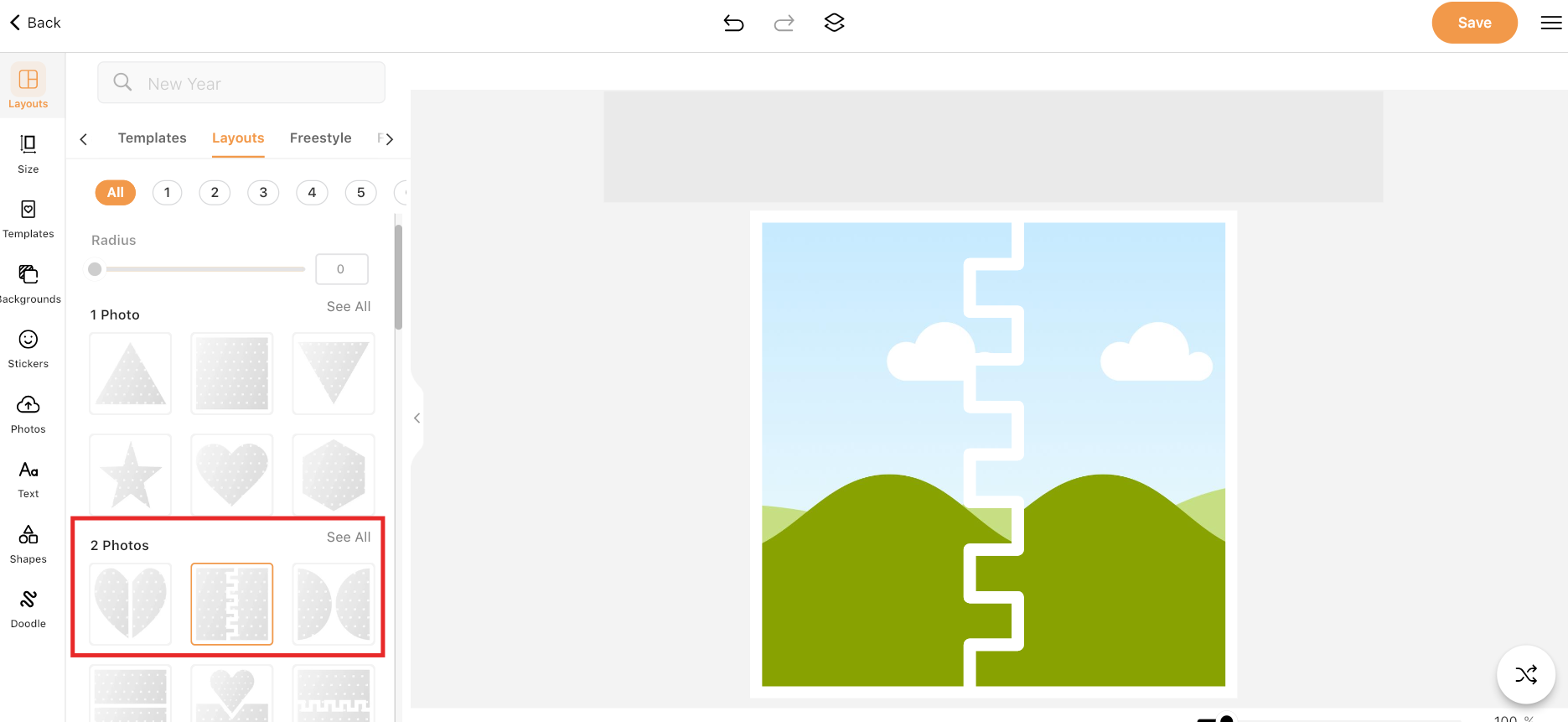
Step 1: Open the Canva Photo Collage page and
select a layout that places two images side by side.
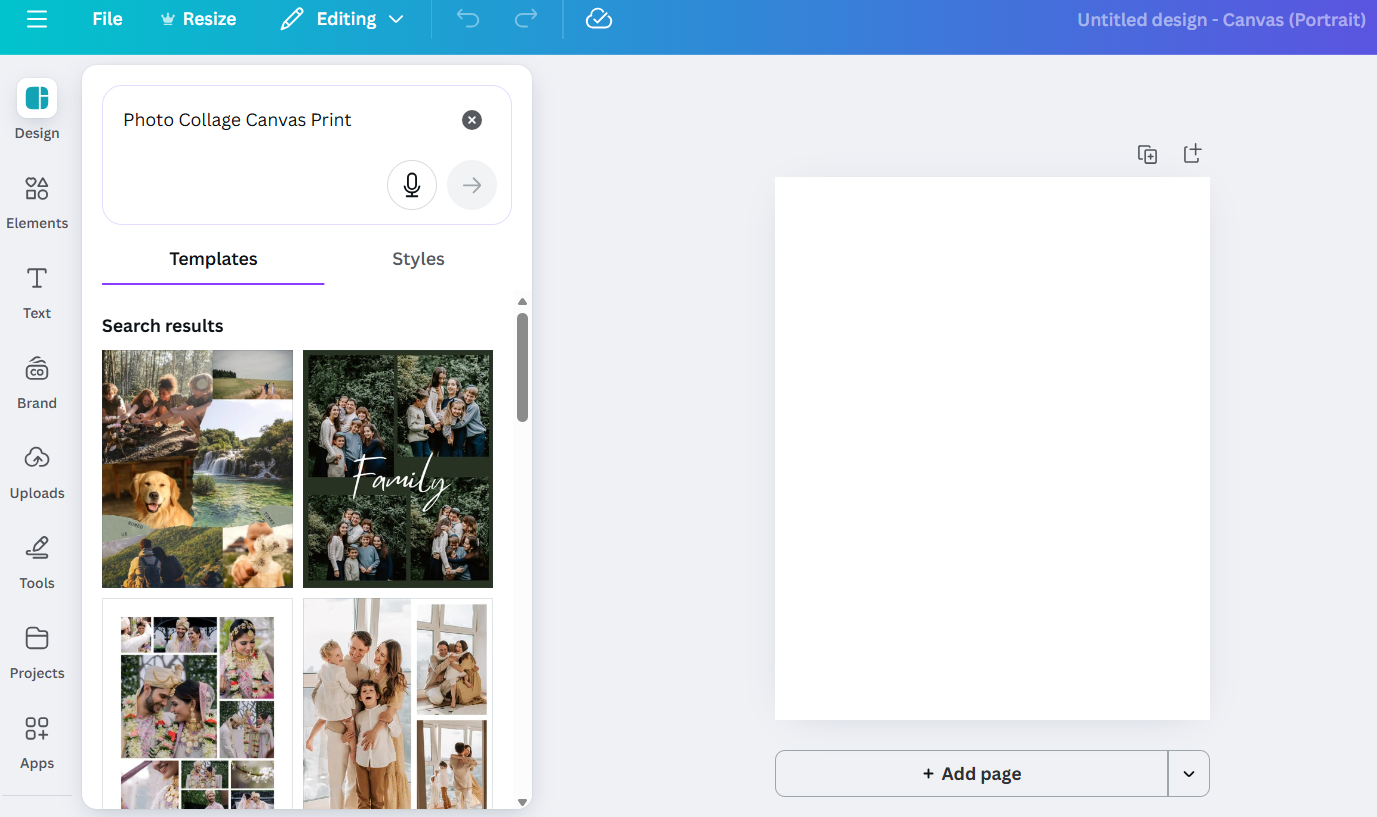
how to make side by side pictures online using Canva
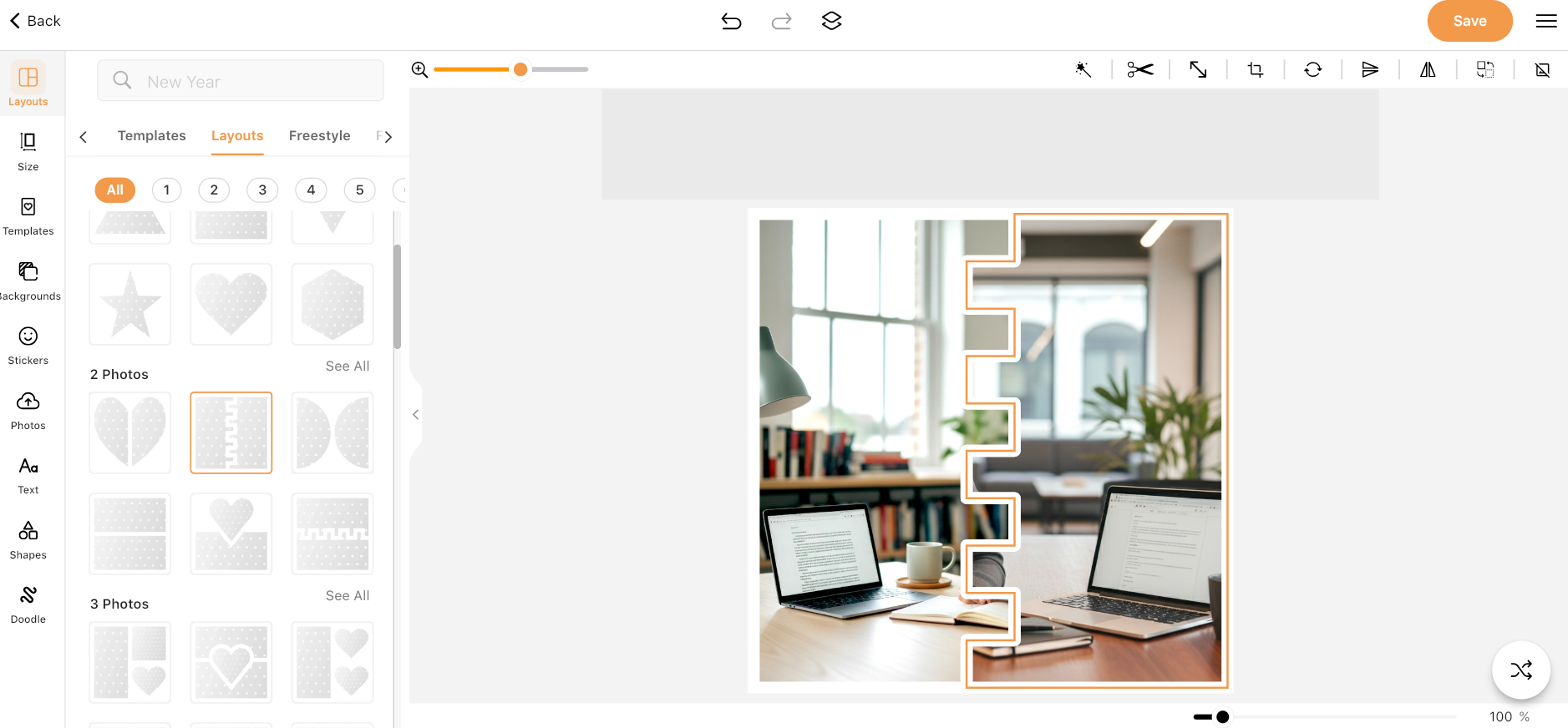
Step 2: Upload your two images by clicking
Uploads, then drag and drop them into the placeholders.
how to make side by side pictures free with Canva
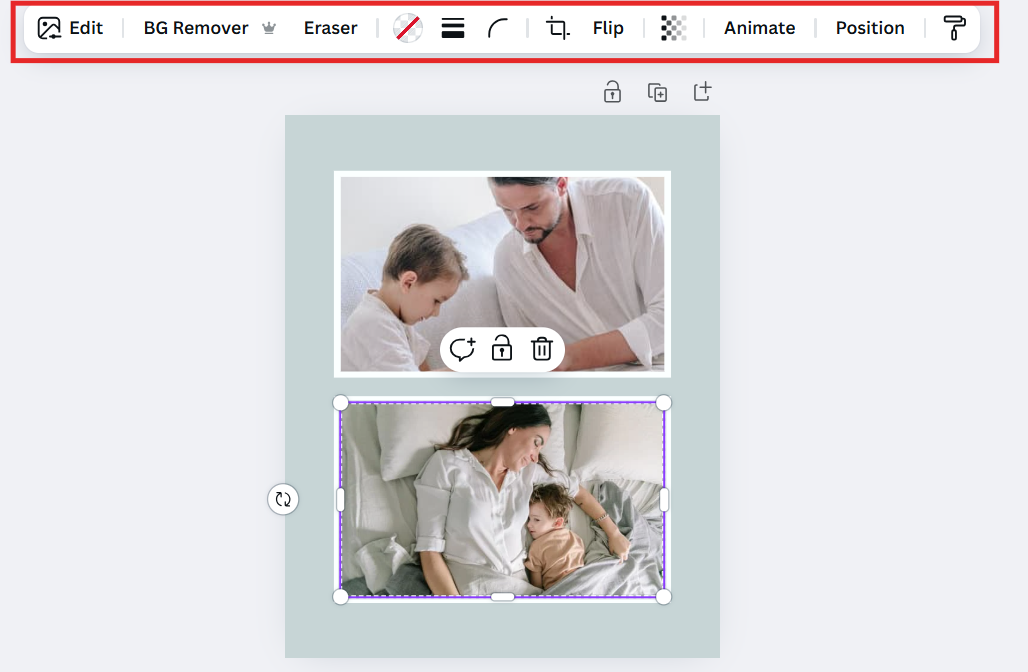
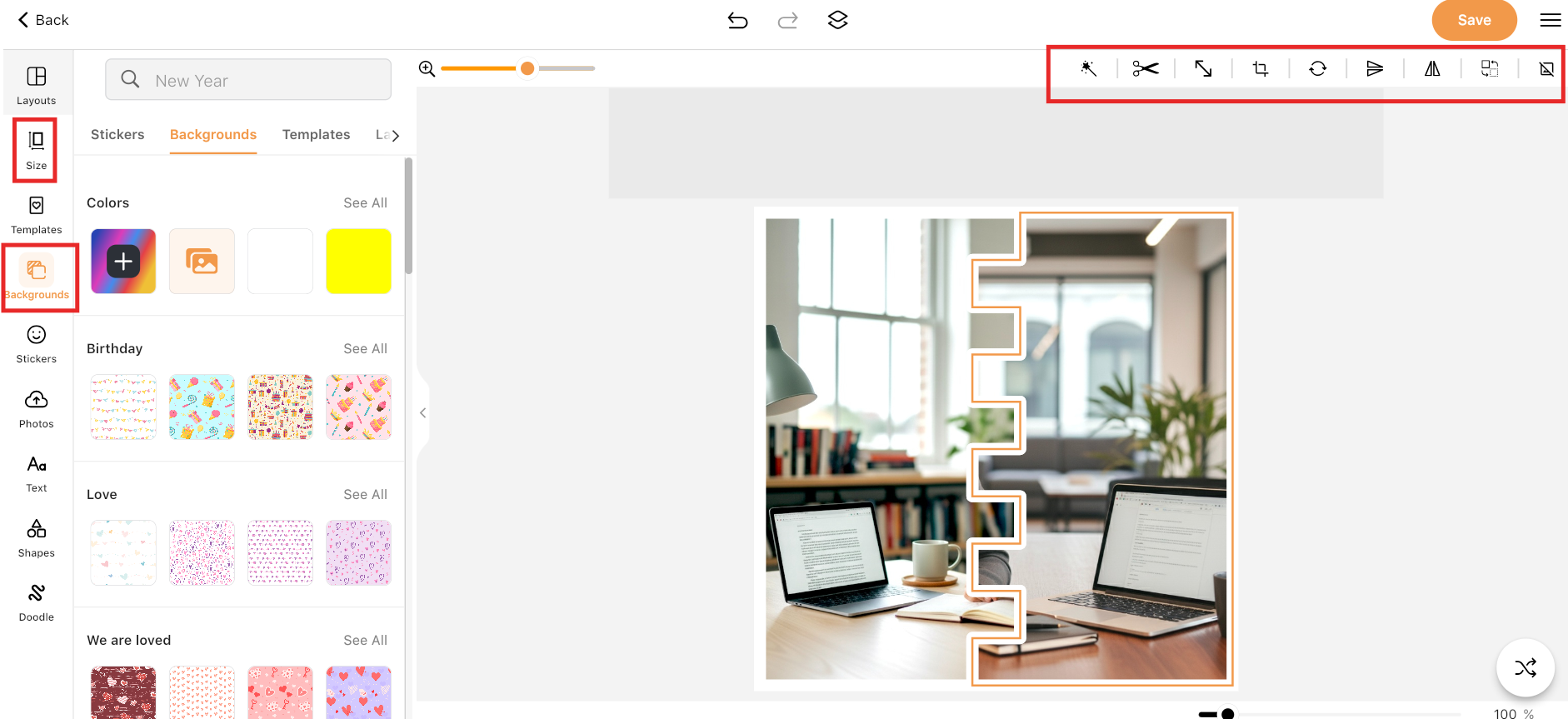
Step 3: Adjust spacing, borders, or text if
needed.
how to make side by side pictures with Canva app free
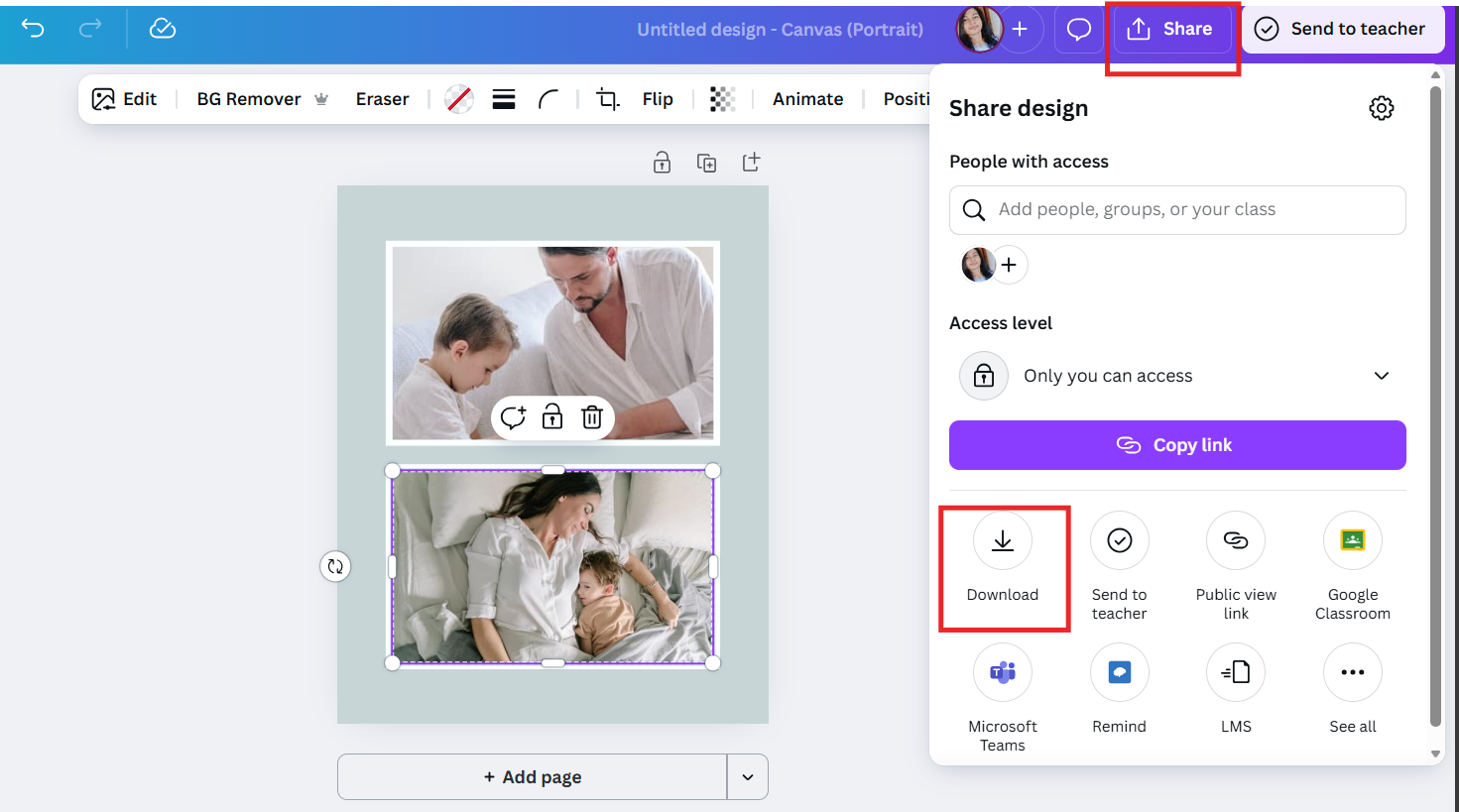
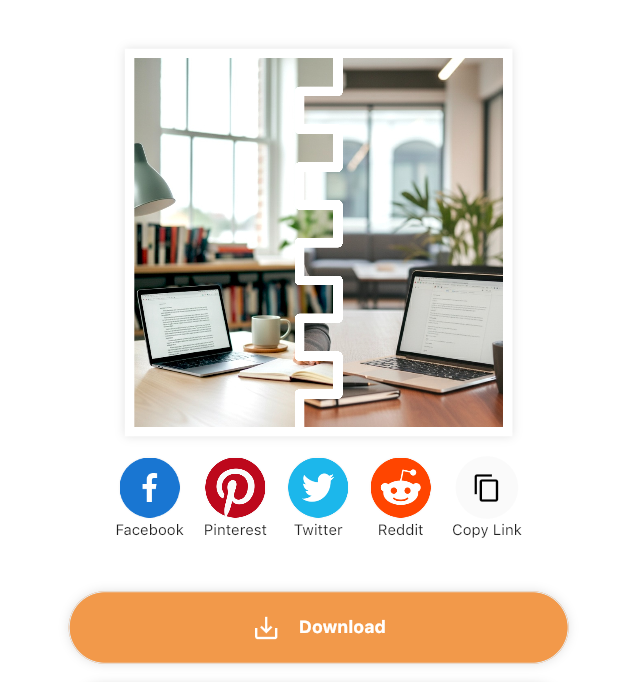
Step 4: Click Share, then Download to save your
final image.
how to make side by side pictures online
My Experience Using Canva:
I have found Canva to be the most polished option for online use. The
templates make alignment effortless, and it is ideal when I want a
clean, professional-looking result with minimal editing time. If I need
a design suitable for social media or presentations, Canva is usually my
first pick.
Kapwing provides a flexible online editor with strong customization
tools. It is particularly useful if you want more control over the
layout rather than using a fixed template.
how to make side by side pictures online with Kapwing
Key Features
Custom canvas size and layout control
Simple drag-and-drop editing
Add text, filters, or shapes for personalization
Price: Free (Login required to export without
watermark)
Pros
Highly flexible for custom designs
Ideal for comparison images and before-after visuals
Works entirely online
Cons
Login needed to export without watermark
Some advanced features are paid
How to Edit and Save in Kapwing
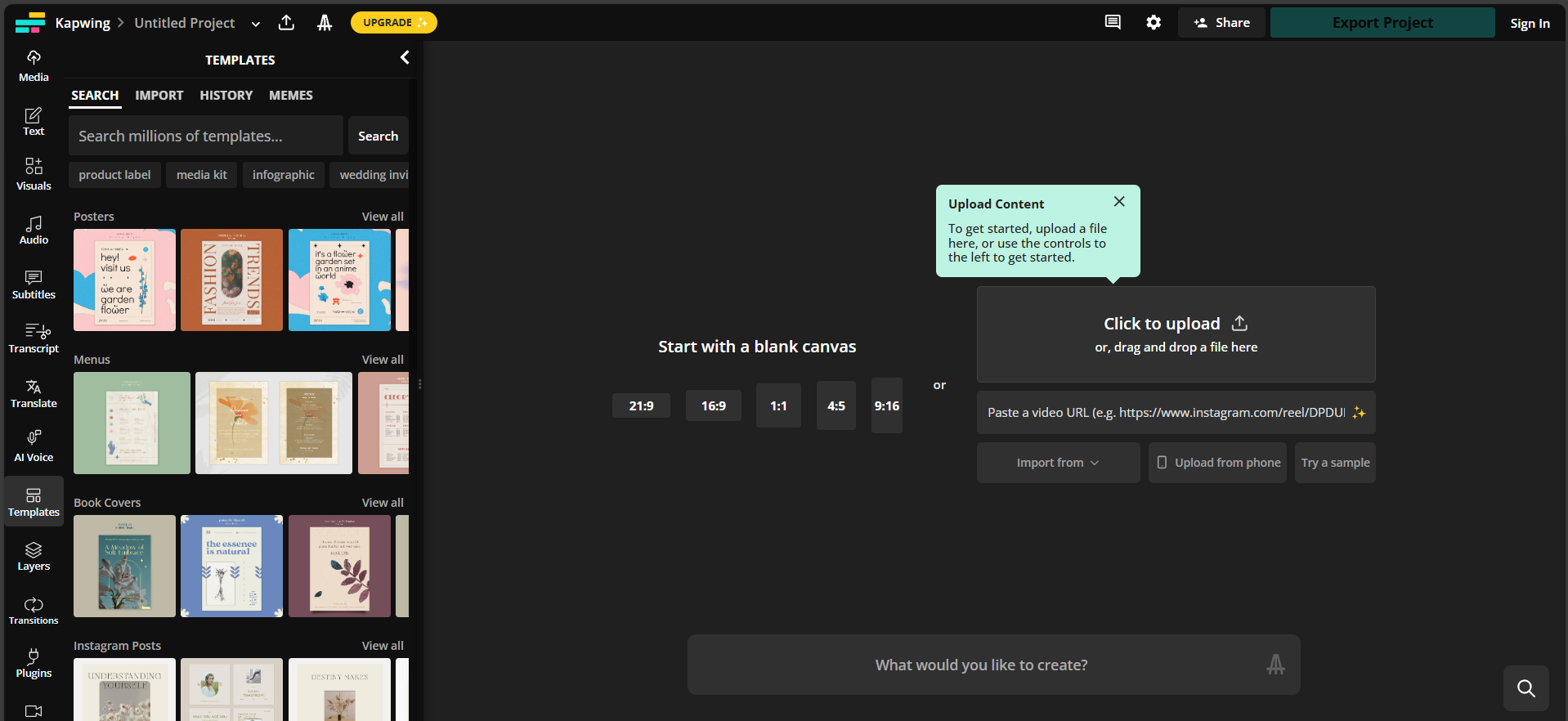
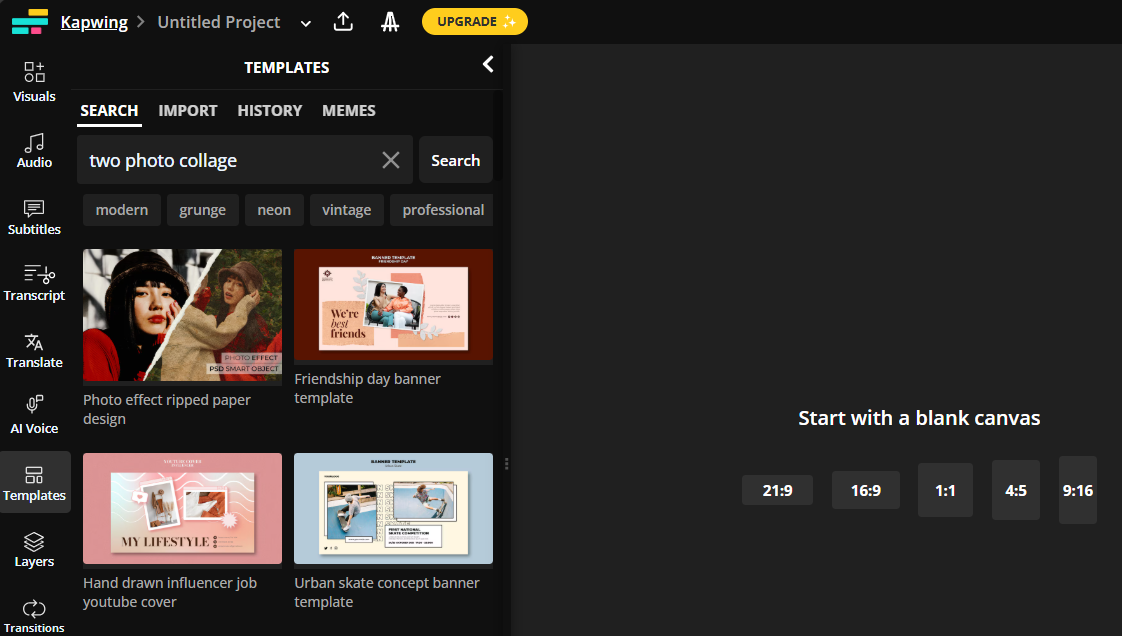
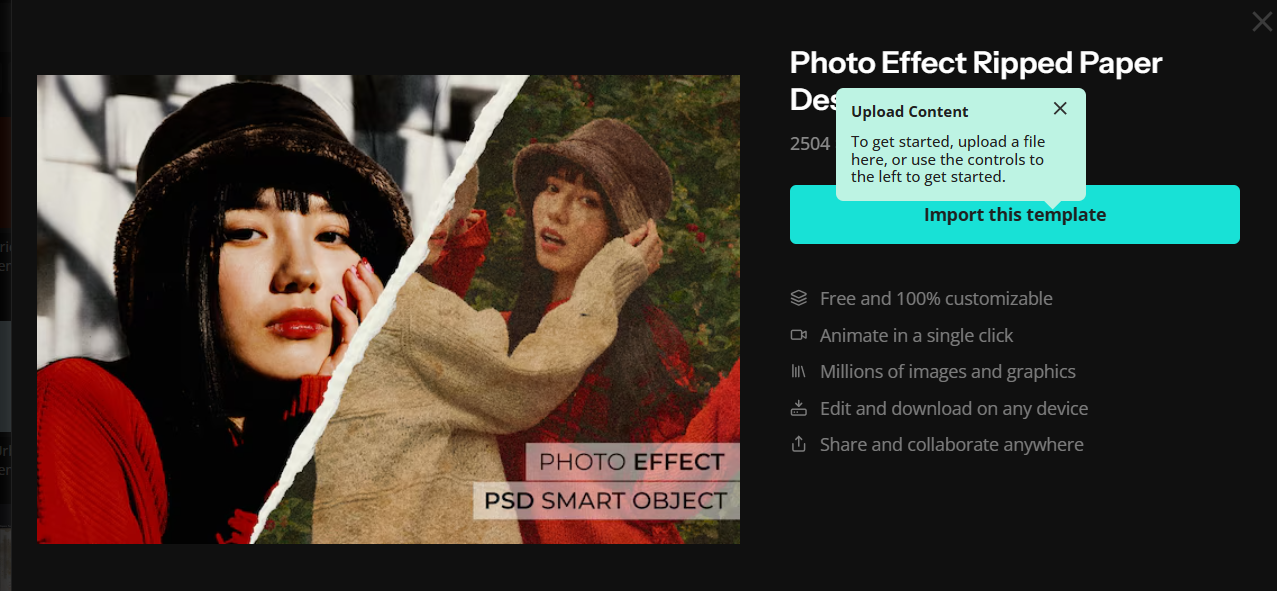
Step 1: Open Kapwing’s templates page and choose
a two-photo layout or a blank canvas.
how to make side by side pictures free with Kapwing
Step 2: Upload your images and position them
side by side on the canvas.
how to make side by side pictures online with Kapwing templates
Step 3: Adjust margins, background color, and
alignment to finalize the look.
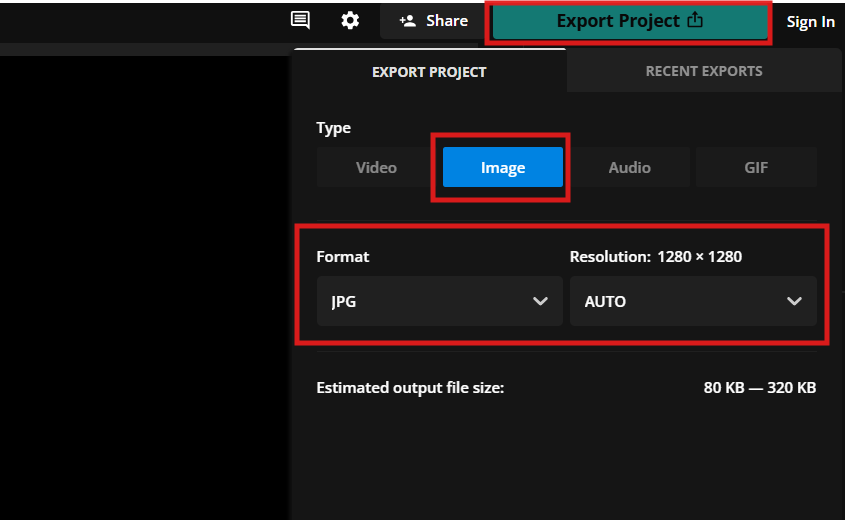
Step 4: Click Export, select your format, and
save your image.
Export image in preferred format
My Experience Using Kapwing:
I find Kapwing useful when I need full control over spacing or when I
am working on a comparison graphic. It gives more layout freedom than
Canva, which makes it suitable for creative users or when the standard
templates feel limiting.
PhotoJoiner is ideal if you want to make side by side pictures online
without creating an account. It provides simple collage layouts that you
can export instantly.
how to make side by side pictures online with PhotoJoiner
Key Features
No login or sign-up required
Quick collage editor for 2–8 images
Adjustable spacing and border options
Price: Free
Pros
No account needed to export
Very quick for simple layouts
Easy-to-use interface
Cons
Limited customization compared to Canva or Kapwing
Fewer templates and design elements
How to Edit and Save in PhotoJoiner
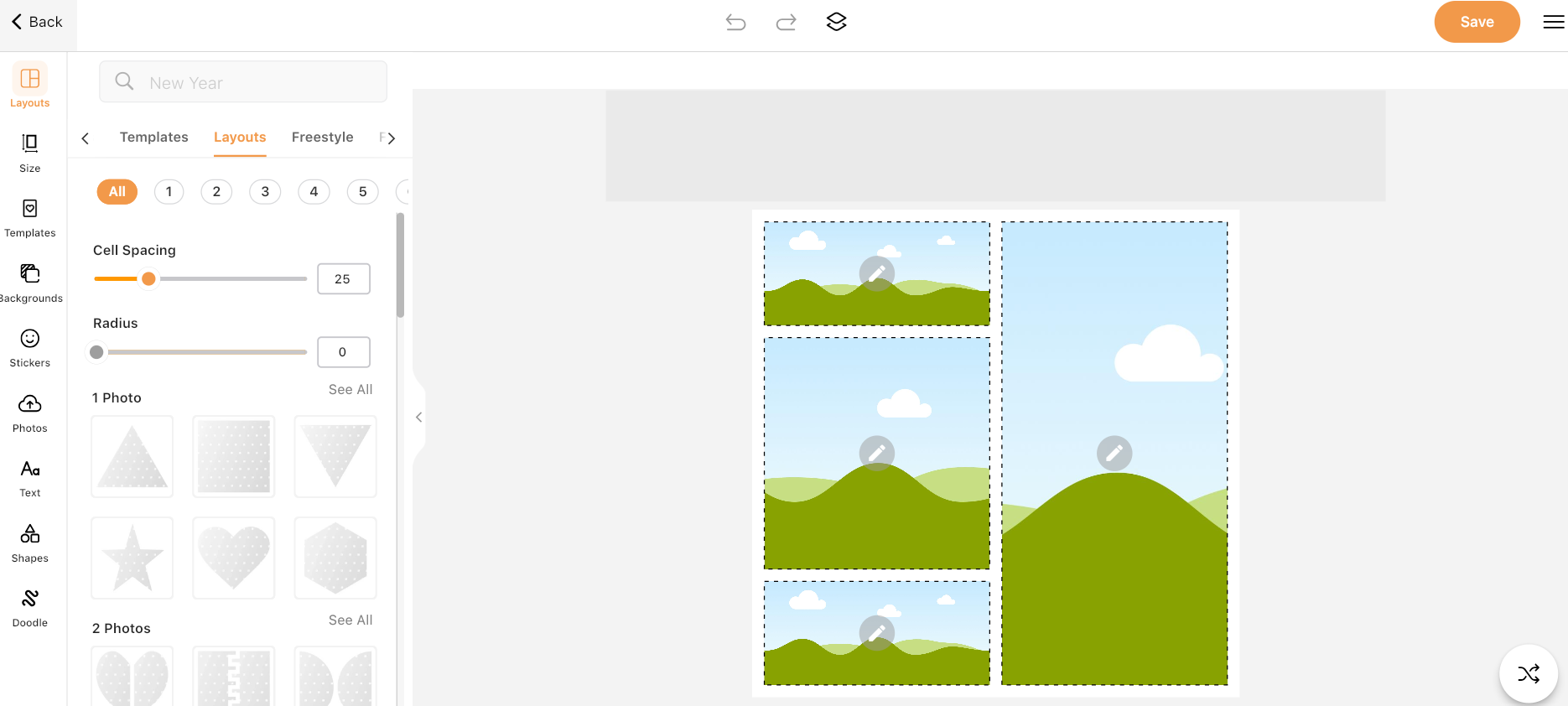
Step 1: Visit the PhotoJoiner editor and choose
a collage layout with two frames.
how to make side by side pictures free with PhotoJoiner
Step 2: Upload both images and position them in
the two side-by-side frames.
how to make side by side pictures without an app free
Step 3: Adjust spacing, border size, and
background color.
Export side by side pictures free
Step 4: Click Save to download your combined
photo.
Download side by side pictures free with PhotoJoiner
My Experience Using PhotoJoiner:
For quick tasks, PhotoJoiner is efficient. It is the simplest tool if
I want a fast result without logging in or browsing through multiple
template options. It is basic, but it does the job when speed matters
more than design flexibility.
Part
2: How to Make Pictures Side by Side on Mobile Phone
If you prefer editing on your phone, several free apps make it simple
to place two images next to each other. These tools are especially handy
when you need quick results for social media posts, comparisons, or
before-and-after visuals while on the go.
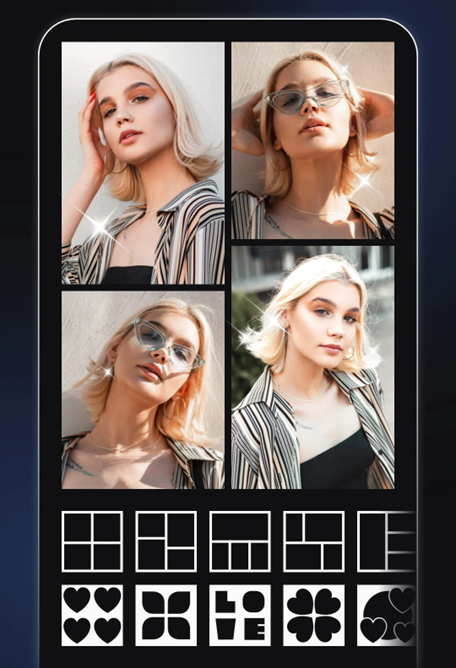
Collage Maker is a beginner-friendly app that allows you to create
side-by-side layouts in just a few taps. It includes ready-made grids,
background options, and export settings suitable for Instagram,
Facebook, or messaging apps.
How to Edit and Save on Android
Step 1: Download and open the Collage Maker app,
then select Collage.
Create side by side pictures free on Android
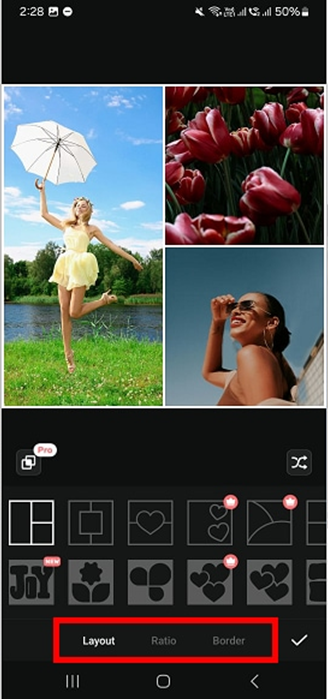
Step 2: Choose the photo grid layout and import
the pictures you want to combine.
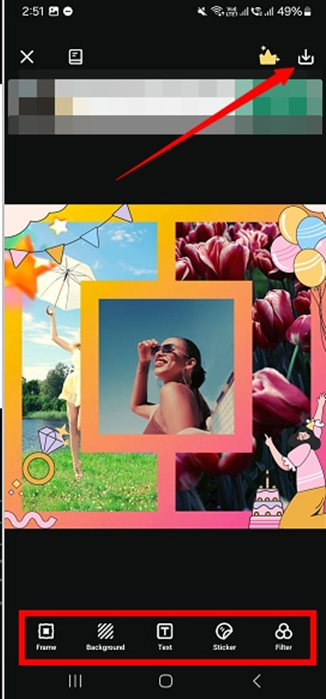
Step 3: Adjust spacing, borders, background, and
sizing to suit your preference.
how to make side by side pictures using an app free
Step 4: Tap Save and choose your resolution to
export the final image.
Save side by side pictures free
My Experience Using Collage Maker on Android:
This app is quick, clean, and intuitive. I find it useful when I need
a ready-made layout and don’t want to spend time adjusting alignment
manually. If you want to make side by side pictures free on Android with
minimal effort, this app works well for everyday use.
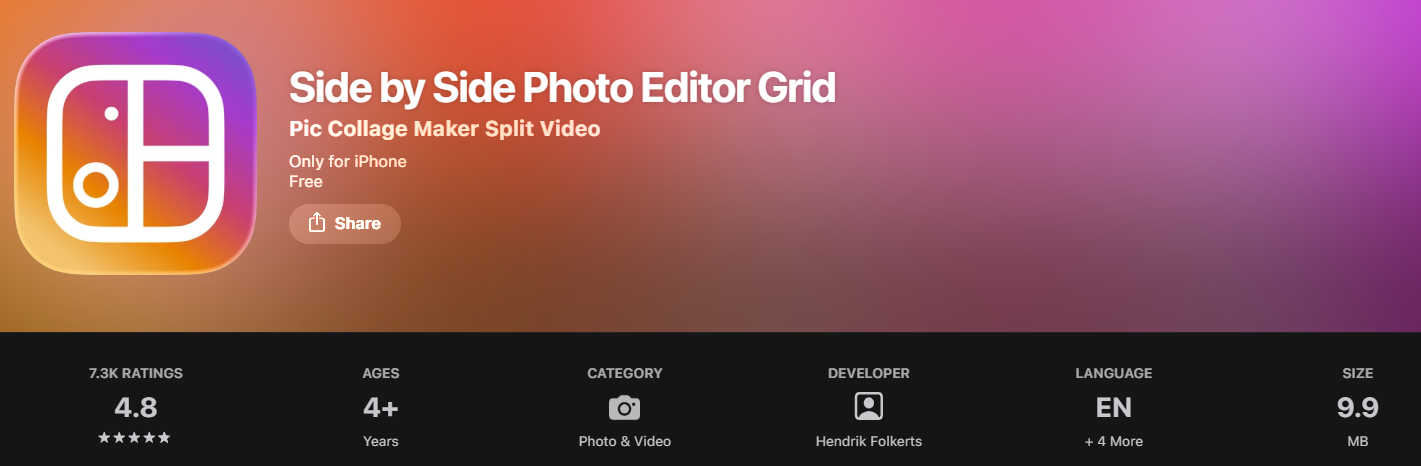
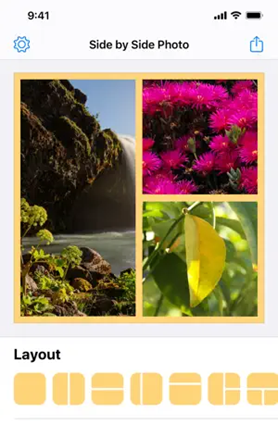
This app is specifically designed to place two photos together,
making it a simple option if you are looking for how to make side by
side pictures on iPhone with preset layouts.
How to Edit and Save on iPhone (Method 1)
Step 1: Install and open the Side by Side Photo
Editor Grid app.
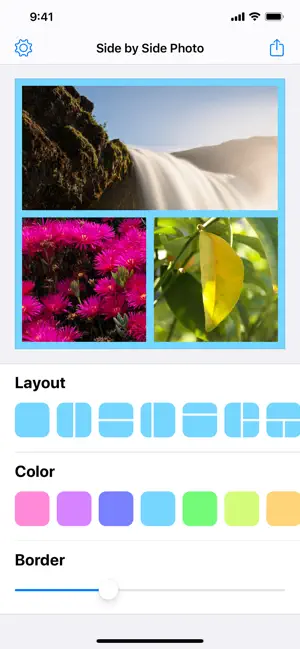
Step 2: Choose a photo layout and upload your
images.
how to make side by side pictures free on iPhone
Step 3: Customize border, ratio, background, and
orientation as needed.
how to make side by side pictures on iPhone for free
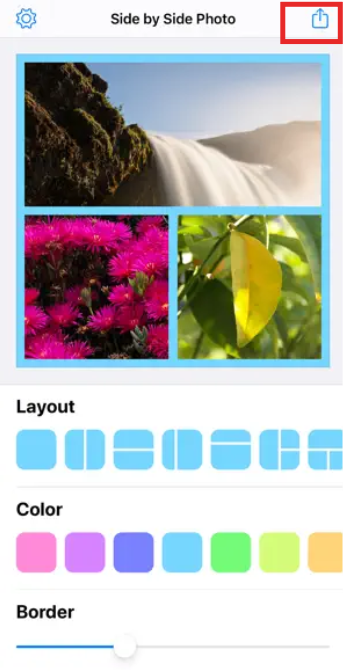
Step 4: Tap Save to download your final combined
photo.
Save side by side pictures on iPhone
My Experience Using the Side-by-Side App:
This app does exactly what it promises. It removes complications and
gives a clean, fast way to align two photos. I recommend it when you
want a quick side-by-side export for sharing or comparisons.
Method 2: Make Side by Side Pictures Without an
App
If you prefer not to download anything, the iPhone Shortcuts feature
allows you to make side-by-side images directly within your device. This
is one of the easiest ways for users searching for how to make
side by side pictures without app solutions.
How to Edit and Save on iPhone (Method 2)
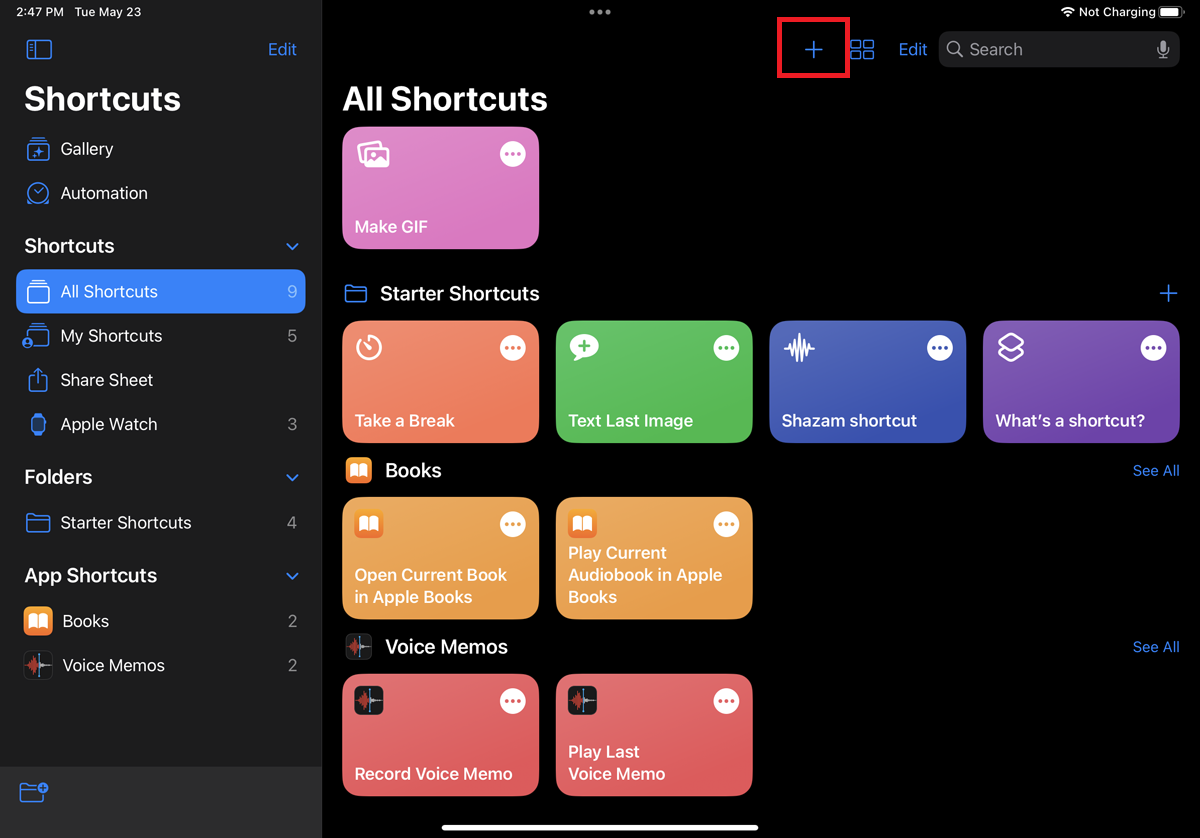
Step 1: Open the Shortcuts app and tap the plus
(+) icon to create a new shortcut.
how to make side by side pictures free with Shortcuts
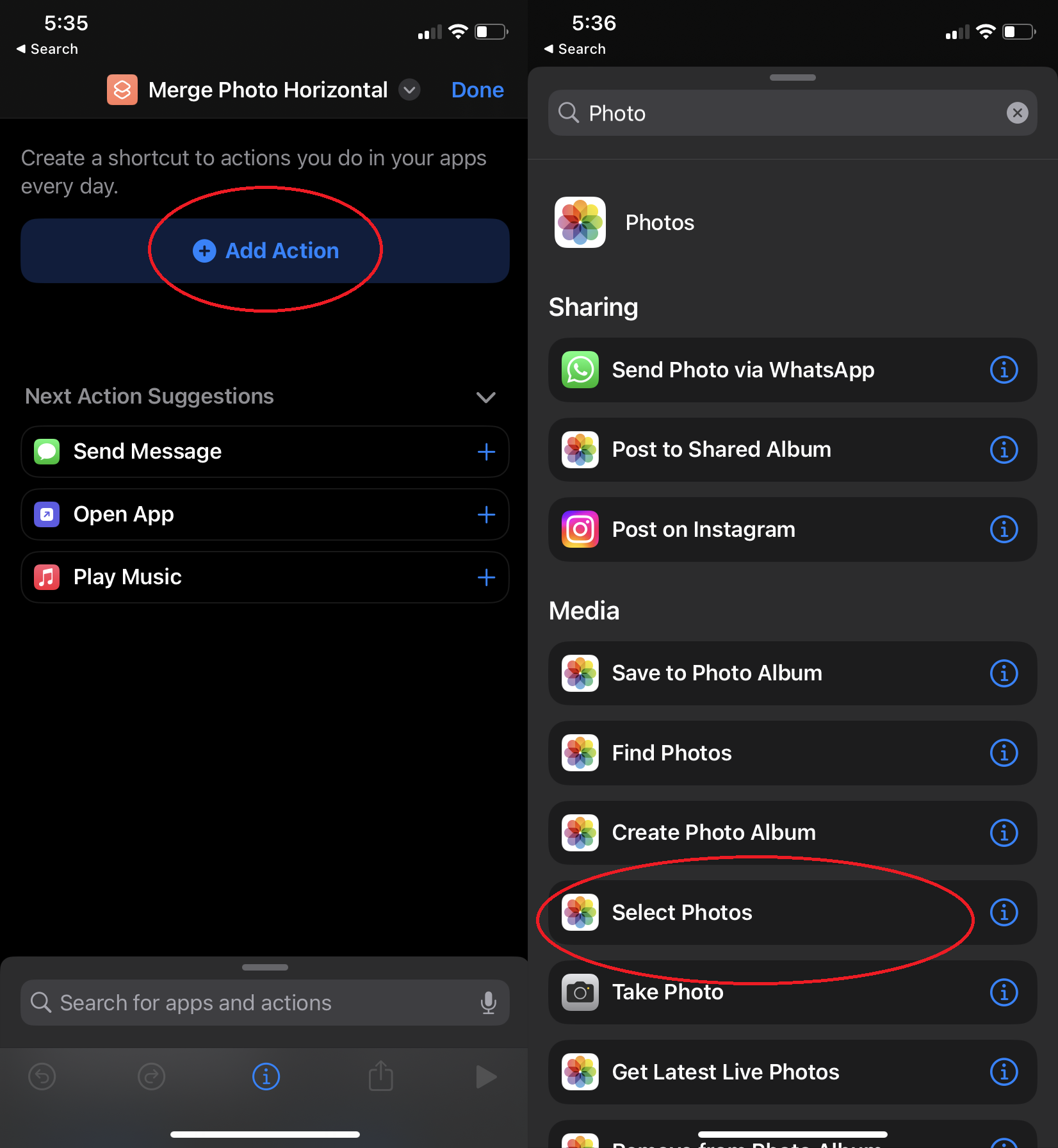
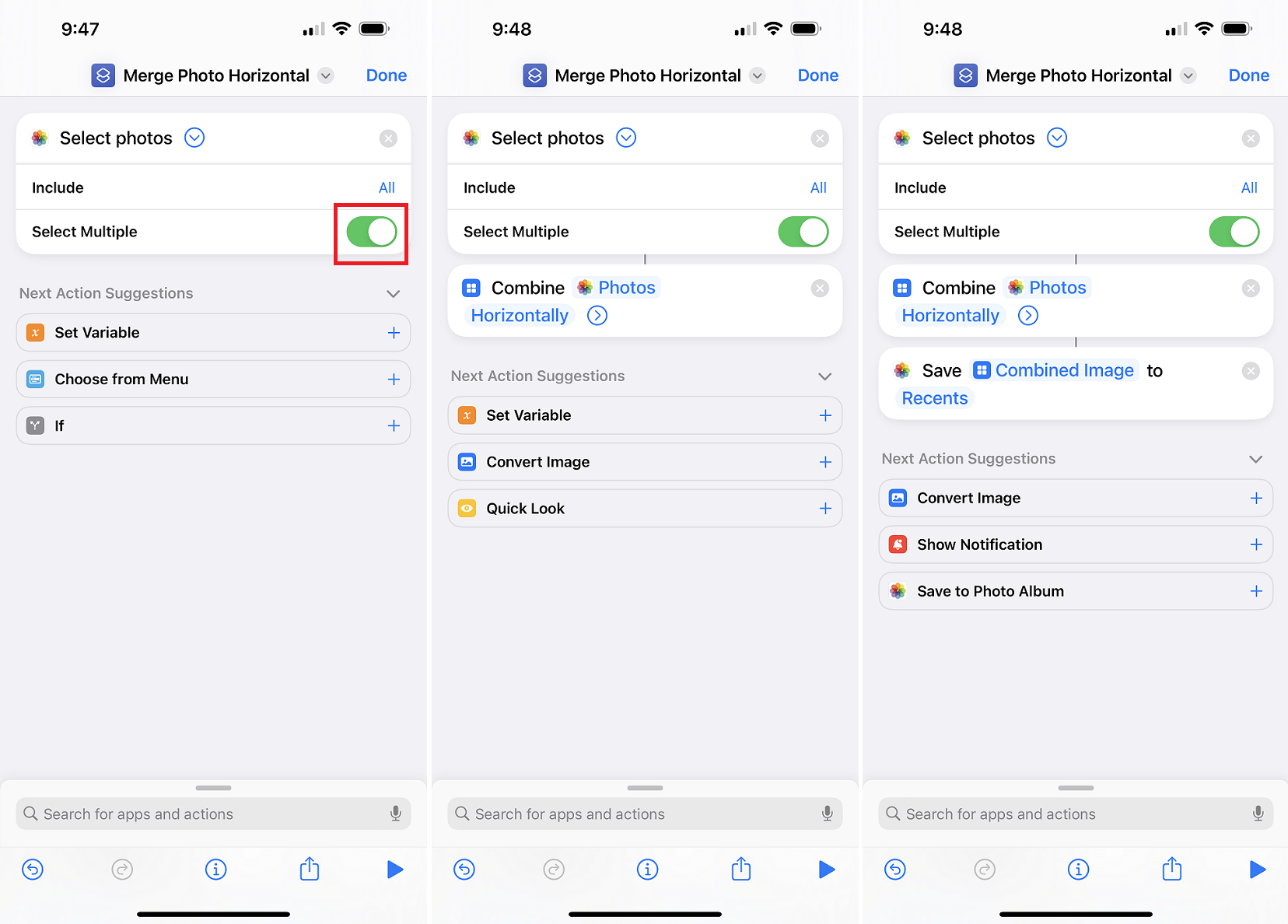
Step 2: Add the action Select Photos, enable
Select Multiple, and then add the action Combine Images.
how to make side by side pictures using Shortcuts app free
Step 3: Choose Horizontal to place the photos
side by side and run the shortcut.
how to make side by side pictures on iPhone with Shortcuts
Step 4: Save the generated image to your Photos
library.
My Experience Using Shortcuts:
I find this method surprisingly efficient. Once the shortcut is
created, it works in seconds. It is ideal for users who want a built-in,
secure, and free method without installing extra apps. It is also
helpful when storage is limited or when you only need a quick edit
occasionally.
Part 3:
Comparison of Side-by-Side Pictures Tools
With several tools available, choosing the right one depends on
whether you prioritize speed, customization, or convenience. The table
below compares the key tools mentioned above to help you pick what suits
your needs best.
Tool
Platform
Login Required
Best For
Customization Level
Price
Canva
Web, iOS, Android
Yes (to export)
Social media designs, polished layouts,
professional use
High
Free (Pro optional)
Kapwing
Web
Yes (to export without watermark)
Custom spacing, comparisons, flexible
editing
High
Free (Premium optional)
PhotoJoiner
Web
No
Quick and simple side-by-side layouts
Low
Free
Collage Maker
Android App
No
Fast mobile editing with ready-made
grids
Medium
Free
Side by Side Photo Editor
Grid
iPhone App
No
Quick side-by-side layouts for iPhone
users
Medium
Free
iPhone Shortcuts
Method
iPhone Built-in
No
Making side-by-side images without
apps
Low
Free
My Experience Choosing the Right Tool
Through testing these tools, I noticed that the best option varies
based on the situation. When I need a clean and professional design for
publishing or social media, Canva gives me the most control and polish.
For more flexible layouts or comparison-style photos, Kapwing offers
stronger customization. If I want a result immediately with zero setup,
PhotoJoiner is the fastest online method. On mobile, the dedicated apps
complete the task quickly, but the iPhone Shortcuts method stands out
for users who want a built-in, no-install solution.
Part 4: Enhance Your
Pictures by WPS Photo
After placing two images next to each other, the final result may
lose a bit of sharpness or quality during export, especially when using
online tools. This is where WPS Photobecomes valuable. It helps you enhance your side-by-side pictures in
seconds, improving clarity and overall visual impact before sharing or
printing.
Enhance side by side pictures free with WPS Photos
Why Use WPS
Photo to Enhance Side-by-Side Pictures
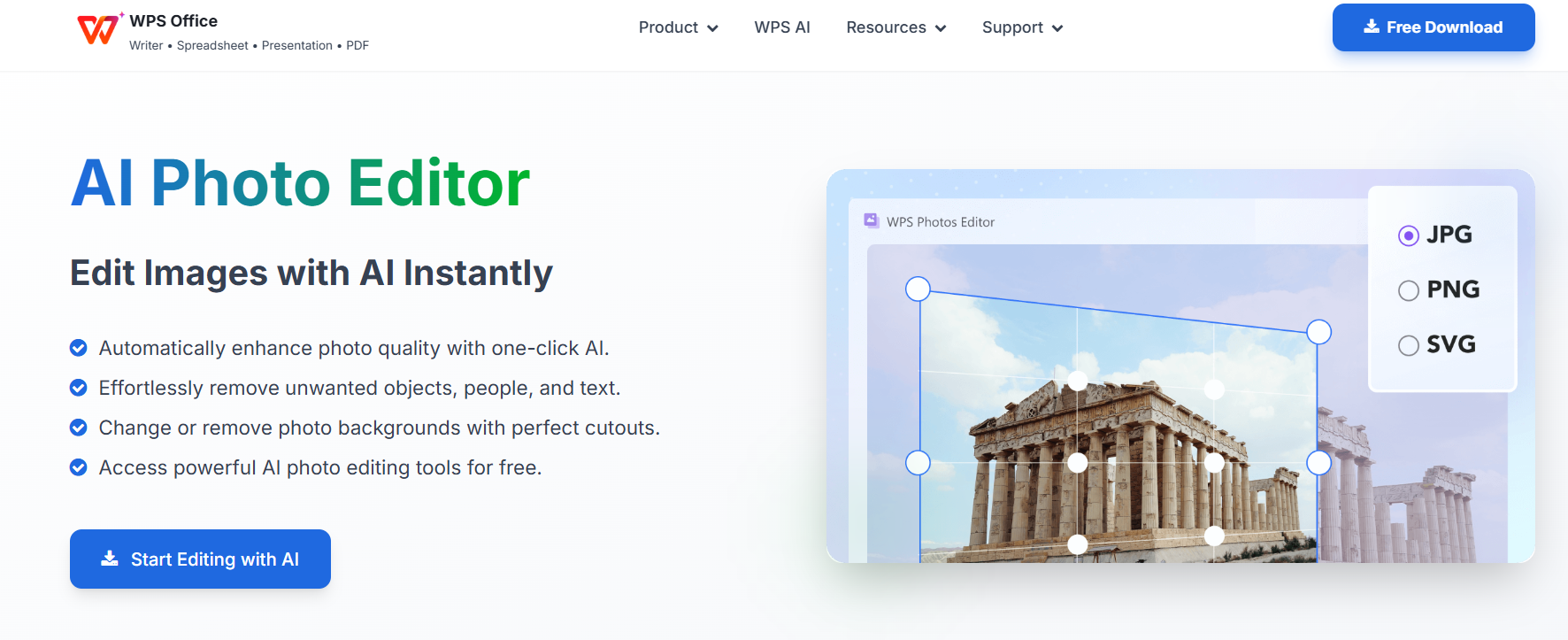
WPS Photo is an AI-powered editor designed to improve image quality
with minimal effort. Whether your combined picture looks slightly
blurry, lacks detail, or appears compressed, this tool can help refine
the final output.
Key Features of WPS Photo
Restore Clarity with AI Precision
Fix blurry or low-quality images using AI sharpening that enhances
details without distorting the photo.
All-in-One Photo Quality Enhancer
Improve lighting, remove noise, fix exposure, and enhance colors, all
in a single tool.
Batch Edit and Flexible Export
Enhance multiple images at once and export them in high-resolution
formats suitable for social media, documents, or presentations.
How to Enhance Your Side-by-Side Pictures
Follow these simple steps to improve the quality of your combined
photo before sharing it:
Step 1: Open WPS Photo and upload your
side-by-side image.
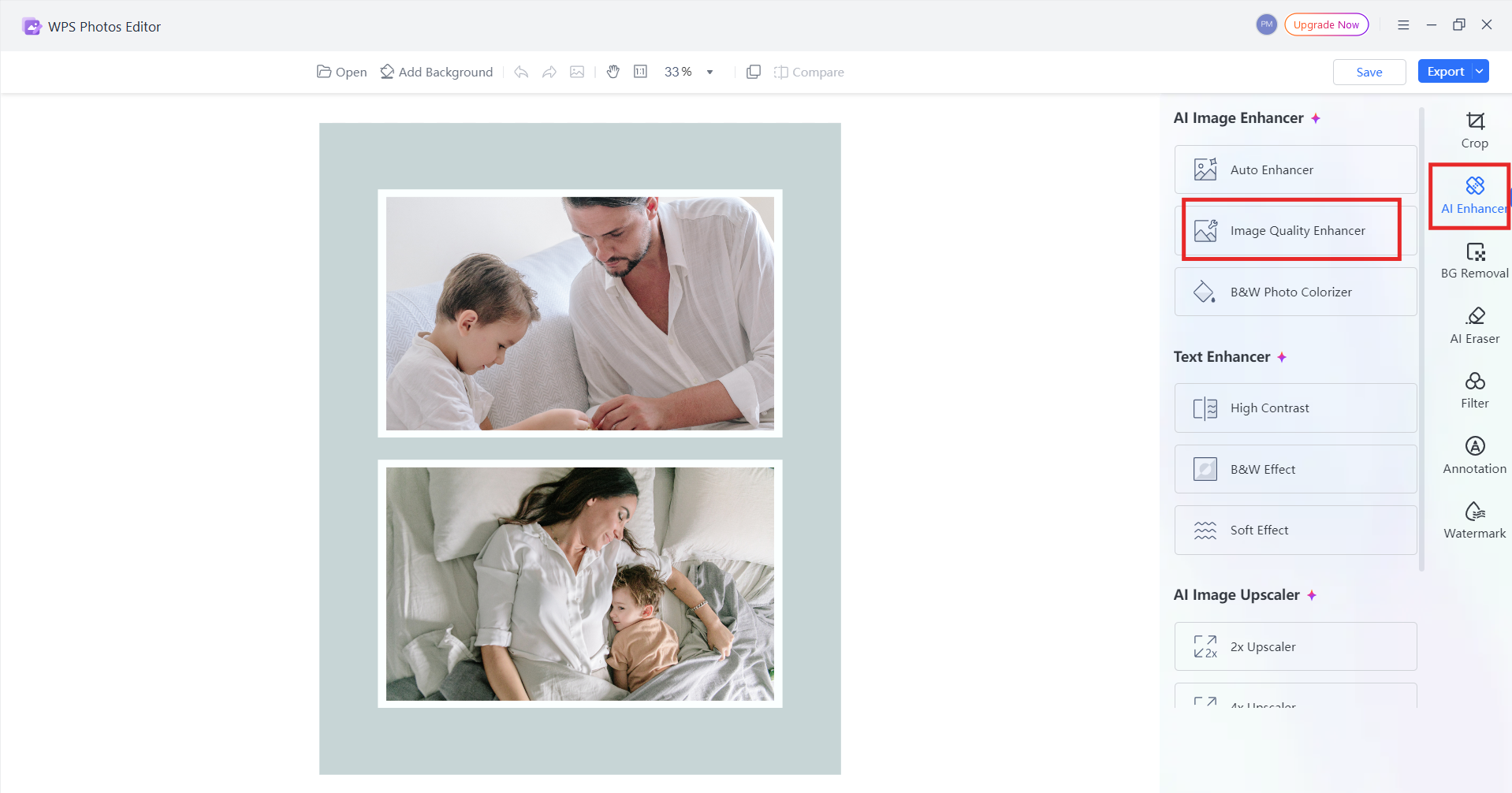
Step 2: Select the AI Enhance option to
automatically sharpen, brighten, and balance your photos.
enhance pictures free with image enhancer
Step 3: Review the Before and After comparison,
then adjust intensity if needed.
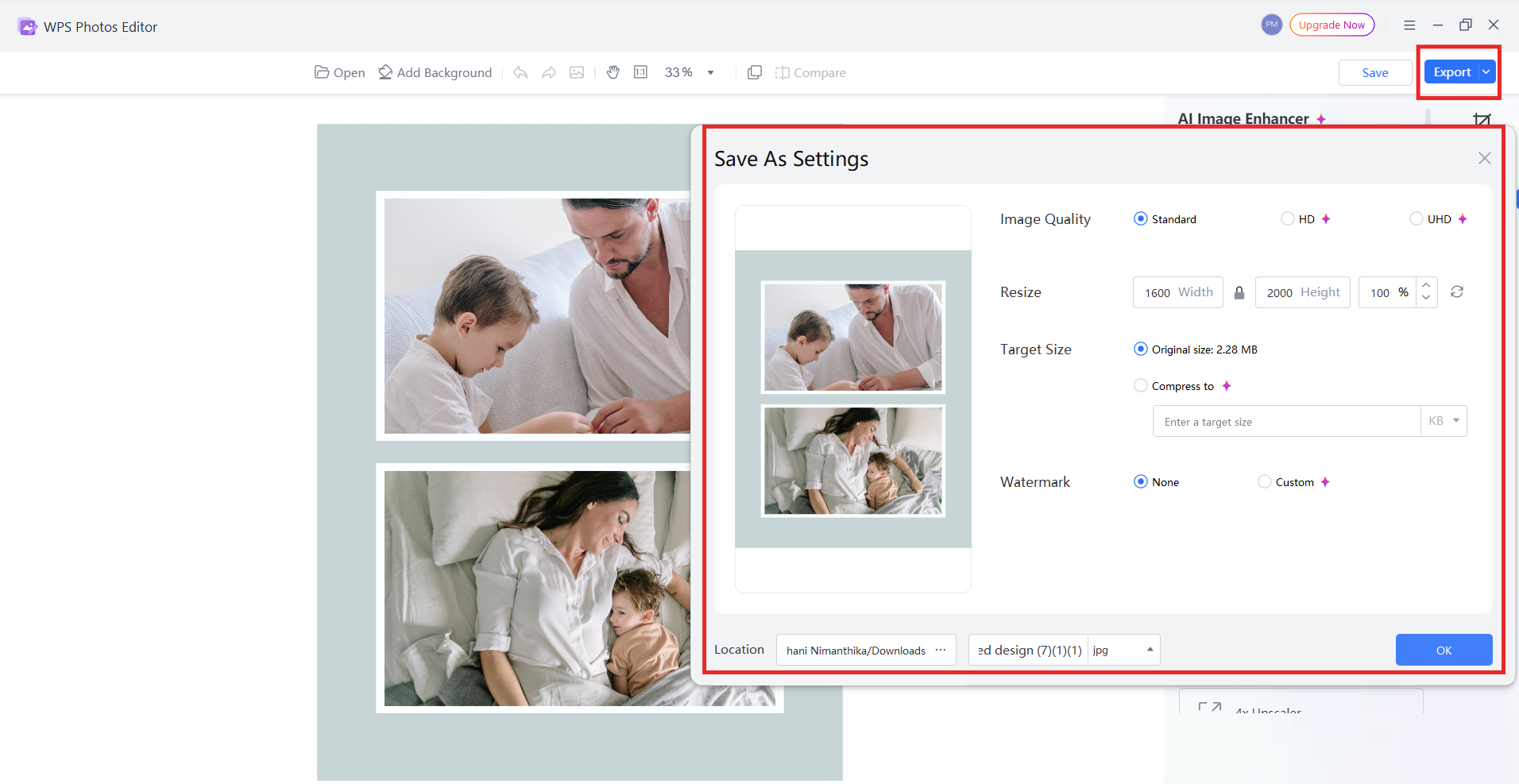
Step 4: Export your enhanced image and choose
your preferred resolution.
Save high quality side by side pictures free
My Experience with WPS Photo
When enhancing side-by-side pictures, WPS Photo helped me restore
clarity more effectively than using built-in filters or basic editing
apps. I found that the AI Enhance feature works particularly well when
your original photos were taken in different lighting conditions. The
tool balances the tones and sharpens both images, making the combined
result look more consistent and professional.
FAQs
Q1. How can I arrange my photos in a picture
collage?
Place all photos in your editor before deciding on their placement.
This allows you to view everything together and visualize the best
arrangement. Then, choose a suitable template and drag each photo into
position to see how they look side by side.
Q2. Are the online make side by side websites
free?
Yes, most online tools are free unless you use premium elements such
as VIP images or graphics in Canva.
Q3. What does “side by side” mean when arranging
pictures?
It refers to placing two or more images next to each other
horizontally (or vertically) so they appear together in one combined
layout.
Q4. Can I use WPS Office to place two images side by
side?
Yes. In WPS Writer or WPS Presentation, you can insert two pictures
and use alignment and arrange tools to position them side by side.
Q5. How can WPS AI improve my side-by-side
images?
WPS AI can auto-enhance image quality, adjust lighting, remove
backgrounds, and match tones between photos so your combined picture
looks more unified and visually appealing.
Q6. Can I use this method for social media posts or
documents?
Absolutely. You can export your side-by-side layout as an image file
for social media, or keep it in documents or slides for professional
reports and presentations.
Q7. Is WPS Photo free to use?
Basic editing and enhancement features are free. Advanced AI features
such as background removal and upscale may require a premium plan.
Summary
Creating side-by-side pictures has become easier than ever, whether
you prefer using online tools, mobile apps, or built-in phone features.
In this guide, we explored multiple ways to make side-by-side images
using free platforms like Canva, Kapwing, and PhotoJoiner, as well as
mobile solutions for both Android and iPhone users. Each method offers a
simple, user-friendly approach so you can compare photos, create
before-and-after visuals, or design clean layouts for personal or
professional use.
Once your images are combined, enhancing the final result can make a
noticeable difference. WPS Photoprovides a quick AI-powered solution to sharpen details, balance
lighting, and improve clarity in just a few clicks. Before sharing your
side-by-side picture on social media or adding it to a document,
consider enhancing it with WPS Photo for a more professional and
polished appearance.
Office software expert with 15+ years of experience since 2009. I specialize in tech tutorials, productivity tools, and digital solutions for everyday users. Passionate about making technology simple and accessible for everyone.


'%3e%3cpath%20d='M8%200C12.4183%200%2016%203.58172%2016%208C16%2012.4183%2012.4183%2016%208%2016C3.58172%2016%200%2012.4183%200%208C0%203.58172%203.58172%200%208%200ZM11.6162%204.38379C11.2257%203.99337%2010.5927%203.99338%2010.2021%204.38379L8%206.58594L5.79785%204.38379C5.40732%203.99334%204.77429%203.99329%204.38379%204.38379C3.99331%204.77429%203.99335%205.40733%204.38379%205.79785L6.58594%208L4.38379%2010.2021C3.99348%2010.5927%203.99341%2011.2257%204.38379%2011.6162C4.77426%2012.0066%205.40734%2012.0065%205.79785%2011.6162L8%209.41406L10.2021%2011.6162C10.5927%2012.0066%2011.2257%2012.0067%2011.6162%2011.6162C12.0067%2011.2257%2012.0066%2010.5927%2011.6162%2010.2021L9.41406%208L11.6162%205.79785C12.0066%205.40735%2012.0066%204.77429%2011.6162%204.38379Z'%20fill='%23080E17'%20fill-opacity='0.46'/%3e%3c/g%3e%3cdefs%3e%3cclipPath%20id='clip0_3761_713'%3e%3crect%20width='16'%20height='16'%20fill='white'/%3e%3c/clipPath%3e%3c/defs%3e%3c/svg%3e)



'%3e%3cpath%20fill-rule='evenodd'%20clip-rule='evenodd'%20d='M21.4999%2010.9993C21.4999%205.20009%2016.7986%200.498901%2010.9993%200.498901C5.19994%200.498901%200.498657%205.20009%200.498657%2010.9993C0.498657%2016.2404%204.33858%2020.5844%209.35855%2021.3722V14.0346H6.69238V10.9993H9.35855V8.68594C9.35855%206.05427%2010.9262%204.60062%2013.3248%204.60062C14.4736%204.60062%2015.6753%204.80571%2015.6753%204.80571V7.38979H14.3512C13.0468%207.38979%2012.64%208.19921%2012.64%209.0296V10.9993H15.5523L15.0867%2014.0346H12.64V21.3722C17.66%2020.5844%2021.4999%2016.2404%2021.4999%2010.9993Z'%20fill='%231568EA'/%3e%3c/g%3e%3c/svg%3e)


'%3e%3cpath%20d='M2.42045%2022.1876H6.31818V12.7217L0.75%208.54553V20.5171C0.75%2021.4414%201.49892%2022.1876%202.42045%2022.1876Z'%20fill='%234285F4'/%3e%3cpath%20d='M19.682%2022.1876H23.5797C24.5041%2022.1876%2025.2502%2021.4387%2025.2502%2020.5171V8.54553L19.682%2012.7217'%20fill='%2334A853'/%3e%3cpath%20d='M19.682%205.48293V12.7216L25.2502%208.54543V6.31816C25.2502%204.25236%2022.8921%203.07469%2021.2411%204.31361'%20fill='%23FBBC04'/%3e%3cpath%20d='M6.31824%2012.7217V5.48303L13.0001%2010.4944L19.6819%205.48303V12.7217L13.0001%2017.733'%20fill='%23EA4335'/%3e%3cpath%20d='M0.75%206.31816V8.54543L6.31818%2012.7216V5.48293L4.75909%204.31361C3.10534%203.07469%200.75%204.25236%200.75%206.31816Z'%20fill='%23C5221F'/%3e%3c/g%3e%3cdefs%3e%3cclipPath%20id='clip0_2954_7305'%3e%3crect%20width='24.5'%20height='18.375'%20fill='white'%20transform='translate(0.75%203.8125)'/%3e%3c/clipPath%3e%3c/defs%3e%3c/svg%3e)



'%3e%3cpath%20d='M19.9911%204.11386V6.471H18.5894C18.0775%206.471%2017.7322%206.57814%2017.5536%206.79243C17.3751%207.00671%2017.2858%207.32814%2017.2858%207.75671V9.44421H19.9019L19.5536%2012.0871H17.2858V18.8639H14.5536V12.0871H12.2769V9.44421H14.5536V7.49779C14.5536%206.39064%2014.8632%205.53201%2015.4822%204.92189C16.1013%204.31177%2016.9257%204.00671%2017.9554%204.00671C18.8304%204.00671%2019.509%204.04243%2019.9911%204.11386Z'%20fill='%23333333'/%3e%3c/g%3e%3cdefs%3e%3cclipPath%20id='clip0_2938_8199'%3e%3crect%20width='16'%20height='16'%20fill='white'%20transform='translate(8%204.00671)'/%3e%3c/clipPath%3e%3c/defs%3e%3c/svg%3e)
'%3e%3cpath%20d='M17.5237%2010.7813L23.4811%204H22.0699L16.8949%209.88693L12.7648%204H8L14.2469%2012.9029L8%2020.0133H9.4112L14.8725%2013.7952L19.2352%2020.0133H24M9.92053%205.04213H12.0885L22.0688%2019.0224H19.9003'%20fill='%23333333'/%3e%3c/g%3e%3cdefs%3e%3cclipPath%20id='clip0_2938_8200'%3e%3crect%20width='16'%20height='16.0134'%20fill='white'%20transform='translate(8%204)'/%3e%3c/clipPath%3e%3c/defs%3e%3c/svg%3e)


