

'%3e%3cpath%20d='M8%200C12.4183%200%2016%203.58172%2016%208C16%2012.4183%2012.4183%2016%208%2016C3.58172%2016%200%2012.4183%200%208C0%203.58172%203.58172%200%208%200ZM11.6162%204.38379C11.2257%203.99337%2010.5927%203.99338%2010.2021%204.38379L8%206.58594L5.79785%204.38379C5.40732%203.99334%204.77429%203.99329%204.38379%204.38379C3.99331%204.77429%203.99335%205.40733%204.38379%205.79785L6.58594%208L4.38379%2010.2021C3.99348%2010.5927%203.99341%2011.2257%204.38379%2011.6162C4.77426%2012.0066%205.40734%2012.0065%205.79785%2011.6162L8%209.41406L10.2021%2011.6162C10.5927%2012.0066%2011.2257%2012.0067%2011.6162%2011.6162C12.0067%2011.2257%2012.0066%2010.5927%2011.6162%2010.2021L9.41406%208L11.6162%205.79785C12.0066%205.40735%2012.0066%204.77429%2011.6162%204.38379Z'%20fill='%23080E17'%20fill-opacity='0.46'/%3e%3c/g%3e%3cdefs%3e%3cclipPath%20id='clip0_3761_713'%3e%3crect%20width='16'%20height='16'%20fill='white'/%3e%3c/clipPath%3e%3c/defs%3e%3c/svg%3e)




'%3e%3cpath%20fill-rule='evenodd'%20clip-rule='evenodd'%20d='M21.4999%2010.9993C21.4999%205.20009%2016.7986%200.498901%2010.9993%200.498901C5.19994%200.498901%200.498657%205.20009%200.498657%2010.9993C0.498657%2016.2404%204.33858%2020.5844%209.35855%2021.3722V14.0346H6.69238V10.9993H9.35855V8.68594C9.35855%206.05427%2010.9262%204.60062%2013.3248%204.60062C14.4736%204.60062%2015.6753%204.80571%2015.6753%204.80571V7.38979H14.3512C13.0468%207.38979%2012.64%208.19921%2012.64%209.0296V10.9993H15.5523L15.0867%2014.0346H12.64V21.3722C17.66%2020.5844%2021.4999%2016.2404%2021.4999%2010.9993Z'%20fill='%231568EA'/%3e%3c/g%3e%3c/svg%3e)


'%3e%3cpath%20d='M2.42045%2022.1876H6.31818V12.7217L0.75%208.54553V20.5171C0.75%2021.4414%201.49892%2022.1876%202.42045%2022.1876Z'%20fill='%234285F4'/%3e%3cpath%20d='M19.682%2022.1876H23.5797C24.5041%2022.1876%2025.2502%2021.4387%2025.2502%2020.5171V8.54553L19.682%2012.7217'%20fill='%2334A853'/%3e%3cpath%20d='M19.682%205.48293V12.7216L25.2502%208.54543V6.31816C25.2502%204.25236%2022.8921%203.07469%2021.2411%204.31361'%20fill='%23FBBC04'/%3e%3cpath%20d='M6.31824%2012.7217V5.48303L13.0001%2010.4944L19.6819%205.48303V12.7217L13.0001%2017.733'%20fill='%23EA4335'/%3e%3cpath%20d='M0.75%206.31816V8.54543L6.31818%2012.7216V5.48293L4.75909%204.31361C3.10534%203.07469%200.75%204.25236%200.75%206.31816Z'%20fill='%23C5221F'/%3e%3c/g%3e%3cdefs%3e%3cclipPath%20id='clip0_2954_7305'%3e%3crect%20width='24.5'%20height='18.375'%20fill='white'%20transform='translate(0.75%203.8125)'/%3e%3c/clipPath%3e%3c/defs%3e%3c/svg%3e)


Your bank emailed a statement PDF and it asks for a password you do not remember. The direct answer: the password is almost always in the same email or SMS, or it follows your bank's standard format, such as your date of birth in DDMMYYYY or the last four digits of your account number, and once the file is open you can save an unlocked copy in one step. Below are the four places to find the password, the common formats that work, and the safe way to remove the protection afterwards.
How to Open a Bank Statement PDF Password
Find the Password First: Check These Four Places
Banks protect statements with a password that is tied to information only you should have, and in most cases the password is closer than it looks.
The delivery email or SMS. Many banks send the password in the same message that delivers the statement, or in a separate "password notice" right after it.
Your bank's download page. Net banking portals usually show the password format next to the download button, for example "password is your date of birth in DDMMYYYY".
The bank's support article. Searching the bank name plus "statement PDF password format" usually surfaces the official rule in seconds.
Your own details. The most common formats below are built from your date of birth, account number or customer ID.
Open the Statement in Any PDF App or Browser
Once you have the password, opening the file works the same in every tool:
Double-click the PDF. It opens in your default PDF app, or in the browser after a download.
Type the password in the prompt and press Enter. The statement opens normally for viewing and printing.
Check the document opens correctly before sharing or converting it.
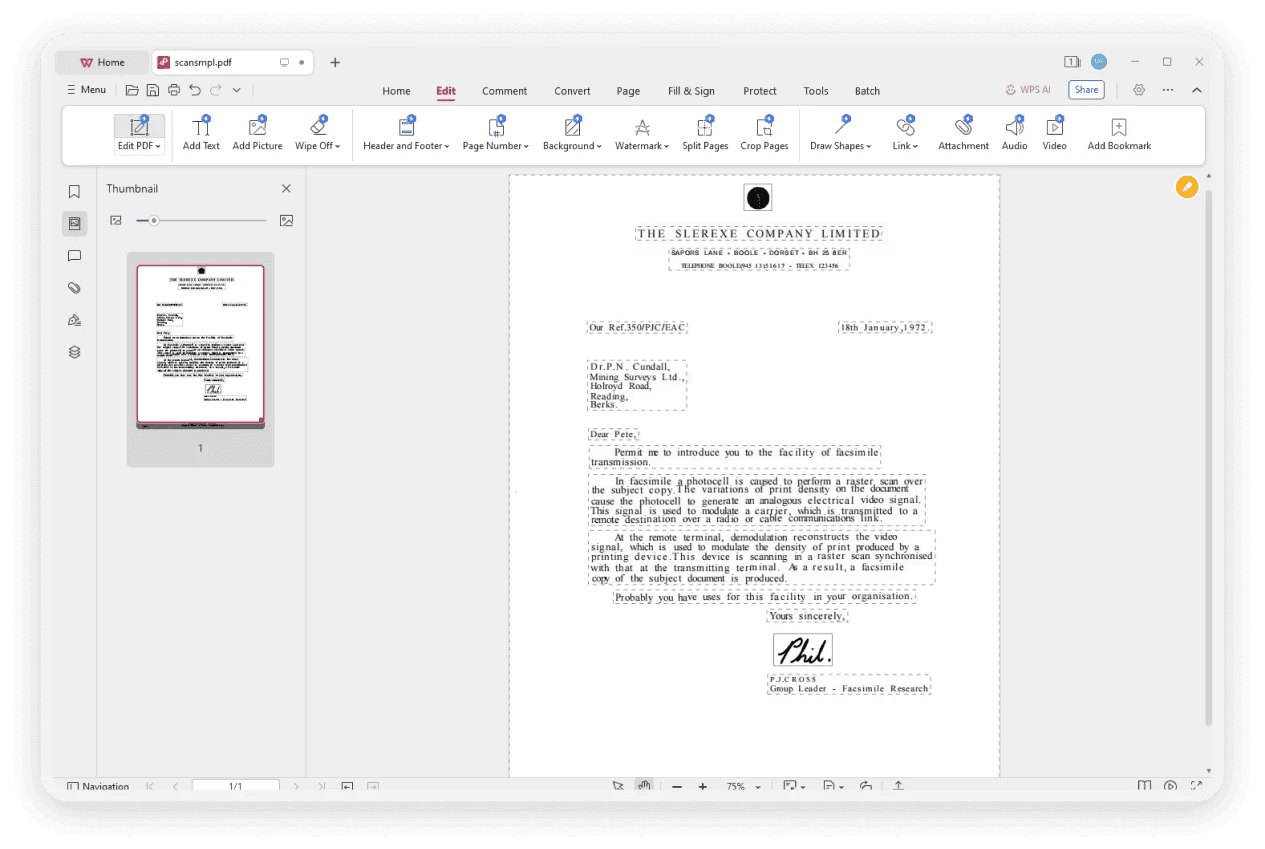
PDF opened in WPS Office
Save an Unlocked Copy with Print to PDF
The built-in print dialog is the fastest way to keep a password-free copy for your own records, with nothing extra to install.
Open the statement and enter the password as usual.
Press Ctrl+P on Windows or Cmd+P on Mac. On phones, use the Share > Print flow.
Choose "Save as PDF" as the destination, name the copy, and save it. The new file opens without a password prompt.
Keep the unlocked copy somewhere private, since it is no longer protected, and treat the original protected file as your secure archive.
Common Bank Password Formats That Usually Work
Most banks build the statement password from a predictable pattern, and trying your own details in these formats recovers it in minutes:
Date of birth, DDMMYYYY. For example 15 March 1985 becomes 15031985. Many banks use exactly this eight-digit form.
Last four digits of the account number. A frequent default for emailed statements.
Combinations. Account number followed by birth year, or the customer ID issued by the bank.
Bank-assigned formats. Some banks combine a PAN or national ID fragment with the birth date, and document the rule on their support page.
If none of these work, do not keep guessing, as some PDF apps lock up after repeated wrong attempts. Move to the bank's official recovery path instead.
Open and Re-secure the Statement in WPS Office
WPS Office opens password-protected statements the same way, and it covers what usually comes next: reading, annotating, converting, and adding your own protection back.
Open the PDF in WPS Office and enter the password when prompted.
Annotate or convert. Highlight transactions, add notes, or convert the statement to Word or Excel when a lender asks for a specific format.
Re-secure your copy. After saving the unlocked version, you can add a new password of your own in WPS Office so the copy is not left unprotected on disk.
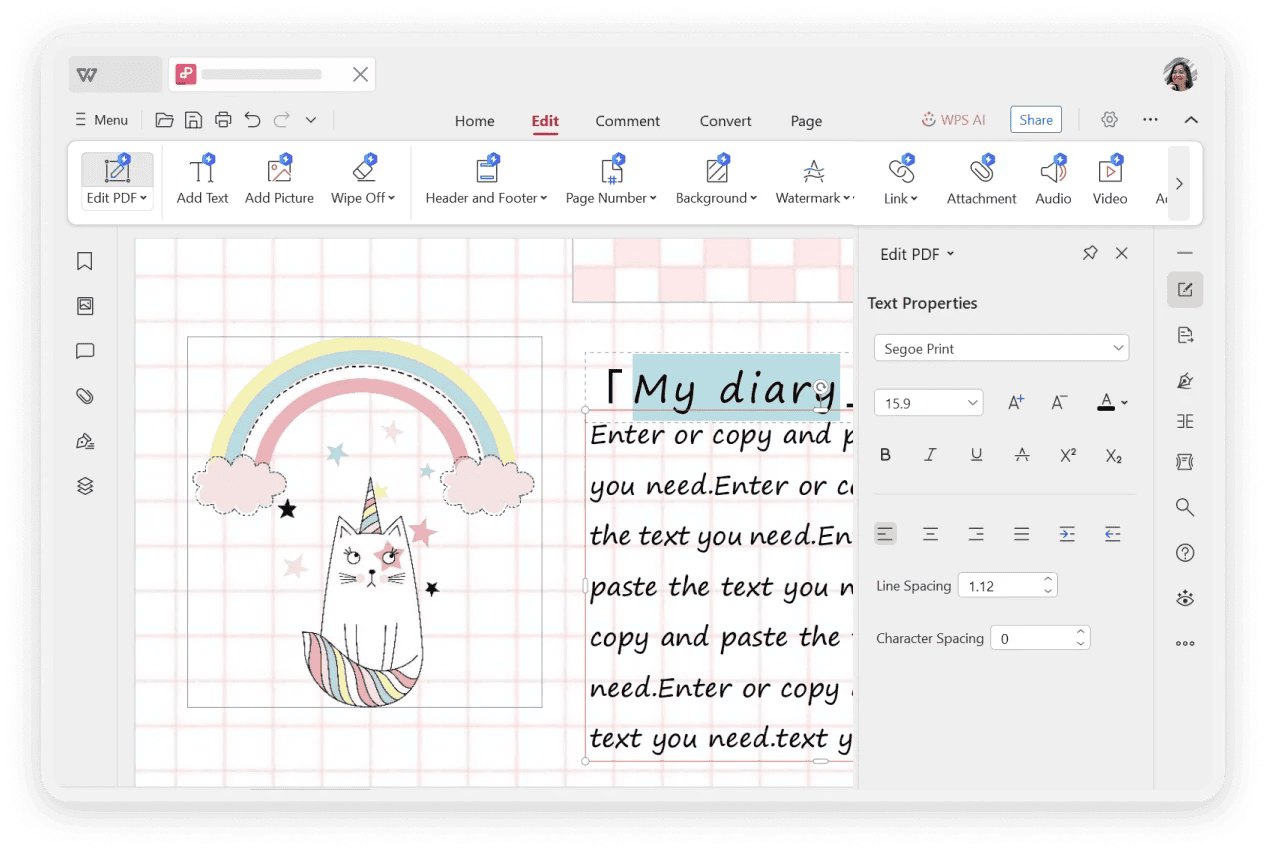
WPS PDF text editing panel
When You Cannot Recover the Password
If the password is truly lost, the safe path goes through the bank, not through password-cracking services.
Contact the bank. Customer support can verify your identity and resend the statement or the password. Net banking portals often have a "resend password" or re-download option that generates a fresh file.
Avoid uploading the statement to random unlock websites. A bank statement is one of the most sensitive documents you own. Any site that promises to remove the password without it means uploading your financial data to a stranger's server.
Stay legal. Unlocking your own statement is routine; attempting to open someone else's protected financial document is not.
WPS Presentation website
FAQs
1. What is the password for my bank statement PDF?
It is usually in the delivery email or SMS, or it follows a standard format such as your date of birth in DDMMYYYY, the last four digits of your account number, or a combination of the two. Your bank's support page documents the exact rule.
2. How do I remove the password from a bank statement PDF?
Open the file with the password, press Ctrl+P (Cmd+P on Mac), choose Save as PDF as the destination, and save. The copy opens without a prompt. Keep it private, since the copy is unprotected.
3. Can I open a password-protected PDF without the password?
Not legitimately. For your own statement, recover the password from the bank's email, SMS or standard format, or ask customer support to resend it. Uploading statements to online unlock services puts your financial data at risk.
4. Why do banks password-protect statement PDFs?
Because statements contain account numbers, balances and full transaction history. The password is a basic layer of protection in case the file lands in the wrong inbox or device.
5. Can I add a password to my own PDF in WPS Office?
Yes. Open the PDF in WPS Office and use the protect or encrypt option to set a password before saving. That way an unlocked copy you created stays protected with a password you chose.

'%3e%3cpath%20d='M19.9911%204.11386V6.471H18.5894C18.0775%206.471%2017.7322%206.57814%2017.5536%206.79243C17.3751%207.00671%2017.2858%207.32814%2017.2858%207.75671V9.44421H19.9019L19.5536%2012.0871H17.2858V18.8639H14.5536V12.0871H12.2769V9.44421H14.5536V7.49779C14.5536%206.39064%2014.8632%205.53201%2015.4822%204.92189C16.1013%204.31177%2016.9257%204.00671%2017.9554%204.00671C18.8304%204.00671%2019.509%204.04243%2019.9911%204.11386Z'%20fill='%23333333'/%3e%3c/g%3e%3cdefs%3e%3cclipPath%20id='clip0_2938_8199'%3e%3crect%20width='16'%20height='16'%20fill='white'%20transform='translate(8%204.00671)'/%3e%3c/clipPath%3e%3c/defs%3e%3c/svg%3e)
'%3e%3cpath%20d='M17.5237%2010.7813L23.4811%204H22.0699L16.8949%209.88693L12.7648%204H8L14.2469%2012.9029L8%2020.0133H9.4112L14.8725%2013.7952L19.2352%2020.0133H24M9.92053%205.04213H12.0885L22.0688%2019.0224H19.9003'%20fill='%23333333'/%3e%3c/g%3e%3cdefs%3e%3cclipPath%20id='clip0_2938_8200'%3e%3crect%20width='16'%20height='16.0134'%20fill='white'%20transform='translate(8%204)'/%3e%3c/clipPath%3e%3c/defs%3e%3c/svg%3e)


