

'%3e%3cpath%20d='M8%200C12.4183%200%2016%203.58172%2016%208C16%2012.4183%2012.4183%2016%208%2016C3.58172%2016%200%2012.4183%200%208C0%203.58172%203.58172%200%208%200ZM11.6162%204.38379C11.2257%203.99337%2010.5927%203.99338%2010.2021%204.38379L8%206.58594L5.79785%204.38379C5.40732%203.99334%204.77429%203.99329%204.38379%204.38379C3.99331%204.77429%203.99335%205.40733%204.38379%205.79785L6.58594%208L4.38379%2010.2021C3.99348%2010.5927%203.99341%2011.2257%204.38379%2011.6162C4.77426%2012.0066%205.40734%2012.0065%205.79785%2011.6162L8%209.41406L10.2021%2011.6162C10.5927%2012.0066%2011.2257%2012.0067%2011.6162%2011.6162C12.0067%2011.2257%2012.0066%2010.5927%2011.6162%2010.2021L9.41406%208L11.6162%205.79785C12.0066%205.40735%2012.0066%204.77429%2011.6162%204.38379Z'%20fill='%23080E17'%20fill-opacity='0.46'/%3e%3c/g%3e%3cdefs%3e%3cclipPath%20id='clip0_3761_713'%3e%3crect%20width='16'%20height='16'%20fill='white'/%3e%3c/clipPath%3e%3c/defs%3e%3c/svg%3e)




'%3e%3cpath%20fill-rule='evenodd'%20clip-rule='evenodd'%20d='M21.4999%2010.9993C21.4999%205.20009%2016.7986%200.498901%2010.9993%200.498901C5.19994%200.498901%200.498657%205.20009%200.498657%2010.9993C0.498657%2016.2404%204.33858%2020.5844%209.35855%2021.3722V14.0346H6.69238V10.9993H9.35855V8.68594C9.35855%206.05427%2010.9262%204.60062%2013.3248%204.60062C14.4736%204.60062%2015.6753%204.80571%2015.6753%204.80571V7.38979H14.3512C13.0468%207.38979%2012.64%208.19921%2012.64%209.0296V10.9993H15.5523L15.0867%2014.0346H12.64V21.3722C17.66%2020.5844%2021.4999%2016.2404%2021.4999%2010.9993Z'%20fill='%231568EA'/%3e%3c/g%3e%3c/svg%3e)


'%3e%3cpath%20d='M2.42045%2022.1876H6.31818V12.7217L0.75%208.54553V20.5171C0.75%2021.4414%201.49892%2022.1876%202.42045%2022.1876Z'%20fill='%234285F4'/%3e%3cpath%20d='M19.682%2022.1876H23.5797C24.5041%2022.1876%2025.2502%2021.4387%2025.2502%2020.5171V8.54553L19.682%2012.7217'%20fill='%2334A853'/%3e%3cpath%20d='M19.682%205.48293V12.7216L25.2502%208.54543V6.31816C25.2502%204.25236%2022.8921%203.07469%2021.2411%204.31361'%20fill='%23FBBC04'/%3e%3cpath%20d='M6.31824%2012.7217V5.48303L13.0001%2010.4944L19.6819%205.48303V12.7217L13.0001%2017.733'%20fill='%23EA4335'/%3e%3cpath%20d='M0.75%206.31816V8.54543L6.31818%2012.7216V5.48293L4.75909%204.31361C3.10534%203.07469%200.75%204.25236%200.75%206.31816Z'%20fill='%23C5221F'/%3e%3c/g%3e%3cdefs%3e%3cclipPath%20id='clip0_2954_7305'%3e%3crect%20width='24.5'%20height='18.375'%20fill='white'%20transform='translate(0.75%203.8125)'/%3e%3c/clipPath%3e%3c/defs%3e%3c/svg%3e)


To paste ChatGPT into Microsoft Office cleanly, use text-only paste for paragraphs, tab-separated data for Excel, and short blocks inside PowerPoint placeholders. Choose a formatted paste instead when you need to preserve a table or selected emphasis.
This guide walks through each destination, explains common formatting failures, and shows how to finish a draft in WPS Office. Test a small sample first so you can correct the paste method before moving a whole document.
How to Paste ChatGPT into Microsoft Office Without Messy Formatting
Paste ChatGPT into Microsoft Word with clean formatting
Start with a short sample before transferring a whole response. For ordinary paragraphs, use text-only paste and apply your document's styles afterward. For a table or formatted list, try preserving the source first, then inspect the result.
Step 1: Request an output that fits your document
Give ChatGPT a specific layout request. For example:
Rewrite these notes as a project update with a short introduction, three section headings, and an action list. Preserve the supplied names, dates, and figures. Use plain text without Markdown symbols, decorative separators, or a code block. Mark missing information instead of inventing it.
This controls the response structure; it does not guarantee that a browser will put the same formatting on the clipboard.
Step 2: Choose the paste result you need
Copy the relevant response, then click the destination paragraph in Word.
Paste and open Paste Options. Choose Keep Text Only for a clean starting point, Merge Formatting to retain some emphasis while matching the destination, or Keep Source Formatting to retain the copied appearance.
Apply the document's heading and paragraph styles. Check list numbering and spacing.
Text-only paste removes pictures and turns tables into text paragraphs. Avoid it when you need to preserve table cells. Microsoft explains the differences in its paste formatting guidance.
Step 3: Fix gray backgrounds and visible Markdown
If a pasted paragraph carries unwanted shading, undo and paste as text only into a clean paragraph. If the destination paragraph is already shaded, test in a new blank document to separate source formatting from document styling.
Characters such as ##, **, and backticks are text when copied literally. Removing formatting will not remove those characters. Ask for a plain-text response or delete the markers, then apply real headings and bold formatting in Word.
In Word for the web on supported browsers, try Ctrl+Shift+V on Windows or Command+Shift+V on Mac for text-only paste. Browser and desktop shortcuts can differ; Microsoft's web clipboard guide documents the browser workflow.
If you prefer working inside the document, see our separate ChatGPT for Word integration guide. The steps here use ordinary clipboard transfer.
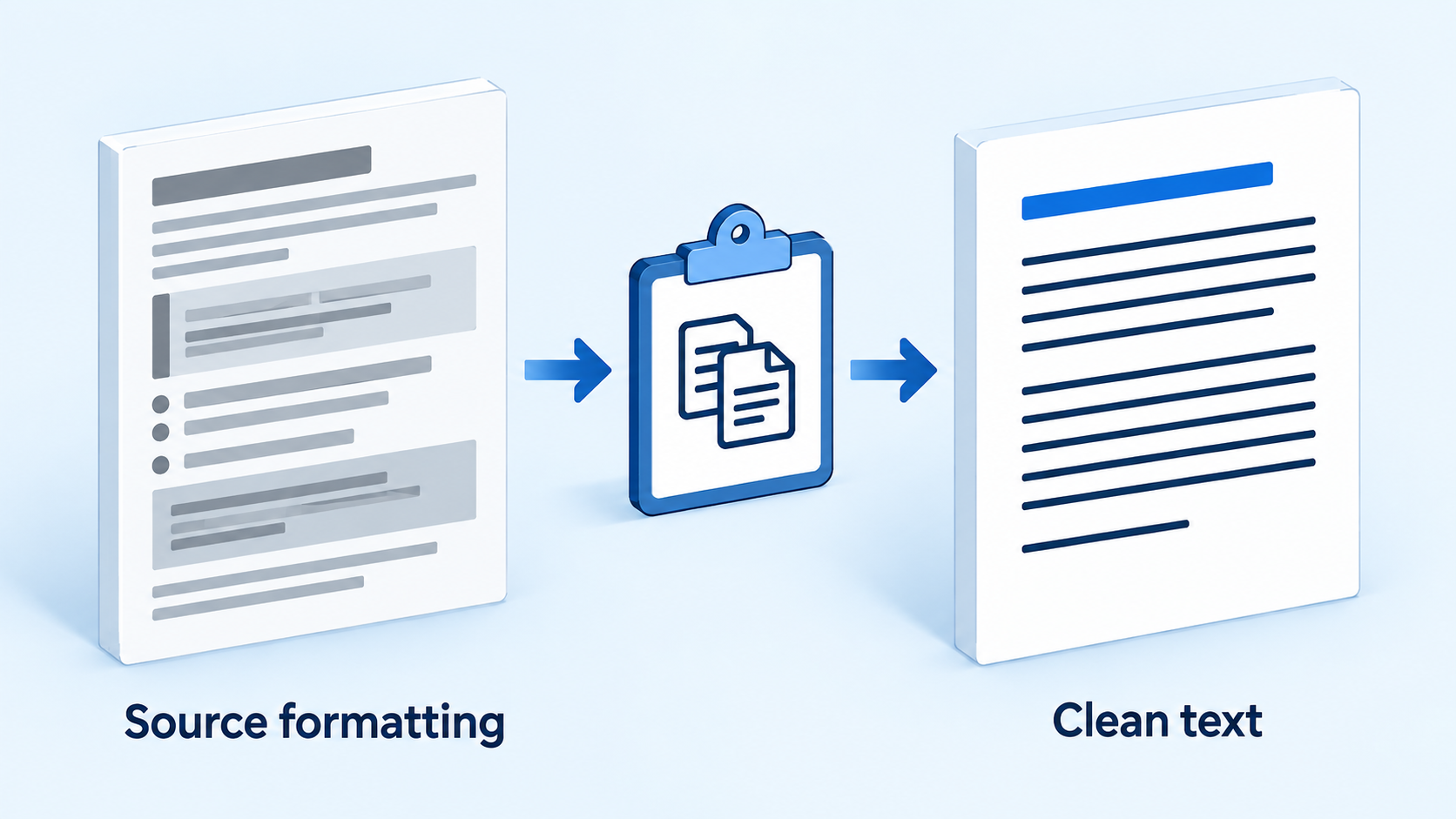
Clean text pasting workflow concept illustration


Paste ChatGPT tables into Microsoft Excel columns
For editable spreadsheet data, request tab-separated rows rather than copying a Markdown table with pipe characters. Keep one record per line and one value per field.
Step 1: Specify the columns and separators
Return the supplied data as tab-separated values in a plain code block. Use the columns Item, Quantity, and Unit Price. Put one record on each line and actual tab characters between fields. Do not use a Markdown table, add totals, change values, or include commentary. Leave unknown values blank.
For a quick practice check, use two invented records: Notebook, 3, 4.50; and Pen, 5, 1.20. The intended result is three columns and two data rows, plus a header. These are sample values, not business data.
Step 2: Paste into a cell, not inside its editor
Copy only the data block's contents, without any surrounding backticks.
Open a blank worksheet and click A1 once. Do not double-click the cell or put the cursor in the formula bar.
Paste, then confirm the header and each value occupy the intended cells.
If every row lands in column A, select that column and use Data > Text to Columns in desktop Excel. Choose a delimited split and select Tab. Check the preview and leave empty columns to the right before finishing. See Microsoft's column splitting instructions. Menu labels vary by version.
Step 3: Verify data types before calculating
Product codes such as 00125 should remain text if their leading zeros matter. Set those destination columns to Text before pasting, or explicitly choose text types during import. Check dates and decimal separators against the source. For a larger dataset, save a text or CSV file and use Excel's import preview to control delimiters and types, following the text import guide.
Count the records, compare several values with the original, and test one expected total. Clean columns do not prove that generated values or formulas are correct. If a formula is displayed literally, check the cell format and any leading apostrophe; re-enter a reviewed formula after correcting the format.
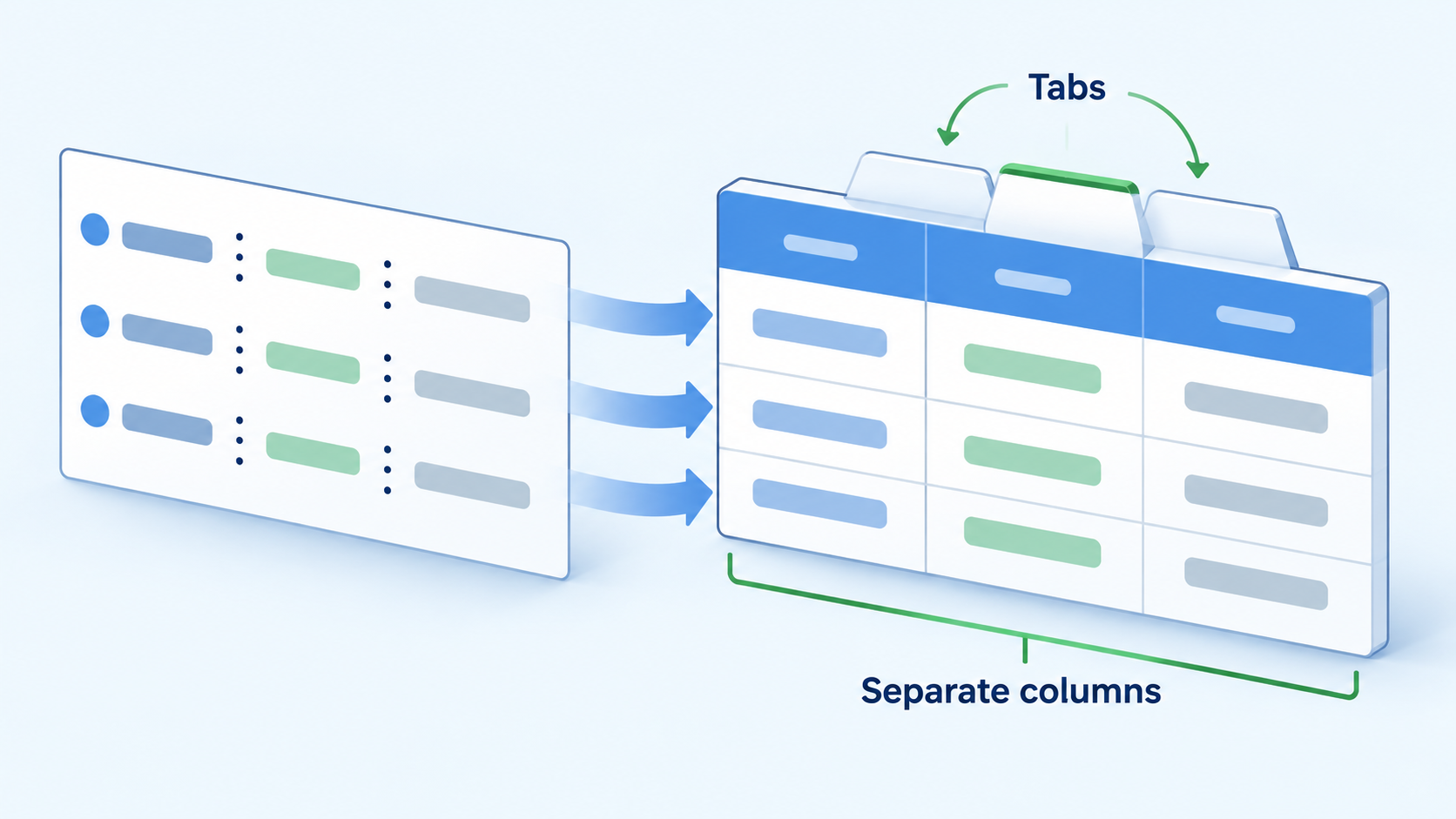
Delimited spreadsheet columns shown as illustration
Paste ChatGPT text into Microsoft PowerPoint slides
A long response needs editing before it becomes a readable slide. Ask for slide-sized content, then paste the title, bullets, and notes into their own destinations.
Step 1: Generate a compact slide outline
Turn these approved notes into four slides. For each slide, provide one short title, up to three concise bullets, and a separate speaker-notes paragraph. Keep the supplied facts unchanged. Do not add statistics or citations. Flag claims that need evidence.
The bullet limit is a useful starting constraint, not a universal design rule. A chart, diagram, or single sentence may communicate a point better than a list.
Step 2: Paste into the slide layout
Create a slide with a title and content layout.
Click inside the title placeholder and paste only the title.
Click inside the body placeholder and paste the bullets. Use a text-only option if the copied font conflicts with the theme.
Place the longer explanation in the Notes area, then check the slide in presentation view.
PowerPoint accepts pasted text inside placeholders, and too much text can trigger smaller type. Microsoft's slide text instructions explain this behavior. Split a crowded slide or shorten the wording instead of relying on automatic shrinking.
Step 3: Keep tables editable when needed
For a data table, prepare and validate the cells in Excel first. Copy the cell range into PowerPoint and choose the destination-style or source-formatting table option. A picture is useful for a fixed appearance, but it is unsuitable when a reviewer needs editable cells. Microsoft lists these choices in its Excel-to-PowerPoint guide.
If paste does nothing, first test a short plain-text sentence in a new text box. This helps isolate a clipboard problem from an oversized or complex selection. For browser-based Office, keyboard paste may work where toolbar clipboard access is restricted.
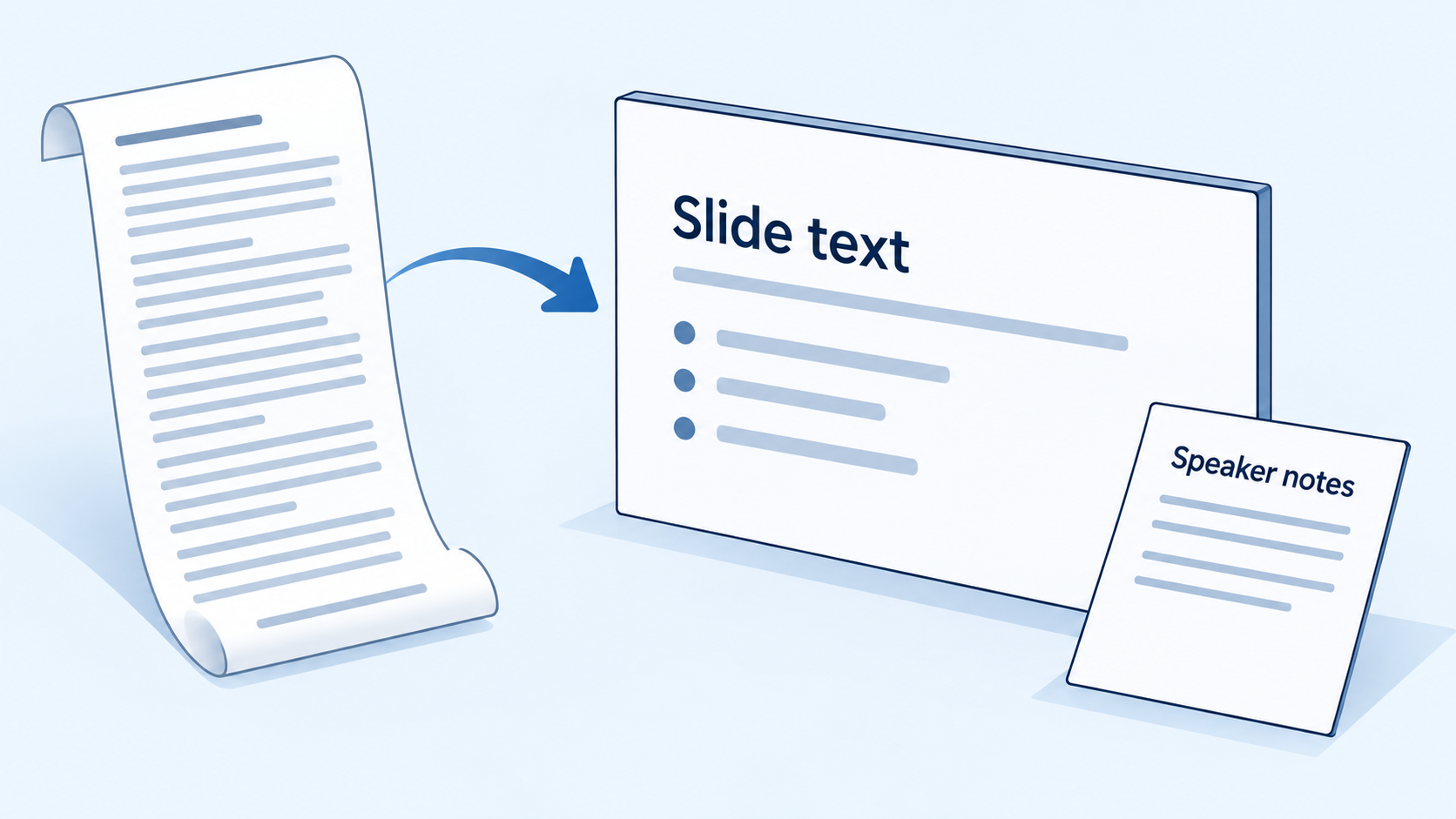
Slide text and speaker notes illustration
A free office alternative for finishing your draft: WPS Office
WPS Office brings Writer, Spreadsheet, Presentation, and PDF tools into one suite. It is a practical place to finish copied text, organize a worksheet, or prepare slides when you want an alternative office editor.
Clean up a pasted draft in WPS Writer
Open a new document and copy a short passage from your approved ChatGPT response.
On the Home tab, open the Paste menu and choose Paste Special. Select an unformatted-text option when available in your desktop build.
Apply heading and body styles, then check lists, spacing, and page breaks.
For persistent highlighting or shading, follow WPS's copied-text formatting tutorial. Interface labels can differ between platforms.
Review the file you will actually share
Save a copy in the format your recipient needs, such as DOCX, XLSX, or PPTX, where supported by the editor. Reopen it and inspect tables, fonts, formulas, and slide wrapping. Cross-editor compatibility still needs a check, especially for complex files.
The manual copy-and-paste workflow does not require WPS AI. Check current plan details separately if you want AI assistance or premium features. Start with one paragraph or a small data range, confirm the result, and then transfer the rest.
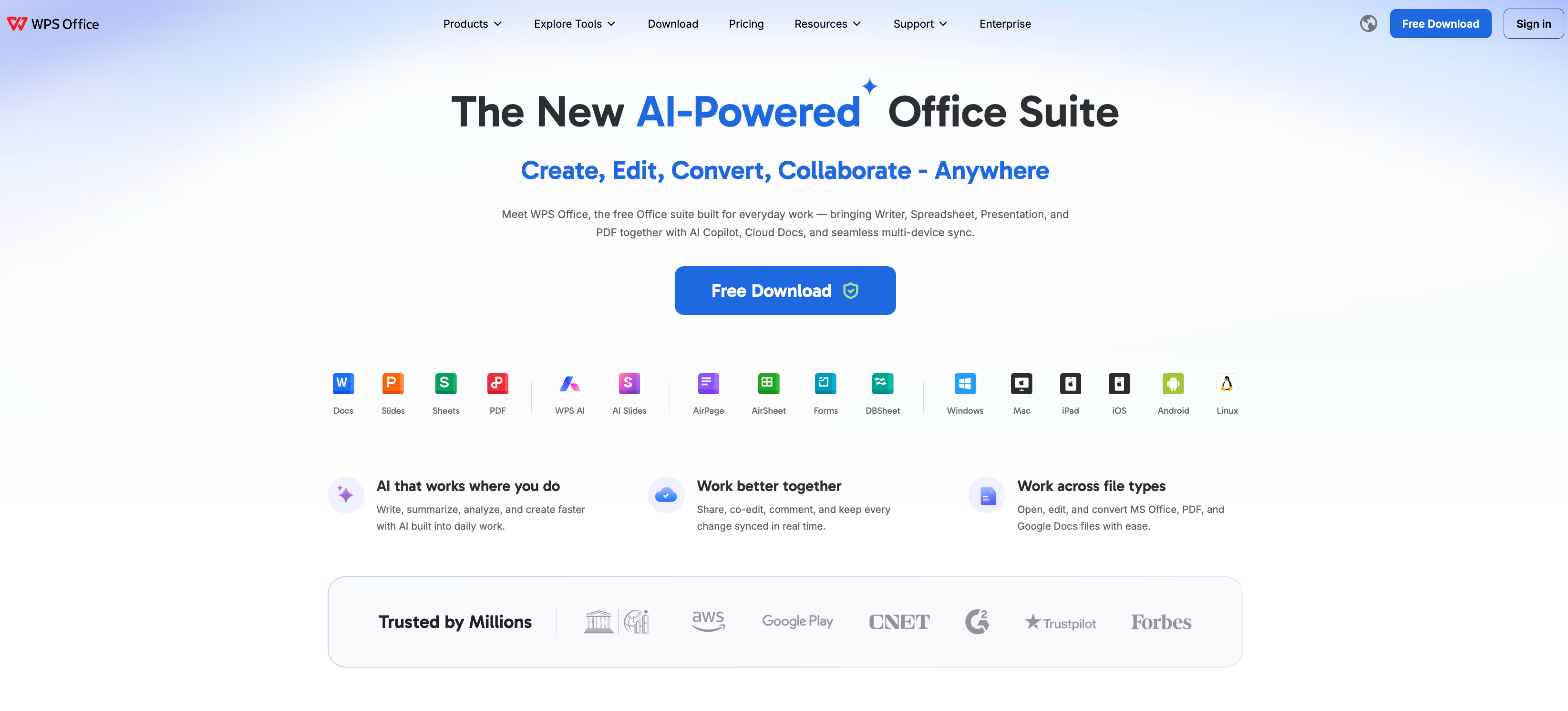
WPS Office homepage showing office tools
FAQs
How do I paste ChatGPT into Word without a gray background?
Undo the paste and choose Keep Text Only in a clean destination paragraph. If shading remains, test a blank document: the destination style may be adding it. Apply the intended document style after pasting.
Can I keep bold text and tables when copying from ChatGPT?
Try a formatted paste first and inspect the result. Clipboard contents vary with the source and browser. Text-only paste removes rich formatting and does not preserve a Word table as a table; rebuild or transfer the table separately if needed.
Why does a ChatGPT table paste into one Excel column?
The copied content may contain spaces or Markdown pipes instead of tabs. Request actual tab-separated values, paste into a selected cell, and use a delimited column split if necessary. Check the preview before applying it.
Do I need an add-in to paste ChatGPT into Microsoft Office?
No. Ordinary copy and paste works independently of an add-in. You need access to the destination editor and the source text. In-document AI integrations are a separate workflow.
Why do pasted PowerPoint bullets become too small?
The placeholder may be fitting too much text. Shorten the bullets, move detail to speaker notes, or split the content across slides. Check the presentation at full-slide size before sharing.

For a clean ChatGPT-to-Microsoft-Office transfer, choose the paste method around the result you need: text-only paragraphs for Word, delimited rows for Excel, and short sections for PowerPoint placeholders. Preserve tables separately, check values against the source, and review the saved file. WPS Office offers another workspace for editing and finishing the same kinds of documents.
'%3e%3cpath%20d='M19.9911%204.11386V6.471H18.5894C18.0775%206.471%2017.7322%206.57814%2017.5536%206.79243C17.3751%207.00671%2017.2858%207.32814%2017.2858%207.75671V9.44421H19.9019L19.5536%2012.0871H17.2858V18.8639H14.5536V12.0871H12.2769V9.44421H14.5536V7.49779C14.5536%206.39064%2014.8632%205.53201%2015.4822%204.92189C16.1013%204.31177%2016.9257%204.00671%2017.9554%204.00671C18.8304%204.00671%2019.509%204.04243%2019.9911%204.11386Z'%20fill='%23333333'/%3e%3c/g%3e%3cdefs%3e%3cclipPath%20id='clip0_2938_8199'%3e%3crect%20width='16'%20height='16'%20fill='white'%20transform='translate(8%204.00671)'/%3e%3c/clipPath%3e%3c/defs%3e%3c/svg%3e)
'%3e%3cpath%20d='M17.5237%2010.7813L23.4811%204H22.0699L16.8949%209.88693L12.7648%204H8L14.2469%2012.9029L8%2020.0133H9.4112L14.8725%2013.7952L19.2352%2020.0133H24M9.92053%205.04213H12.0885L22.0688%2019.0224H19.9003'%20fill='%23333333'/%3e%3c/g%3e%3cdefs%3e%3cclipPath%20id='clip0_2938_8200'%3e%3crect%20width='16'%20height='16.0134'%20fill='white'%20transform='translate(8%204)'/%3e%3c/clipPath%3e%3c/defs%3e%3c/svg%3e)


