

'%3e%3cpath%20d='M8%200C12.4183%200%2016%203.58172%2016%208C16%2012.4183%2012.4183%2016%208%2016C3.58172%2016%200%2012.4183%200%208C0%203.58172%203.58172%200%208%200ZM11.6162%204.38379C11.2257%203.99337%2010.5927%203.99338%2010.2021%204.38379L8%206.58594L5.79785%204.38379C5.40732%203.99334%204.77429%203.99329%204.38379%204.38379C3.99331%204.77429%203.99335%205.40733%204.38379%205.79785L6.58594%208L4.38379%2010.2021C3.99348%2010.5927%203.99341%2011.2257%204.38379%2011.6162C4.77426%2012.0066%205.40734%2012.0065%205.79785%2011.6162L8%209.41406L10.2021%2011.6162C10.5927%2012.0066%2011.2257%2012.0067%2011.6162%2011.6162C12.0067%2011.2257%2012.0066%2010.5927%2011.6162%2010.2021L9.41406%208L11.6162%205.79785C12.0066%205.40735%2012.0066%204.77429%2011.6162%204.38379Z'%20fill='%23080E17'%20fill-opacity='0.46'/%3e%3c/g%3e%3cdefs%3e%3cclipPath%20id='clip0_3761_713'%3e%3crect%20width='16'%20height='16'%20fill='white'/%3e%3c/clipPath%3e%3c/defs%3e%3c/svg%3e)




'%3e%3cpath%20fill-rule='evenodd'%20clip-rule='evenodd'%20d='M21.4999%2010.9993C21.4999%205.20009%2016.7986%200.498901%2010.9993%200.498901C5.19994%200.498901%200.498657%205.20009%200.498657%2010.9993C0.498657%2016.2404%204.33858%2020.5844%209.35855%2021.3722V14.0346H6.69238V10.9993H9.35855V8.68594C9.35855%206.05427%2010.9262%204.60062%2013.3248%204.60062C14.4736%204.60062%2015.6753%204.80571%2015.6753%204.80571V7.38979H14.3512C13.0468%207.38979%2012.64%208.19921%2012.64%209.0296V10.9993H15.5523L15.0867%2014.0346H12.64V21.3722C17.66%2020.5844%2021.4999%2016.2404%2021.4999%2010.9993Z'%20fill='%231568EA'/%3e%3c/g%3e%3c/svg%3e)


'%3e%3cpath%20d='M2.42045%2022.1876H6.31818V12.7217L0.75%208.54553V20.5171C0.75%2021.4414%201.49892%2022.1876%202.42045%2022.1876Z'%20fill='%234285F4'/%3e%3cpath%20d='M19.682%2022.1876H23.5797C24.5041%2022.1876%2025.2502%2021.4387%2025.2502%2020.5171V8.54553L19.682%2012.7217'%20fill='%2334A853'/%3e%3cpath%20d='M19.682%205.48293V12.7216L25.2502%208.54543V6.31816C25.2502%204.25236%2022.8921%203.07469%2021.2411%204.31361'%20fill='%23FBBC04'/%3e%3cpath%20d='M6.31824%2012.7217V5.48303L13.0001%2010.4944L19.6819%205.48303V12.7217L13.0001%2017.733'%20fill='%23EA4335'/%3e%3cpath%20d='M0.75%206.31816V8.54543L6.31818%2012.7216V5.48293L4.75909%204.31361C3.10534%203.07469%200.75%204.25236%200.75%206.31816Z'%20fill='%23C5221F'/%3e%3c/g%3e%3cdefs%3e%3cclipPath%20id='clip0_2954_7305'%3e%3crect%20width='24.5'%20height='18.375'%20fill='white'%20transform='translate(0.75%203.8125)'/%3e%3c/clipPath%3e%3c/defs%3e%3c/svg%3e)


Looking for free Microsoft Office product keys? This reference groups published product-key entries by edition, followed by activation instructions and troubleshooting steps.
List of Free Microsoft 365 & Office 2021 Product Keys
Microsoft 365 activates through a licensed Microsoft, work, or school account. The table below covers Office LTSC 2021 suites, Project, and Visio.
| Office Edition | Product Key |
|---|---|
| Office LTSC Professional Plus 2021 | FXYTK-NJJ8C-GB6DW-3DYQT-6F7TH |
| Office LTSC Standard 2021 | KDX7X-BNVR8-TXXGX-4Q7Y8-78VT3 |
| Microsoft Office 365 |
|
Microsoft Office 365 Pro Plus Product Key |
366NX-BQ62X-PQT9G-GPX4H-VT7TX6KTFN-PQH9H-T8MMB-YG8K4-367TXKDVQM-HMNFJ-P9PJX-96HDF-DJYGXKBDNM-R8CD9-RK366-WFM3X-C7GXKH746C-BM4VK-TZBB8-MVZH8-FXR32MH2KN-96KYR-GTRD4-KBKP4-Q9JP92MHJR-V4MR2-V4Z2Y-72MQ7-KC6XK2MNJP-QY9KX-MKBKM-9VFJ2-CJ9KKP8TFP-JGFMM-XPV3X-3FQM2-8K4RPN4M7D-PD46X-TJ2HQ-RPDD7-T28P9FBFPP-2XG5Y-FG9VH-DVQ2Z-QJRCHNK8R7-8VXCQ-3M2FM-8446R-WFD6X |
List of Free Microsoft Office 2019 & Office 2016 Product Keys
Office 2019
| Office Edition | Product Key |
|---|---|
| Office Professional Plus 2019 | NMMKJ-6RK4F-KMJVX-8D9MJ-6MWKPThird-party listings — edition, license channel, and activation status unverified: W8W6K-3N7KK-PXB9H-8TD8W-BWTH9VQ9DP-NVHPH-T9HJC-J9PDT-KTQRGKDNJ9-G2MPB-HWJB4-DC6C2-DDCWD
|
| Office Standard 2019 | 6NWWJ-YQWMR-QKGCB-6TMB3-9D9HK |
| Project Professional 2019 | B4NPR-3FKK7-T2MBV-FRQ4W-PKD2B |
| Visio Professional 2019 | 9BGNQ-K37YR-RQHF2-38RQ3-7VCBB |
| Project Standard 2019 | C4F7P-NCP8C-6CQPT-MQHV9-JXD2M |
| Visio Standard 2019 | 7TQNQ-K3YQQ-3PFH7-CCPPM-X4VQ2 |
Office 2016
| Office Edition | Product Key |
|---|---|
| Office Professional Plus 2016 | XQNVK-8JYDB-WJ9W3-YJ8YR-WFG998N3WG-8BHQY-M3TKJ-2X27G-9KX7CNBCRJ-YJ94Q-T73WV-9PR4F-9W3VCKNJPJ-YBFTR-42K6M-Y6FMX-BKM3PQQ34F-N3THK-CWTFJ-HD66X-8QK7C |
| Office Standard 2016 | JNRGM-WHDWX-FJJG3-K47QV-DRTFM |
| Project Professional 2016 | YG9NW-3K39V-2T3HJ-93F3Q-G83KT |
| Visio Professional 2016 | PD3PC-RHNGV-FXJ29-8JK7D-RJRJK |
| Project Standard 2016 | GNFHQ-F6YQM-KQDGJ-327XX-KQBVC |
| Visio Standard 2016 | 7WHWN-4T7MP-G96JF-G33KR-W8GF4 |
List of Free Microsoft Office 2013, Office 2010 & Office LTSC 2024 Product Keys
Office 2013
| Office Edition | Product Key |
|---|---|
| Office Professional Plus 2013 |
|
Office 2010
| Office Edition | Product Key |
|---|---|
Office 2010 | 2KKDC-67TT9-4XT2F-2MG99-B9HB62MHJR-V4MR2-V4W2Y-72MQ7-KC6XK4F3B6-JTT3F-VDCD6-G7J4Q-74W3RPWXJR-XXTM8-XTHJC-Y9P6K-TTBJH2K79J-DVFWG-MJT2Q-BX82R-T9PDVBGPMF-PF97D-XVBF2-XDF33-7CKWWpwxjr-xxtm8-xthjc-y9p6k-ttbjhGRMK2-8Y649-JR6YB-XJXVW-XTP8P6QFDX-PYH2G-PPYFD-C7RJM-BBKQ8P8TFP-JGFMM-XPV3X-3FQM2-8K4RPP8TFP-JGFMM-XPV3X-3FQM2-8K4RPVYBBJ-TRJPB-QFQRF-QFT4D-H3GVBP8TFP-JGFMM-XPV3X-3FQM2-8K4RPF7QGC-H6JP2-34DYY-MCXDB-QMPVY |
Office Professional Plus 2010 | VYBBJ-TRJPB-QFQRF-QFT4D-H3GVB3W3MQ-H7M6X-3WYP7-TPCH6-8G8T2MKCGC-FBXRX-BMJX6-F3Q8C-2QC6PYMBQG-KH9Y8-HJJFP-FJK8J-QGFGK2J47K-J32XK-4F3BP-QGPF6-G3P6DBDD3G-XM7FB-BD2HM-YK63V-VQFDK6QFDX-PYH2G-PPYFD-C7RJM-BBKQ8MD6VB-X9MVK-K94YP-JXBPJ-C2HGK6TX3V-WRDJ6-JC34X-BDDPV-6F3PB |
Office LTSC 2024
| Office Edition | Product Key |
|---|---|
| Office LTSC Professional Plus 2024 | XJ2XN-FW8RK-P4HMP-DKDBV-GCVGB |
| Office LTSC Standard 2024 | V28N4-JG22K-W66P8-VTMGK-H6HGR |
| Project Professional 2024 | FQQ23-N4YCY-73HQ3-FM9WC-76HF4 |
| Visio LTSC Professional 2024 | B7TN8-FJ8V3-7QYCP-HQPMV-YY89G |
| Project Standard 2024 | PD3TT-NTHQQ-VC7CY-MFXK3-G87F8 |
| Visio LTSC Standard 2024 | JMMVY-XFNQC-KK4HK-9H7R3-WQQTV |
Note: The documented GVLK requires matching volume software and organizational activation. Third-party entries, where shown, are unverified references; publication of a key does not grant a license.


Office Version Comparison — Which Do You Need?
The lists above cover Microsoft 365, Office LTSC 2024, Office 2021/LTSC 2021, Office 2019, Office 2016, Office 2013, and Office 2010. Compare all seven below before choosing what to install. A newer version can offer newer functions and a longer support window, but the correct license channel still matters.
This comparison focuses on Windows desktop editions. Features and included apps vary by suite; retail Office and organizational volume editions are not interchangeable. Support dates below are current as of September 2026.
| Office version | License and activation | Main features and differences | Updates and support | Who should consider it? |
|---|---|---|---|---|
| Microsoft 365 (formerly Office 365) | Subscription. Desktop apps require a qualifying plan and a licensed sign-in; a public GVLK does not activate a Microsoft 365 subscription. | Regularly updated Word, Excel, and PowerPoint in eligible plans. Cloud storage, business email, Teams, and Copilot entitlements depend on the subscription. | Ongoing servicing while the subscription, operating system, and app configuration meet support requirements. | People and teams who want current features, cloud collaboration, and work across multiple devices. |
| Office LTSC 2024 | Perpetual, device-based volume license. Organizations deploy and activate the matching edition using their licensed activation method. | A fixed release with newer Excel functions, accessibility improvements, and improved Word session recovery. No Microsoft 365 cloud-service subscription is bundled. | Security and quality updates during its lifecycle; no continuing stream of new features. Support ends October 9, 2029. | Organizations that need a stable feature set or restricted connectivity and want the longest support window among these perpetual volume releases. |
| Office 2021 / Office LTSC 2021 | Perpetual license. Retail editions use the purchased license/account; LTSC editions use organizational volume activation. | Excel adds XLOOKUP, LET, and dynamic arrays compared with earlier perpetual releases. Some retail collaboration features are not included in LTSC. | Fixed feature set. Support ends October 13, 2026. | Existing licensed users preparing to upgrade. Its short remaining support window makes it a poor starting point for a new long-term deployment. |
| Office 2019 | Perpetual retail or volume license; the key must match the installed edition and channel. | Includes Excel functions such as TEXTJOIN and IFS, but lacks the XLOOKUP and dynamic-array capabilities introduced in the 2021 generation. | Support ended October 14, 2025; routine security updates have ended. | Existing legacy workflows being migrated to a supported release, rather than a new everyday installation. |
| Office 2016 | Perpetual retail or volume license. The Office 2016 release is distinct from an actively updated Microsoft 365 subscription. | Older desktop document, spreadsheet, and presentation tools; it does not receive the newer functions of subsequent perpetual releases. | Support ended October 14, 2025. | Legacy installations with a specific dependency that an organization is actively replacing or migrating. |
| Office 2013 | Perpetual retail or volume license tied to its edition; newer-version keys do not upgrade it. | An older generation of desktop Office. Modern files may open, but newer functions and features can require a newer application. | Support ended April 11, 2023. | Reference and migration planning for existing installations; choose supported software for ongoing work. |
| Office 2010 | Perpetual retail or volume license for the matching Office 2010 edition. | The oldest release in these lists, with the largest generation gap from current Office features and workflows. | Support ended October 13, 2020. | Identifying or migrating a legacy installation, not starting a new supported office setup. |
How to choose from these versions
For regularly updated apps and collaboration: consider a Microsoft 365 plan that includes the desktop apps and services you need. Under standard user licensing, Microsoft 365 Apps for business/enterprise supports up to five PCs or Macs, five tablets, and five phones per user.
For an organization requiring a fixed release: LTSC 2024 offers a longer remaining support period than LTSC 2021. A perpetual license covers that version; it does not include free upgrades to every future release.
For a personal one-time purchase: compare retail Office 2024 editions separately. The LTSC volume keys listed above are not personal retail licenses.
If you already use Office 2010, 2013, 2016, or 2019: activation does not restore security support. Plan a move to supported software and check important files, add-ins, and macros before switching.
If you mainly need everyday documents, spreadsheets, and presentations at no cost: the WPS Office section below explains an alternative that does not require a Microsoft Office product key.
How to Use Microsoft Office Product Keys to Activate Office
Method 1: Office UI or Account Activation
Open Word, Excel, or PowerPoint. Open a blank document, then select File > Account.
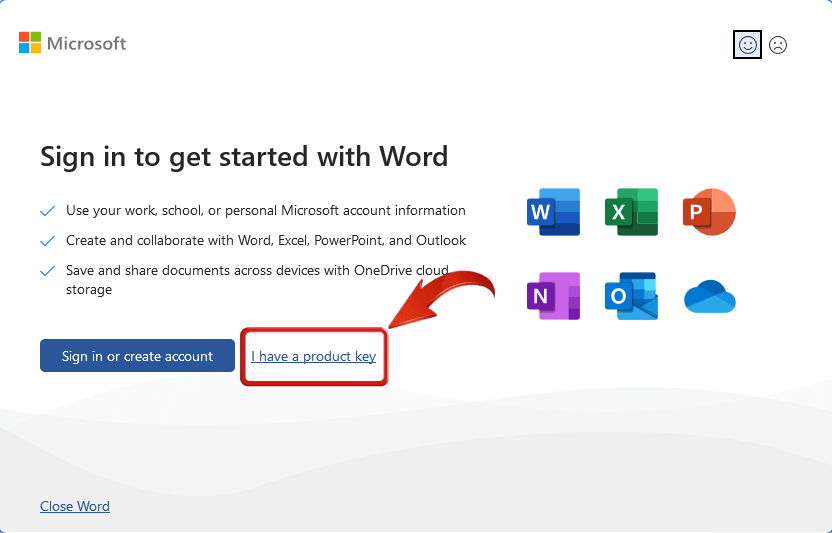
Check Product Information. Note the product name and current activation status. Confirm the year and edition match your key before continuing.
Sign in or enter your purchased key. For Microsoft 365, sign in with the licensed account. For a retail edition, use Change Product Key if available. A newly purchased key may first need redemption at Office.com/setup.
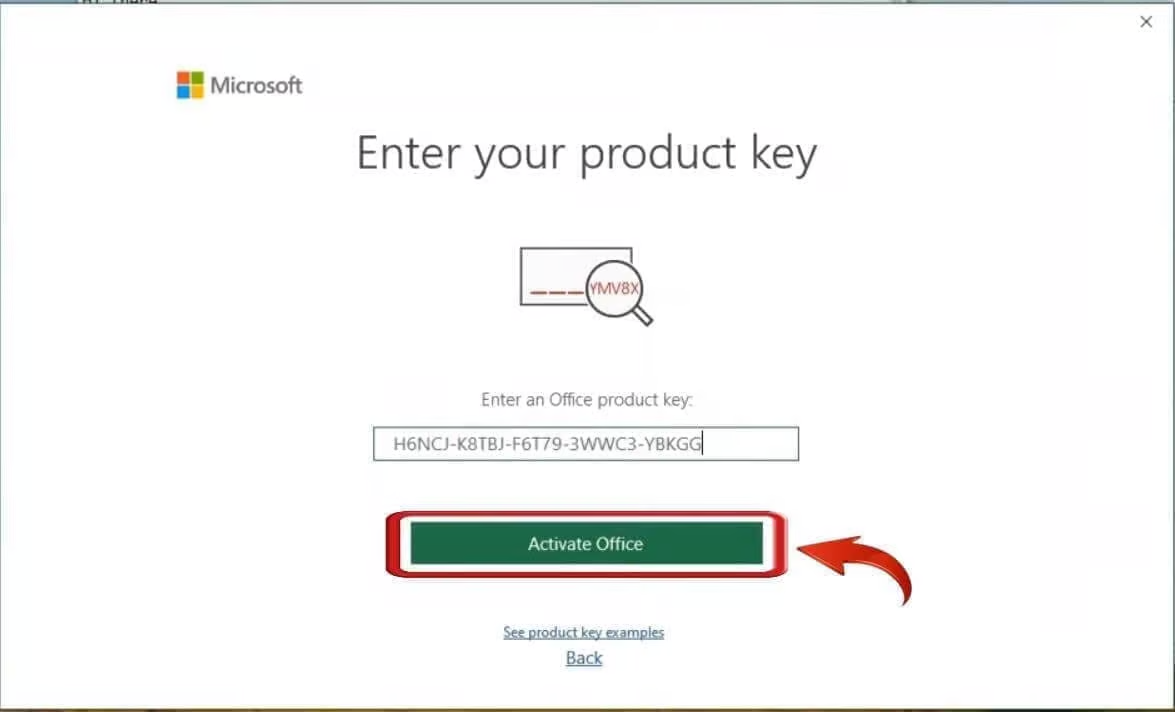
Complete the wizard. Enter the 25-character key when prompted, then choose the displayed activation or continuation button. A correctly formatted key still needs license validation.
Verify the result. Restart the app and return to File > Account. A successfully activated perpetual edition should display Product Activated; Microsoft 365 shows its subscription information.
Method 2: Command Prompt for Licensed Volume Editions
Use this method when your administrator has provided a matching volume installation and an authorized KMS environment. It is not a fallback for activating an unlicensed retail copy.
Open Command Prompt as administrator. Open Start, type
cmd, right-click Command Prompt, and choose Run as administrator. Accept the UAC prompt.Locate ospp.vbs. A current installation may use the folder below. For 32-bit Office on 64-bit Windows, use
Program Files (x86). Older installations may omitroot.cd /d "C:\Program Files\Microsoft Office\root\Office16"
Legacy folders are commonly
Office15for Office 2013 andOffice14for Office 2010.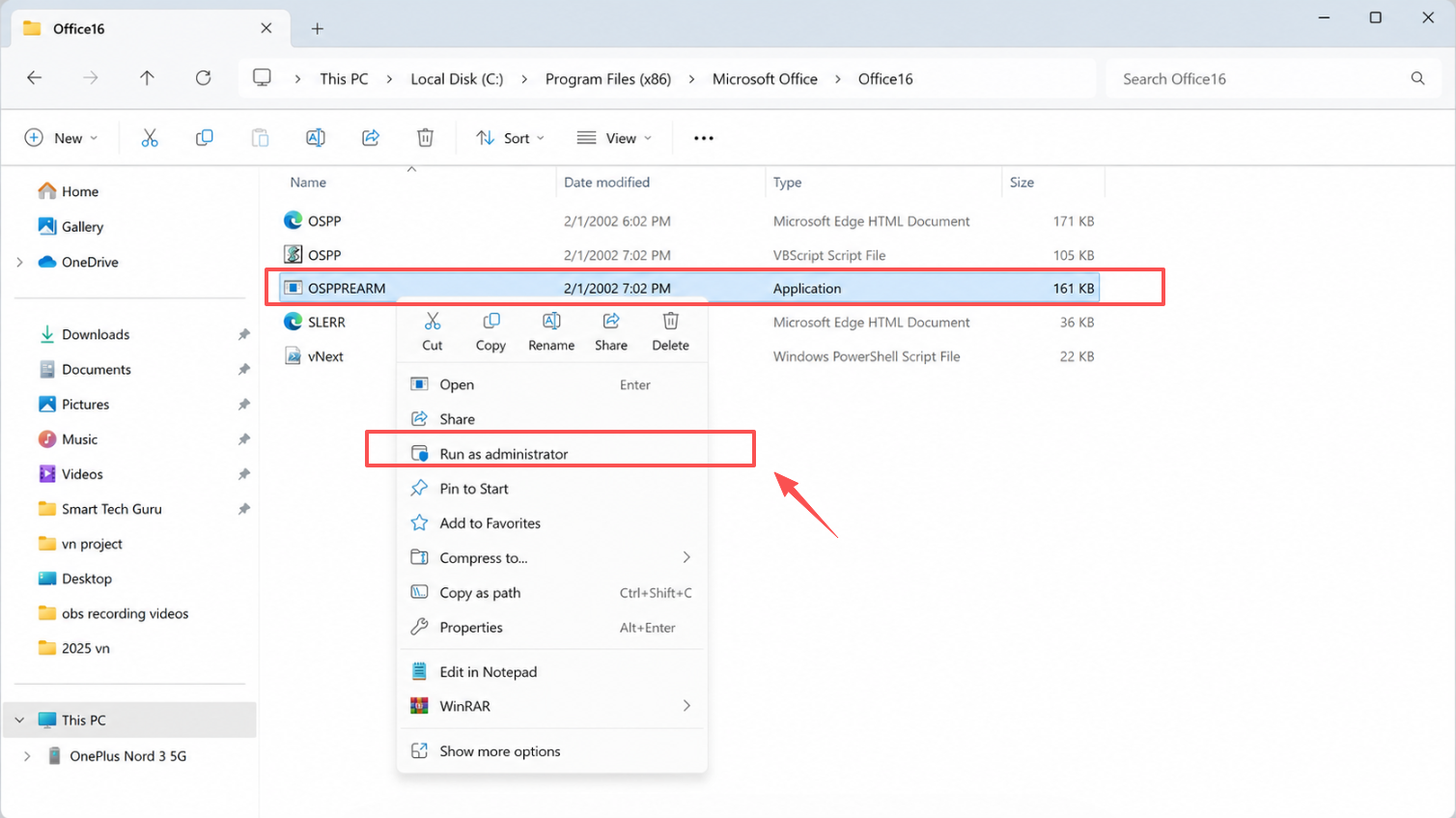
choose Run as administrator Install the matching GVLK if needed. Volume installations normally already include it. The example below installs the Office LTSC Professional Plus 2021 GVLK. For another volume edition, substitute its matching key from the table.
cscript ospp.vbs /inpkey:FXYTK-NJJ8C-GB6DW-3DYQT-6F7TH
Connect to your organization's network or approved VPN, then activate.
cscript ospp.vbs /act
cscript ospp.vbs /dstatus
ospp.vbs does not manage Microsoft 365 Apps subscription activation. See Microsoft's volume-activation tools reference.
The Best Free Microsoft Office Alternative: WPS Office
If your goal is to finish a document, edit a spreadsheet, or prepare slides, WPS Office gives you a practical way to get working without a Microsoft Office product key. Its main advantage is combining Writer, Spreadsheet, Presentation, and PDF tools in one workspace, with free core editing and optional paid upgrades for more advanced tasks.
Free core editing for everyday work
WPS Writer, Spreadsheet, and Presentation provide free basic editing, so you can write a resume, update a household budget, or revise a class presentation without buying a Microsoft desktop Office license. This is especially useful when an old Office installation has stopped editing because of activation problems: open a copy of the file in WPS and continue the supported everyday tasks there.
One workspace for documents, sheets, slides, and PDFs
The integrated workspace keeps different file types close together. For example, you can review a PDF brief, update a spreadsheet, and prepare a presentation within the same suite. Built-in PDF tools cover tasks such as conversion and OCR, reducing the need to add a separate utility for each document step; advanced tools may require a paid plan.
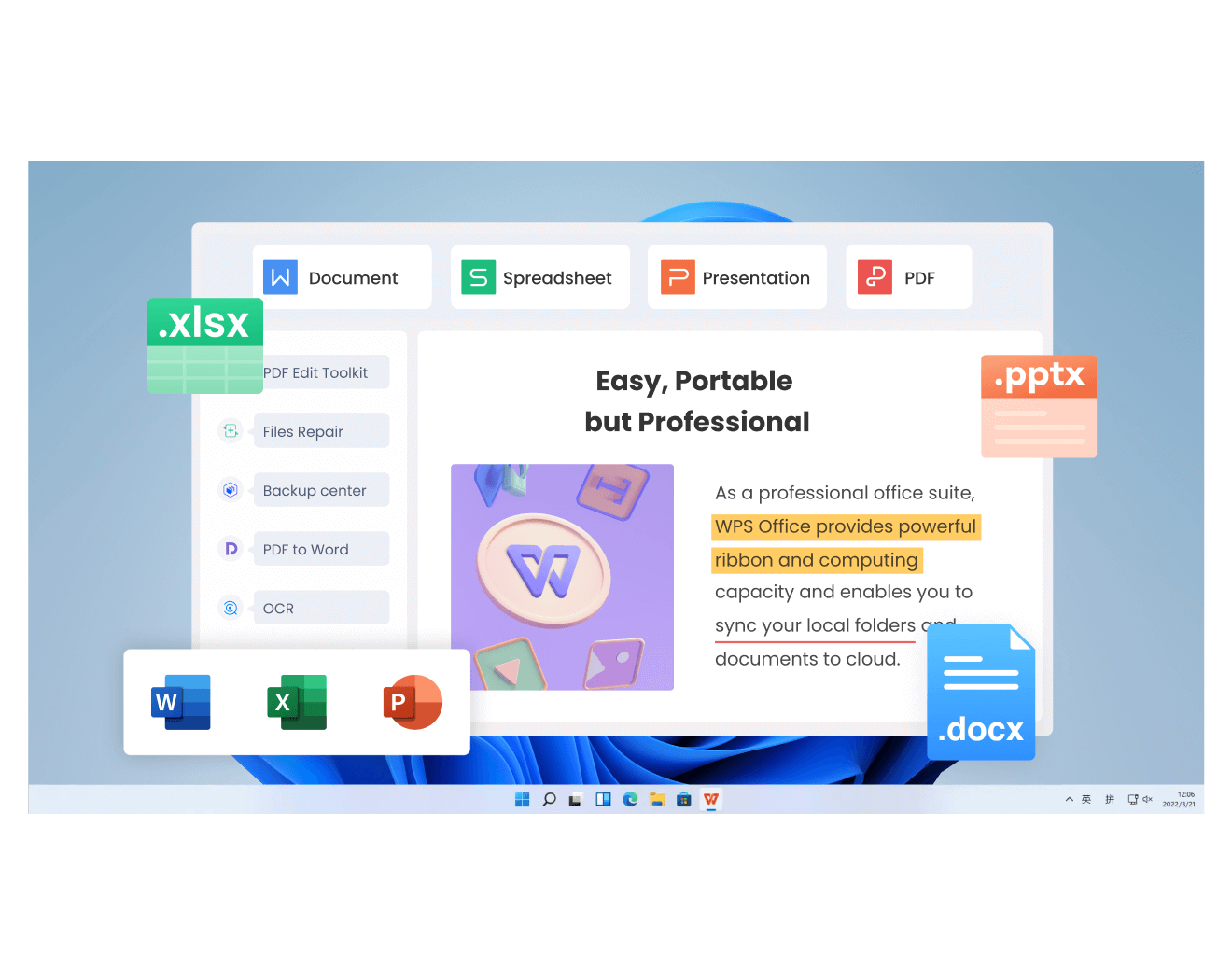
WPS Office combines four productivity tools
Office-format compatibility and flexible sharing
WPS supports common Microsoft Office formats, including DOC/DOCX, XLS/XLSX, and PPT/PPTX, making it practical to exchange everyday files with Office users. You can also export supported documents to PDF for sharing. Before replacing a specialist workflow, check complex layouts, fonts, formulas, VBA macros, and add-ins with representative files; format support is not a guarantee that every Microsoft-specific feature behaves identically.
Templates that help you start with a finished layout
Resume, report, budget, and presentation templates give you an editable structure instead of a blank page. This is useful when you need a presentable document quickly and would otherwise spend time building the layout yourself. Free and premium templates are available, so check the chosen template’s access requirements.
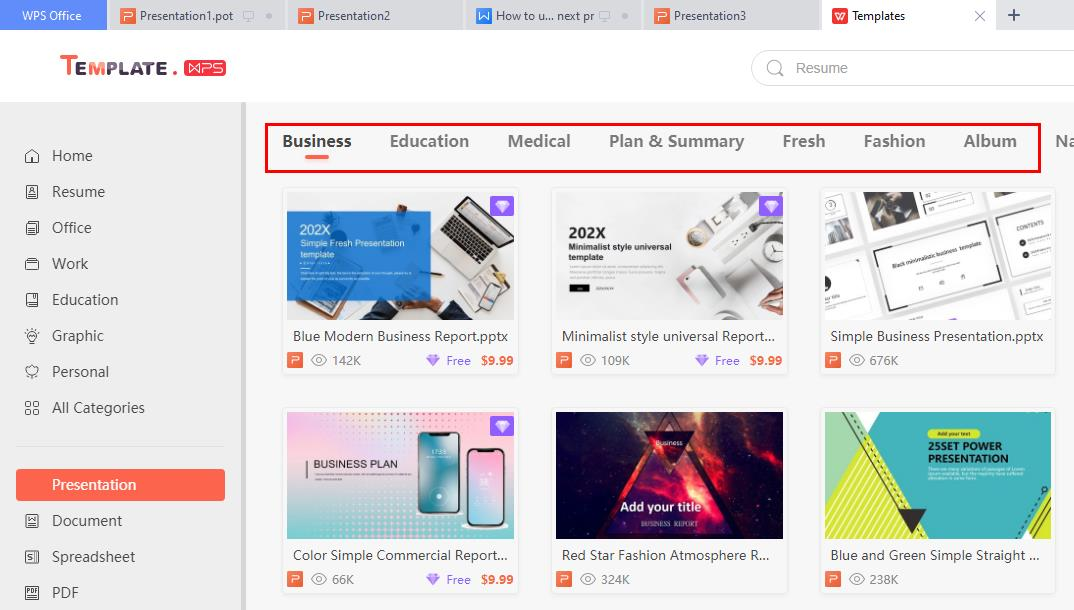
AI assistance inside your document workflow
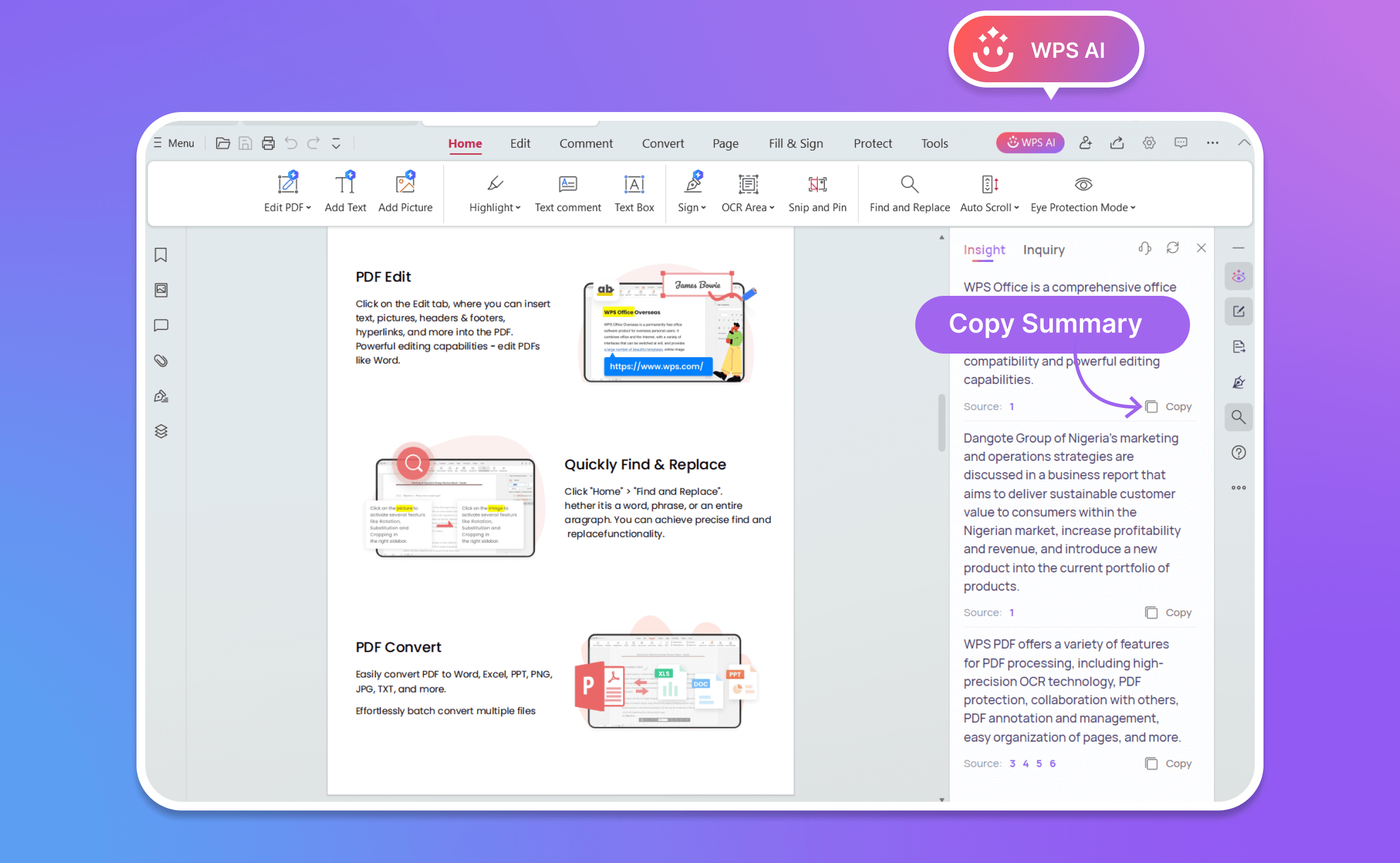
WPS AI can help draft and refine writing, generate presentation content, and summarize or answer questions about PDFs. The practical benefit is having assistance close to the file you are working on, with less copying between separate tools. AI features, usage limits, and availability depend on your plan, region, and platform; review generated content before using it.
The standout benefits:
Lower starting cost: free core document, spreadsheet, and presentation editing.
Fewer separate tools: Office-format files and PDF tasks in one suite.
A quicker starting point: ready-made templates and optional AI assistance for common writing and presentation tasks.
Troubleshooting & Frequently Asked Questions
Q1: Why does Office still show “Unlicensed Product” after entering a key?
Check the account, subscription, installed edition, and activation connection first. A generic key alone cannot license Office. For volume editions, cscript ospp.vbs /dstatus shows installed license details. Only when your administrator identifies an obsolete key should you remove it with cscript ospp.vbs /unpkey:XXXXX, using that key's last five characters. This removes a key, not all cached license tokens.
Open an elevated Command Prompt and navigate to the folder containing
ospp.vbs.Run
cscript ospp.vbs /dstatus. Match the product description and last five key characters to the obsolete entry.Run
cscript ospp.vbs /unpkey:XXXXX, replacingXXXXXwith that entry’s last five characters.Install the correct replacement key using
/inpkey, run/act, then check/dstatusagain. Keep unrelated Office, Project, and Visio entries intact.
Q2: What should I do about error 0xC004C008 or an activation-limit message?
Confirm that the key belongs to your purchase or organization and that your device is covered. Contact Microsoft Support or your license administrator to resolve the limit. If the Activation Wizard offers telephone activation for your edition, follow its official instructions; it does not override license limits or make a shared key valid.
Q3: Can I activate Office without internet access?
A volume client may activate over a local network against your organization's configured KMS host without direct internet access. It still needs network access to that host. A fully disconnected computer needs a license-specific offline process arranged by its administrator. Setting an arbitrary private IP address does not create a KMS service.
If your administrator requires manual host configuration, replace the example hostname below with the authorized host they provide:
cscript ospp.vbs /sethst:kms.example.com
cscript ospp.vbs /act
cscript ospp.vbs /dstatus
kms.example.com is an illustrative hostname, not a working activation server. If host discovery is already configured, skip /sethst.
Q4: Why is “Change Product Key” missing or greyed out?
The available controls depend on the edition and how Office is managed. Microsoft 365 usually uses sign-in; organization-managed installations may restrict changes. Ask your administrator to confirm the correct activation method. The command-line procedure above applies only to supported volume editions and does not override organizational policy.
Q5: How do I check when my license expires?
For volume Office, run cscript ospp.vbs /dstatus and inspect the displayed license status and any grace-period information. A KMS renewal timer is not the purchase license's expiration date. For Microsoft 365, check your subscription or ask your work or school administrator.
cscript ospp.vbs /dstatus
Review LICENSE STATUS and, when displayed, REMAINING GRACE. Use cscript ospp.vbs /dstatusall if you need to distinguish several installed license entries.

'%3e%3cpath%20d='M19.9911%204.11386V6.471H18.5894C18.0775%206.471%2017.7322%206.57814%2017.5536%206.79243C17.3751%207.00671%2017.2858%207.32814%2017.2858%207.75671V9.44421H19.9019L19.5536%2012.0871H17.2858V18.8639H14.5536V12.0871H12.2769V9.44421H14.5536V7.49779C14.5536%206.39064%2014.8632%205.53201%2015.4822%204.92189C16.1013%204.31177%2016.9257%204.00671%2017.9554%204.00671C18.8304%204.00671%2019.509%204.04243%2019.9911%204.11386Z'%20fill='%23333333'/%3e%3c/g%3e%3cdefs%3e%3cclipPath%20id='clip0_2938_8199'%3e%3crect%20width='16'%20height='16'%20fill='white'%20transform='translate(8%204.00671)'/%3e%3c/clipPath%3e%3c/defs%3e%3c/svg%3e)
'%3e%3cpath%20d='M17.5237%2010.7813L23.4811%204H22.0699L16.8949%209.88693L12.7648%204H8L14.2469%2012.9029L8%2020.0133H9.4112L14.8725%2013.7952L19.2352%2020.0133H24M9.92053%205.04213H12.0885L22.0688%2019.0224H19.9003'%20fill='%23333333'/%3e%3c/g%3e%3cdefs%3e%3cclipPath%20id='clip0_2938_8200'%3e%3crect%20width='16'%20height='16.0134'%20fill='white'%20transform='translate(8%204)'/%3e%3c/clipPath%3e%3c/defs%3e%3c/svg%3e)


