

You finish a deck, attach it to an email, and the mail client refuses. The file is 48 MB, and the limit is a fraction of that. This happens most often right before a deadline, when a client, a professor or a conference organizer is waiting for the slides.
The good news is that a presentation that is too large to attach can almost always be sent in a few minutes. This guide covers why decks get so heavy, what the common attachment limits are, and six practical ways to get the file to the other person, from the fastest fix to the most thorough.


What the Attachment Limits Actually Are
Before choosing a method, it helps to know the number you need to get under.
Gmail allows up to 25 MB of attachments in one message. If you attach a larger file, Gmail offers to upload it to Google Drive and sends a link instead.
Outlook, according to Microsoft's own support documentation, applies a 20 MB limit for internet email accounts such as Outlook.com, and that limit covers the attachment and the message together. Business accounts on Exchange can have a lower default, often set by the company's IT team.
The receiving server can also have its own limit, so a 22 MB file that leaves your Gmail account may still bounce at the other end. As a rule of thumb, aim for a file under 10 to 15 MB when you do not know the recipient's setup.
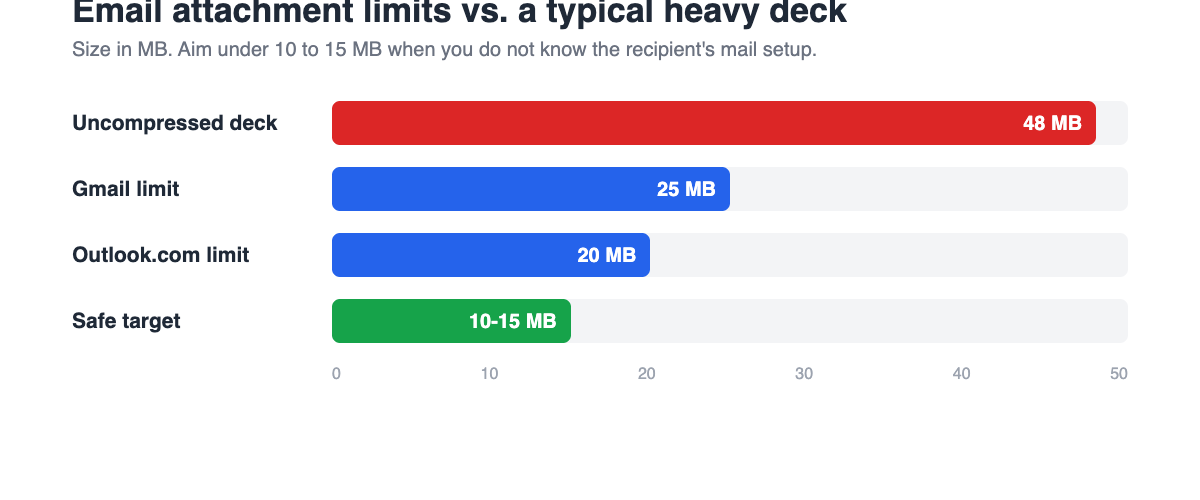
Common email attachment limits compared with a 48 MB deck.
Why Presentation Files Get So Large
A PPTX file is a compressed archive of slides, images, media and settings. Text adds almost nothing to the file size. The weight nearly always comes from a few sources:
High-resolution photos. A single photo straight from a phone or a stock site can be several megabytes, and a deck with 30 of them adds up fast.
Cropped images that still keep the hidden parts. When you crop a picture on a slide, the original full image usually stays in the file unless you tell the editor to discard it.
Embedded video and audio. One short video clip can outweigh every other element in the deck combined.
Embedded fonts. Embedding full font files keeps your design intact on other computers, but it adds weight.
Leftover editing data. Some editors keep the original version of an edited image so that you can restore it later.
Once you know which of these applies to your deck, the right fix becomes obvious.
Option 1: Compress the Images Inside Your Editor
This is the first thing to try, because images are the most common cause of a heavy deck.
In PowerPoint, select any picture, open the Picture Format tab and choose Compress Pictures. Clear the option that applies the change only to the selected picture so that it covers the whole presentation, tick "Delete cropped areas of pictures", and choose a lower resolution. For a deck that will be viewed on screen, 150 ppi is usually plenty.
WPS Presentation offers a similar Compress Pictures option under its picture tools, with a choice between compressing the selected picture or every picture in the document, and an option to delete cropped areas.
One caution: deleting cropped areas is permanent. If you think you may need the hidden parts of an image later, keep a copy of the original file before you compress.
Option 2: Use an Online Compressor
If you need a smaller file in under a minute and do not want to adjust settings image by image, an online tool can do the work in one pass. A free online PPT compressor like the one from ChatSlide optimizes the images in a PPTX file and shows you the size reduction before you download the result. It runs in the browser, so the presentation is not uploaded to a server, which matters when the deck contains client data or unreleased plans.
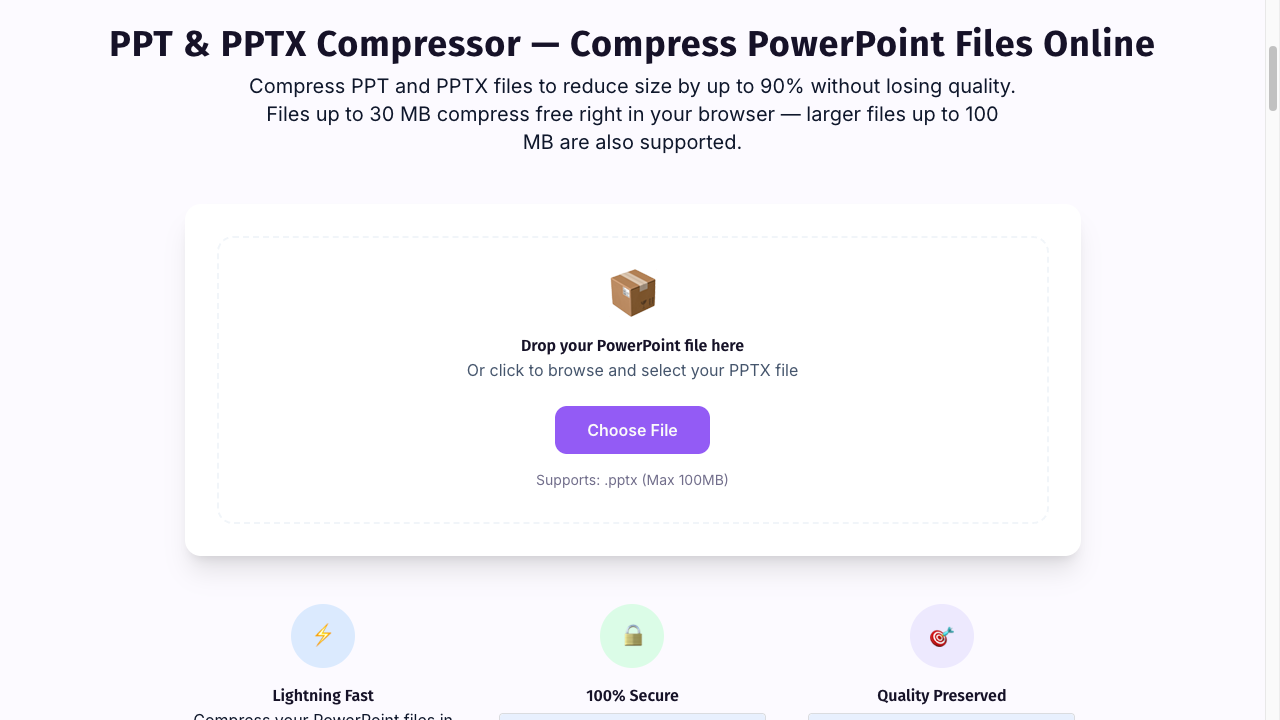
ChatSlide's free PPT compressor runs in the browser, so the deck is not uploaded to a server.
After compressing, open the new file and flip through every slide. Check charts, screenshots and any images with small text, since those are the first to look soft if the compression is too aggressive.
Option 3: Compress or Link the Video
If your deck contains video, compressing the pictures alone will not help much. PowerPoint for Windows has a Compress Media option under File and Info, which re-encodes embedded video at a lower quality setting. For most screen presentations, a 720p version looks fine and takes far less space than full HD.
An alternative is to remove the embedded video and link to it instead. Upload the clip to a video platform or a shared drive and place a link or a thumbnail on the slide. The deck becomes small, and the video still plays during the presentation as long as you have an internet connection.
Option 4: Embed Only the Characters You Use
If you embedded fonts to protect your design, check how you did it. In PowerPoint, go to File, then Options, then Save, and under "Embed fonts in the file" choose "Embed only the characters used in the presentation". This keeps the slides looking right on the recipient's computer while dropping the parts of the font file you never used. Choose "Embed all characters" only if the recipient will edit the deck and needs your custom fonts.
Option 5: Send a PDF Instead of the Editable File
Ask yourself whether the recipient needs to edit the slides or just read them. If they only need to read or print them, export the deck as a PDF. A PDF is often much smaller than the original presentation, it opens on any device without presentation software, and it looks the same everywhere.
The tradeoffs are that animations, transitions and embedded video do not carry over, and the recipient cannot easily change the content. For a board pack, a handout or a submission, those are usually not problems.
Option 6: Share a Cloud Link
When the file must stay large, for example a design-heavy pitch deck with full-quality video, stop trying to attach it. Upload it to a cloud drive such as Google Drive, OneDrive or WPS Cloud and send a link.
Two details prevent the most common follow-up emails:
Check the sharing setting. If the link is restricted to specific people, the recipient may need to sign in or request access. If the content is not sensitive, set the link so that anyone with it can view.
Name the file clearly. "Q3-Sales-Review-Final.pptx" is easier to find in a crowded downloads folder than "Presentation1.pptx".
A Quick Way to Choose
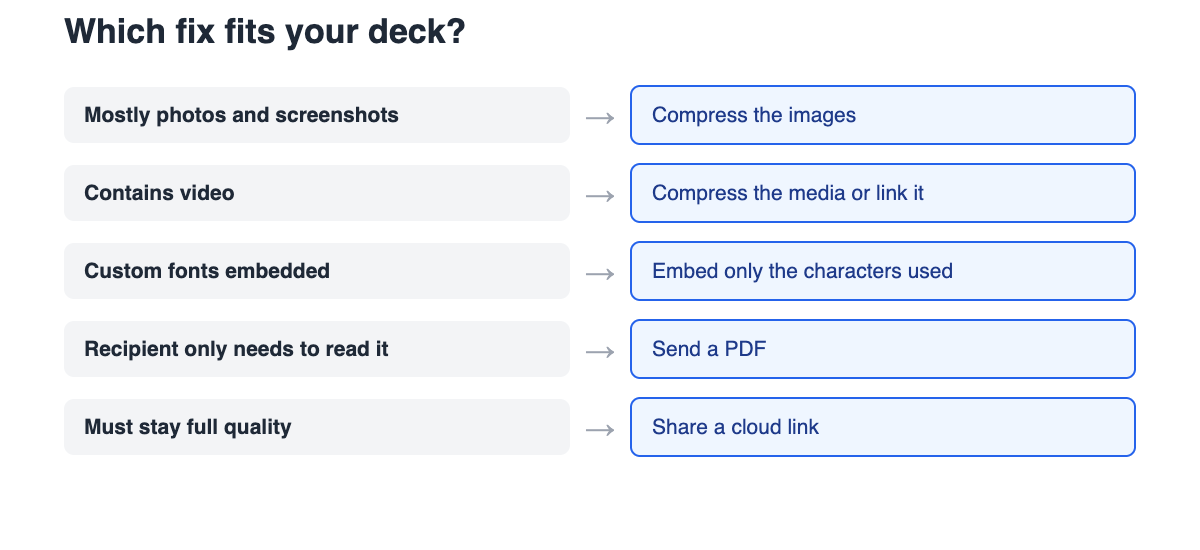
Mostly photos and screenshots: compress the images in your editor or with an online compressor.
Contains video: compress the media or replace it with a link.
Custom fonts: embed only the characters used.
Recipient only needs to read it: send a PDF.
Must stay full quality: share a cloud link.
 Prevent the Problem Next Time
A few habits keep future decks light from the start. Resize photos before you insert them rather than shrinking them on the slide. Crop and compress once the design is final. Link long videos instead of embedding them. And check the file size before the deadline, not when the email is already bouncing.
A large presentation is rarely a real obstacle. Most of the time the extra size comes from images and media the audience will never notice, and removing it takes a few clicks.