

'%3e%3cpath%20d='M8%200C12.4183%200%2016%203.58172%2016%208C16%2012.4183%2012.4183%2016%208%2016C3.58172%2016%200%2012.4183%200%208C0%203.58172%203.58172%200%208%200ZM11.6162%204.38379C11.2257%203.99337%2010.5927%203.99338%2010.2021%204.38379L8%206.58594L5.79785%204.38379C5.40732%203.99334%204.77429%203.99329%204.38379%204.38379C3.99331%204.77429%203.99335%205.40733%204.38379%205.79785L6.58594%208L4.38379%2010.2021C3.99348%2010.5927%203.99341%2011.2257%204.38379%2011.6162C4.77426%2012.0066%205.40734%2012.0065%205.79785%2011.6162L8%209.41406L10.2021%2011.6162C10.5927%2012.0066%2011.2257%2012.0067%2011.6162%2011.6162C12.0067%2011.2257%2012.0066%2010.5927%2011.6162%2010.2021L9.41406%208L11.6162%205.79785C12.0066%205.40735%2012.0066%204.77429%2011.6162%204.38379Z'%20fill='%23080E17'%20fill-opacity='0.46'/%3e%3c/g%3e%3cdefs%3e%3cclipPath%20id='clip0_3761_713'%3e%3crect%20width='16'%20height='16'%20fill='white'/%3e%3c/clipPath%3e%3c/defs%3e%3c/svg%3e)



'%3e%3cpath%20fill-rule='evenodd'%20clip-rule='evenodd'%20d='M21.4999%2010.9993C21.4999%205.20009%2016.7986%200.498901%2010.9993%200.498901C5.19994%200.498901%200.498657%205.20009%200.498657%2010.9993C0.498657%2016.2404%204.33858%2020.5844%209.35855%2021.3722V14.0346H6.69238V10.9993H9.35855V8.68594C9.35855%206.05427%2010.9262%204.60062%2013.3248%204.60062C14.4736%204.60062%2015.6753%204.80571%2015.6753%204.80571V7.38979H14.3512C13.0468%207.38979%2012.64%208.19921%2012.64%209.0296V10.9993H15.5523L15.0867%2014.0346H12.64V21.3722C17.66%2020.5844%2021.4999%2016.2404%2021.4999%2010.9993Z'%20fill='%231568EA'/%3e%3c/g%3e%3c/svg%3e)


'%3e%3cpath%20d='M2.42045%2022.1876H6.31818V12.7217L0.75%208.54553V20.5171C0.75%2021.4414%201.49892%2022.1876%202.42045%2022.1876Z'%20fill='%234285F4'/%3e%3cpath%20d='M19.682%2022.1876H23.5797C24.5041%2022.1876%2025.2502%2021.4387%2025.2502%2020.5171V8.54553L19.682%2012.7217'%20fill='%2334A853'/%3e%3cpath%20d='M19.682%205.48293V12.7216L25.2502%208.54543V6.31816C25.2502%204.25236%2022.8921%203.07469%2021.2411%204.31361'%20fill='%23FBBC04'/%3e%3cpath%20d='M6.31824%2012.7217V5.48303L13.0001%2010.4944L19.6819%205.48303V12.7217L13.0001%2017.733'%20fill='%23EA4335'/%3e%3cpath%20d='M0.75%206.31816V8.54543L6.31818%2012.7216V5.48293L4.75909%204.31361C3.10534%203.07469%200.75%204.25236%200.75%206.31816Z'%20fill='%23C5221F'/%3e%3c/g%3e%3cdefs%3e%3cclipPath%20id='clip0_2954_7305'%3e%3crect%20width='24.5'%20height='18.375'%20fill='white'%20transform='translate(0.75%203.8125)'/%3e%3c/clipPath%3e%3c/defs%3e%3c/svg%3e)


Many students and marketers search for a slidesgo downloader when they want a free Slidesgo template saved as a PowerPoint file. Slidesgo already provides that download on each template page. After the PPTX lands in your Downloads folder, you still need an editor that can open, customize, and present the deck.
In this guide, I will walk through what a slidesgo downloader actually is, how to use the official download path, why WPS Office is a practical alternative for editing, and how the two approaches compare.
Part 1: Overview of a slidesgo downloader
When people type “slidesgo downloader,” they usually want one of three things: an offline PPTX, a workaround when a school Google account blocks “Make a copy,” or a third-party page that claims to pull templates faster. The real product path is simpler. Slidesgo’s own Download this template control is the legitimate slidesgo downloader. There is no need for a Chrome extension or a paste-the-URL website.
Slidesgo templates can be used in Google Slides or downloaded as PowerPoint. The PowerPoint option saves a standard .pptx file that opens in Microsoft PowerPoint and in WPS Presentation.
What a slidesgo downloader can and cannot do
You must be signed in. Unregistered visitors cannot download templates.
A free registered account can download 3 templates per month.
Premium raises that cap (Slidesgo currently lists a 150-download monthly security limit).
Downloading the same template again in the same month, or taking both Google Slides and PowerPoint versions, does not consume an extra slot. Color variants of a template you already downloaded are treated the same way.
Free users must keep the attribution / credits slide. Premium licenses can omit that credit.
You may use templates for personal and commercial work, but you cannot sell, rent, sublicense, or offer the template (or a lightly edited copy) as a download for other people.
Pros
Official PPTX download lives on the template page—no extra app required
Large library of education and business themes
Google Slides and PowerPoint options on the same page
Free tier is enough for light monthly use
Cons
Free downloads are capped at 3 per month
Desktop apps do not load Google Fonts automatically; fonts may look wrong until you install them
Free plans require keeping the credits slide
Unofficial “slidesgo downloader” sites often add ads, malware risk, or break Slidesgo’s terms
Do not use a third-party downloader to skip the login wall or unlock Premium-only extra materials. Those pages often wrap trackers or fake codecs around a file you could have saved from slidesgo.com.


Part 2: How to use a slidesgo downloader step by step
Treat the template page itself as your slidesgo downloader. Follow these steps to save a PowerPoint file the official way.
Step 1: Sign in on Slidesgo
Go to slidesgo.com and sign in with Google or another linked account. Browsing does not require an account; downloading does.
Step 2: Open the template and pick a color variant
Preview the slides. If the theme offers color circles under the thumbnail, choose the palette first so the PowerPoint file matches it.
Step 3: Download as PowerPoint
Click Download this template, then choose PowerPoint. Wait for the .pptx file to finish in your browser Downloads folder.
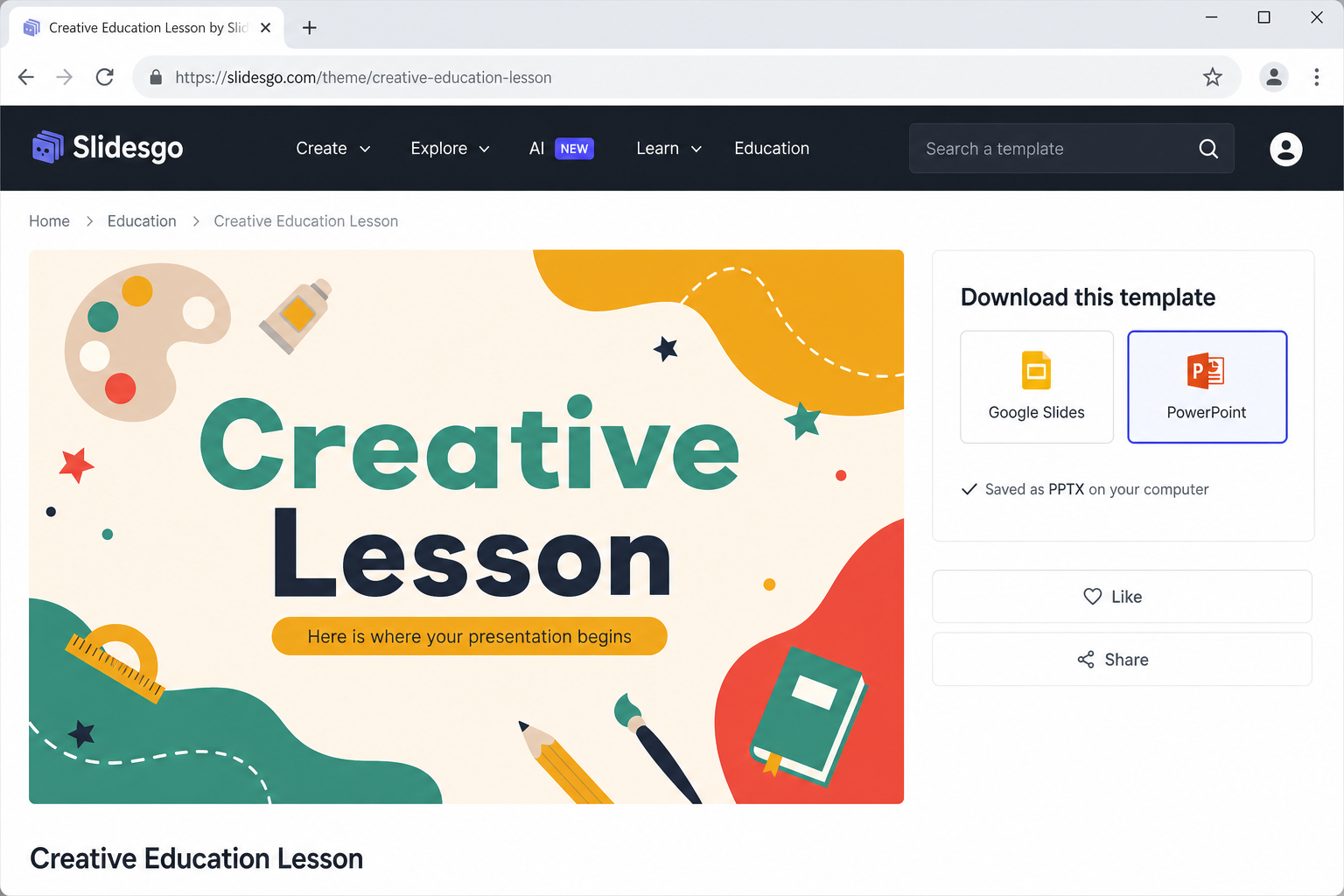
Download PowerPoint template on Slidesgo
Step 4: Keep the credits slide on a free plan
If you are on the free tier, leave the attribution slide in the deck. Removing it is only allowed with a license that says so.
Choose Google Slides only when you want a Drive copy. For local editing in WPS, PowerPoint / PPTX is the right format. If a school Google account blocks “Make a copy,” Slidesgo’s FAQ recommends switching to a personal account, asking IT to whitelist slidesgo.com, or downloading PowerPoint and converting later.
Part 3: Best alternative to a slidesgo downloader: WPS Office
A slidesgo downloader only fetches a file. What you need next is an editor that opens that PPTX, lets you swap text and pictures, and saves a deck you can present. That is where WPS Office fits.
WPS Office is a free office suite with WPS Presentation, which opens Microsoft PowerPoint .ppt and .pptx files. It is not a tool that bypasses Slidesgo’s login or Premium library. Use it when you want to:
Open a PPTX you already downloaded from Slidesgo’s own button
Skip a third-party “paste the URL” downloader and still finish the slides on your PC
Start from WPS’s own template gallery if you have already used this month’s Slidesgo free quota
Keep working offline after the file is on disk
From the WPS home screen, click the orange Presentation icon (or Slides in the sidebar). You can open an existing PPTX or pick New and browse templates. The gallery includes Blank plus education and business themes—a useful backup when you do not want to spend another Slidesgo download.
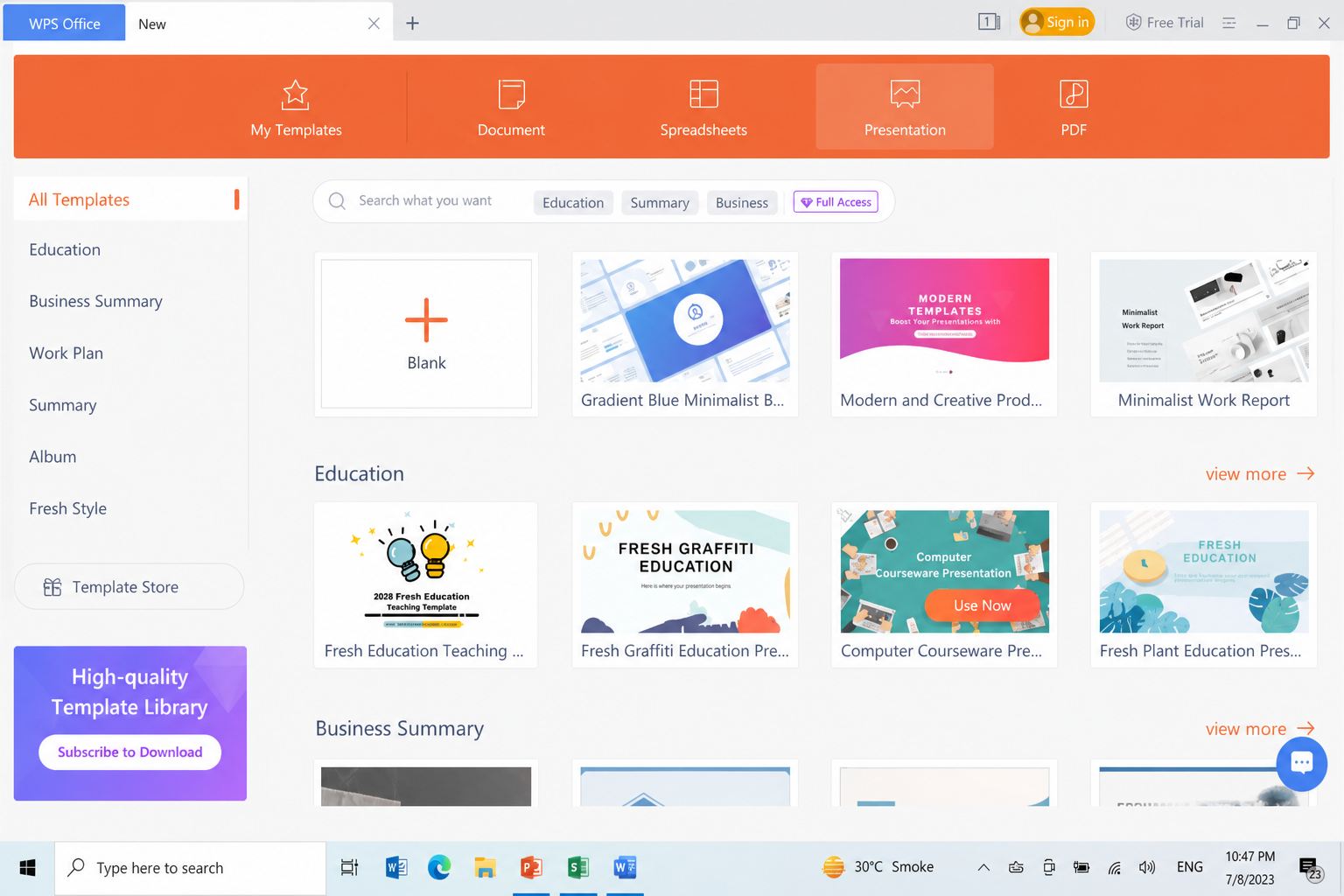
Browse WPS Presentation template gallery
WPS Presentation uses a ribbon close to PowerPoint: Home, Insert, Design, Transitions, Animation, and View. You can edit text boxes, insert pictures, change layouts, and export PDF. For a longer walkthrough, see How to Use Microsoft PowerPoint for Free in WPS Office. Template browsing is also covered in how to get PowerPoint and slide templates for free in WPS Office.
Part 4: How to use WPS with a slidesgo downloader PPTX
Once the official slidesgo downloader step has saved a PPTX, open it in WPS Presentation the same way you open any PowerPoint file. Follow each step with the matching screenshot.
Step 1: Open Presentation in WPS Office
Install and launch WPS Office from the official site. On the home screen, click the orange Presentation icon.
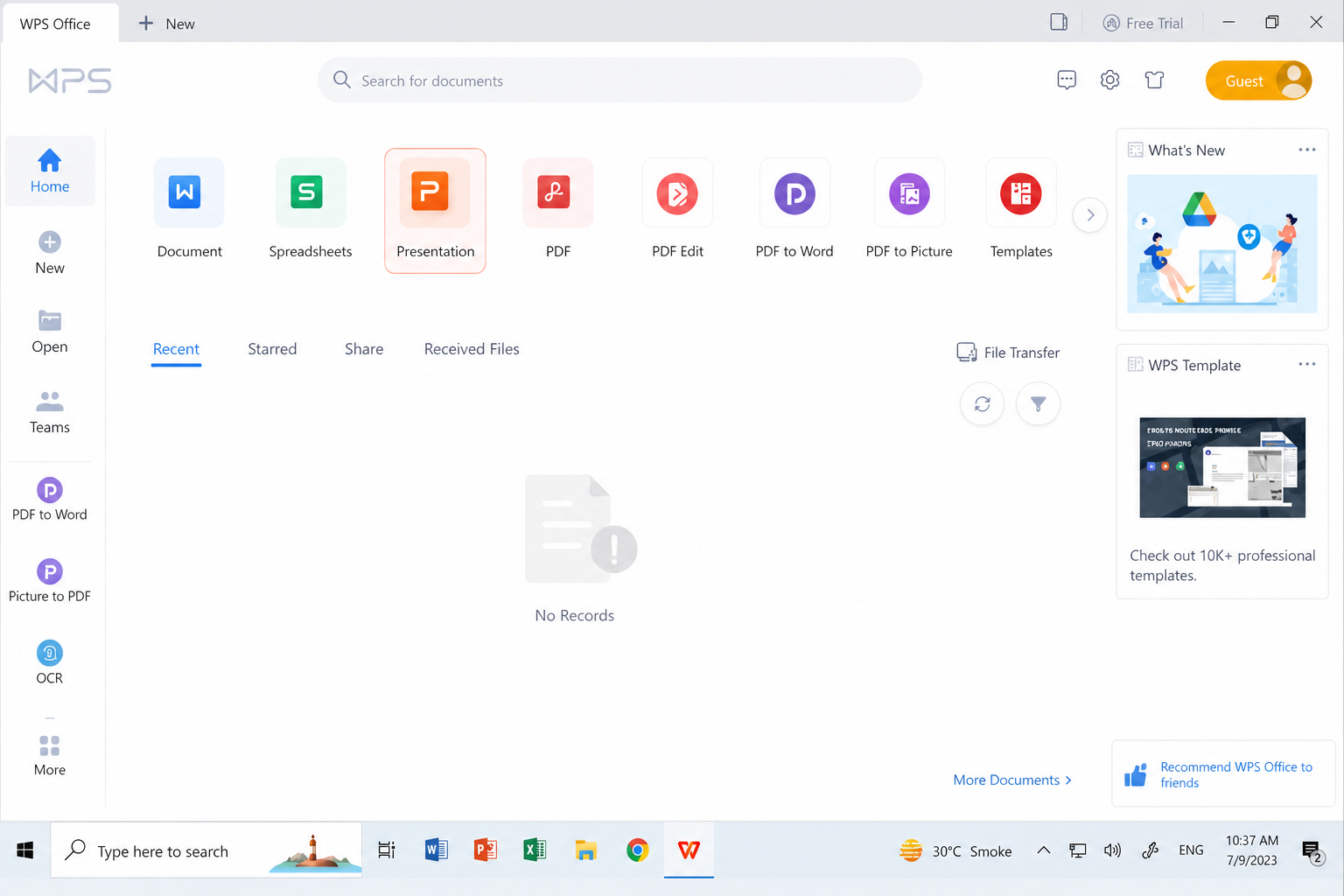
Open Presentation in WPS Office
Step 2: Choose Menu > Open
In WPS Presentation, click Menu (or File) and choose Open.
Step 3: Select the PPTX file
Browse to Downloads, select the .pptx file, and click Open.
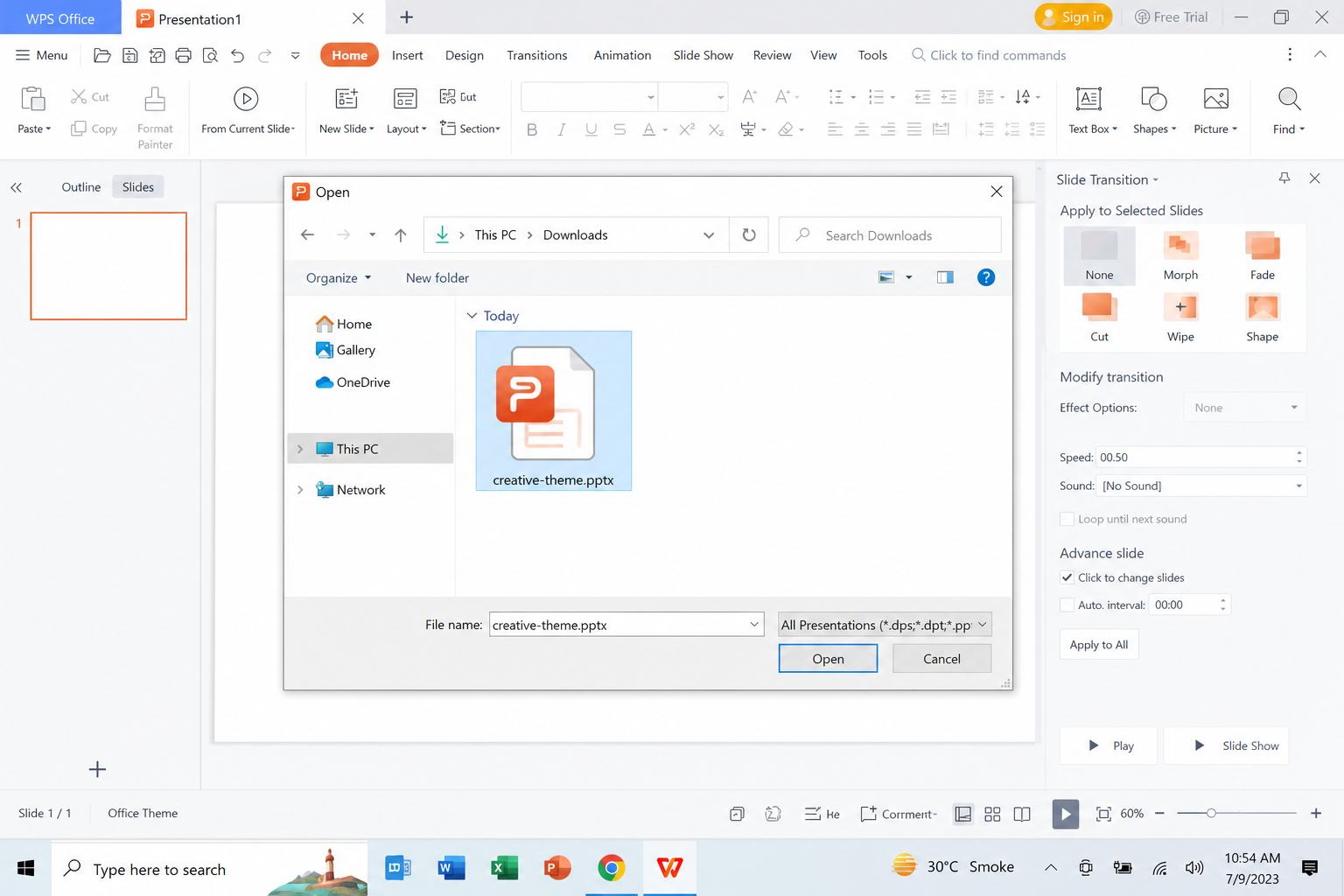
Open PPTX file in WPS
Step 4: Edit titles and body text
Review the slide thumbnails on the left. Click a text box and replace titles and body copy with your content.
Step 5: Insert pictures and shapes
Open the Insert tab to add pictures, shapes, tables, or a new slide. Drag thumbnails to reorder the deck.
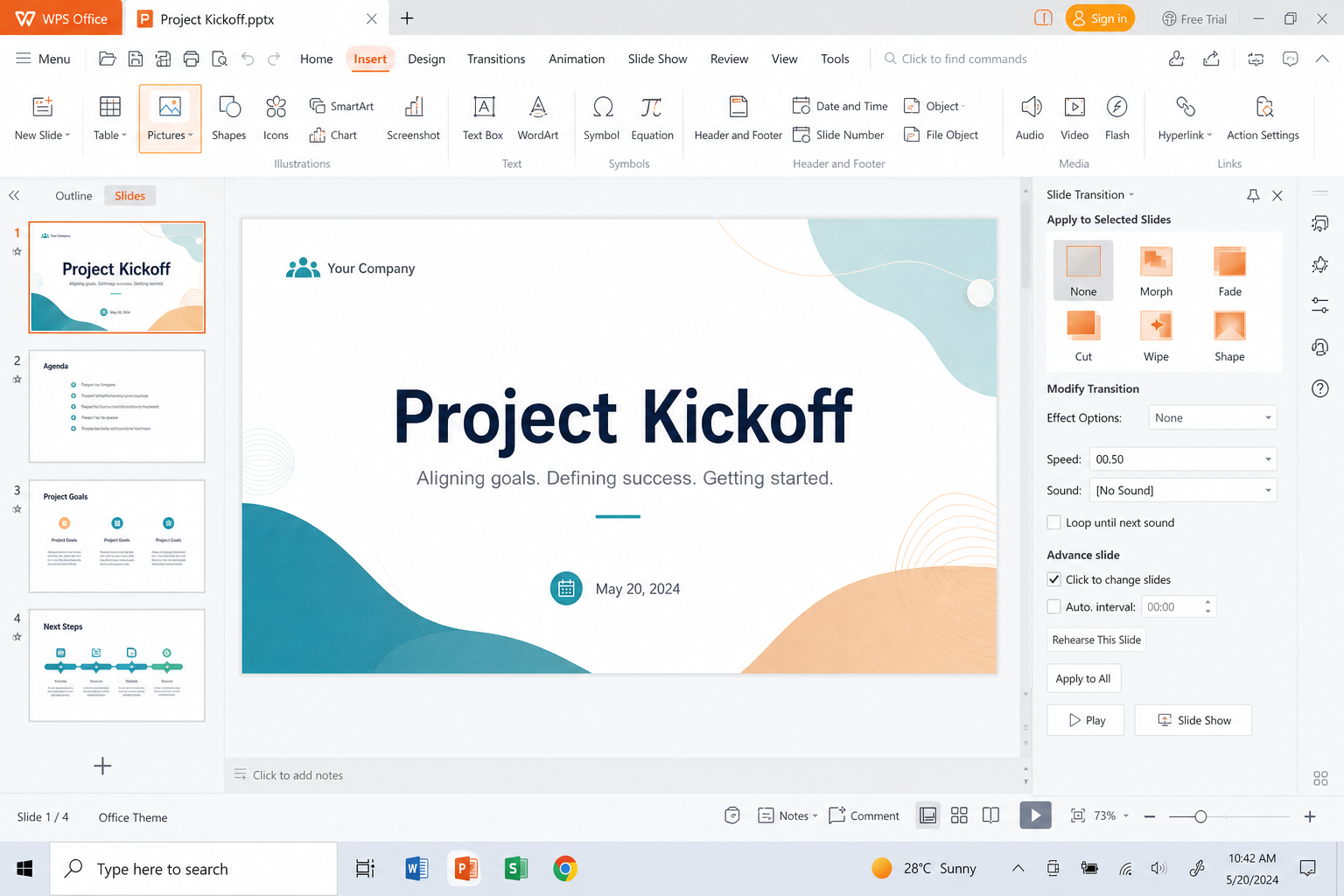
Insert pictures on WPS slides
Step 6: Edit the Slide Master when needed
For layout-wide fonts or logos, go to View > Slide Master. Slidesgo notes that some decorative pieces live on the master and will not move until you edit that master.
Step 7: Fix fonts, keep credits, and save
Desktop apps do not load Google Fonts the way Google Slides does. Check the last slides of the deck for font names, install those families, then reopen the file. On a free Slidesgo plan, keep the credits slide. Click Menu / File > Save As and keep PPTX, or use Export to PDF for a handout.
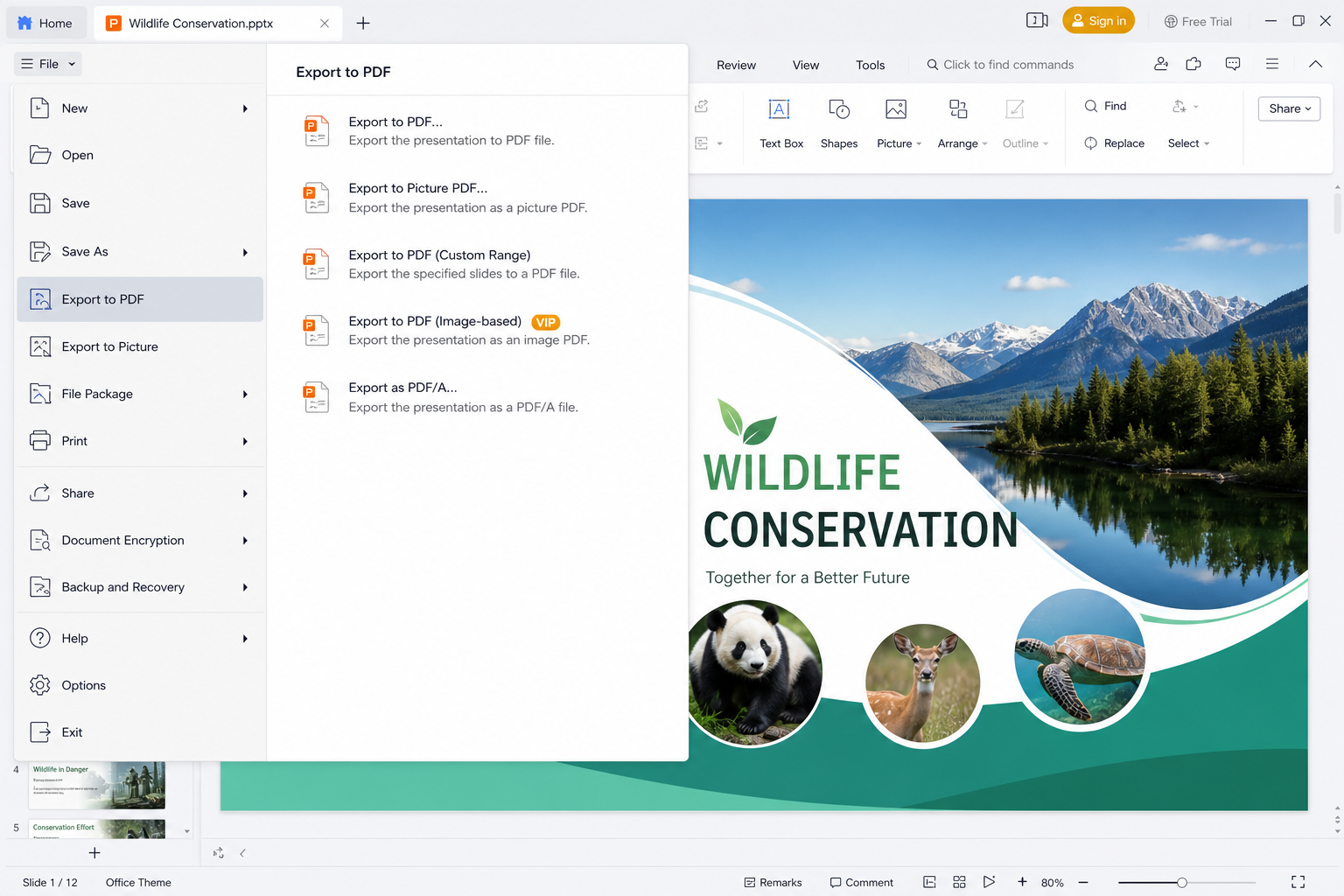
Export to PDF in WPS
Part 5: Comparison of a slidesgo downloader and WPS Office
Use this table to separate three things people mix up: unofficial slidesgo downloader websites, Slidesgo’s own download button, and WPS Office as the editor (and template backup).
| Feature / Criteria | Unofficial slidesgo downloader sites | Official Slidesgo download | WPS Office (Presentation) |
|---|---|---|---|
| What it is | Third-party pages that ask you to paste a Slidesgo URL | The Download this template control on slidesgo.com | A free office suite that opens and edits PPTX |
| Gets a licensed Slidesgo PPTX | No reliable, allowed path; often violates terms | Yes, after you sign in | No; it opens a file you already have, or a WPS template |
| Account / quota | Often claims to skip login or Premium | Login required; free plan is 3 templates/month | No Slidesgo quota; install WPS and work locally |
| Edit the slides | Usually download-only, with ads or extra files | File only; you still need PowerPoint, Google Slides, or WPS | Yes: text, pictures, master, transitions, PDF export |
| Own templates | No | Slidesgo library (free cap / Premium extras) | Yes, built-in Presentation gallery |
| Risk | High: malware, fake codecs, broken TOS | Low if you stay on slidesgo.com | Low if you install from wps.com |
| Attribution slide | Often stripped, which free licenses forbid | Keep it on a free plan | Keep Slidesgo credits if that is the source file |
| Best for | Avoid | Getting a licensed Slidesgo PPTX | Editing PPTX, offline work, backup templates |
The practical combo is official Slidesgo download plus WPS Presentation, not an unofficial slidesgo downloader. If you only need a new look and have no Slidesgo file, start in the WPS template gallery instead.
FAQs
Q1: Is there an official slidesgo downloader app?
No. Slidesgo’s download control is on each template page. Sign in, click Download this template, and pick PowerPoint or Google Slides. There is a Slidesgo add-on for Google Slides in the Google Workspace Marketplace, which inserts slides inside Google Slides. It is not a bulk PPTX scraper.
Q2: Is WPS Office a slidesgo downloader?
No. WPS does not pull templates off Slidesgo. It is the best alternative after you have a PPTX: you open, edit, and save in Presentation, or you start from a WPS template.
Q3: Can a free slidesgo downloader unlock Premium templates?
No. Extra materials in some templates are limited to Premium users. A third-party tool that claims otherwise is bypassing the license. Use the free quota, keep credits, or subscribe if you need the higher cap and no-attribution license.
Q4: Will WPS Presentation open a Slidesgo PPTX?
Yes. WPS Presentation opens .ppt and .pptx files. After you download PowerPoint format from Slidesgo, use Open in WPS. Install listed Google Fonts if the layout looks off.
Q5: Why do fonts change after I download?
Google Slides pulls fonts from Google Fonts automatically. PowerPoint and WPS use fonts installed on the PC. Download the families named on the “Fonts & colors used” slides, install them, then reopen the file.
Q6: Can I remove the Slidesgo credit slide?
Only if your plan allows it. Free users must keep the attribution slide. Premium users can share without that credit, following the license they download from their account.


'%3e%3cpath%20d='M19.9911%204.11386V6.471H18.5894C18.0775%206.471%2017.7322%206.57814%2017.5536%206.79243C17.3751%207.00671%2017.2858%207.32814%2017.2858%207.75671V9.44421H19.9019L19.5536%2012.0871H17.2858V18.8639H14.5536V12.0871H12.2769V9.44421H14.5536V7.49779C14.5536%206.39064%2014.8632%205.53201%2015.4822%204.92189C16.1013%204.31177%2016.9257%204.00671%2017.9554%204.00671C18.8304%204.00671%2019.509%204.04243%2019.9911%204.11386Z'%20fill='%23333333'/%3e%3c/g%3e%3cdefs%3e%3cclipPath%20id='clip0_2938_8199'%3e%3crect%20width='16'%20height='16'%20fill='white'%20transform='translate(8%204.00671)'/%3e%3c/clipPath%3e%3c/defs%3e%3c/svg%3e)
'%3e%3cpath%20d='M17.5237%2010.7813L23.4811%204H22.0699L16.8949%209.88693L12.7648%204H8L14.2469%2012.9029L8%2020.0133H9.4112L14.8725%2013.7952L19.2352%2020.0133H24M9.92053%205.04213H12.0885L22.0688%2019.0224H19.9003'%20fill='%23333333'/%3e%3c/g%3e%3cdefs%3e%3cclipPath%20id='clip0_2938_8200'%3e%3crect%20width='16'%20height='16.0134'%20fill='white'%20transform='translate(8%204)'/%3e%3c/clipPath%3e%3c/defs%3e%3c/svg%3e)


