Inventory sheets, reports, pitch decks, strategy docs, you name it,
they all suffer from the same problem when they rely too much on text.
In a world drowning in information, visuals are no longer a nice extra;
they are the difference between being understood and being ignored. Many
professionals know exactly what they want to say but struggle when it
comes to turning ideas into diagrams or infographics. Napkin AI entered
this space with a simple promise to turn text into visuals without
design pain. In this guide, I’ll take you through what exactly is Napkin
AI, how do you use it effectively, and if it is the best free Napkin
AI-style tool available today.
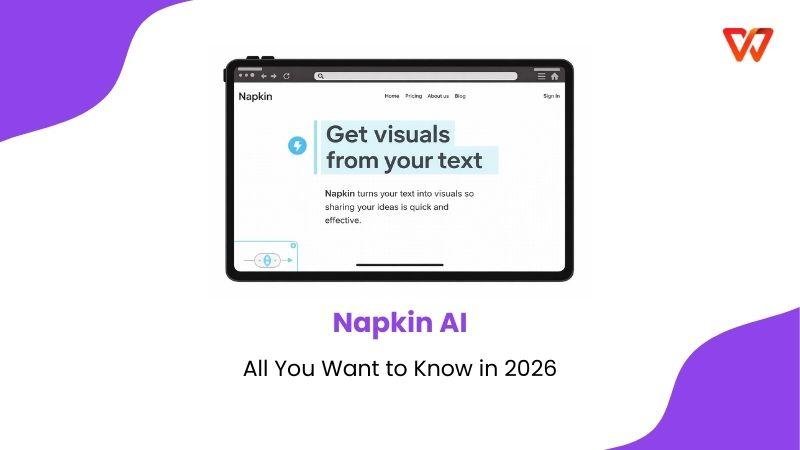
Napkin AI review
What is Napkin AI?
Napkin AI is a
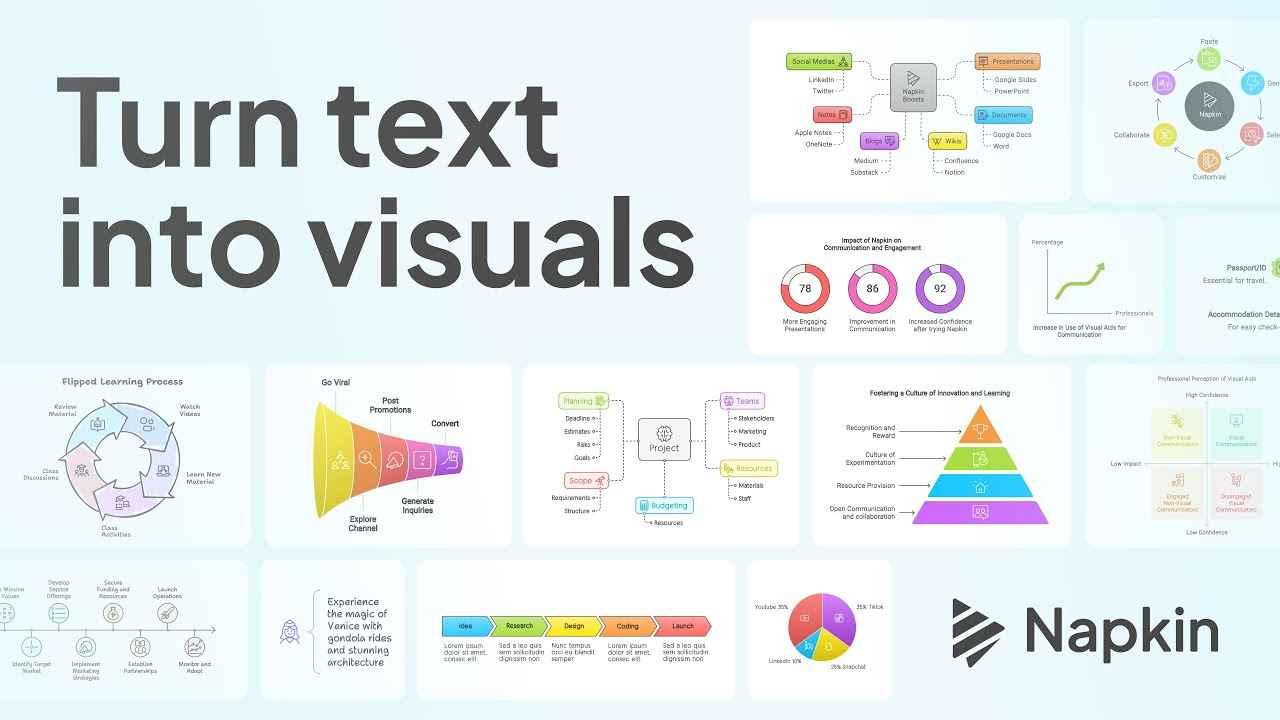
text-to-visual AI tool designed to transform written ideas into
diagrams, flowcharts, timelines, and simple infographics. Instead of
starting with a blank canvas, you start with words. You describe a
process, a framework, or a concept, and Napkin AI generates a visual
representation that you can refine. The core idea behind napkin ai is
inspired by how people sketch ideas on napkins during meetings. Quick,
rough visuals that clarify thinking. Napkin AI digitizes that habit and
enhances it with AI-powered structure and layout.
Napkin AI
Napkin AI focuses on clarity over decoration. Its features are
practical rather than flashy.
Text-to-visual generation for flowcharts, frameworks, timelines,
and diagrams
AI-assisted layout suggestions that organize ideas
logically
Editable nodes, connectors, and labels for quick
customization
Export options including PNG and PPT-compatible formats
Cloud-based workspace
for saving and revisiting “Napkins”
Napkin AI follows a freemium model:
Free Napkin AI plan allows basic visual generation with usage
limits
Paid plans unlock higher export quality, more visuals, and
advanced editing features
Pricing is subscription-based, aimed at professionals and
teams
For light users, the free Napkin AI option is enough to test
workflows. For frequent presentations or client work, the paid tier
becomes more practical.
Pros and Cons of Napkin AI
Product pages often highlight ideal scenarios, but tools like this
are ultimately judged by how they fit into everyday work: drafting decks
under time pressure, explaining processes to non-technical stakeholders,
or trying to visualize half-formed ideas during planning sessions. I
spent time testing Napkin AI across these kinds of situations and
cross-checking my
experience with detailed user reviewsand independent evaluations. I’ve broken down where the tool aligns well
with practical needs and where it creates friction, so you can evaluate
it based on real usage rather than assumptions.
Aspect
Evaluation
Fast text-to-visual creation
√
Easy learning curve
√
Good for conceptual diagrams
√
Limited advanced design control
×
Not ideal for full presentations
×
Basic data visualization only
×
From my experience, Napkin AI shines when you already know what you
want to explain. It struggles when you expect it to “think” deeply about
complex data relationships.
How to Use Napkin AI
During my own testing and while reviewing detailed guides from
practitioners who use the tool daily, success with Napkin AI is about
how you structure your input, how you refine the output, and how you
integrate those visuals into documents or presentations you already use.
It’s important to learn how to start a project from scratch, how to
organize your text so that Napkin AI interprets it correctly, and how to
refine the visuals it generates so they’re genuinely useful in reports,
briefings, or decks. This isn’t theoretical; it’s based on real usage
patterns that separate confusing diagrams from ones that actually
communicate your idea clearly.
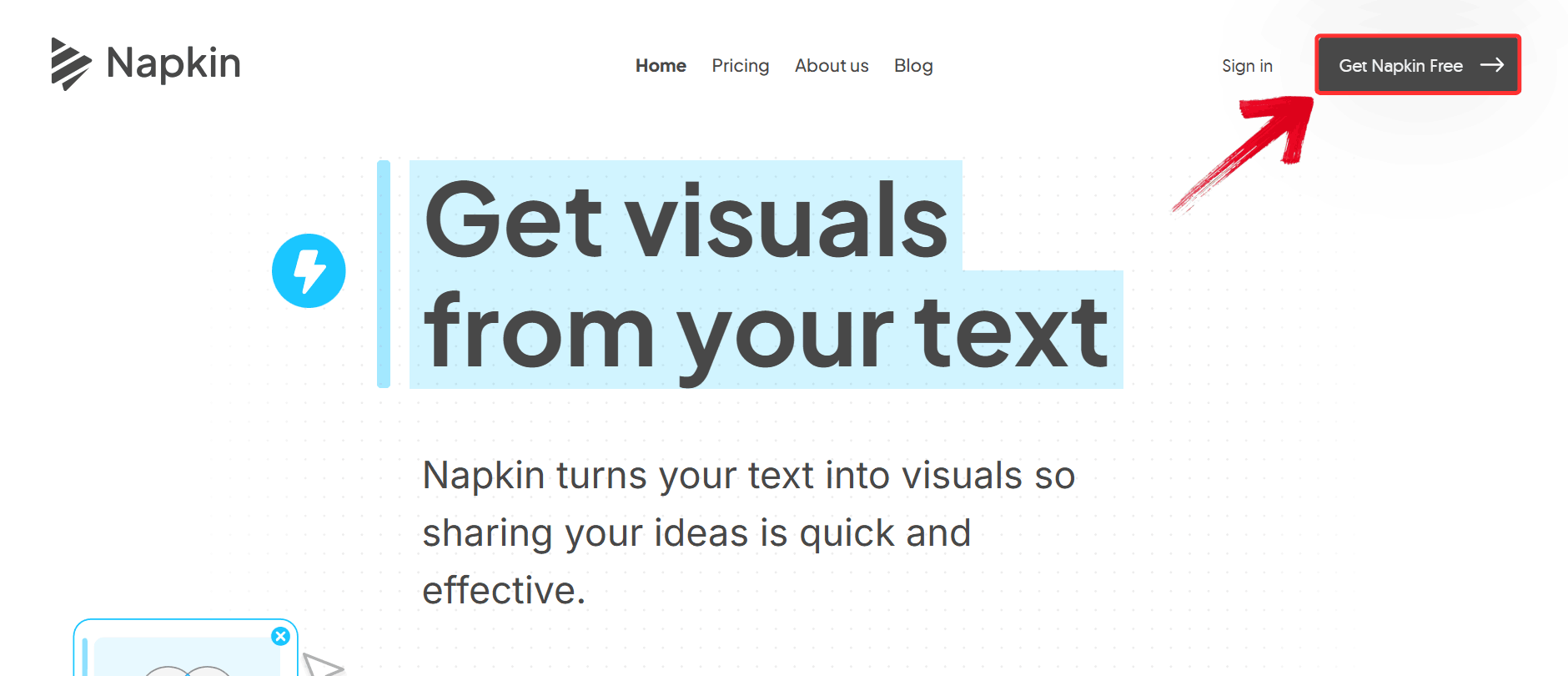
Step 1: Head over to the official Napkin AI website and click the
black “Get Napkin Free” button on the homepage.
Get Napkin Free
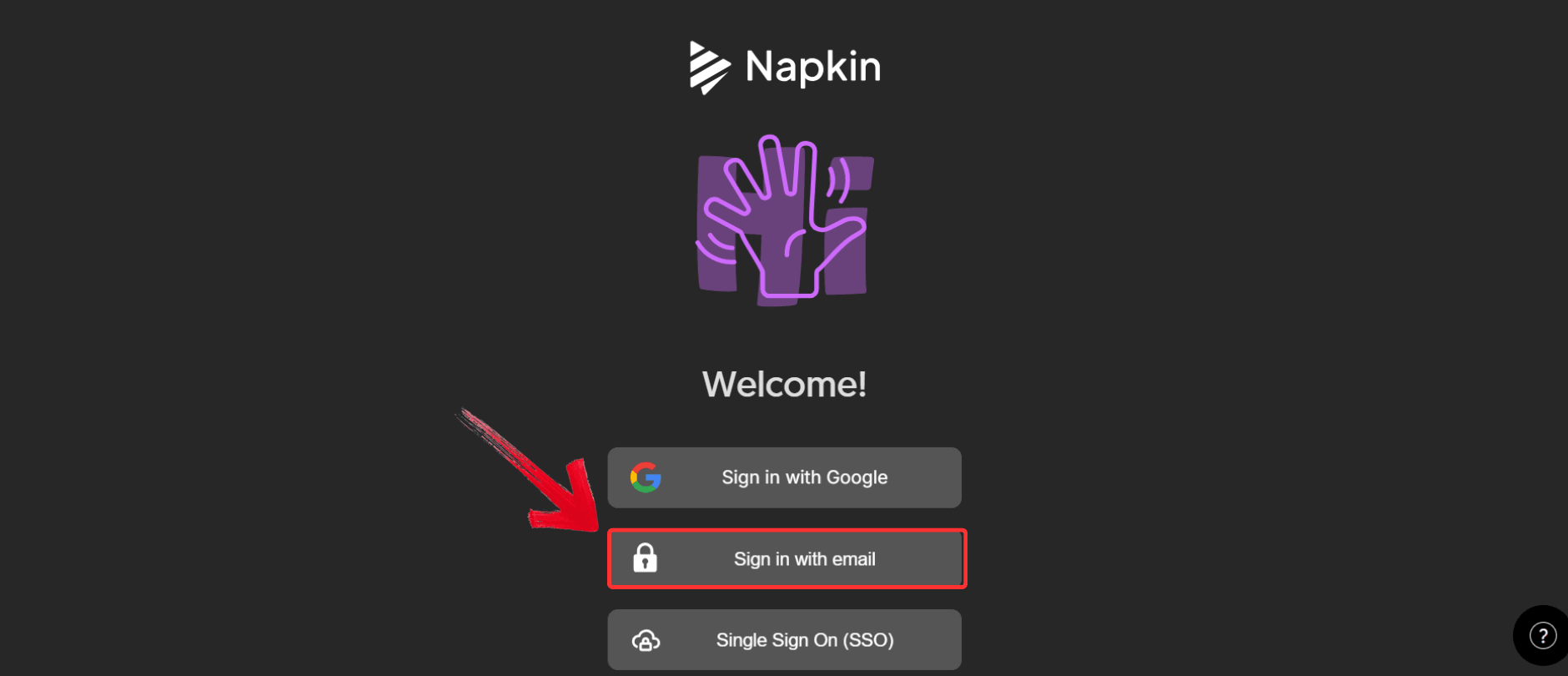
Step 2: When prompted, choose “Sign in with
email” and complete the quick verification process.
Sign in with email
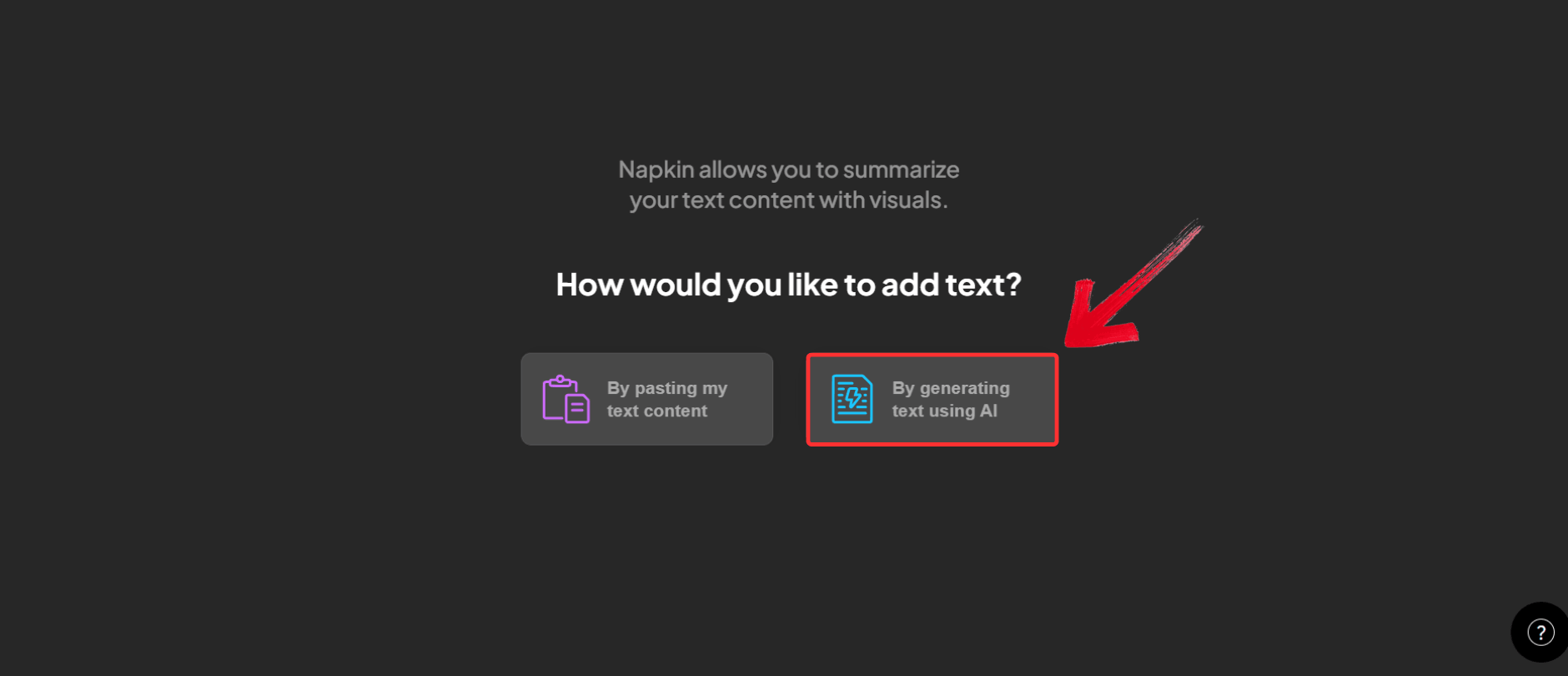
Step 3: Napkin AI will ask how you’d like to add
content. Select “By generating text using AI”, which is
the fastest way to see how the tool interprets ideas and structures them
visually.
Generate text using AI
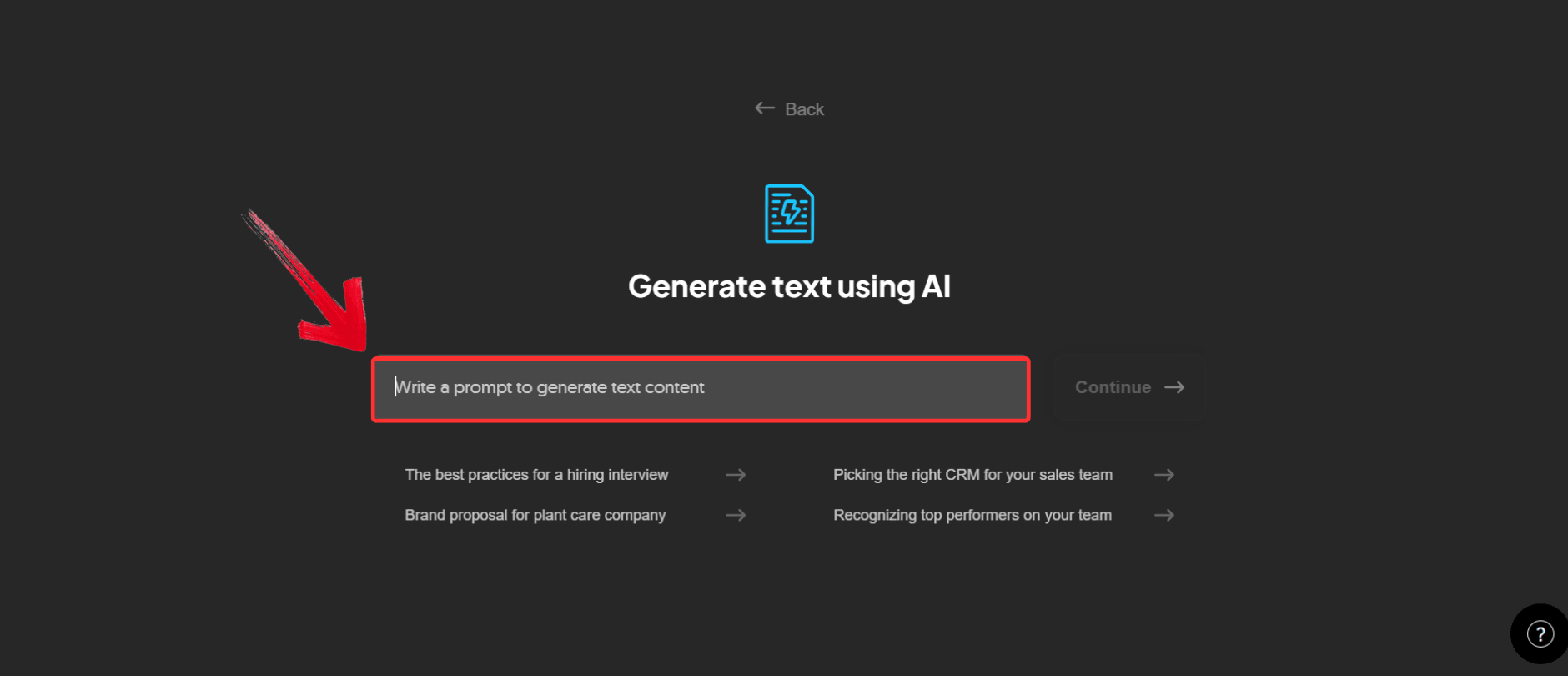
Step 4: In the prompt box, describe what you want to
explain. For example, you might write: “The best ways to nail a
job interview, from preparation to follow-up”.
Write Prompt
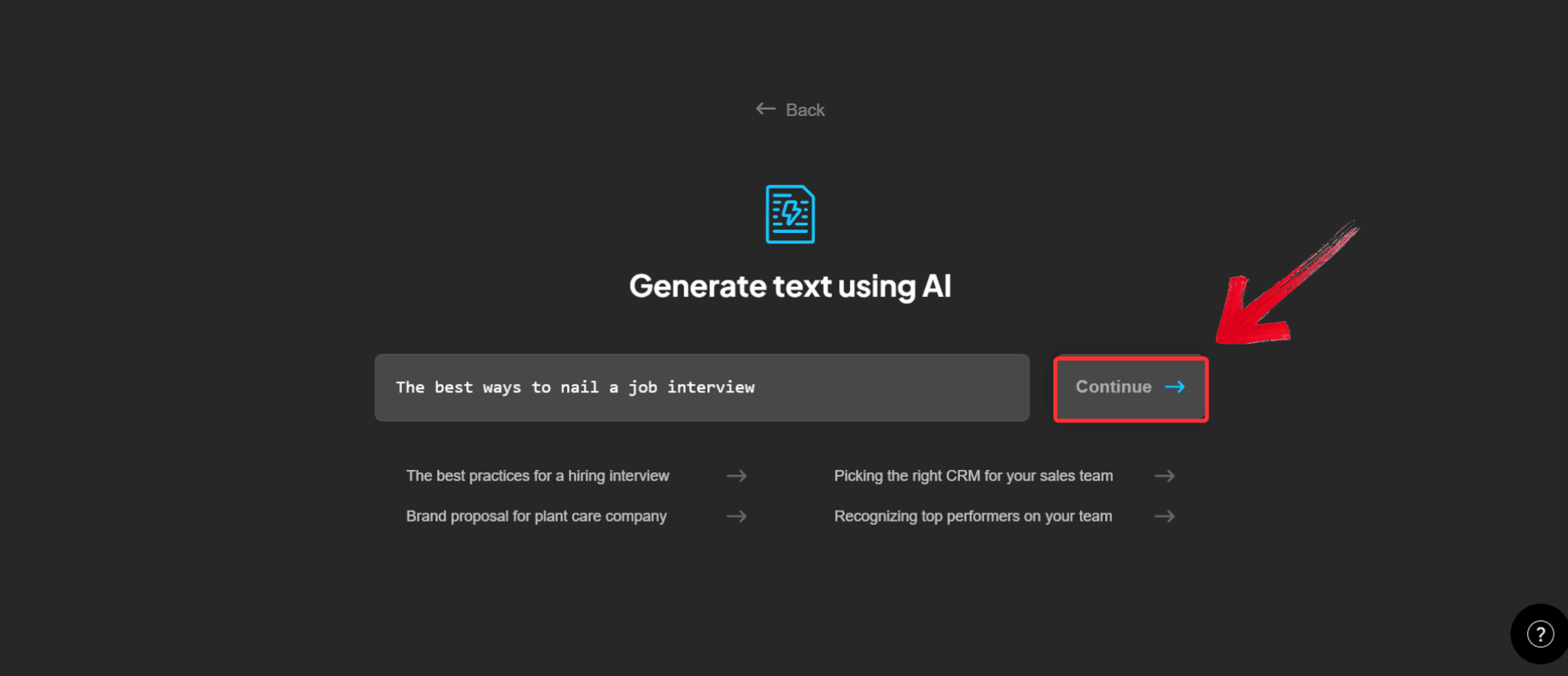
Step 5: Once your prompt is ready, click“Continue”. Napkin AI will generate the written content
first, breaking it into logical sections that are easier to turn into
visuals later.
Click Continue
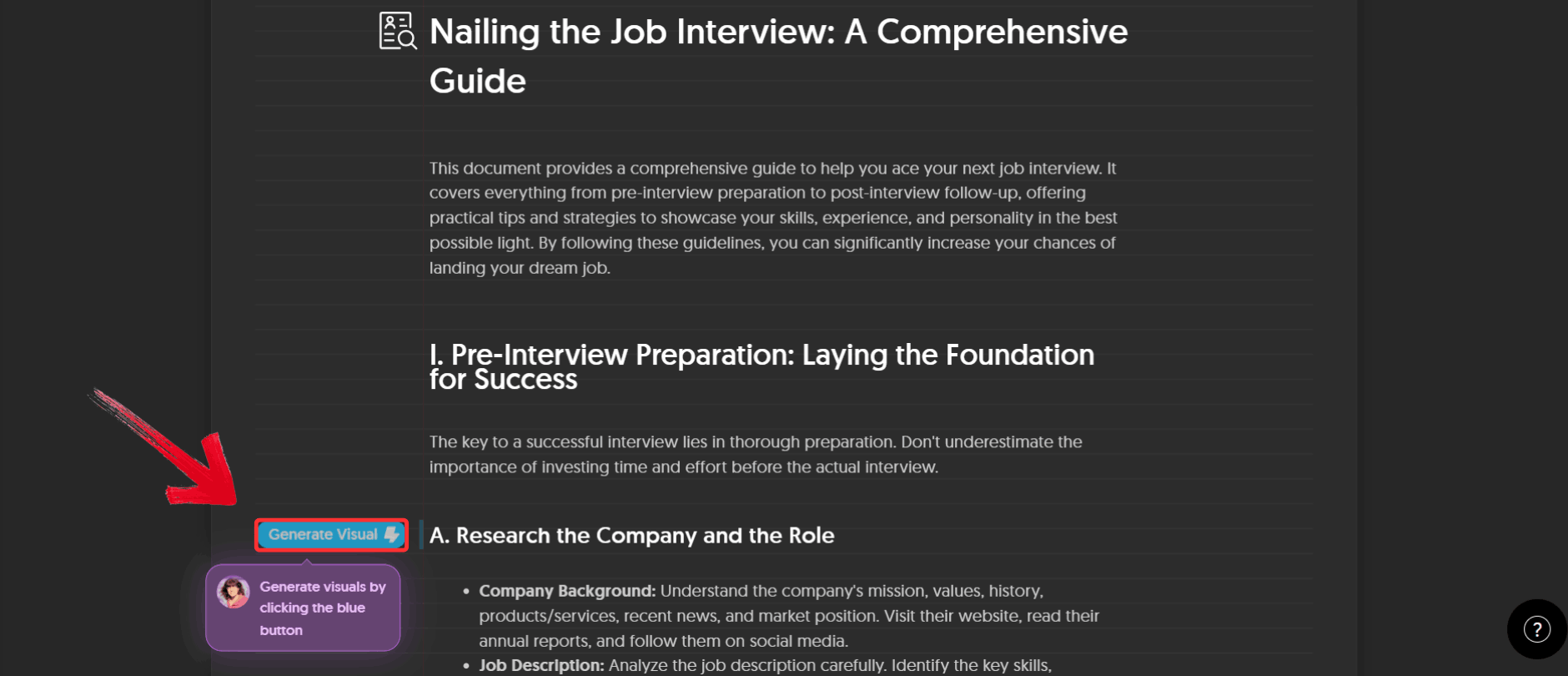
Step 6: You’ll now see the generated text on your
canvas. To turn a specific section into a diagram or visual, click the
blue “Generate Visual” button next to that text. Napkin
AI will automatically insert a relevant visual directly below it.
Generate Visual
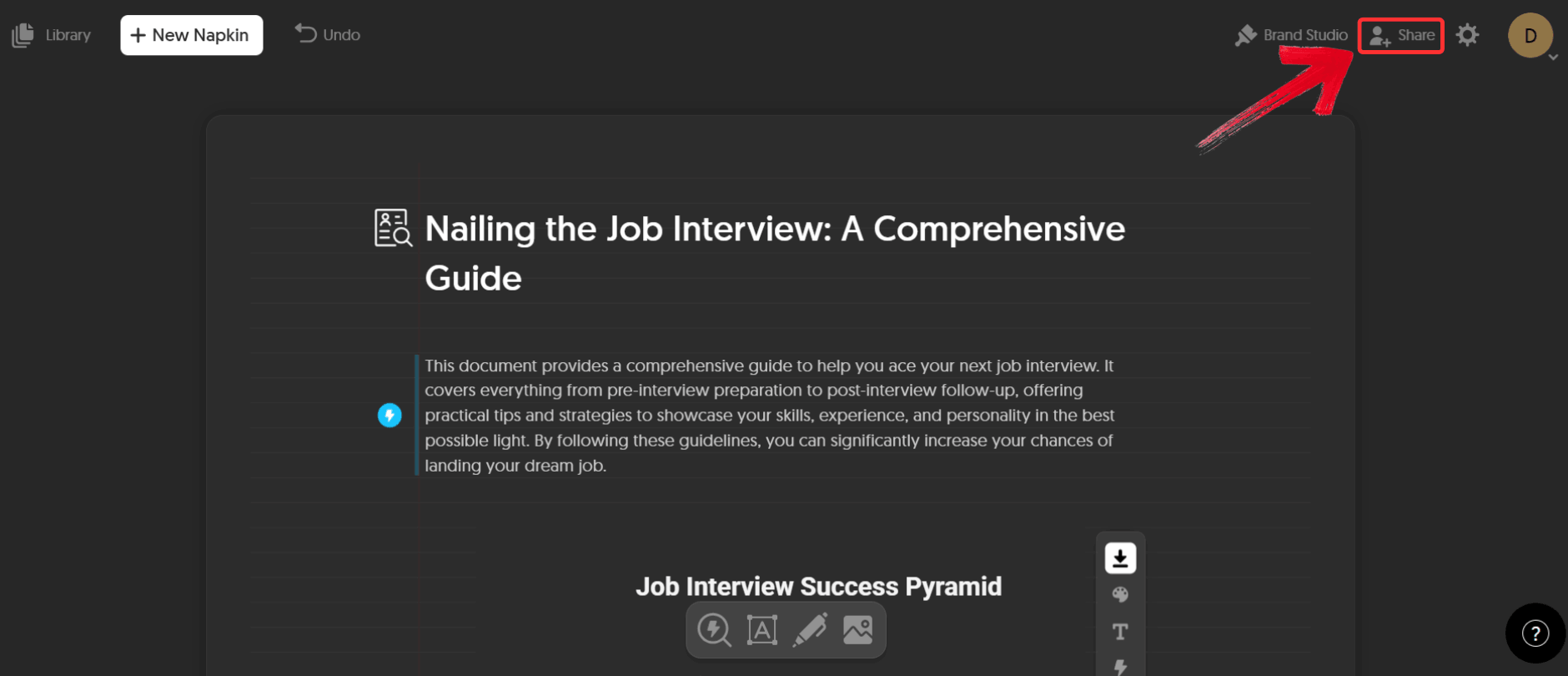
Step 7: When you’re finished refining the visuals,
click the “Share” button in the top-right corner to
share a link with others or export the visuals for use in presentations,
documents, or reports.
Share Presentation
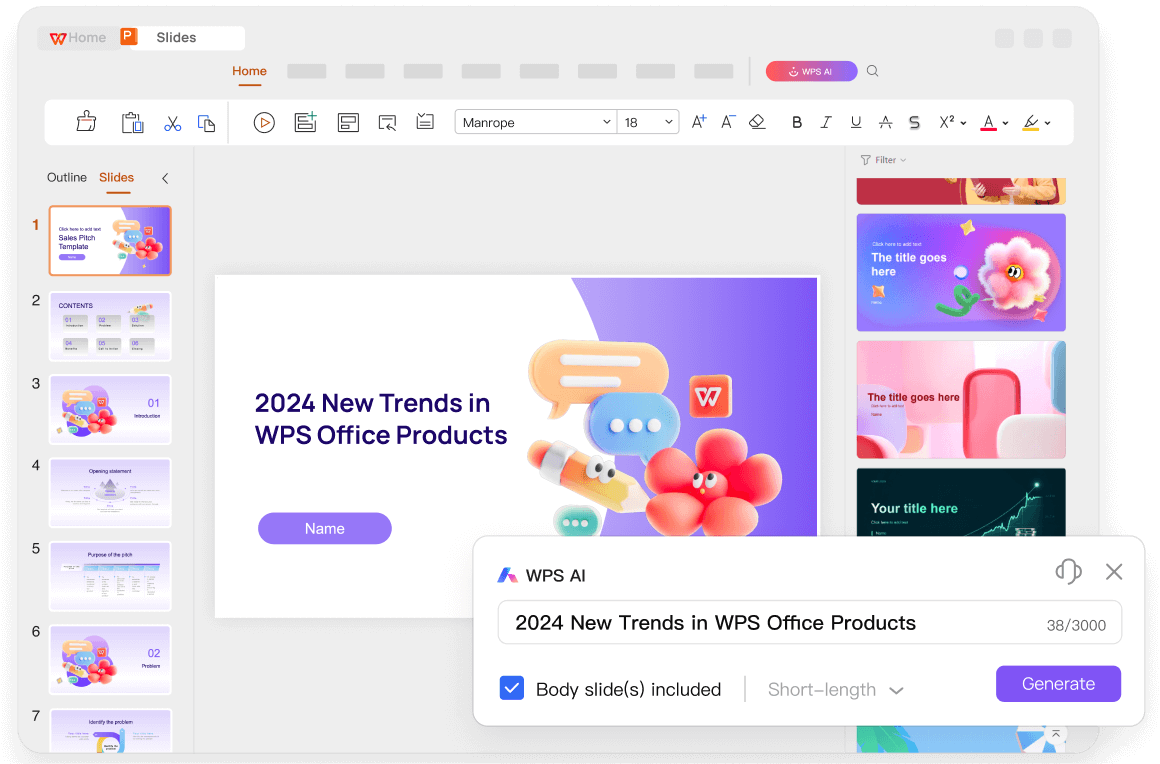
The
Best Helper for Presenting Your Ideas: WPS AI Slides
WPS AI
Slides is designed for something Napkin AI does not aim to do:
complete presentations. Instead of generating single visuals, it helps
you build full slide decks from prompts, outlines, or documents. Think
of Napkin AI as the sketchpad and WPS AI Slides as the stage. You can go
from idea to a polished, multi-slide presentation without jumping
between tools. From my own use, the biggest advantage is how it
understands presentation logic. It knows when to split ideas into
slides, how to pace content, and how to maintain visual consistency.
Where Napkin AI stops at visuals, WPS AI Slides continues into
storytelling. Instead of configuring layouts or deciding where to begin,
you can move directly from an idea to structured slides and refine them
as you go. Here’s how to use WPS AI Slides.
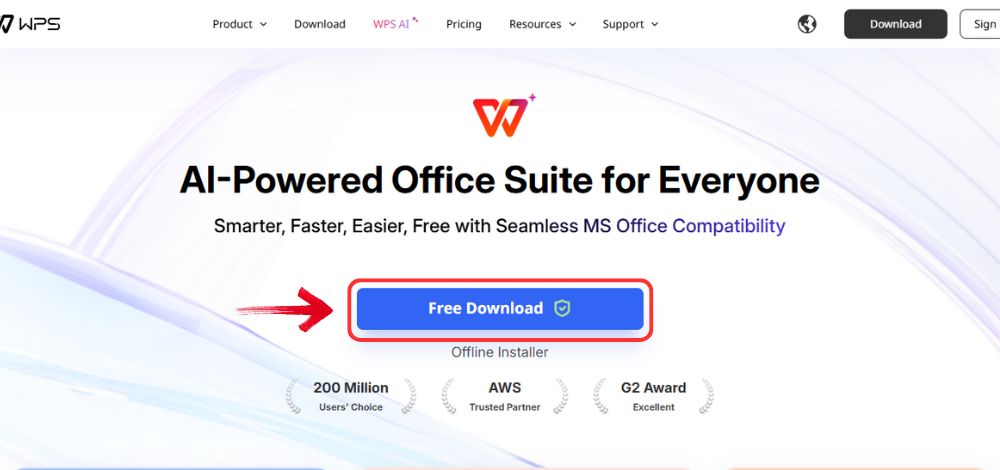
Step 1: Start by visiting the WPS Office website and clicking
the “Free Download” button.
WPS Office Website
Step 2: Once the file finishes downloading, open the
installer. WPS Office guides you through the setup automatically, so you
can move forward without adjusting technical settings or
preferences.
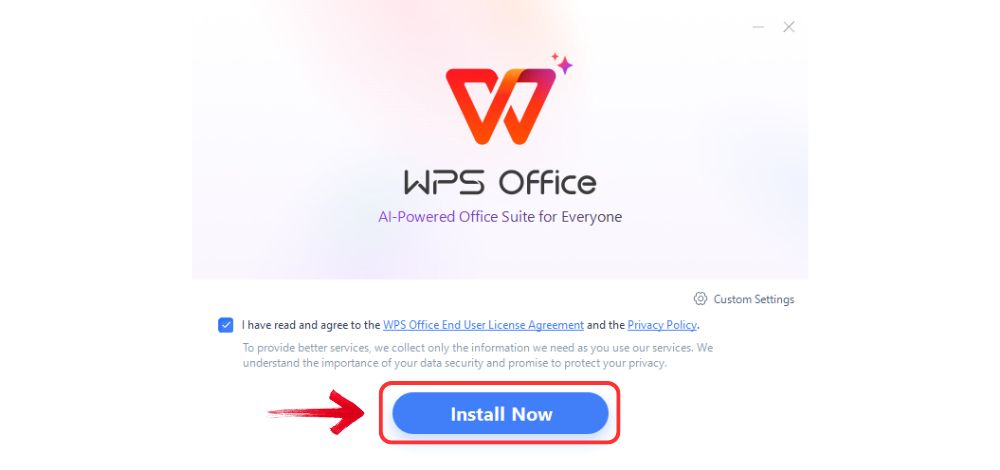
Step 3: Review the license agreement, accept the
terms, and proceed with the default “Install”option.
Install Now
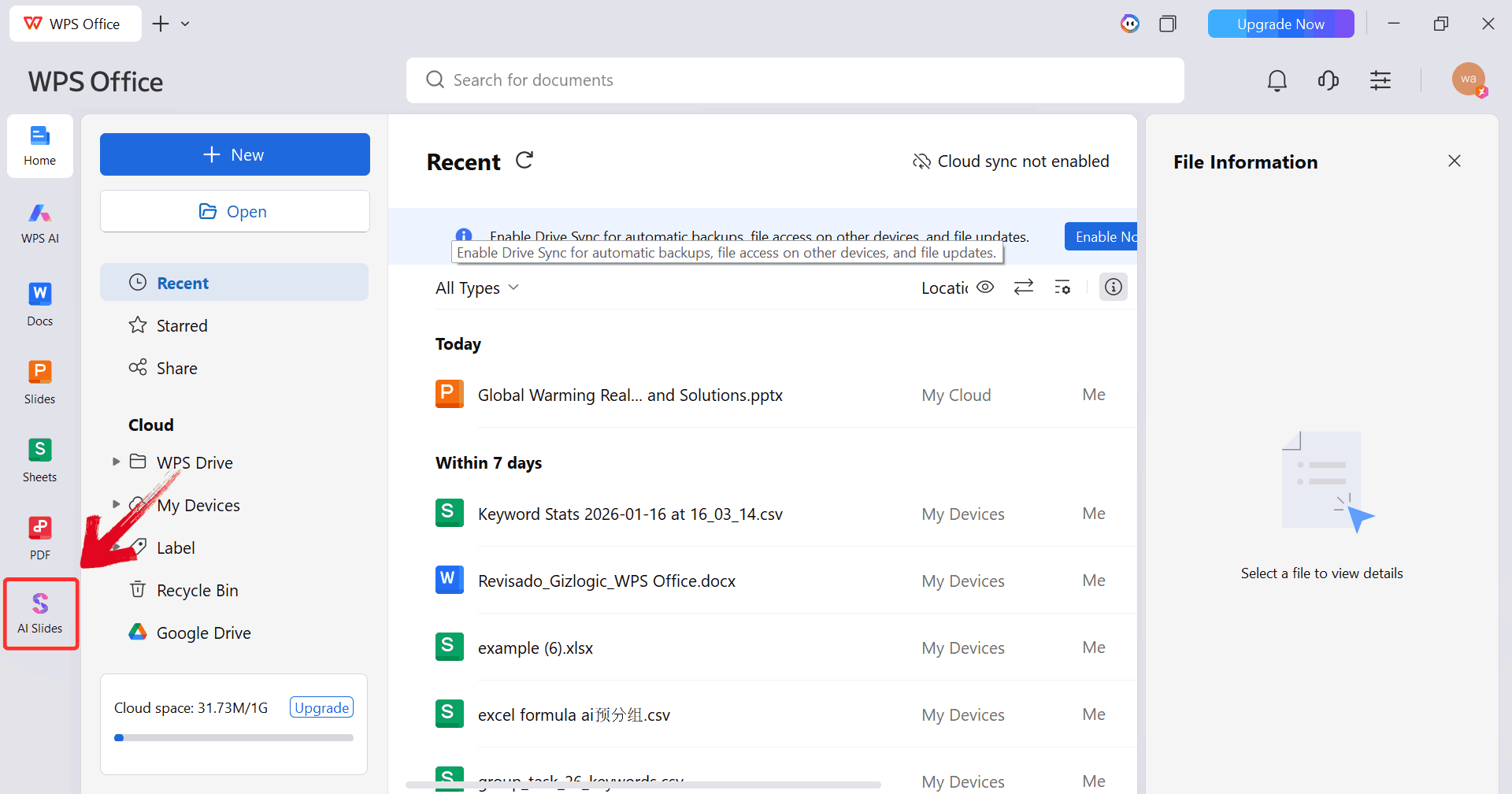
Step 4: After opening WPS Office, click AI Slides on
the main dashboard as this opens the AI-powered slide creation tool.
Access AI Slides
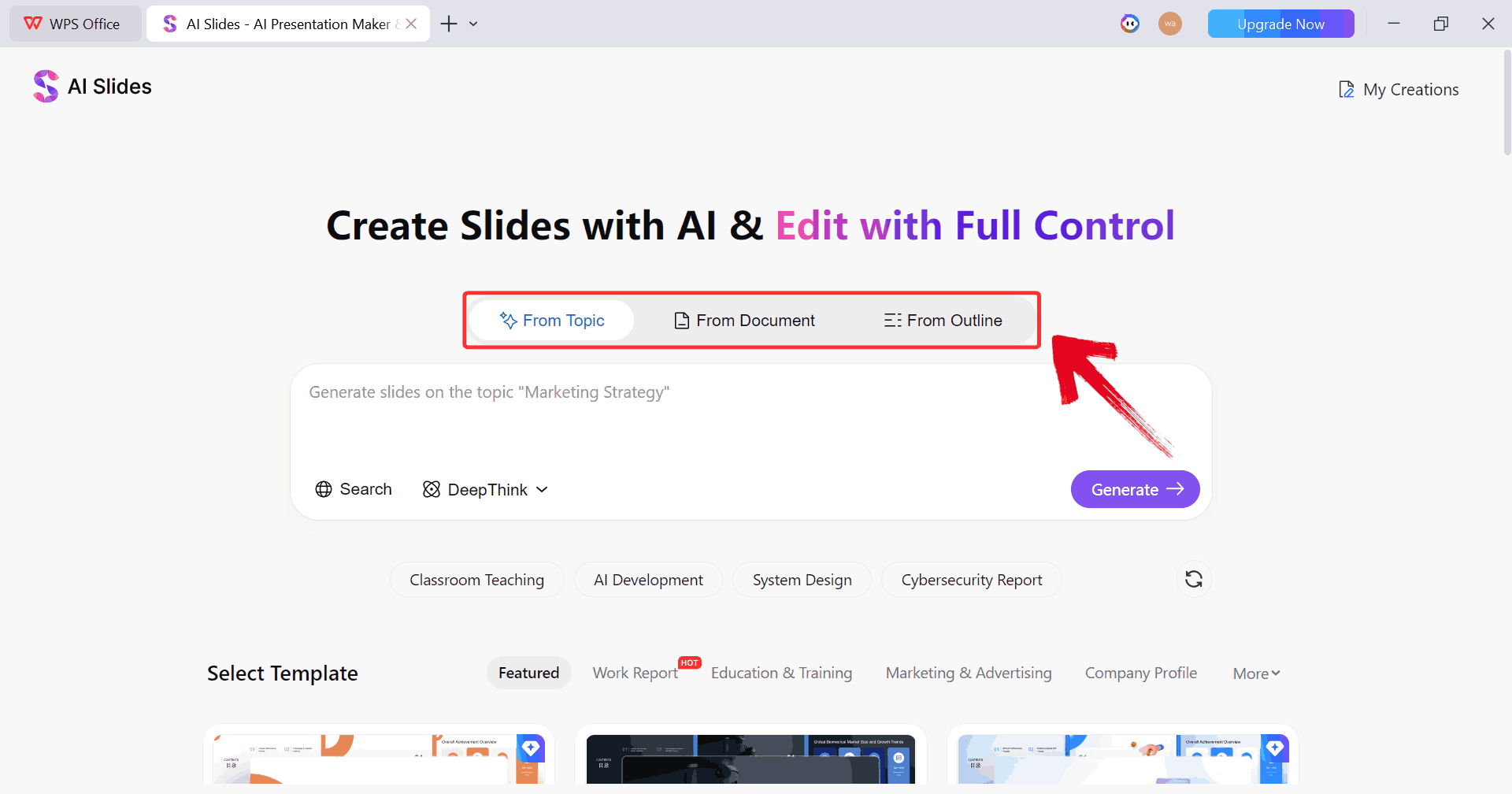
Step 5: WPS AI gives you three options to generate
slides from:
Topic
Outline
Document
Pick the option that matches what you already have prepared.
Pick Option
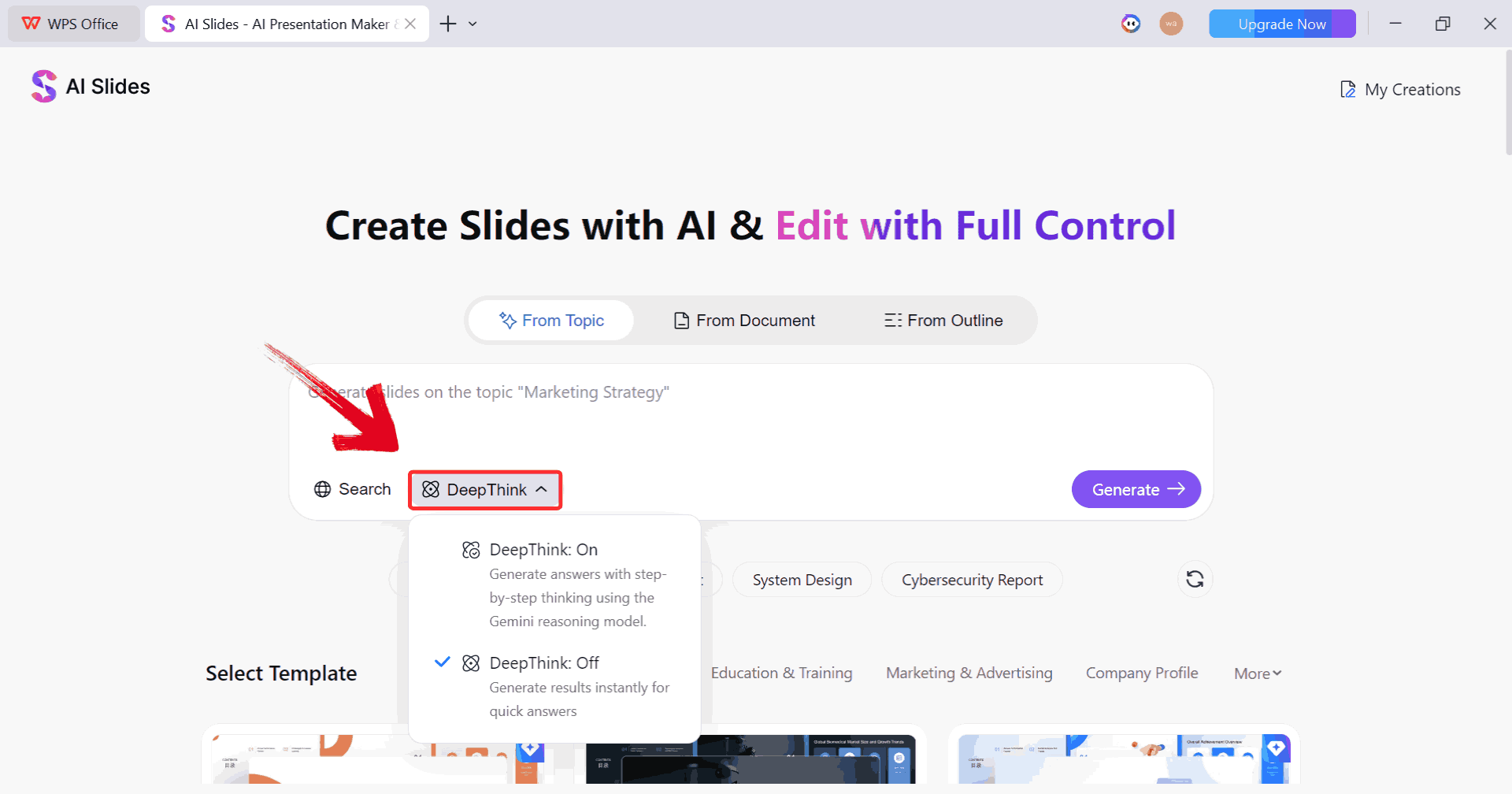
Step 6: For more detailed or complex content, click“DeepThink”. This feature uses the Gemini model to
break your topic into step-by-step points, providing structured answers
that make slide generation more organized and logical.
DeepThink
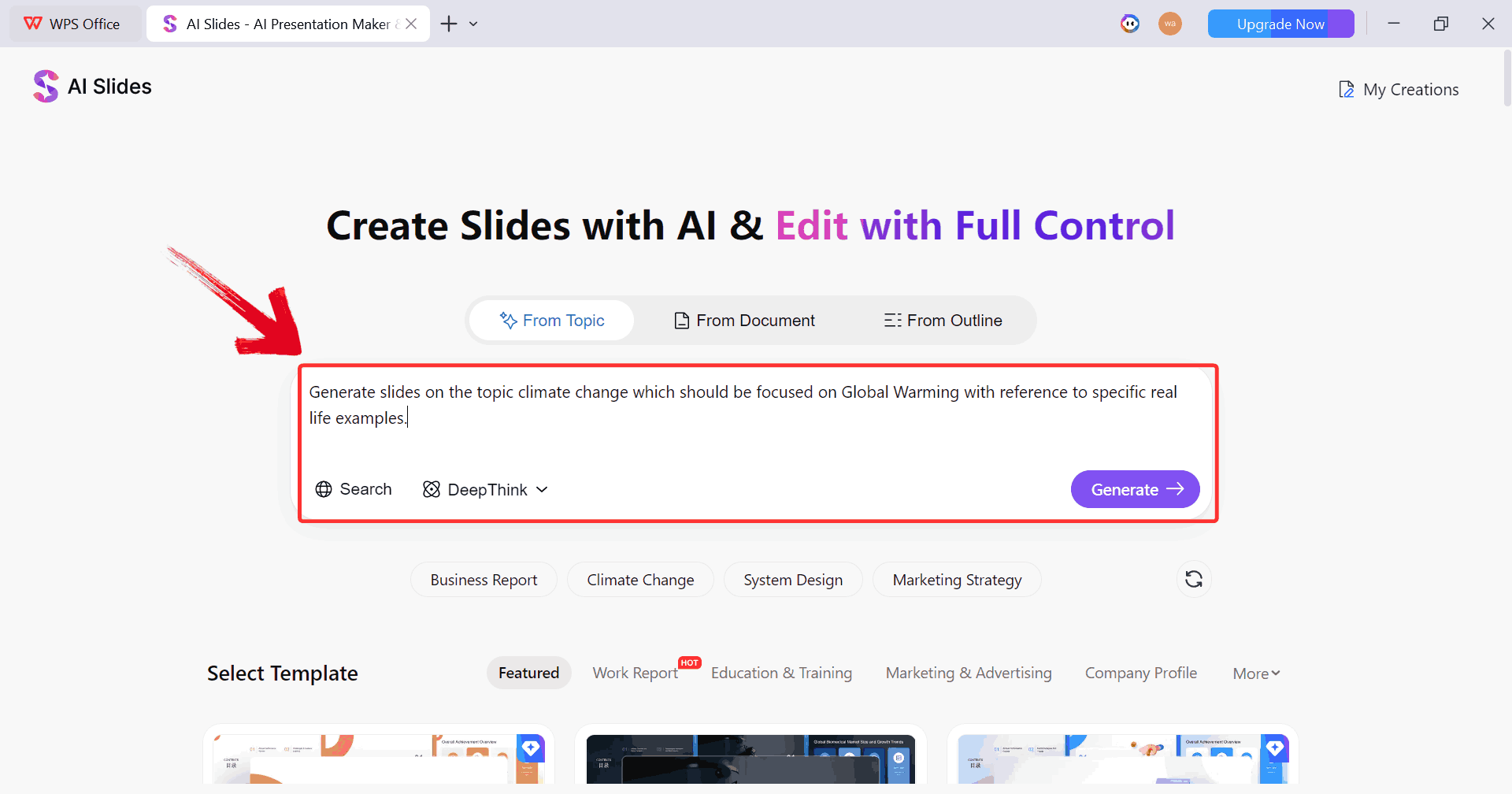
Step 7: Enter your prompt describing what you want
on your slides and click on “Generate”. WPS AI is
flexible as you can write detailed instructions, bullet points, or even
leave it broad.
Enter Prompt
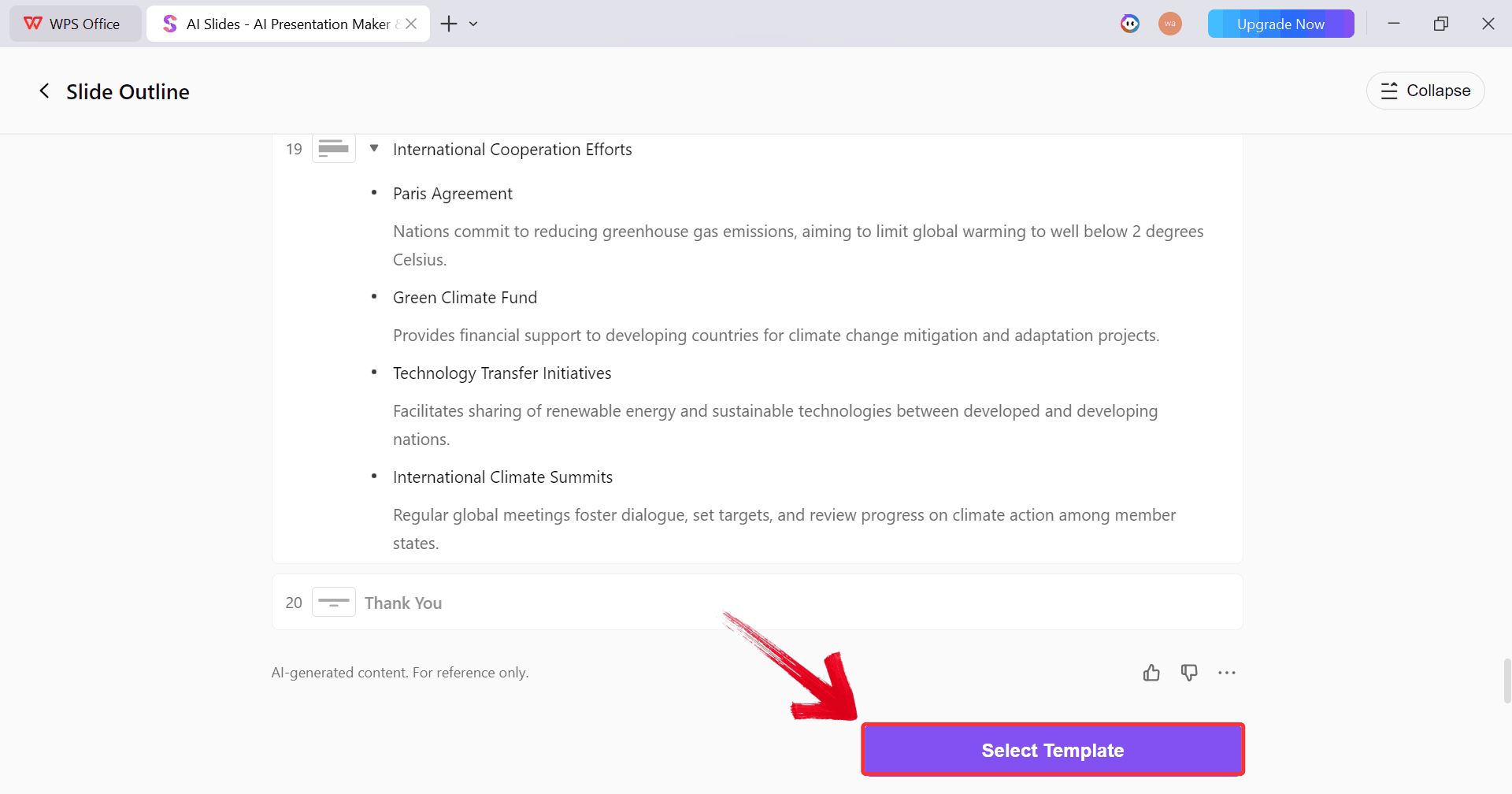
Step 8: Once your prompt is ready, WPS AI generates
the slide content automatically. After this, click the purple“Select Template” button to start designing the slides
visually.
Select Template
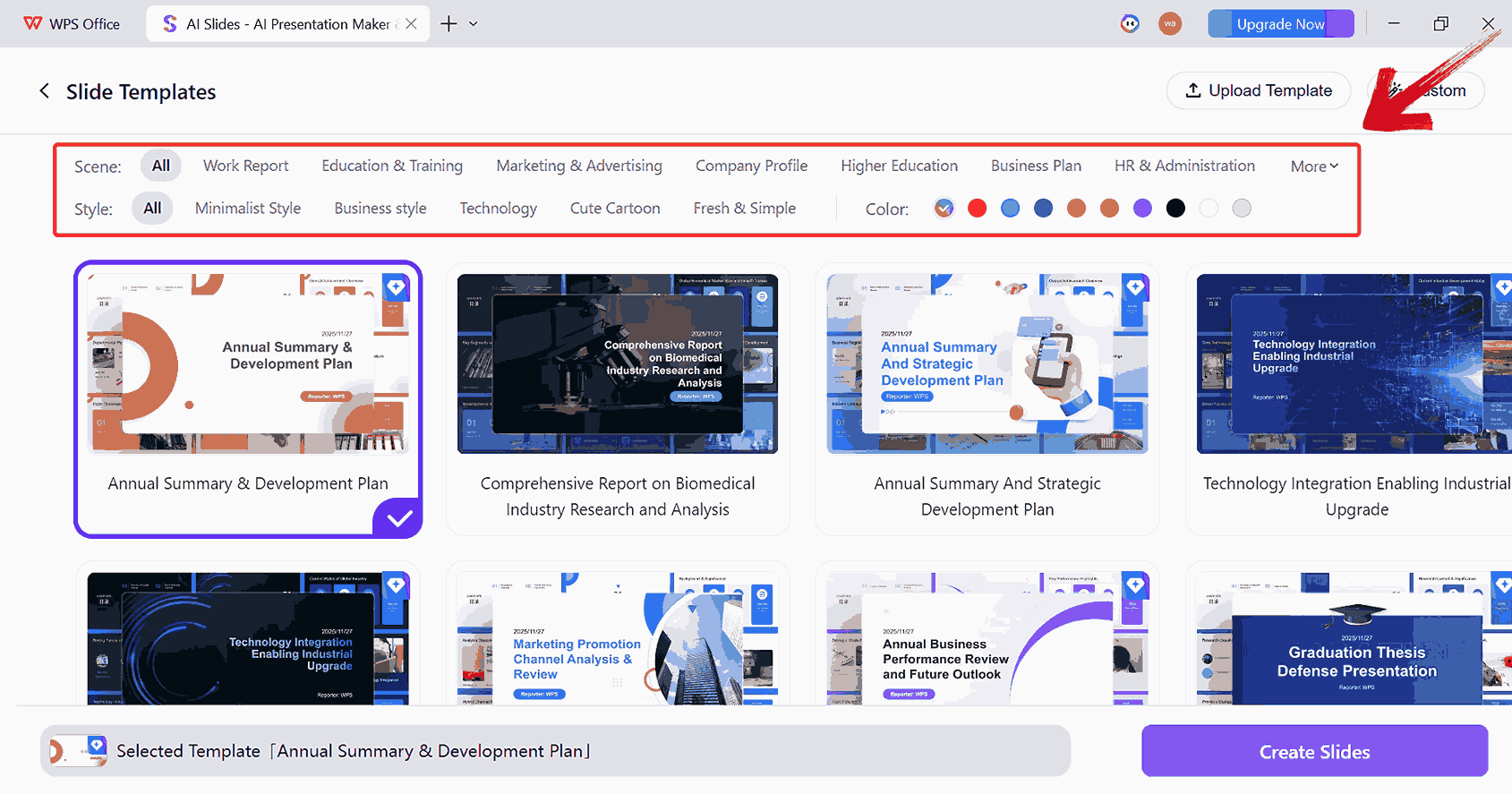
Step 9: Select the overall scene and style to match
your presentation’s tone.
Select Template Scene and Style
Note: You can choose from pre-made templates across
the WPS library or customize your own style, adjusting colors, fonts,
and layouts to fit your needs.
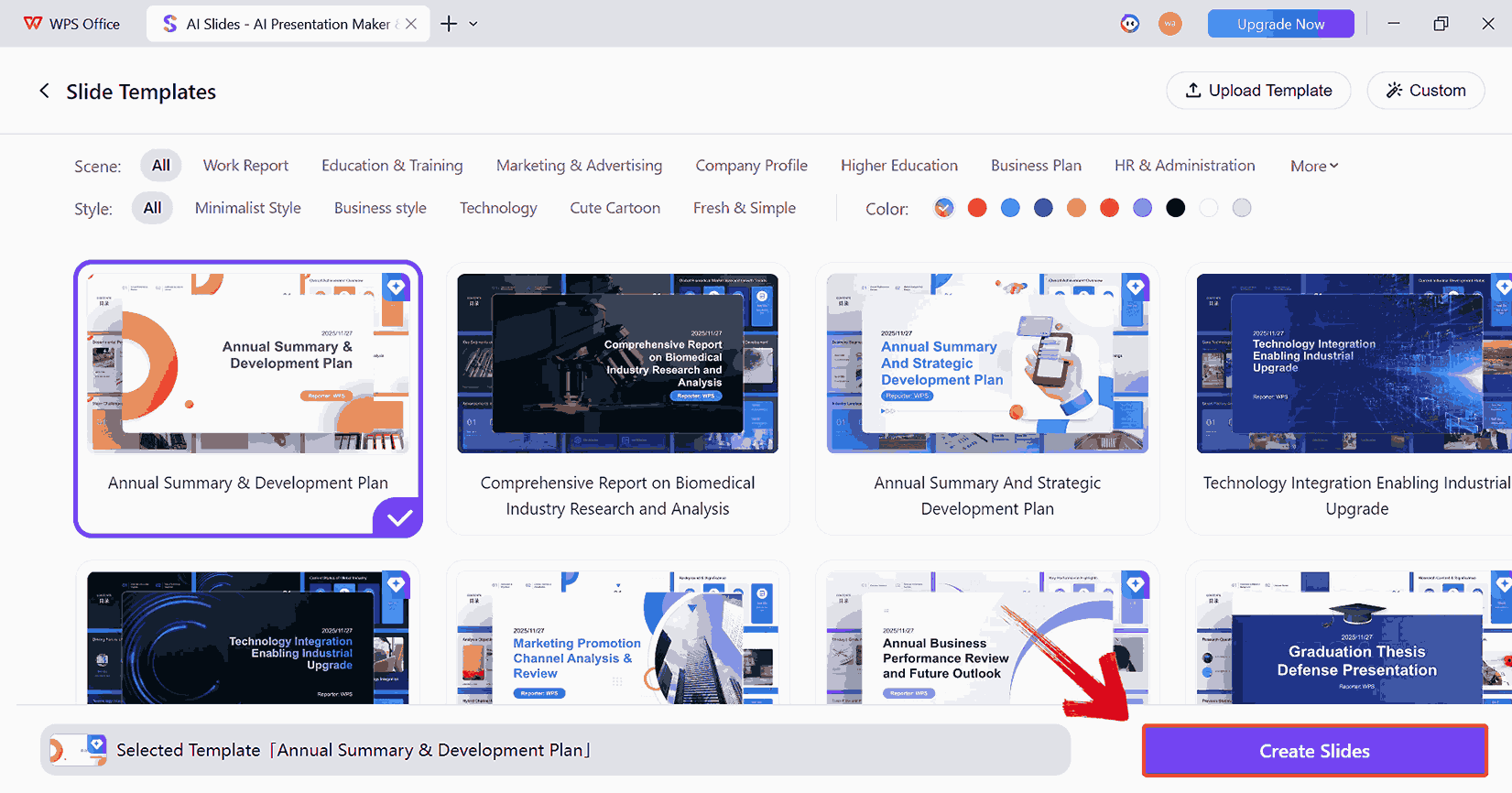
Step 10: After selecting the template and style,
click “Generate Slides”. WPS AI will create a slide
deck based on your text, scene, and style choices, ready for review.
Create Slides
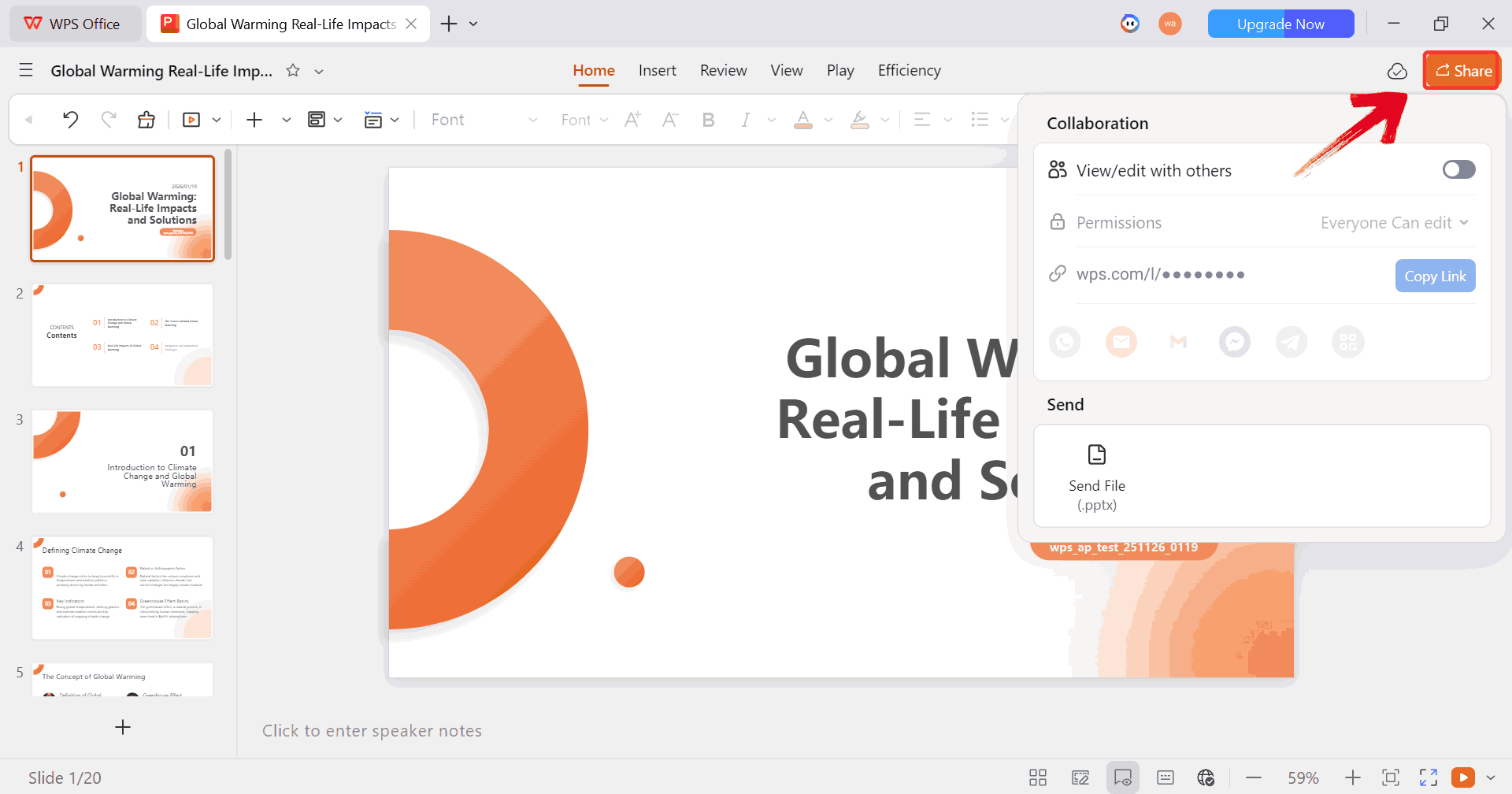
Step 11: Go through all the slides to make any final
edits. Once satisfied, click the “Share” button to send
the presentation directly, generate a shareable link, or export it for
offline use.
Share Presentation
WPS AI Slides vs. Napkin AI
Both of the tools serve a distinct purpose rather than replacing the
other. WPS AI Slides shines when you need to turn structured content
into a complete presentation deck with consistent styling, layouts,
and export options that work straight into PowerPoint or PDF. Napkin AI,
on the other hand, feels more like a dedicated visual asset creator, for
frameworks, diagrams,
and process flows that you might want to embed into slides, reports, or
strategy documents. In the comparison below, you can decide which one
fits your workflow best and where it might make sense to use both in
tandem.
Feature
Napkin AI
WPS AI Slides
Core AI Capability
Text-to-visual diagrams
Full presentation generation
Design Resources
Minimal, diagram-focused
Rich slide templates
Customization
Basic diagram editing
Advanced slide and layout control
Compatibility
Visual exports
Full PPT ecosystem
Key Advantage
Speed for concepts
End-to-end storytelling
Limitations
No full decks
Less granular diagram control
Pricing
Freemium
Often bundled with WPS Office
I see Napkin AI as a thinking tool and WPS AI Slides as a presenting
tool. When used together, they complement each other beautifully.
FAQs
1. Can
Napkin AI generate a full 10-slide presentation?
No. Napkin AI focuses on individual visuals. You can export diagrams
into slides, but it does not build complete presentations with
transitions or speaker notes.
2. Can I use Napkin AI
on my mobile device?
Yes. Napkin AI offers mobile apps for iOS and Android. They are ideal
for viewing, light editing, and sharing visuals.
3. Can I create
data-driven charts like in Excel?
Napkin AI supports basic charts from simple data. For heavy data
analysis, spreadsheet tools remain better suited.
4. Is Napkin AI suitable for
students?
Yes. Students can use free Napkin AI plans to visualize concepts,
frameworks, and study notes effectively.
5. Does Napkin AI work
offline?
No. Napkin AI is cloud-based and requires an internet connection.
6. Is Napkin AI good
for team collaboration?
It works well for sharing visuals, but it lacks advanced real-time
collaboration features compared to full presentation platforms.
WPS Doing Right by Visual
Thinking
The overview of Napkin AI is that it’s a powerful text-to-visual tool
built for clarity, speed, and idea translation. It helps professionals
escape text-heavy documents and communicate ideas visually without
design expertise. Understanding how to use Napkin AI properly allows you
to turn rough thoughts into structured diagrams quickly.
However, when it comes to presenting those ideas in a complete,
refined format, WPS AI
Slides becomes the stronger solution. By combining Napkin AI for
ideation and WPS AI Slides for storytelling, you get the best of both
worlds: clear thinking and compelling presentation.
7+ years in productivity tech. I test and review the latest tools to simplify your workflow. Follow for honest app comparisons, practical guides, and curated tech picks to boost efficiency.


'%3e%3cpath%20d='M8%200C12.4183%200%2016%203.58172%2016%208C16%2012.4183%2012.4183%2016%208%2016C3.58172%2016%200%2012.4183%200%208C0%203.58172%203.58172%200%208%200ZM11.6162%204.38379C11.2257%203.99337%2010.5927%203.99338%2010.2021%204.38379L8%206.58594L5.79785%204.38379C5.40732%203.99334%204.77429%203.99329%204.38379%204.38379C3.99331%204.77429%203.99335%205.40733%204.38379%205.79785L6.58594%208L4.38379%2010.2021C3.99348%2010.5927%203.99341%2011.2257%204.38379%2011.6162C4.77426%2012.0066%205.40734%2012.0065%205.79785%2011.6162L8%209.41406L10.2021%2011.6162C10.5927%2012.0066%2011.2257%2012.0067%2011.6162%2011.6162C12.0067%2011.2257%2012.0066%2010.5927%2011.6162%2010.2021L9.41406%208L11.6162%205.79785C12.0066%205.40735%2012.0066%204.77429%2011.6162%204.38379Z'%20fill='%23080E17'%20fill-opacity='0.46'/%3e%3c/g%3e%3cdefs%3e%3cclipPath%20id='clip0_3761_713'%3e%3crect%20width='16'%20height='16'%20fill='white'/%3e%3c/clipPath%3e%3c/defs%3e%3c/svg%3e)




'%3e%3cpath%20fill-rule='evenodd'%20clip-rule='evenodd'%20d='M21.4999%2010.9993C21.4999%205.20009%2016.7986%200.498901%2010.9993%200.498901C5.19994%200.498901%200.498657%205.20009%200.498657%2010.9993C0.498657%2016.2404%204.33858%2020.5844%209.35855%2021.3722V14.0346H6.69238V10.9993H9.35855V8.68594C9.35855%206.05427%2010.9262%204.60062%2013.3248%204.60062C14.4736%204.60062%2015.6753%204.80571%2015.6753%204.80571V7.38979H14.3512C13.0468%207.38979%2012.64%208.19921%2012.64%209.0296V10.9993H15.5523L15.0867%2014.0346H12.64V21.3722C17.66%2020.5844%2021.4999%2016.2404%2021.4999%2010.9993Z'%20fill='%231568EA'/%3e%3c/g%3e%3c/svg%3e)


'%3e%3cpath%20d='M2.42045%2022.1876H6.31818V12.7217L0.75%208.54553V20.5171C0.75%2021.4414%201.49892%2022.1876%202.42045%2022.1876Z'%20fill='%234285F4'/%3e%3cpath%20d='M19.682%2022.1876H23.5797C24.5041%2022.1876%2025.2502%2021.4387%2025.2502%2020.5171V8.54553L19.682%2012.7217'%20fill='%2334A853'/%3e%3cpath%20d='M19.682%205.48293V12.7216L25.2502%208.54543V6.31816C25.2502%204.25236%2022.8921%203.07469%2021.2411%204.31361'%20fill='%23FBBC04'/%3e%3cpath%20d='M6.31824%2012.7217V5.48303L13.0001%2010.4944L19.6819%205.48303V12.7217L13.0001%2017.733'%20fill='%23EA4335'/%3e%3cpath%20d='M0.75%206.31816V8.54543L6.31818%2012.7216V5.48293L4.75909%204.31361C3.10534%203.07469%200.75%204.25236%200.75%206.31816Z'%20fill='%23C5221F'/%3e%3c/g%3e%3cdefs%3e%3cclipPath%20id='clip0_2954_7305'%3e%3crect%20width='24.5'%20height='18.375'%20fill='white'%20transform='translate(0.75%203.8125)'/%3e%3c/clipPath%3e%3c/defs%3e%3c/svg%3e)



'%3e%3cpath%20d='M19.9911%204.11386V6.471H18.5894C18.0775%206.471%2017.7322%206.57814%2017.5536%206.79243C17.3751%207.00671%2017.2858%207.32814%2017.2858%207.75671V9.44421H19.9019L19.5536%2012.0871H17.2858V18.8639H14.5536V12.0871H12.2769V9.44421H14.5536V7.49779C14.5536%206.39064%2014.8632%205.53201%2015.4822%204.92189C16.1013%204.31177%2016.9257%204.00671%2017.9554%204.00671C18.8304%204.00671%2019.509%204.04243%2019.9911%204.11386Z'%20fill='%23333333'/%3e%3c/g%3e%3cdefs%3e%3cclipPath%20id='clip0_2938_8199'%3e%3crect%20width='16'%20height='16'%20fill='white'%20transform='translate(8%204.00671)'/%3e%3c/clipPath%3e%3c/defs%3e%3c/svg%3e)
'%3e%3cpath%20d='M17.5237%2010.7813L23.4811%204H22.0699L16.8949%209.88693L12.7648%204H8L14.2469%2012.9029L8%2020.0133H9.4112L14.8725%2013.7952L19.2352%2020.0133H24M9.92053%205.04213H12.0885L22.0688%2019.0224H19.9003'%20fill='%23333333'/%3e%3c/g%3e%3cdefs%3e%3cclipPath%20id='clip0_2938_8200'%3e%3crect%20width='16'%20height='16.0134'%20fill='white'%20transform='translate(8%204)'/%3e%3c/clipPath%3e%3c/defs%3e%3c/svg%3e)


