

'%3e%3cpath%20d='M8%200C12.4183%200%2016%203.58172%2016%208C16%2012.4183%2012.4183%2016%208%2016C3.58172%2016%200%2012.4183%200%208C0%203.58172%203.58172%200%208%200ZM11.6162%204.38379C11.2257%203.99337%2010.5927%203.99338%2010.2021%204.38379L8%206.58594L5.79785%204.38379C5.40732%203.99334%204.77429%203.99329%204.38379%204.38379C3.99331%204.77429%203.99335%205.40733%204.38379%205.79785L6.58594%208L4.38379%2010.2021C3.99348%2010.5927%203.99341%2011.2257%204.38379%2011.6162C4.77426%2012.0066%205.40734%2012.0065%205.79785%2011.6162L8%209.41406L10.2021%2011.6162C10.5927%2012.0066%2011.2257%2012.0067%2011.6162%2011.6162C12.0067%2011.2257%2012.0066%2010.5927%2011.6162%2010.2021L9.41406%208L11.6162%205.79785C12.0066%205.40735%2012.0066%204.77429%2011.6162%204.38379Z'%20fill='%23080E17'%20fill-opacity='0.46'/%3e%3c/g%3e%3cdefs%3e%3cclipPath%20id='clip0_3761_713'%3e%3crect%20width='16'%20height='16'%20fill='white'/%3e%3c/clipPath%3e%3c/defs%3e%3c/svg%3e)




'%3e%3cpath%20fill-rule='evenodd'%20clip-rule='evenodd'%20d='M21.4999%2010.9993C21.4999%205.20009%2016.7986%200.498901%2010.9993%200.498901C5.19994%200.498901%200.498657%205.20009%200.498657%2010.9993C0.498657%2016.2404%204.33858%2020.5844%209.35855%2021.3722V14.0346H6.69238V10.9993H9.35855V8.68594C9.35855%206.05427%2010.9262%204.60062%2013.3248%204.60062C14.4736%204.60062%2015.6753%204.80571%2015.6753%204.80571V7.38979H14.3512C13.0468%207.38979%2012.64%208.19921%2012.64%209.0296V10.9993H15.5523L15.0867%2014.0346H12.64V21.3722C17.66%2020.5844%2021.4999%2016.2404%2021.4999%2010.9993Z'%20fill='%231568EA'/%3e%3c/g%3e%3c/svg%3e)


'%3e%3cpath%20d='M2.42045%2022.1876H6.31818V12.7217L0.75%208.54553V20.5171C0.75%2021.4414%201.49892%2022.1876%202.42045%2022.1876Z'%20fill='%234285F4'/%3e%3cpath%20d='M19.682%2022.1876H23.5797C24.5041%2022.1876%2025.2502%2021.4387%2025.2502%2020.5171V8.54553L19.682%2012.7217'%20fill='%2334A853'/%3e%3cpath%20d='M19.682%205.48293V12.7216L25.2502%208.54543V6.31816C25.2502%204.25236%2022.8921%203.07469%2021.2411%204.31361'%20fill='%23FBBC04'/%3e%3cpath%20d='M6.31824%2012.7217V5.48303L13.0001%2010.4944L19.6819%205.48303V12.7217L13.0001%2017.733'%20fill='%23EA4335'/%3e%3cpath%20d='M0.75%206.31816V8.54543L6.31818%2012.7216V5.48293L4.75909%204.31361C3.10534%203.07469%200.75%204.25236%200.75%206.31816Z'%20fill='%23C5221F'/%3e%3c/g%3e%3cdefs%3e%3cclipPath%20id='clip0_2954_7305'%3e%3crect%20width='24.5'%20height='18.375'%20fill='white'%20transform='translate(0.75%203.8125)'/%3e%3c/clipPath%3e%3c/defs%3e%3c/svg%3e)


Upgrading to Windows 11 means you expect more than just a fresh interface, you want tools that actually perform. Yet, I’ve noticed many users getting stuck with clunky photo viewers that slow everything down and make browsing frustrating. Choosing the right tool can feel overwhelming, with so many outdated or poorly optimized options out there. That’s why I’m breaking down the best photo gallery app for Windows 11 that combines speed, organization, and modern features. In this guide, I’ll walk you through the top options and show you how to pick the one that fits your workflow perfectly.
What is a Photo Gallery
A photo gallery is more than just a place where images sit on your computer. In my experience, a good photo gallery best photo gallery app acts like a personal visual library. It helps you store, organize, preview, and sometimes edit images without friction. On Windows 11, users expect speed, clarity, and clean design, not delays or confusing menus.
Key Aspects of Photo Galleries:
Image Viewing Performance:
A strong Windows photo viewer opens images instantly and supports zooming without lag. This matters when you deal with high‑resolution or RAW files.
Organization:
Albums, tags, and folders help you stay sane when your photo count grows into the thousands.
Format Support:
Modern galleries should open JPEG, PNG, GIF, RAW, and HEIC smoothly.
Search and Sorting:
You should be able to find images by date, size, or name in seconds.
Once I switched to a proper gallery instead of relying on random folders, my workflow instantly felt calmer and faster.
5 Free Photo Gallery App Options
Finding a free photo gallery app that actually works well on Windows 11 can feel frustrating, especially when many tools are outdated or slow. In this section, I walk you through five reliable options that function as a photo gallery best photo gallery app and a capable Windows photo viewer. Each app is chosen based on performance, usability, and how smoothly it fits into a modern Windows 11 workflow.
1. WPS Photo & WPS AI
I often recommend WPS Phototo users who want both viewing and light editing in one place. It feels built for Windows 11 rather than adapted to it. The interface stays clean, the performance stays fast, and the AI tools actually save time instead of complicating things. This is not just a viewer; it feels like a productivity‑focused photo space. If you already use WPS Office, this fits naturally into your routine.
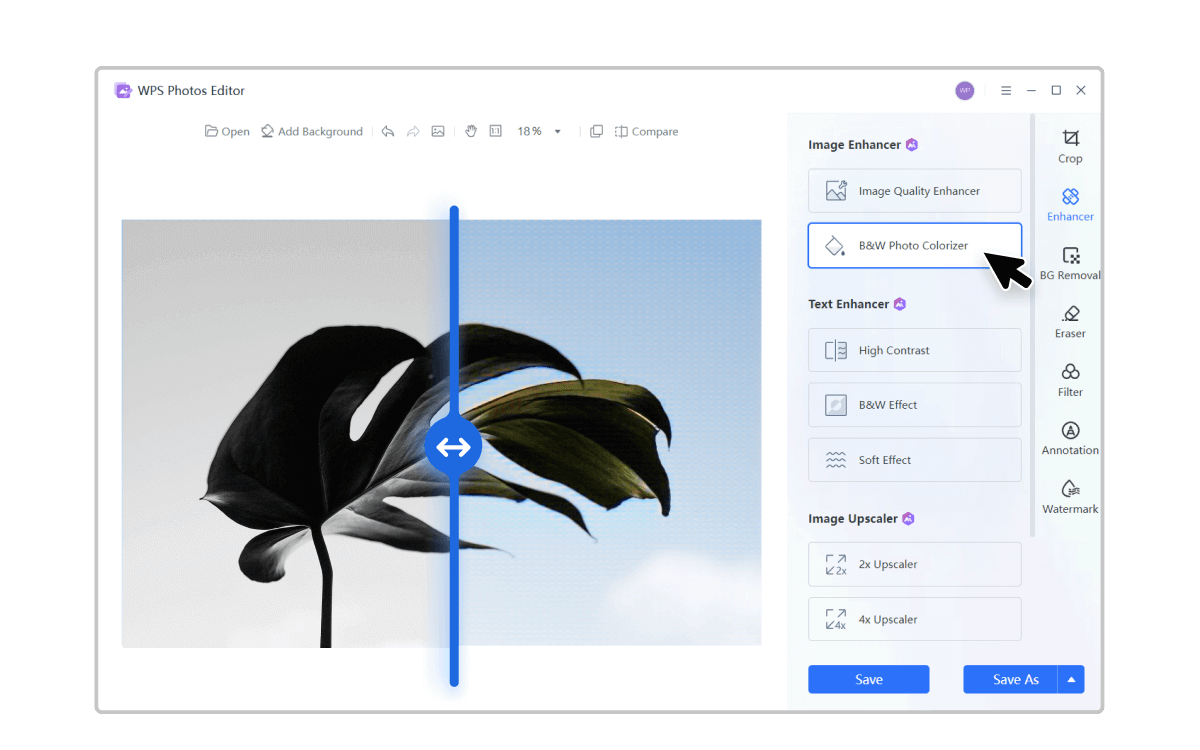
WPS Photo combines a modern photo gallery with AI‑powered editing tools. It integrates tightly with WPS Office, which makes it practical for students and professionals.
Features:
Smooth image browsing optimized for Windows 11 UI.
Built‑in AI editing tools for quick enhancements.
Strong support for multiple image formats.
How to Use:
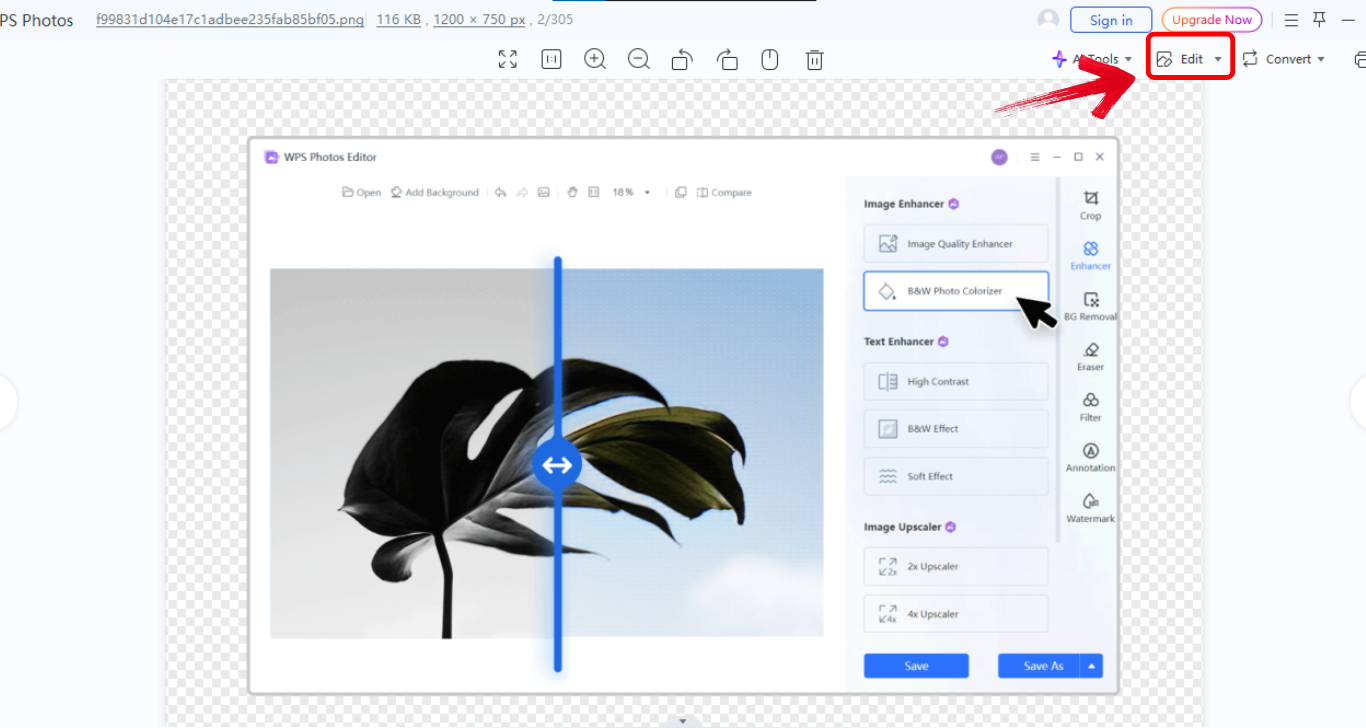
Step 1: First of all, open your Photo in WPS Photos.
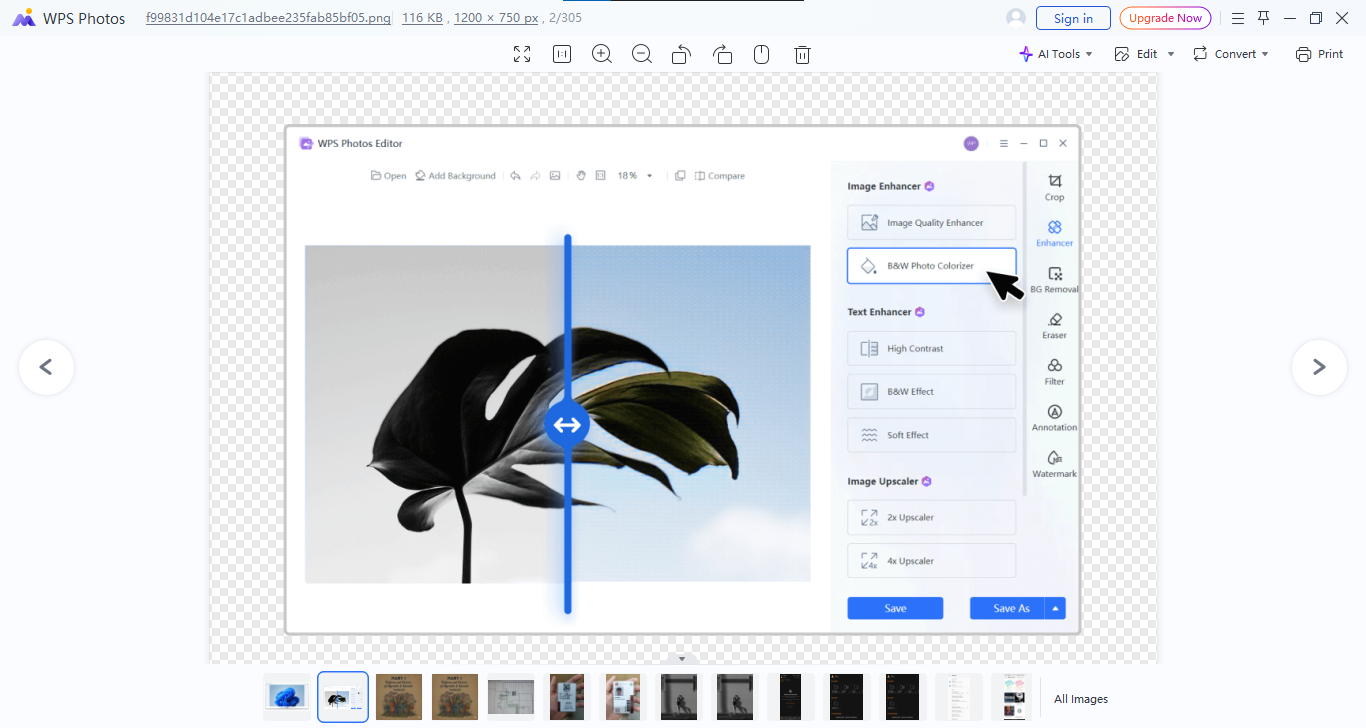
Step 2: Once you’ve opened a picture in WPS photos, start editing by clicking the “Edit” option on the top right of your screen or insert imagesdirectly into documents.
Pros:
Fast and lightweight on Windows 11.
AI tools reduce editing time.
Seamless workflow with documents and presentations.
Cons:
Advanced edits are limited compared to pro editors.
Requires WPS Office installation.
Cloud features need sign‑in.
This is the best photo gallery app for Windows 11 when I want viewing and productivity combined without switching apps.
2. Pixieset
Pixiesetfeels tailored for photographers who care about presentation. I like how it focuses on visual storytelling rather than raw file management. While it is web‑first, many Windows 11 users still rely on it for curated galleries. It shines when sharing images matters more than heavy editing.

Its intuitive interface makes organizing albums straightforward, even for large photo collections. You can easily customize layouts to create a polished, professional look. For anyone prioritizing client sharing or online presentation, Pixieset provides a seamless and visually appealing solution.
Features:
Clean, elegant gallery layouts.
Client sharing and privacy controls.
Cloud‑based access across devices.
How to Use:
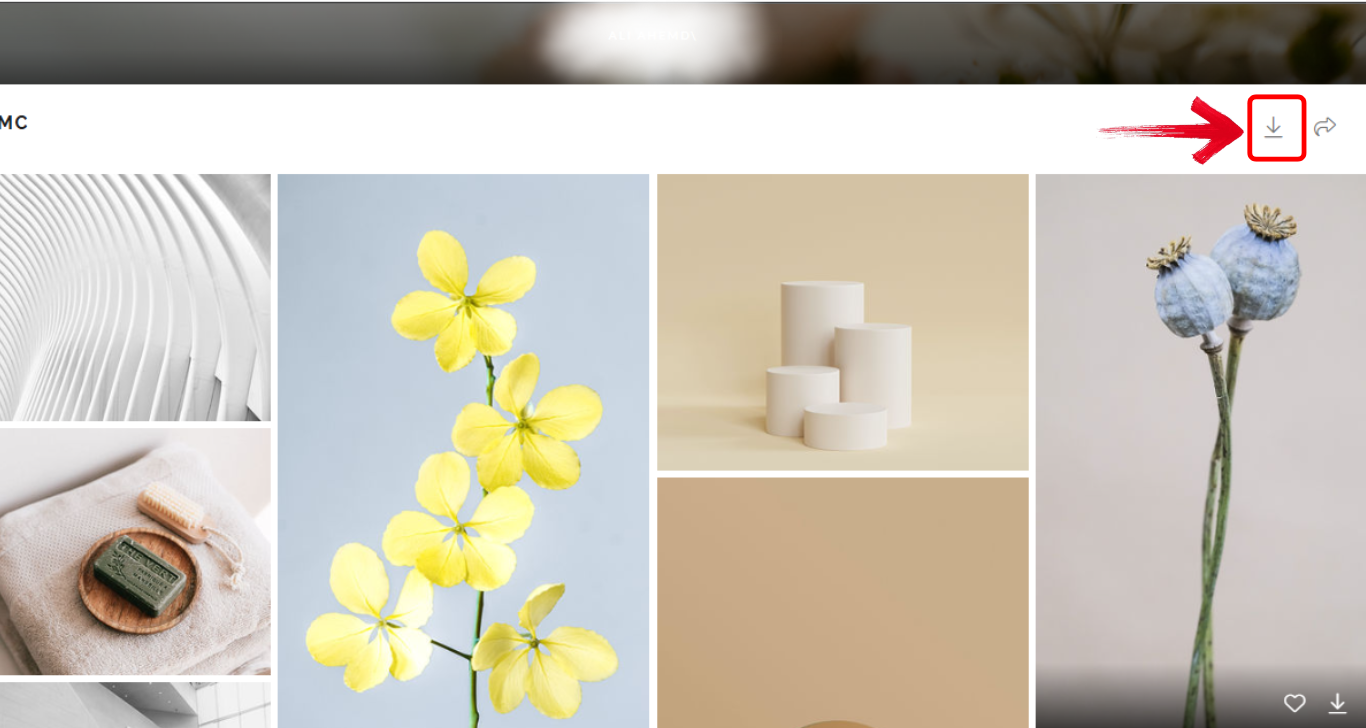
Step 1: First of all, log into your account and click “Create Gallery” to upload photos to your Pixieset gallery.

Step 2: Once you’ve organized albums and set access permissions, click the share link with viewers or clients.
Pros:
Professional‑looking galleries.
Easy sharing and access control.
No local storage pressure.
Cons:
Limited offline use.
Editing tools are minimal.
Depends heavily on internet speed.
Pixieset works best when presentation matters more than deep Windows photo viewer functionality.
3. GalleryX
GalleryXis interesting because it feels experimental yet lightweight. I see it as a minimal solution for users who want a distraction‑free gallery. It avoids unnecessary features and focuses purely on viewing and browsing. This makes it appealing for older PCs running Windows 11.
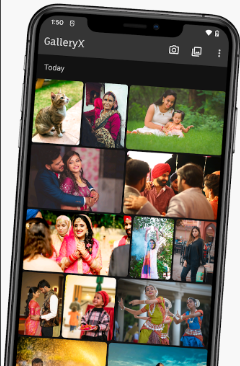
Its simple design ensures fast loading times, even with large image libraries. Navigation is intuitive, so you can flip through photos without getting lost in menus. For users who value speed and simplicity over editing tools, GalleryX delivers a clean, efficient experience.
Features:
Minimal interface for fast navigation.
Basic sorting and viewing tools.
Low system resource usage.
How to Use:
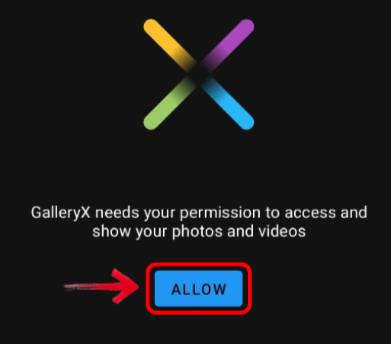
Step 1: First of all, grant access to image folders by clicking “Allow”.
Step 2: Now simply browse images in grid or full view on your phone.
Pros:
Very lightweight.
No cluttered menus.
Smooth scrolling performance.
Cons:
Lacks advanced features.
No editing tools.
Limited format support.
GalleryX feels refreshing when I want speed and nothing else. It strips away all the extra clutter, letting me focus solely on my images. For quick browsing or reviewing large batches of photos, it delivers exactly what I need without slowing down my system.
4. Gallery (Google)
Google Gallery is built for simplicity. I find it reliable for basic viewing and offline use. It does not try to replace advanced editors, but it performs well as a clean Windows photo viewer alternative through Android emulation or web access.

Its automatic organization and straightforward interface make managing photos effortless. Even casual users can quickly sort, view, and access images without confusion. For everyday browsing, it offers a stable, no-frills experience that just works.
Features:
Offline‑first design.
Automatic organization.
Simple editing options.
How to Use:
Step 1: First of all, import images locally by clicking “Allow” to give access for import.
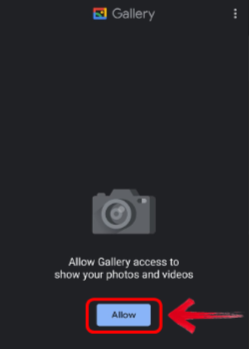
Step 2: Browse albums automatically created and you can even edit your images just like a normal photo edit in any app.
Pros:
Fast and reliable.
Clean interface.
No heavy system load.
Cons:
Limited customization.
Not fully native to Windows.
Basic feature set.
It works well for everyday use, especially if you value simplicity and speed over customization. I find it reliable for quick browsing, basic edits, and offline access without stressing system resources. That said, advanced users who rely on detailed file control or professional-grade tools might feel limited after extended use.
5. FamilyAlbum
FamilyAlbumfocuses on shared memories rather than technical features. I recommend it to users managing family photos across devices. It emphasizes emotional value and organization over editing tools. The app automatically organizes photos into timelines and albums, making it easy to relive moments.
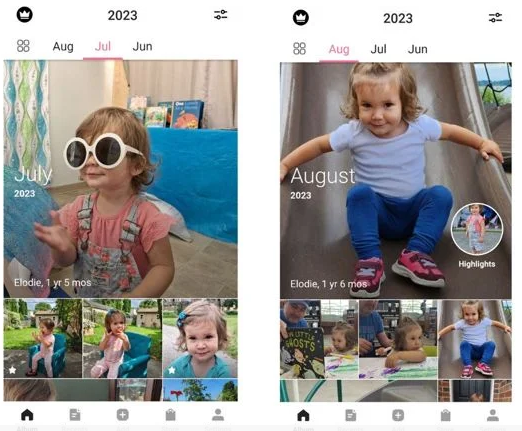
Sharing with family members is simple and secure, which keeps everyone connected. For preserving memories rather than professional editing, FamilyAlbum offers a thoughtful, user-friendly experience.
Features:
Private family sharing.
Automatic monthly albums.
Cross‑device synchronization.
How to Use:
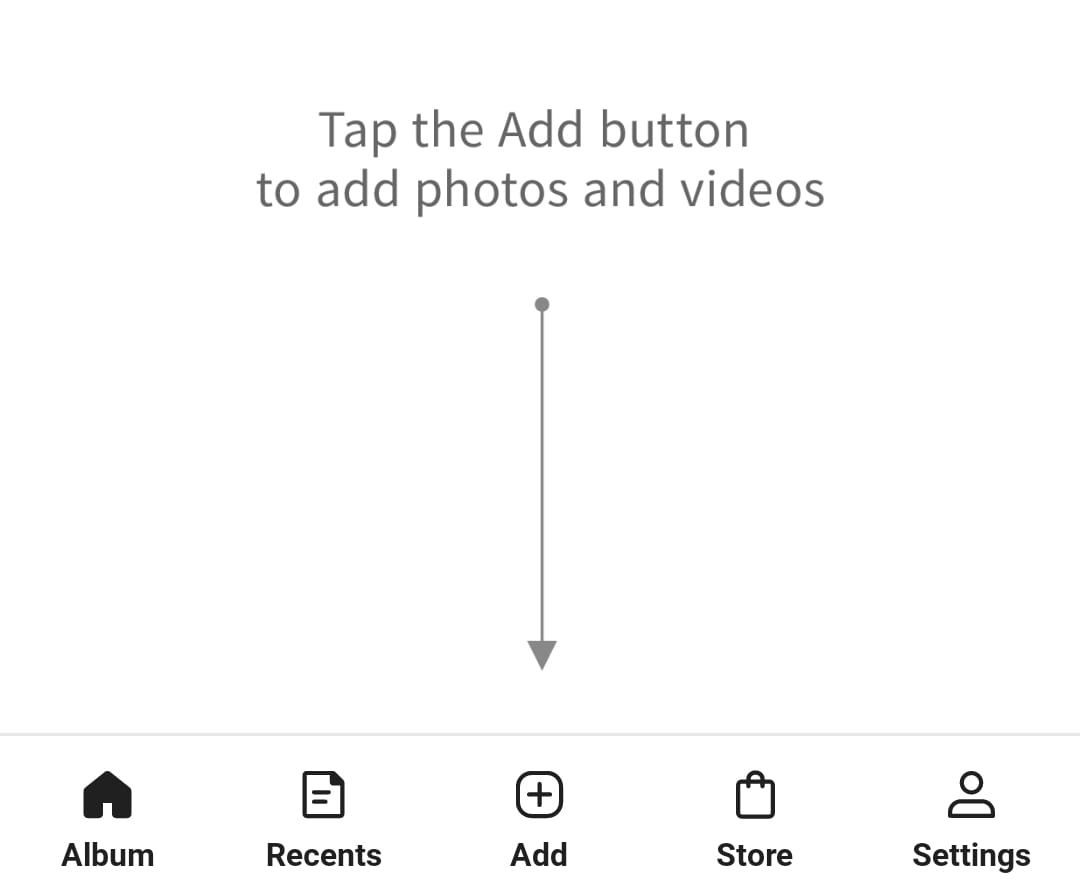
Step 1: Firstly, create a private family group and share the link with your family members.

Step 2: Once done, it’ll give you an option to add photos, start uploading photos and videos.
Pros:
Strong privacy controls.
Easy sharing.
Automatic organization.
Cons:
Limited editing tools.
Not ideal for professional use.
Requires account setup.
It shines when emotional connection matters more than features. I see it as a space to preserve memories rather than manage files. If your priority is sharing moments with family instead of editing or organizing at a professional level, this approach feels genuinely meaningful.
Comparison Table of the 5 Free Photo Gallery App
This comparison table gives you a clear side-by-side view of how each free photo gallery app performs in real use. I focused on factors that actually matter on Windows 11, like speed, offline access, and editingflexibility. Instead of listing features blindly, the table highlights practical differences you will notice daily. It helps you quickly narrow down a photo gallery best photo gallery app based on your workflow. If you want balance and productivity, the contrast becomes obvious at a glance.
| App Name | Best For | Editing | Offline Use | Windows 11 Performance |
|---|---|---|---|---|
| WPS Photo | Productivity & editing | Yes (AI) | Yes | Excellent |
| Pixieset | Photo sharing | Limited | No | Good |
| GalleryX | Lightweight viewing | No | Yes | Good |
| Google Gallery | Simple browsing | Basic | Yes | Average |
| FamilyAlbum | Family sharing | No | Partial | Average |
WPS Photo consistently balances features and performance better than the rest. I find that it avoids the usual trade-off between speed and functionality that many free tools struggle with. For Windows 11 users who want a smooth photo gallery experience without sacrificing productivity, it clearly stands out as the most reliable option.
Why Choose WPS Office to Edit Photo
After comparing different free photo gallery apps, one thing becomes clear: viewing images is only part of the workflow on Windows 11. As you move from browsing photos to actually using them in real tasks, integration starts to matter more. This is where WPS Office naturally enters the picture. WPS Office goes beyond documents, and I like how it treats photos as part of your workflow, not separate files. Instead of jumping between apps, everything stays connected. The integration feels natural and saves time.
Features
Smooth photo viewing inside Office tools.
Easy insertion into documents.
Consistent UI across apps.
AI‑Powered Editing
Background removal without manual work.
AI eraser for unwanted objects.
Image upscaling with minimal quality loss.
User‑Friendly Interface
Simple controls for croppingand filters.
No steep learning curve.
Clean layout designed for productivity.
This is where the best photo gallery app for Windows 11 truly feels complete. I notice a clear shift from simple photo viewing to a fully connected workflow that actually supports productivity. When image management, editing, and document creation work together, the experience feels polished and purpose-driven rather than fragmented.
FAQs
Q1: What is the best free photo gallery app for Windows 11 that handles various file formats?
WPS Photo stands out due to its wide format support and fast loading performance.
Q2: How can I quickly insert edited photos into my documents or presentations?
Using WPS Office lets you drag and drop images directly without switching apps.
Q3: Can a photo gallery app improve my workflow as a student or professional?
Yes, especially when the gallery integrates editing and document tools like WPS Photo.
Q4: Do free photo gallery apps compromise on quality?
Not necessarily. Many free tools now match paid apps in speed and usability.
Bottom Line
Finding the right photo gallery app on Windows 11 can feel tricky, especially with so many free options available. Each tool has its strengths, some excel at sharing, others focus on lightweight browsing, and a few offer basic editing features. I’ve found that WPS Photo consistently strikes the perfect balance between speed, usability, and productivity. Even better, it integrates with WPS Office, turning a simple gallery into a complete workflow solution for organizing images, editing for documents, or preparing presentations. WPS Office provides all the tools you need in one lightweight, reliable, and free platform. For anyone looking for the best photo gallery app for Windows 11, this combination is my top recommendation.

'%3e%3cpath%20d='M19.9911%204.11386V6.471H18.5894C18.0775%206.471%2017.7322%206.57814%2017.5536%206.79243C17.3751%207.00671%2017.2858%207.32814%2017.2858%207.75671V9.44421H19.9019L19.5536%2012.0871H17.2858V18.8639H14.5536V12.0871H12.2769V9.44421H14.5536V7.49779C14.5536%206.39064%2014.8632%205.53201%2015.4822%204.92189C16.1013%204.31177%2016.9257%204.00671%2017.9554%204.00671C18.8304%204.00671%2019.509%204.04243%2019.9911%204.11386Z'%20fill='%23333333'/%3e%3c/g%3e%3cdefs%3e%3cclipPath%20id='clip0_2938_8199'%3e%3crect%20width='16'%20height='16'%20fill='white'%20transform='translate(8%204.00671)'/%3e%3c/clipPath%3e%3c/defs%3e%3c/svg%3e)
'%3e%3cpath%20d='M17.5237%2010.7813L23.4811%204H22.0699L16.8949%209.88693L12.7648%204H8L14.2469%2012.9029L8%2020.0133H9.4112L14.8725%2013.7952L19.2352%2020.0133H24M9.92053%205.04213H12.0885L22.0688%2019.0224H19.9003'%20fill='%23333333'/%3e%3c/g%3e%3cdefs%3e%3cclipPath%20id='clip0_2938_8200'%3e%3crect%20width='16'%20height='16.0134'%20fill='white'%20transform='translate(8%204)'/%3e%3c/clipPath%3e%3c/defs%3e%3c/svg%3e)


