

'%3e%3cpath%20d='M8%200C12.4183%200%2016%203.58172%2016%208C16%2012.4183%2012.4183%2016%208%2016C3.58172%2016%200%2012.4183%200%208C0%203.58172%203.58172%200%208%200ZM11.6162%204.38379C11.2257%203.99337%2010.5927%203.99338%2010.2021%204.38379L8%206.58594L5.79785%204.38379C5.40732%203.99334%204.77429%203.99329%204.38379%204.38379C3.99331%204.77429%203.99335%205.40733%204.38379%205.79785L6.58594%208L4.38379%2010.2021C3.99348%2010.5927%203.99341%2011.2257%204.38379%2011.6162C4.77426%2012.0066%205.40734%2012.0065%205.79785%2011.6162L8%209.41406L10.2021%2011.6162C10.5927%2012.0066%2011.2257%2012.0067%2011.6162%2011.6162C12.0067%2011.2257%2012.0066%2010.5927%2011.6162%2010.2021L9.41406%208L11.6162%205.79785C12.0066%205.40735%2012.0066%204.77429%2011.6162%204.38379Z'%20fill='%23080E17'%20fill-opacity='0.46'/%3e%3c/g%3e%3cdefs%3e%3cclipPath%20id='clip0_3761_713'%3e%3crect%20width='16'%20height='16'%20fill='white'/%3e%3c/clipPath%3e%3c/defs%3e%3c/svg%3e)



'%3e%3cpath%20fill-rule='evenodd'%20clip-rule='evenodd'%20d='M21.4999%2010.9993C21.4999%205.20009%2016.7986%200.498901%2010.9993%200.498901C5.19994%200.498901%200.498657%205.20009%200.498657%2010.9993C0.498657%2016.2404%204.33858%2020.5844%209.35855%2021.3722V14.0346H6.69238V10.9993H9.35855V8.68594C9.35855%206.05427%2010.9262%204.60062%2013.3248%204.60062C14.4736%204.60062%2015.6753%204.80571%2015.6753%204.80571V7.38979H14.3512C13.0468%207.38979%2012.64%208.19921%2012.64%209.0296V10.9993H15.5523L15.0867%2014.0346H12.64V21.3722C17.66%2020.5844%2021.4999%2016.2404%2021.4999%2010.9993Z'%20fill='%231568EA'/%3e%3c/g%3e%3c/svg%3e)


'%3e%3cpath%20d='M2.42045%2022.1876H6.31818V12.7217L0.75%208.54553V20.5171C0.75%2021.4414%201.49892%2022.1876%202.42045%2022.1876Z'%20fill='%234285F4'/%3e%3cpath%20d='M19.682%2022.1876H23.5797C24.5041%2022.1876%2025.2502%2021.4387%2025.2502%2020.5171V8.54553L19.682%2012.7217'%20fill='%2334A853'/%3e%3cpath%20d='M19.682%205.48293V12.7216L25.2502%208.54543V6.31816C25.2502%204.25236%2022.8921%203.07469%2021.2411%204.31361'%20fill='%23FBBC04'/%3e%3cpath%20d='M6.31824%2012.7217V5.48303L13.0001%2010.4944L19.6819%205.48303V12.7217L13.0001%2017.733'%20fill='%23EA4335'/%3e%3cpath%20d='M0.75%206.31816V8.54543L6.31818%2012.7216V5.48293L4.75909%204.31361C3.10534%203.07469%200.75%204.25236%200.75%206.31816Z'%20fill='%23C5221F'/%3e%3c/g%3e%3cdefs%3e%3cclipPath%20id='clip0_2954_7305'%3e%3crect%20width='24.5'%20height='18.375'%20fill='white'%20transform='translate(0.75%203.8125)'/%3e%3c/clipPath%3e%3c/defs%3e%3c/svg%3e)


You constantly need text that’s trapped inside pictures, like a scanned receipt or a vital screenshot, but manually retyping it is a total waste of time. The frustration is real when inaccurate tools fail you with poor quality, resulting in many errors and major formatting loss. You end up spending hours fixing tables and layouts. So, are there some free and good JPG to word converter tools that actually work. This article gives you the solutions and shows you exactly how to use them.


Top 5 Free JPG to Word Converter
If you’re wondering how to pull editable text from your images without dealing with slow downloads, confusing menus, or weird sign up pages, I’ve got you covered. I’ve personally tested a number of these JPG to word converter tools to find the best options that are truly free and easy to use.
Some tools were awkward, others completely failed on simple formatting, but a select few actually worked smoothly and kept the text quality and layout neat. You will find that these five tools get the job done right, especially if you’re trying to find the best JPG to word converter for anything from a quick screenshot to a complex scanned document.
1. WPS online tool
The WPS online tool provides an excellent combination of advanced technology and ease of use, making it ideal for accurate conversions. It is one of the most reliable online converters because it uses advanced OCR to correctly pull text from your images and keep the layout neat. It also handles tables and structure really well, so you don’t have to fix the formatting later. Batch conversion makes it easier to process multiple JPG files at once. You can also download the software to convert files 100 percent offline for unmatched data security.
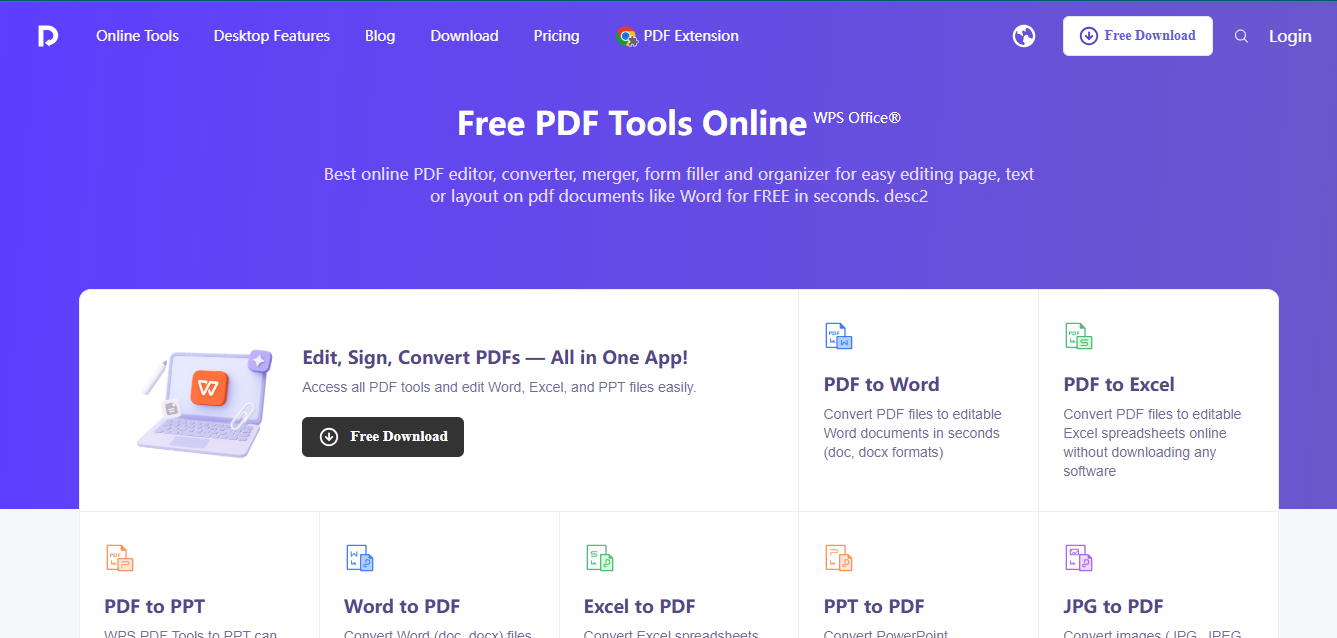
How to Use WPS PDF Tool:
WPS has a simple online tool that lets you pull text from any image in just a few quick steps. It’s a very beginner-friendly way to understand how to convert JPG to word, and the process is clear enough that you can copy your text without any confusion..
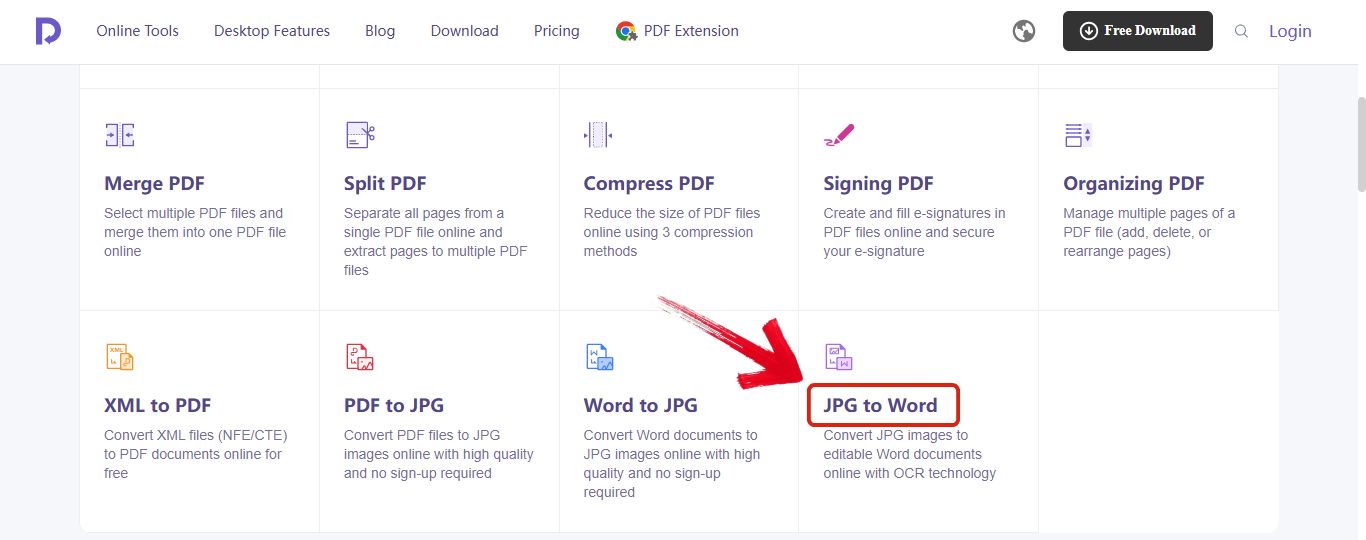
Step 1: Head over to the WPS online tool and open the "JPG to Word" converter.
Step 2: Now drop your image here or select it from your folder by clicking "Upload".
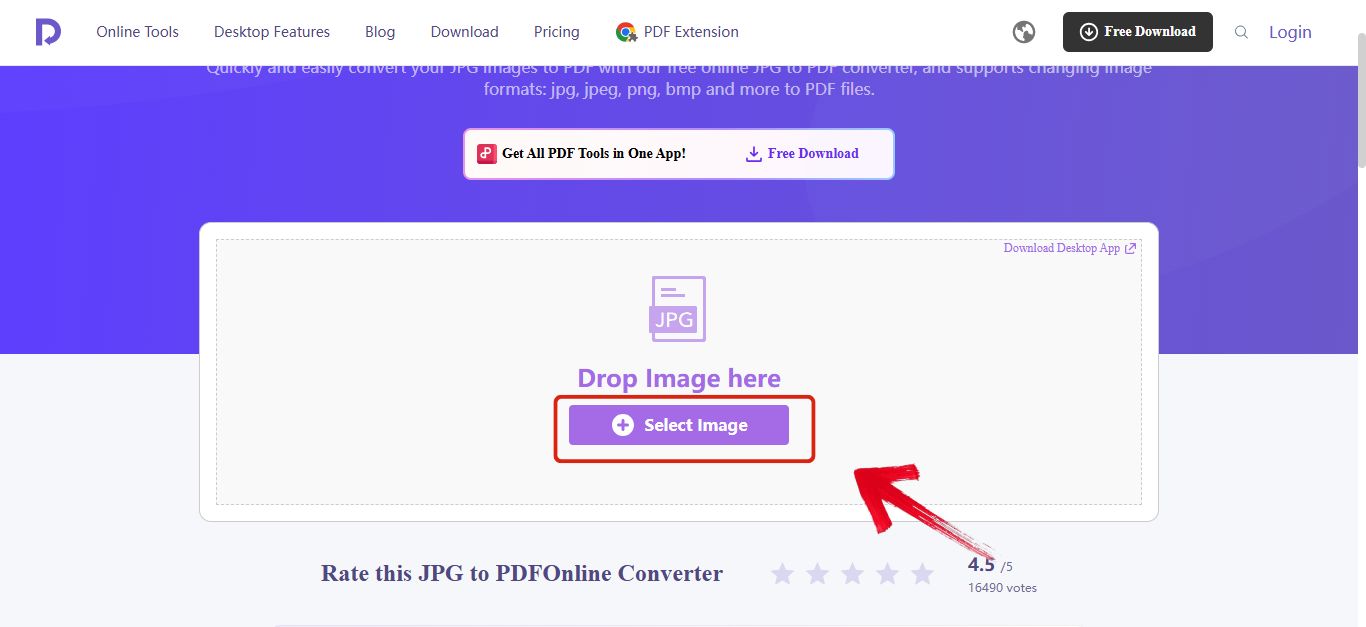
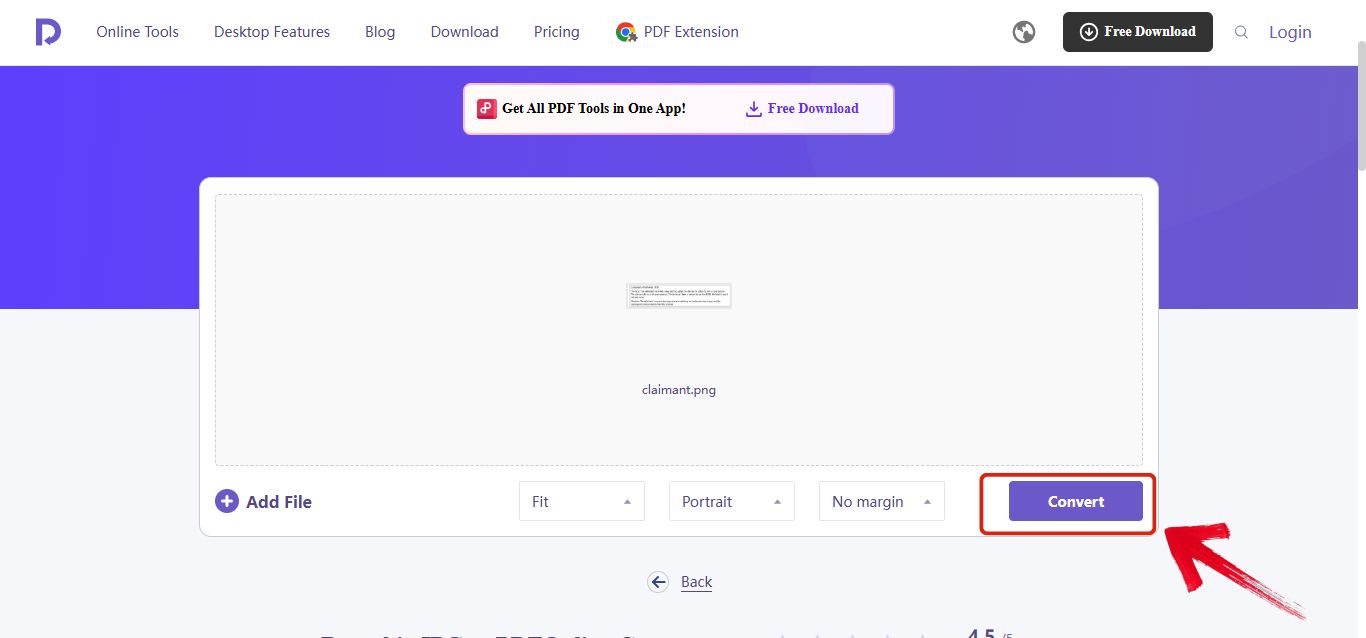
Step 3: Now just hit the "Convert" button that’s on the bottom right.
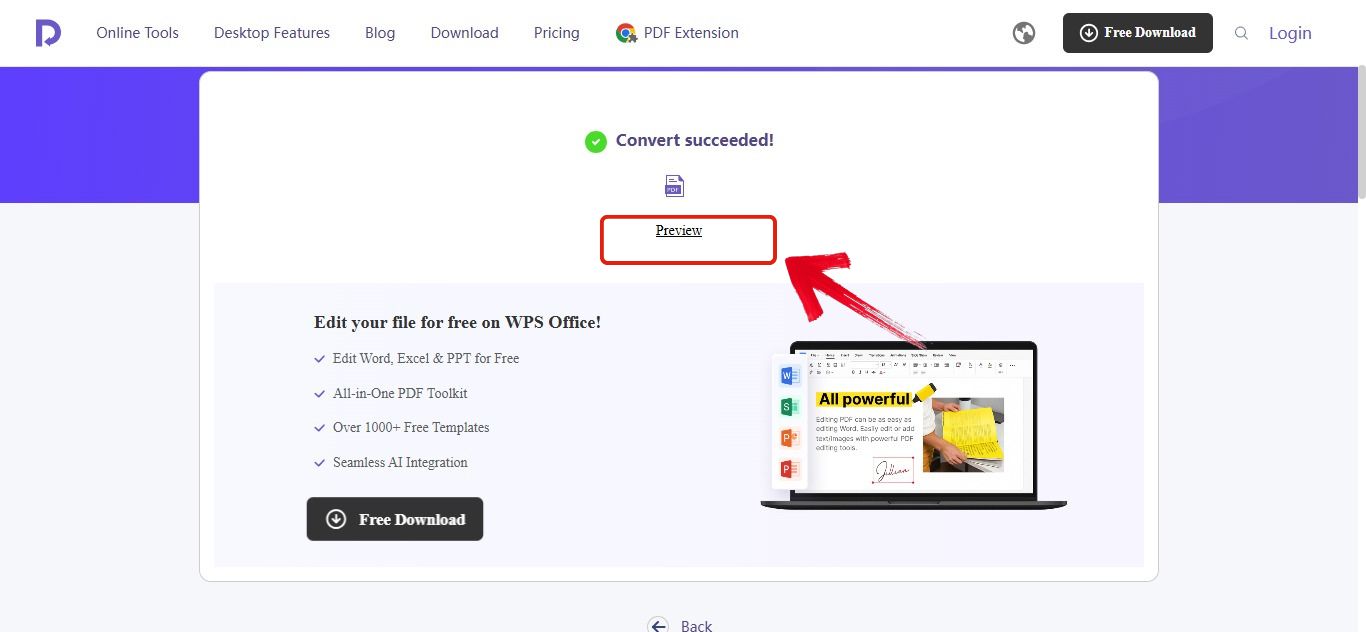
Step 4: Once it’s done you can easily preview it using the "Preview" button.
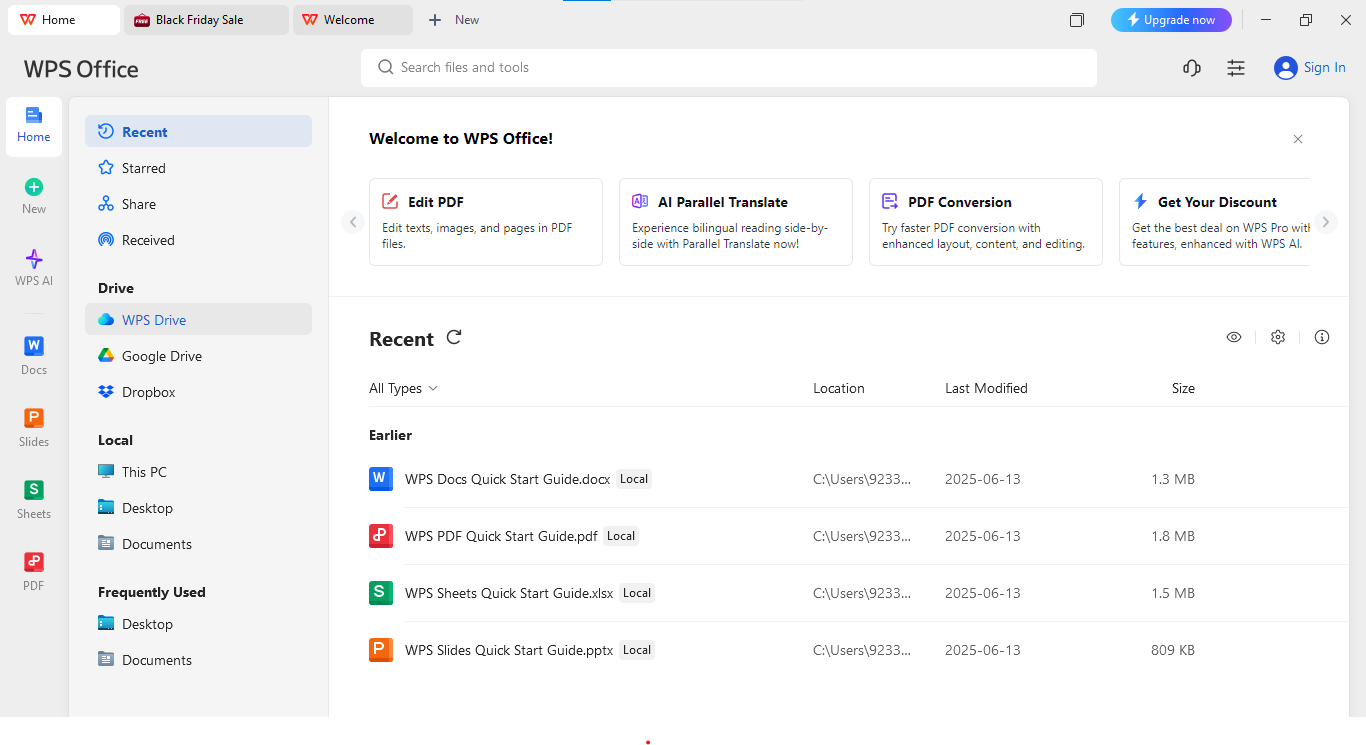
WPS Office (On Desktop)
WPS can also be downloaded and used as a complete office suite, which gives you document editors and many helpful tools for converting files like PDF and JPG. It offers one of the most efficient ways to pull text from images on both desktop and mobile. Unlike many simple online converters, WPS uses AI enhanced OCR and works smoothly across Windows, Mac, Android, and iOS. This cross platform setup gives you the same high quality results on your PC or phone. The offline mode is also great for privacy and makes it easy to handle important documents without needing the internet.
How to Use WPS Office:
This software makes the process a direct part of your daily office work. You can capture and convert text directly into your Word or TXT document with these simple steps.
Step 1: First open the file in WPS Office.
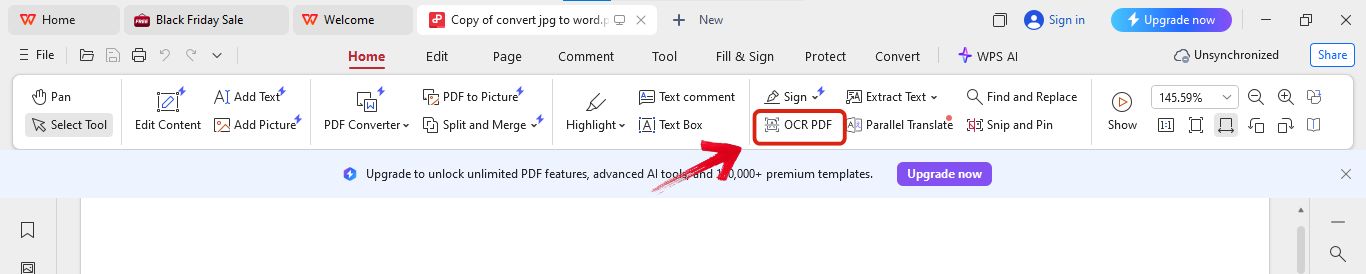
Step 2: Now click on the "OCR PDF" option provided in the menu.
Step 3: After this click "Perform OCR" to start scanning the file.
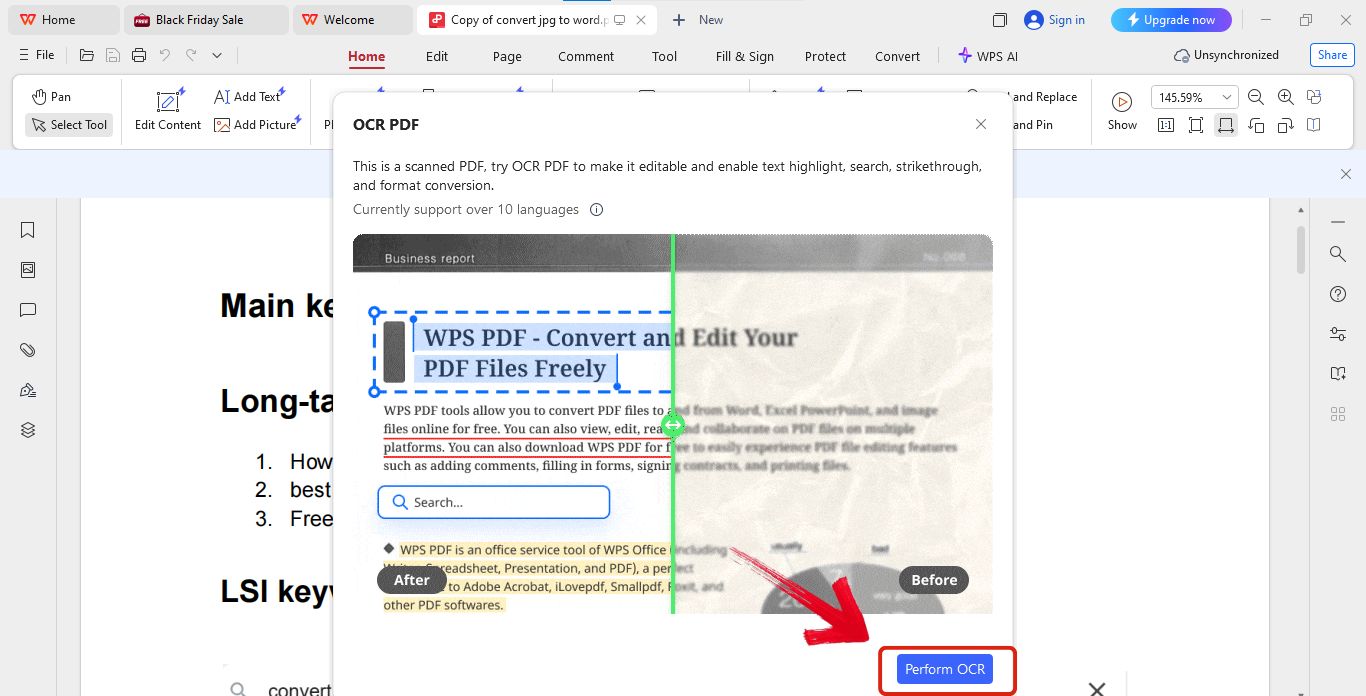
Step 4: Now you can easily extract text from the file.
2. iLovePDF
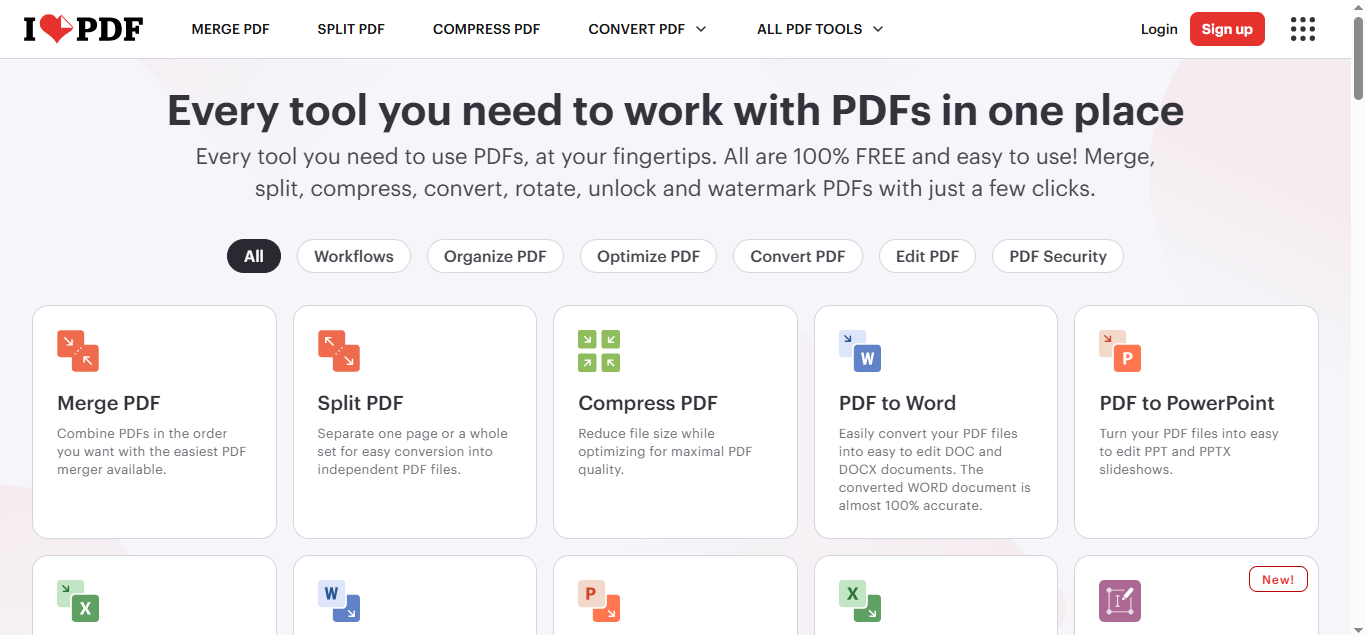
iLovePDF is a popular online PDF tool that can handle JPG to Word conversion, but the process requires two steps: first converting the JPG to a PDF, and then converting that PDF to an editable Word file using their OCR feature. This means it takes a little longer, but the quality of their PDF-based OCR is usually very good. You should also be aware that you often need a Pro plan to use the OCR function efficiently, and the free service has strict daily limits.
How to Use iLovePDF:
This tool needs two quick conversions, but the steps are simple and clear, so you won’t get confused while using it. Even with the extra step, the process still feels easy to follow and gets your text ready in a clean Word file.
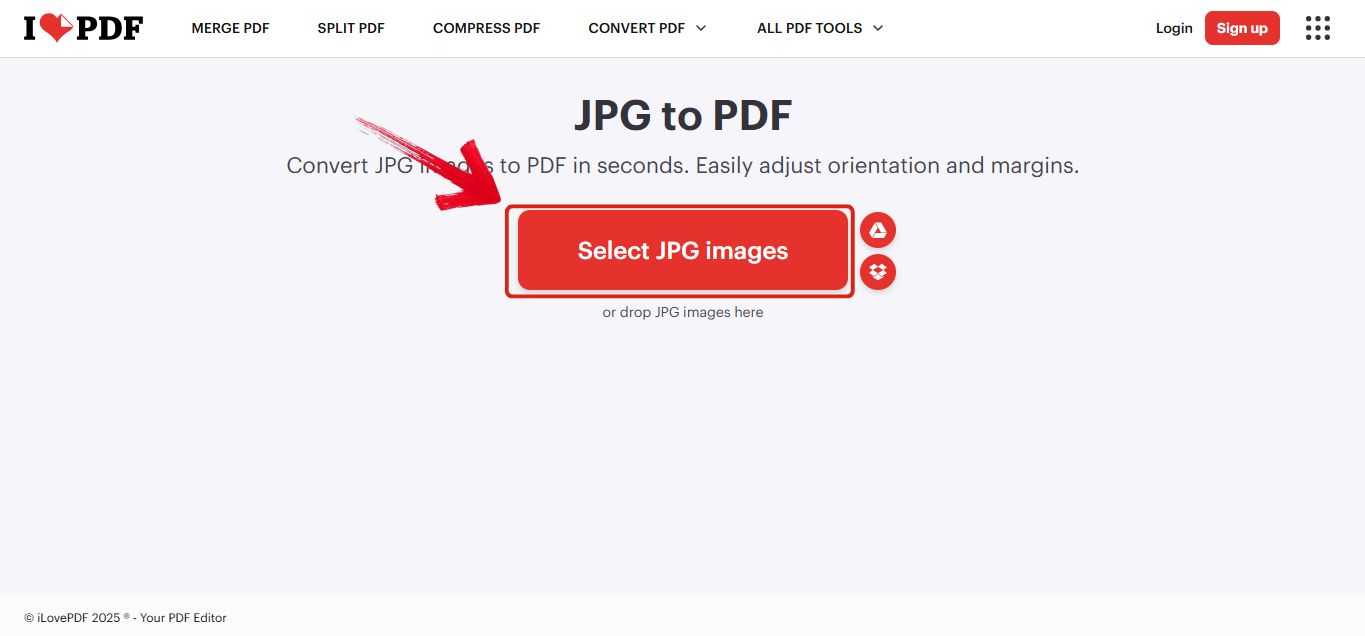
Step 1: Head over to the iLovePDF and open the "JPG to PDF" converter.
Step 2: Now that you are on the website click on "Select JPG Images" and choose the image you want to convert.
Step 3: Now just hit the "Convert to PDF" button that’s on the bottom right.
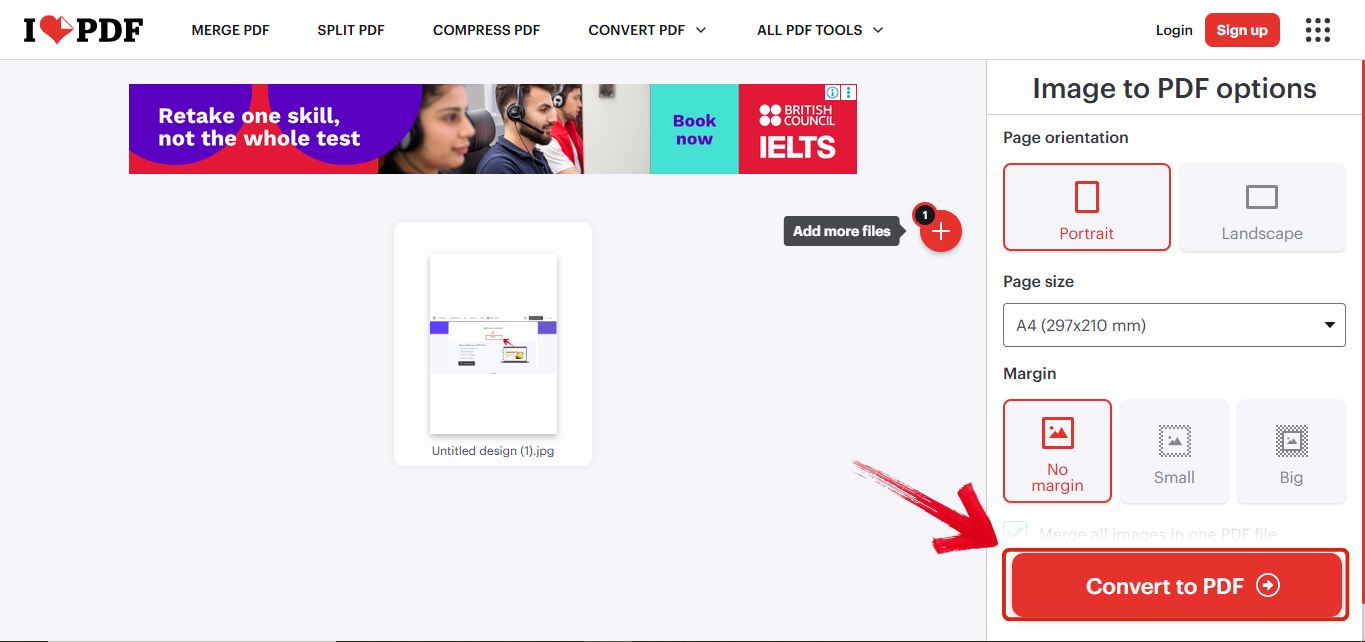
Step 4: Once it’s done click on "Download PDF" and after that just repeat the same steps but this time use the PDF to Word converter.
3. FreeConverter
FreeConverter is a straightforward, general-purpose file conversion tool that is good for occasional, small conversions. It is a simple tool for users who appreciate a quick and easy-to-use interface. The service guarantees file security and works entirely in your web browser. However, be cautious, as users often report issues with OCR accuracy that lead to significant manual correction, and the free version has file size limitations.
How to Use FreeConverter:
FreeConverter uses a simple three step process that works quickly in any web browser, so you can convert your JPG into Word without any effort. The steps are easy to follow, and the tool keeps the whole process clean and straightforward.
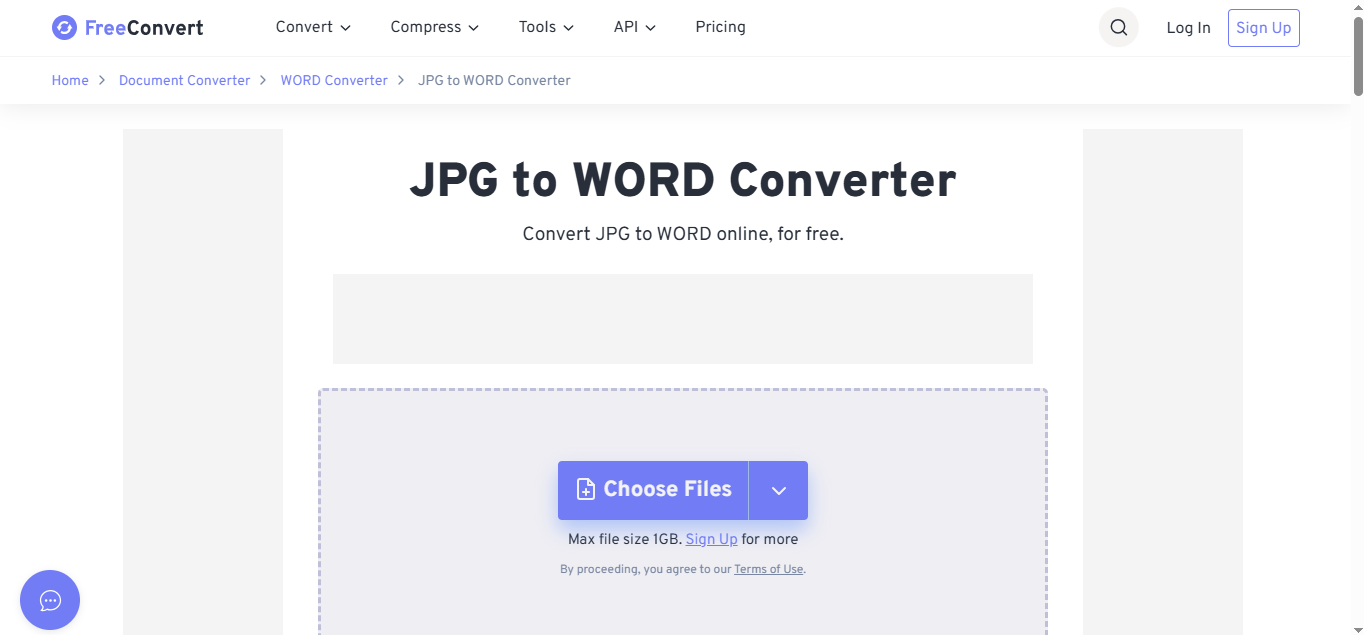
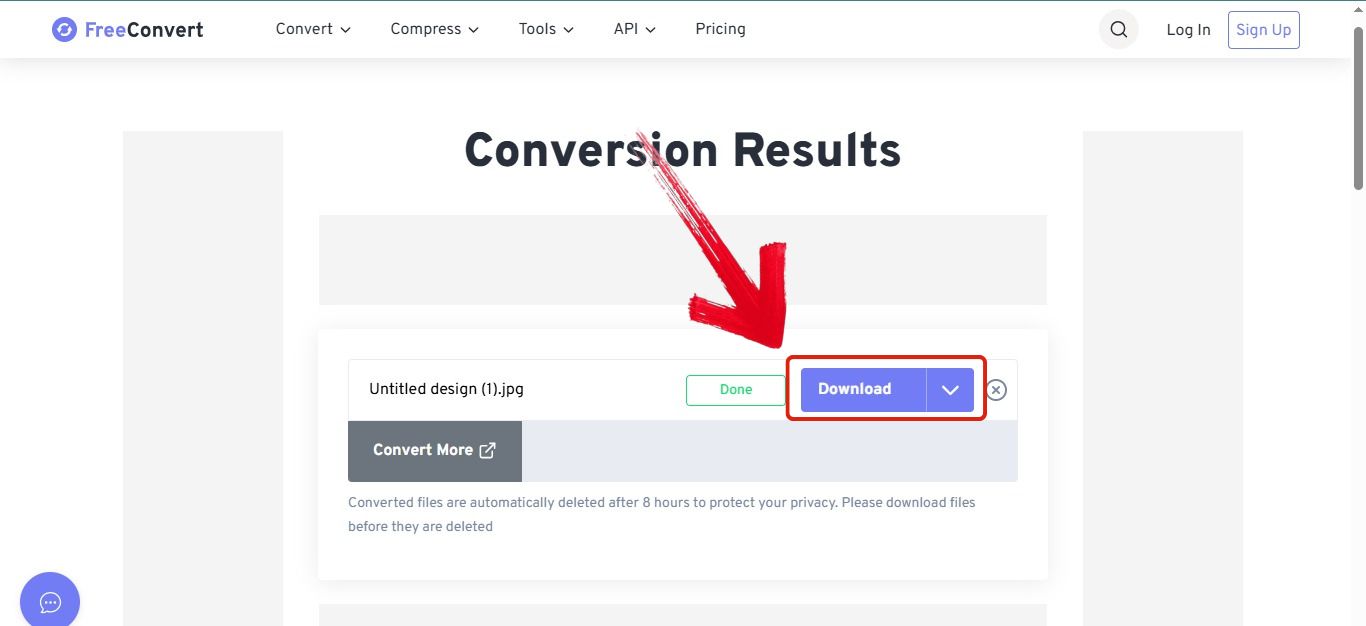
Step 1: Head over to the FreeConverter converter.
Step 2: Click the “Choose Files” button to select your JPG files.
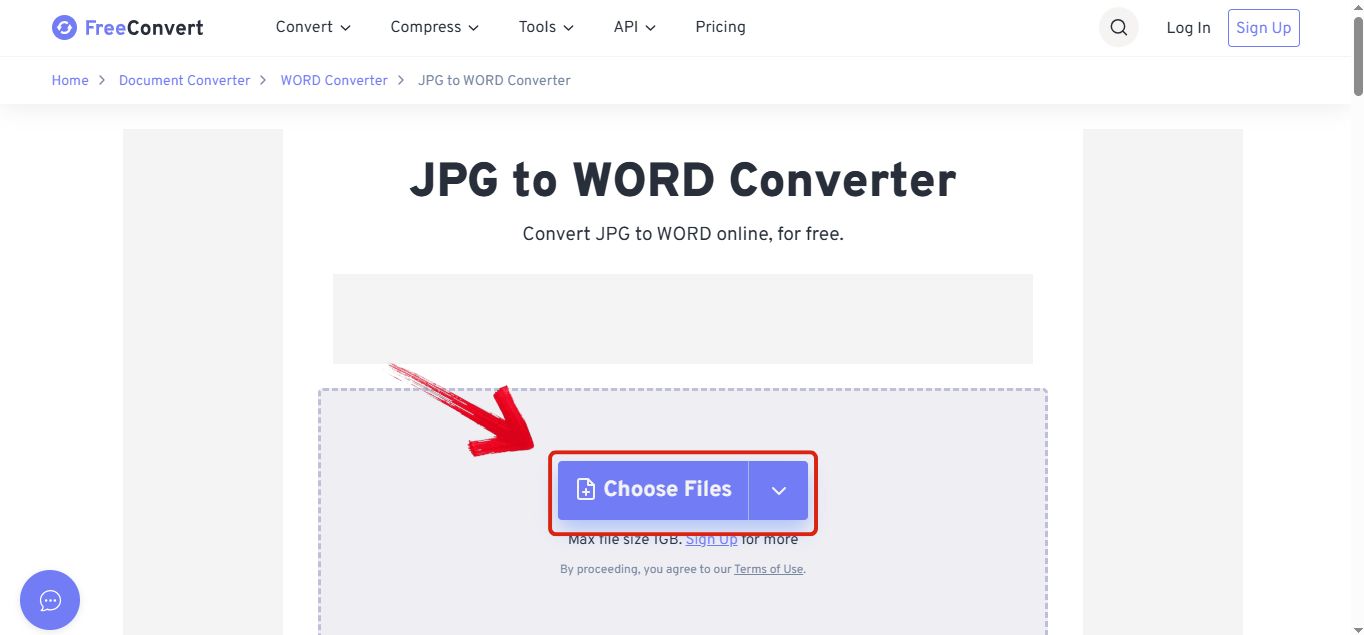
Step 3: Now just hit the "Convert" button to start the conversion.
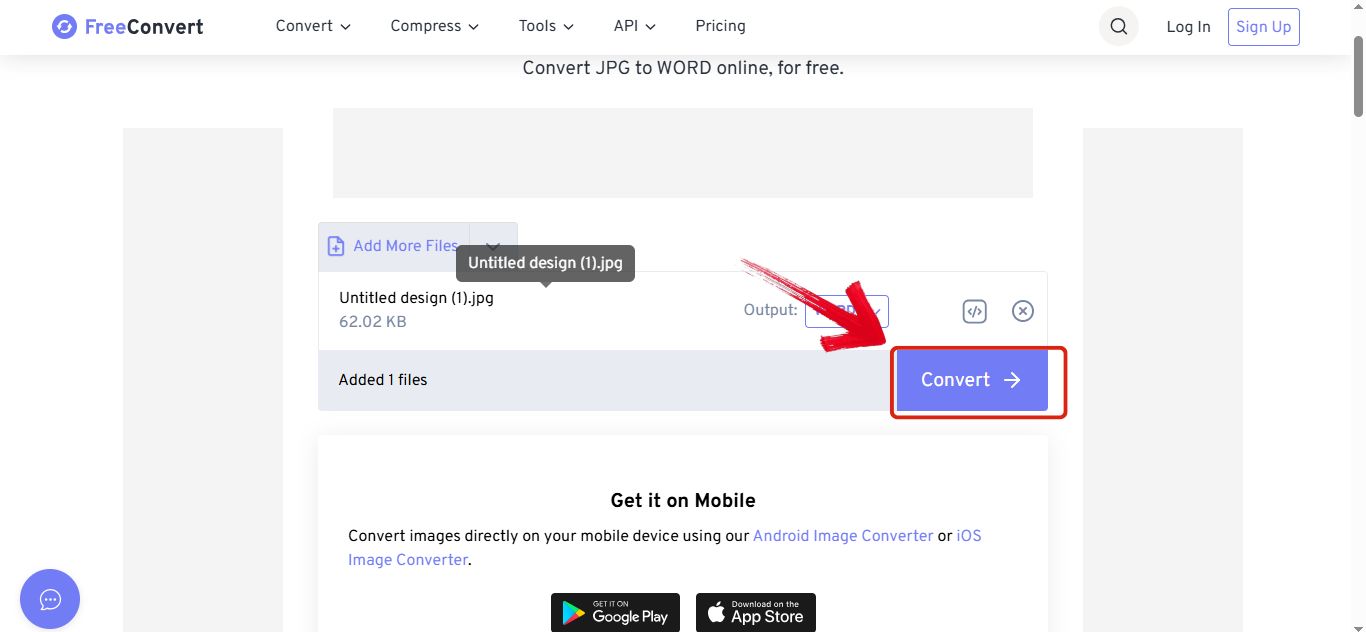
Step 4: Once it’s done click on the "Download" button to download the converted file.
4. Image To Text
Image To Text is a great tool because it’s a quick, free, online converter that instantly pulls text out of any picture you upload. It’s extremely easy to use, making it perfect for simple, fast jobs. However, you should know its limits. This free option is best for clear, typed text and struggles with messy handwriting. Also, while you can process a few images at once, heavy users may find the free version has low limits and includes advertisements.
How to Use Image to Text:
Image to Text works like a free JPG to word converter, giving you quick text extraction without any confusing steps. It’s simple to use, and the conversion feels smooth, making it a handy option for everyday images.
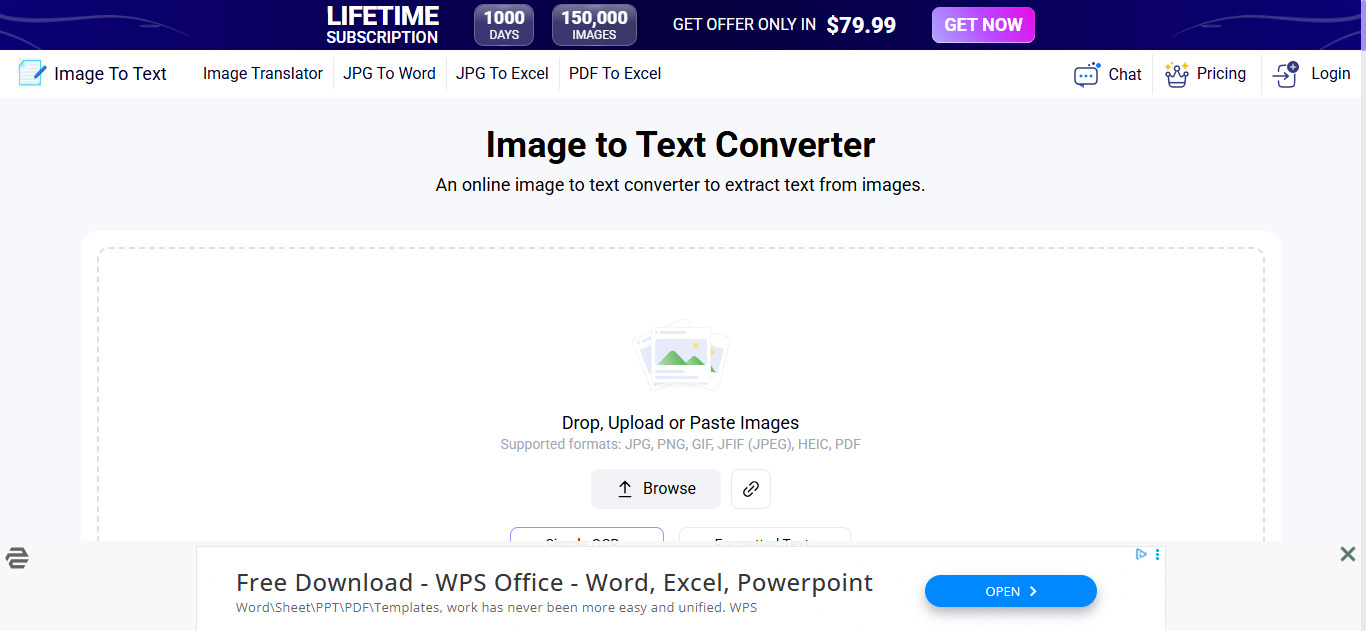
Step 1: Head over to the Image To Text converter.
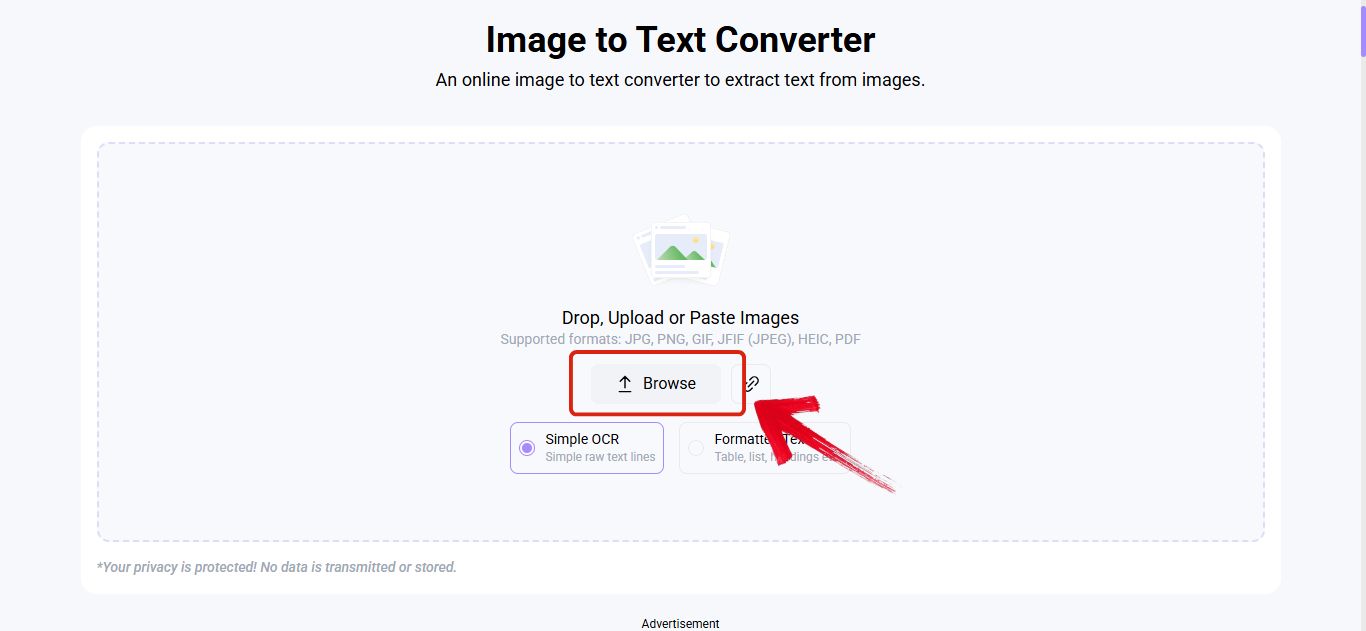
Step 2: Now drop, upload, or paste your image using the "Browse" option.
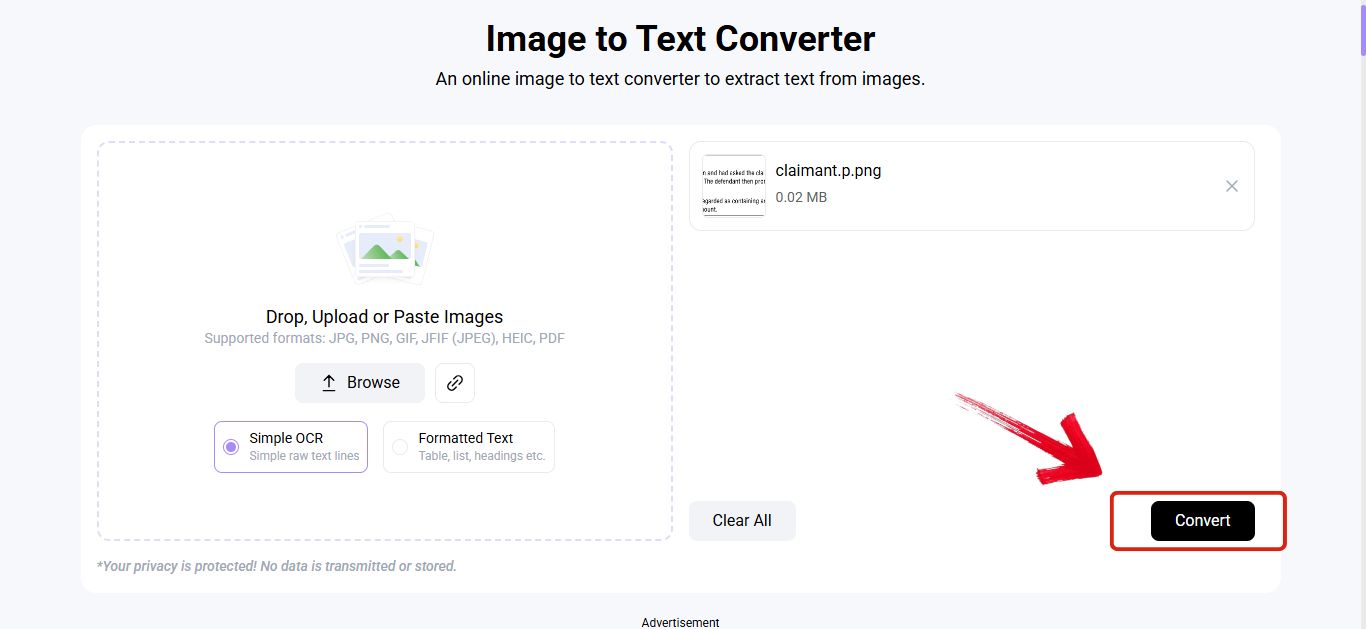
Step 3: Now just hit the "Convert" button that’s on the bottom right.
Step 4: Once it’s done you’ll be able to copy the text by clicking the "Copy" symbol on the top right.
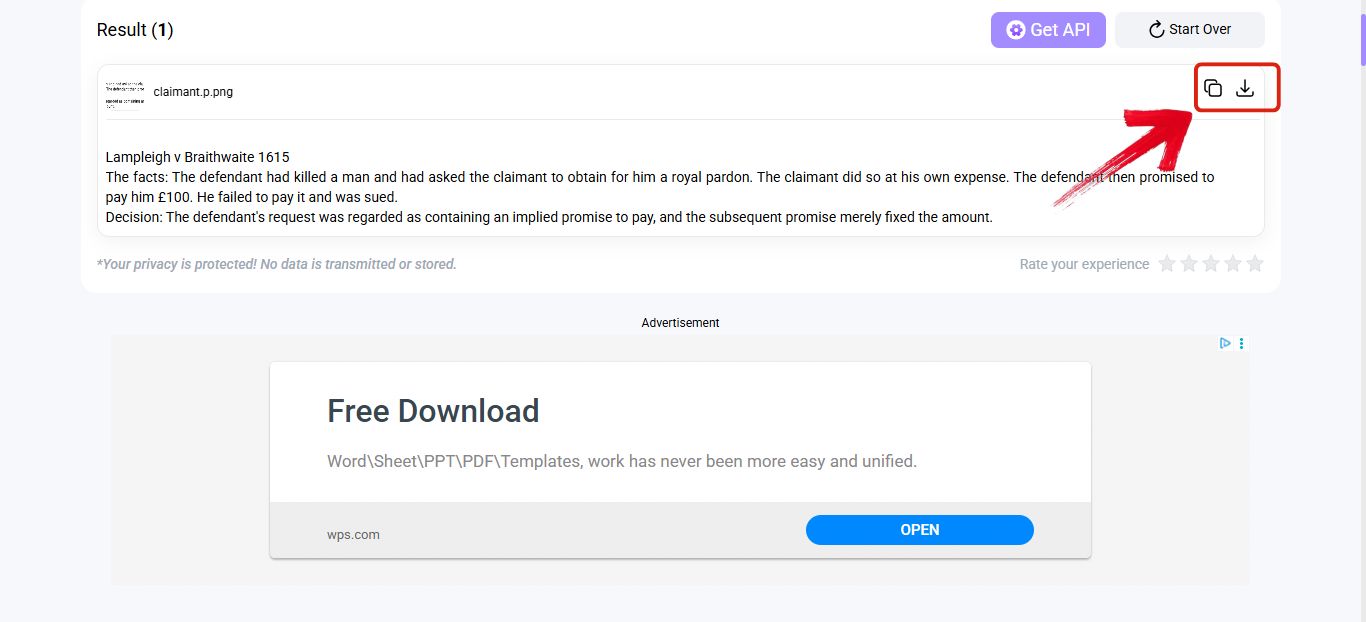
5. JPG to Text
JPG to Text provides a cost-effective solution for users with basic conversion needs, offering its core service for free. This tool has a notable capacity to handle large-sized images and supports a decent number of images in its free batch capability. It also uses advanced algorithms to handle text extraction from low-resolution images. You should note that there are strict limits on the number of conversions per day and free usage is supported by advertisements.
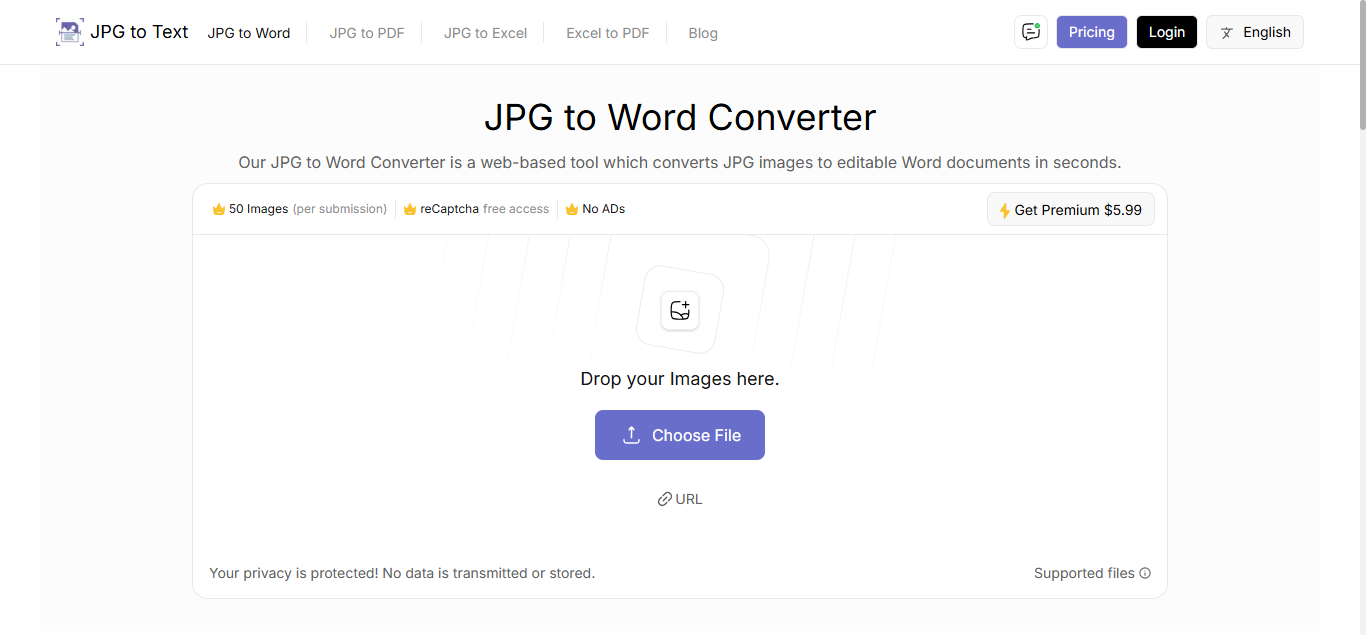
How to Use JPG to Text:
JPG to Text gives you a quick way to pull clean text from your images without any extra steps. The tool is easy to follow, and the conversion happens fast, which makes it great for quick everyday use.
Step 1: Head over to JPG to Text.
Step 2: Click the “Choose Files” button to select your JPG files.
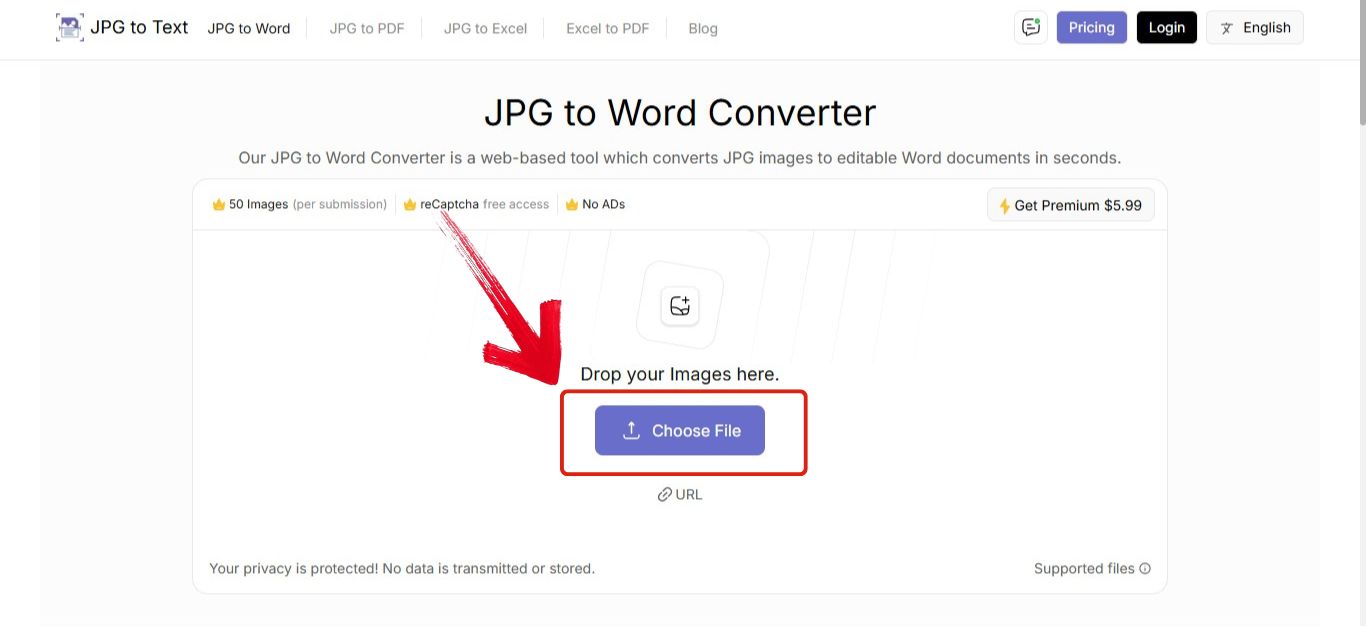
Step 3: Now just hit the "Convert Now" button to start the conversion.
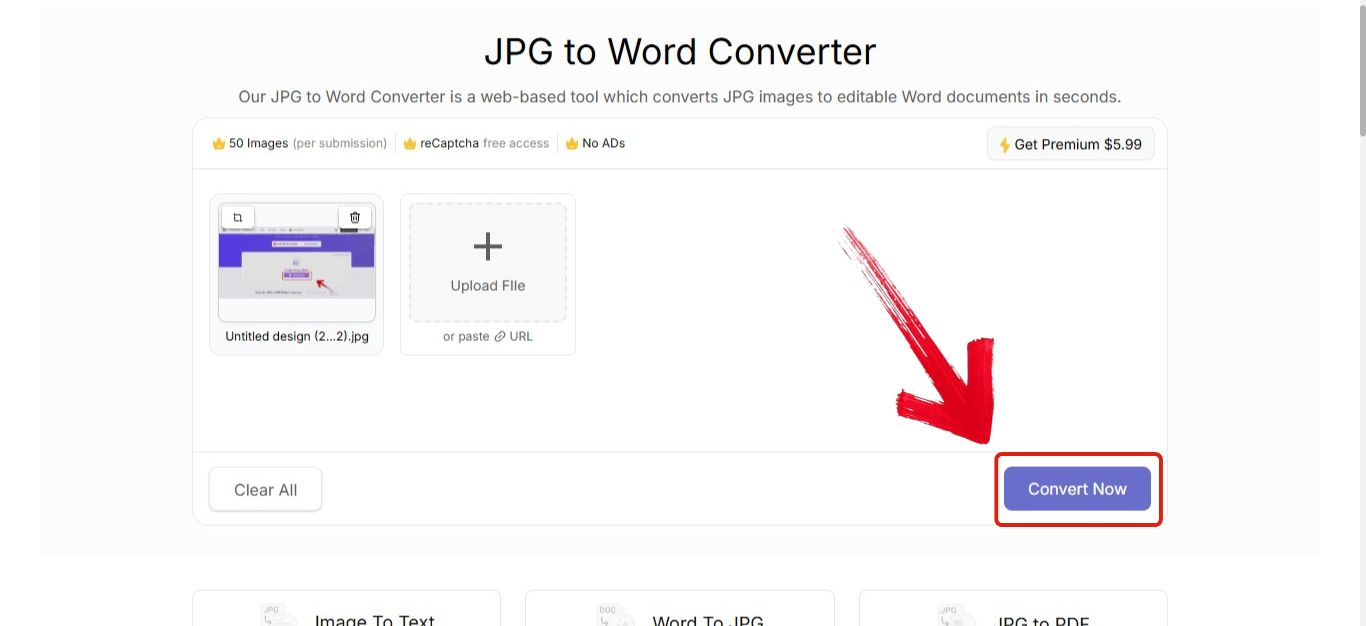
Step 4: Once it’s done click on the "Download" button to download the converted file.
Quick Comparison Table of the Top 5 Free JPG to Word Converter
This table summarizes the main differences among the top mobile apps, helping you quickly see which one works best for converting JPG to Word on your phone, especially if you need fast scanning, clean formatting, or reliable OCR accuracy.
| Feature | WPS Online Tool | iLovePDF | FreeConverter |
|---|---|---|---|
| Ease of Use | Excellent | Very Good | Good |
| Format Preservation | Excellent | Good | Fair |
| Conversion Speed | Fast | Fast | Standard |
| File Limitations | High Limits | Strict Daily Limit | Moderate Limits |
| System Compatibility | All Systems | All Systems | All Systems |
Online tools offer speed, but you should always prioritize the output quality, which is where WPS truly excels. If you test several converters with a complicated invoice image, you will likely find that WPS maintains the format better than the others. iLovePDF is quick and popular, but if your JPG contains anything complex like graphics or a detailed table, you will lose the formatting entirely. FreeConverter is fine for plain text screenshots, but you will find the final document requires more cleanup than the other two options.
Why WPS PDF Tools Stands Out?
While testing out various conversion tools, one particular solution impressed us with its exceptional results, and that was WPS Office. If your priority is a reliable, high-quality JPG to Word converter, WPS is an excellent starting point.
You’ll quickly find that WPS has all the essential tools available under one roof. Not only does it allow you to convert JPG to Word accurately, but it also has unique features that let you refine or enhance your images before conversion, ensuring the best possible output in your final document.
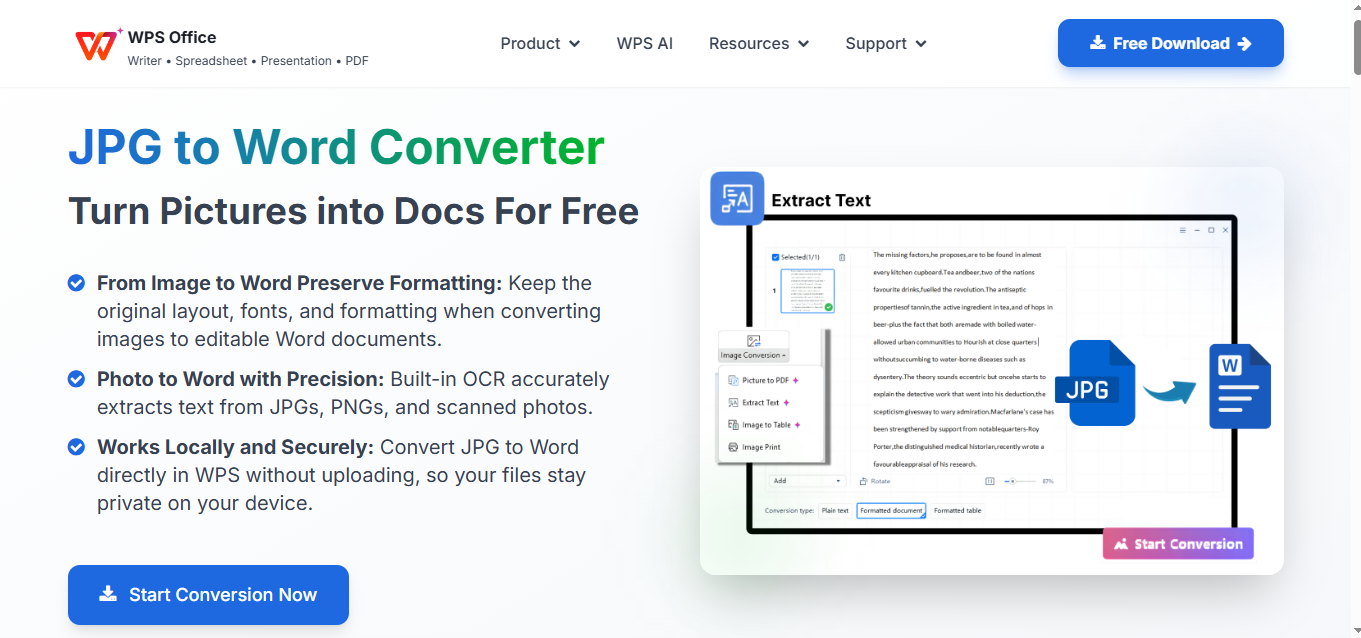
Furthermore, WPS is lightweight and available across Windows, Linux, and Mac. This makes it an outstanding recommendation, as it reliably covers users on virtually any operating system. Having both a free online tool and a robust desktop version gives you a level of flexibility that most online converters simply lack.
FAQs
1. Why do my converted Word documents always have messy formatting and errors?
Yes. WPS PDF Tool and ImageToText.me support handwriting recognition, allowing you to accurately extract even handwritten notes.
2.Is it safe to upload personal documents for OCR?
Yes, if you use trusted and well-known services. Sites like WPS PDF Tool and Editpad prioritize data safety, but for maximum privacy when handling sensitive files, you should always use WPS PDF Tool’s dedicated offline mode. Processing files locally on your computer prevents them from ever being uploaded to the cloud.
3.How can I copy text from multiple images at once?
Batch processing is essential for efficiency. The WPS PDF Tool is your best option here because its feature set supports batch processing, allowing you to upload and process several images simultaneously. Most purely free online tools do not offer this capability and make you process files one by one.
4. Do these tools keep my original image layout?
Most simple, free online tools only extract plain text, meaning you lose the original structure and formatting. However, WPS PDF Tool is one of the few designed to preserve the layout and formatting when it exports your text to editable formats like Word or PDF. This saves significant time otherwise spent reformatting.
5.What image formats can I use to copy text from?
The most common formats supported by nearly all OCR tools include JPG, PNG, and PDF files, along with BMP. A high quality, high resolution image is critical for ensuring the OCR accuracy is as high as possible when you extract the text.

'%3e%3cpath%20d='M19.9911%204.11386V6.471H18.5894C18.0775%206.471%2017.7322%206.57814%2017.5536%206.79243C17.3751%207.00671%2017.2858%207.32814%2017.2858%207.75671V9.44421H19.9019L19.5536%2012.0871H17.2858V18.8639H14.5536V12.0871H12.2769V9.44421H14.5536V7.49779C14.5536%206.39064%2014.8632%205.53201%2015.4822%204.92189C16.1013%204.31177%2016.9257%204.00671%2017.9554%204.00671C18.8304%204.00671%2019.509%204.04243%2019.9911%204.11386Z'%20fill='%23333333'/%3e%3c/g%3e%3cdefs%3e%3cclipPath%20id='clip0_2938_8199'%3e%3crect%20width='16'%20height='16'%20fill='white'%20transform='translate(8%204.00671)'/%3e%3c/clipPath%3e%3c/defs%3e%3c/svg%3e)
'%3e%3cpath%20d='M17.5237%2010.7813L23.4811%204H22.0699L16.8949%209.88693L12.7648%204H8L14.2469%2012.9029L8%2020.0133H9.4112L14.8725%2013.7952L19.2352%2020.0133H24M9.92053%205.04213H12.0885L22.0688%2019.0224H19.9003'%20fill='%23333333'/%3e%3c/g%3e%3cdefs%3e%3cclipPath%20id='clip0_2938_8200'%3e%3crect%20width='16'%20height='16.0134'%20fill='white'%20transform='translate(8%204)'/%3e%3c/clipPath%3e%3c/defs%3e%3c/svg%3e)


