

'%3e%3cpath%20d='M8%200C12.4183%200%2016%203.58172%2016%208C16%2012.4183%2012.4183%2016%208%2016C3.58172%2016%200%2012.4183%200%208C0%203.58172%203.58172%200%208%200ZM11.6162%204.38379C11.2257%203.99337%2010.5927%203.99338%2010.2021%204.38379L8%206.58594L5.79785%204.38379C5.40732%203.99334%204.77429%203.99329%204.38379%204.38379C3.99331%204.77429%203.99335%205.40733%204.38379%205.79785L6.58594%208L4.38379%2010.2021C3.99348%2010.5927%203.99341%2011.2257%204.38379%2011.6162C4.77426%2012.0066%205.40734%2012.0065%205.79785%2011.6162L8%209.41406L10.2021%2011.6162C10.5927%2012.0066%2011.2257%2012.0067%2011.6162%2011.6162C12.0067%2011.2257%2012.0066%2010.5927%2011.6162%2010.2021L9.41406%208L11.6162%205.79785C12.0066%205.40735%2012.0066%204.77429%2011.6162%204.38379Z'%20fill='%23080E17'%20fill-opacity='0.46'/%3e%3c/g%3e%3cdefs%3e%3cclipPath%20id='clip0_3761_713'%3e%3crect%20width='16'%20height='16'%20fill='white'/%3e%3c/clipPath%3e%3c/defs%3e%3c/svg%3e)



'%3e%3cpath%20fill-rule='evenodd'%20clip-rule='evenodd'%20d='M21.4999%2010.9993C21.4999%205.20009%2016.7986%200.498901%2010.9993%200.498901C5.19994%200.498901%200.498657%205.20009%200.498657%2010.9993C0.498657%2016.2404%204.33858%2020.5844%209.35855%2021.3722V14.0346H6.69238V10.9993H9.35855V8.68594C9.35855%206.05427%2010.9262%204.60062%2013.3248%204.60062C14.4736%204.60062%2015.6753%204.80571%2015.6753%204.80571V7.38979H14.3512C13.0468%207.38979%2012.64%208.19921%2012.64%209.0296V10.9993H15.5523L15.0867%2014.0346H12.64V21.3722C17.66%2020.5844%2021.4999%2016.2404%2021.4999%2010.9993Z'%20fill='%231568EA'/%3e%3c/g%3e%3c/svg%3e)


'%3e%3cpath%20d='M2.42045%2022.1876H6.31818V12.7217L0.75%208.54553V20.5171C0.75%2021.4414%201.49892%2022.1876%202.42045%2022.1876Z'%20fill='%234285F4'/%3e%3cpath%20d='M19.682%2022.1876H23.5797C24.5041%2022.1876%2025.2502%2021.4387%2025.2502%2020.5171V8.54553L19.682%2012.7217'%20fill='%2334A853'/%3e%3cpath%20d='M19.682%205.48293V12.7216L25.2502%208.54543V6.31816C25.2502%204.25236%2022.8921%203.07469%2021.2411%204.31361'%20fill='%23FBBC04'/%3e%3cpath%20d='M6.31824%2012.7217V5.48303L13.0001%2010.4944L19.6819%205.48303V12.7217L13.0001%2017.733'%20fill='%23EA4335'/%3e%3cpath%20d='M0.75%206.31816V8.54543L6.31818%2012.7216V5.48293L4.75909%204.31361C3.10534%203.07469%200.75%204.25236%200.75%206.31816Z'%20fill='%23C5221F'/%3e%3c/g%3e%3cdefs%3e%3cclipPath%20id='clip0_2954_7305'%3e%3crect%20width='24.5'%20height='18.375'%20fill='white'%20transform='translate(0.75%203.8125)'/%3e%3c/clipPath%3e%3c/defs%3e%3c/svg%3e)


You know the feeling when you see an important receipt, screenshot, or a printed note, but all that information is trapped inside a picture. Trying to copy it all down just to copy text from image is a total waste of time, and honestly, frustrating. You might have faced unreliable tools that fail or suddenly ask you to buy a subscription halfway through. We're here to solve that, here are the top five free tools, with step by step details, explaining why WPS PDF Tool is your ultimate, accurate solution.


Top 5 Tools to Copy Text from Image
If you’re wondering how to pull text from a photo without dealing with confusing menus, slow results, or weird sign up pages, I’ve got you covered. I’ve personally tested a number of these OCR tools to copy text from image. Some were awkward, others completely failed on handwritten notes, but a select few actually worked smoothly and kept the text quality and formatting neat. You might be dealing with a quick screenshot, a scanned receipt, or pages of printed notes, and these five tools get the job done right. They are easy enough for anyone to use, work well on both your computer and phone, and provide the accurate, editable text you need.
1. WPS PDF Tool
The WPS PDF Tool is an excellent solution because it combines powerful, smart text reading technology with a clean design that anyone can use. You can easily pull text from images and scanned documents while working online or offline. As a truly useful tool, I find its ability to handle handwritten and printed text with high accuracy a major benefit for my own document processing. You'll be happy to know that it works reliably without the usual frustrating limitations you find in free software. It gives office users and students professional level results without the typical expense.
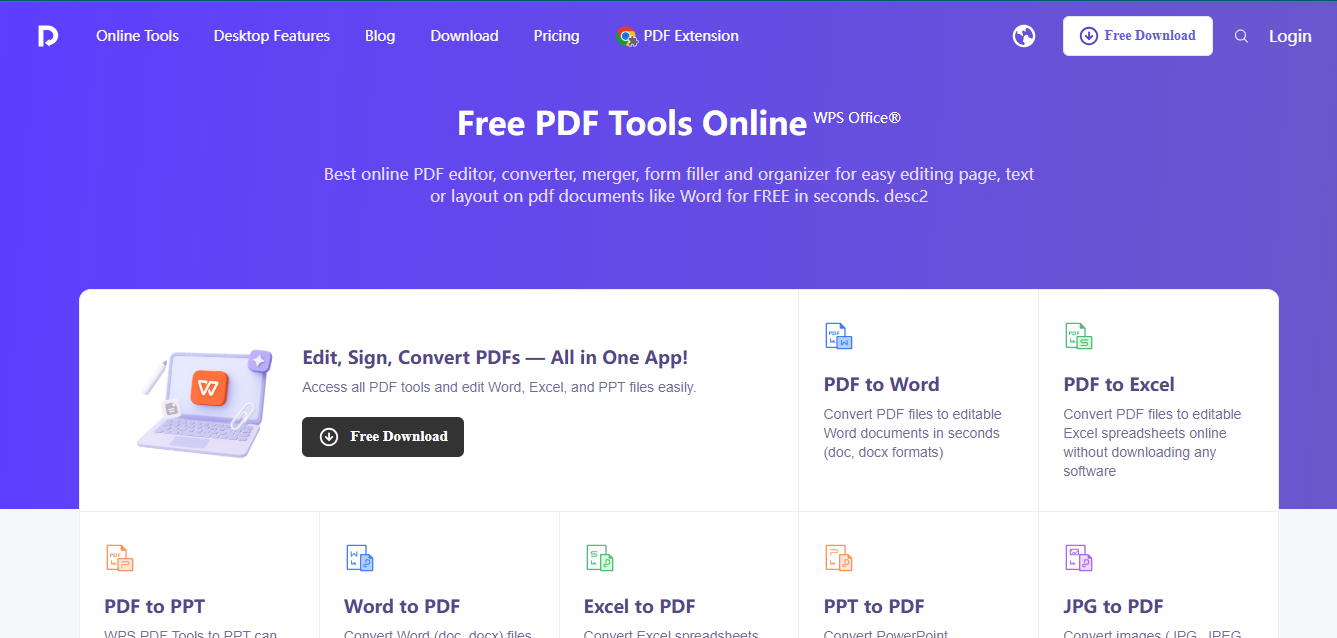
How to Use WPS PDF Tool:
Wondering how to extract text from photo online without the headache of complicated software. WPS PDF Tool keeps the process incredibly simple, blending high quality results with easy steps. You’ll have your editable text in seconds.
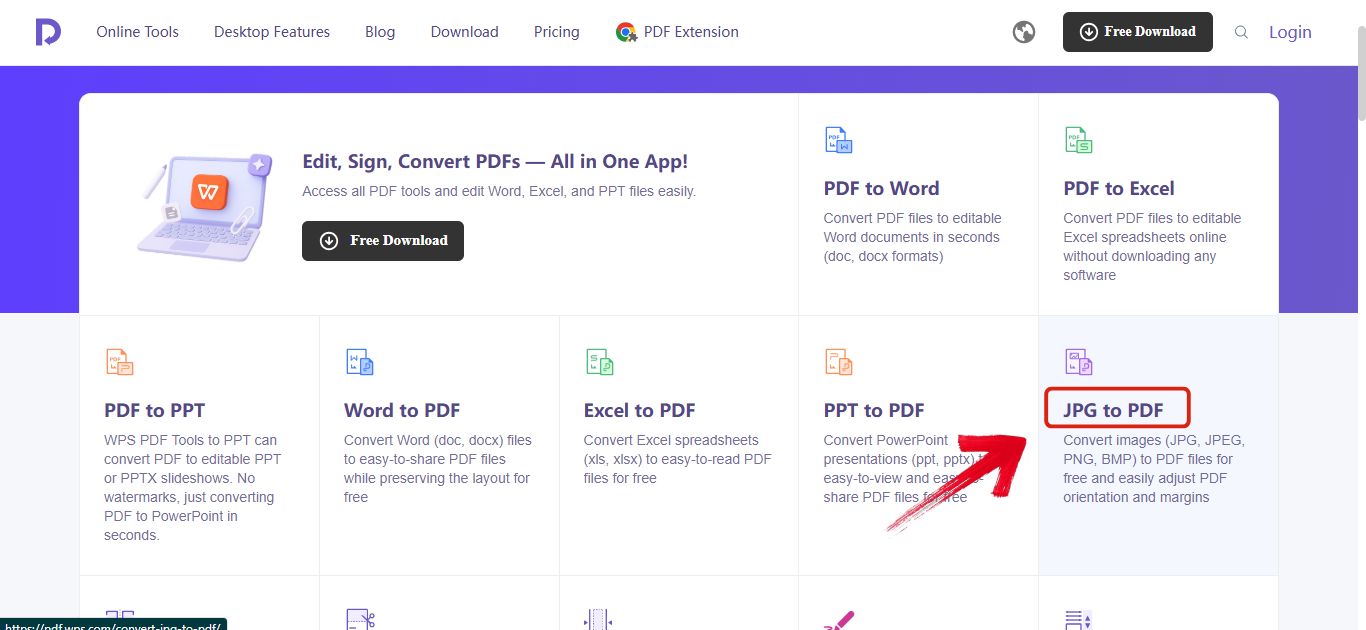
Step 1: Head over to the WPS PDF Tool and open the "JPG to PDF" converter.
Step 2: Now drop your image here or select it from your folder by clicking "Upload".
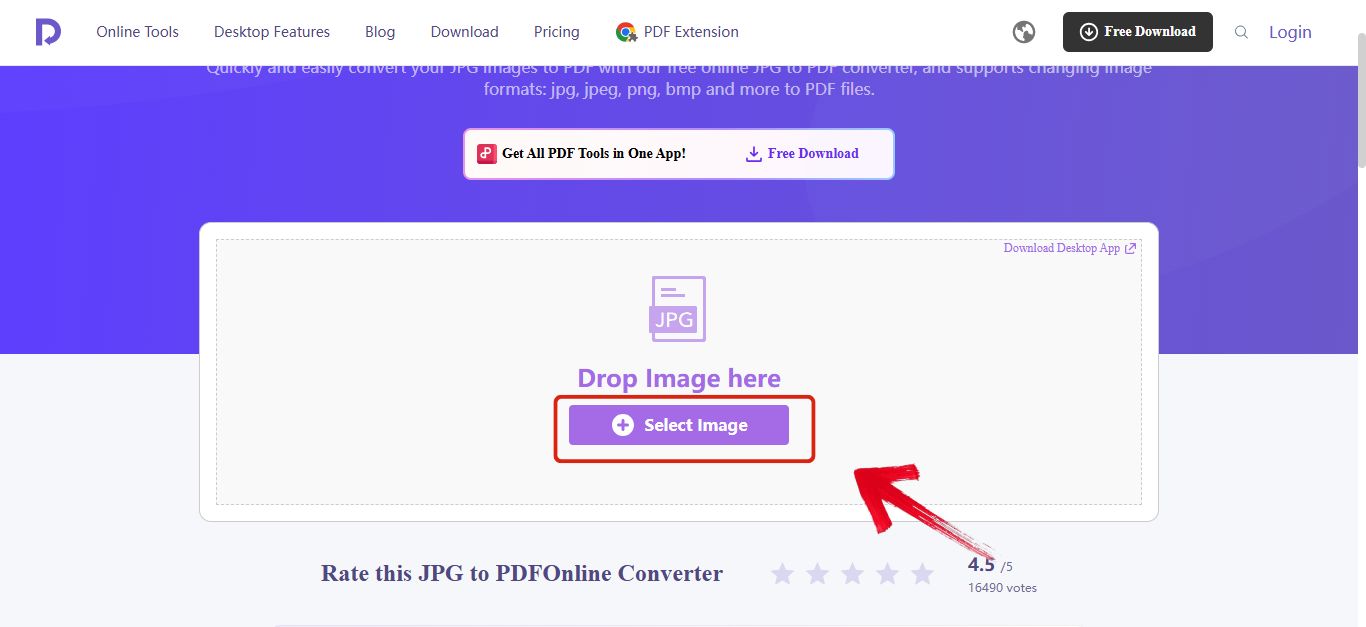
Step 3: Now just hit the "Convert" button that’s on the bottom right.
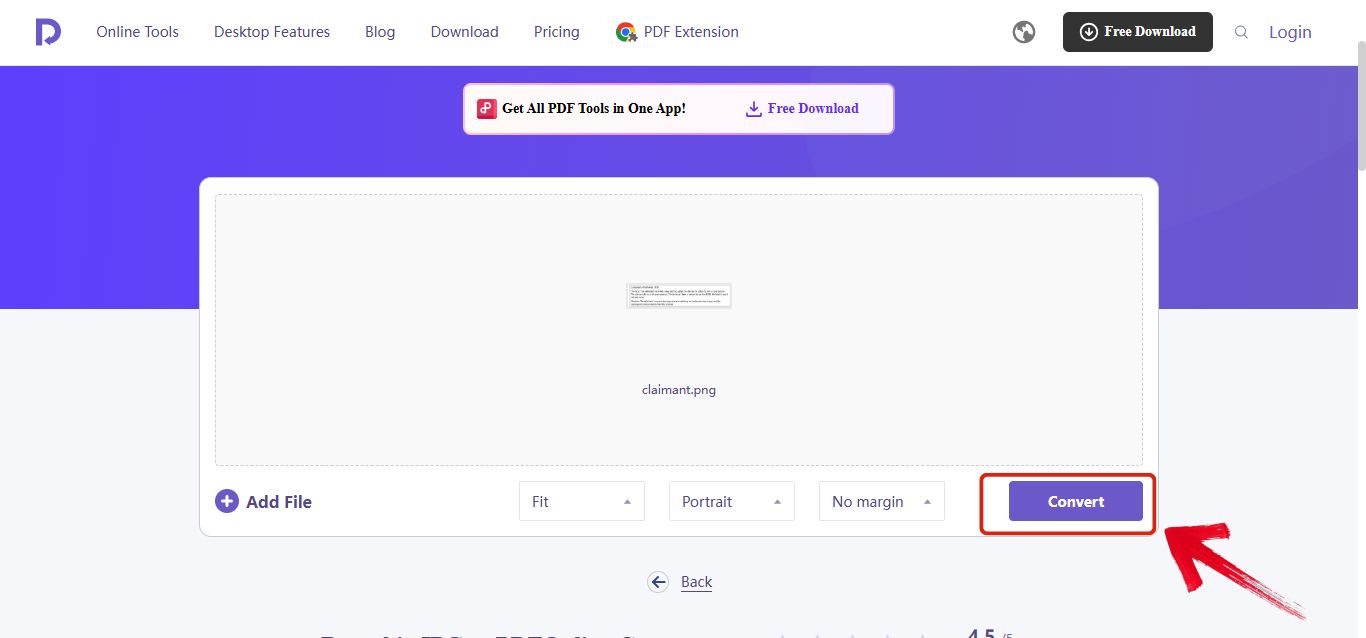
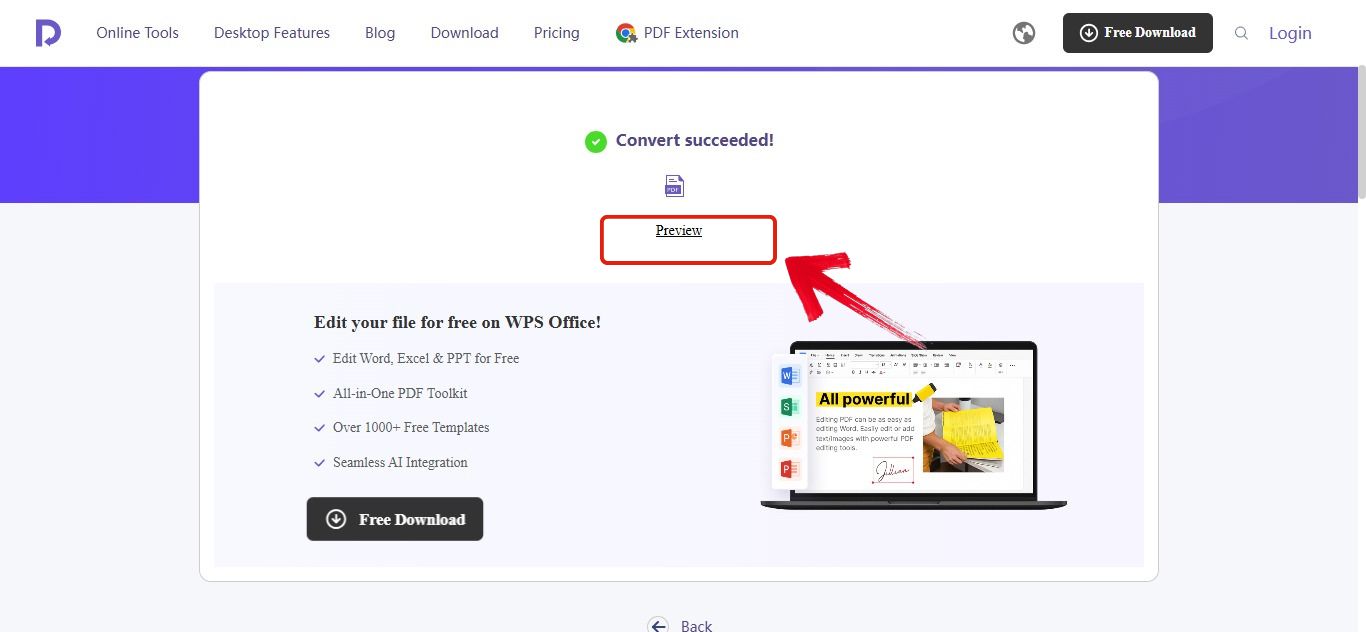
Step 4: Once it’s done you can easily preview it using the "Preview" button.
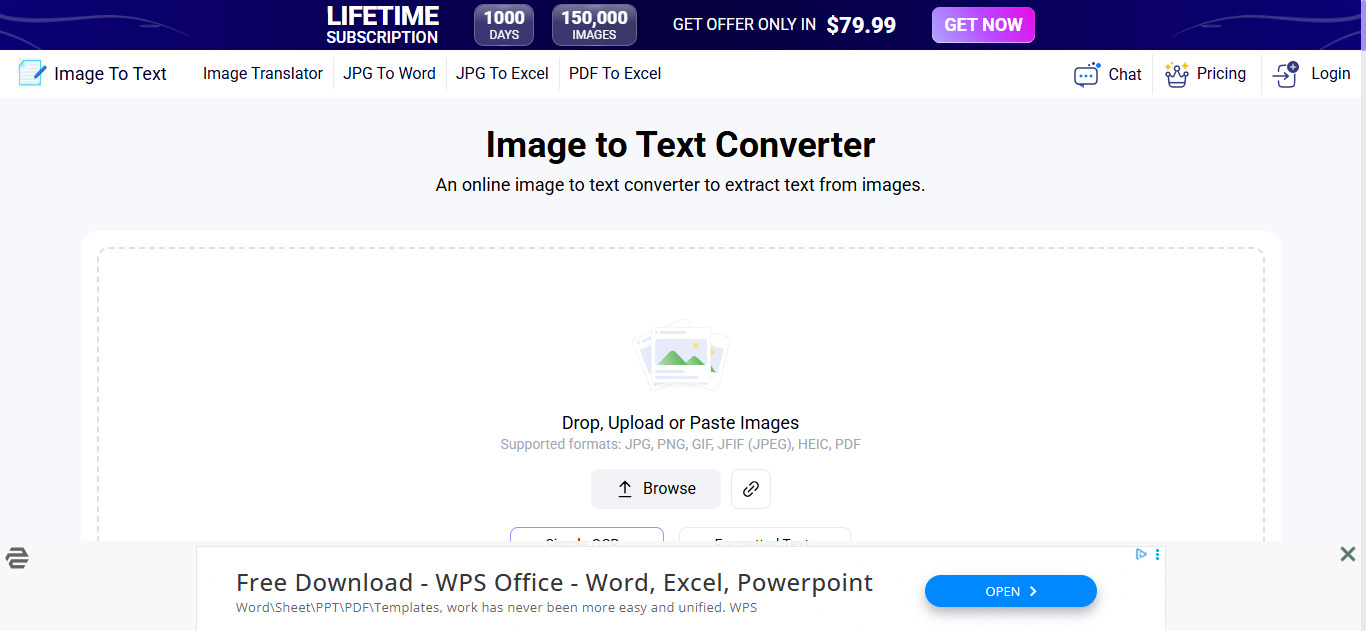
2. Image To Text
Image To Text is a great tool because it’s a quick, free, online converter that instantly pulls text out of any picture you upload. It’s extremely easy to use, making it perfect for simple, fast jobs. However, you should know its limits. This free option is best for clear, typed text and struggles with messy handwriting. Also, while you can process a few images at once, heavy users may find the free version has low limits and includes advertisements.
How to Use Image to Text:
If you are wondering how to copy text from image using this simple tool, you are in luck. This converter is designed to be easy to understand and follow, even if you are not super tech savvy. Follow these simple steps and you can easily turn your pictures into editable documents.
Step 1: Head over to the Image To Text converter.
Step 2: Now drop, upload, or paste your image using the "Browse" option.
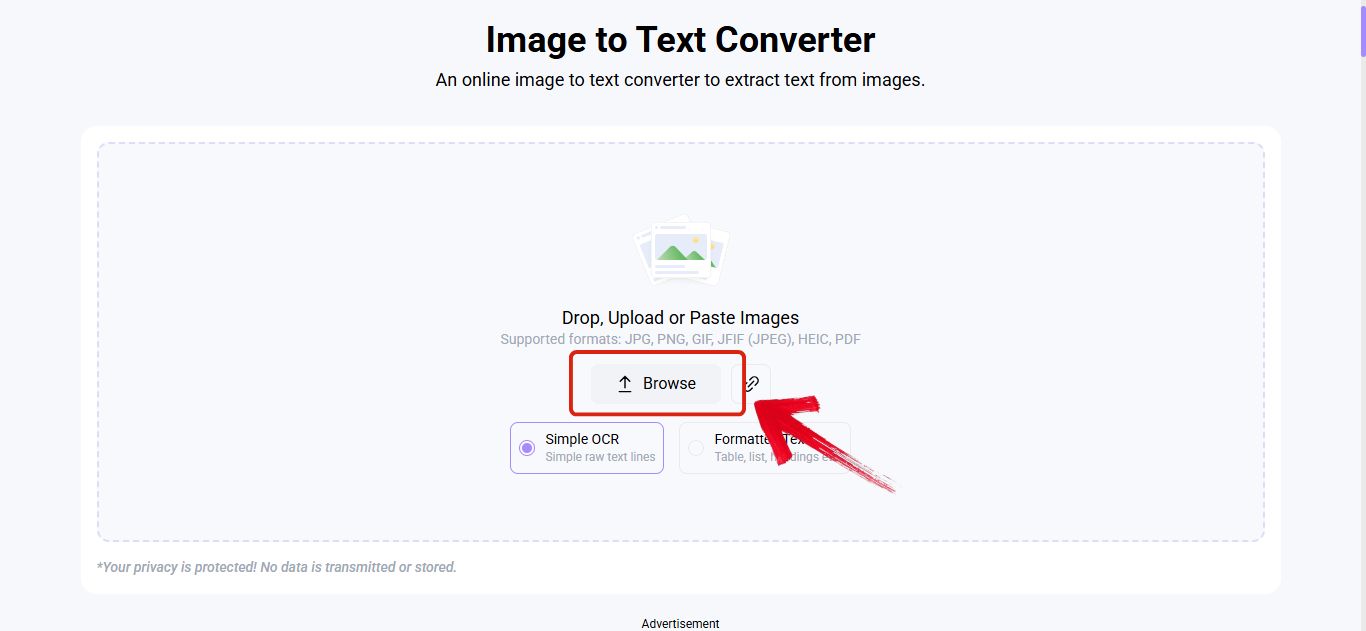
Step 3: Now just hit the "Convert" button that’s on the bottom right.
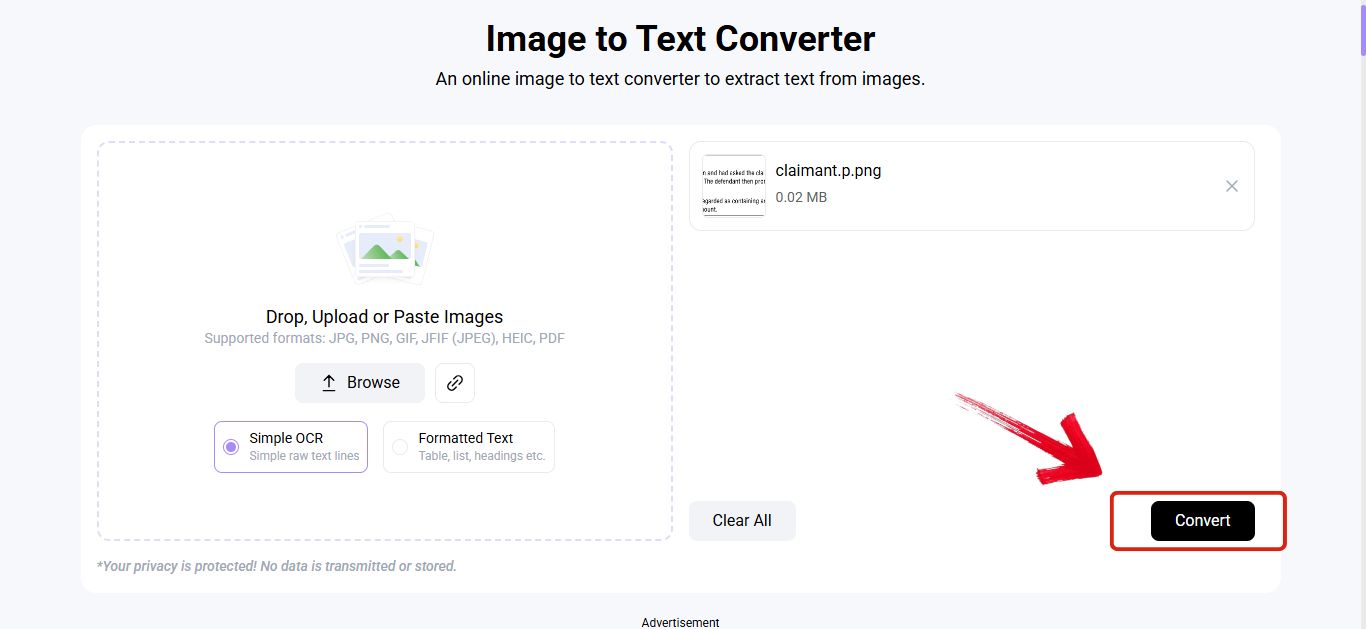
Step 4: Once it’s done you’ll be able to copy the text by clicking the "Copy" symbol on the top right.
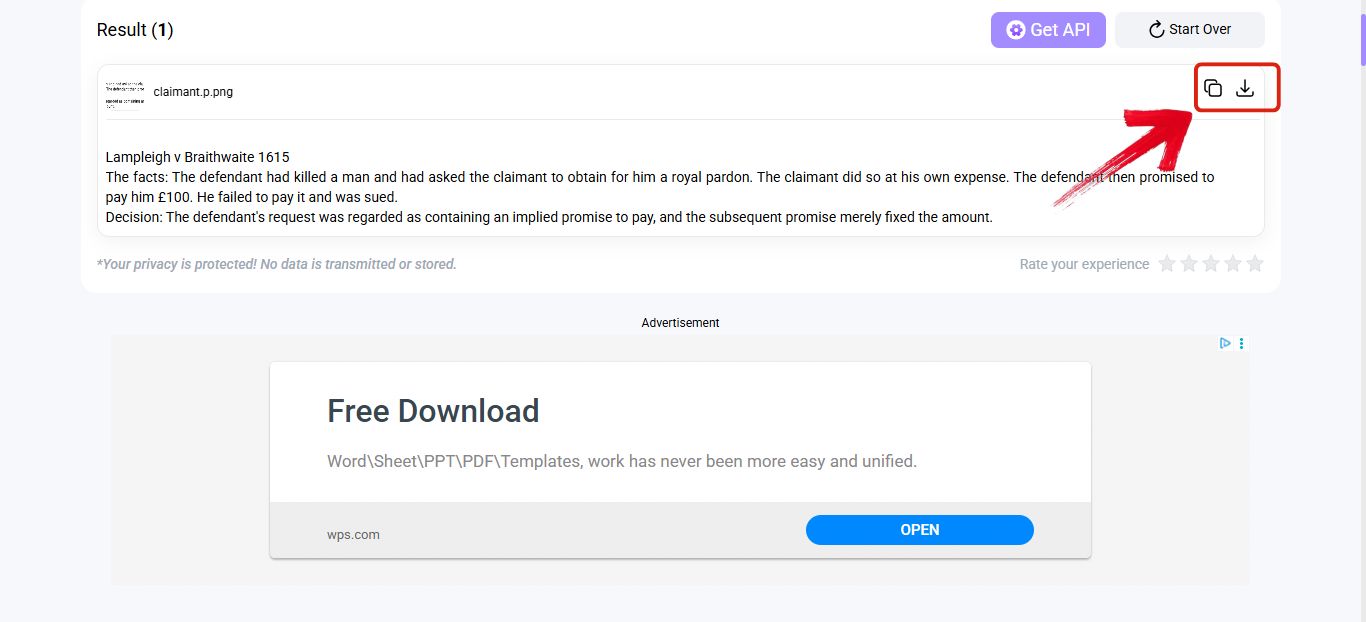
3. Extract Text from Image
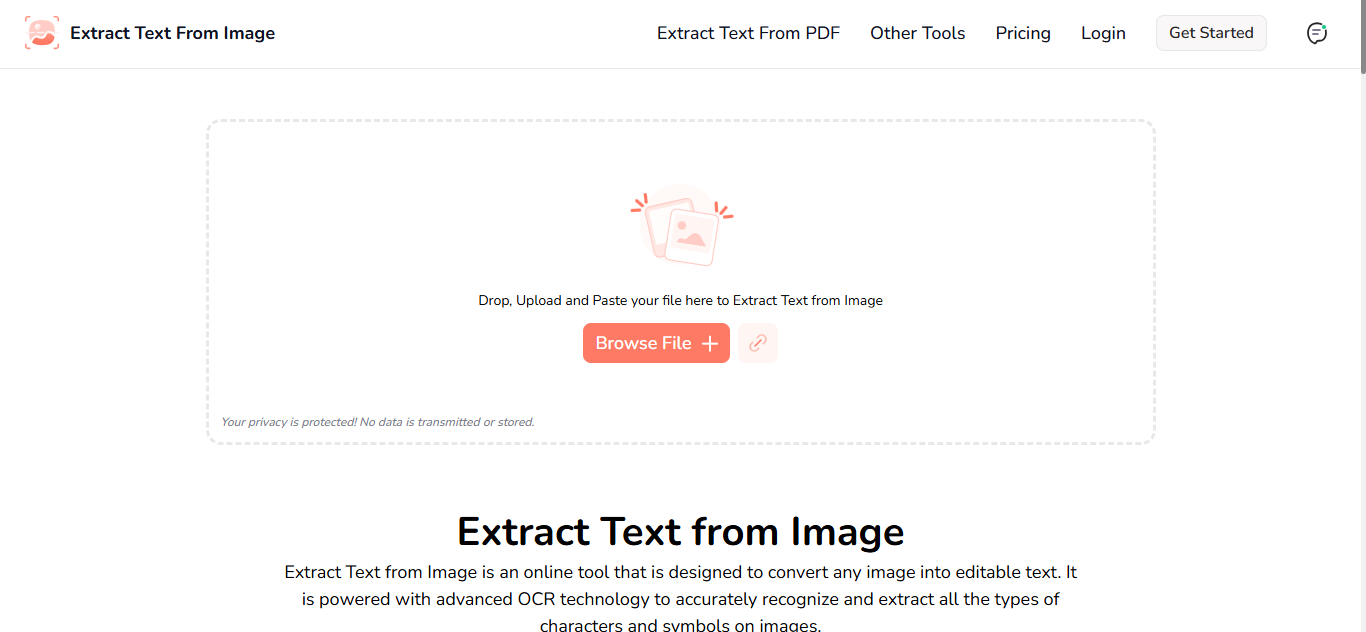
Extract Text From Image gives you a quick, simple online tool for pulling text from pictures. It is designed to give users immediate results right in their web browser. This makes it a great choice for students or anyone who wants a minimalist and quick way to convert an image to text. While it works fast, be aware that you might lose complex formatting, so it is best for simple text layouts.
How to Use Extract Text from Image:
Since this tool is browser based and straightforward, you can pull your text in just a few clicks. It is one of the quickest tools available.
Step 1: Head over to the Extract Text from Image converter.
Step 2: Now drop, upload, or paste your image using the "Upload" option.
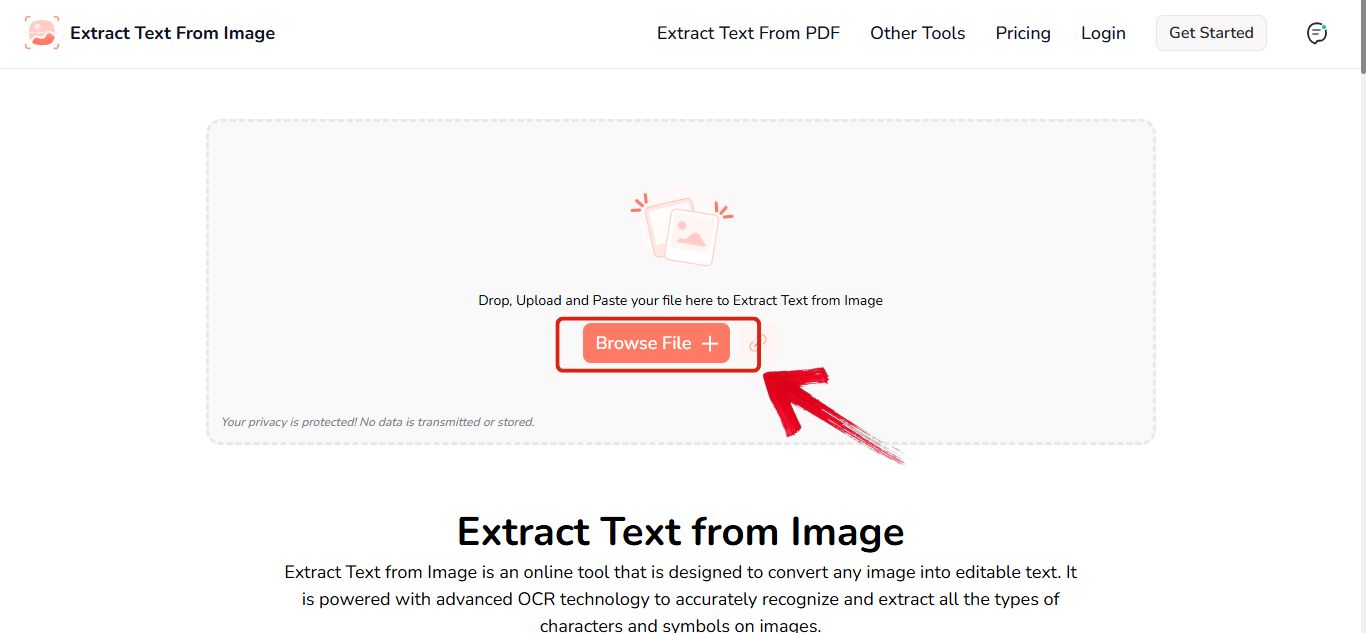
Step 3: Now just hit the "Extract" button that’s on the bottom right.
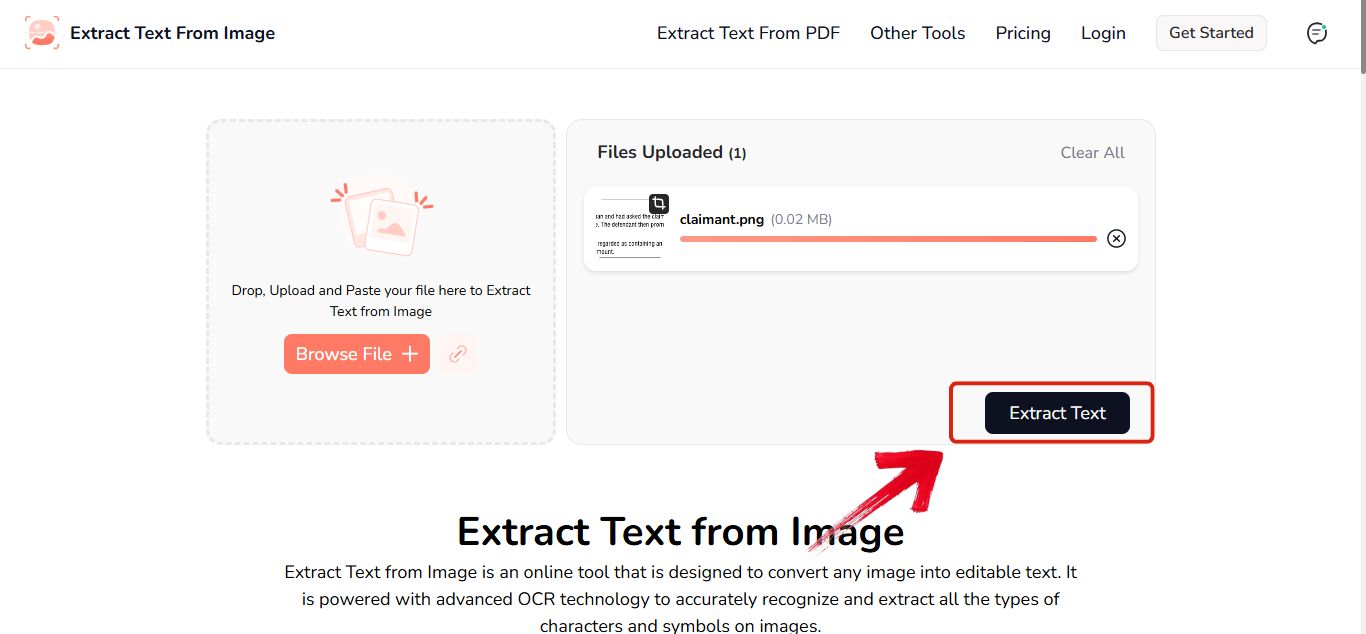
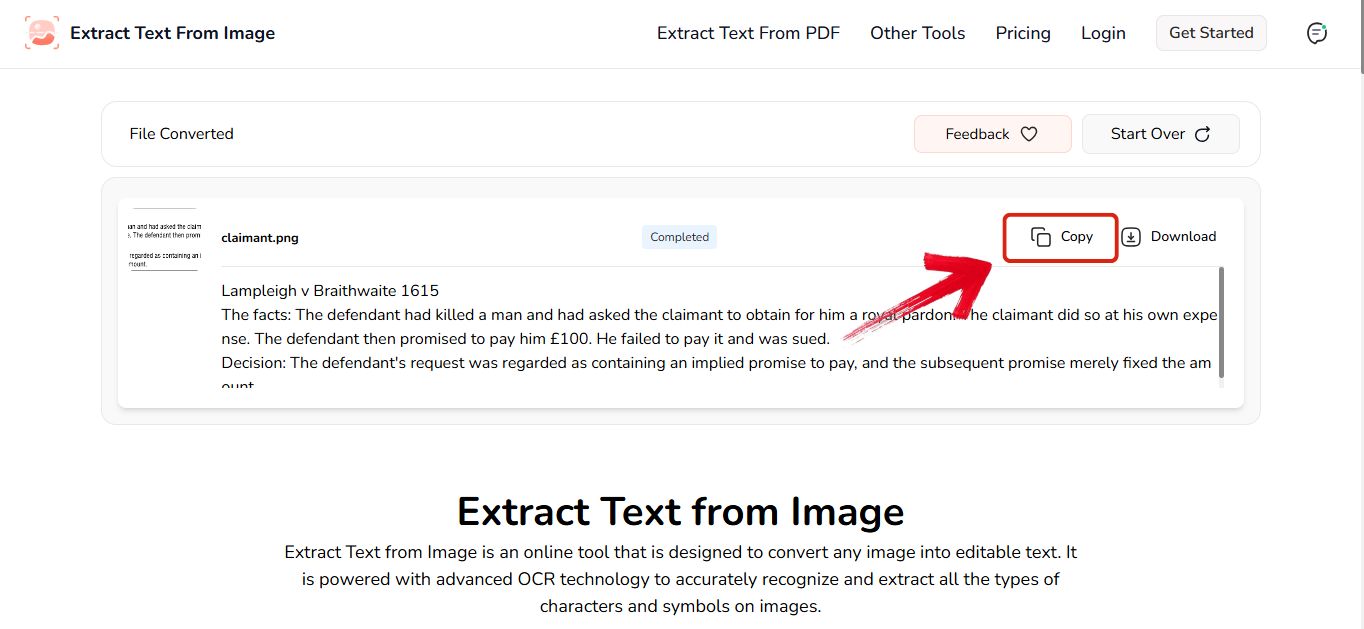
Step 4: Once it’s done you’ll be able to copy the text by clicking the "Copy" symbol on the top right.
4. ImageToText.me
ImageToText.me is the tool you should reach for if your main problem is reading handwritten notes. It is specifically built to focus on giving accurate results for both printed text and handwritten images. This tool is the best option for users who need reliable handwriting recognition without having to download or install any kind of software. The one thing to note is that it can be slightly slower when processing really large image files.
How to Use ImageToText.me:
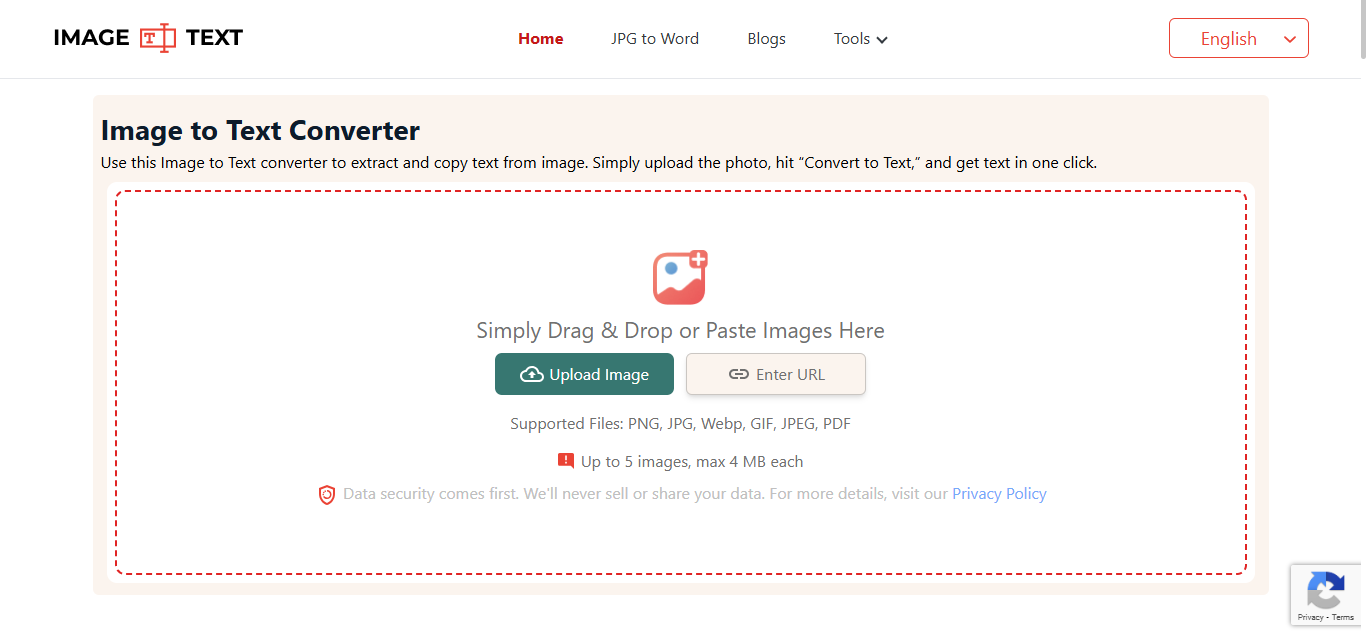
Using this image to text converter free of complicated steps is fast and straightforward, making it easy to turn even your messy notes into editable text. Below are the simple steps that you can follow to get started.
Step 1: Head over to the ImageToText.me converter.
Step 2: Now drop, upload, or paste your image using the "Upload" option.
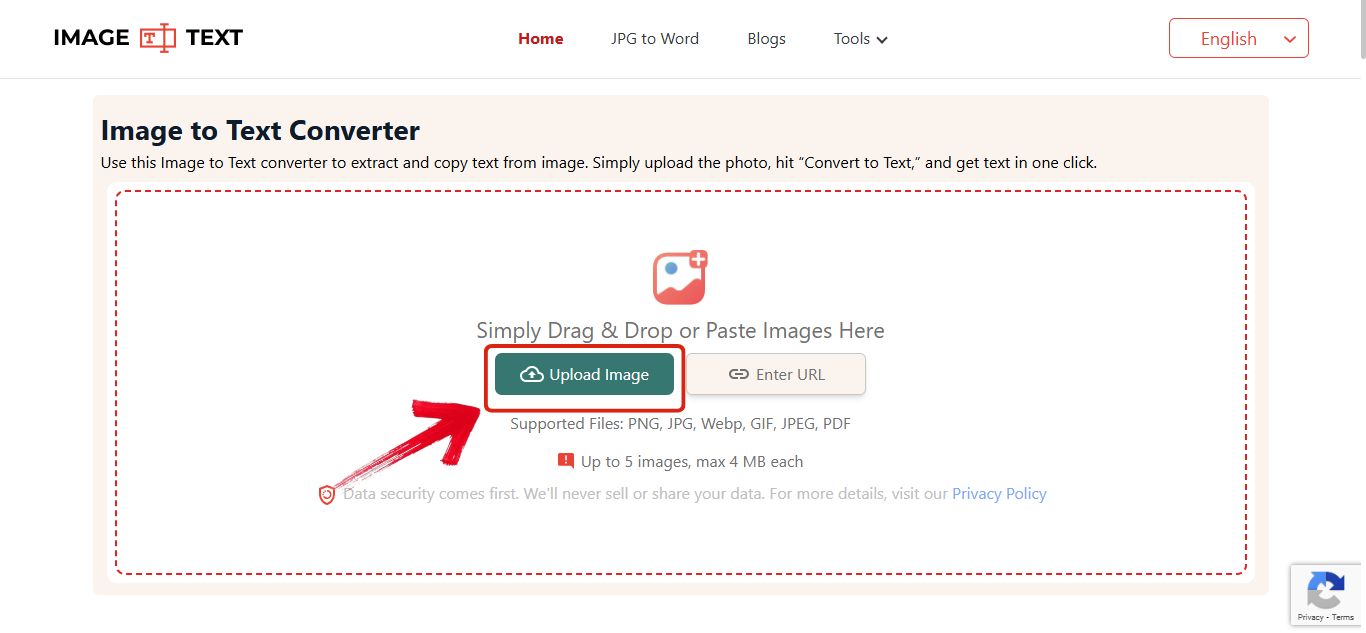
Step 3: Now just hit the "Convert to Text" button that’s on the bottom.
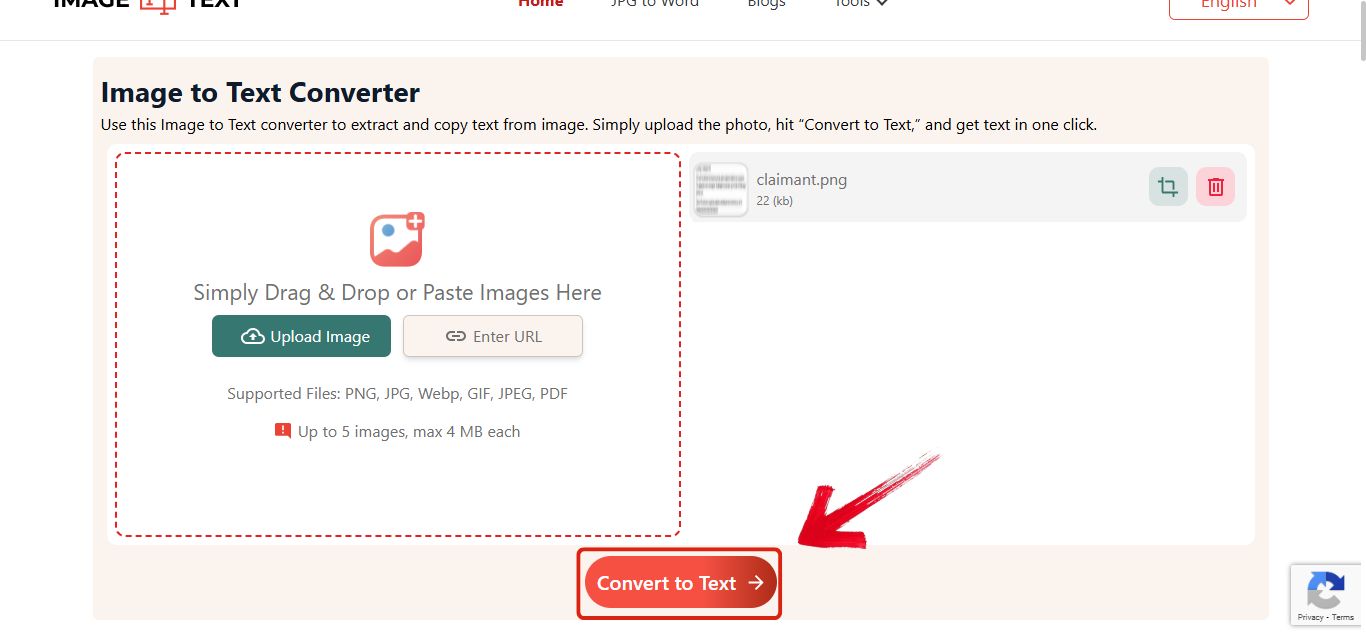
Step 4: Once it’s done you’ll be able to copy the text by clicking the "Copy" symbol on the top right.
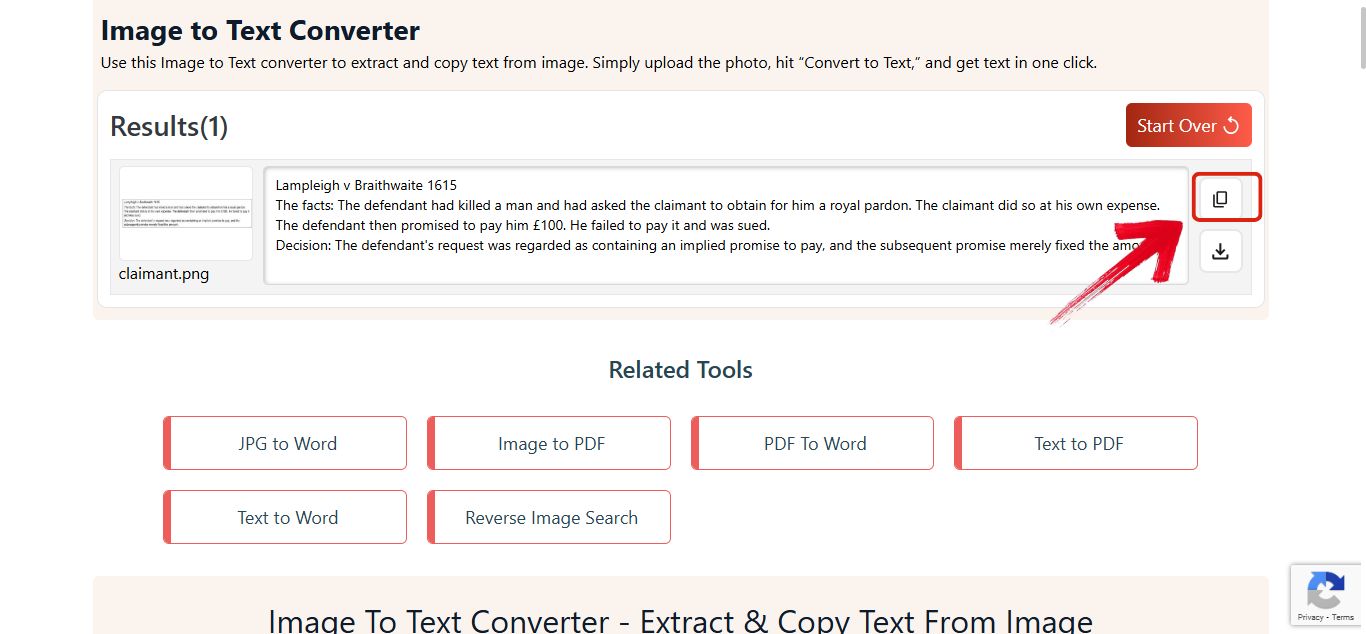
5. Editpad OCR Tool
Editpad’s Extract Text from Image feature is a really convenient online option that helps anyone turn a picture into text they can actually edit. It is ideal for quick editing jobs where you want to copy the extracted text and refine it immediately. This is because the tool has a text editor built right into it. You should keep in mind that this tool may not be great if you need to process a lot of images at once.
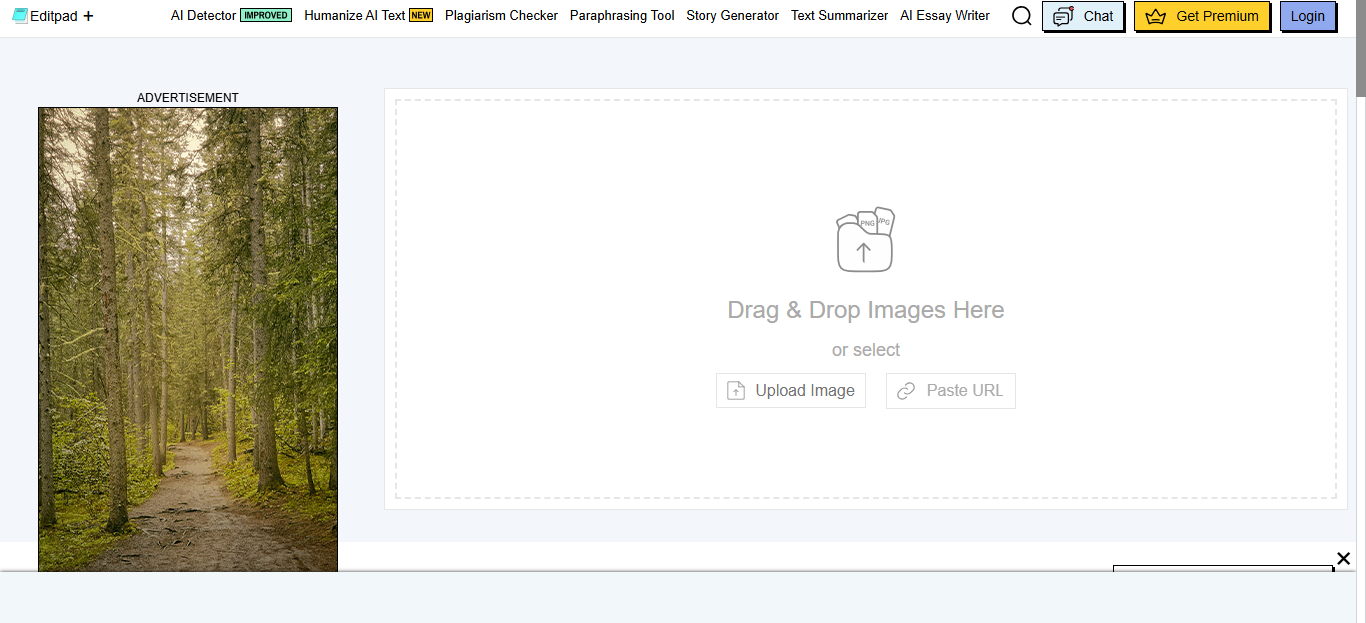
How to Use Editpad OCR Tool:
This tool makes the process easy because it gives you a result you can start editing right on the screen. Follow these steps to pull out your text and clean it up immediately.
Step 1: Head over to the Editpad OCR Tool converter.
Step 2: Now drop, upload, or paste your image using the "Upload" option.
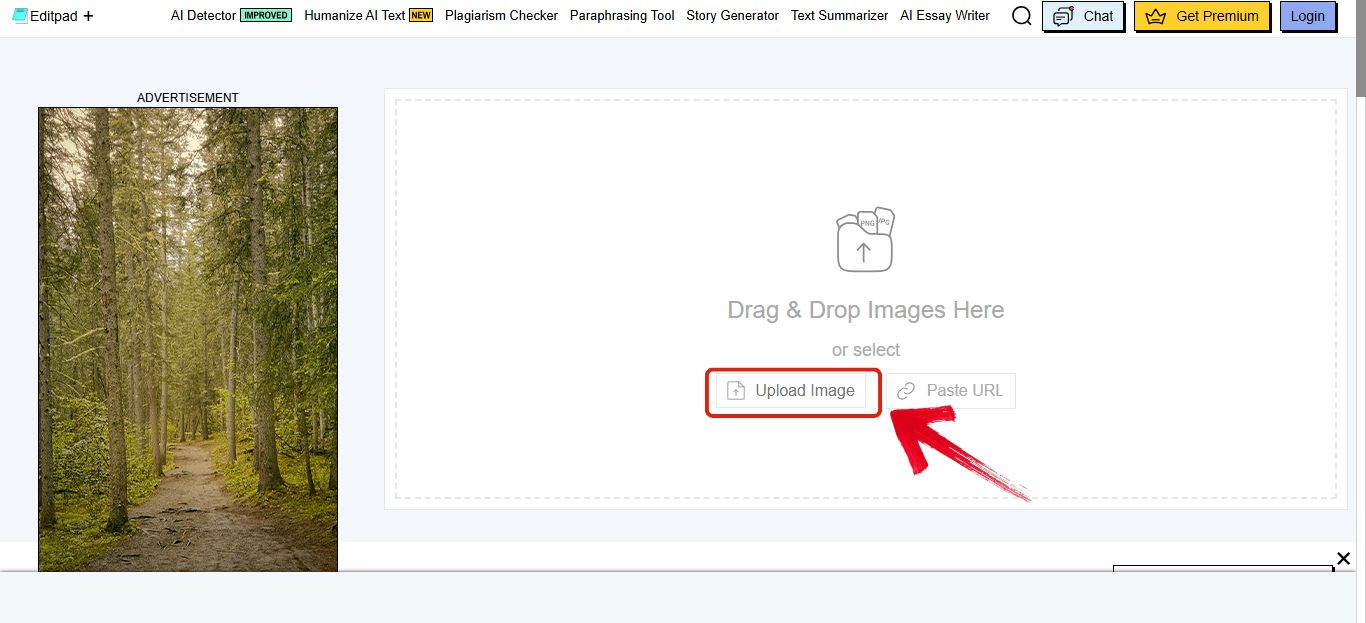
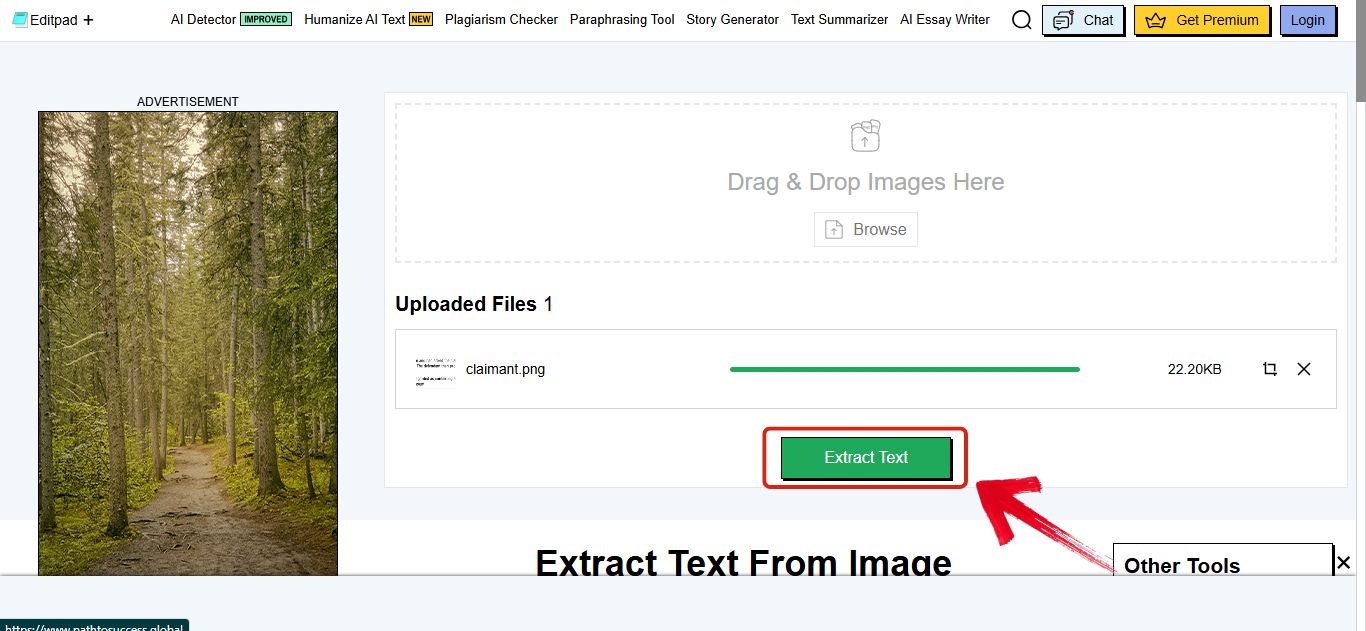
Step 3: Now just hit the "Extract Text" button that’s on the bottom.
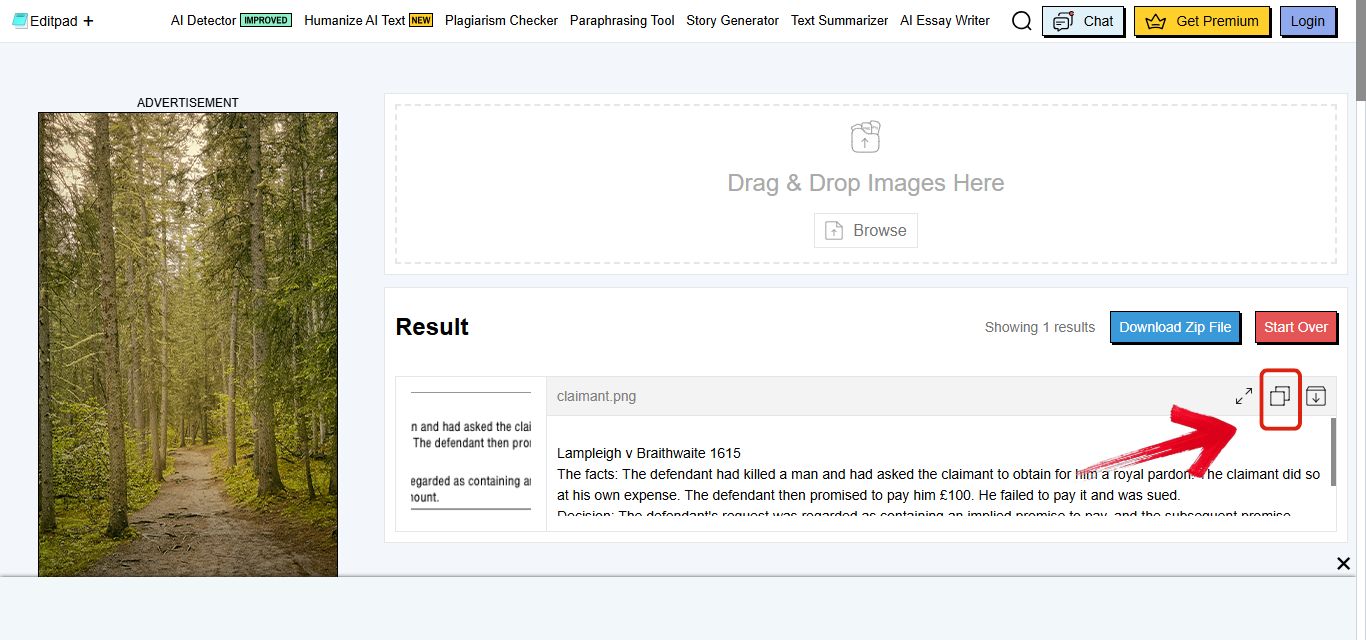
Step 4: Once it’s done you’ll be able to copy the text by clicking the "Copy" symbol on the top right.
Quick Comparison of the Top 5 Tools to Copy Text from Image
This table summarizes the core differences among the top free tools, helping you decide which one best fits your specific needs, emphasizing offline work or handling messy handwriting.
| Feature | WPS PDF Tool | ImageToText.info | ExtractTextFromImage | ImageToText.me | Editpad OCR Tool |
|---|---|---|---|---|---|
| Best For | Professional, offline OCR | Fast, simple text extraction | Basic image OCR | Handwriting and photo OCR | Quick extraction and editing |
| Handwriting OCR | Yes | No | No | Yes | Partial |
| Batch Extraction | Yes | No | No | No | No |
| Free to Use | Yes | Yes | Yes | Yes | Yes |
| Output Quality | Excellent | Good | Good | Good | Good |
| Offline Use | Yes | No | No | No | No |
Each of these tools gets the job done, but your best choice depends entirely on the type of image you have and how much you value reliability. For simple, clear, typed text, ImageToText.info offers speed, but you must be ready to face occasional ads and zero batch support. If you need high accuracy for handwritten notes specifically, ImageToText.me is the winner. Ultimately, if you prioritize secure, high quality results and the option to handle multiple files offline, the WPS PDF Tool is the clear professional choice, even if its advanced features require a paid upgrade.
Best 3 Software to Copy Text from Image
While the free online tools are fantastic for a quick, one time conversion, they often can't handle complex jobs, large files, or work when you lose your Wi Fi connection. That's why professionals and serious students usually rely on dedicated software. These programs install directly onto your computer or phone, giving you better security, more consistent accuracy, and the crucial ability to work offline and handle multiple files at once. I recommend these three applications because they blend high performance text recognition with a clean, easy to use interface.
1. WPS Office — Desktop & Mobile OCR Solution
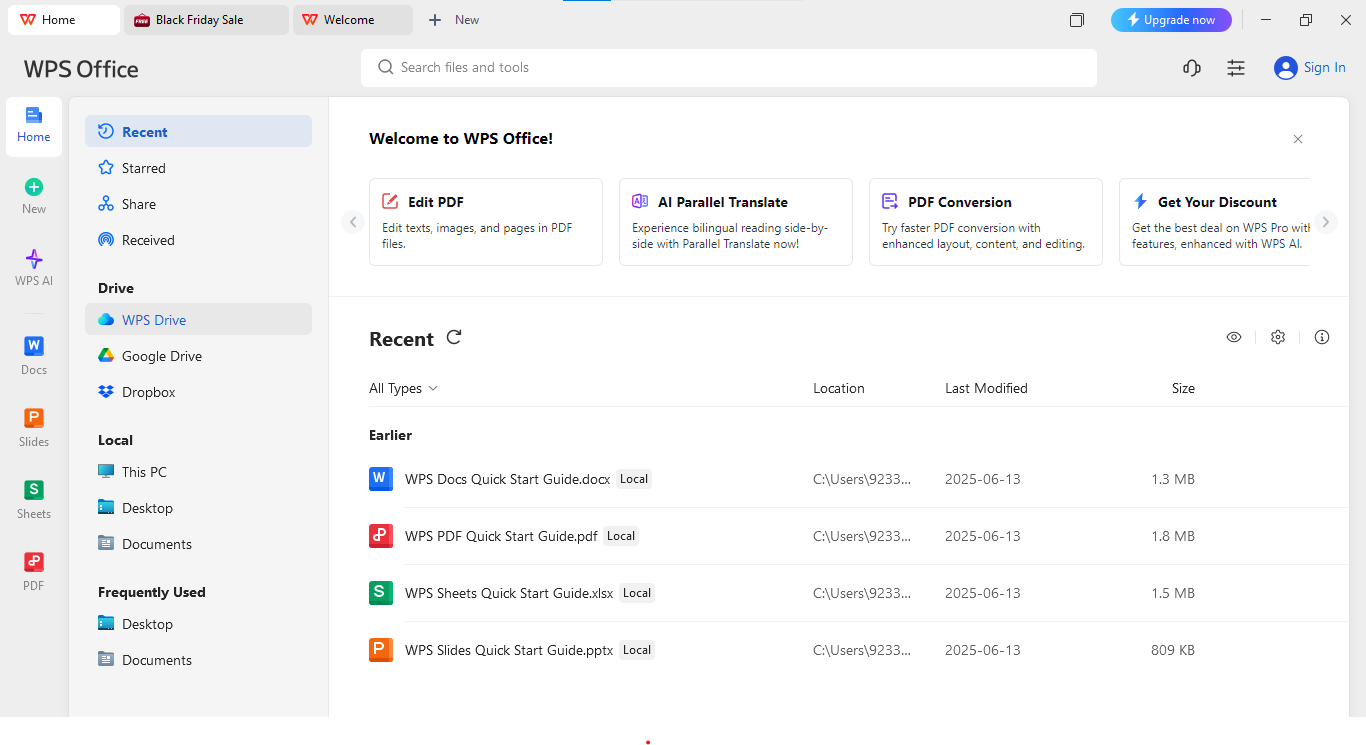
WPS Office offers one of the most efficient ways to pull text from images and documents, whether you are on your desktop or using your mobile phone. Unlike many simple online converters, WPS uses AI enhanced OCR and works consistently across Windows, Mac, Android, and iOS. This cross platform compatibility ensures you get the same high quality results whether you are on your PC or mobile device. The best part is the offline mode, which is fantastic for my privacy and convenience when handling important documents.
How to Use WPS Office:
This software makes the process a direct part of your daily office work. You can capture and convert text directly into your Word or TXT document with these simple steps.
Step 1: First open the file in WPS Office.
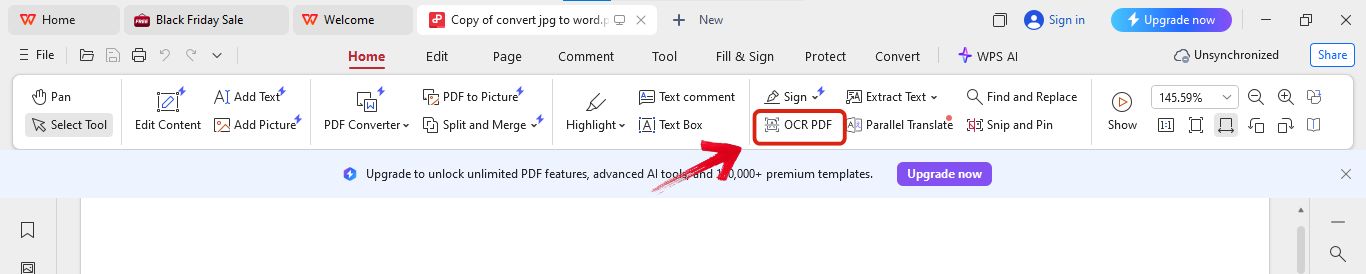
Step 2: Now click on the "OCR PDF" option provided in the menu.
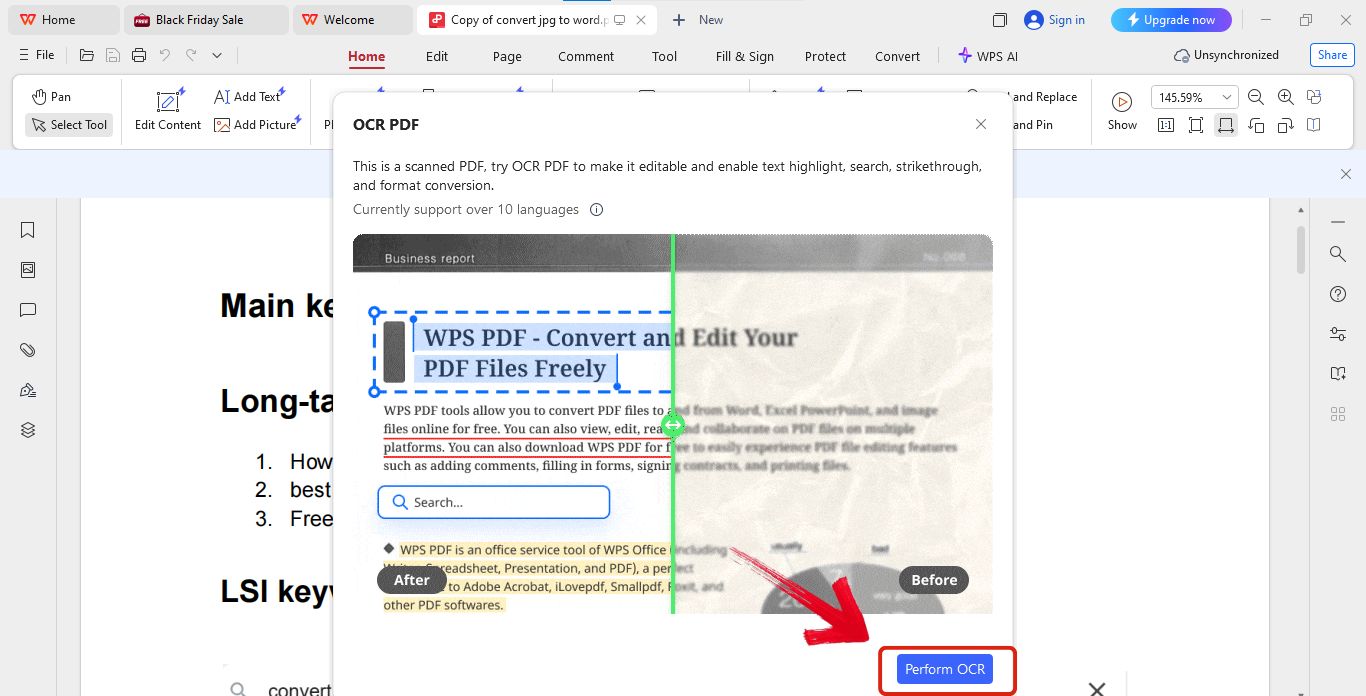
Step 3: After this click "Perform OCR" to start scanning the file.
Step 4: Now you can easily extract text from the file.
2. Adobe Scan
Adobe Scan is a very popular mobile app that is brilliant at automatically recognizing and pulling text from printed documents and images. This tool is best for mobile users who need a simple and reliable scanner tool that is completely integrated with Adobe’s PDF system. It is great because it automatically detects where the text is, making the scanning process very fast. You should note that while the app is free to download, you need a paid subscription to access the full OCR features for editing.
How to Use Adobe Scan:
This app makes converting text as simple as taking a photo. Just point your camera at the document and let the app handle the rest.
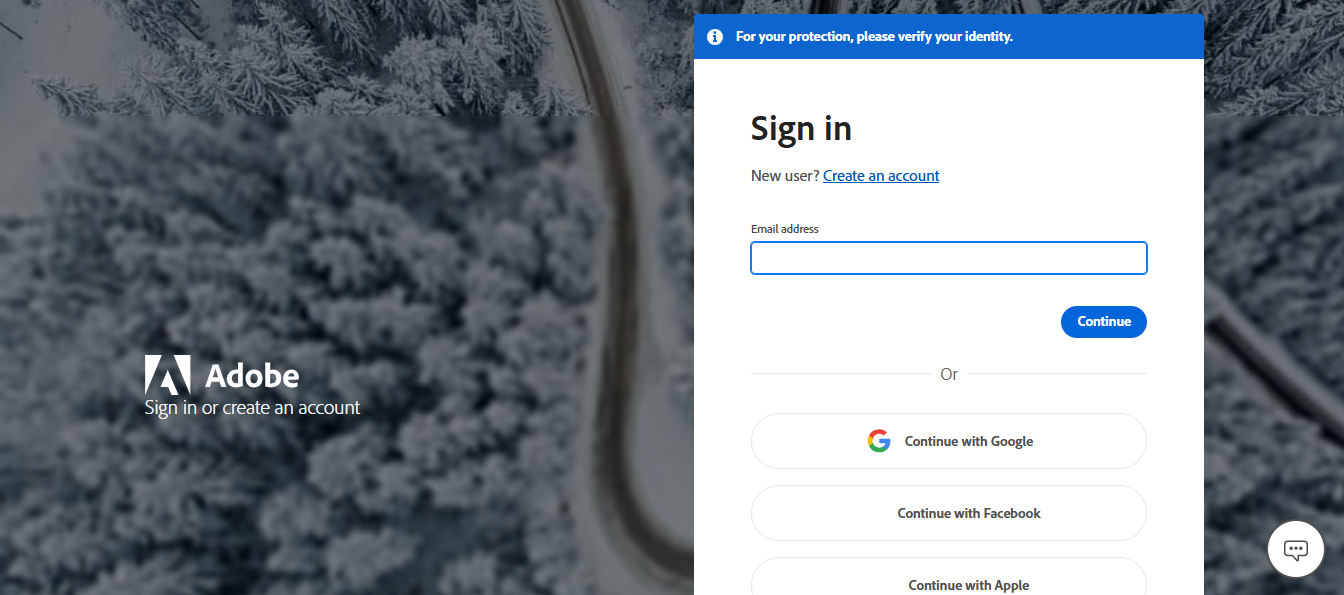
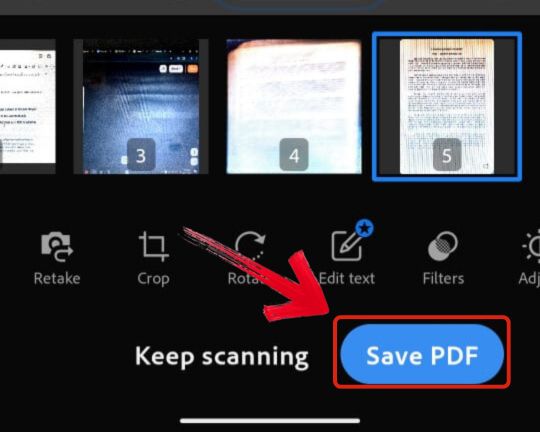
Step 1: Download Adobe Scan on your phone.
Step 2: Now point your camera at the text or upload an image by tapping "Upload".
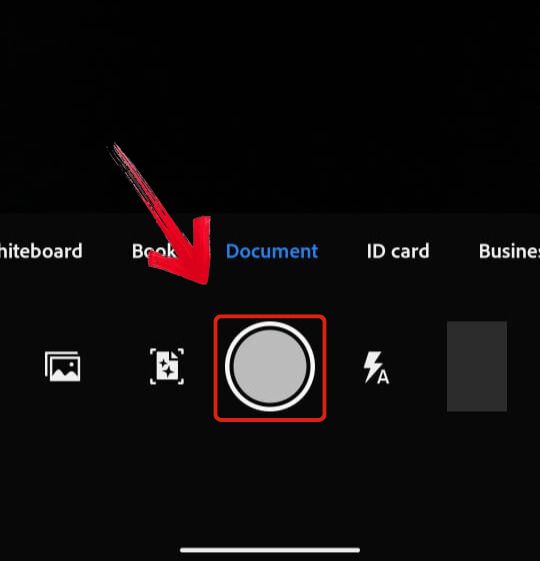
Step 3: The app will scan it automatically once you point the camera.
Step 4: When it’s done you can "Save" or "Export" the text as a PDF or an editable file.
3. Microsoft OneNote
Microsoft OneNote is a great solution because it includes a text recognition function built right into the app. This allows users to copy text directly from any image or photo they paste into their notes. It is ideal for students and office users who take a lot of notes and need quick text extraction without having to open any extra tools. Plus, it is completely free for personal use.
How to Use Microsoft OneNote:
Since the function is built in, extracting text is as simple as right clicking. It’s the fastest way to pull text into your notes.
Step 1: Download "Adobe Scan" on your phone.
Step 2: Now open the app and point your camera at the text or upload an image using "Upload".
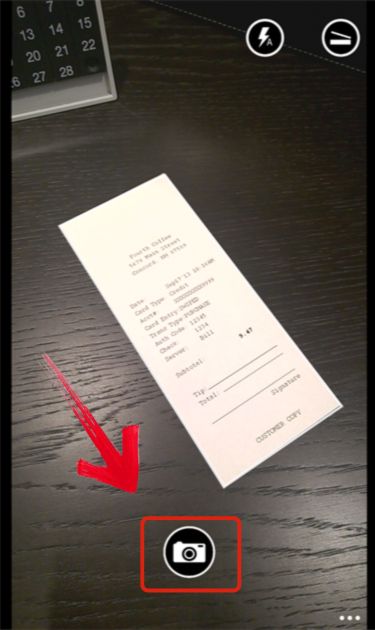
Step 3: Tap "Scan" and the app will automatically scan and pull out the text.
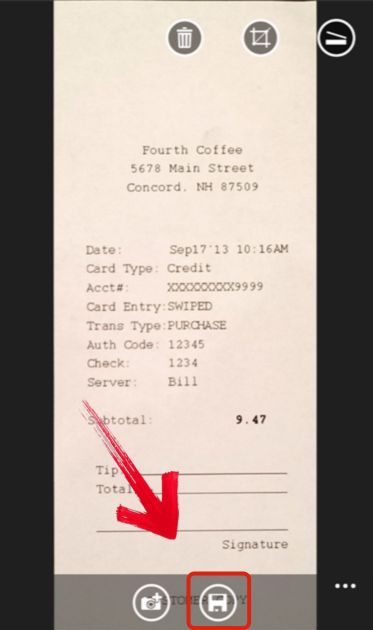
Step 4: Once it’s done you can "Save" or "Export" the text as a PDF or an editable file.
3 Best Software to Copy Text from Image
While those free online tools are great for a fast grab, they often can’t handle the serious, complex jobs. If you need more stability, true offline use, and consistently higher accuracy, you need a dedicated program. This table shows you exactly how the top three professional software options compare.
| Feature | WPS Office | Adobe Scan | Microsoft OneNote |
|---|---|---|---|
| Platform | Windows, macOS, Android, iOS | Android, iOS | Windows, macOS, Mobile |
| Offline Use | Yes | No (Needs account/cloud sync) | Partial |
| Batch OCR | Yes | No (Limited to mobile scanning) | No |
| Mobile App | Yes | Yes | Yes |
| Output Formats | Word, PDF, TXT | PDF, Image | Text (Clipboard) |
| Accuracy | Excellent | Excellent | Good |
Each program offers excellent accuracy, but their purpose is totally different. Adobe Scan is brilliant if you primarily use your phone to quickly grab text from physical paper, but its best editing features are expensive and it does not handle batch jobs well. OneNote is the fastest way to get simple text into your notes, especially since it’s free, but its batch processing is limited and clunky. In my professional view, WPS Office is the most versatile choice, giving you high quality text extraction, true offline use, and the crucial ability to handle multiple files at once on both desktop and mobile.
Why WPS PDF Tool Stands Out?
If you look back at our comparisons, you can clearly see why WPS stands out from the rest. Based on my own experience handling countless professional documents, WPS gives you the most complete set of features in one place.
The WPS PDF Tool offers the most professional experience because it combines high accuracy, the crucial ability to work offline, and the power to process multiple files at once.
Unlike most of the tools we looked at that only work online, the WPS PDF Tool gives you a professional, private, and fast experience. It is incredibly useful for everyday office work, study materials, and processing scanned documents.
FAQs
1. Can I copy text from handwritten images?
Yes. WPS PDF Tool and ImageToText.me support handwriting recognition, allowing you to accurately extract even handwritten notes.
2.Is it safe to upload personal documents for OCR?
Yes, if you use trusted and well-known services. Sites like WPS PDF Tool and Editpad prioritize data safety, but for maximum privacy when handling sensitive files, you should always use WPS PDF Tool’s dedicated offline mode. Processing files locally on your computer prevents them from ever being uploaded to the cloud.
3.How can I copy text from multiple images at once?
Batch processing is essential for efficiency. The WPS PDF Tool is your best option here because its feature set supports batch processing, allowing you to upload and process several images simultaneously. Most purely free online tools do not offer this capability and make you process files one by one.
4. Do these tools keep my original image layout?
Most simple, free online tools only extract plain text, meaning you lose the original structure and formatting. However, WPS PDF Tool is one of the few designed to preserve the layout and formatting when it exports your text to editable formats like Word or PDF. This saves significant time otherwise spent reformatting.
5.What image formats can I use to copy text from?
The most common formats supported by nearly all OCR tools include JPG, PNG, and PDF files, along with BMP. A high quality, high resolution image is critical for ensuring the OCR accuracy is as high as possible when you extract the text.

'%3e%3cpath%20d='M19.9911%204.11386V6.471H18.5894C18.0775%206.471%2017.7322%206.57814%2017.5536%206.79243C17.3751%207.00671%2017.2858%207.32814%2017.2858%207.75671V9.44421H19.9019L19.5536%2012.0871H17.2858V18.8639H14.5536V12.0871H12.2769V9.44421H14.5536V7.49779C14.5536%206.39064%2014.8632%205.53201%2015.4822%204.92189C16.1013%204.31177%2016.9257%204.00671%2017.9554%204.00671C18.8304%204.00671%2019.509%204.04243%2019.9911%204.11386Z'%20fill='%23333333'/%3e%3c/g%3e%3cdefs%3e%3cclipPath%20id='clip0_2938_8199'%3e%3crect%20width='16'%20height='16'%20fill='white'%20transform='translate(8%204.00671)'/%3e%3c/clipPath%3e%3c/defs%3e%3c/svg%3e)
'%3e%3cpath%20d='M17.5237%2010.7813L23.4811%204H22.0699L16.8949%209.88693L12.7648%204H8L14.2469%2012.9029L8%2020.0133H9.4112L14.8725%2013.7952L19.2352%2020.0133H24M9.92053%205.04213H12.0885L22.0688%2019.0224H19.9003'%20fill='%23333333'/%3e%3c/g%3e%3cdefs%3e%3cclipPath%20id='clip0_2938_8200'%3e%3crect%20width='16'%20height='16.0134'%20fill='white'%20transform='translate(8%204)'/%3e%3c/clipPath%3e%3c/defs%3e%3c/svg%3e)


